Integrate Slack with Alibaba Cloud Enterprise Support to communicate with your TAM, receive ticket notifications, and track service progress directly in your workspace.
1. Overview
Once configured, users in your organization can:
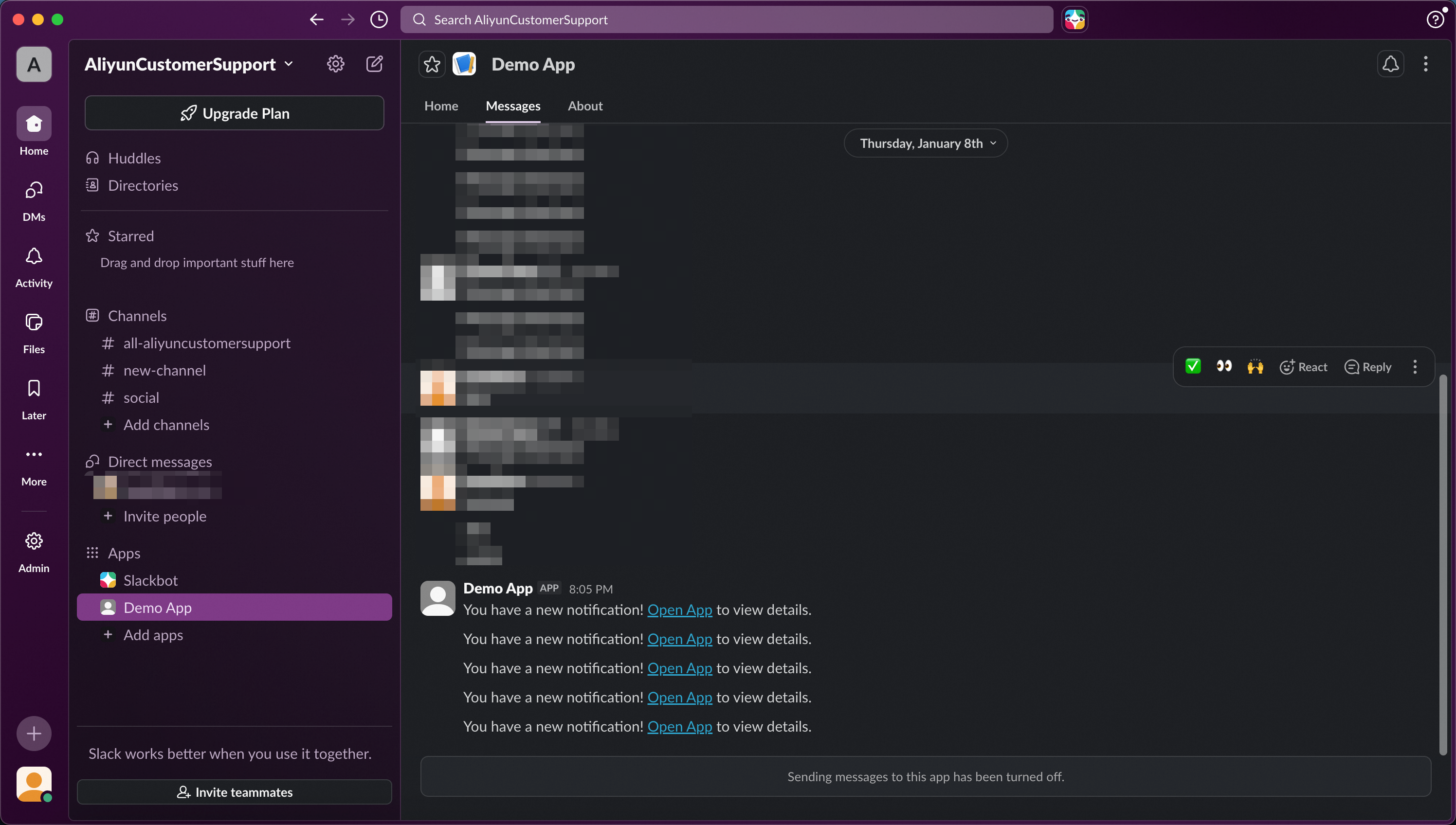
Access the Alibaba Cloud Enterprise Service app in Slack and navigate to the service portal
Communicate with your TAM in real time, receive ticket notifications, and track service progress
Receive automatic Slack bot reminders when new messages appear in group chats
2. Prerequisites
You have administrator privileges for the Slack Workspace.
Your Alibaba Cloud primary account has purchased the Enterprise Support Plan.
Primary accounts, RAM accounts, and RAM roles can all activate this integration.
3. Procedure
The integration has 3 phases and 7 steps:
Phase | Steps | Description |
Phase 1: Create Slack App | Steps 1 ~ 2 | Create an app on the Slack platform |
Phase 2: Submit Credentials to Alibaba Cloud | Steps 3 ~ 5 | Copy app credentials and submit to Alibaba Cloud |
Phase 3: Complete Integration Configuration | Steps 6 ~ 7 | After Alibaba Cloud verification, update callback URLs in the app |
Phase 1: Create Slack App
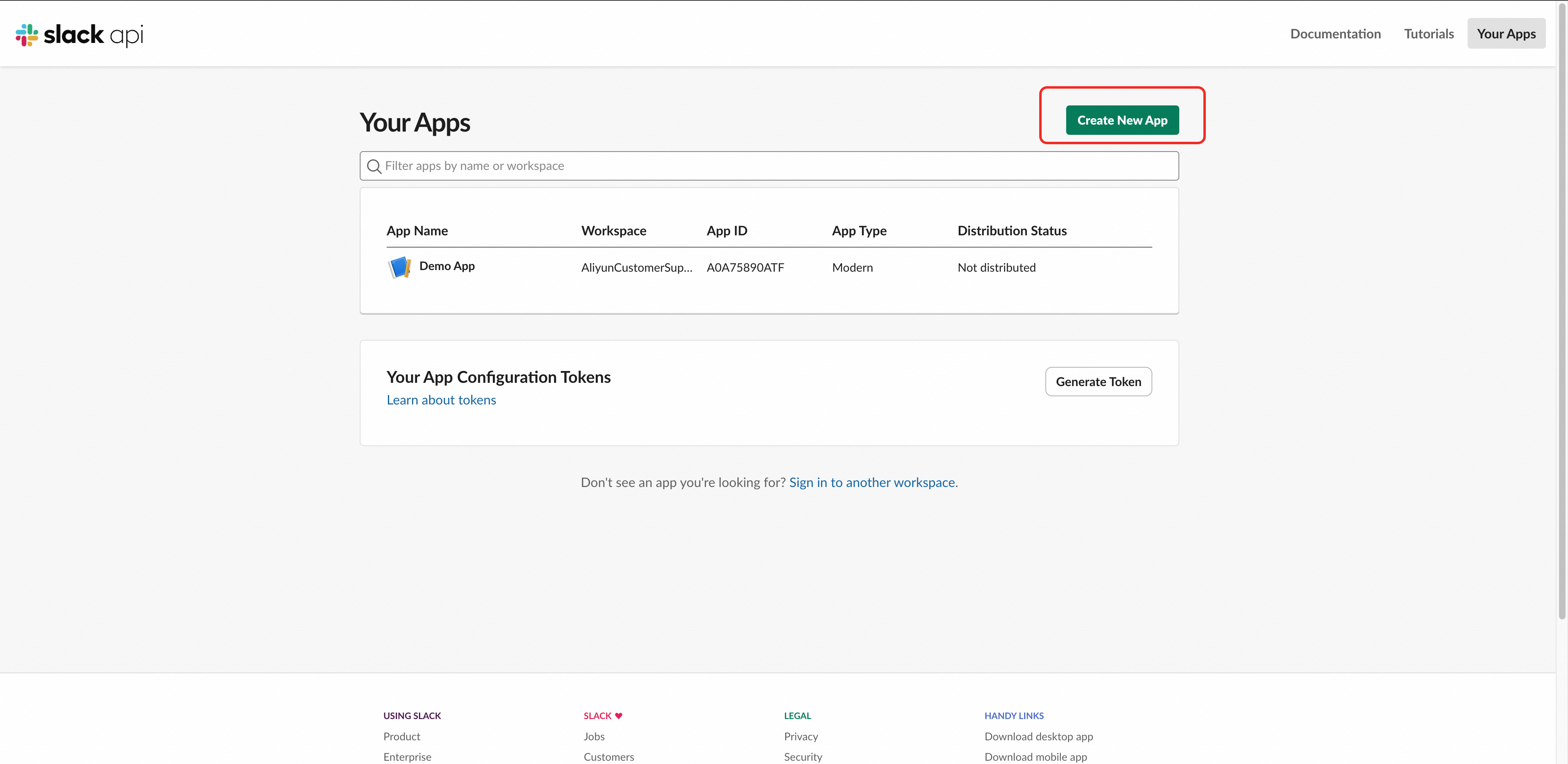
Step 1: Access Slack App Management Page
Sign in with your Slack workspace admin account
Click "Create New App" in the top-right corner
Step 2: Create App from Manifest
Select "From a manifest"
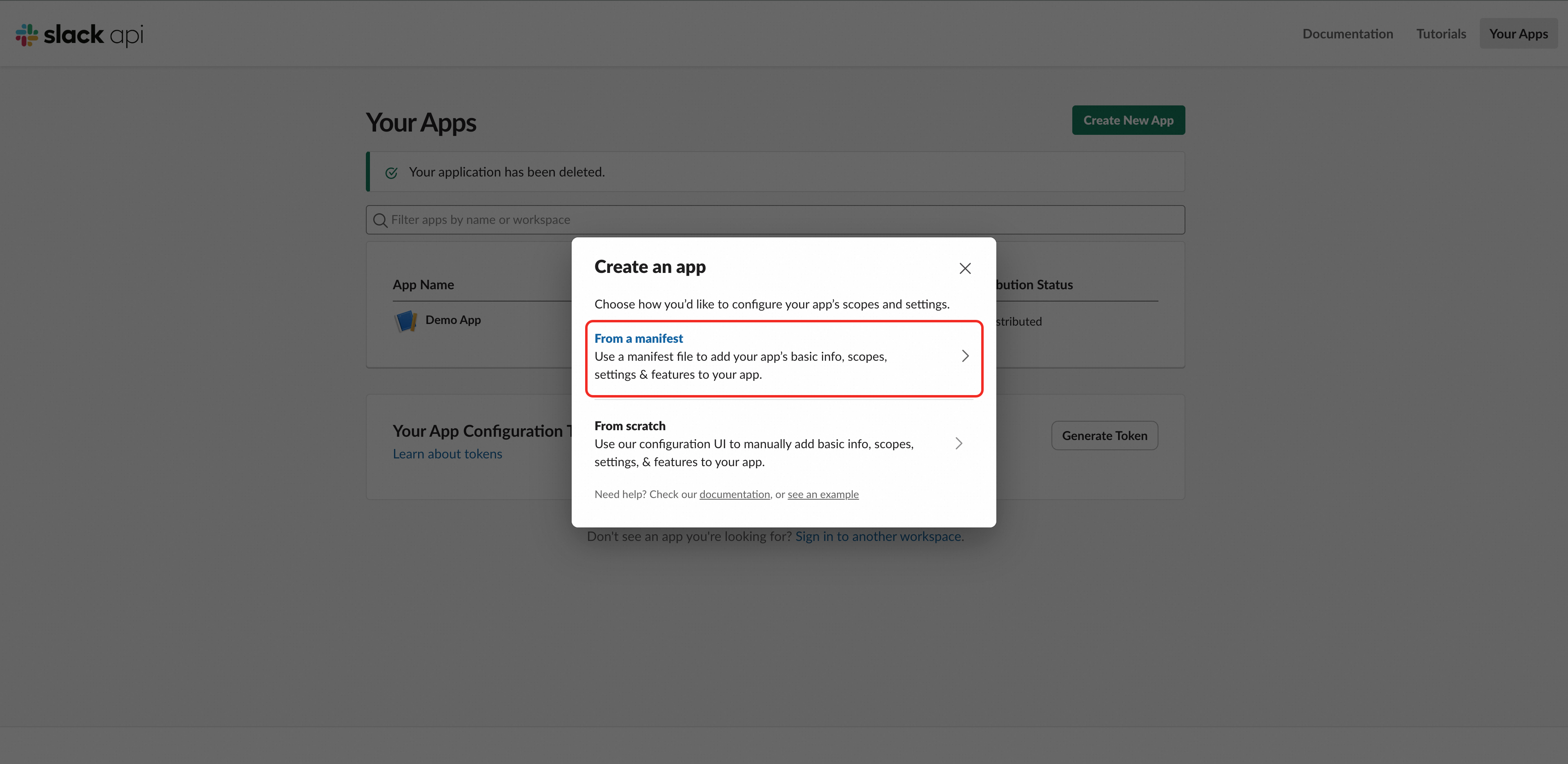
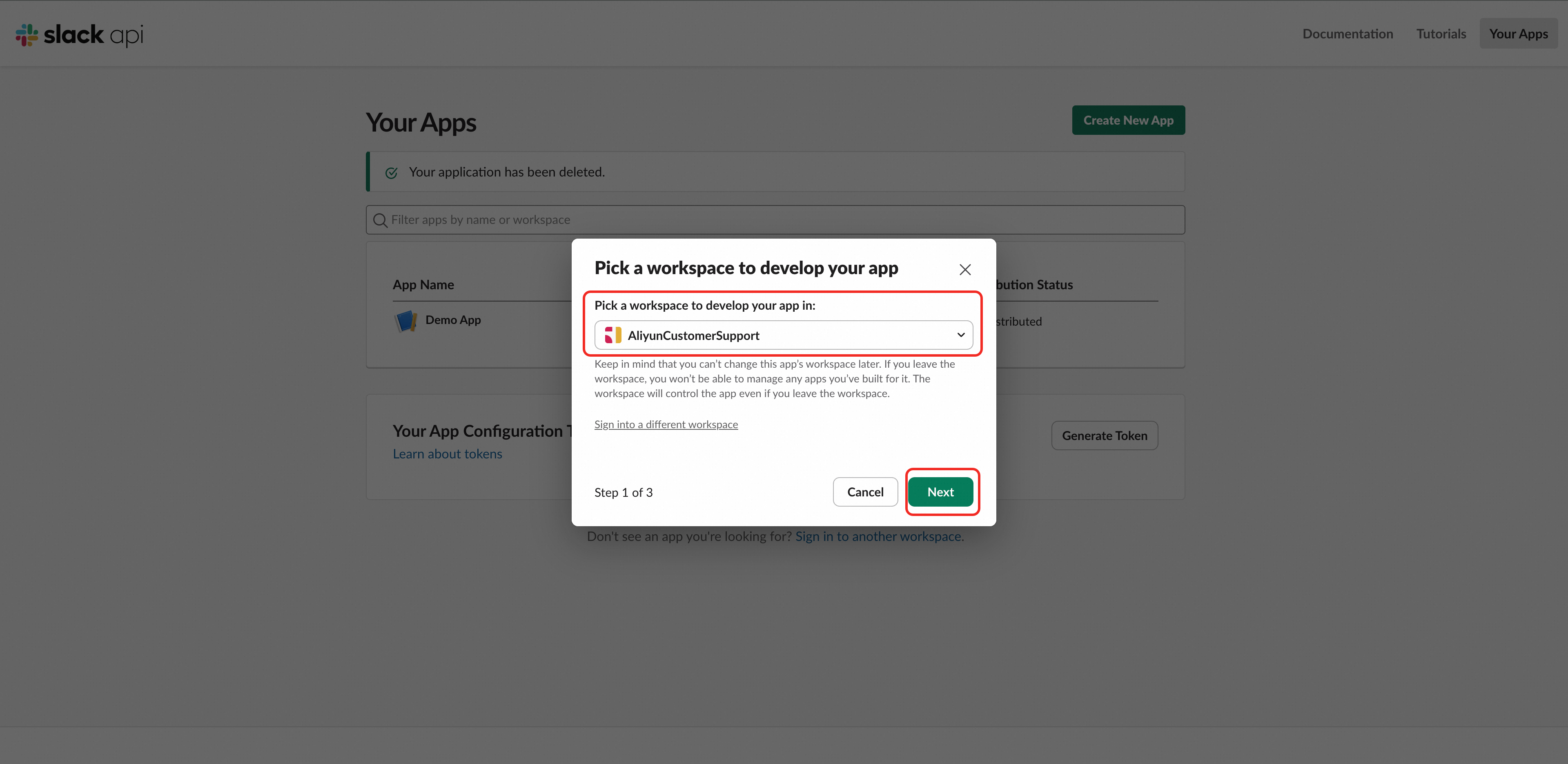
Select your workspace and click "Next"
Select JSON format and paste the following manifest:
{
    "display_information": {
        "name": "Alibaba Cloud Enterprise Support",
        "description": "Alibaba Cloud Enterprise Support",
        "background_color": "#f72f02",
        "long_description": "Alibaba Cloud Enterprise Support Long description if written, it has to be more than 175 characters. \r\n Long description if written, it has to be more than 175 characters. \r\n Long description if written, it has to be more than 175 characters. \r\n Long description if written, it has to be more than 175 characters."
    },
    "features": {
        "app_home": {
            "home_tab_enabled": true,
            "messages_tab_enabled": true,
            "messages_tab_read_only_enabled": true
        },
        "bot_user": {
            "display_name": "Alibaba Cloud Enterprise Support",
            "always_online": false
        }
    },
    "oauth_config": {
        "redirect_urls": [
            "https://ailink.gts.work/thirdparty/slack/A0A75890ATF/oauth2/callback"
        ],
        "scopes": {
            "user": [
                "identity.basic",
                "identity.team"
            ],
            "bot": [
                "chat:write",
                "users:read",
                "im:write",
                "im:history"
            ]
        }
    },
    "settings": {
        "event_subscriptions": {
            "request_url": "https://ailink.gts.work/thirdparty/slack/A0A75890ATF/events",
            "bot_events": [
                "app_home_opened",
                "message.im"
            ]
        },
        "org_deploy_enabled": false,
        "socket_mode_enabled": false,
        "token_rotation_enabled": false
    }
}
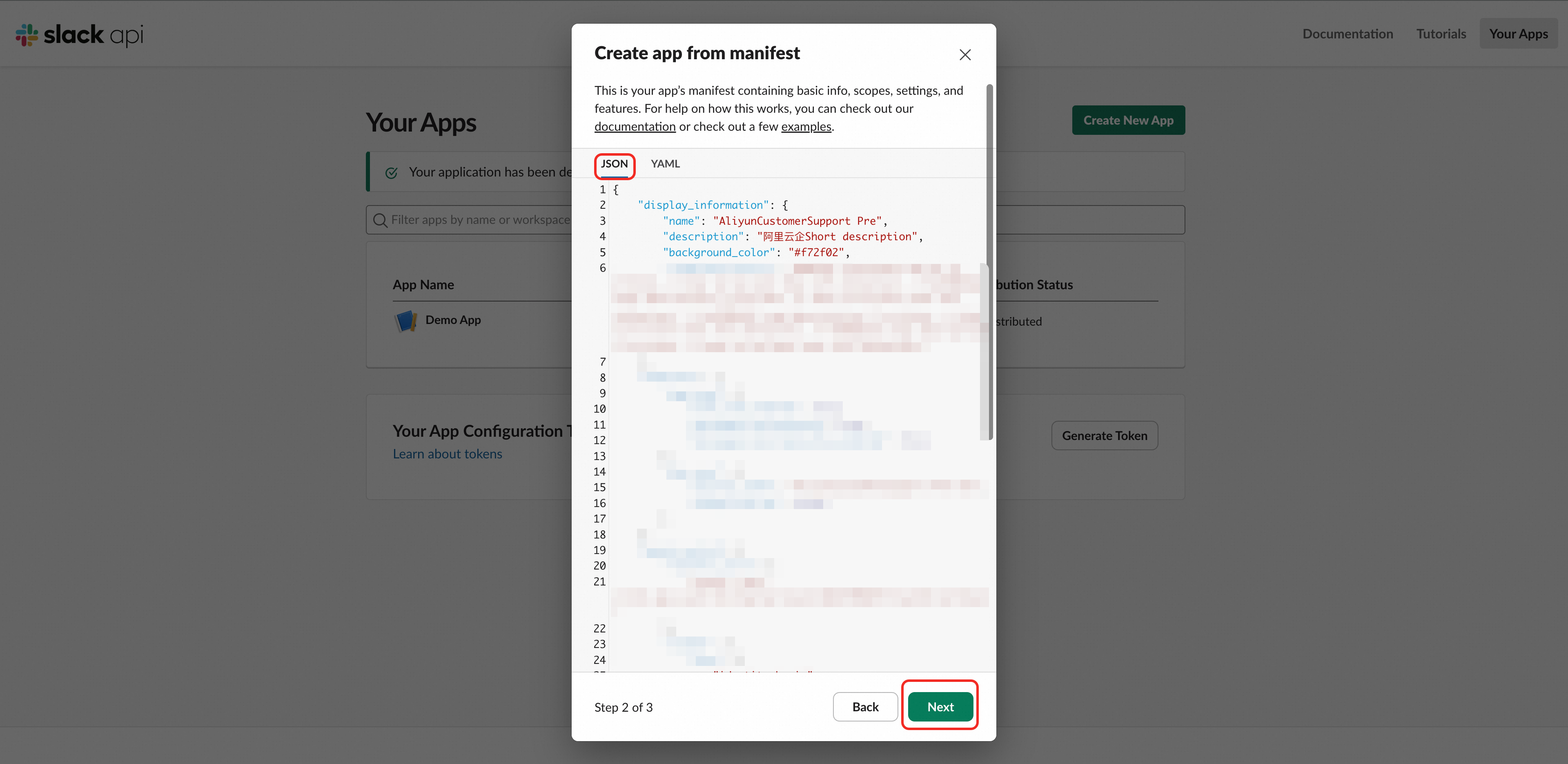
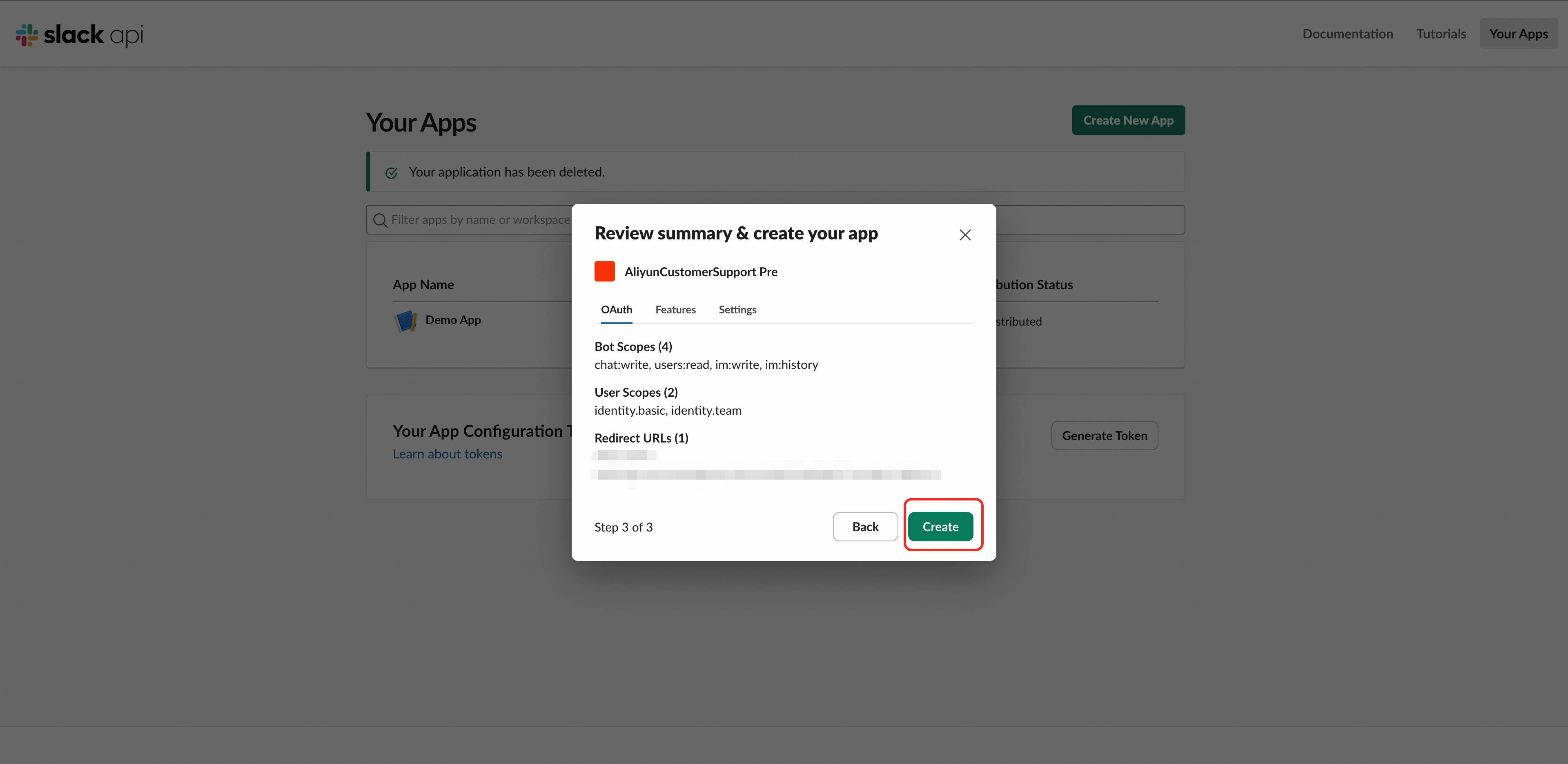
Click "Next" to preview
Confirm the information and click "Create"
Phase 2: Submit Credentials to Alibaba Cloud
Step 3: Copy App Credentials
The page redirects to "Basic Information" after creation.
Scroll to the "App Credentials" section
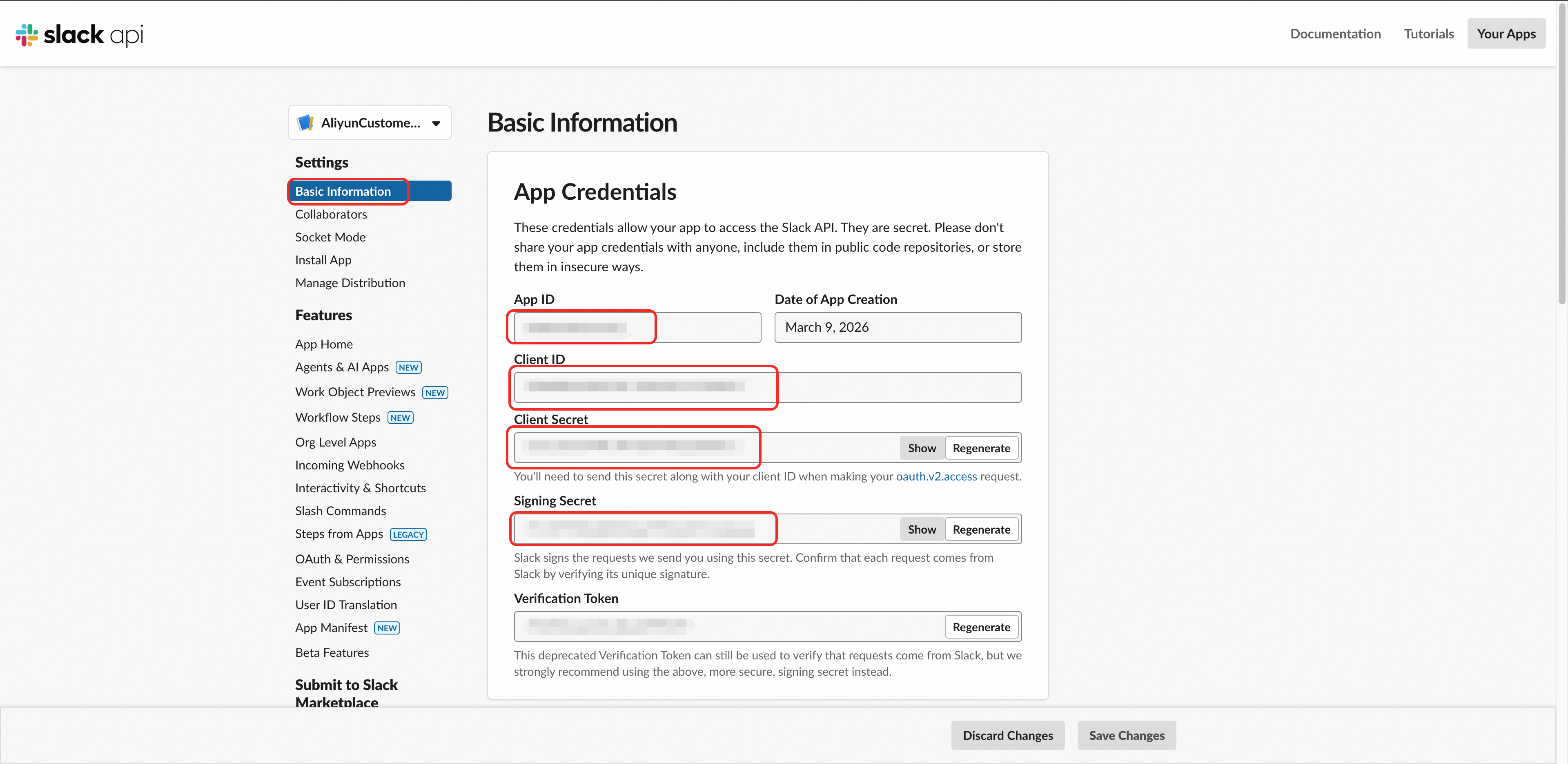
Copy these 4 credentials for use in later steps:
Credential Name | Format Example | Purpose |
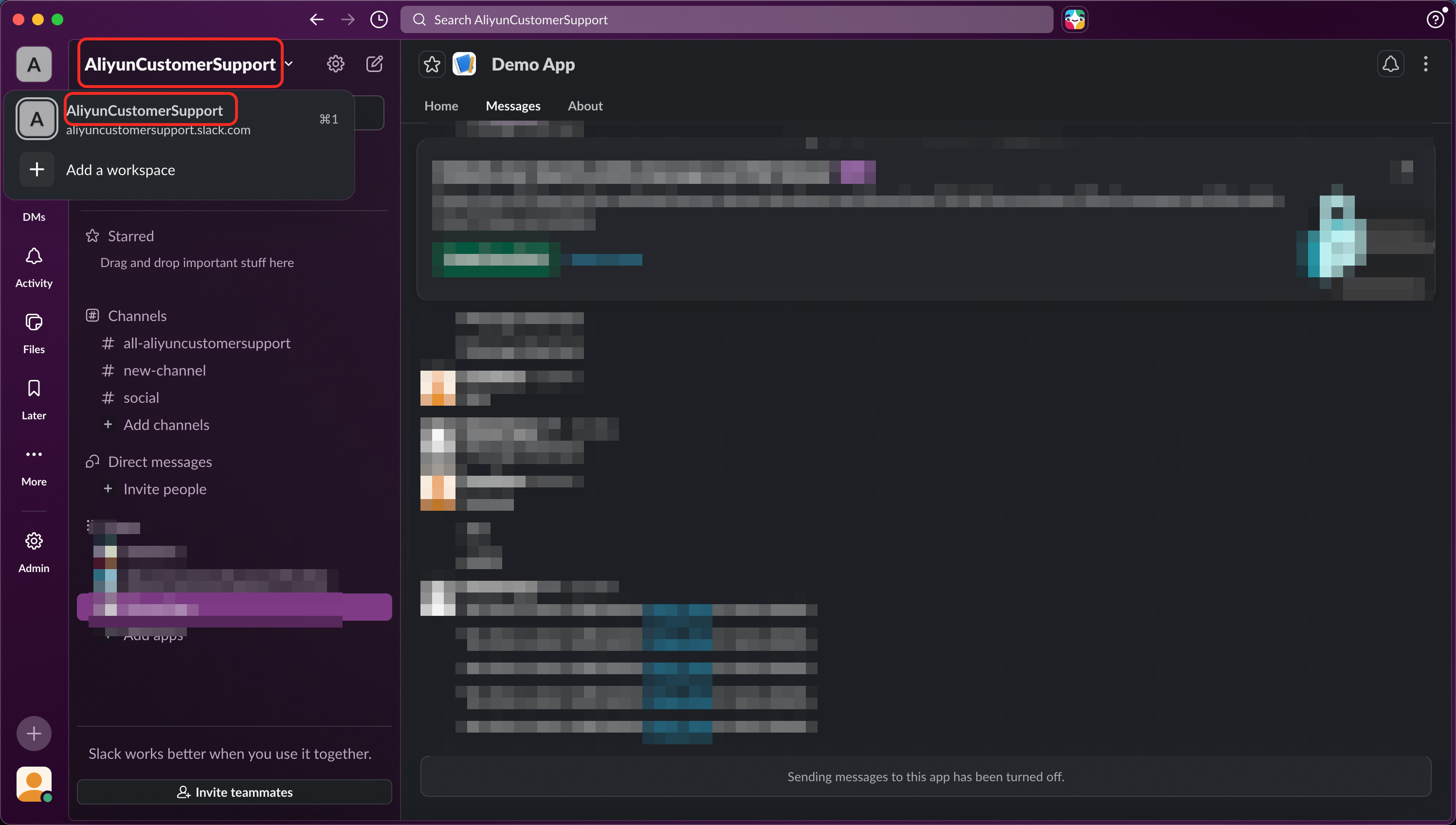
Workspace Name | XXXXX | Organization Name |
App ID | A0XXXXXXXXX | Unique application identifier |
Client ID | XXXXXXXXXX.XXXXXXXXXX | OAuth login |
Client Secret | xxxxxxxxxxxxxxxxxxxxxxxxxxxxxxxx | OAuth token exchange (please keep secure) |
Signing Secret | xxxxxxxxxxxxxxxxxxxxxxxxxxxxxxxx | Webhook signature verification (please keep secure) |
Step 4: Obtain Bot Token
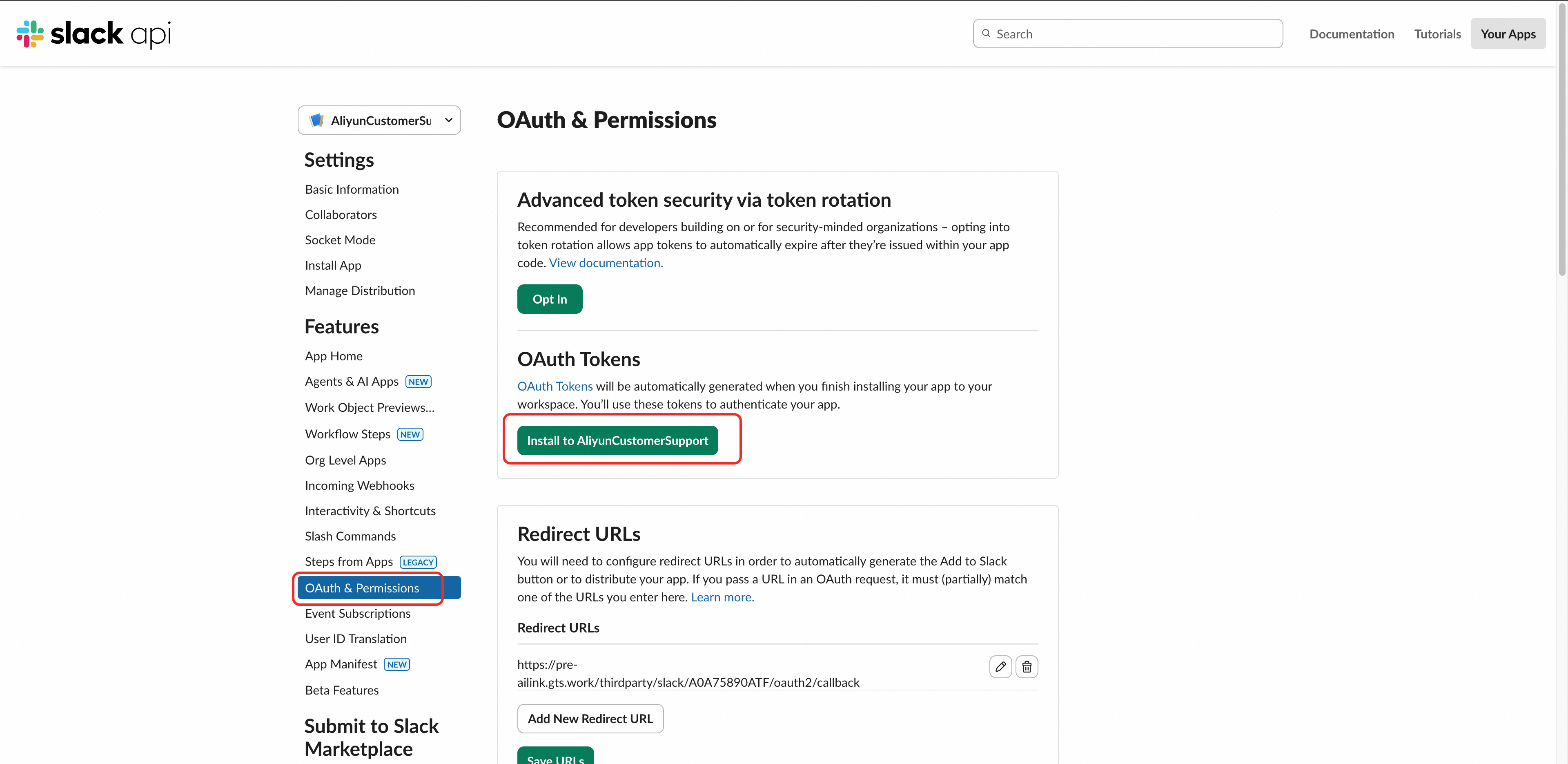
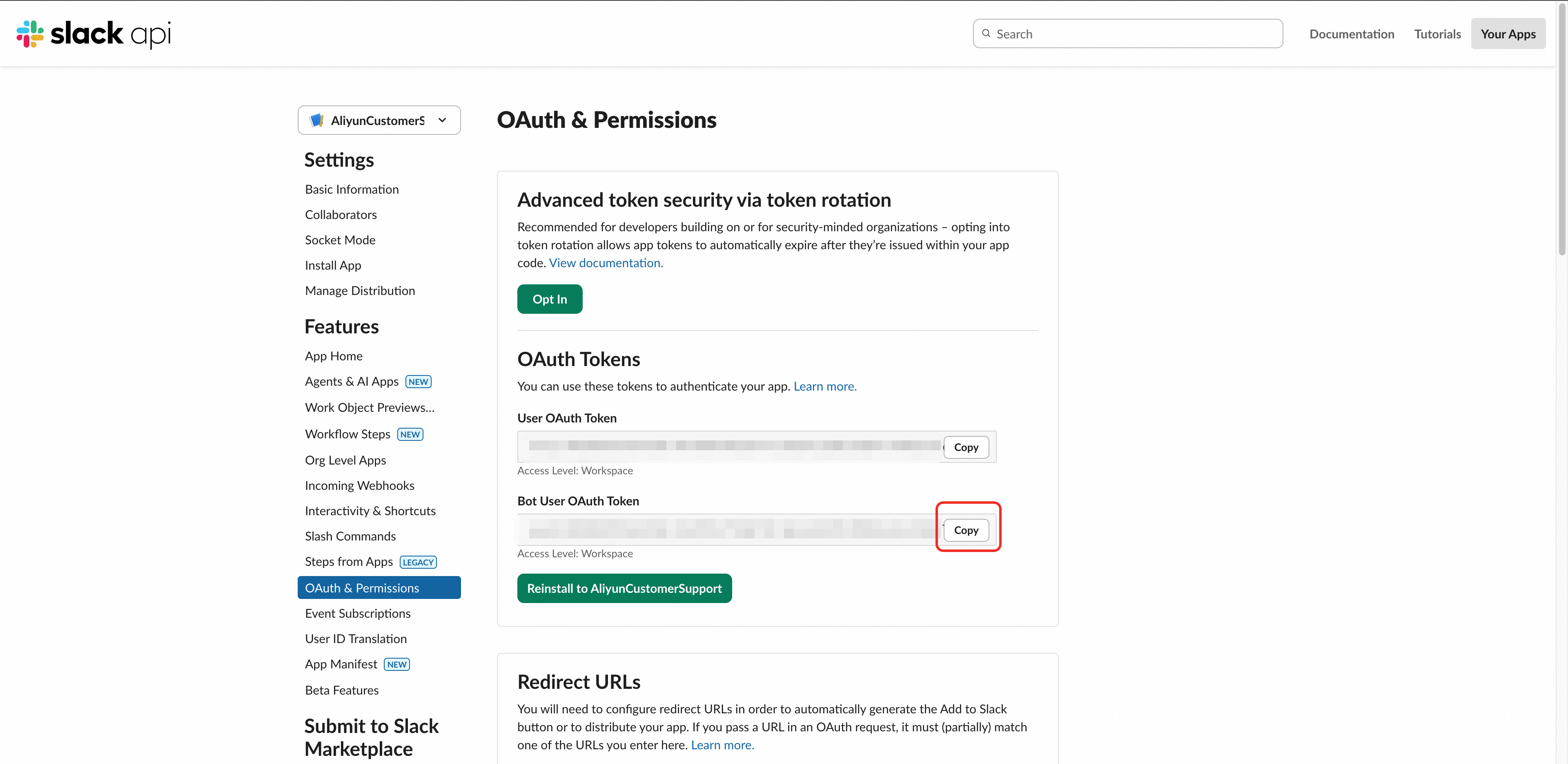
Click "OAuth & Permissions" in the left sidebar
In "OAuth Tokens", click "Install to AlibabaCloudEnterpriseSupport"
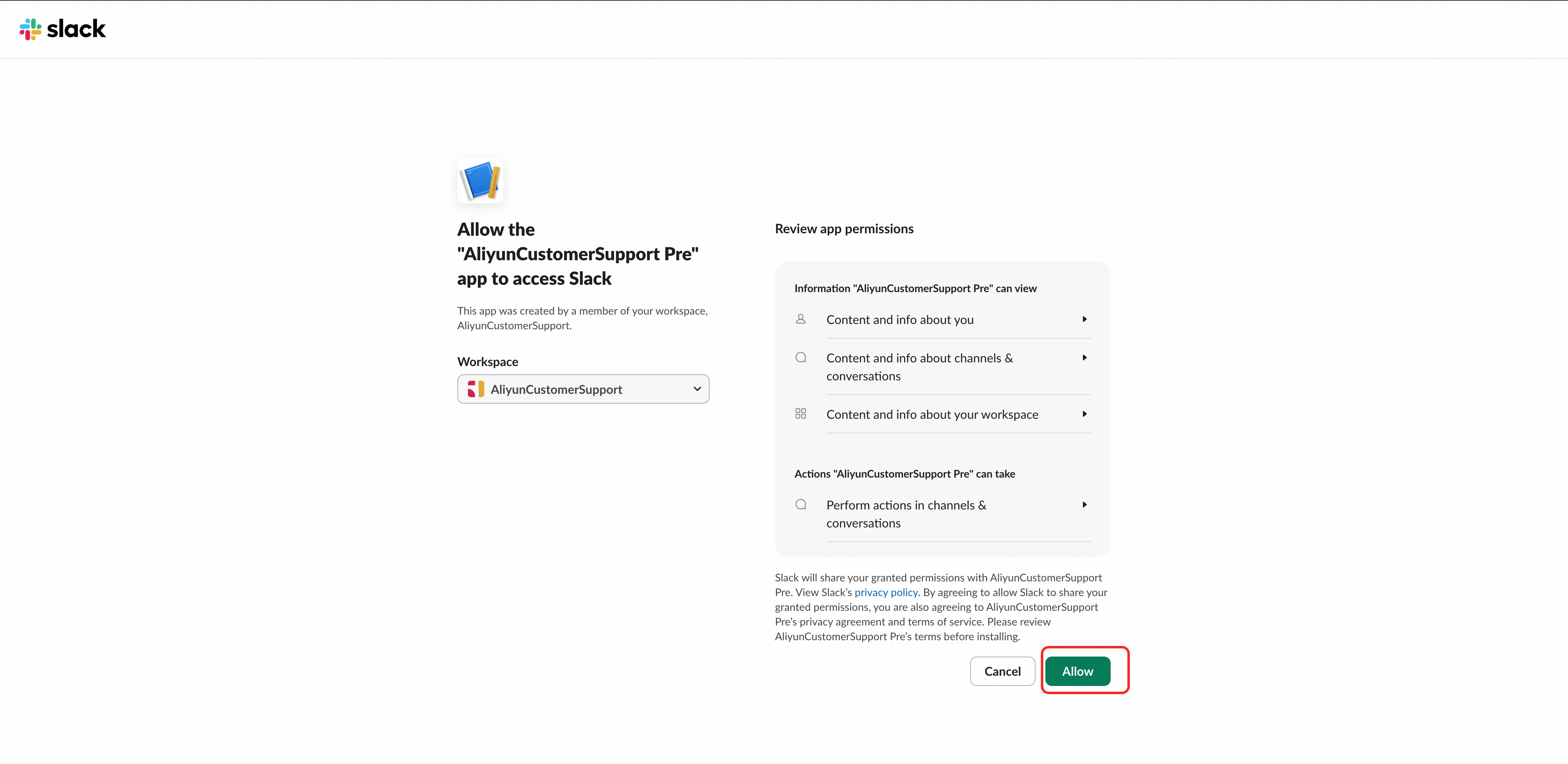
In the authorization popup, review permissions and click "Allow"
The page returns to "OAuth & Permissions" with the generated token displayed in "OAuth Tokens"
Find "Bot User OAuth Token" (format: xoxb-1234567890-1234567890123-xxxxxxxxxxxxxxxxxxxxxxxx) and click "Copy"
The Bot Token sends message notifications. Copy and store it securely.
Step 5: Submit Credentials to Alibaba Cloud
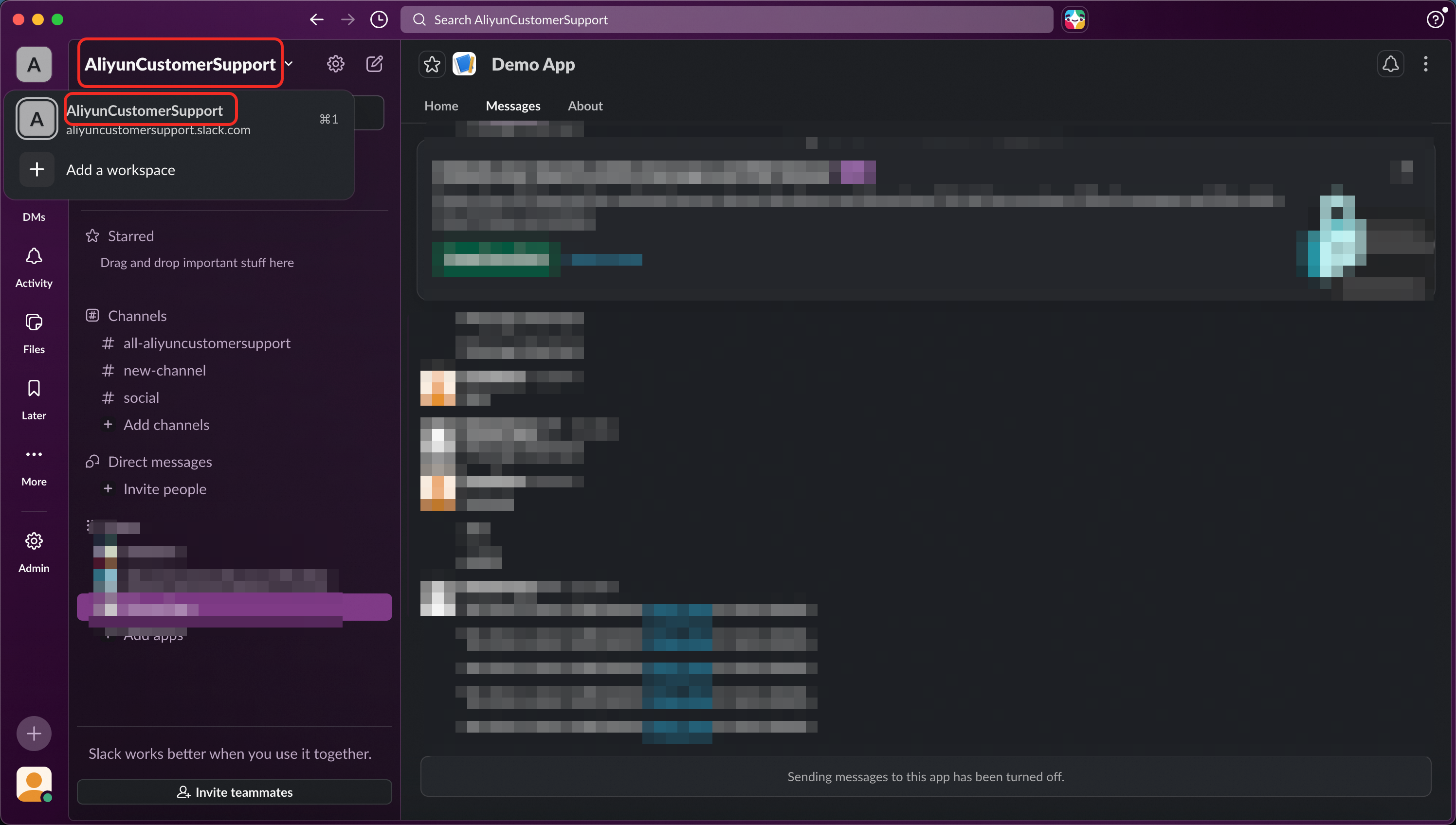
Go to [Alibaba Cloud Value-Added Service Desk - My Expert Service > Channel Management > Add Channel > Slack Channel] and enter all 6 credentials from Steps 3 and 4 in the popup.
Credential Name | Format Example | Purpose |
Workspace Name |
| Organization Name |
App ID |
| Unique application identifier |
Client ID |
| OAuth login |
Client Secret |
| OAuth token exchange |
Signing Secret |
| Webhook signature verification |
Bot User OAuth Token |
| Message notifications and homepage redirection |
Alibaba Cloud verifies the credentials after submission:
Verification Passed: Continue with Phase 3.
Verification Failed: Re-check all credentials from Steps 3 and 4, correct any errors, and resubmit.
Phase 3: Complete Integration Configuration
Step 6: Update OAuth Callback URL
Click "OAuth & Permissions" in the left sidebar
Scroll to the "Redirect URLs" section
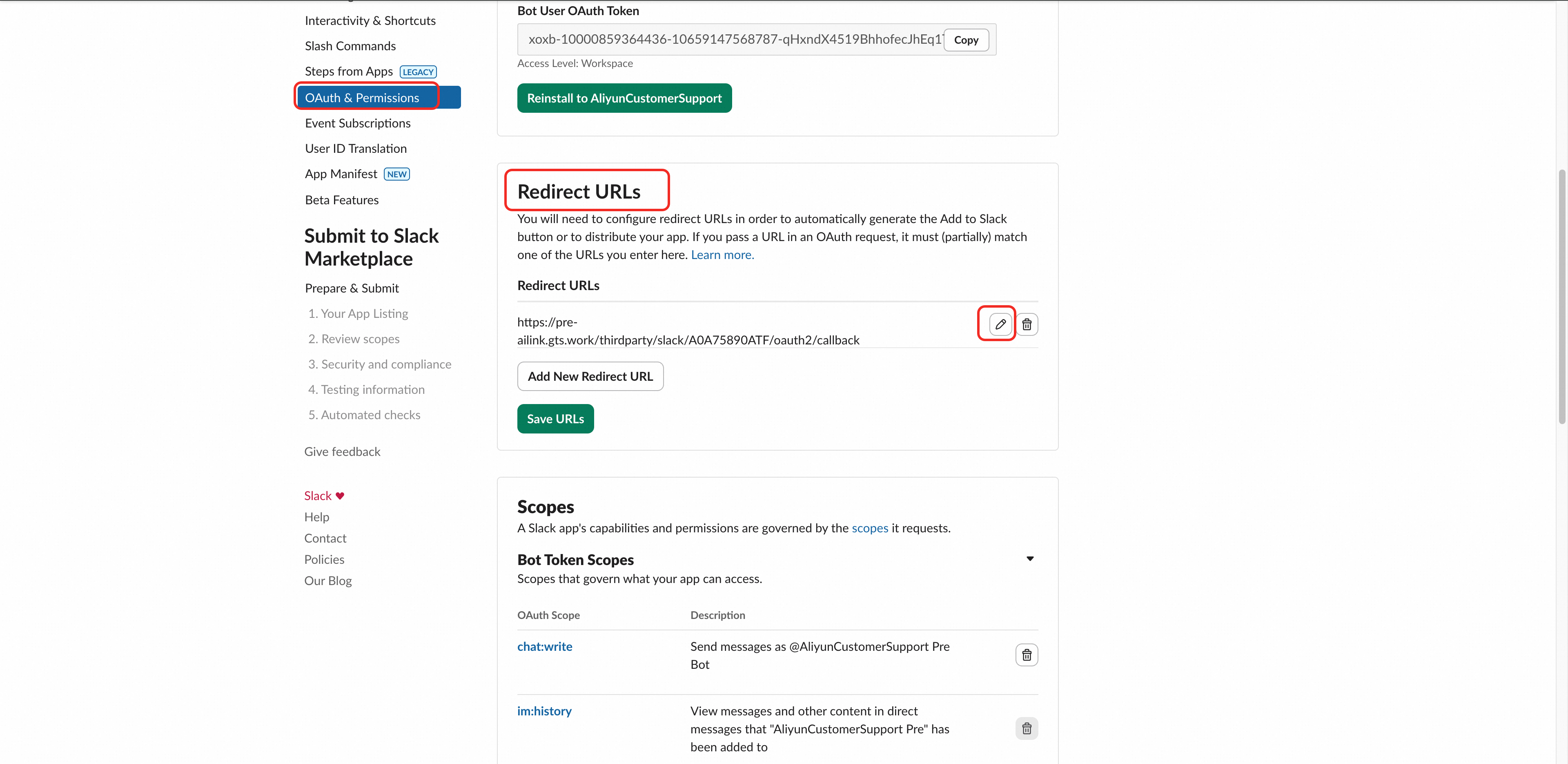
Click "Edit" next to the existing URL
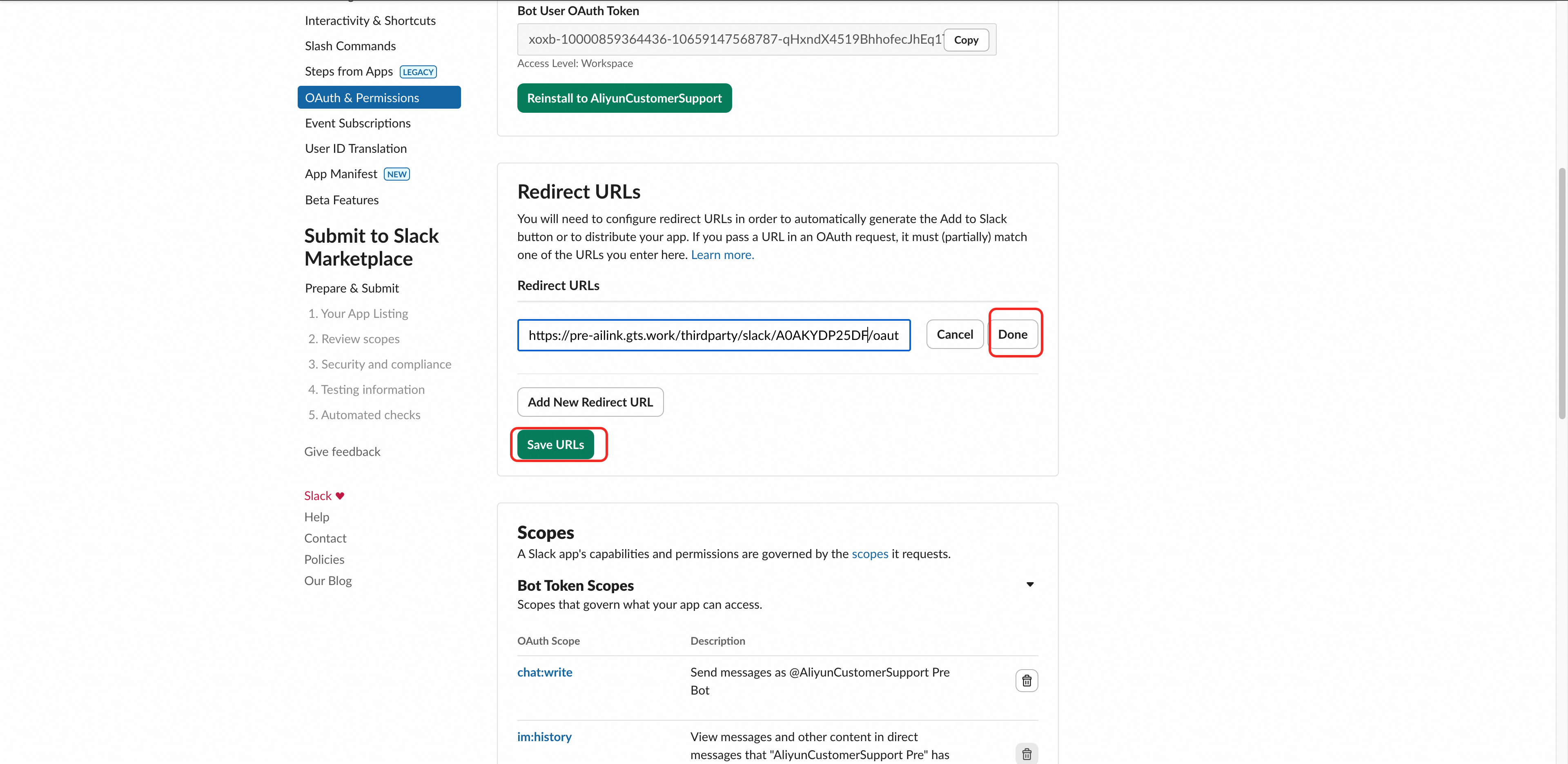
Replace the URL with the following (substitute {AppId} with your actual App ID):
https://ailink.gts.work/thirdparty/slack/{AppId}/oauth2/callback
Click "Done", then "Save URLs"
Step 7: Update Event Subscription URL
Click "Event Subscriptions" in the left sidebar
Find the "Request URL" field (warning messages at this point are normal)
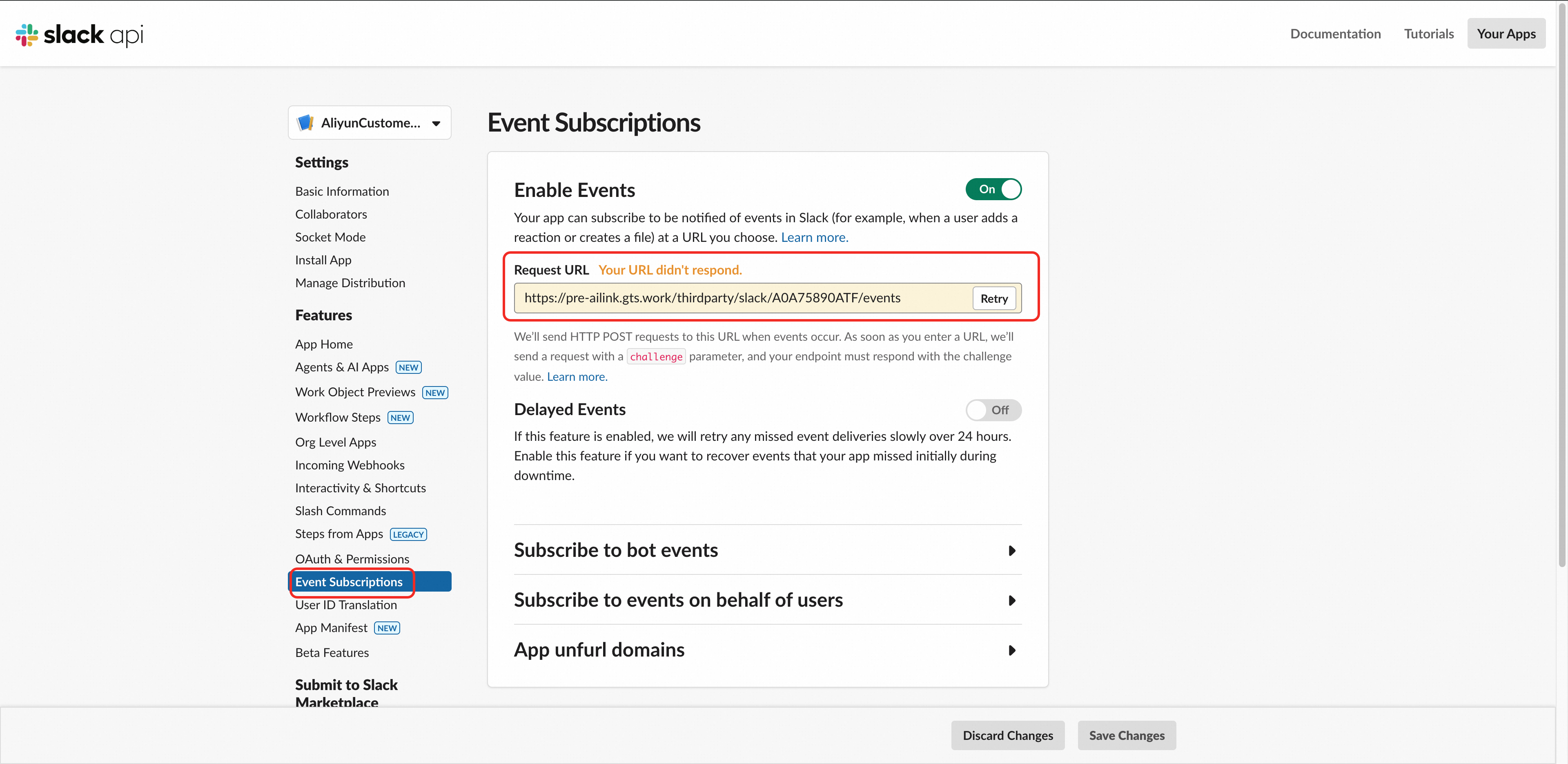
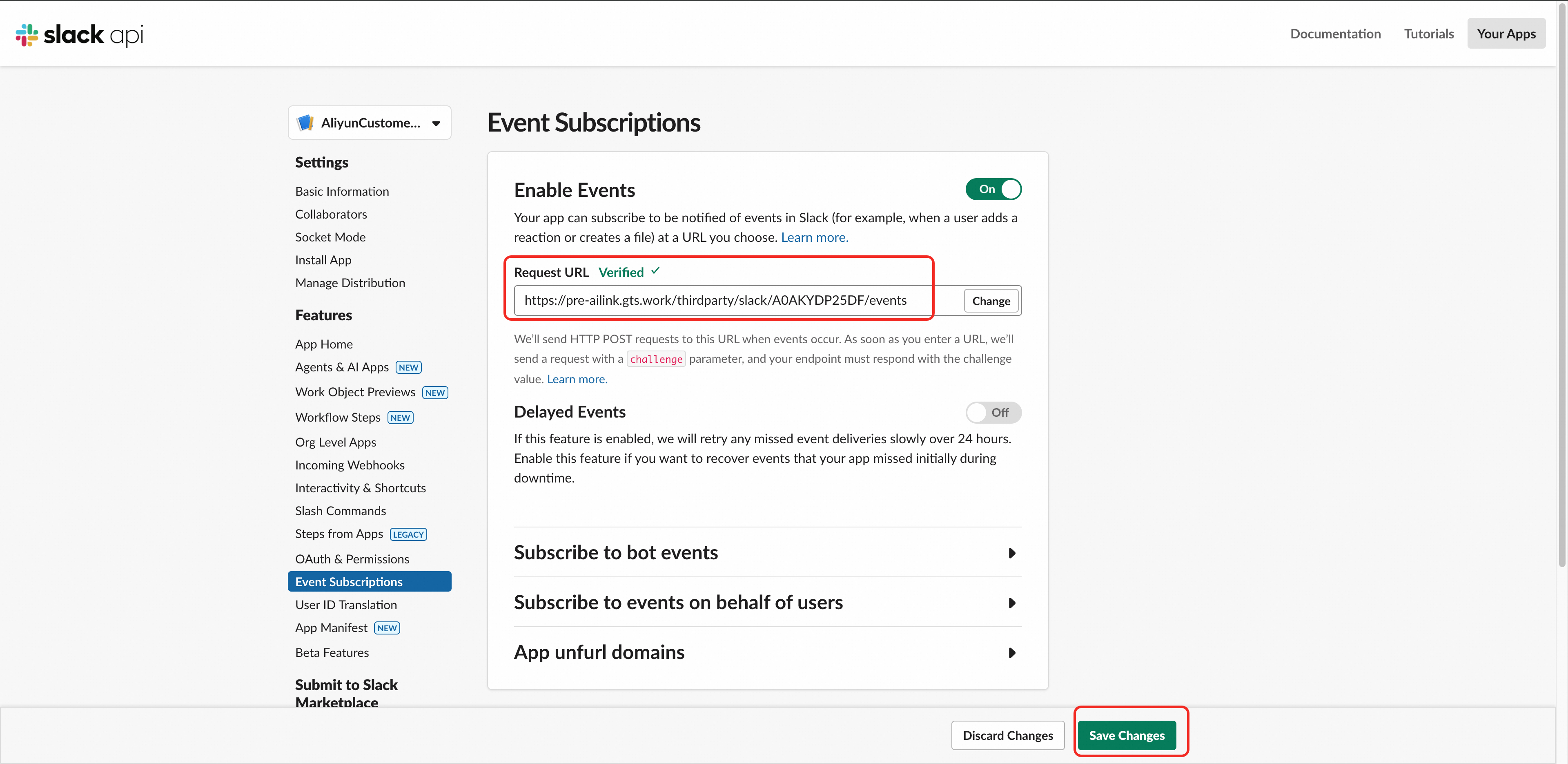
Replace the URL with the following (substitute {AppId} with your actual App ID):
https://ailink.gts.work/thirdparty/slack/{AppId}/events
The system verifies the URL automatically. "Verified" indicates success. If verification fails, re-check the credentials submitted in Step 5
Click "Save Changes"
4. Verify Integration
After completing all steps, verify the integration:
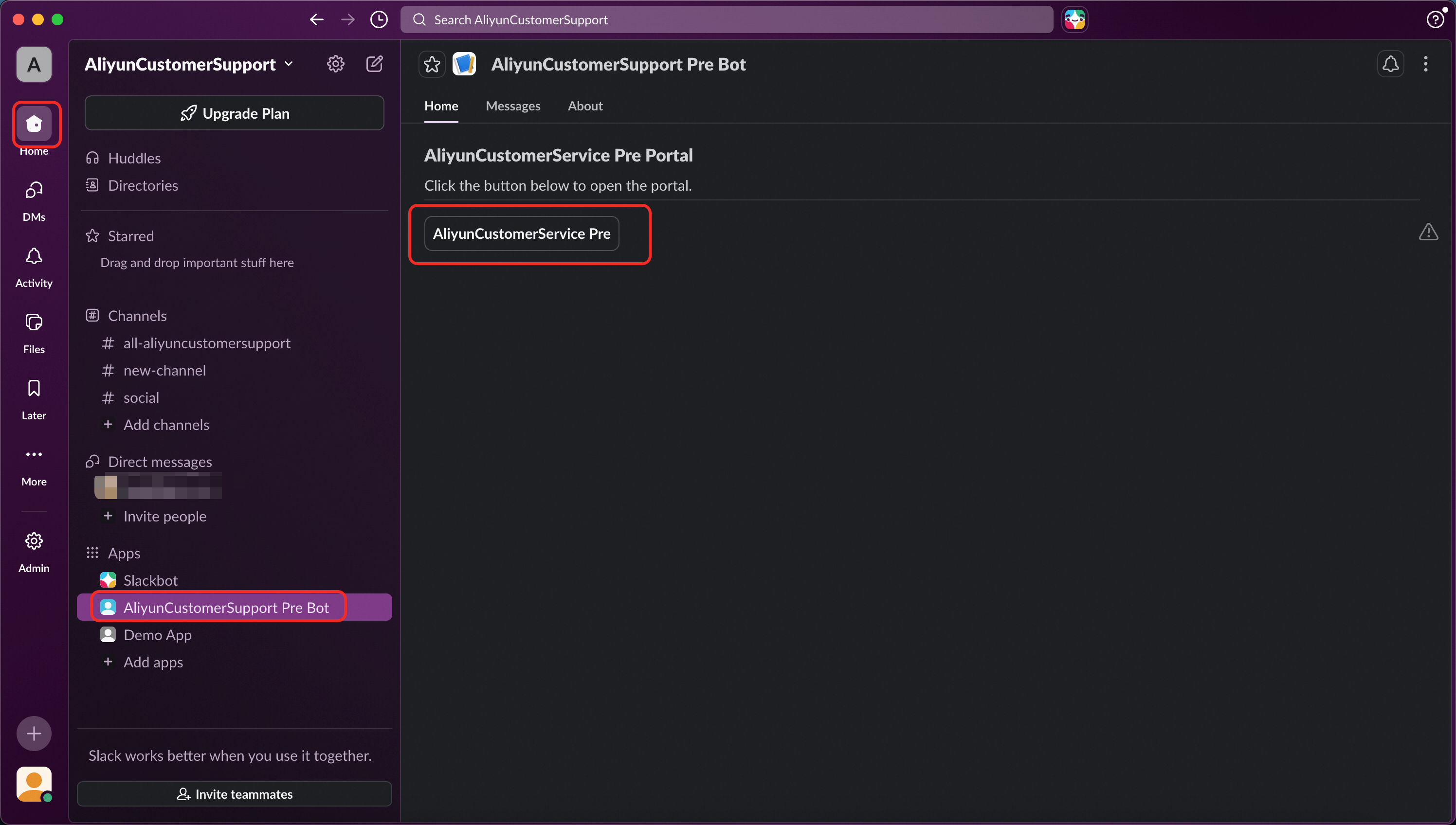
Find the AlibabaCloudEnterpriseSupport app in Slack
Click the homepage button to open the Alibaba Cloud Enterprise Service portal
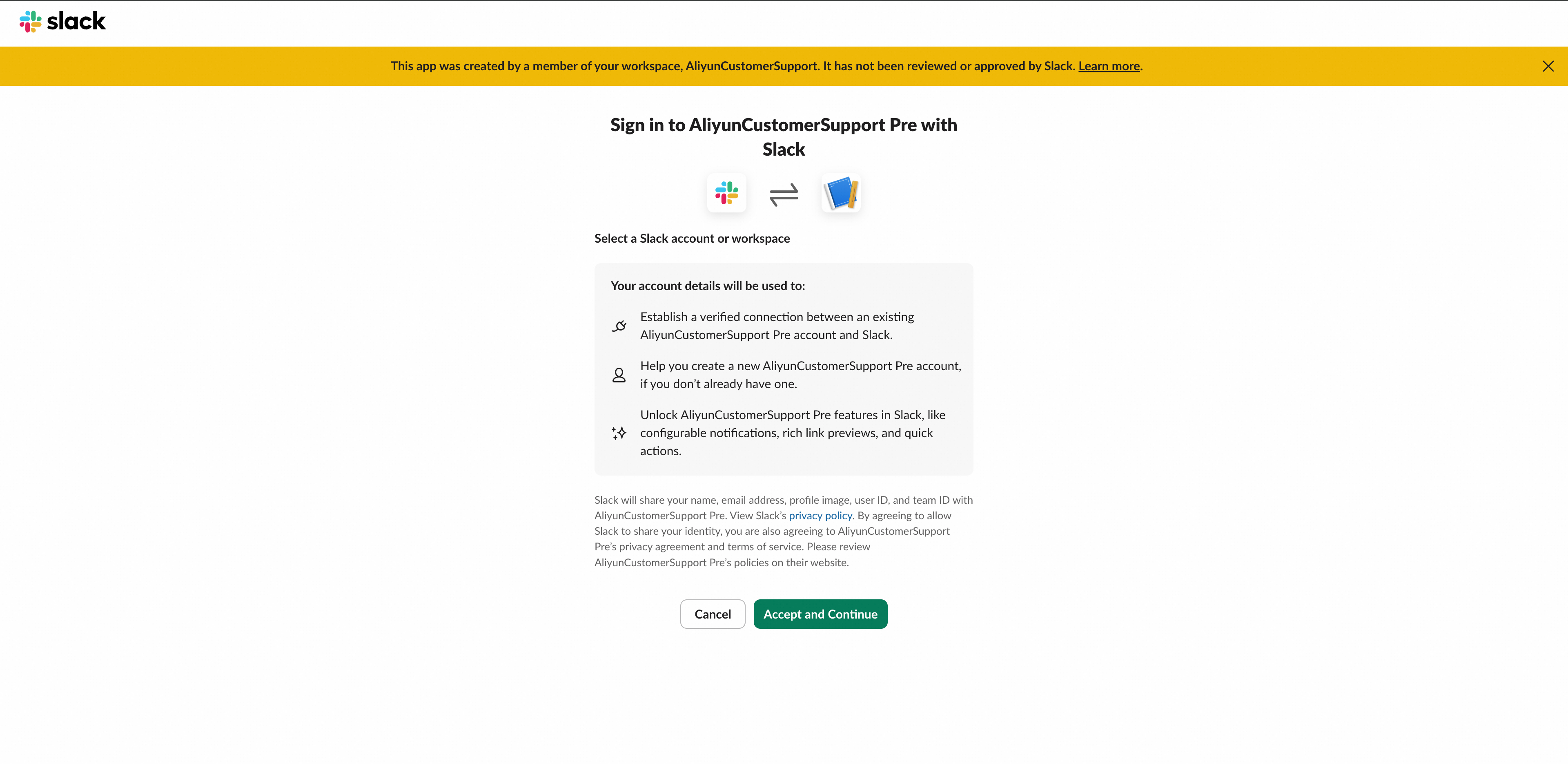
Sign in with your Slack account
Appendix: Guidelines for Ticket Submission
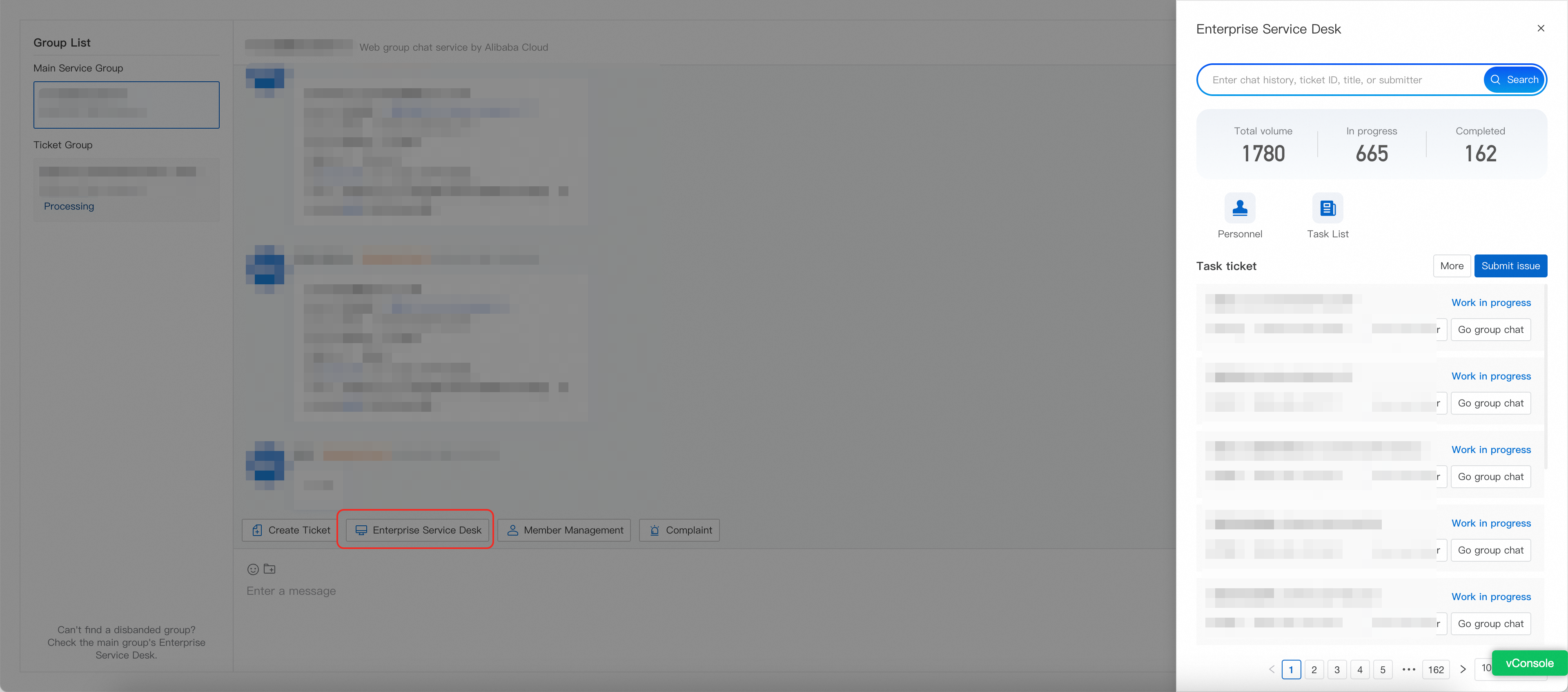
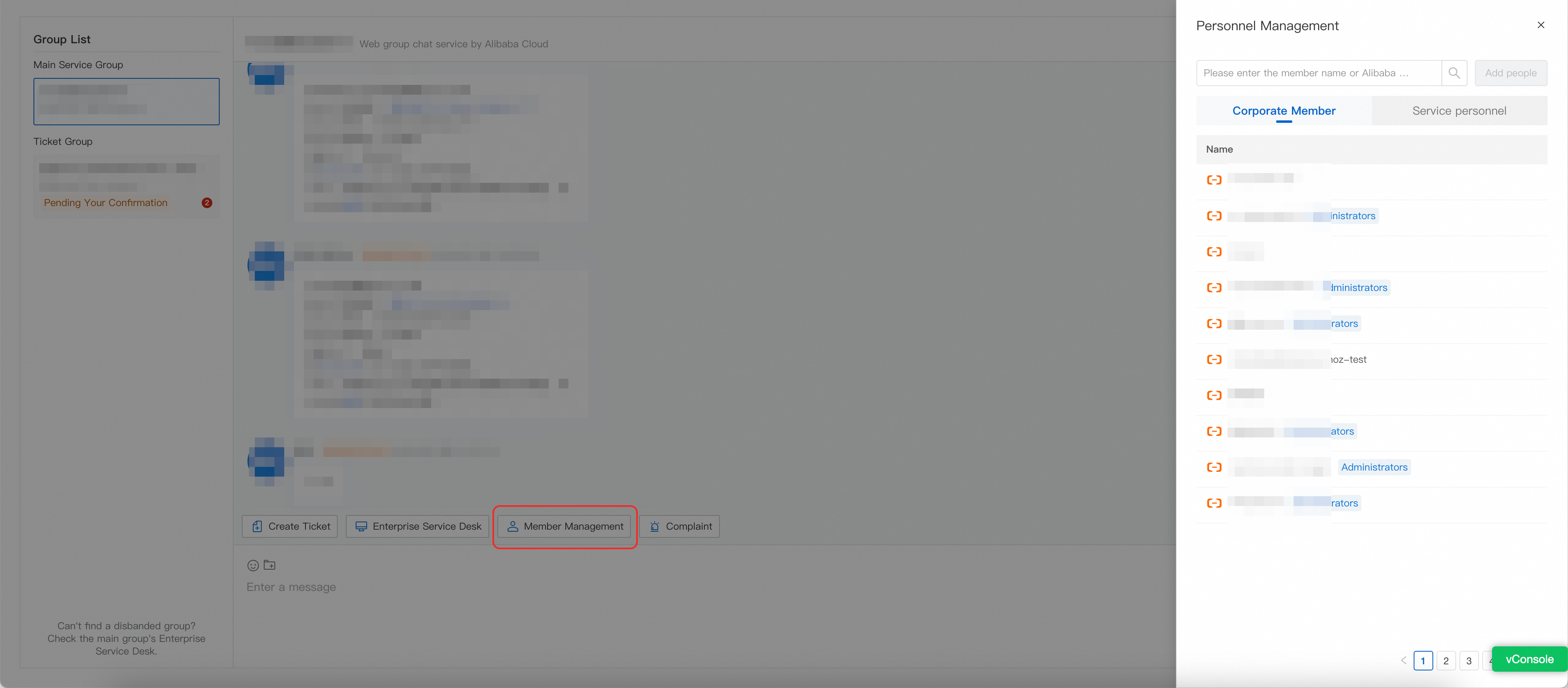
Select the Primary Service Group and click the [Create Ticket] plugin. Enter a summary of your issue. The system identifies the relevant product automatically, but you can also select the product category manually.
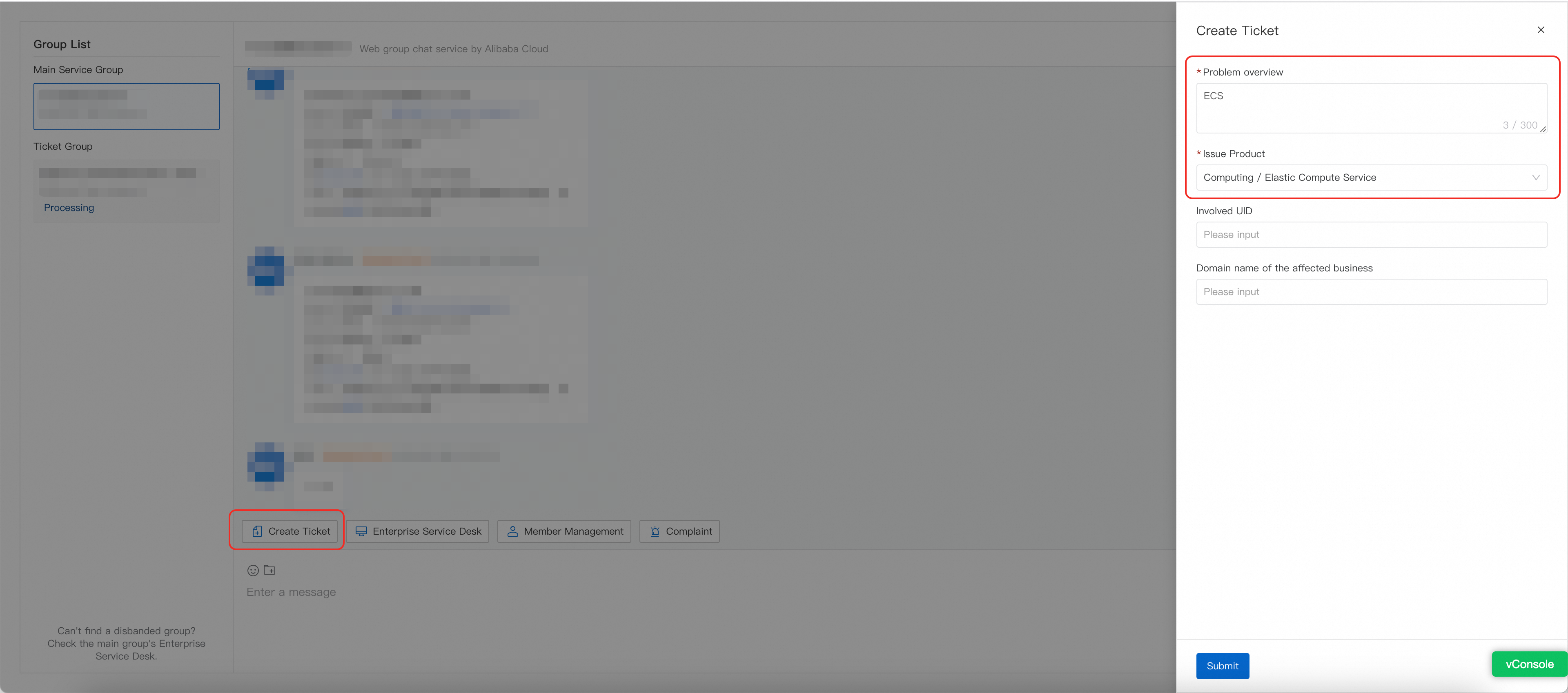
After clicking [Submit], the system generates a ticket and creates a dedicated ticket group. A technical support engineer is assigned to provide solutions.
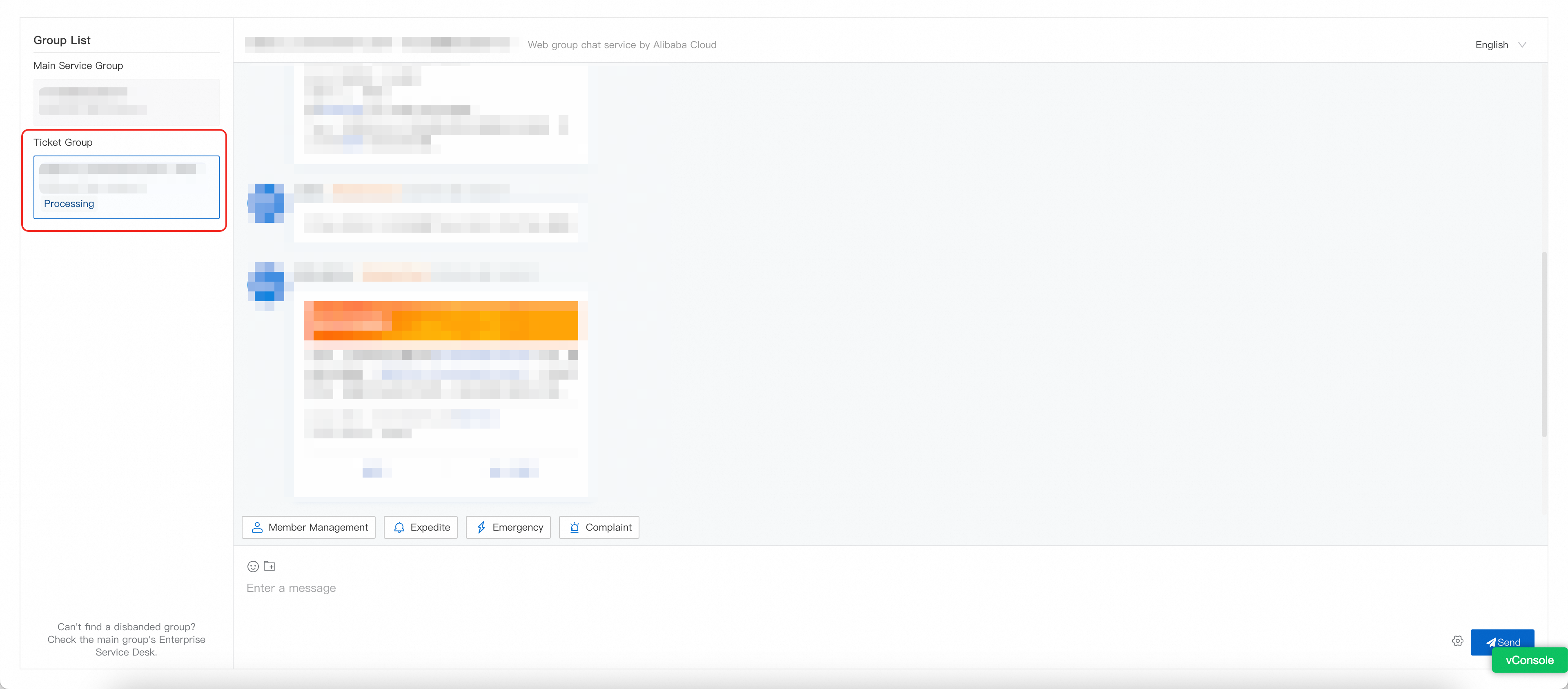
The primary service group also provides:
[Enterprise Service Workstation]: Search historical tickets by chat logs, ticket IDs, or titles, and view past chat records.
[Group Member Management]: View members, edit nicknames, grant admin permissions, or click [Add people] to invite users.
If you cannot add members, contact your Alibaba Cloud TAM to request the "Group Administrator" role.