Integrate the Alibaba Cloud Enterprise Service app with Microsoft Teams so your organization can communicate with TAMs, track tickets, and receive notifications directly in Teams.
1. What to Expect
After setup, your organization's users can access the Alibaba Cloud Enterprise Service app in Microsoft Teams to communicate with TAMs in real time, receive ticket notifications, and track service progress.
2. Prerequisites
2.1 Permission Requirements
Ensure you have the following permissions:
• Microsoft 365 Global Administrator permissions or Azure AD Administrator permissions
• Teams Administrator permissions (for publishing apps)
2.2 Environment Requirements
Ensure the following environment is ready:
• A valid Microsoft 365 subscription
• A network environment with access to the Azure Portal
• Microsoft Teams desktop version installed or access to Teams web version
2.3 Information to Record
Record the following information during configuration:
• Application (Client) ID - Generated during Azure AD app registration (3.1-Step 1)
• Directory (Tenant) ID - The tenant ID of your Azure AD app registration (3.1-Step 1)
• Client Secret - The Azure AD client secret value (3.1-Step 3)
• Scope ID (GUID) - Generated when you add a scope (3.1-Step 5)
3. Deployment and Configuration Process
3.1 Azure AD App Registration
Step 1: Create App Registration
1. Go to the Azure Portal.
2. Sign in with your Microsoft 365 administrator account.
3. Search for App registrations.
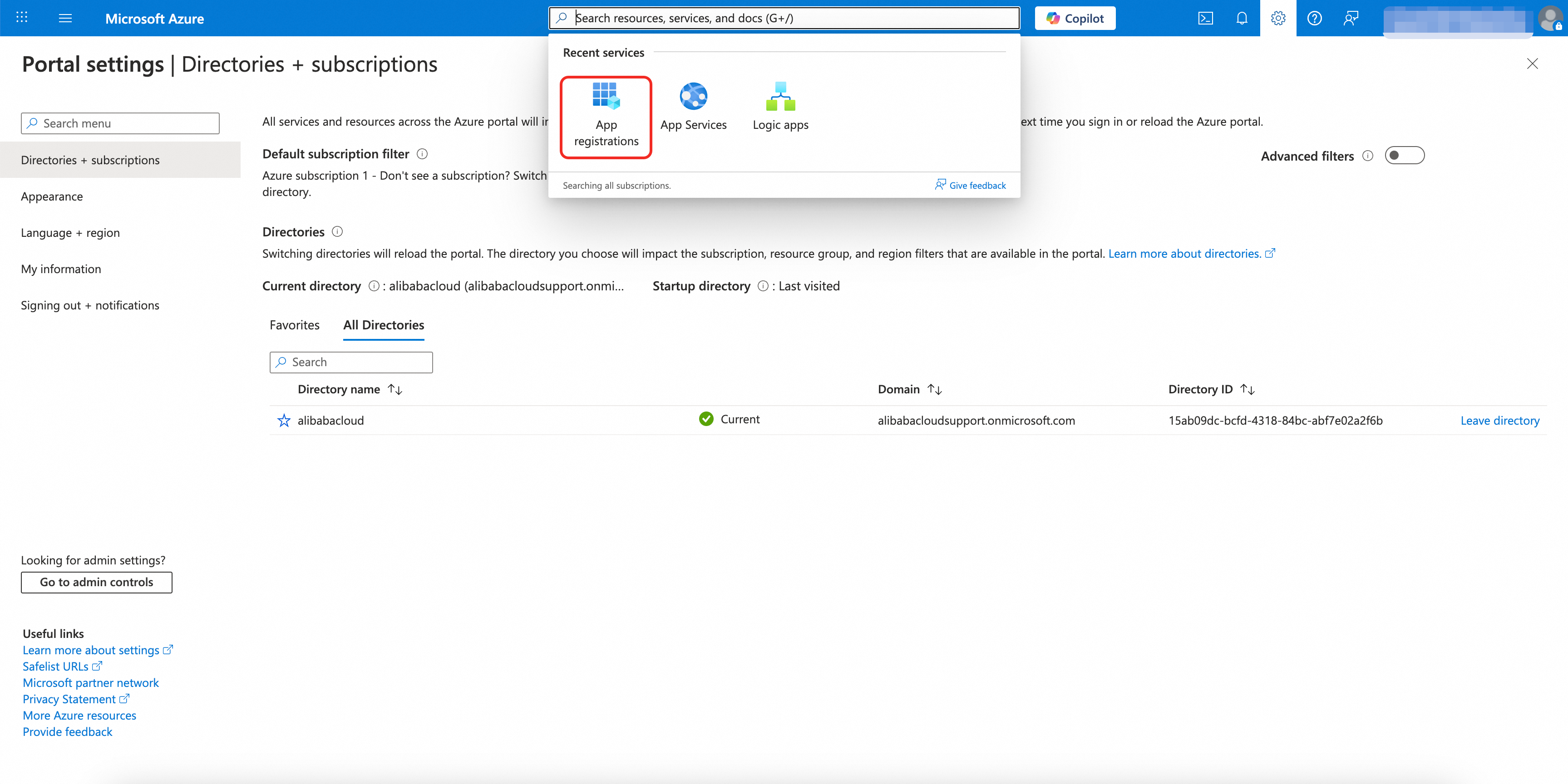
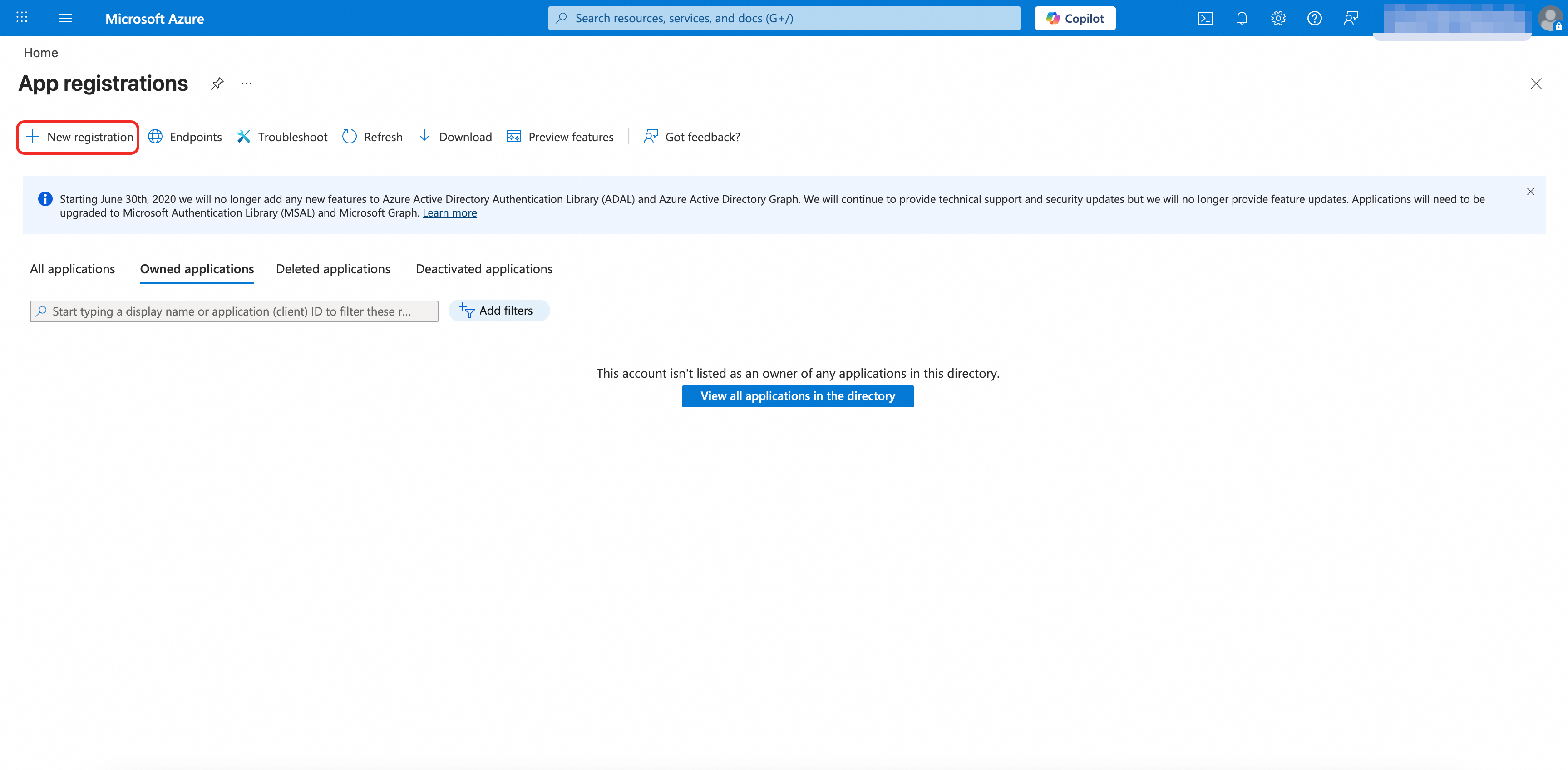
4. Click + New registration.
5. Complete the registration form:
• Name: Alibaba Cloud Exclusive Service (or your preferred name)
• Supported account types: Select Single tenant only
• Redirect URI: Select Web for Platform, leave the URL empty for now
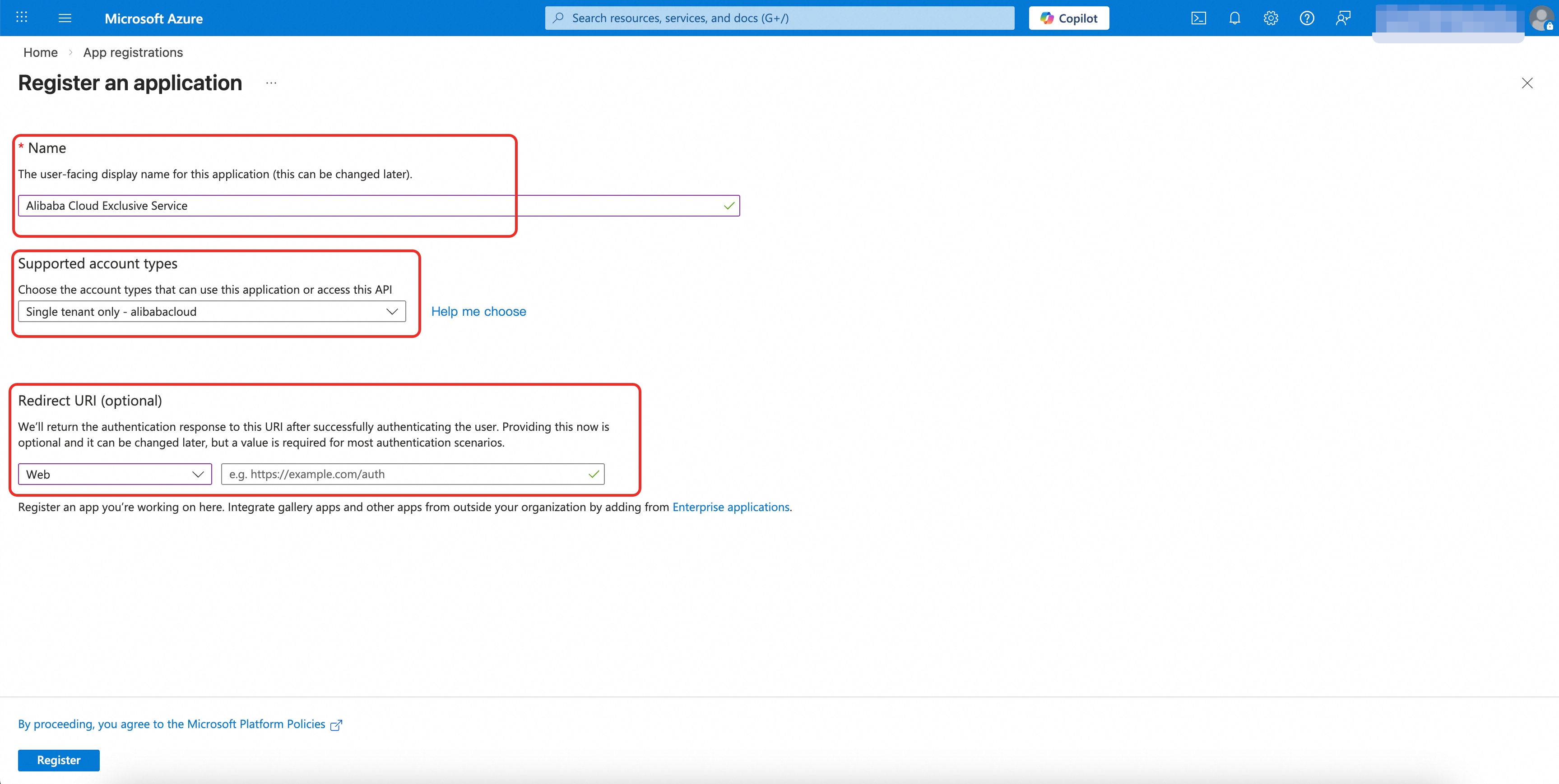
6. Click Register.
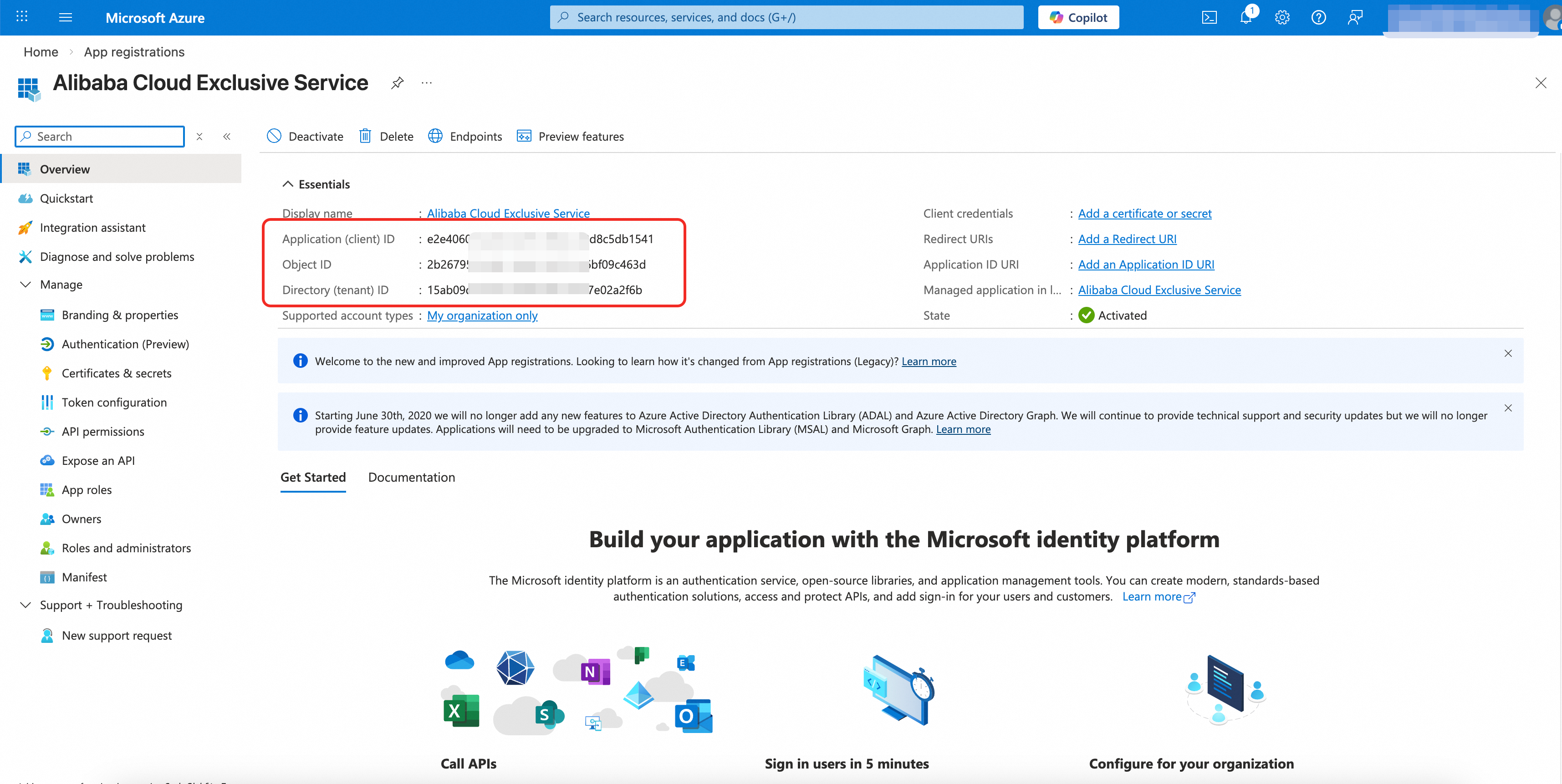
7. Record the Application (client) ID and Directory (tenant) ID.
Step 2: Configure Authentication
1. In the left navigation, click Manage > Authentication (Preview).
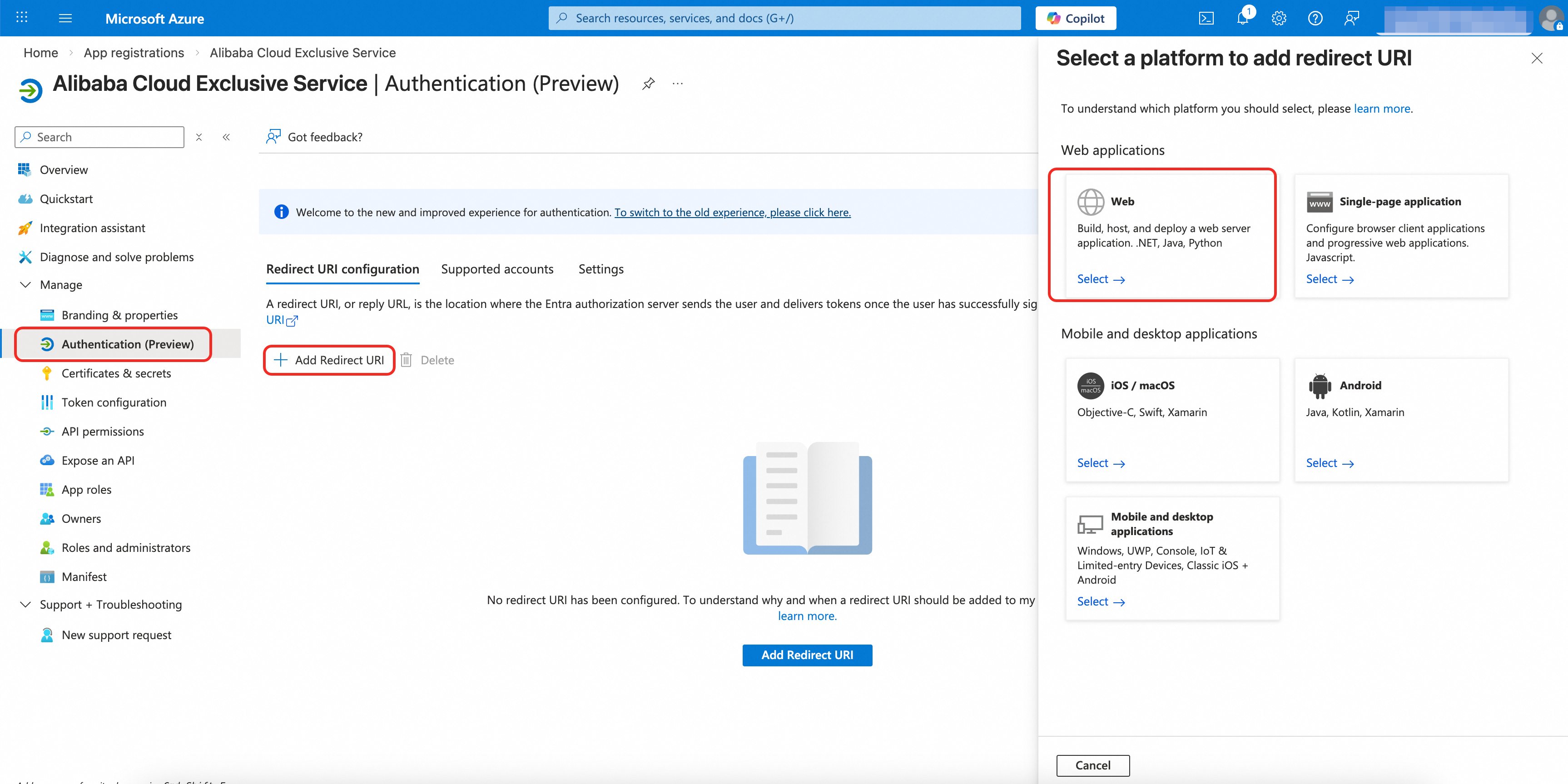
2. Under Web > Redirect URI, click Add URI and add the following addresses. Replace ${Application (Client) ID} with your actual Client ID:
https://ailink.gts.work/teams/${Application(Client) ID}
https://ailink.gts.work/teams/${Application(Client) ID}/workbench
https://ailink.gts.work/thirdparty/teams/${Application(Client) ID}/login
https://ailink.gts.work/thirdparty/teams/${Application(Client) ID}/oauth2/callback
https://ailink.gts.work/teams/${Application(Client) ID}/person/inviteToGroup
3. Under Implicit grant and hybrid flows, select:
• Access tokens (used for implicit flows)
• ID tokens (used for implicit and hybrid flows)
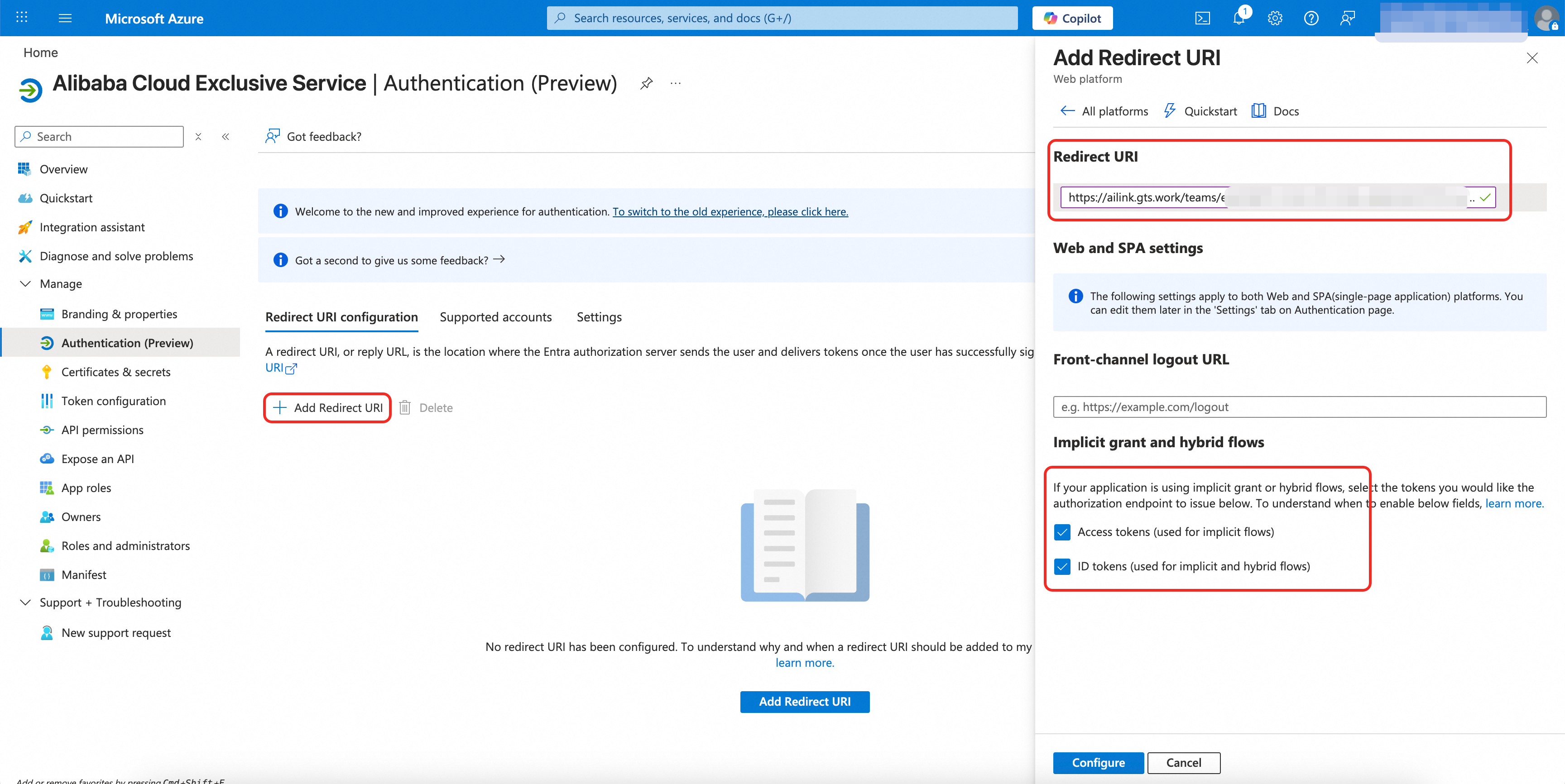
4. Click Configure.
Step 3: Create Client Secret
1. In the left navigation, click Certificates & secrets.
2. Click + New client secret.
3. Enter the following:
• Description: Teams App Secret
• Expires: Select an appropriate period (24 months is recommended)
4. Click Add.
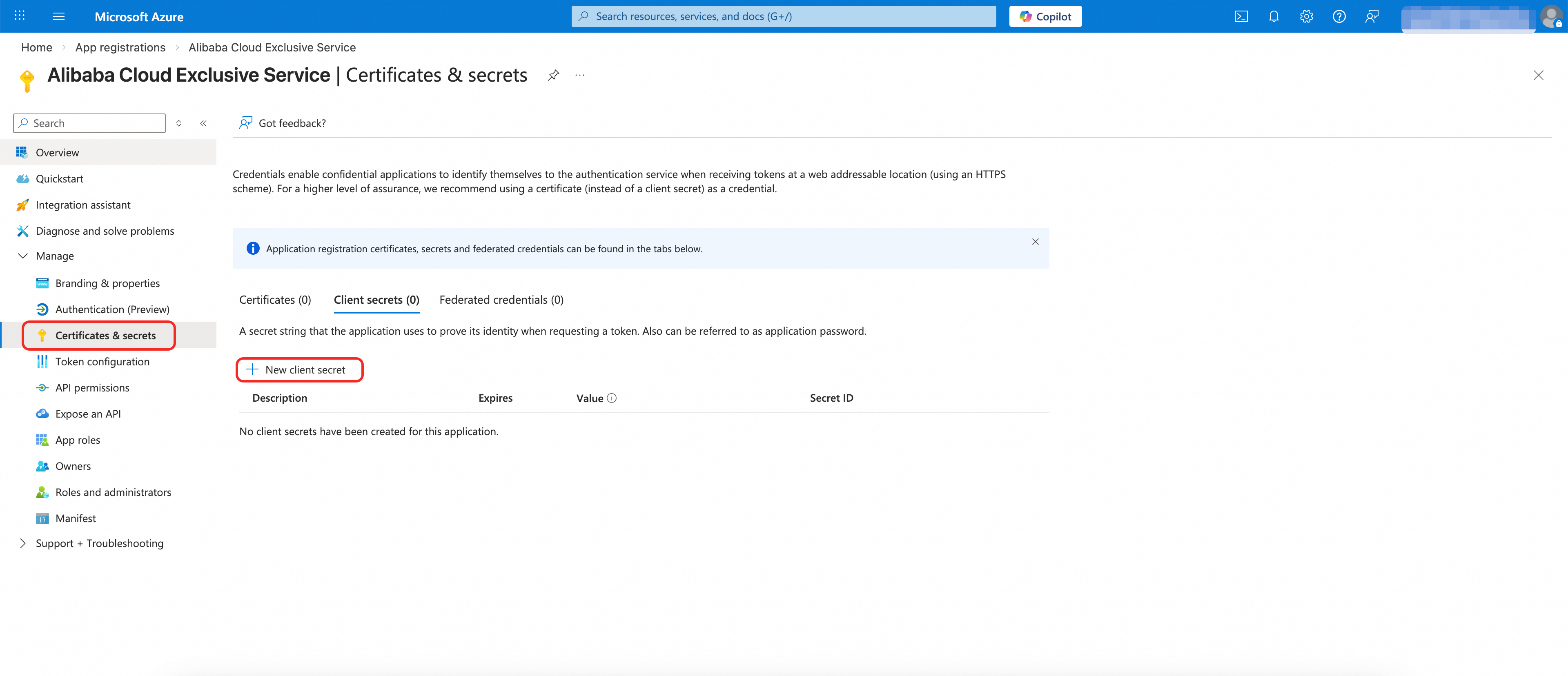
Copy the generated Value immediately—it cannot be viewed again after you leave this page. Save it as your Client Secret.
Step 4: Configure API Permissions
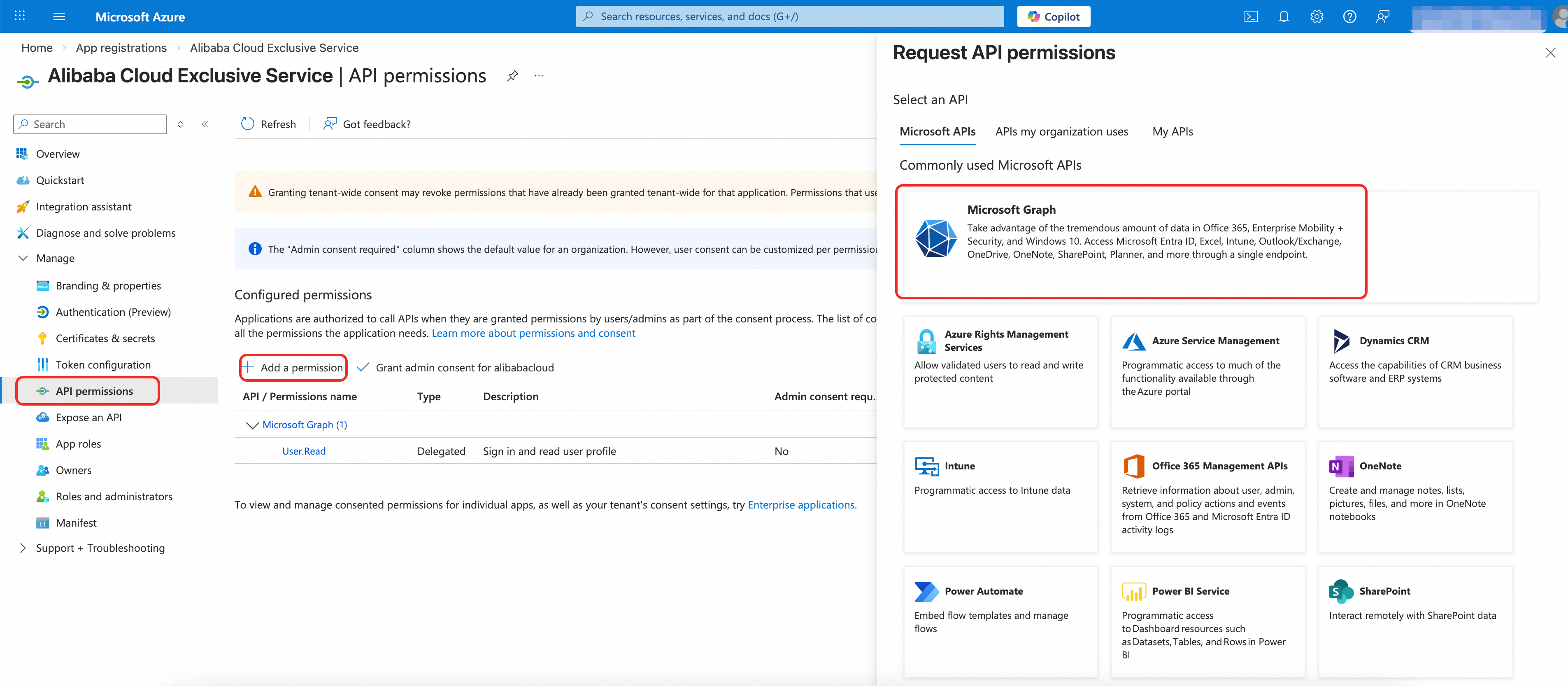
1. In the left navigation, click API permissions.
2. Click + Add a permission.
3. Select Microsoft Graph.
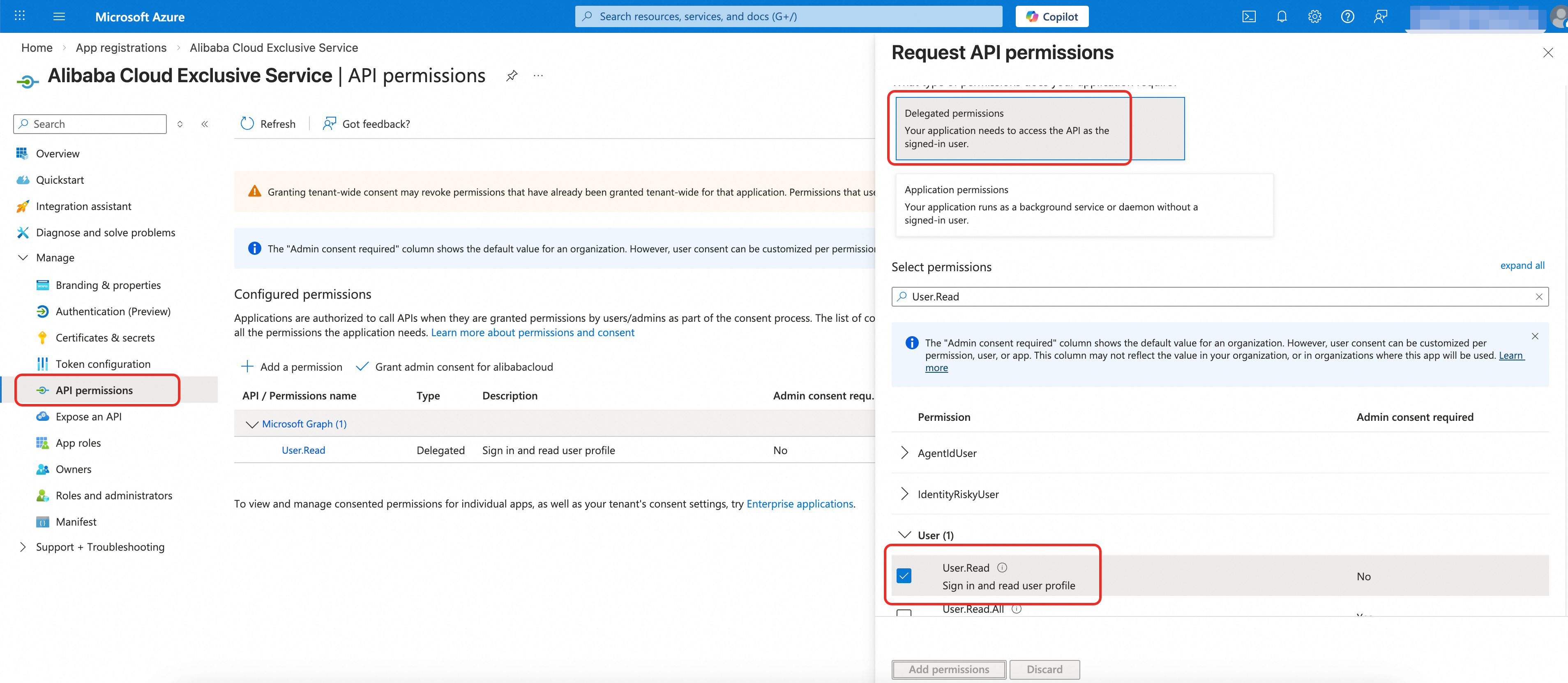
4. Select Delegated permissions.
5. Search for and select User.Read.
6. Click Add permissions.
7. (Optional) Click Grant admin consent for [Your Organization].
Step 5: Expose an API
1. In the left navigation, click Expose an API.
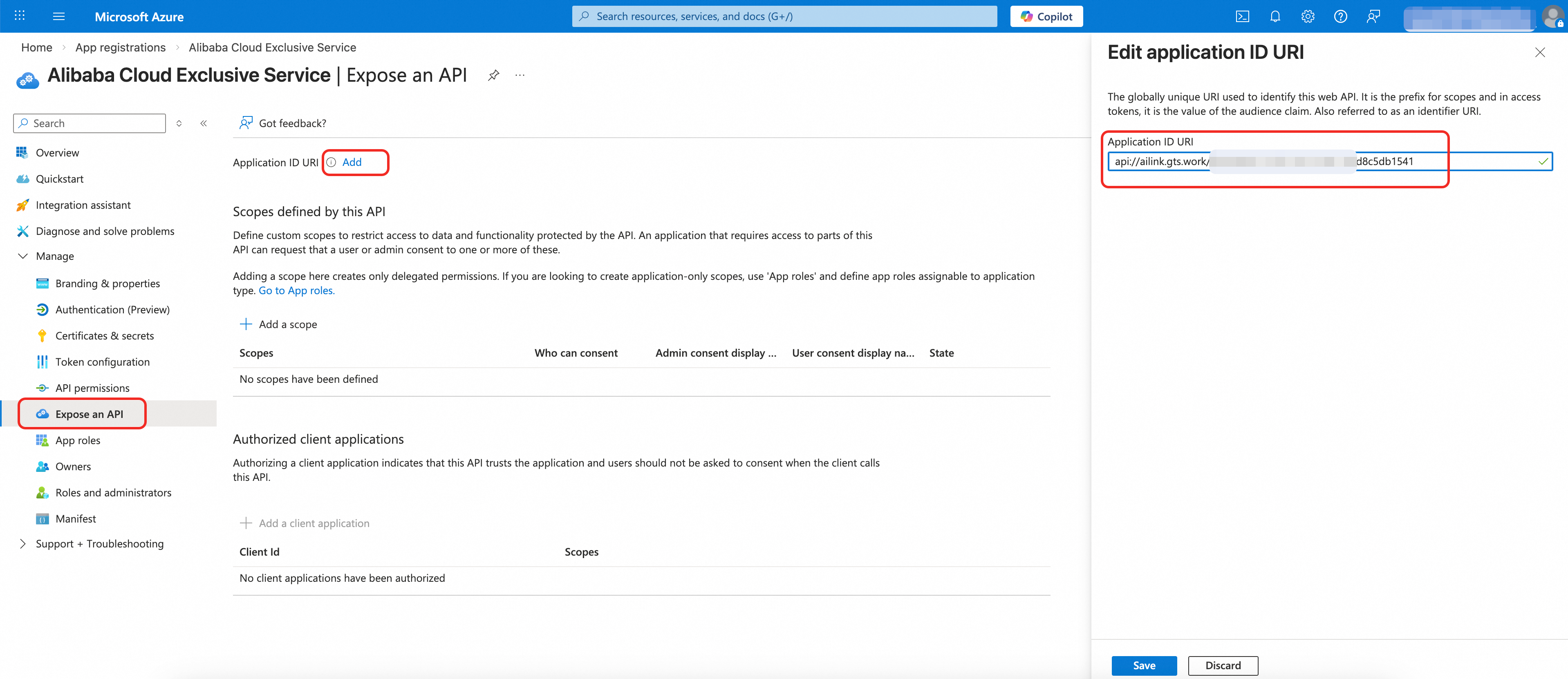
2. Set the Application ID URI:
• Click the Add button
• Enter: api://ailink.gts.work/${Application (Client) ID}
• Click Save
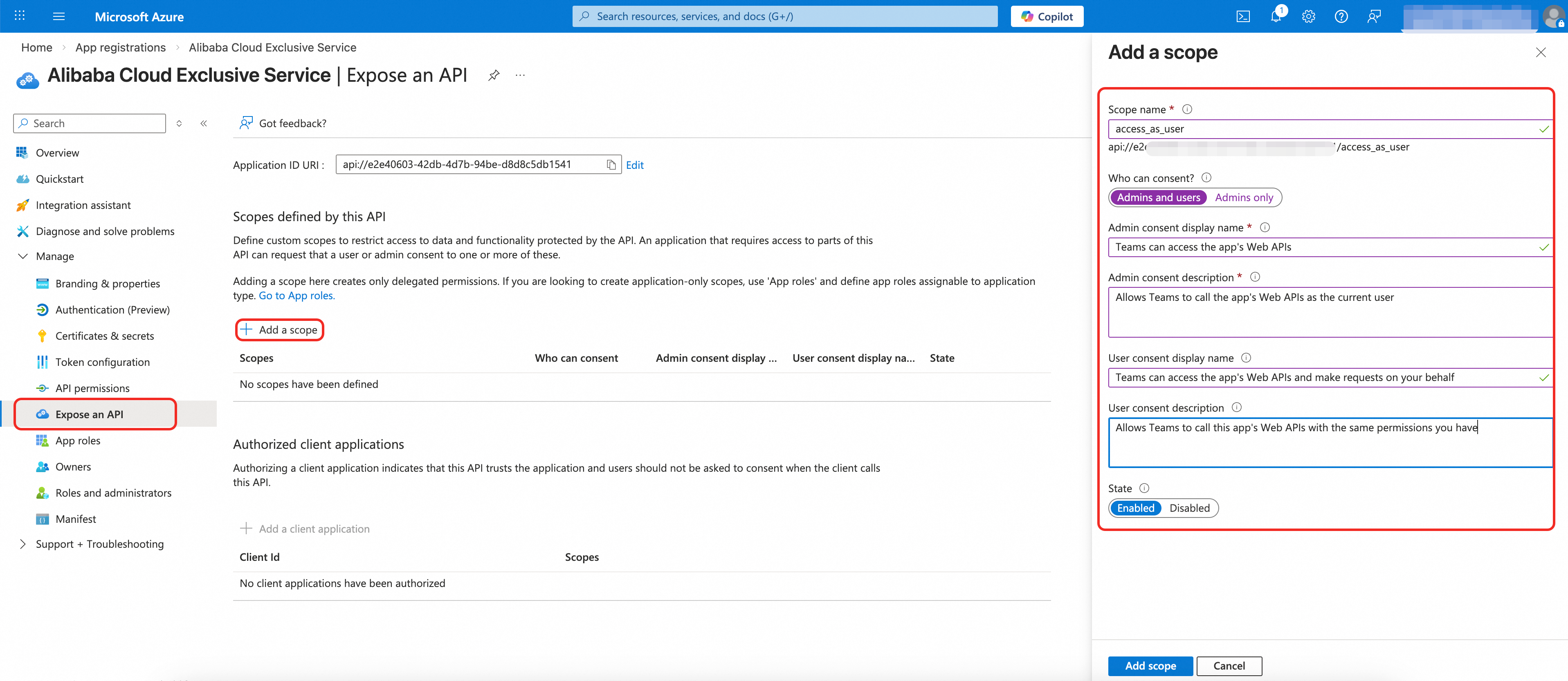
3. Add a scope:
• Click + Add a scope
• Fill in the following information:
Scope name: access_as_user
Who can consent: Admins and users
Admin consent display name: Teams can access the app's Web APIs
Admin consent description: Allows Teams to call the app's Web APIs as the current user
User consent display name: Teams can access the app's Web APIs and make requests on your behalf
User consent description: Allows Teams to call this app's Web APIs with the same permissions you have
7. State: Enabled
• Click Add scope
• Copy the Scope ID (GUID) and save it as Scope ID (GUID)
Step 6: Add Pre-authorized Client Applications
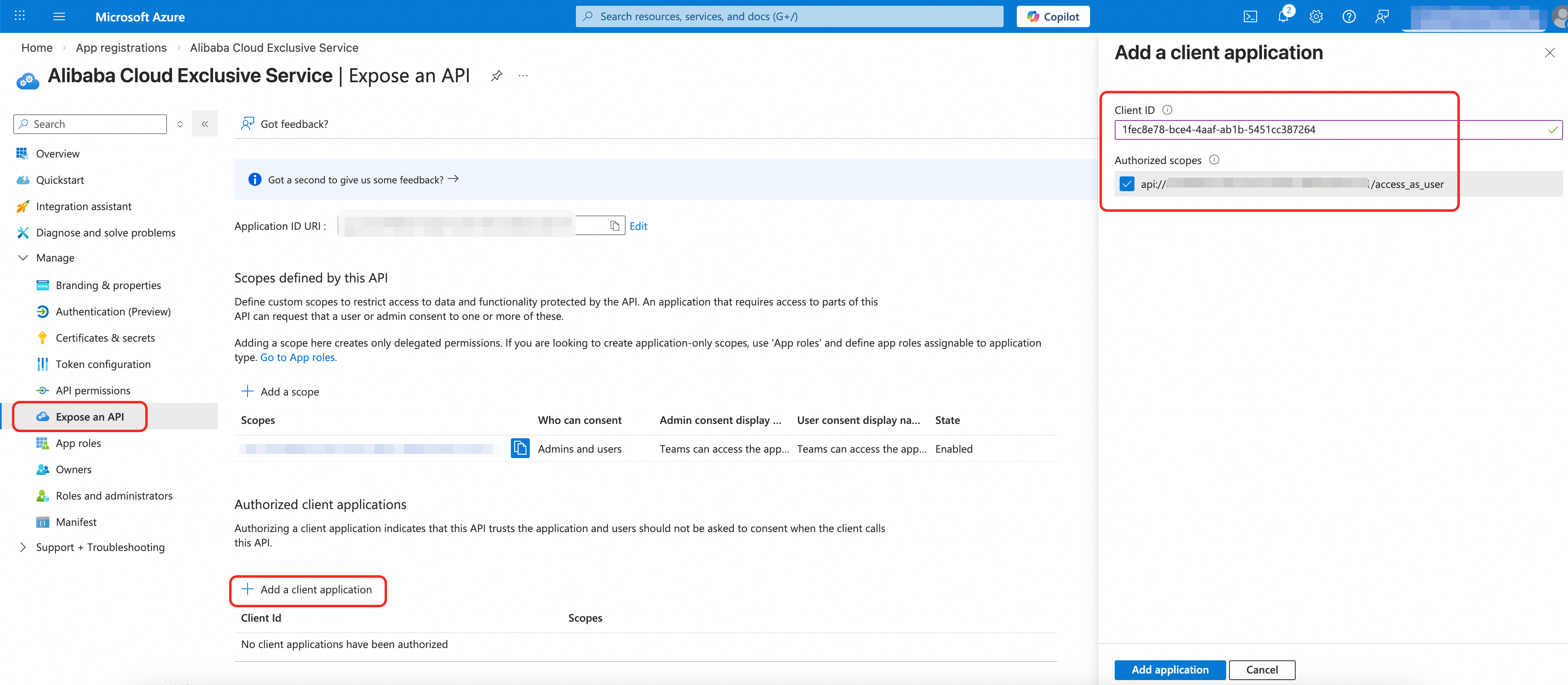
1. On the Expose an API page, click + Add a client application.
2. Add the following Client IDs one at a time:
|
Client ID |
Application |
|
1fec8e78-bce4-4aaf-ab1b-5451cc387264 |
Teams Web |
|
5e3ce6c0-2b1f-4285-8d4b-75ee78787346 |
Teams Desktop |
|
d3590ed6-52b3-4102-aeff-aad2292ab01c |
Microsoft Office |
|
00000002-0000-0ff1-ce00-000000000000 |
Office 365 Exchange Online |
|
bc59ab01-8403-45c6-8796-ac3ef710b3e3 |
Outlook Desktop |
|
0ec893e0-5785-4de6-99da-4ed124e5296c |
Outlook Web |
|
4765445b-32c6-49b0-83e6-1d93765276ca |
Outlook Mobile |
|
4345a7b9-9a63-4910-a426-35363201d503 |
Office Mobile |
3. For each client application:
• Enter the Client ID
• Check the access_as_user scope
• Click Add application
3.2 Teams Developer Portal Configuration
Step 1: Access Teams Developer Portal
1. Go to the Teams Developer Portal.
2. Sign in with your Microsoft 365 administrator account.
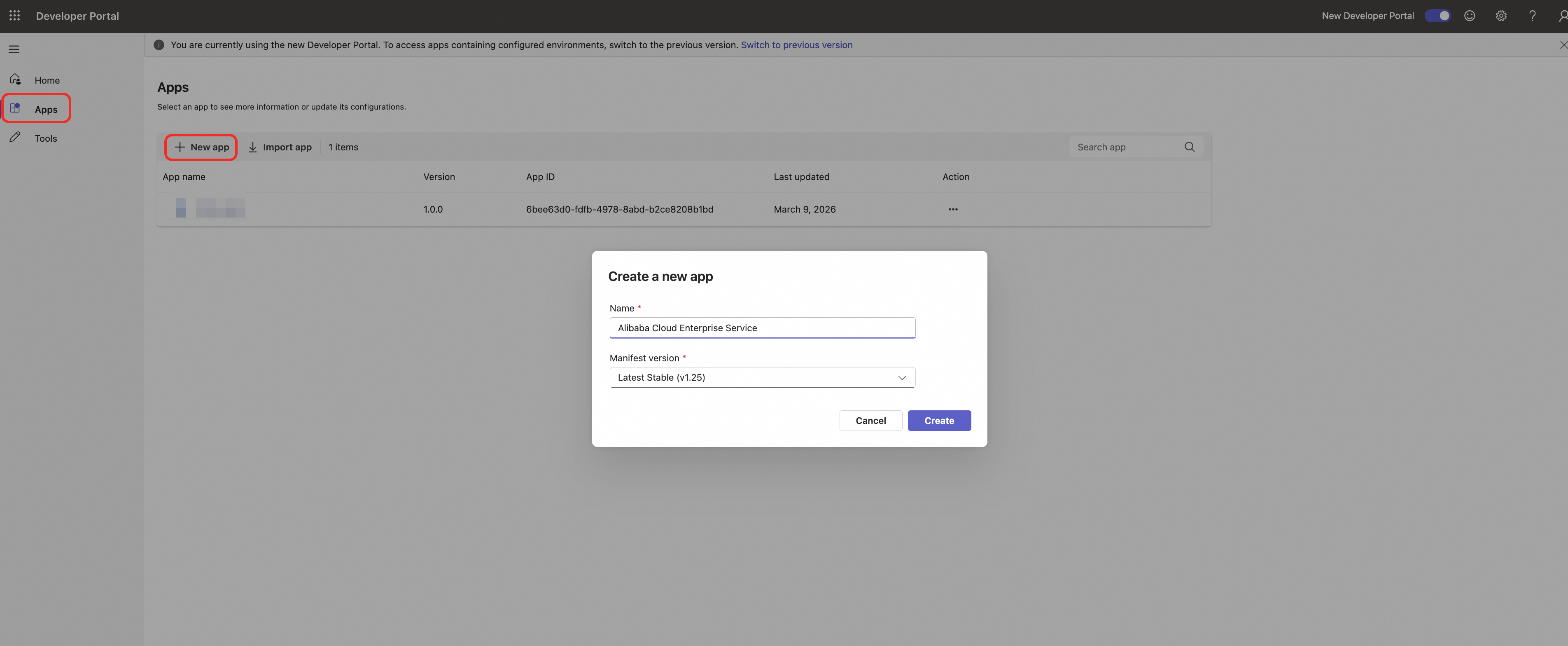
Step 2: Create New App
1. In the left navigation, click Apps.
2. Click + New app.
3. Enter the app name: Alibaba Cloud Enterprise Service (or your preferred name).
4. Click Create.
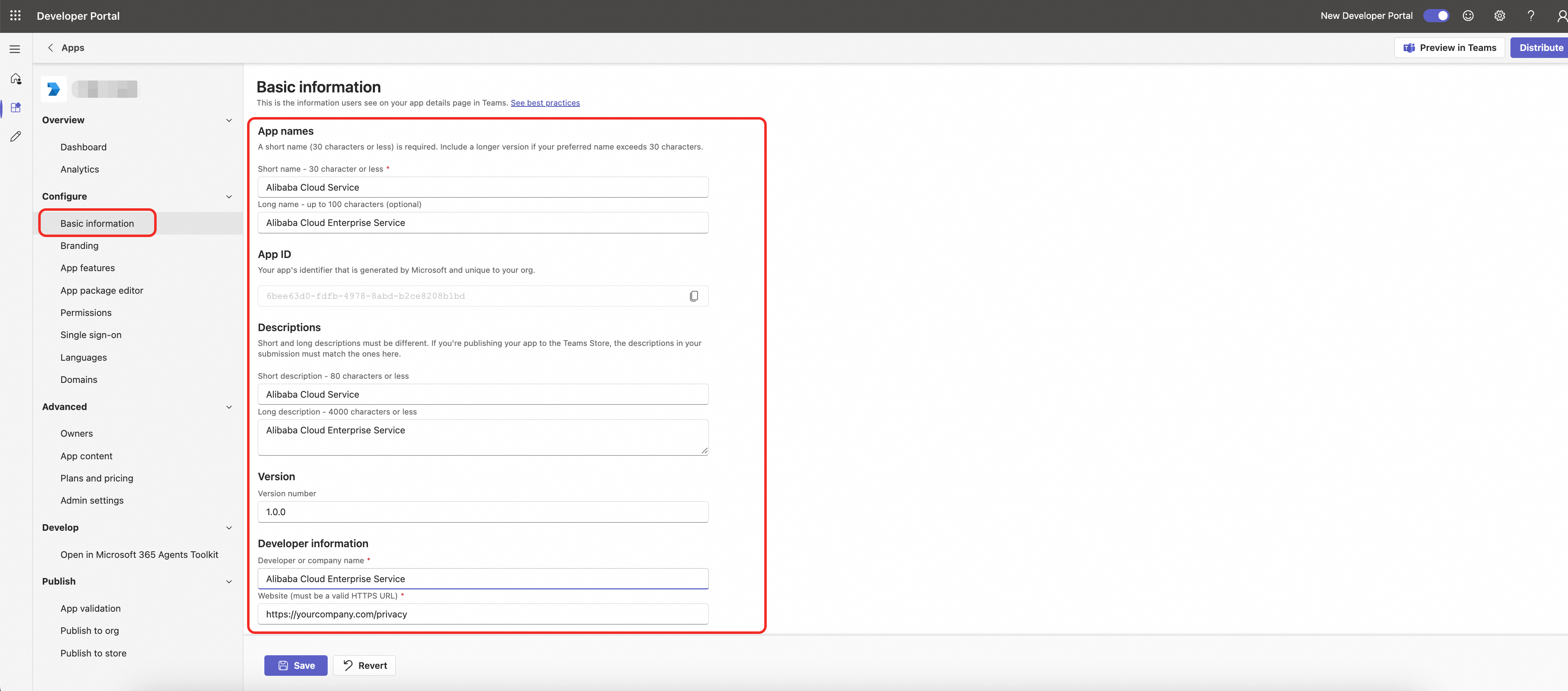
Step 3: Configure Basic Information
1. Go to Basic information in the app editor.
2. Enter the following:
• Short name: Alibaba Cloud Service
• Full name: Alibaba Cloud Enterprise Service
• Short description: Alibaba Cloud Service
• Full description: Alibaba Cloud Enterprise Service
• Developer name: Your Company Name
• Website: https://yourcompany.com(Your company website)
• Privacy policy: https://yourcompany.com/privacy(Your company website)
• Terms of use: https://yourcompany.com/terms(Your company website)
• Application (Client) ID: Paste your Application (Client) ID
3. Upload icons:
• Color icon: Upload color.png (192x192 pixels)
• Outline icon: Upload outline.png (32x32 pixels)
4. Set accent color: #60A18E (or your preferred color)
5. Click Save.
Step 4: Configure Personal Tab
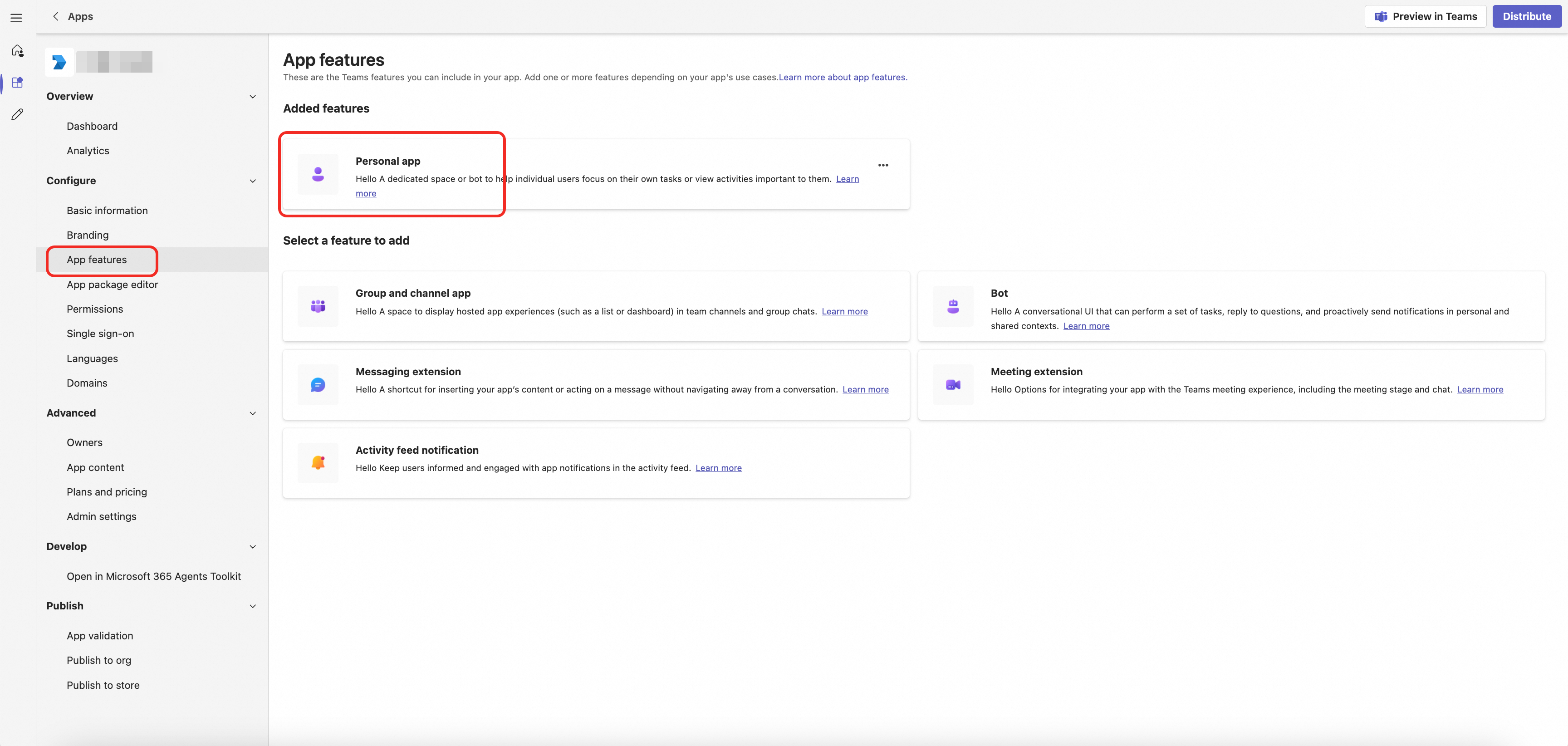
1. Under Configure, click App features.
2. Click Personal apps.
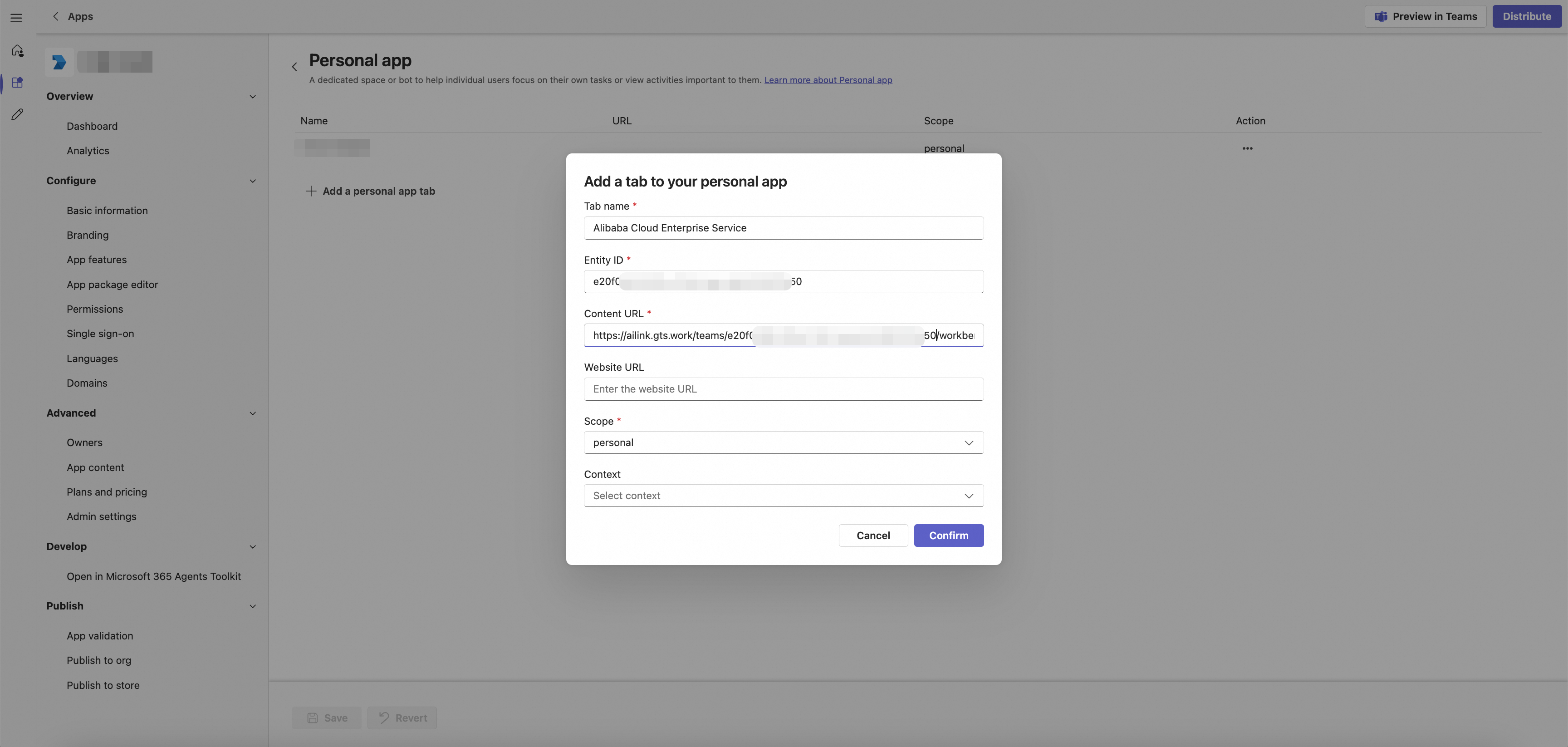
3. Click + Add a personal tab.
4. Enter the following:
• Name: Alibaba Cloud Enterprise Service
• Entity ID: Default value
• Content URL: https://ailink.gts.work/teams/${Application(Client) ID}/workbench
• Website URL: Leave empty or same as Content URL
5. Click Confirm.
Step 5: Configure Single Sign-On (SSO)
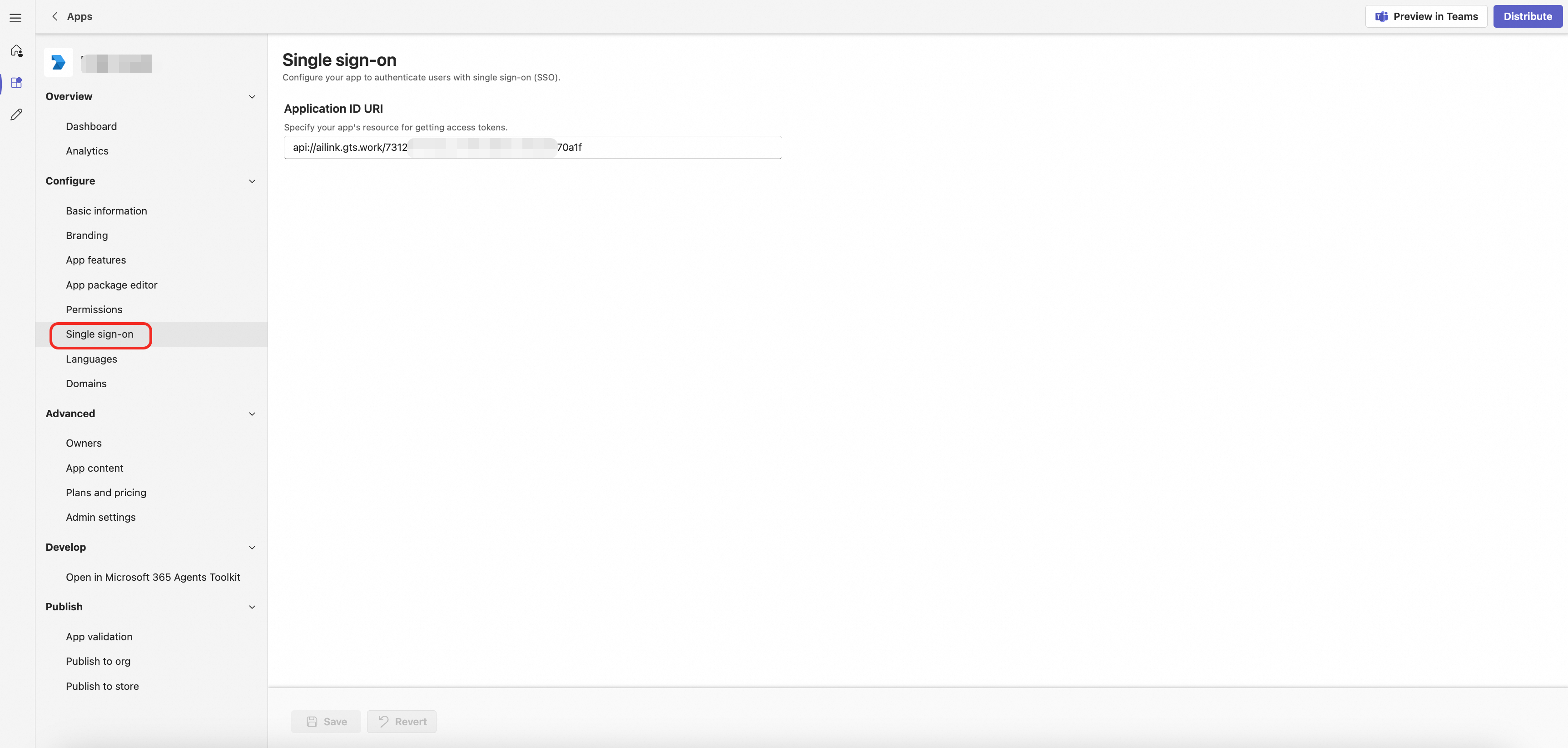
1. Under Configure, click Single sign-on.
2. Enter the Application ID URI:
• This value must match the Application ID URI from Azure AD (Step 5 of section 3.1).
3. Click Save.
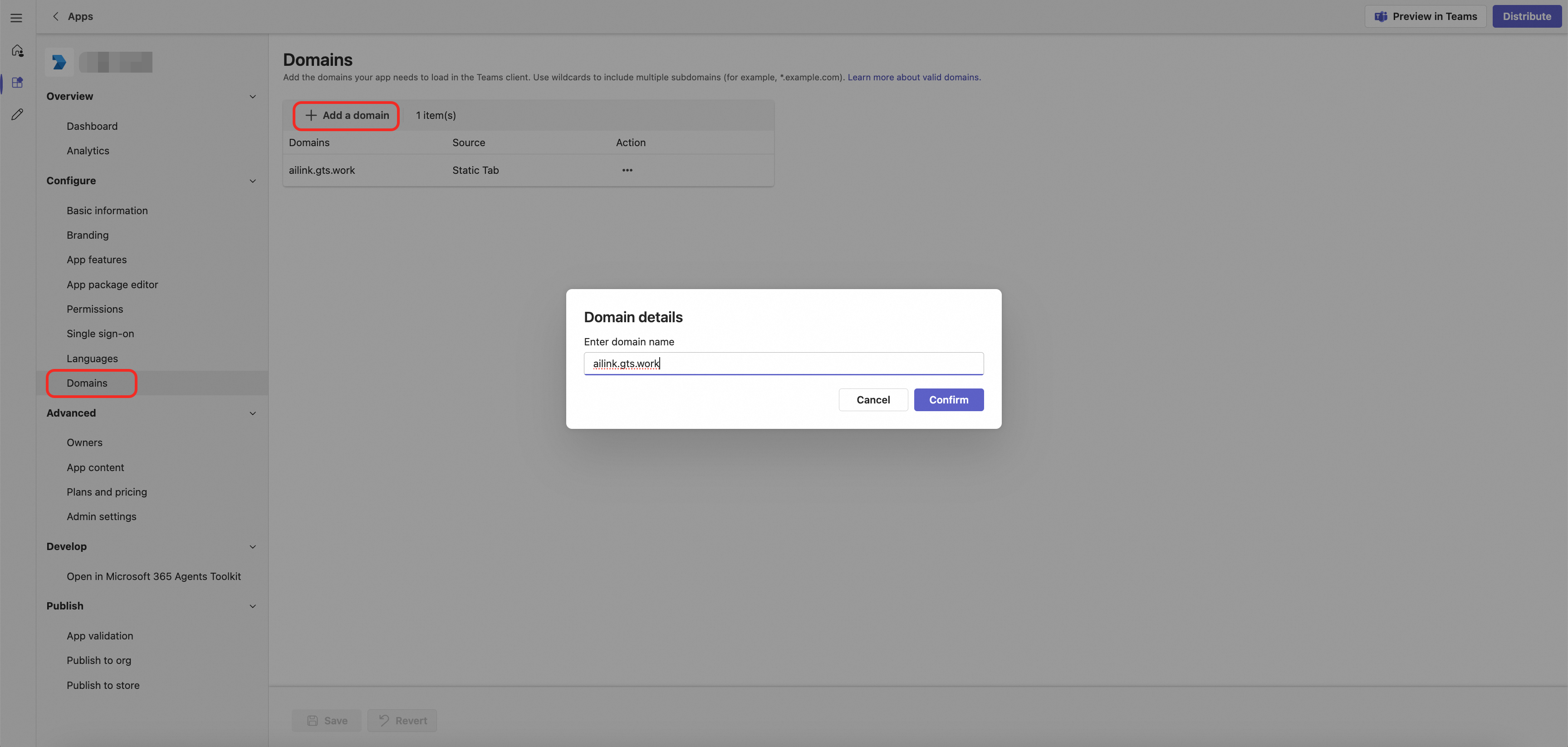
Step 6: Configure Domains
1. Under Configure, click Domains.
2. Click + Add domain.
3. Enter ailink.gts.work (without https://)
4. Click Add.
4. Publish and Distribute the App
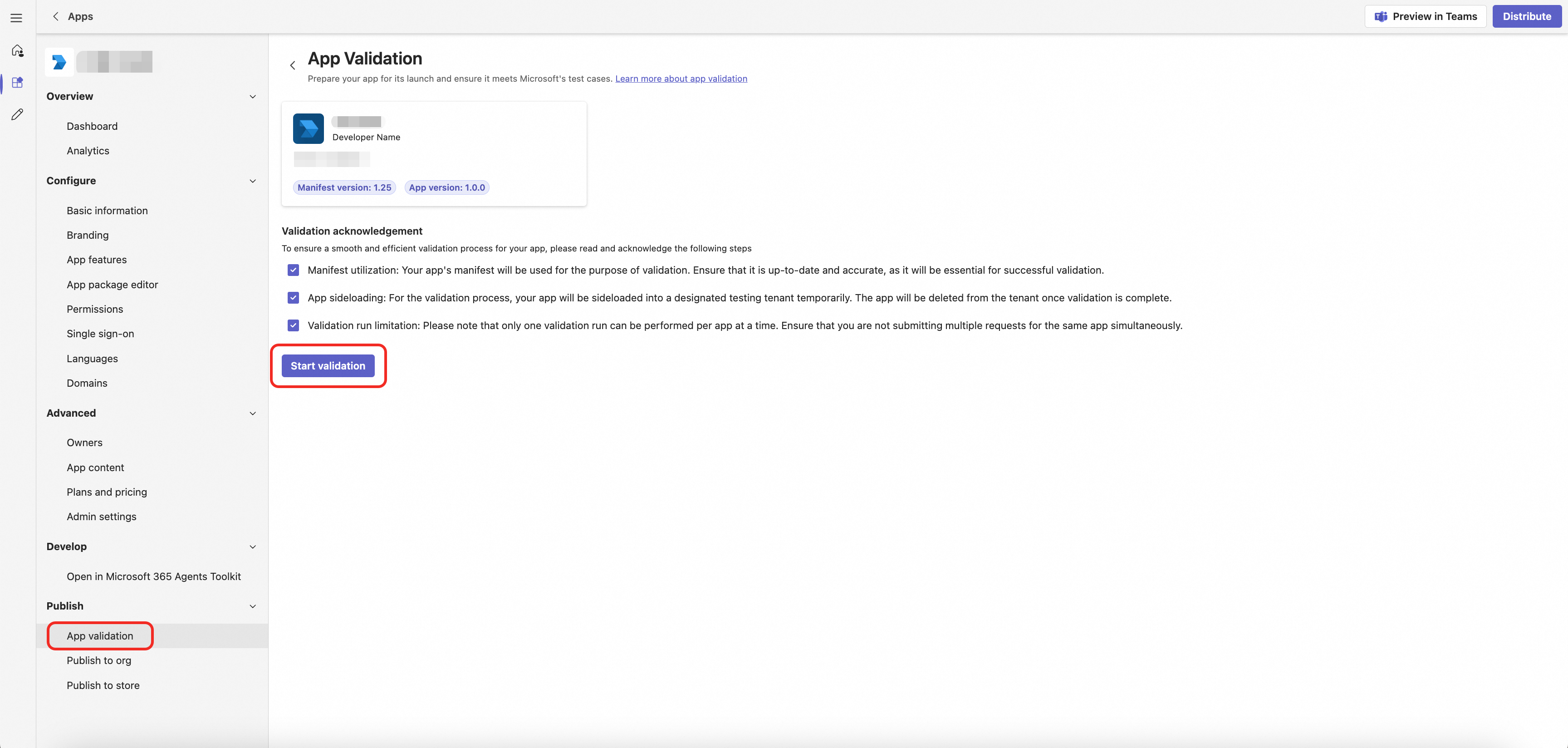
4.1 Validate App
1. In the developer portal, click Publish in the left navigation.
2. Click App validation.
3. The portal validates your app automatically.
4. Fix any errors listed in the validation report.
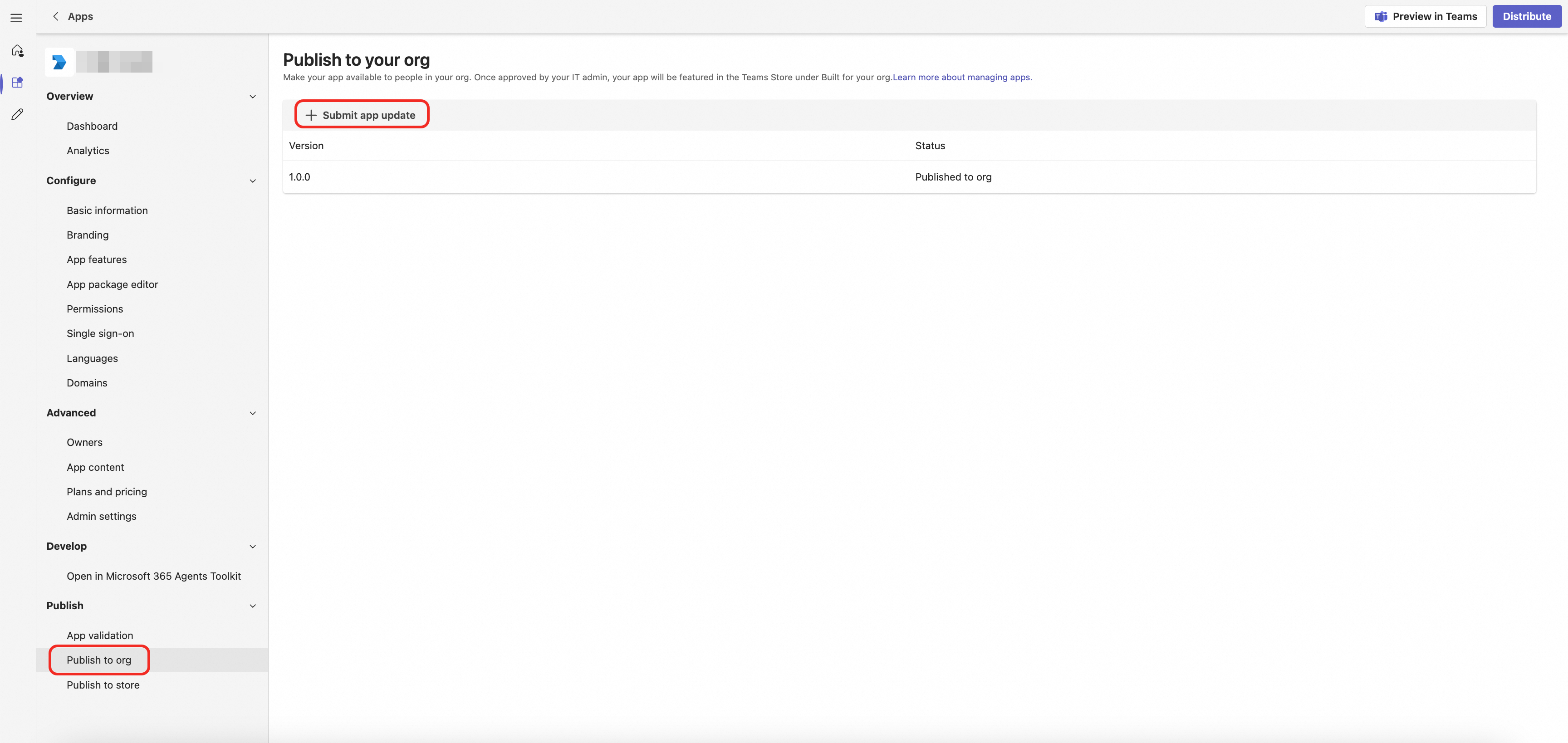
4.2 Submit to Organization App Catalog
1. After validation passes, click Publish to your organization.
2. The app is submitted to your organization's app catalog.
3. Record the published app ID.
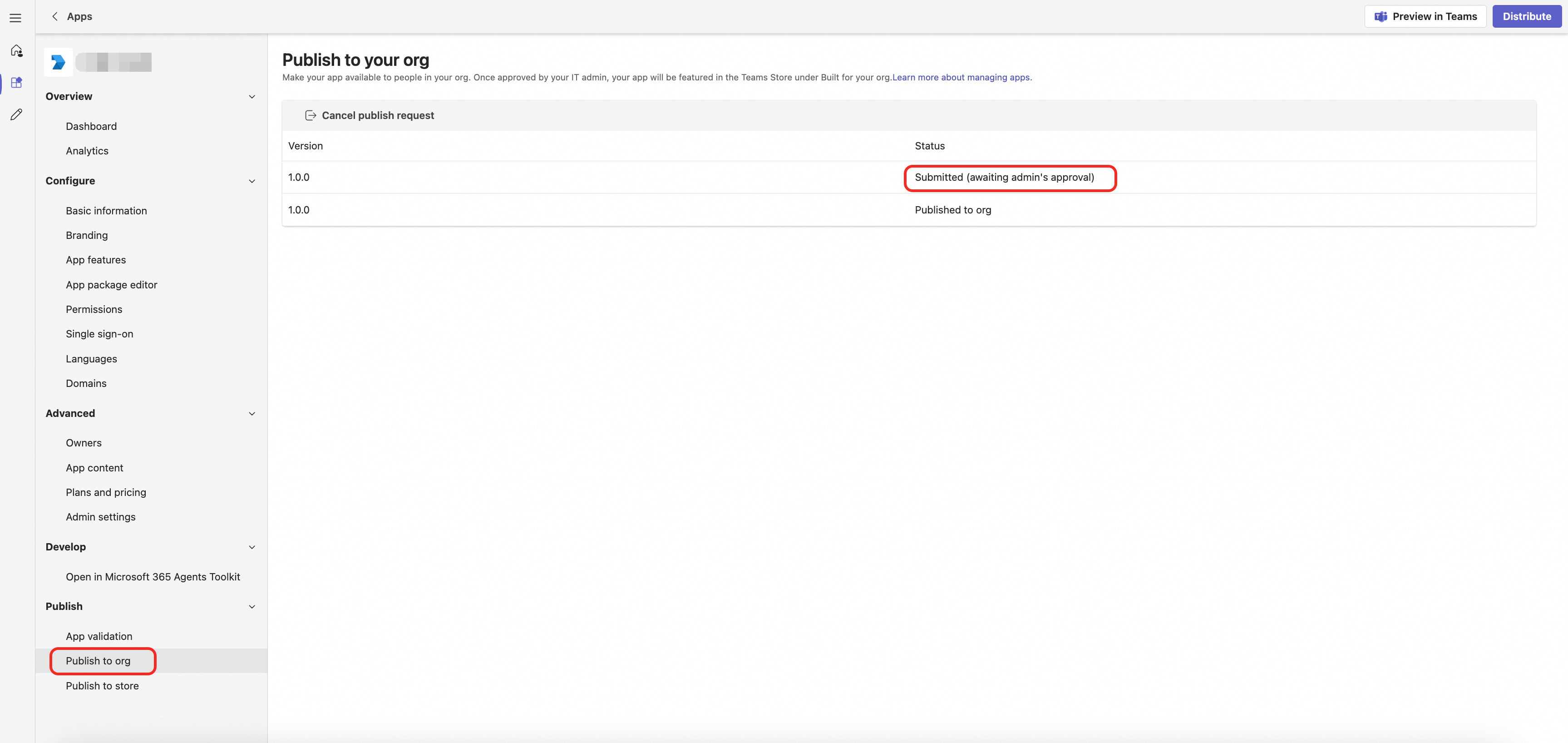
4.3 Admin Approval (If Required)
1. If your organization requires admin approval:
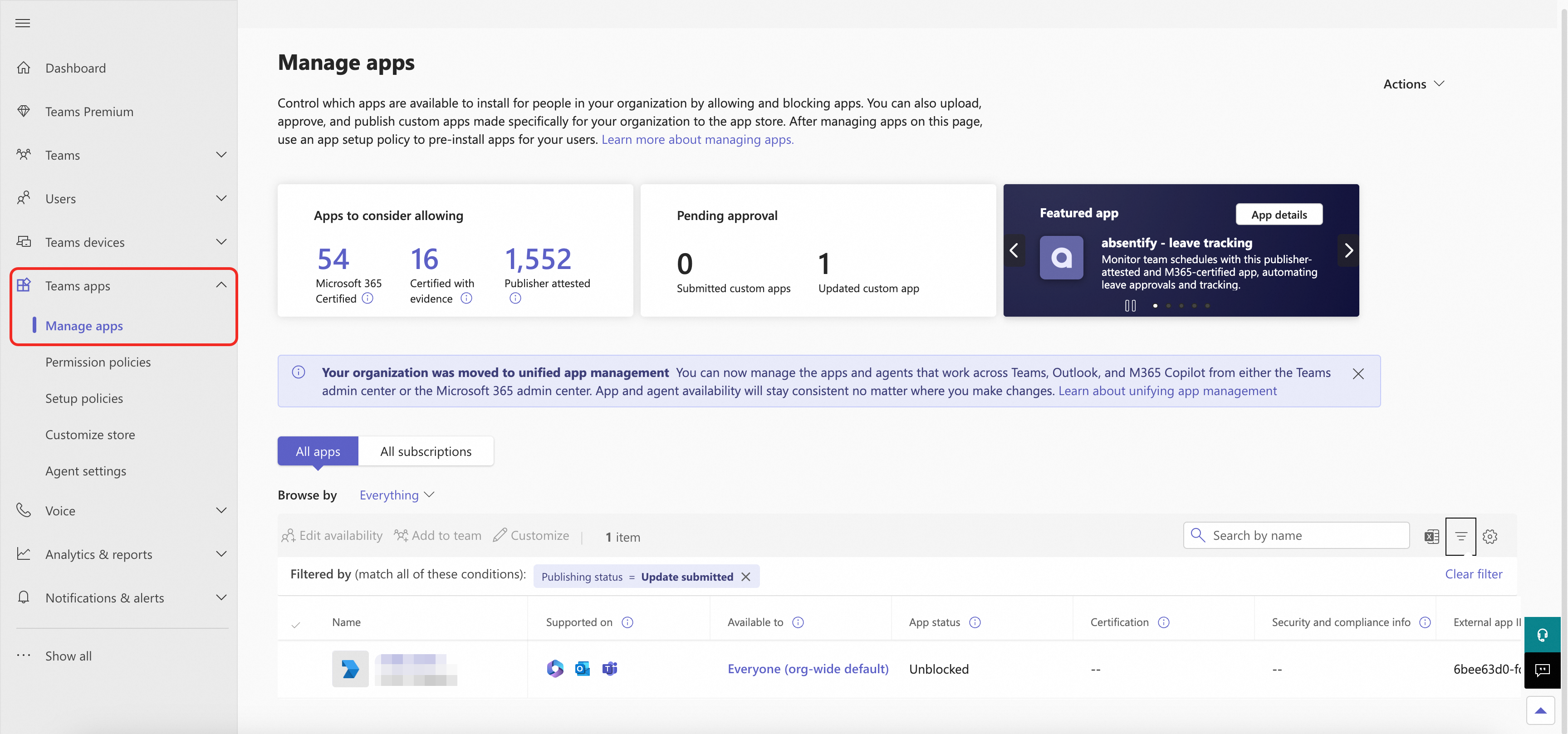
• Go to the Teams Admin Center.
• Sign in with a Teams administrator account.
• Navigate to Teams apps > Manage apps.
• Find your app (may be in Pending approval).
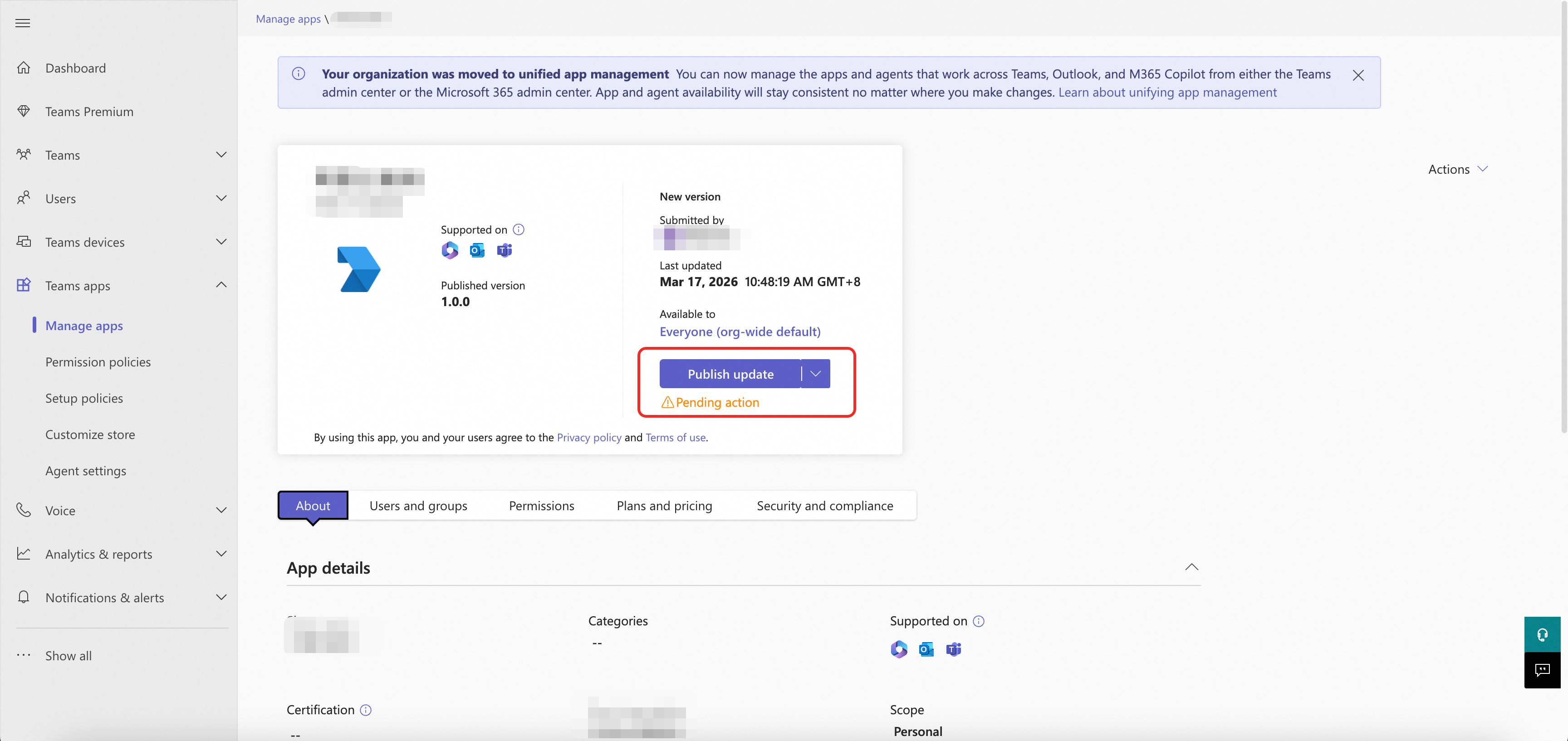
• Click the app name.
2. Click Allow or Publish.
5. Install and Test
5.1 Configure the Enterprise Service Desk
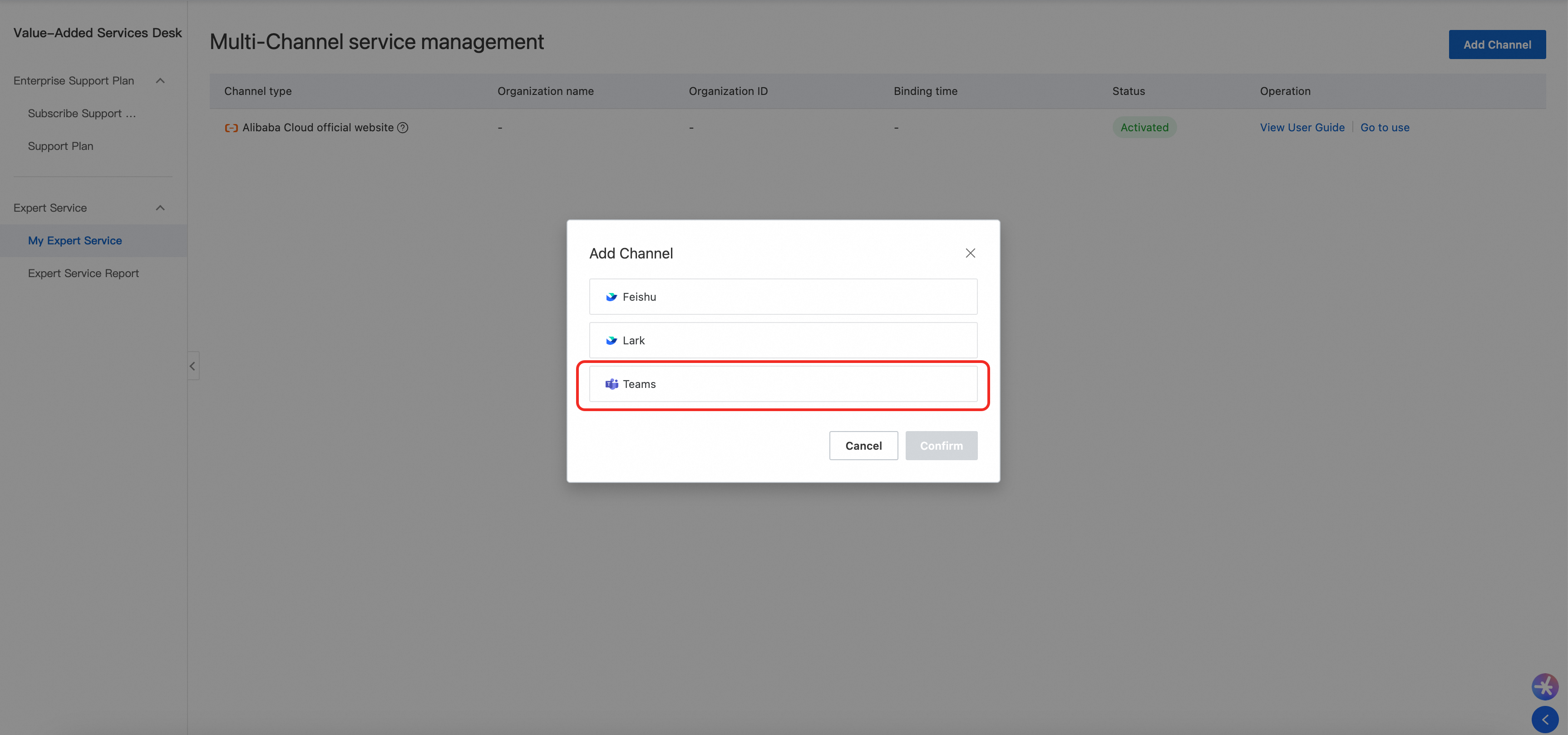
1. Go to Alibaba Cloud Value-Added Service Desk > My Expert Service > Channel Management > Add Channel > Teams.
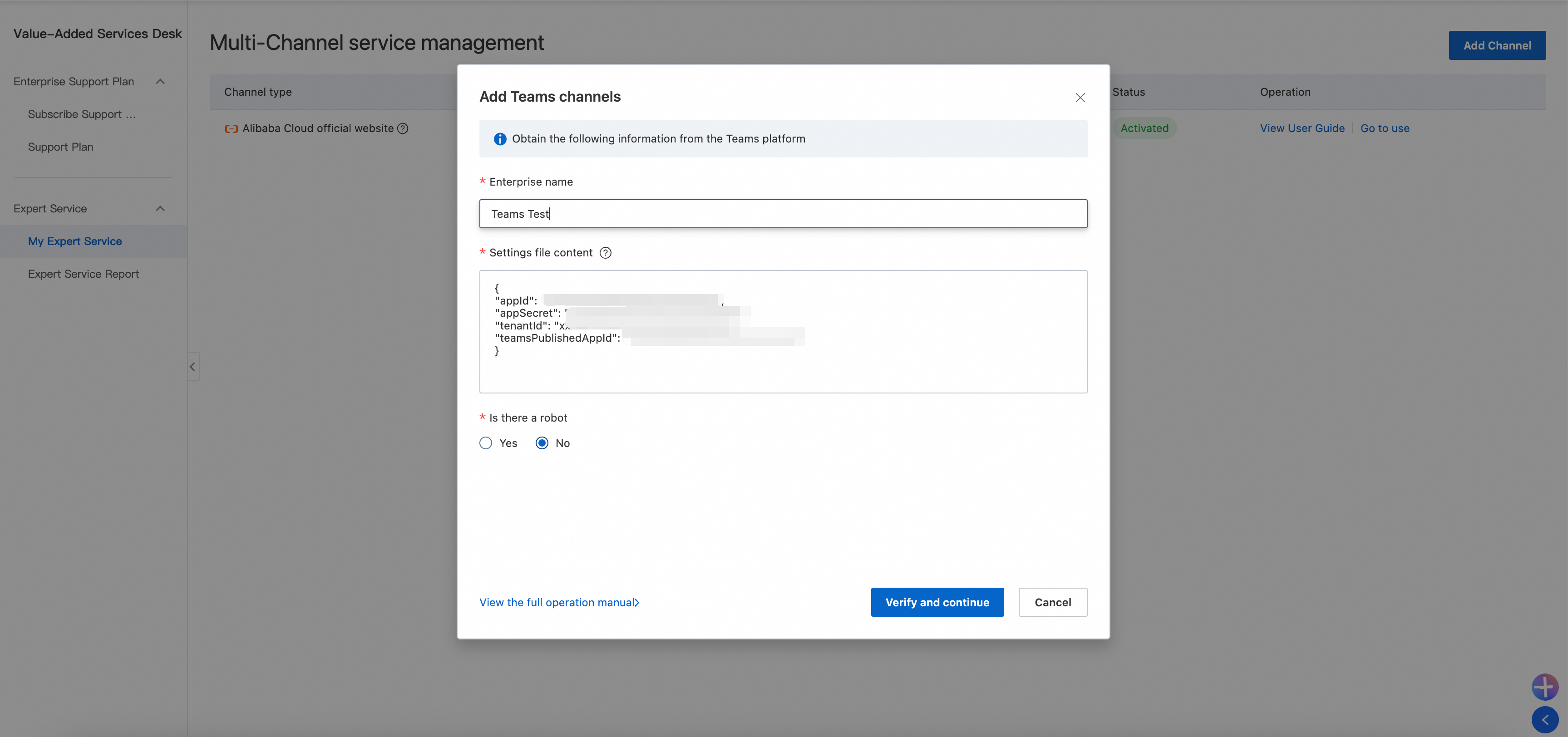
2. Enter the following configuration. Replace placeholders with your actual values:
{
"appId": "{Application (Client) ID}",
"appSecret": "{Client Secret}",
"tenantId": "{Directory (Tenant) ID}",
"teamsPublishedAppId": "{Scope ID (GUID)}"
}
5.2 Install App
1. Open Microsoft Teams (web or desktop).
2. Click Apps in the left navigation.
3. Click Built for your organization.
4. Find the Alibaba Cloud Exclusive Service app (or your app name).
5. Click Add.
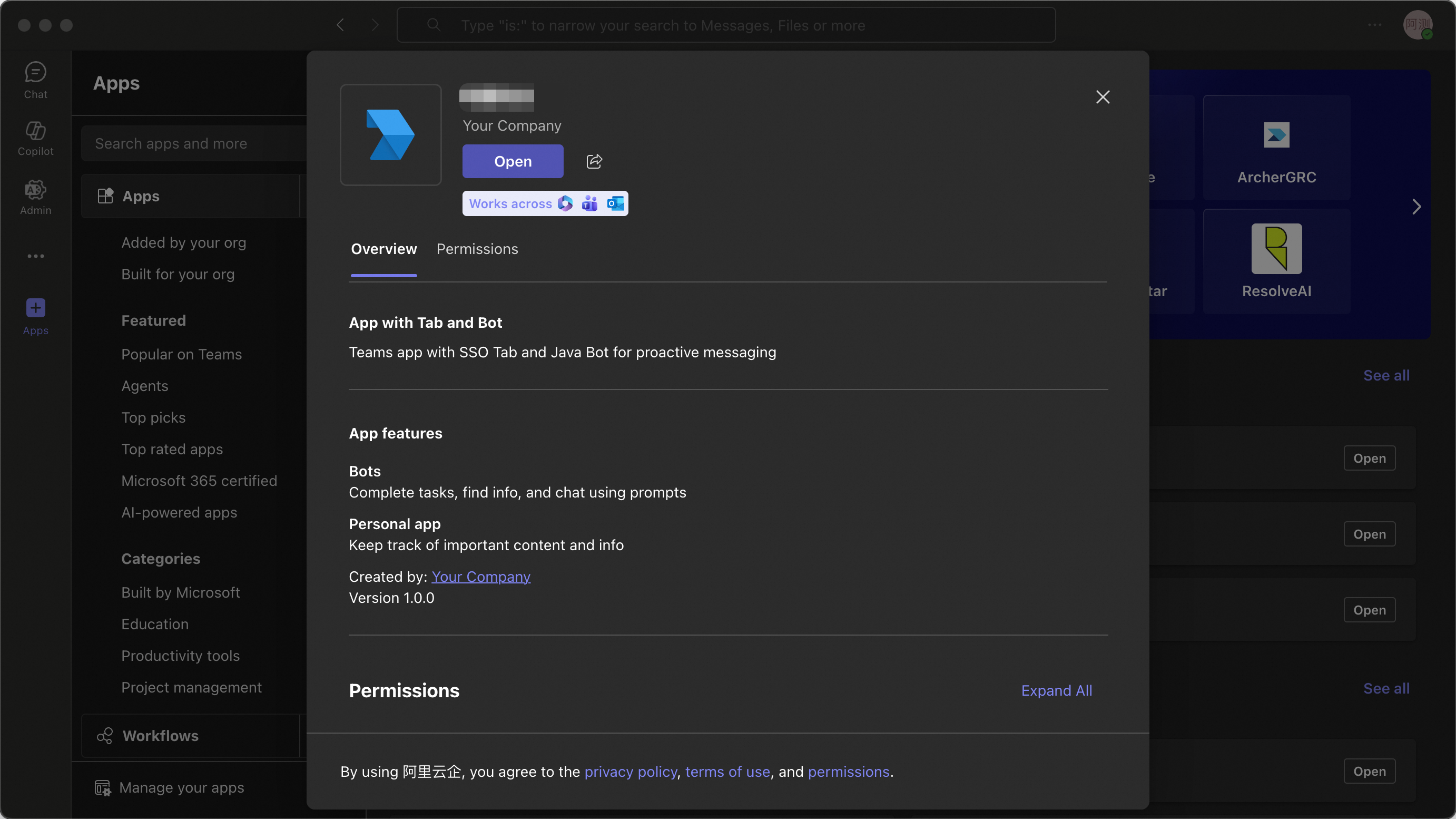
5.3 Verify the App
1. After installation, the app appears in the Teams left navigation.
2. Click the app icon and verify the Workbench page loads.
3. Test the Single Sign-On (SSO) function.
If you encounter issues, contact your Alibaba Cloud Technical Account Manager (TAM).
Appendix: Submit a Ticket
-
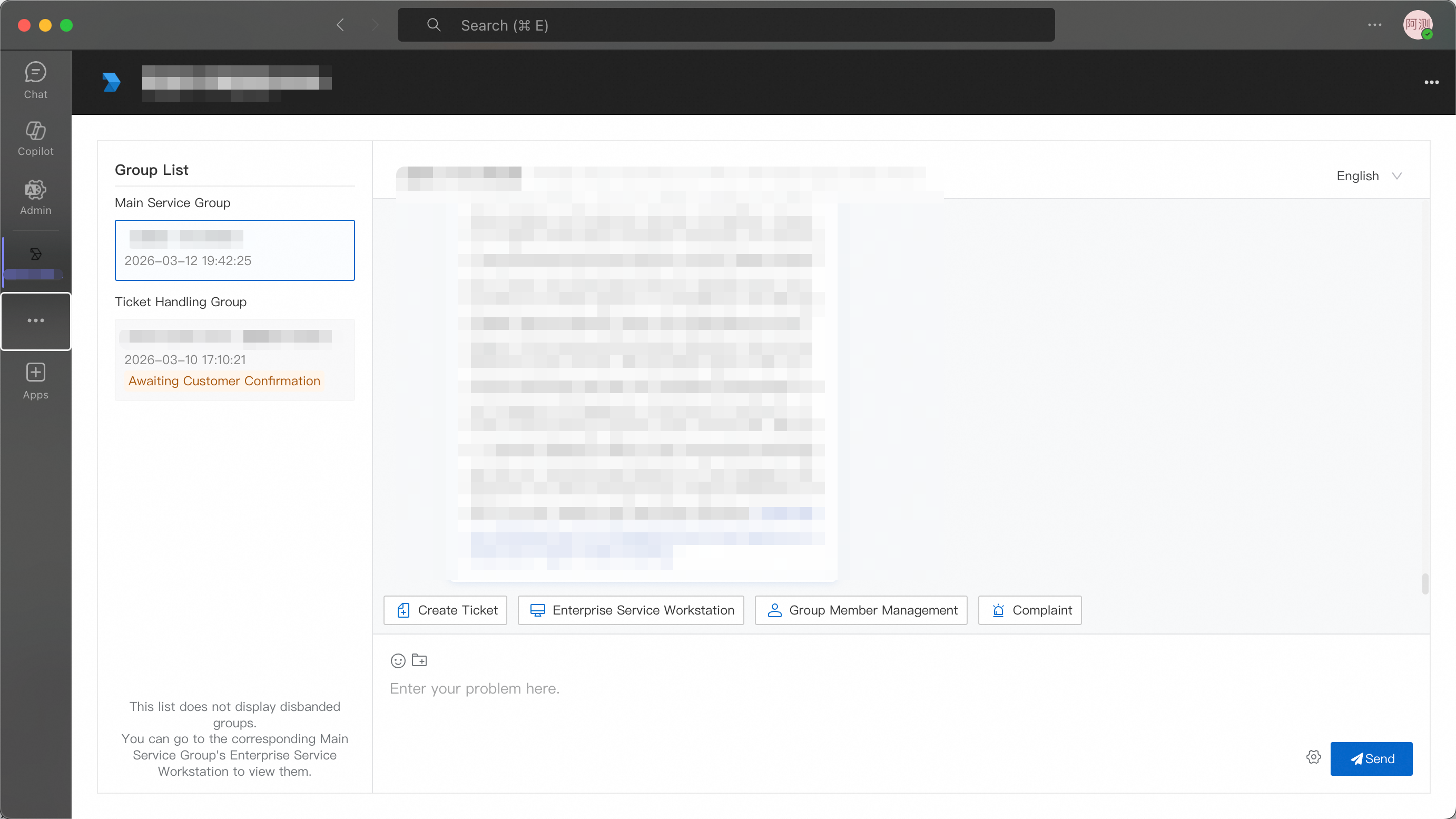
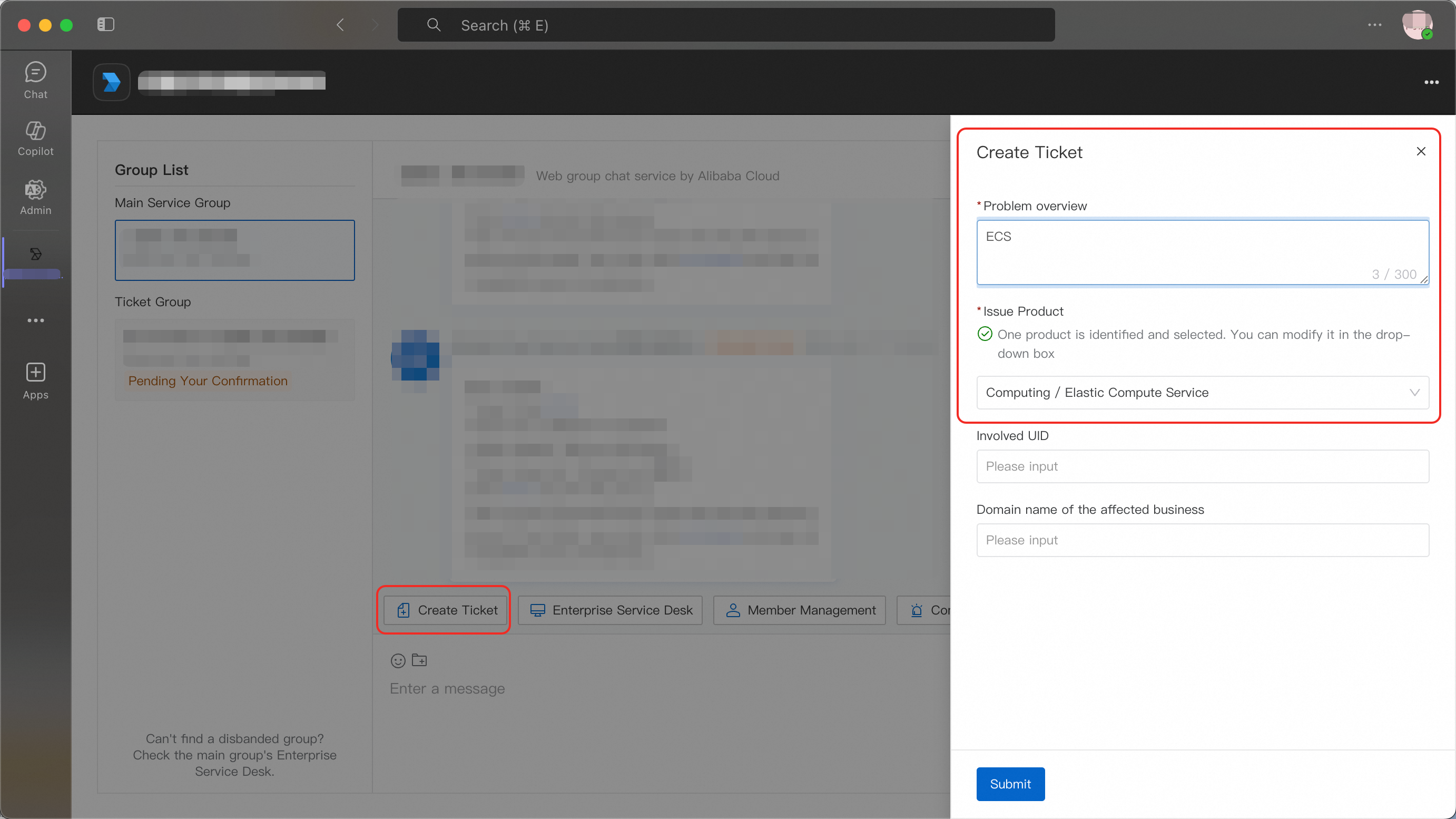
Select the Primary Service Group and click [Create Ticket]. Enter an issue summary. The system identifies the relevant product automatically, but you can also select the product category manually.
-
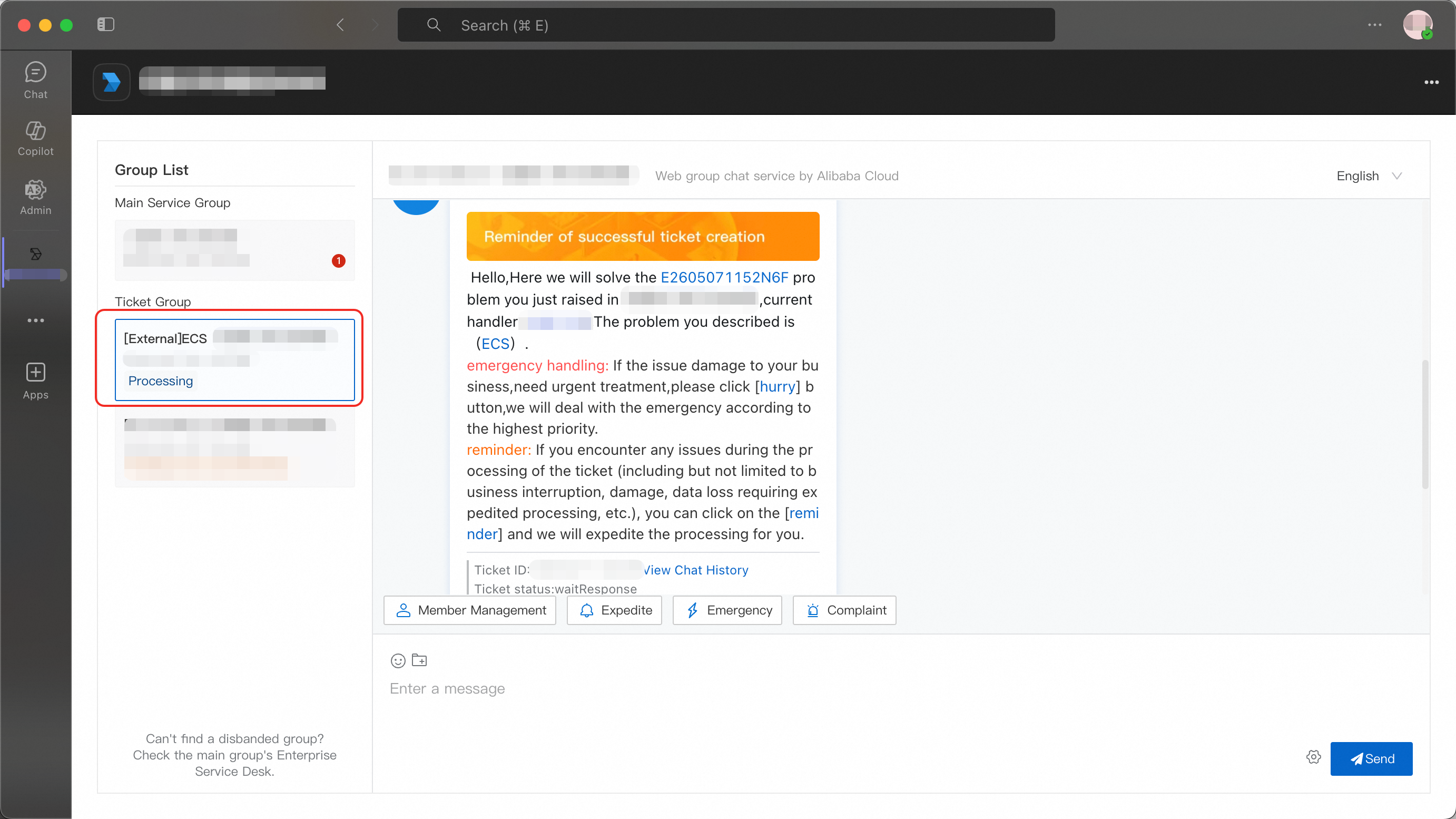
After you click [Submit], the system creates a ticket and a dedicated ticket group. A technical support engineer is assigned to provide solutions.
-
The primary service group also provides:
-
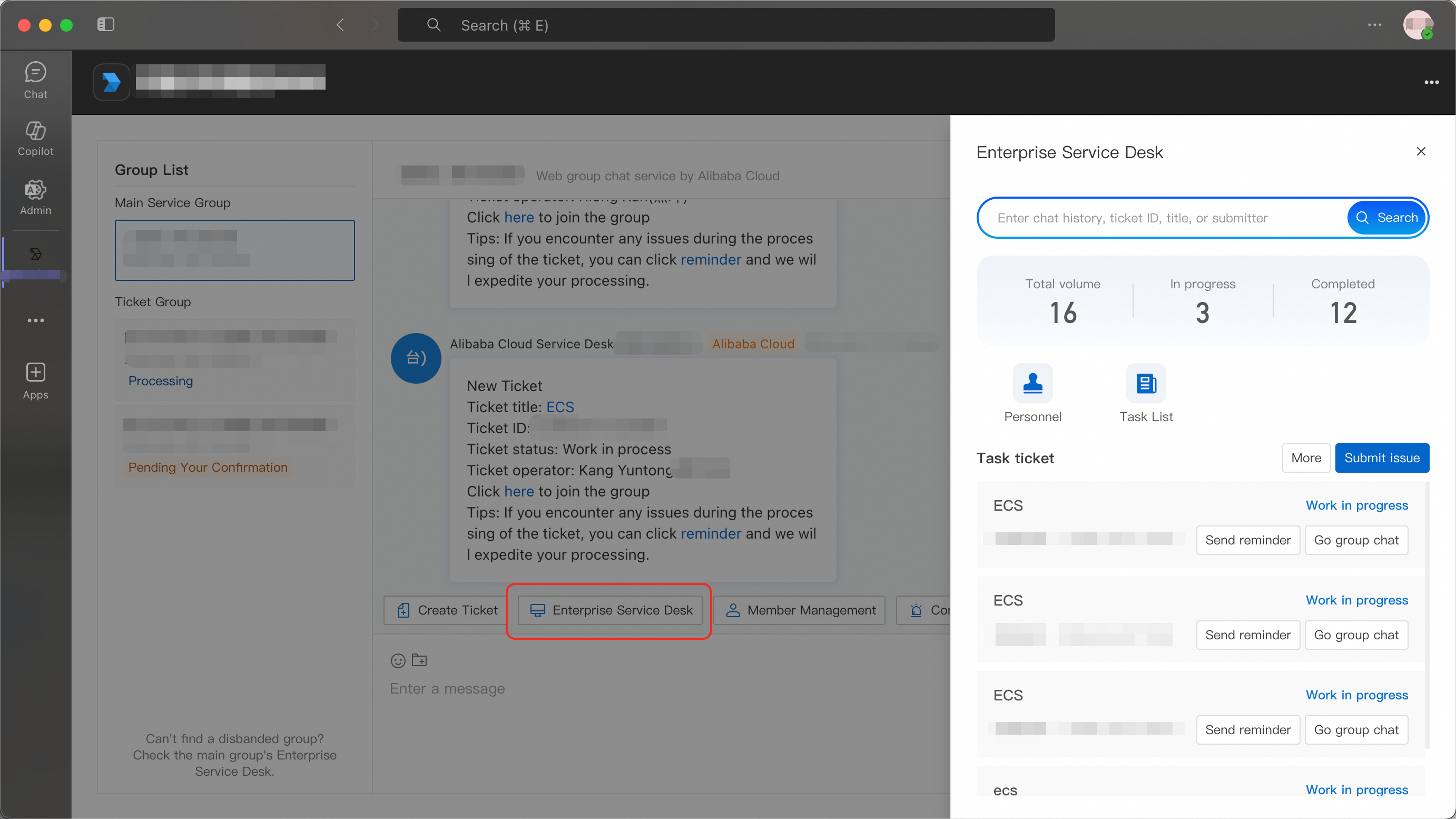
[Enterprise Service Desk]: Search historical tickets by chat logs, ticket IDs, or titles, and view past records.
-
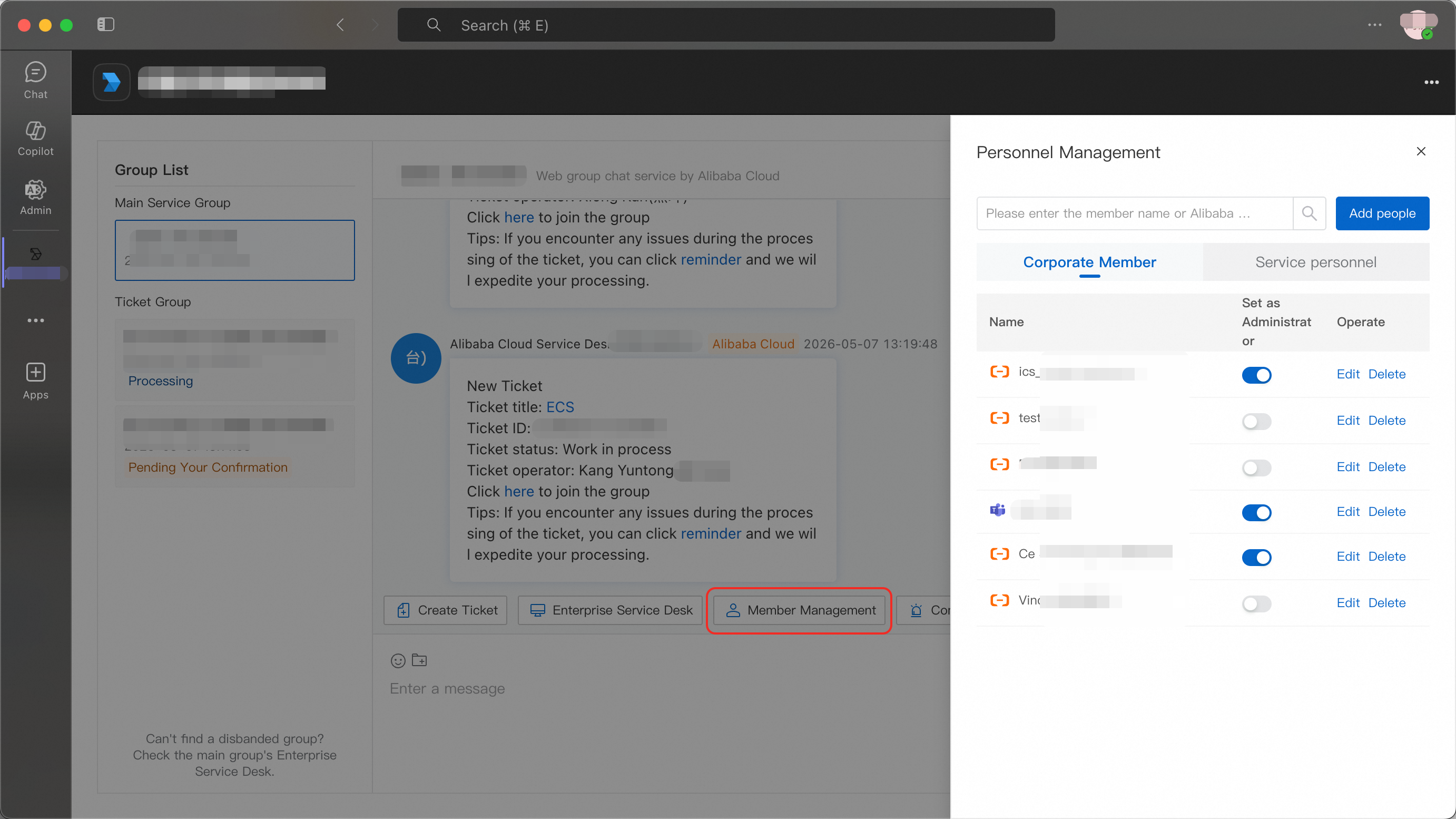
[Member Management]: View members, edit nicknames, grant admin permissions, or click [Add people] to invite users.
-
If you cannot add members, contact your Alibaba Cloud TAM to request the "Group Administrator" role.