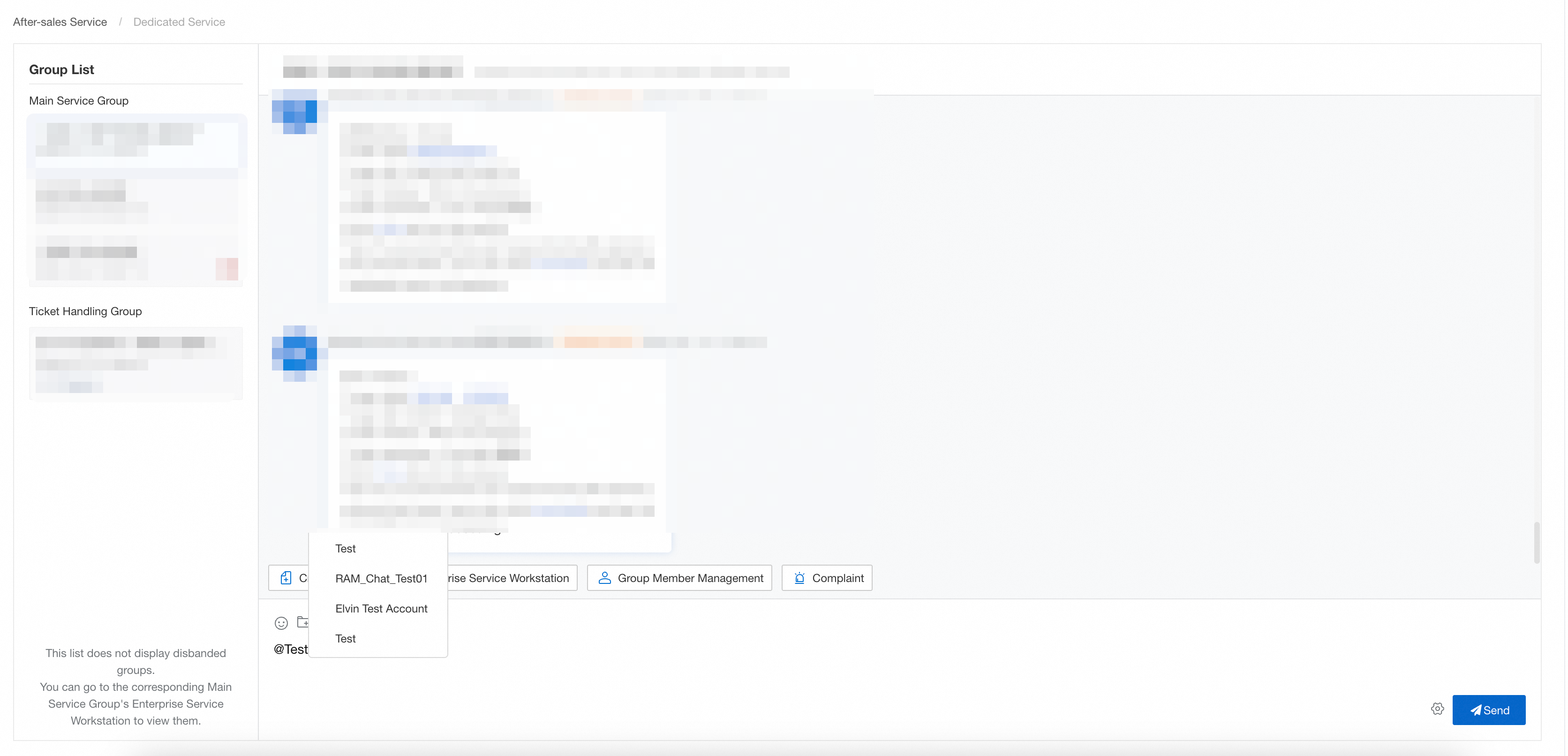
Set up and use Alibaba Cloud Enterprise Service in Lark Workbench to communicate with your TAM, receive ticket notifications, and track service progress.
The setup involves creating a custom Lark app, configuring permissions, and publishing the app to your organization.
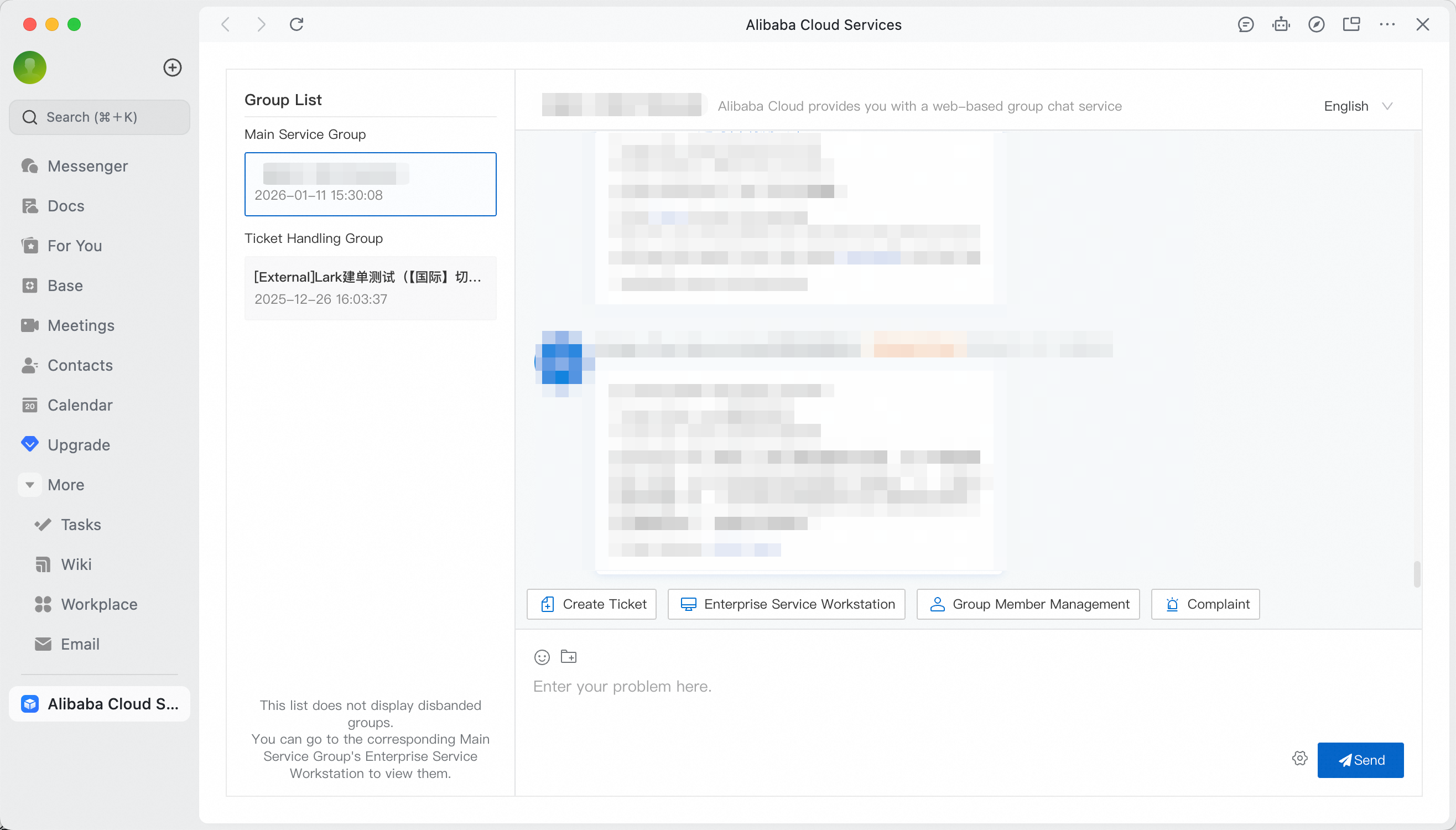
Part 1: Configuration (about 10 minutes)
Operator: Lark organization administrator or application developer
Objective: Create a custom app and grant the permissions required for Alibaba Cloud integration.
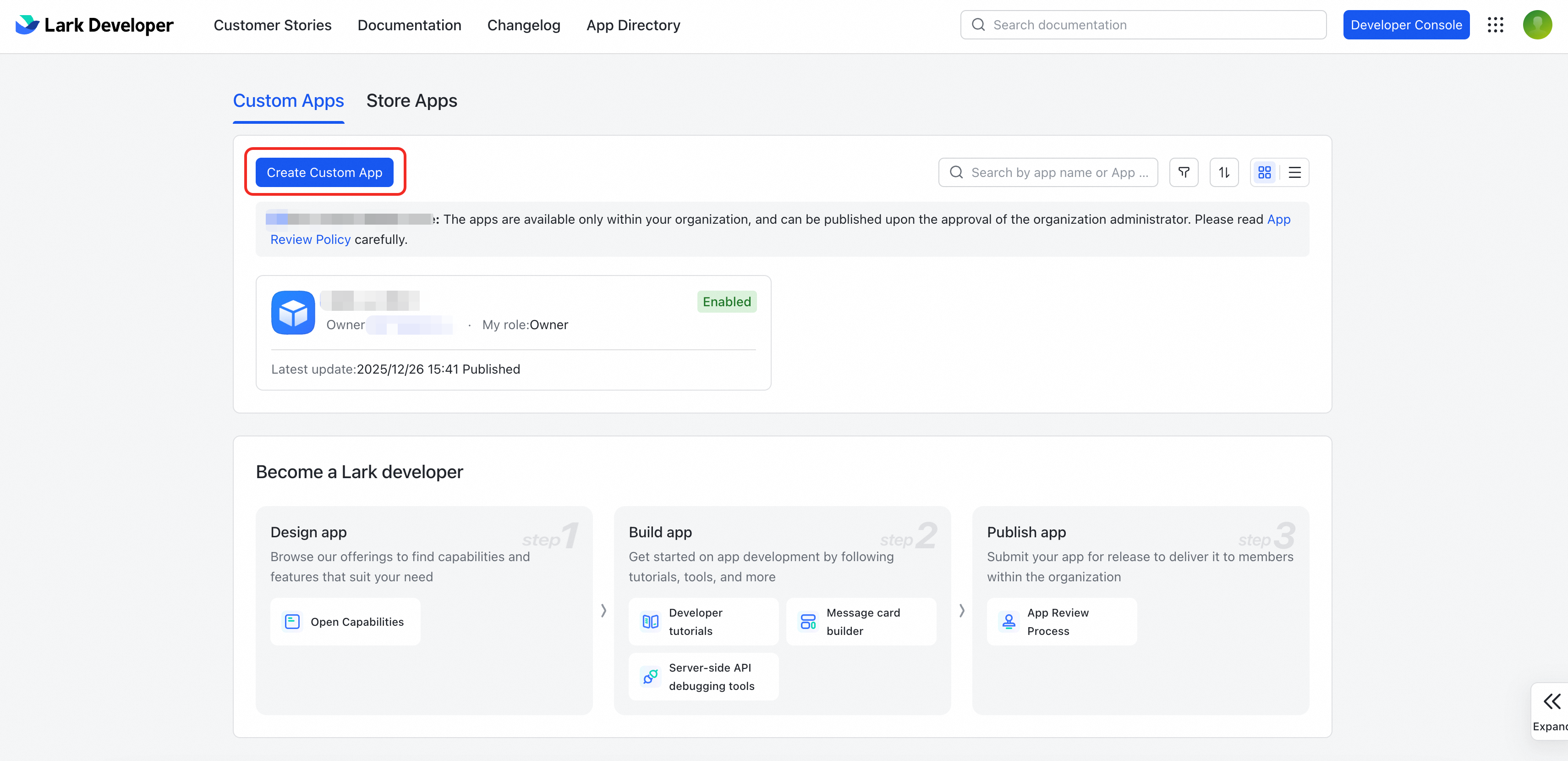
Step 1: Create a Custom App
-
Log in to the Lark Developer Platform.
-
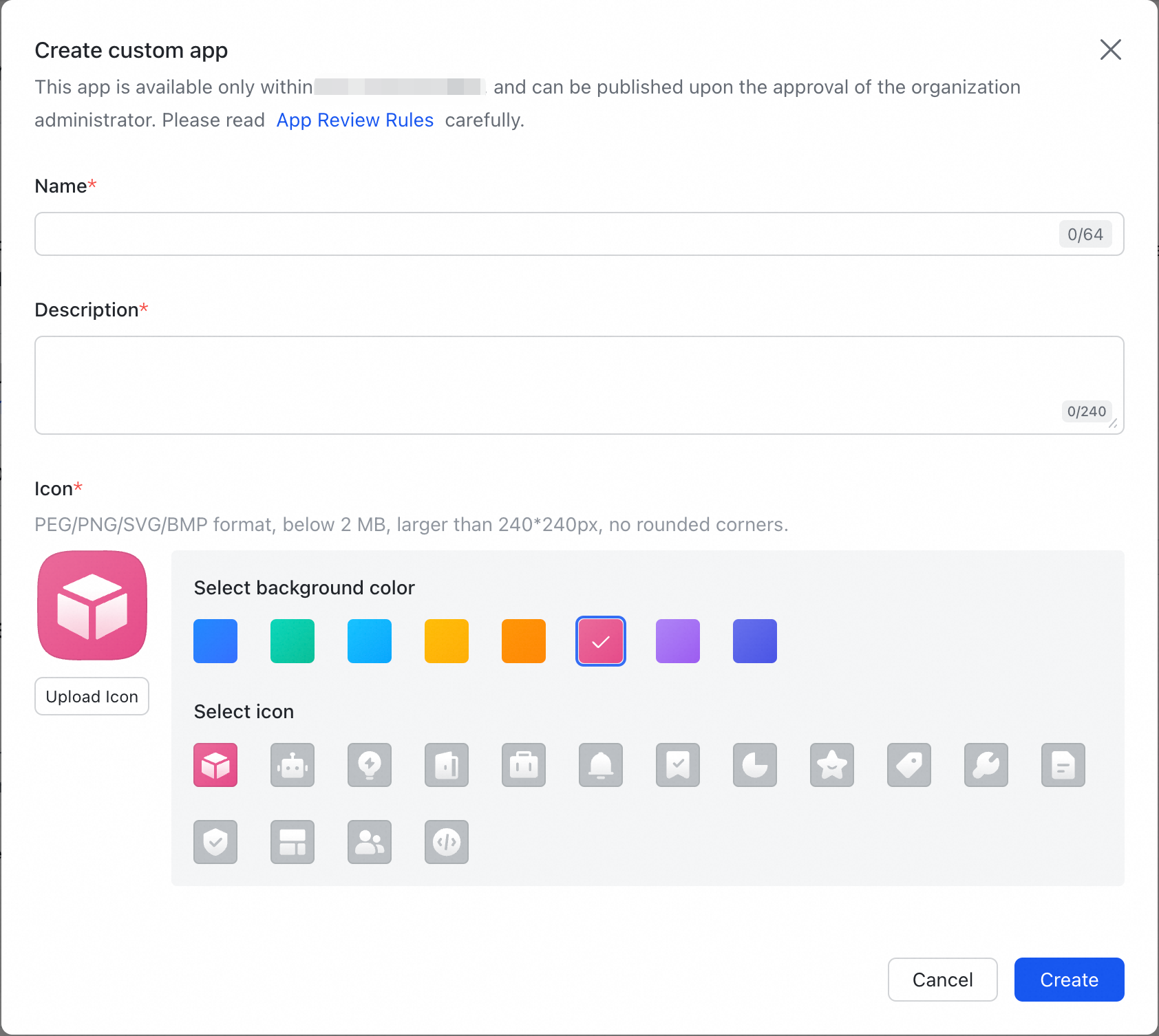
Create a Custom App. Set the application name and description (recommended: "Alibaba Cloud Enterprise Service") so team members can easily find it.
Step 2: Add Application Features
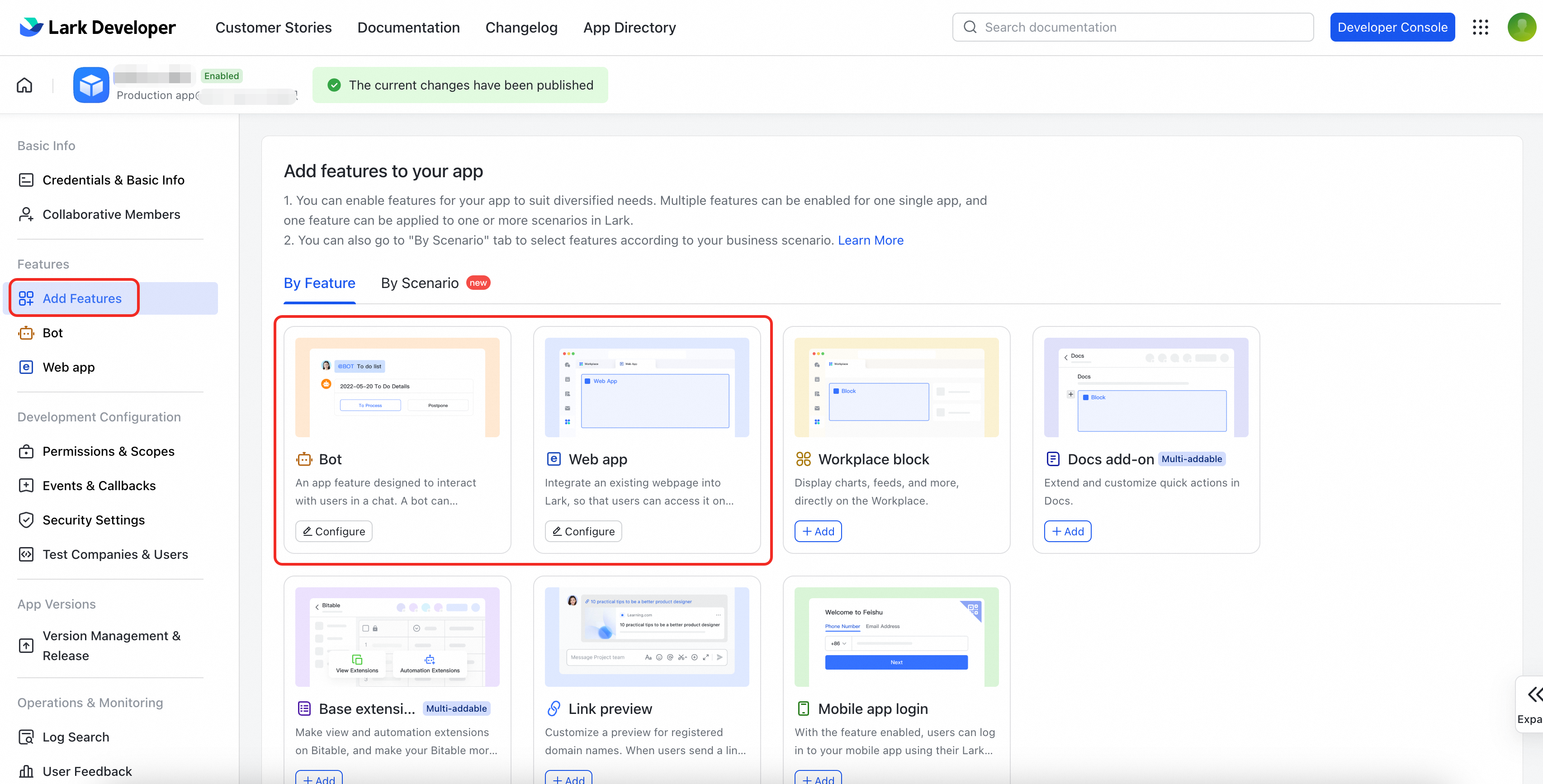
In the left navigation bar, click Add Features. Add the following two features to your app:
-
Web app
-
Enables your team to open and use Alibaba Cloud Enterprise Service directly in Lark.
-
Operation: Find the "Web app" card and click + to add. Configure the desktop link in Step 4.
-
-
Bot
-
Sends message notifications so you stay informed of important updates.
-
Operation: Find the "robot" card and click + to add.
-
Step 3: Obtain application credentials
To enable the Lark channel, provide your organization name, App ID, and App Secret.
-
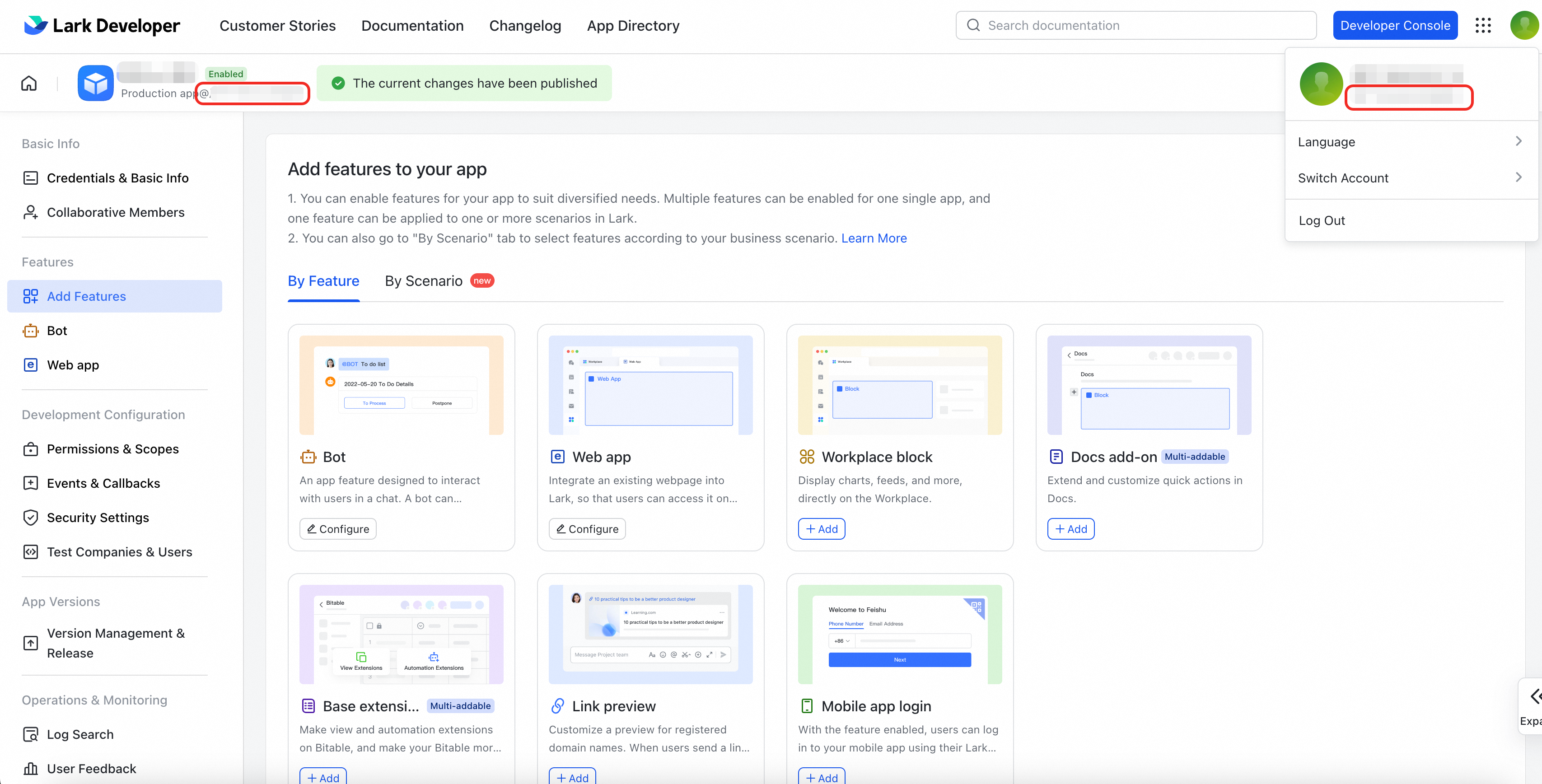
Organization name: On the Lark Open Platform, your organization name appears in the upper-right corner below your username. It also appears as "Production app @ (Organization Name)" in the upper-left corner of the app page.
-
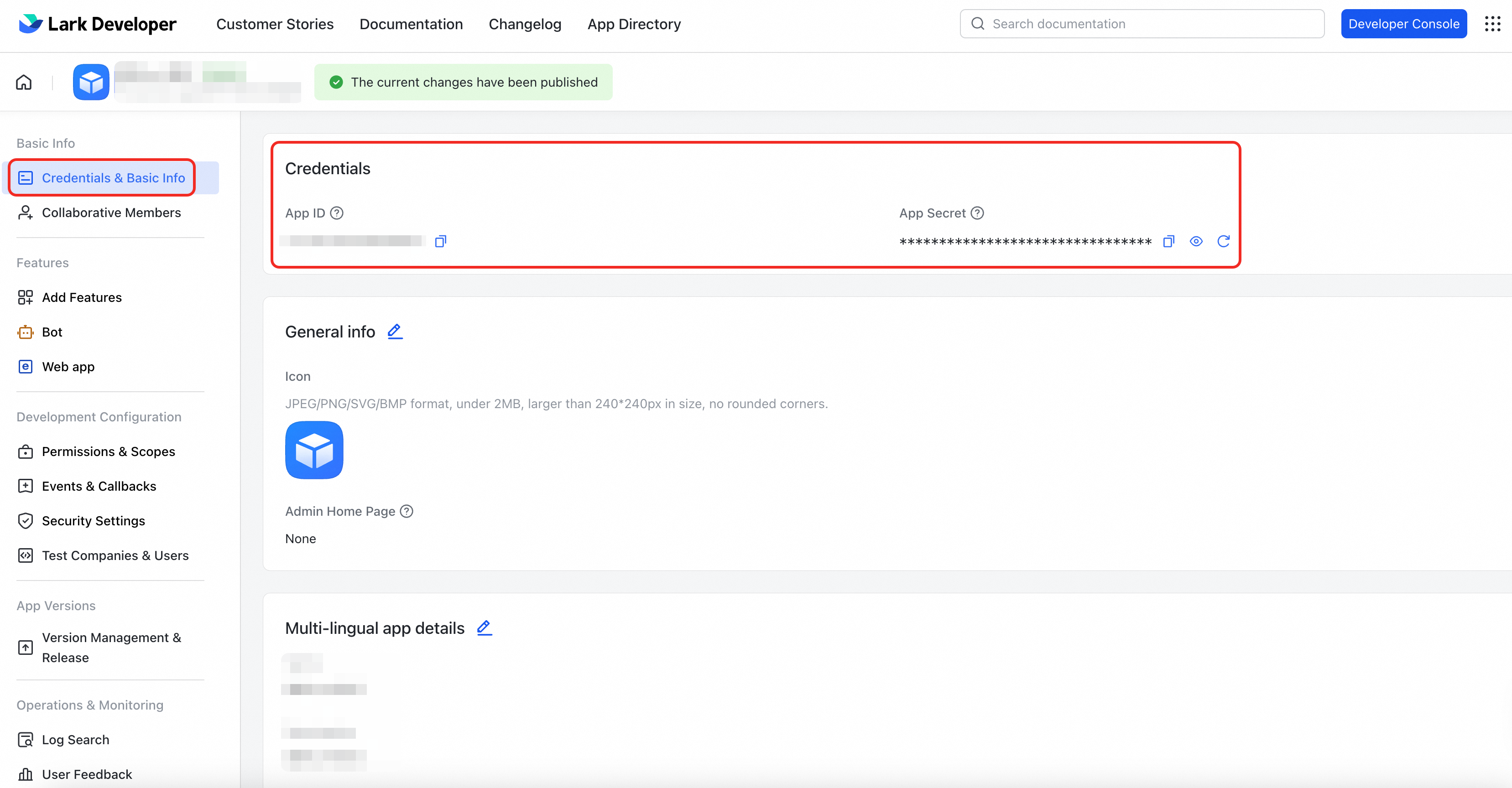
On the Credentials & Basic Info page, copy the App ID and App Secret.
-
Send the organization name, App ID, and App Secret to your TAM for configuration.
Step 4: Configure web app link
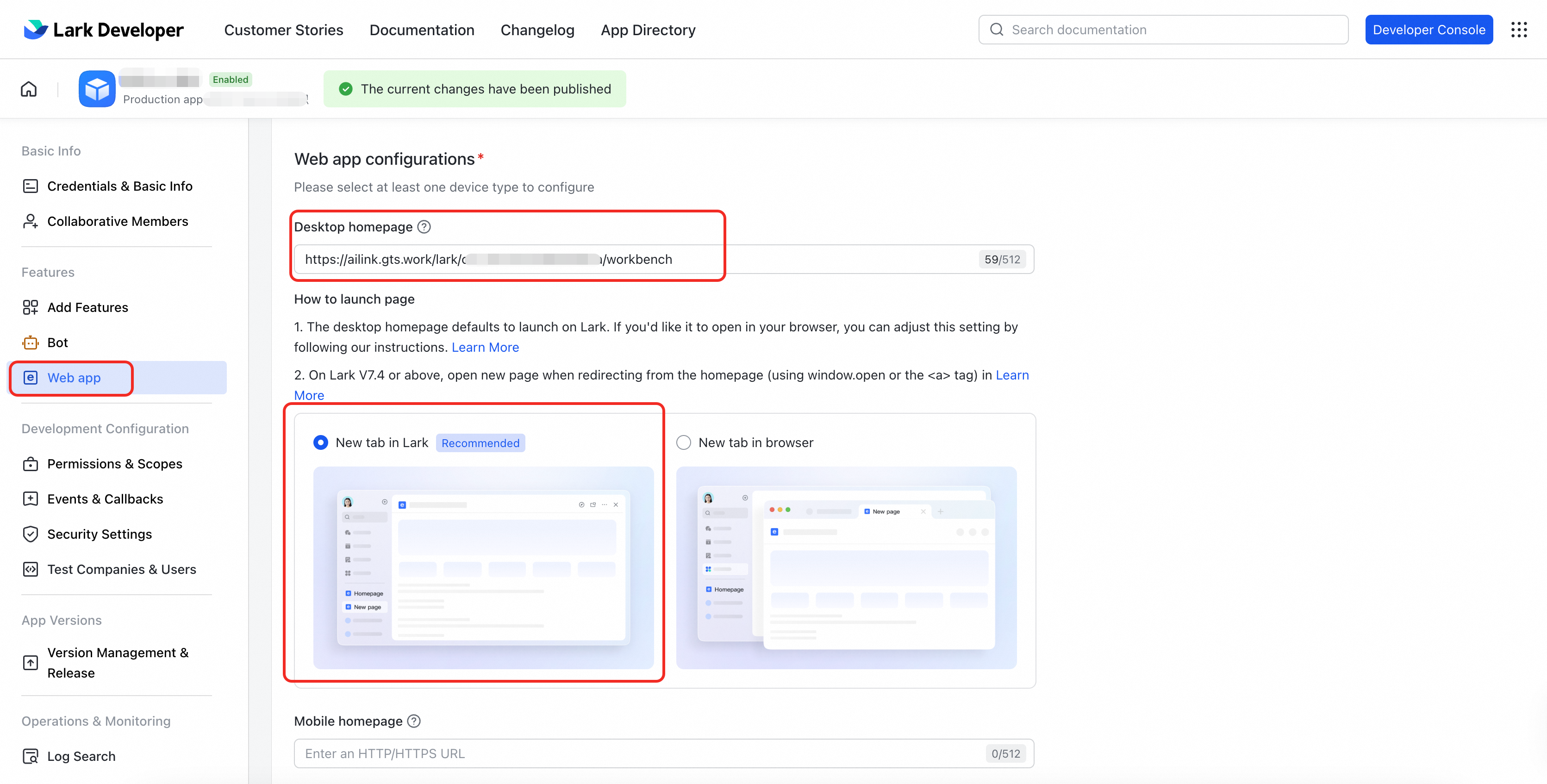
In Web App configurations, set the Desktop Homepage URL. Replace {appId} with your actual App ID.
https://ailink.gts.work/lark/{appId}/workbench
We recommend that you select "New tab in Lark" as the open method.
Step 5: Activate application permissions
Enable the following permissions to support message notifications and interactive cards:
|
Permission Point |
Usage Description |
Lark Official Permission Description |
|
|
Retrieves basic organization information:
Purpose: Display your organization identity in the app. |
|
|
|
Retrieves app info. |
|
|
|
Allows the bot to send messages to users. |
|
|
|
Allows the app to create and update message cards. |
Method 1: Batch Import
-
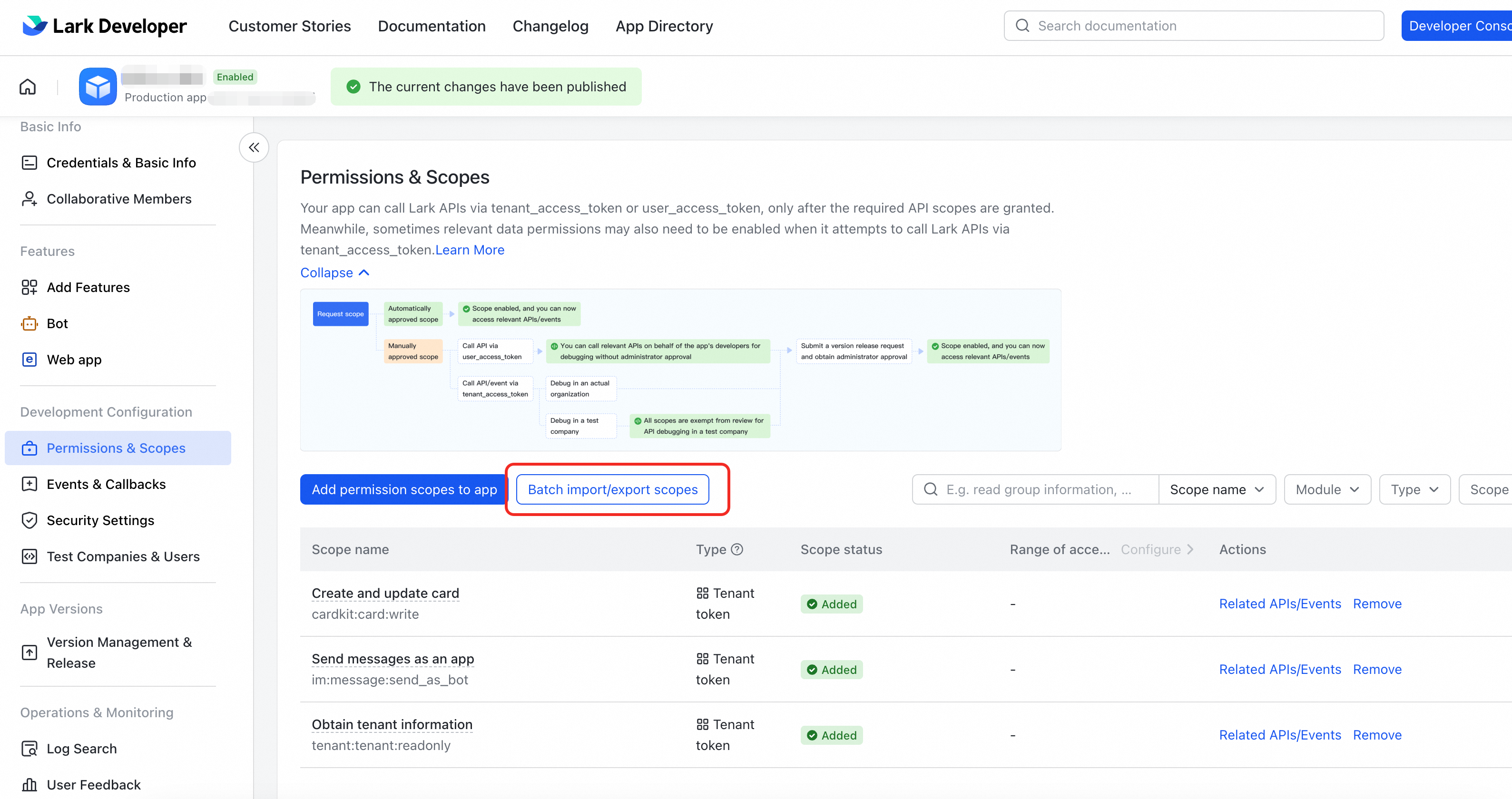
Go to Permissions & Scopes and click Batch Import/export scopes.
-
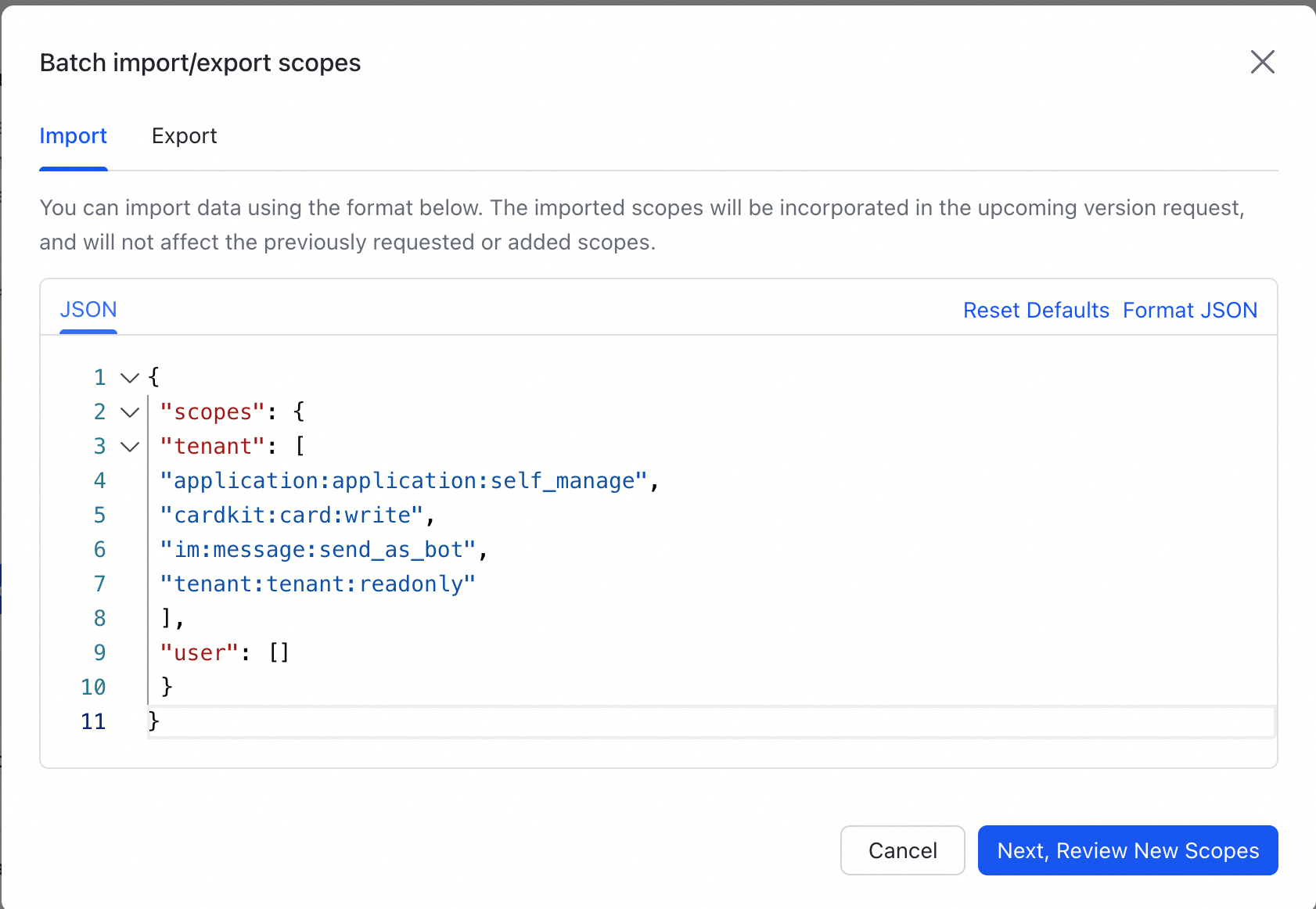
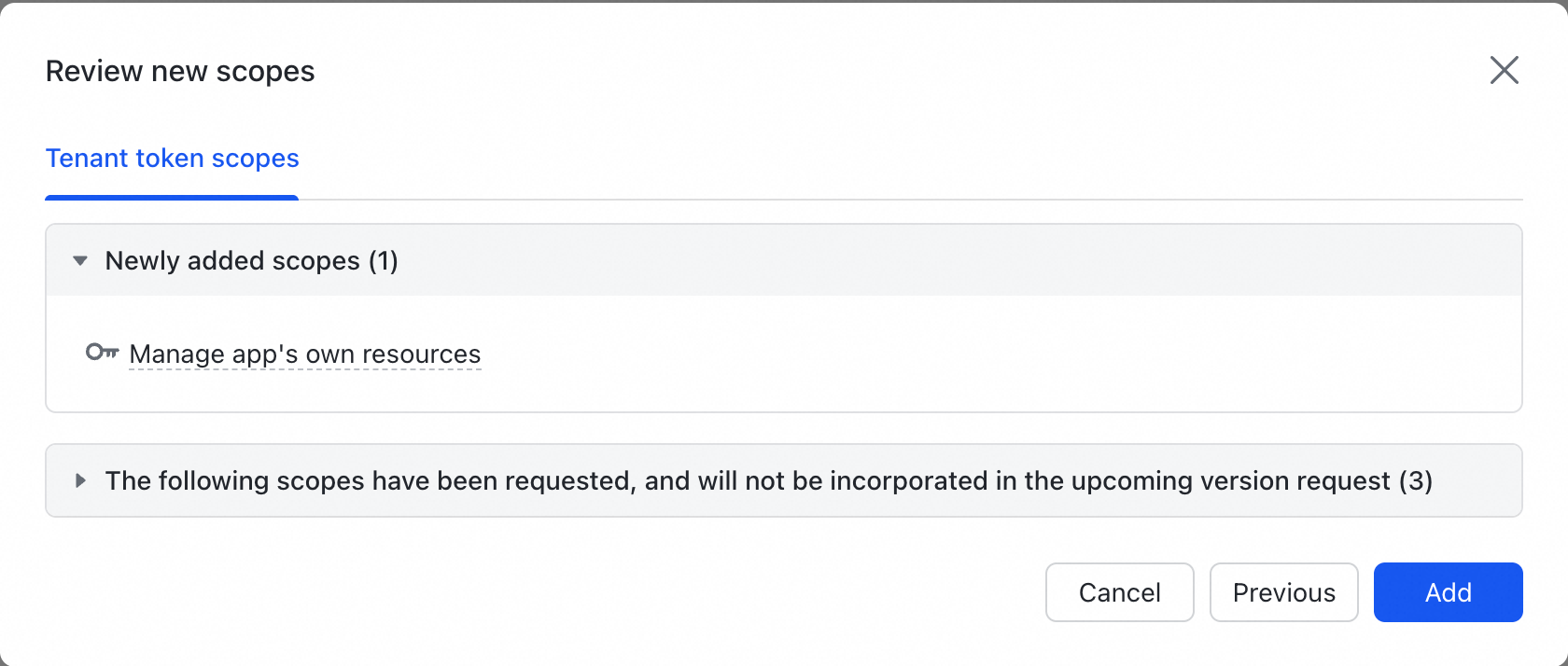
Paste the following JSON into the import box and click Add.
{
 "scopes": {
 "tenant": [
 "application:application:self_manage",
 "cardkit:card:write",
 "im:message:send_as_bot",
 "tenant:tenant:readonly"
 ],
 "user": []
 }
}
Method 2: Import manually
Alternatively, in Permissions & Scopes, click Add Scopes and search for each permission below:
Permission points:
application:application:self_manage
tenant:tenant:readonly
im:message:send_as_bot
cardkit:card:write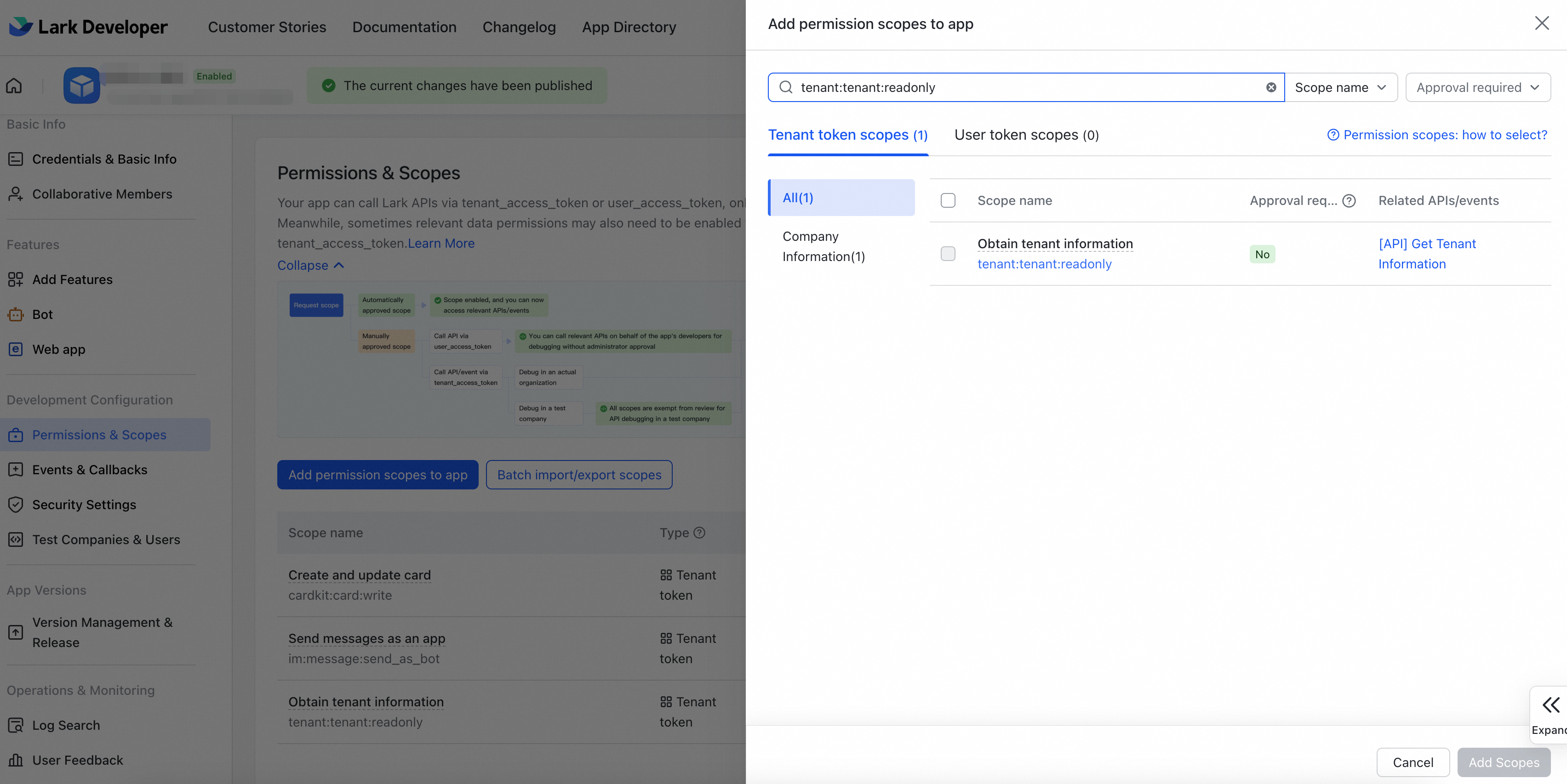
Step 6: Security Settings
Configure the following security settings on the Lark developer page.
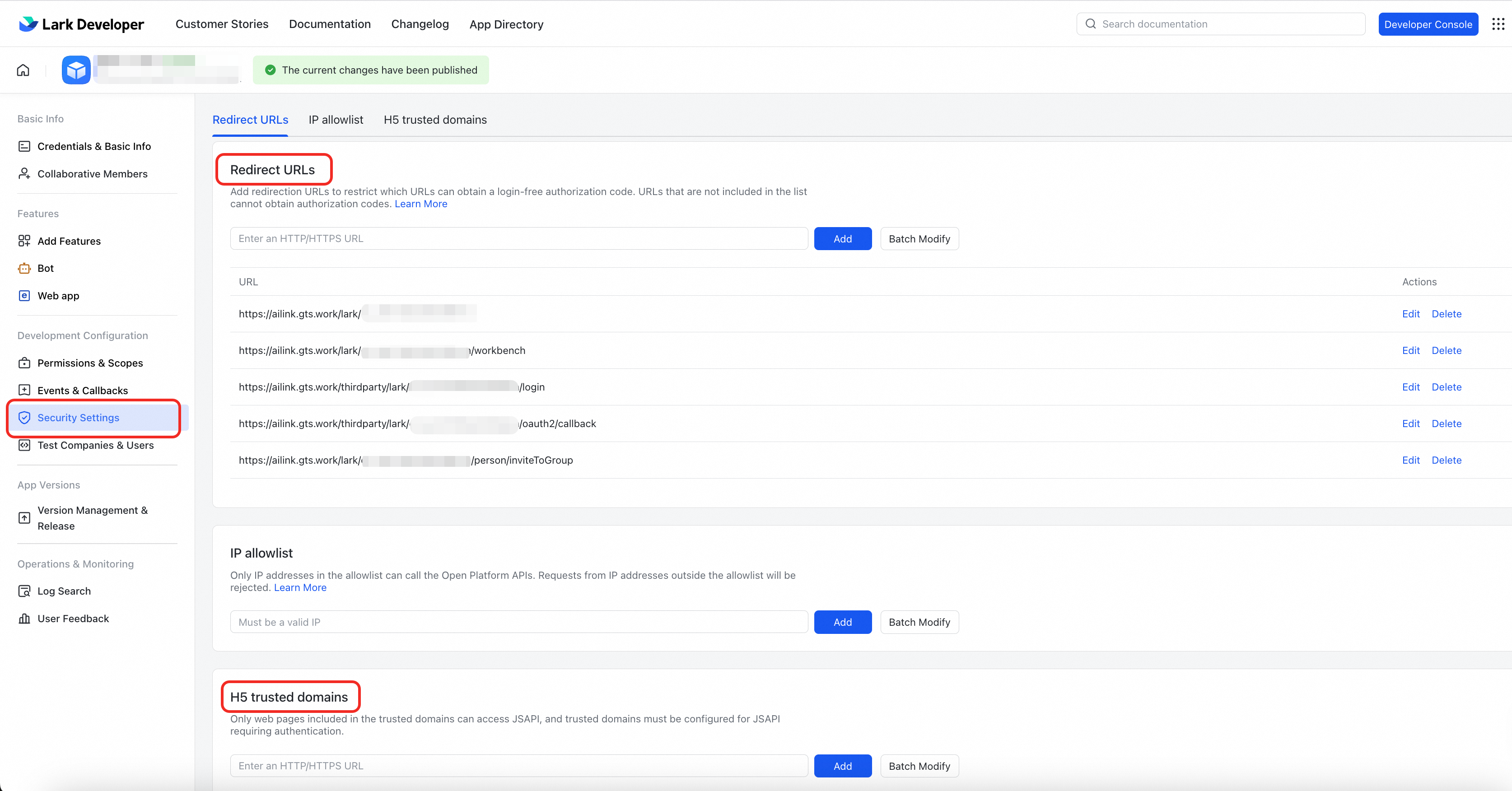
1.Set redirect URLs
Add the following addresses to Redirect URLs.
Note: Replace {appId} with the actual App ID obtained in Step 1.
https://ailink.gts.work/lark/{appId}
https://ailink.gts.work/lark/{appId}/workbench
https://ailink.gts.work/thirdparty/lark/{appId}/login
https://ailink.gts.work/thirdparty/lark/{appId}/oauth2/callback
https://ailink.gts.work/lark/{appId}/person/inviteToGroup
2. Set H5 trusted domains
Add the following domain to H5 trusted domains:
https://ailink.gts.workStep 7: Version Management and Release
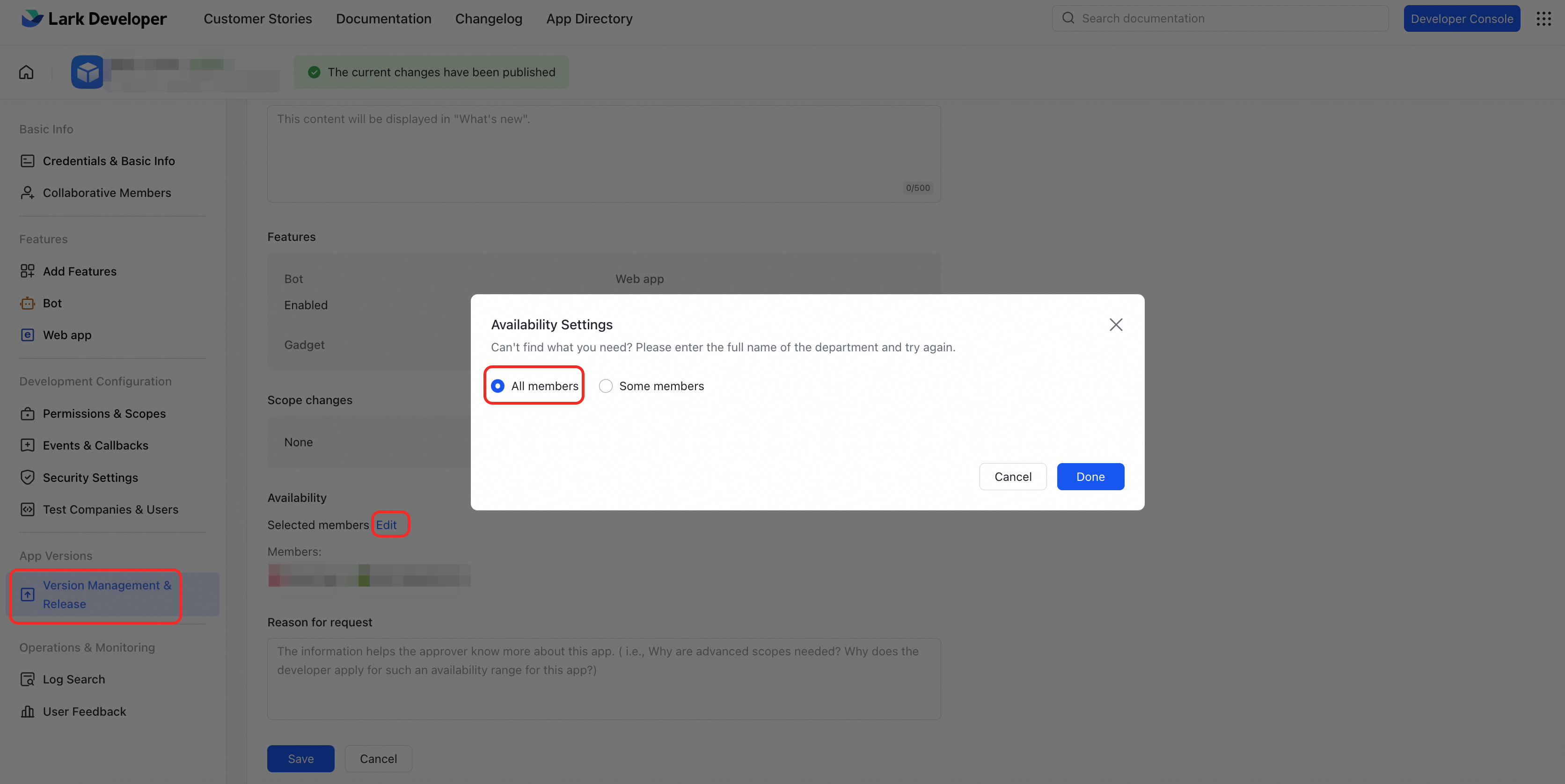
In Version Management & Release, enter a version number and an update description, then publish the app.
Note: Set the Application Available Range to all or specific members as needed.
Done! Contact your TAM
Configuration is complete. Contact your Technical Service Manager (TAM) to get the group joining link. After you join, you can communicate with your TAM in real time, receive ticket notifications, and track service progress.
FAQ
-
[Network Configuration] IP Whitelist (if any)
If your network environment enforces an IP or domain allowlist, add ailink.gts.work to the allowlist. Otherwise, the app cannot load in Lark.
-
[Cost Reminder] Lark Version and API Call Restrictions
-
The free version of Lark has an API call limit of
10,000 per monthfor custom apps. -
The paid version of Lark has no such restriction.
-
Note: The primary API usage is sending
@mention notifications via the bot (at most once per user every 10 minutes). The 10,000 monthly limit covers all API calls, not just this app. If you use the free version, account for other integrations' API usage as well. Paid API reference: https://open.larksuite.com/document/server-docs/getting-started/server-api-list?chargeMethod=advanced
-
Part 2: Using the Alibaba Cloud Enterprise Service app
Log in
Open the app you created in Part 1 and complete the authorization (for identification only) to log in.
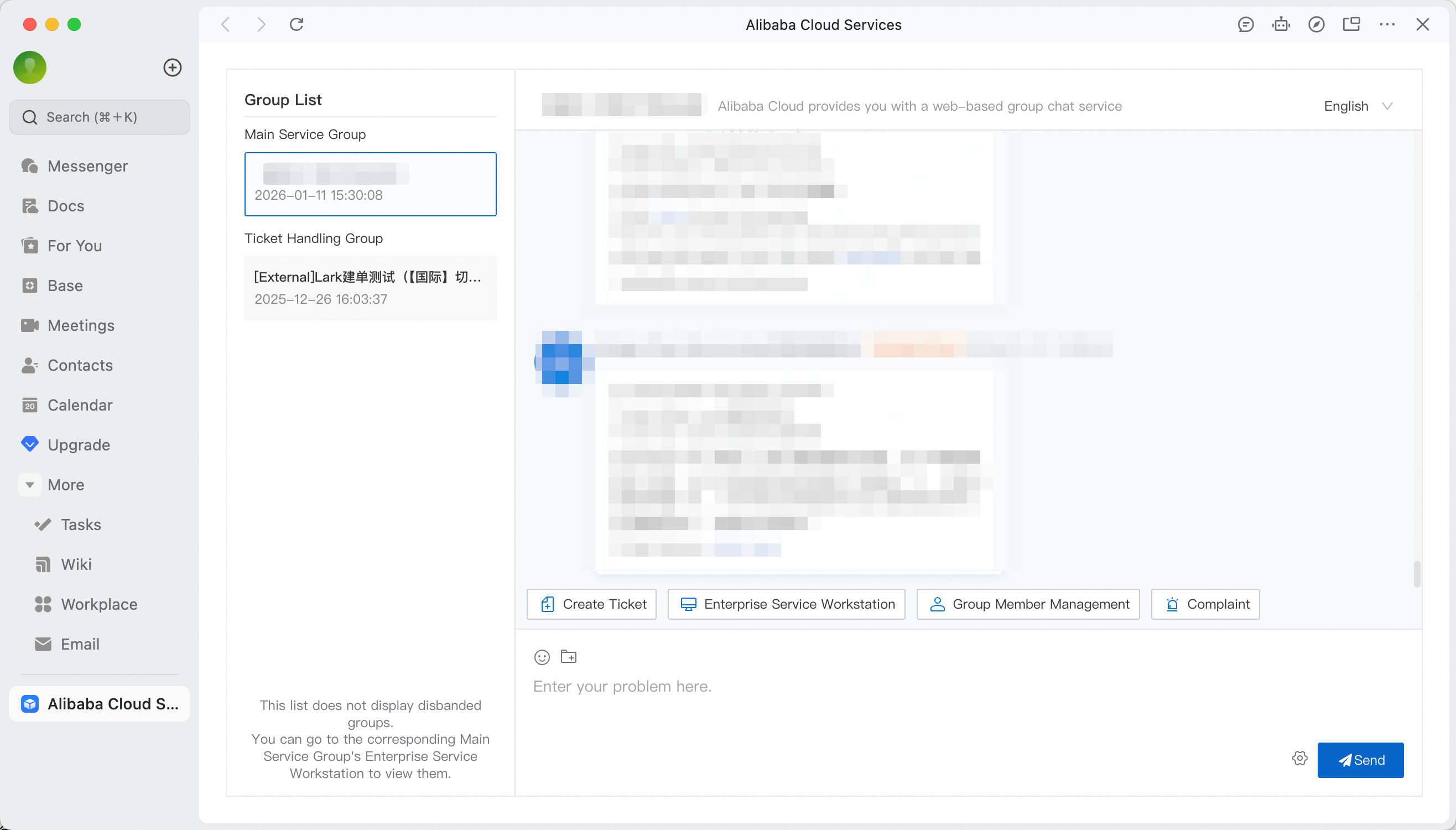
Service main group
After you activate the Lark channel, the system automatically binds your enterprise support plan service group. You can contact your Alibaba Cloud TAM and support personnel directly in this group.
Note: If no service group appears, contact your TAM to add it.
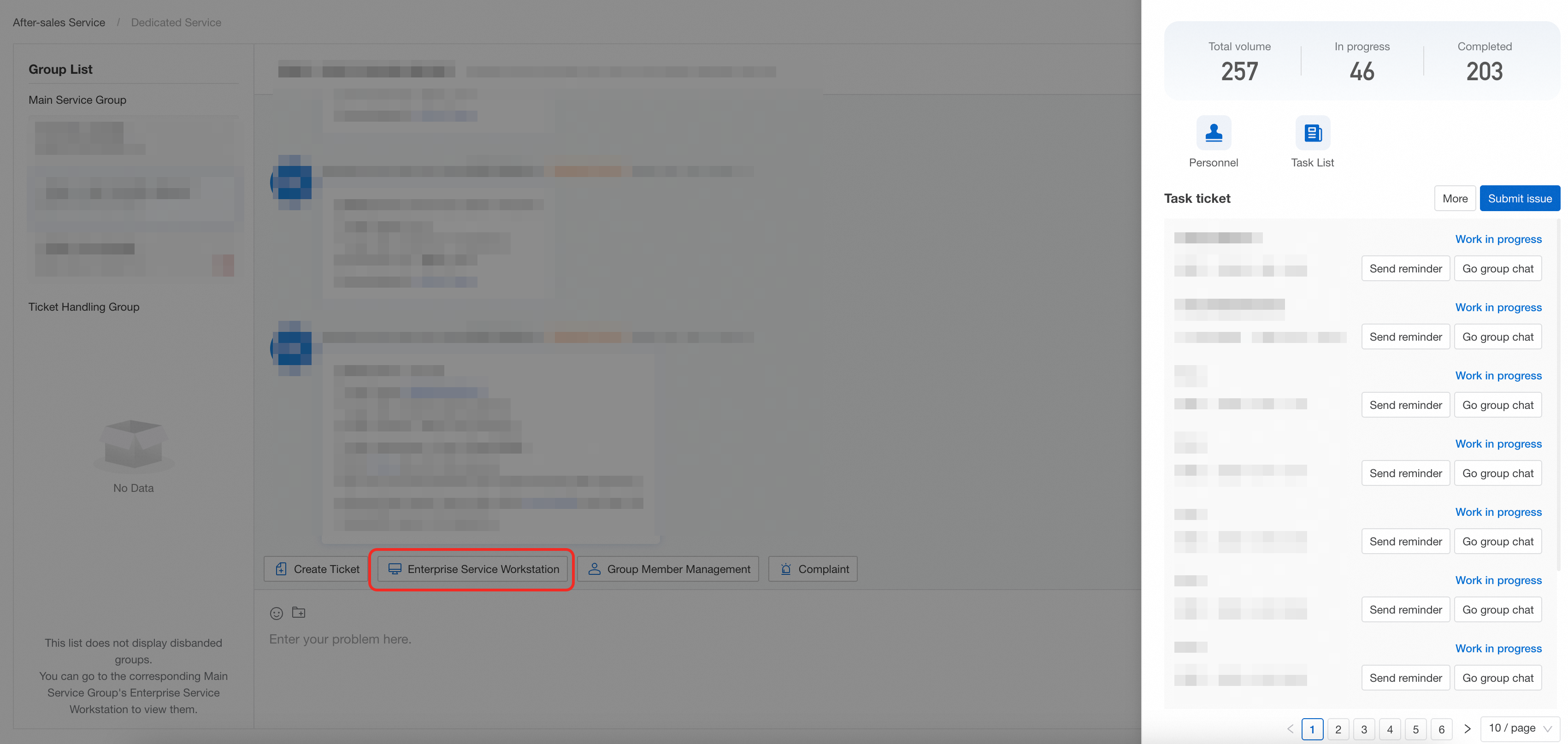
Enterprise Service Workstation
Click Enterprise Service Workstation in the service group to view all associated tickets and group participants.
Create ticket
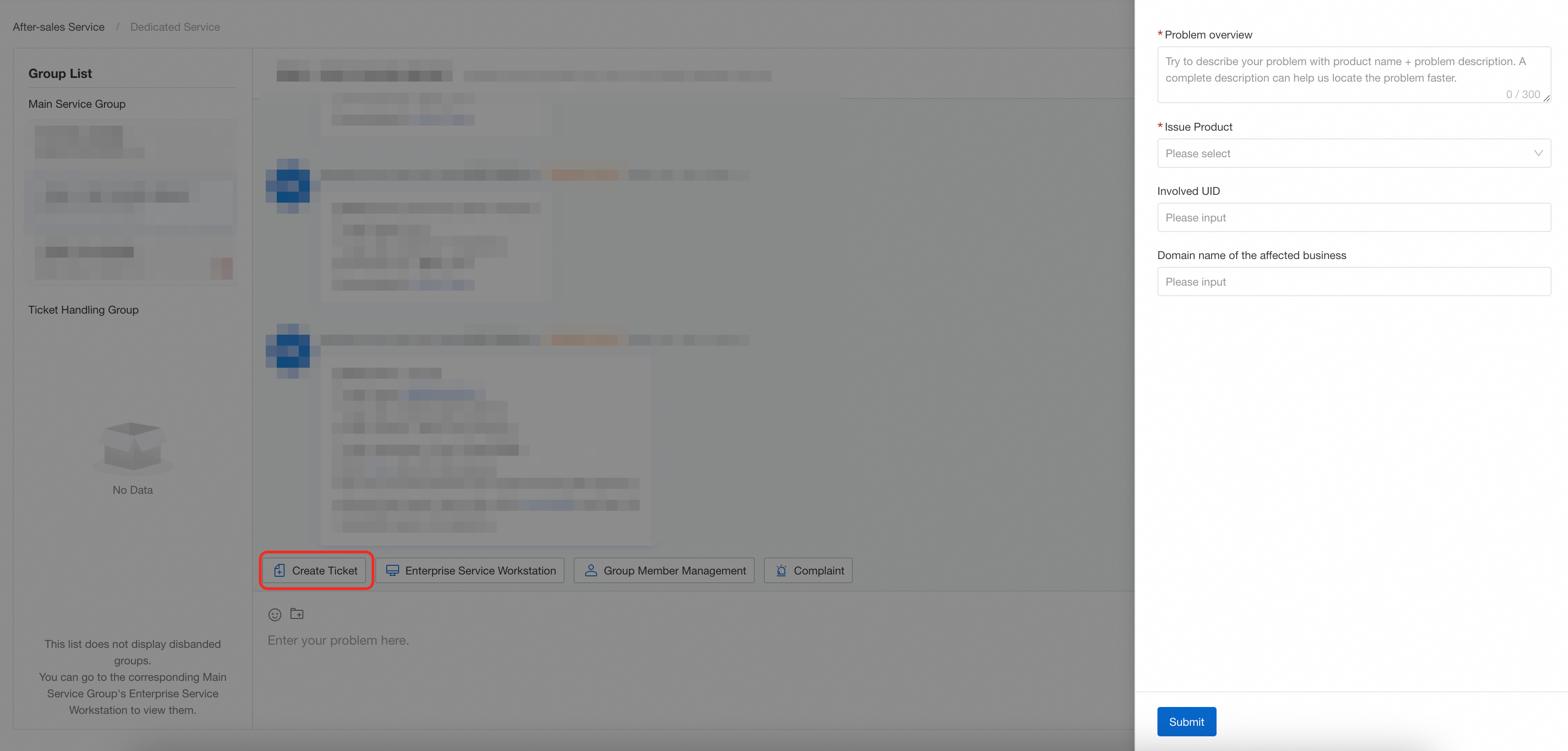
Click Create Ticket in the service group. The system creates a ticket group and assigns a technical service engineer to handle your issue.
Ticket group
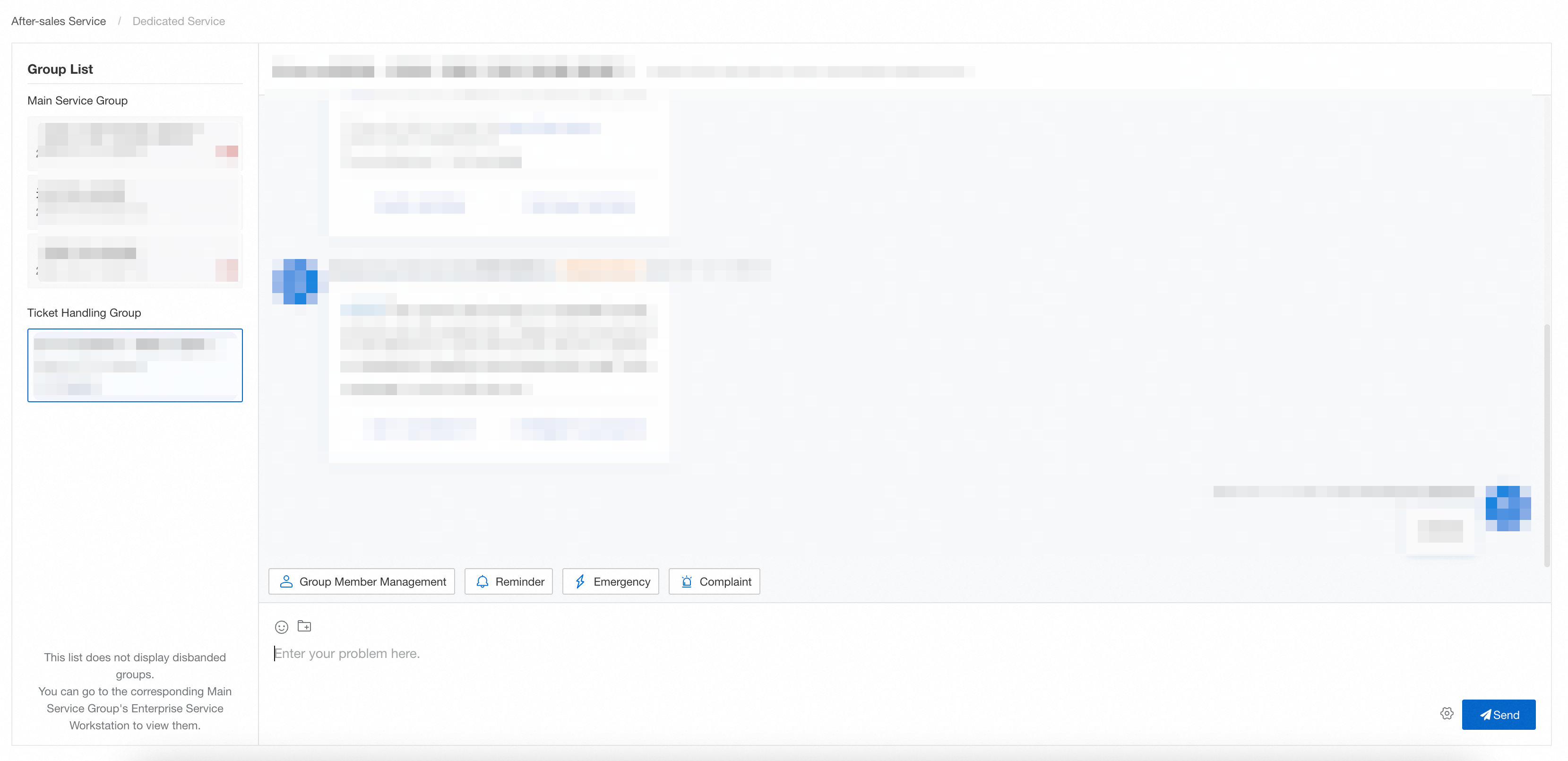
Communicate with technical engineers about specific issues within a ticket group.
-
Click Reminder to escalate urgent issues.
-
For critical failures (data loss, data corruption, or business outage), click Emergency to trigger the emergency response process.
Group member management
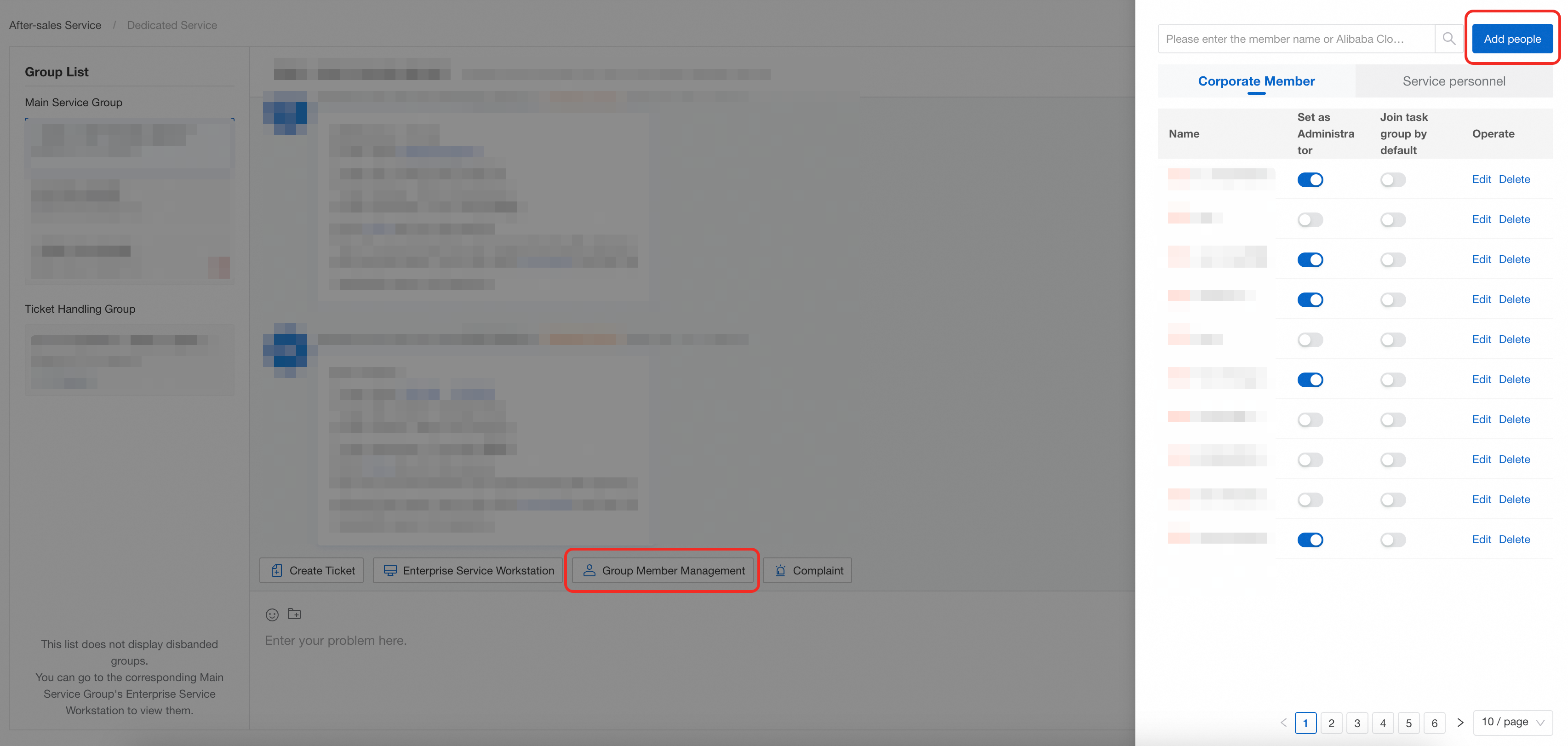
Both the service group and ticket groups support member management.
Add members
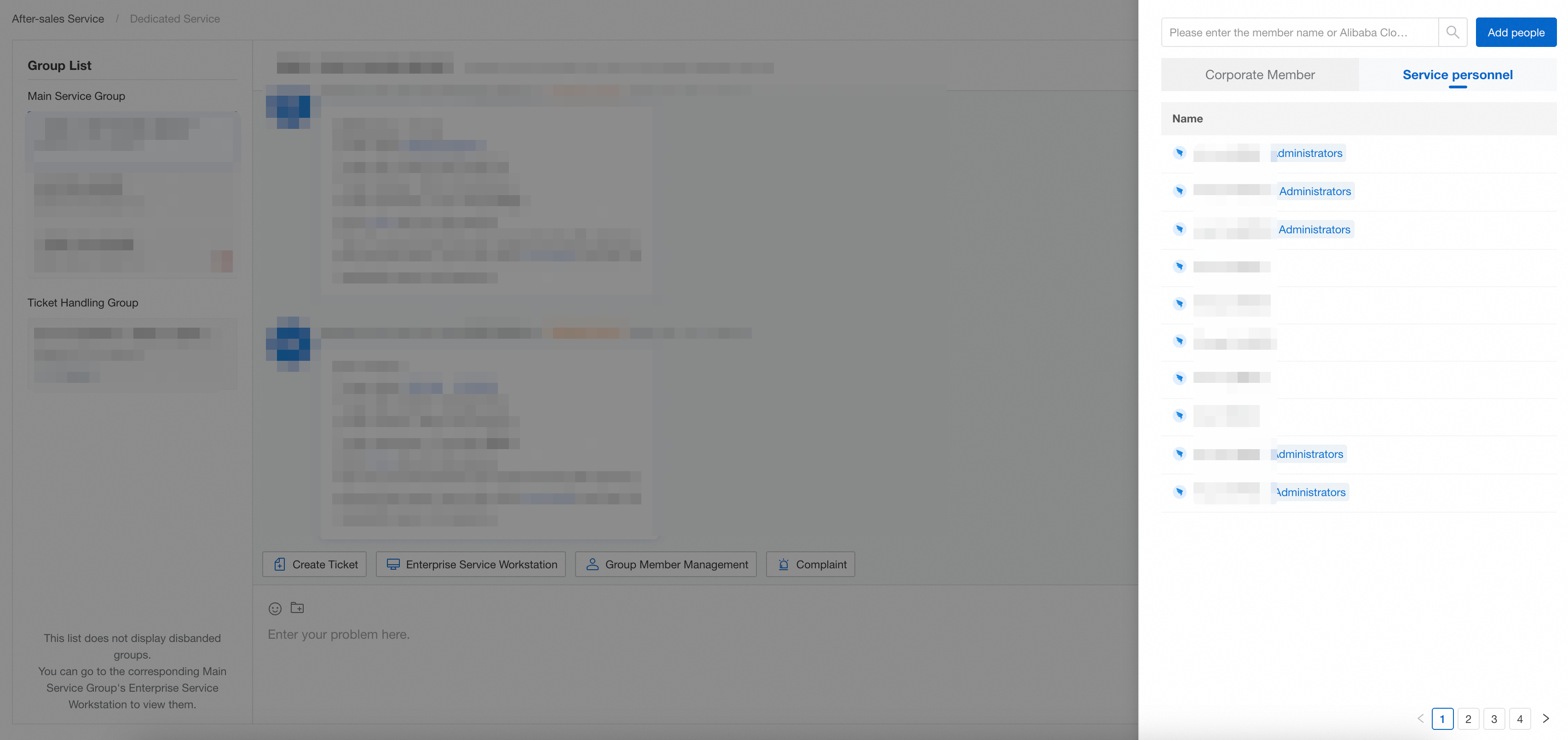
Click Add People to generate an invitation link (valid for 24 hours) and share it with colleagues.
View members
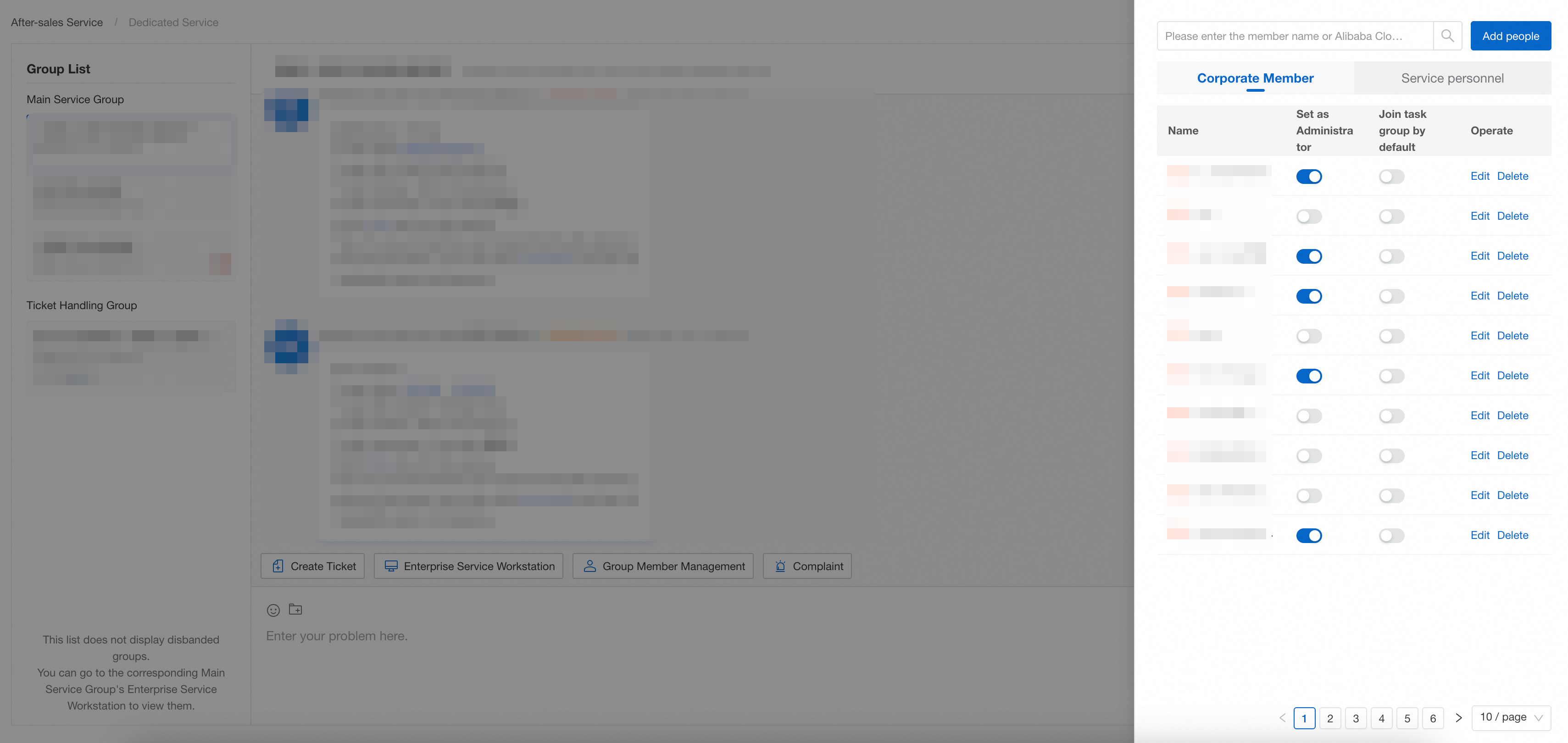
In Group Member Management, you can view:
-
Members of your organization (colleagues)
-
Alibaba Cloud service team personnel
In-group communication
In the group chat, @ mention Alibaba Cloud service personnel or colleagues to collaborate on issues.