Manage JSAPIs at a granular level by controlling which business scenarios can use specific JSAPIs and requiring approval before integration into miniapps.
1. Background Introduction
The platform provides fine-grained management features for JSAPI (JavaScript API). These features allow customers to flexibly control which business scenarios can use specific JSAPIs and ensure that only approved JSAPIs are integrated into miniapps.
2. Operation Steps
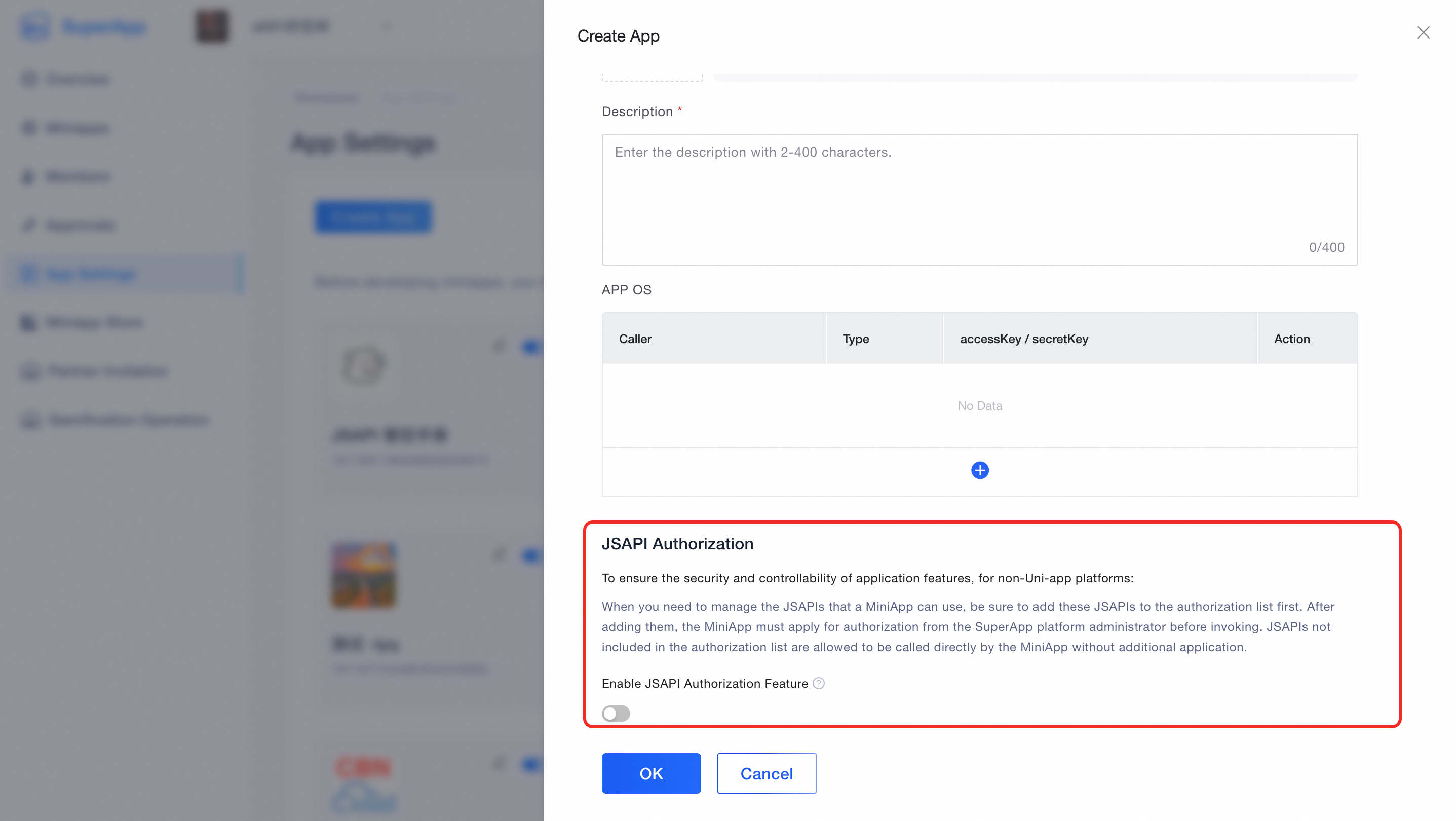
2.1. Enable JSAPI Authorization Function
Steps:
-
The administrator logs into the platform account.
-
Navigate to the "App Settings" page.
-
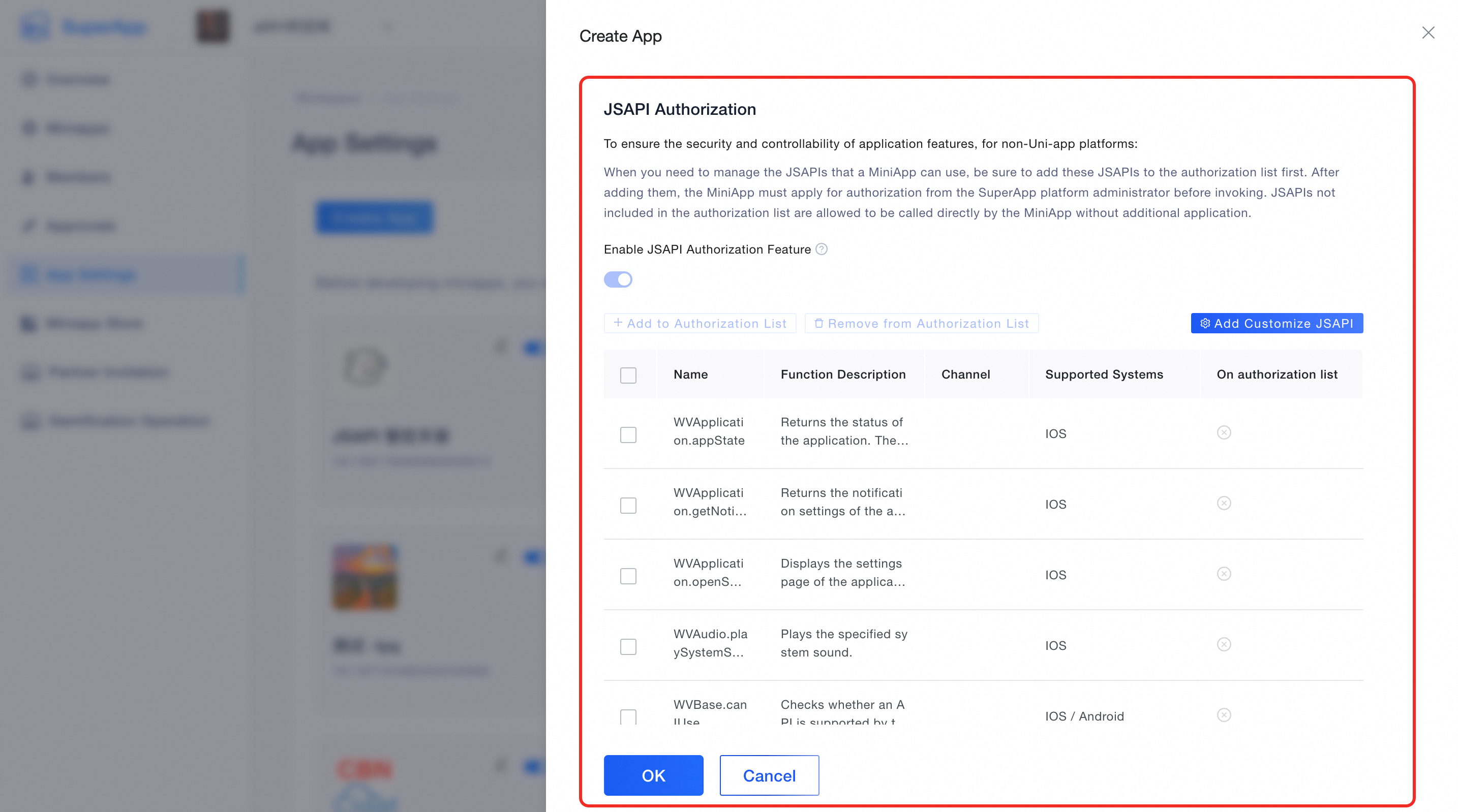
On the create or edit App page, review the relevant instructions for "JSAPI Authorization".
-
Based on your needs, choose whether to enable this function.
2.2. Set JSAPI Whitelist:
After you enable JSAPI authorization, you can view the JSAPI list, select JSAPIs to manage, and add custom JSAPIs.
Button Descriptions:
-
Add to Authorization List:
-
Select the JSAPIs that require approval, and then click "Add to Authorization List". Miniapps must apply for access to these JSAPIs on the "Miniapps" page and can invoke them only after approval.
-
-
Remove from Authorization List:
-
Select the JSAPIs to remove, and then click "Remove from Authorization List". The selected JSAPIs are removed from the authorization application list on the "Miniapps" page.
-
-
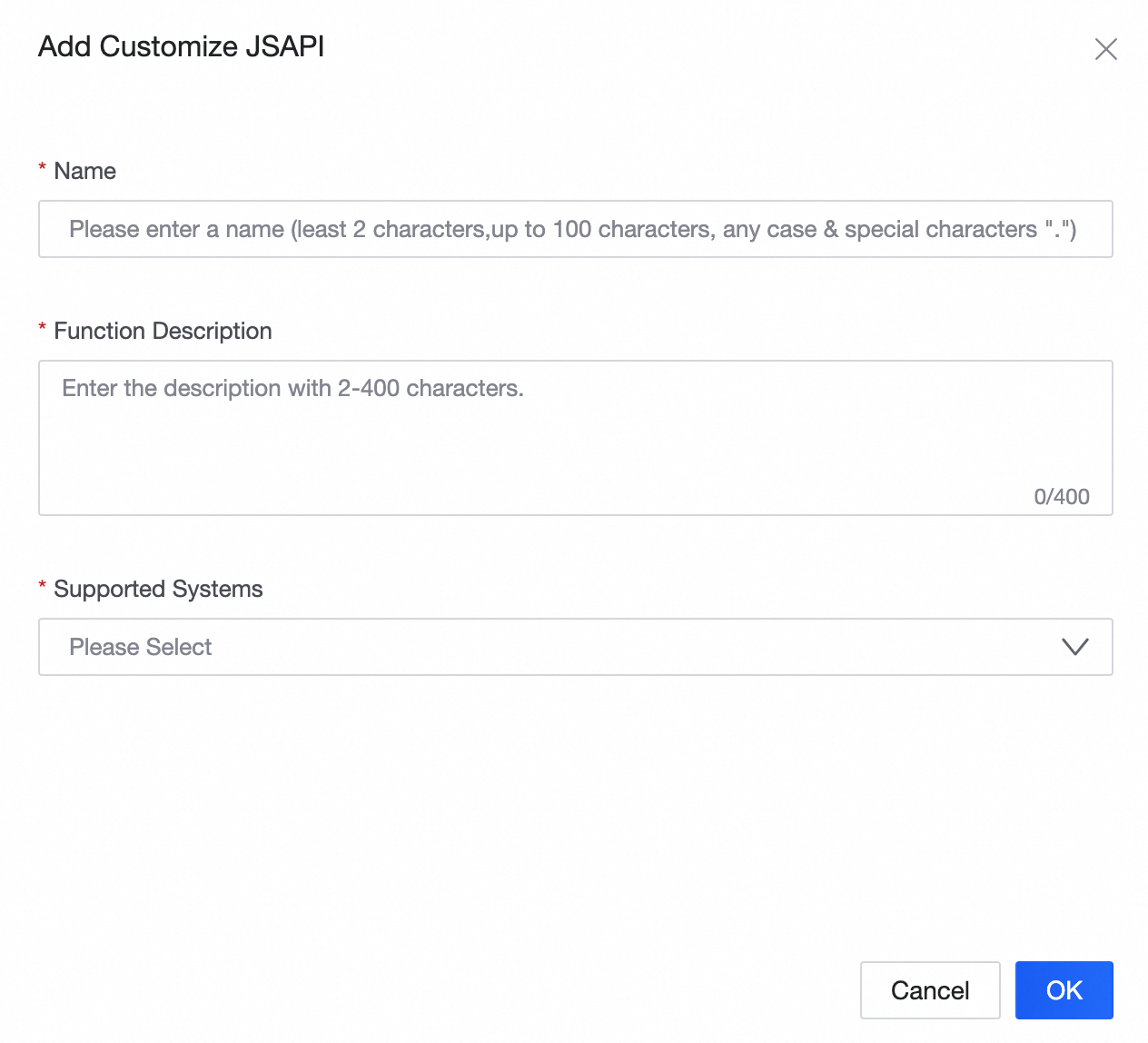
Add Customize JSAPI:
-
You can add custom JSAPIs, which appear in the JSAPI list and can be selected for management.
-
Each entry includes a name, description, and supported systems.
-
After you enter the information, click "OK" to save the entry.
-
2.3. JSAPI Application
If the administrator has enabled JSAPI authorization and configured a list of managed JSAPIs, you must apply for access before using them. If you have not applied, a prompt appears before you publish the miniapp so that you can request authorization.
-
Access JSAPI Feature Module:
-
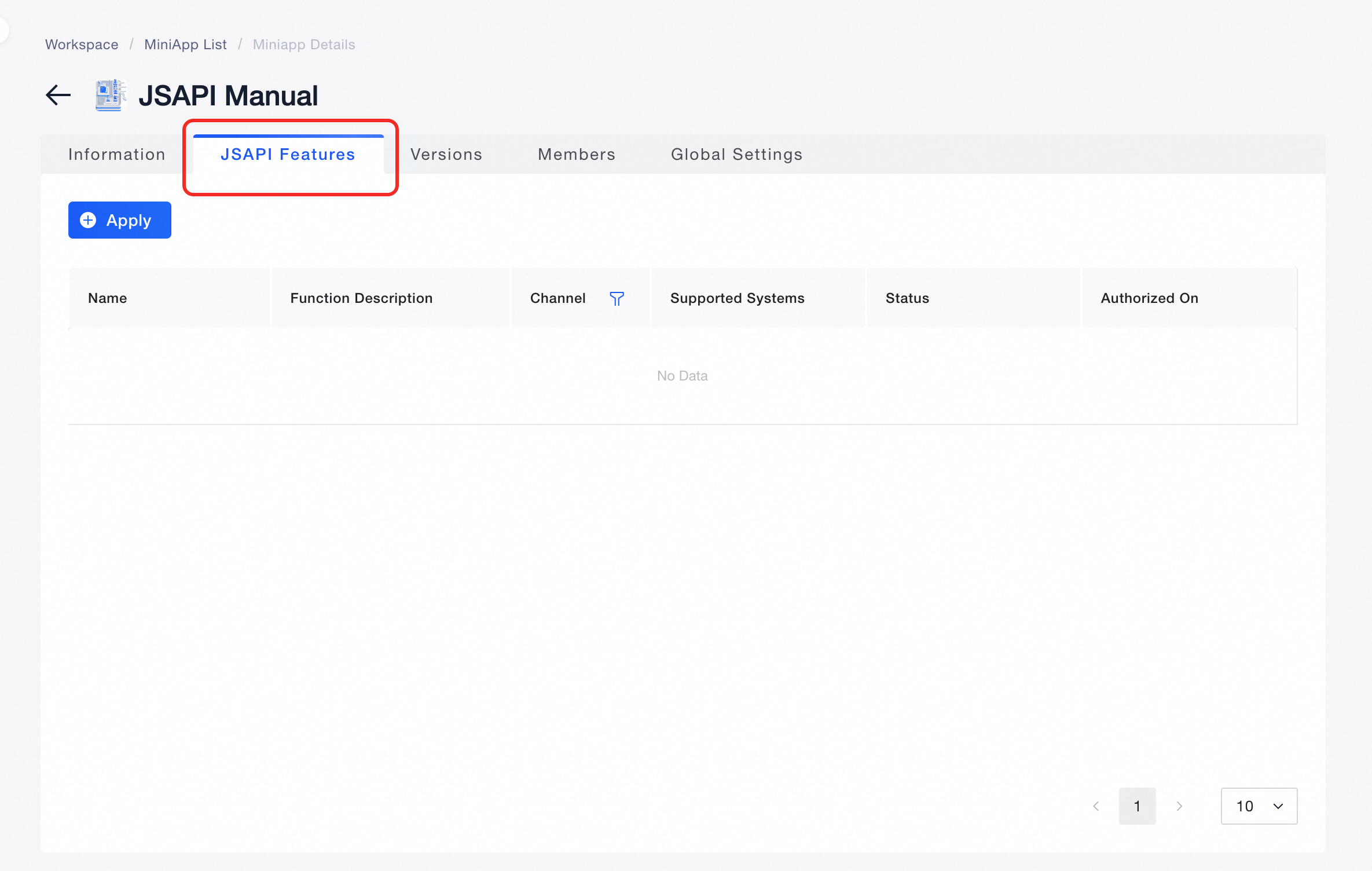
On the miniapp details page, click the "JSAPI Features" tab. This tab is visible only after JSAPI authorization is enabled.
-
-
View Available JSAPI List:
-
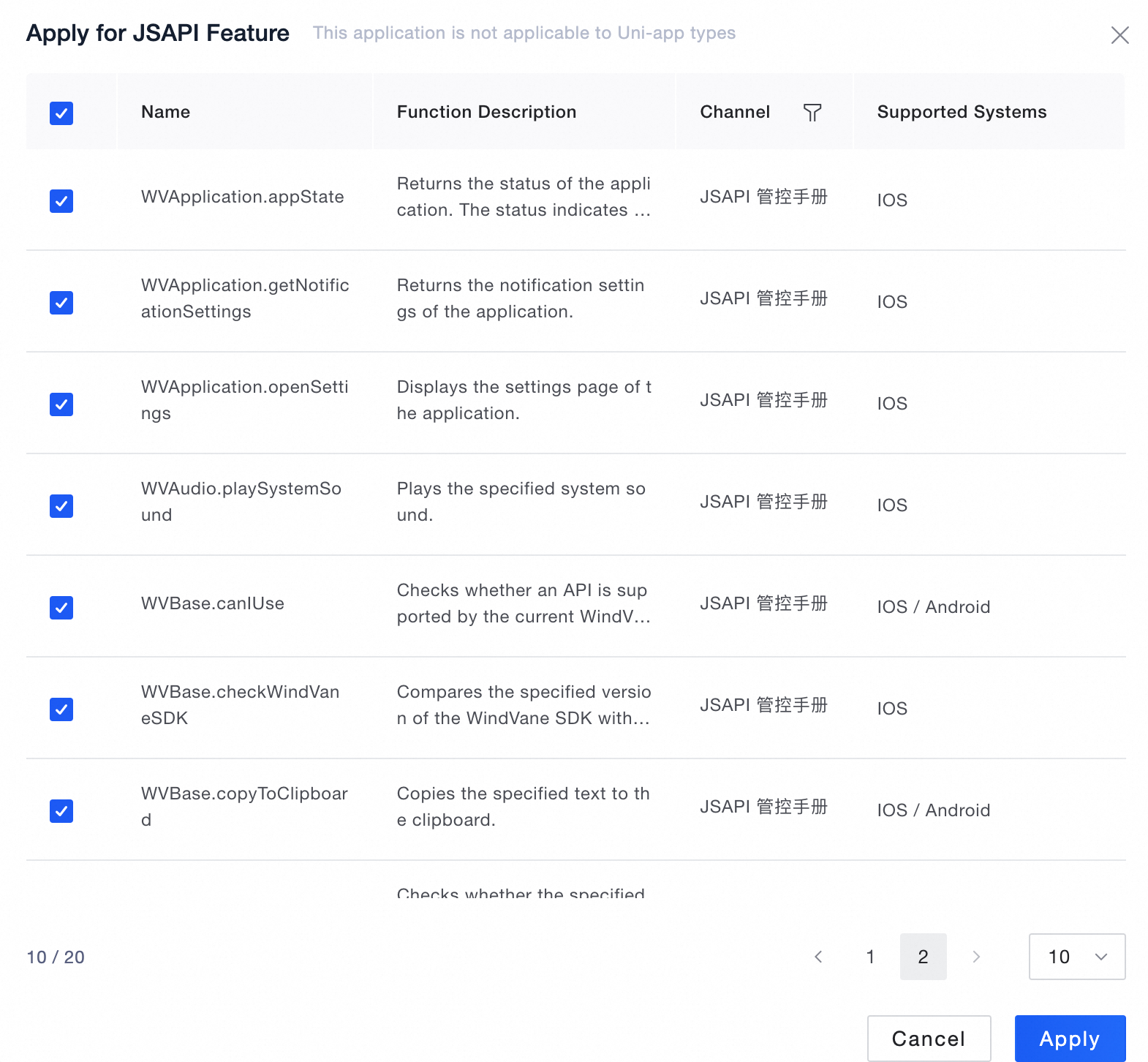
On the "JSAPI Features" page, click "Apply" to view all available JSAPIs.
-
-
Select JSAPIs to Apply For:
-
Browse the list and select the JSAPIs that you need.
-
Select the required JSAPIs and click "Apply" to submit the request.
-
-
View Application Status:
-
After you submit the request, you can view the application status on the "JSAPI Features" tab.
-
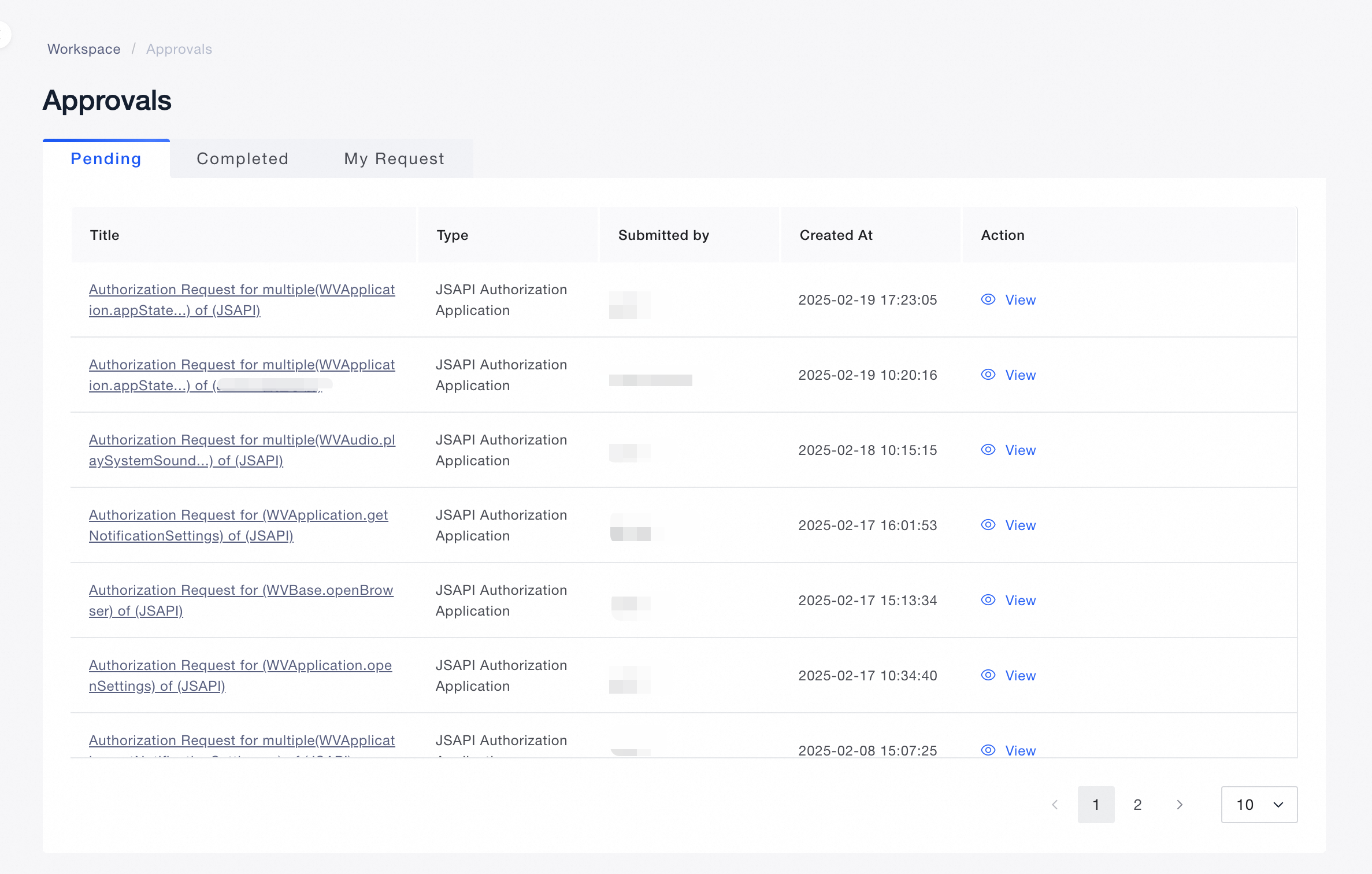
2.4. Approval
Administrators can view and process approval requests in the "Approvals" module.
-
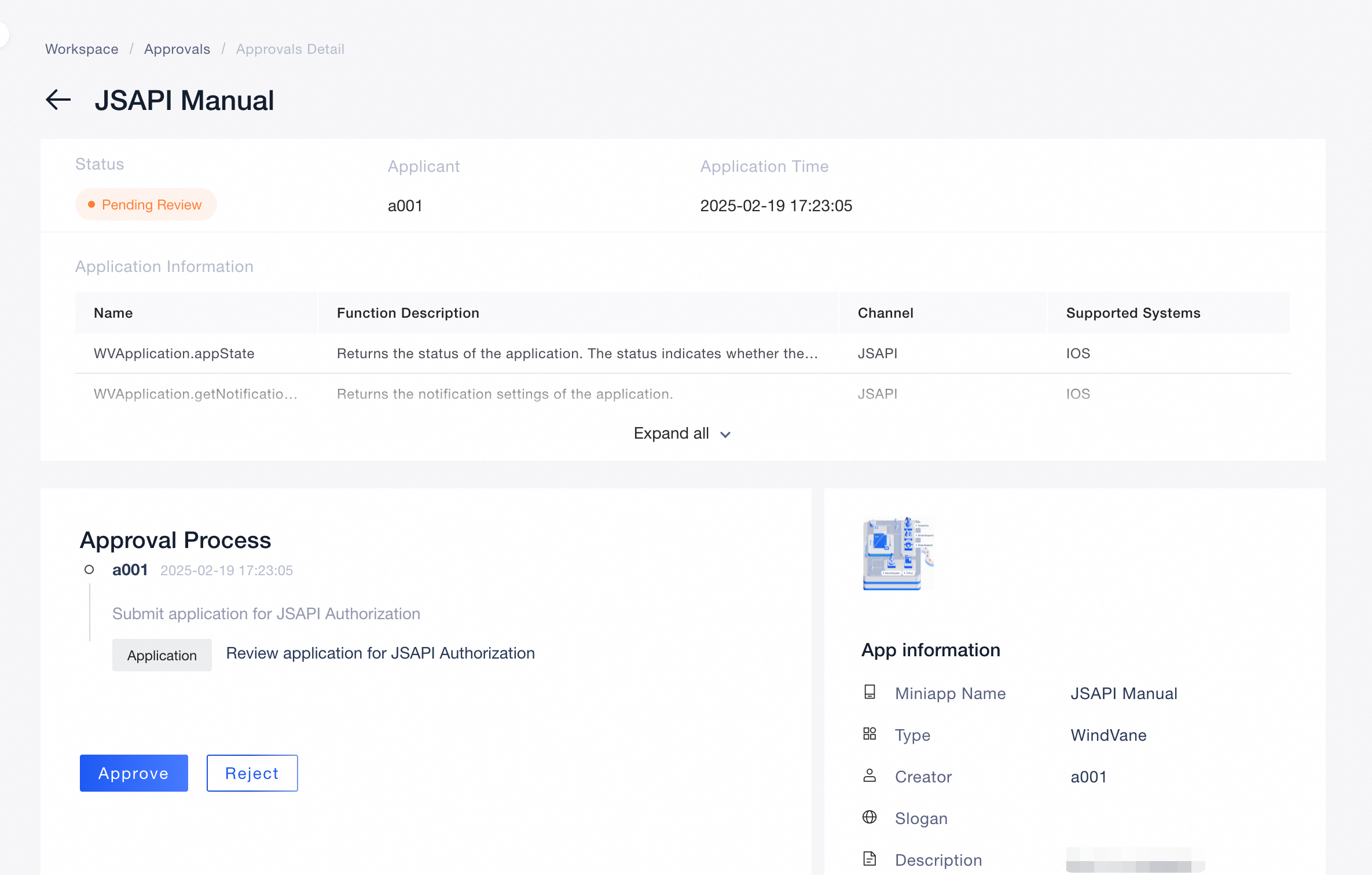
View Application Details:
-
Click the approval title to view detailed application information.
-
-
Process Approval Requests:
-
Click the "Approve" button to approve the request.
-
Click the "Reject" button to reject the request.
-