This document explains how different users can login to or sign up for the SuperApp Business Application Platform.
1. Purchase Successful
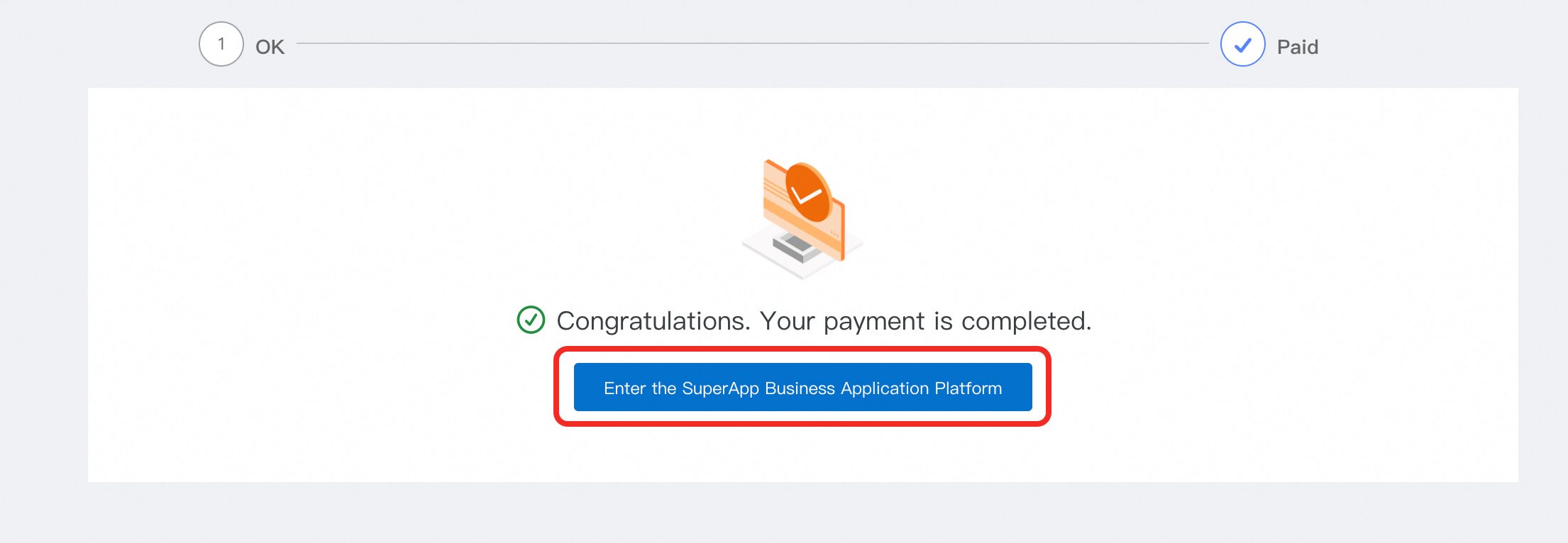
As a purchaser, once your purchase has been successfully completed, you will automatically become the admin of the platform. Click 「Enter SuperApp Business Application Platform」 on the purchase confirmation page to access the console. You can then log in using the Alibaba Cloud account and password used during the purchase.
After logging in, you can invite other members to join and use the SuperApp Business Application Platform via the「Members」 list.
2. Login / Sign up
To use the 「SuperApp Business Application Platform」, you need to log in first. There are typically three scenarios for logging in:
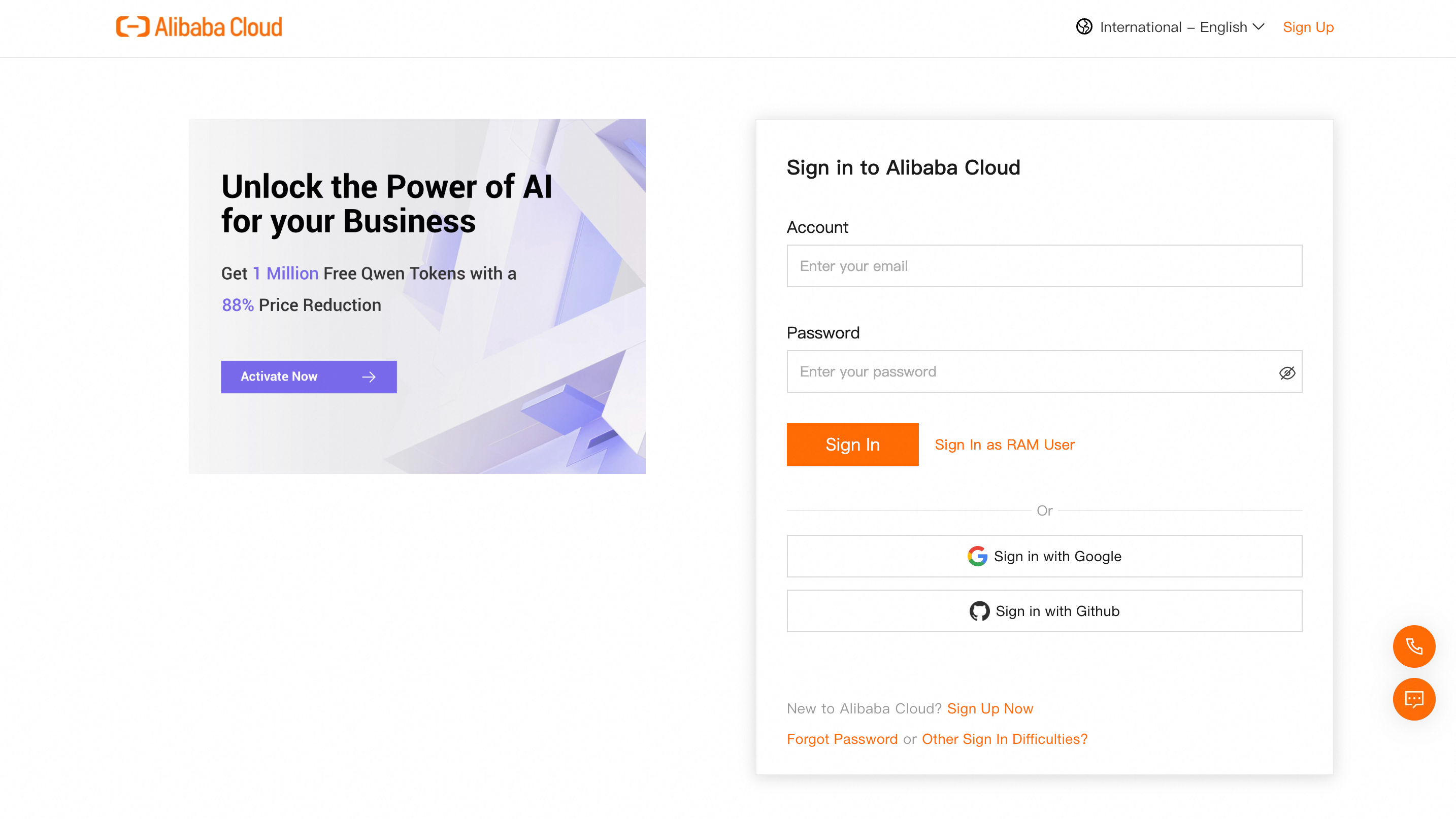
Log in with Alibaba Cloud Account
You can log in using the Alibaba Cloud account and password that you used to purchase the「SuperApp Business Application Platform」. After completing the login, you will be automatically redirected to the「SuperApp Business Application Platform」.
First-time Use of SuperApp
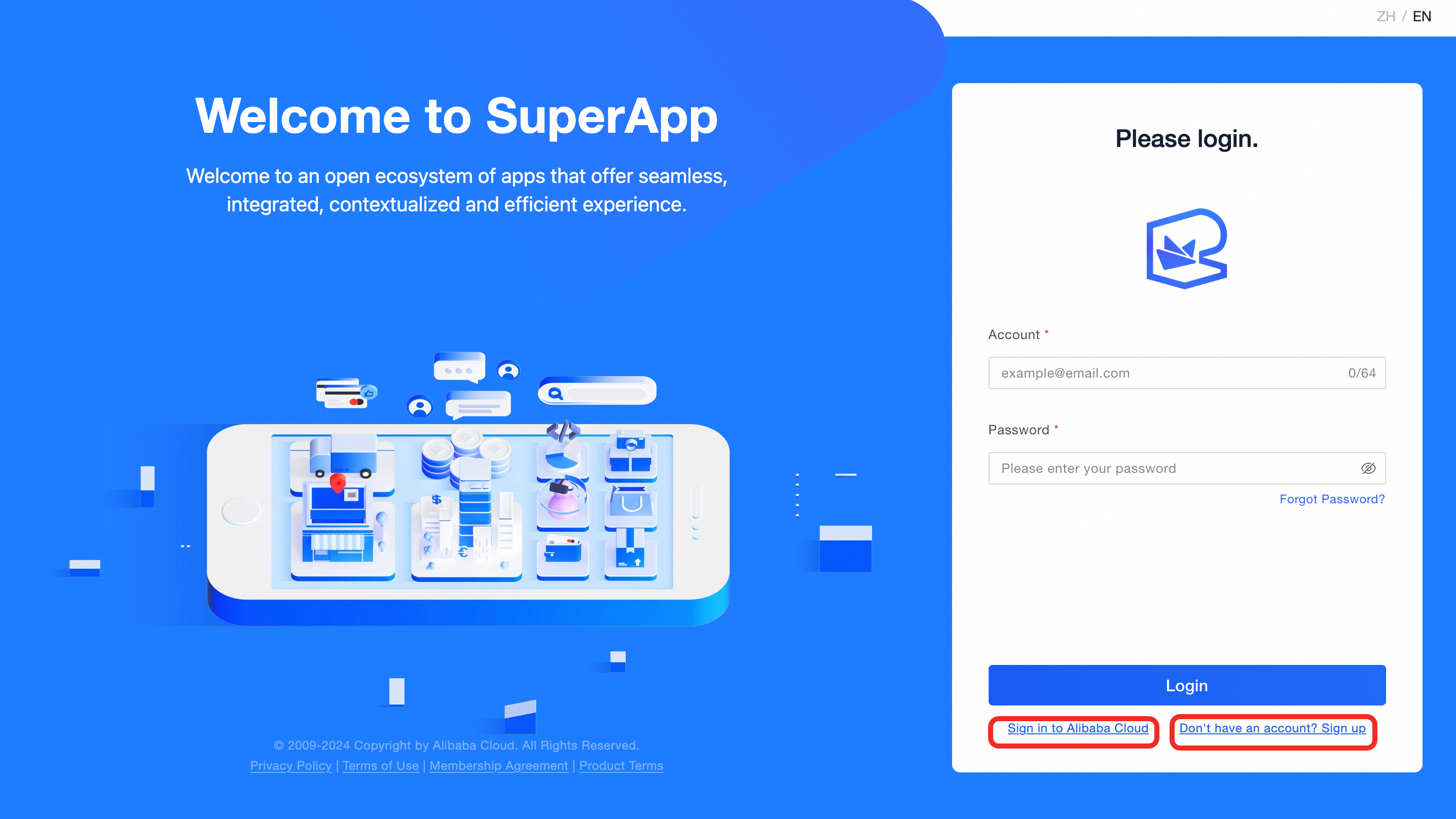
If you are using the 「SuperApp Business Application Platform」 for the first time, please sign up first.
Existing SuperApp Account
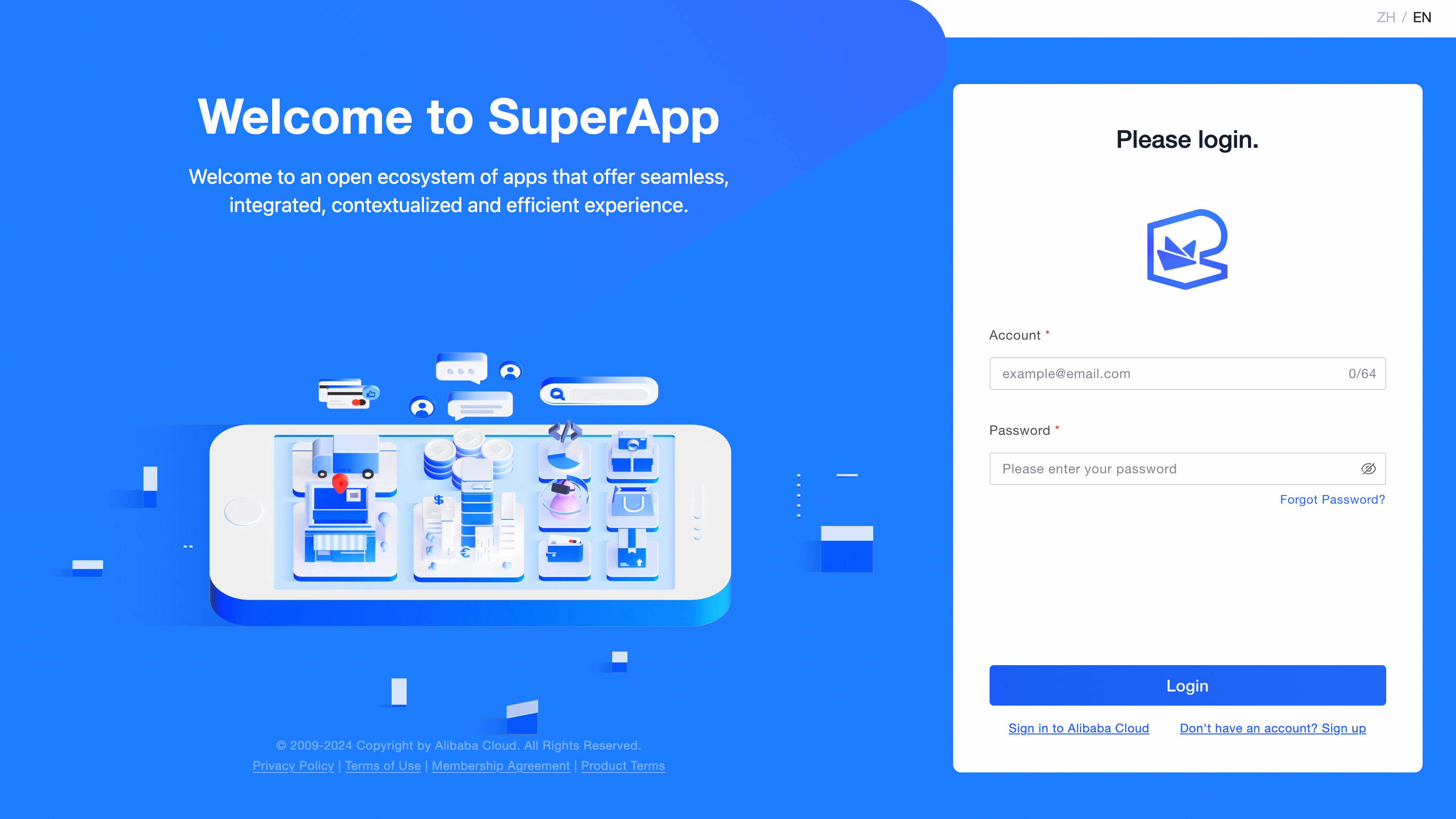
If you already have a 「SuperApp Business Application Platform」 account, please log in using your account and password.
Login Page:
Alibaba Cloud Account Login Page:
Sign Up Page:
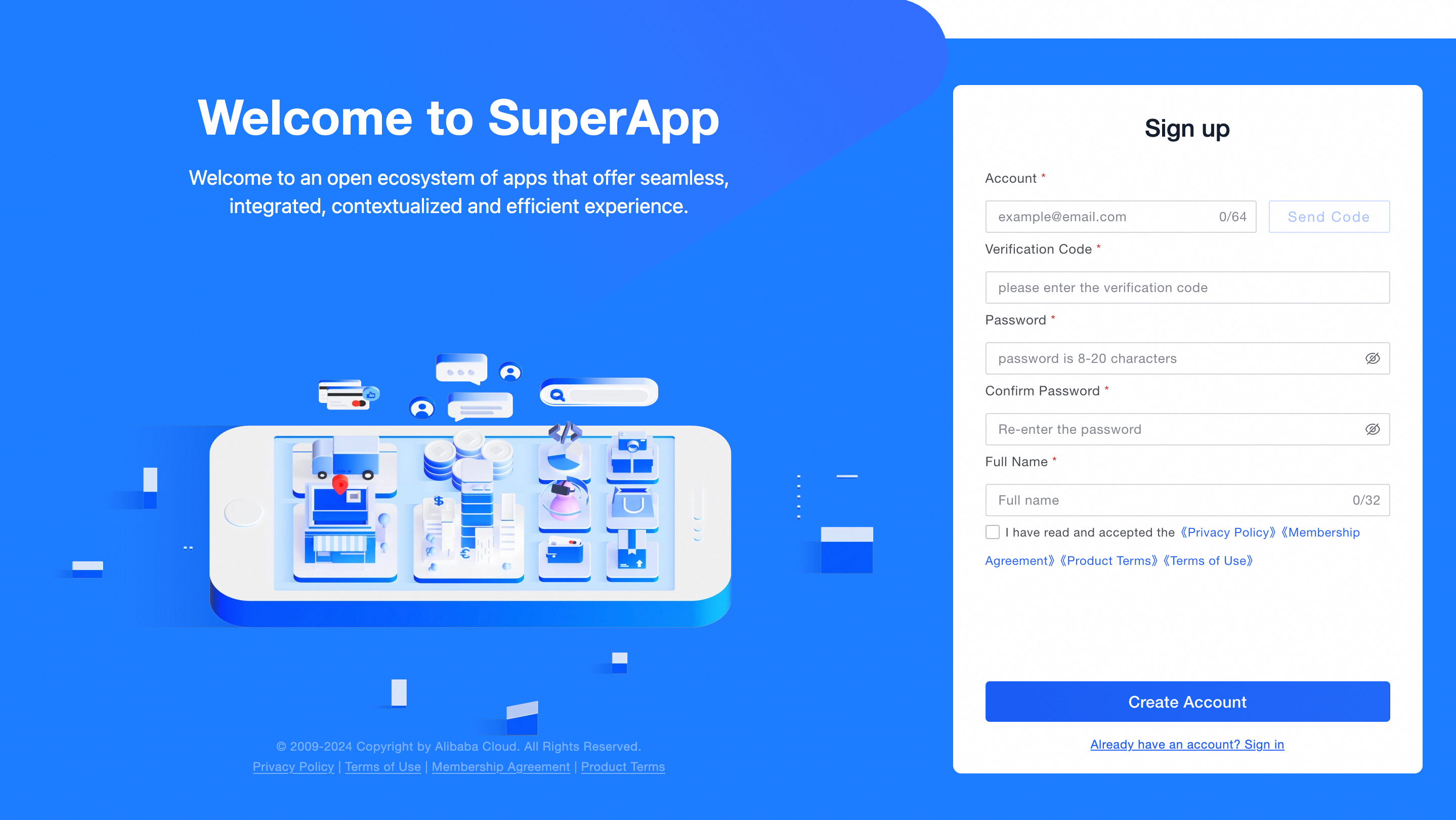
Create an account:
Your password must meet the following complexity requirements:
Password must contain at least one digit [0-9].
Password must contain at least one lowercase Latin character [a-z].
Password must contain at least one uppercase Latin character [A-Z].
Password must contain at least one special character like
! @ # & ( ).\.Password must contain a length of at least 8 characters and a maximum of 20 characters.
If you forget your password, click 「Forgot Password?」 on the logon page to reset the password.
If you have successfully registered or already have a SuperApp account, please enter your account and password to complete the login:
After logging in, you can start using the SuperApp Business Application Platform. For more information about its features, see: Platform Features Overview
3. Invite Members
Purchasers can register and log in to the platform directly. Other members need to be invited to join.
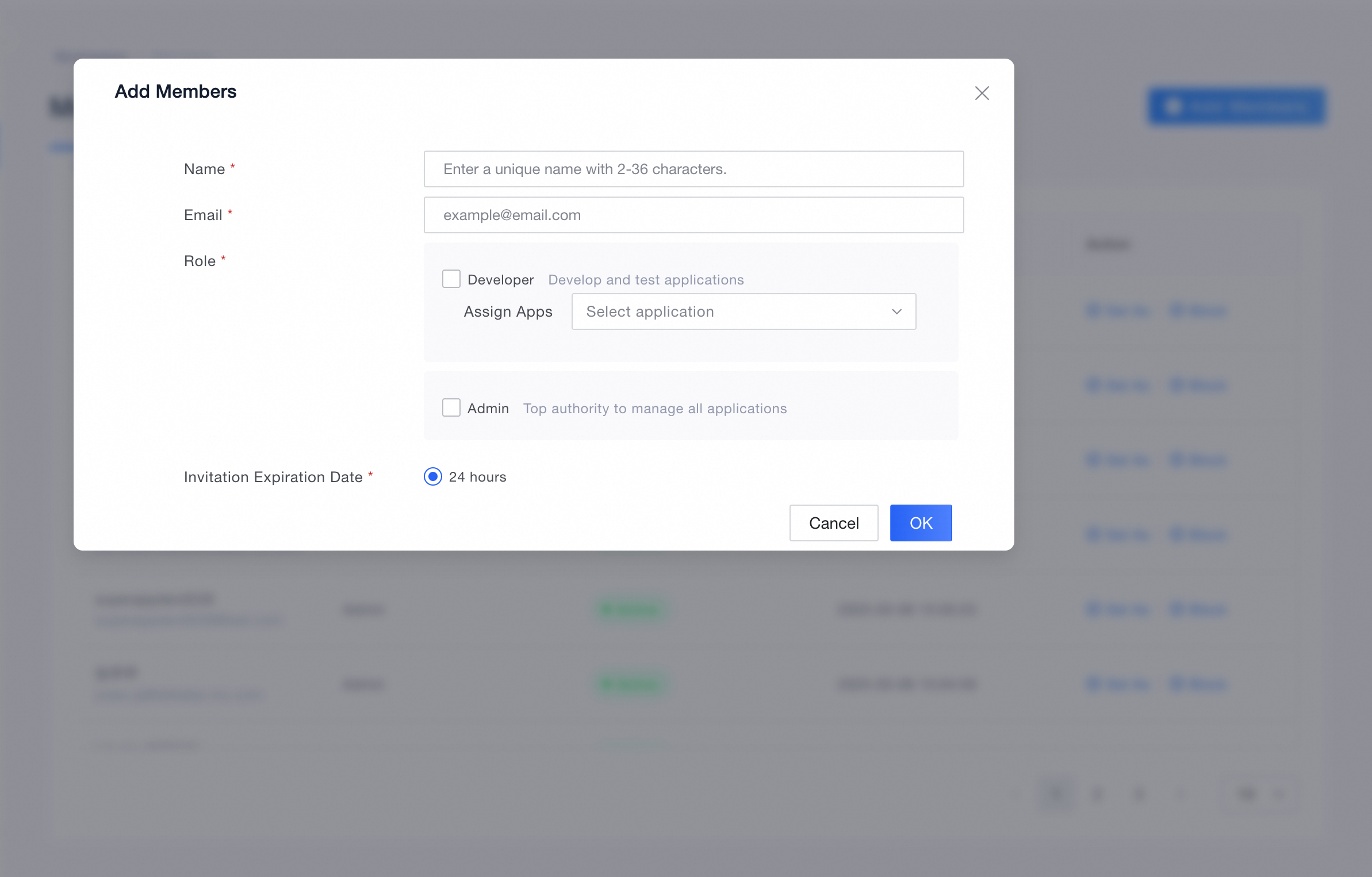
Send an Invitation: The inviter selects 「Add Members」 in the member list, fills in the member's Name, Email, and Role, and then clicks 「OK」.
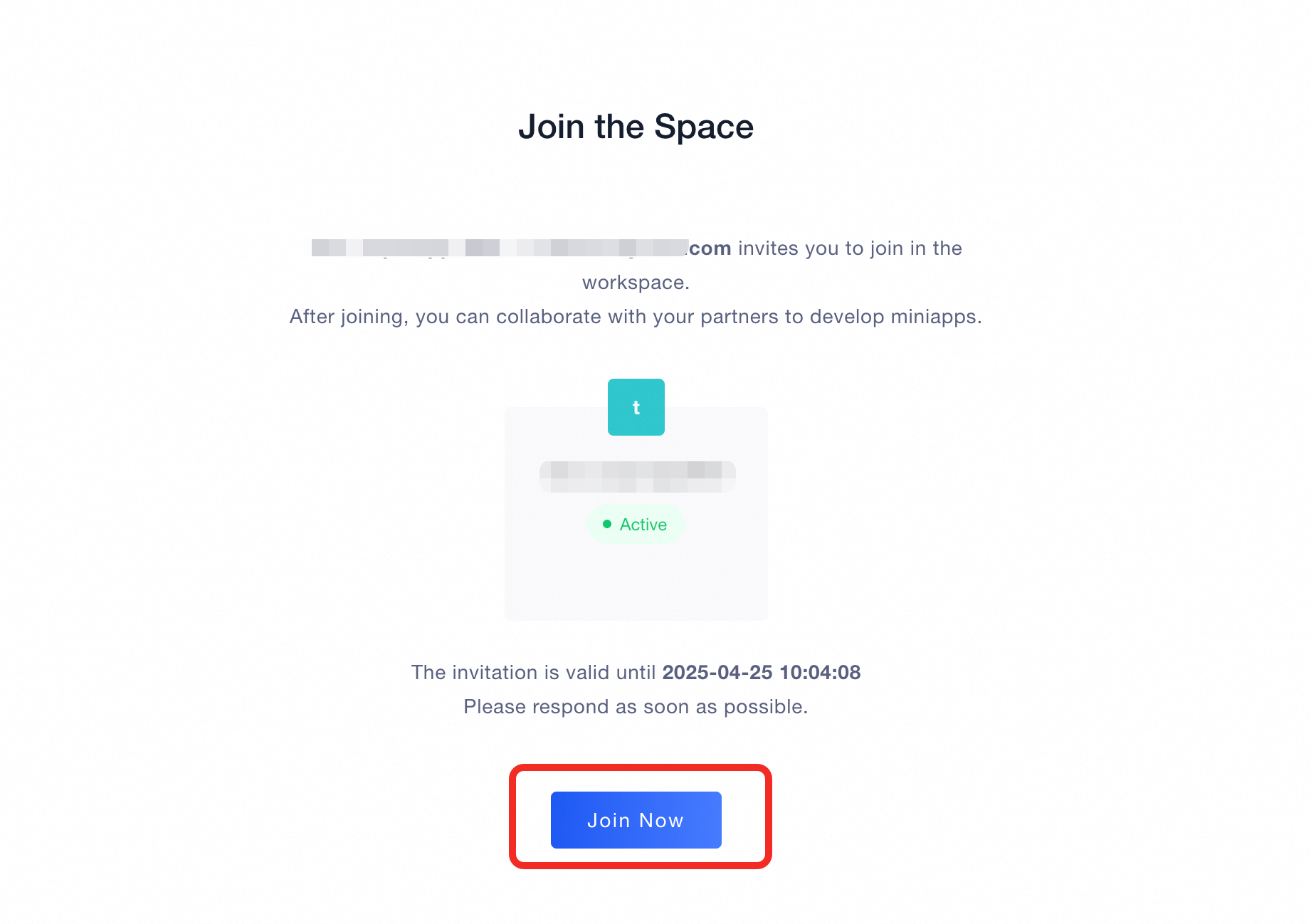
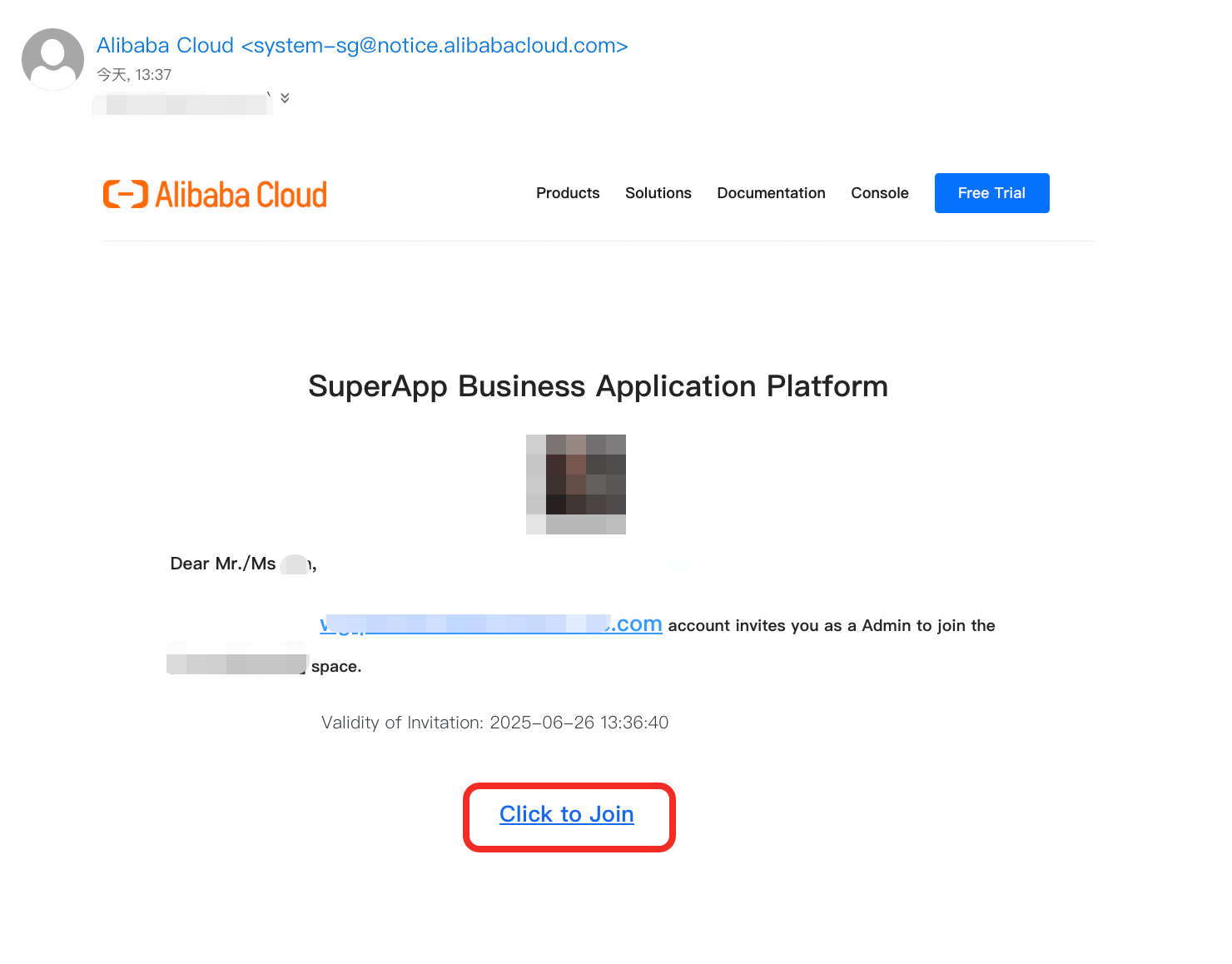
Accept the Invitation: The invitee will receive an email. Click the 「Click to Join」 link in the email, confirm the information, and then click 「Join Now」 to gain access to the SuperApp Application Open Platform. If the invitee is using the platform for the first time, please complete the registration and login process first.
Receiving an invitation does not mean automatic registration. If it's your first time using the platform, you must complete the sign-up process before joining.
The account used for registration and login must match the invited account. Each invitation email link can only be used by one email account.
Add Members Page:
Invitation Email Received Page:
Join Space Page: