Scenarios
Integrate the uni-app miniapp container into a uni-app-based native app. For other scenarios, see Integrate a miniapp container into an Android app.
Solution
-
Download the native uni-app plug-in EMASUniAppPlugin.
-
Extract
EMASUniAppPlugin.zipand copy the extracted folder to thenativepluginsfolder of your uni-app project. -
Open your uni-app project in HBuilderX. Click
manifest.jsonand selectEMASUniAppPluginfrom thenativepluginsfolder as an on-premises plug-in.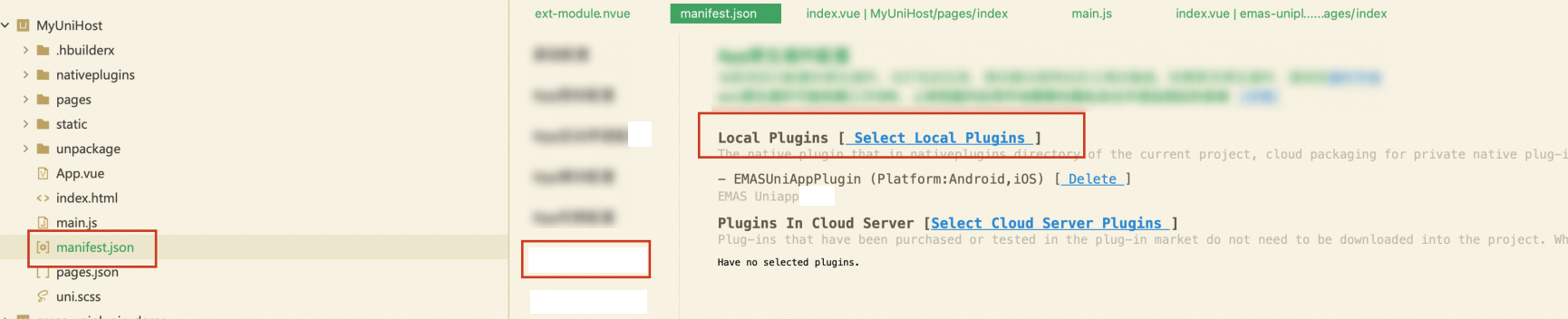
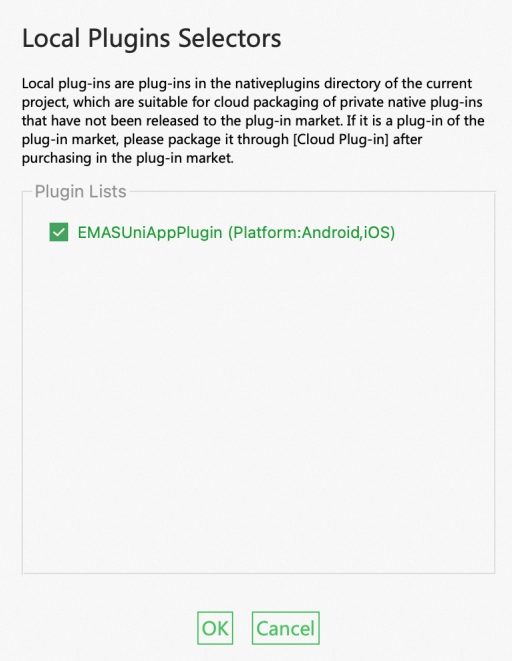
-
Open
manifest.jsonin source code view. Add theUniMPparameter underapp-plus>modules.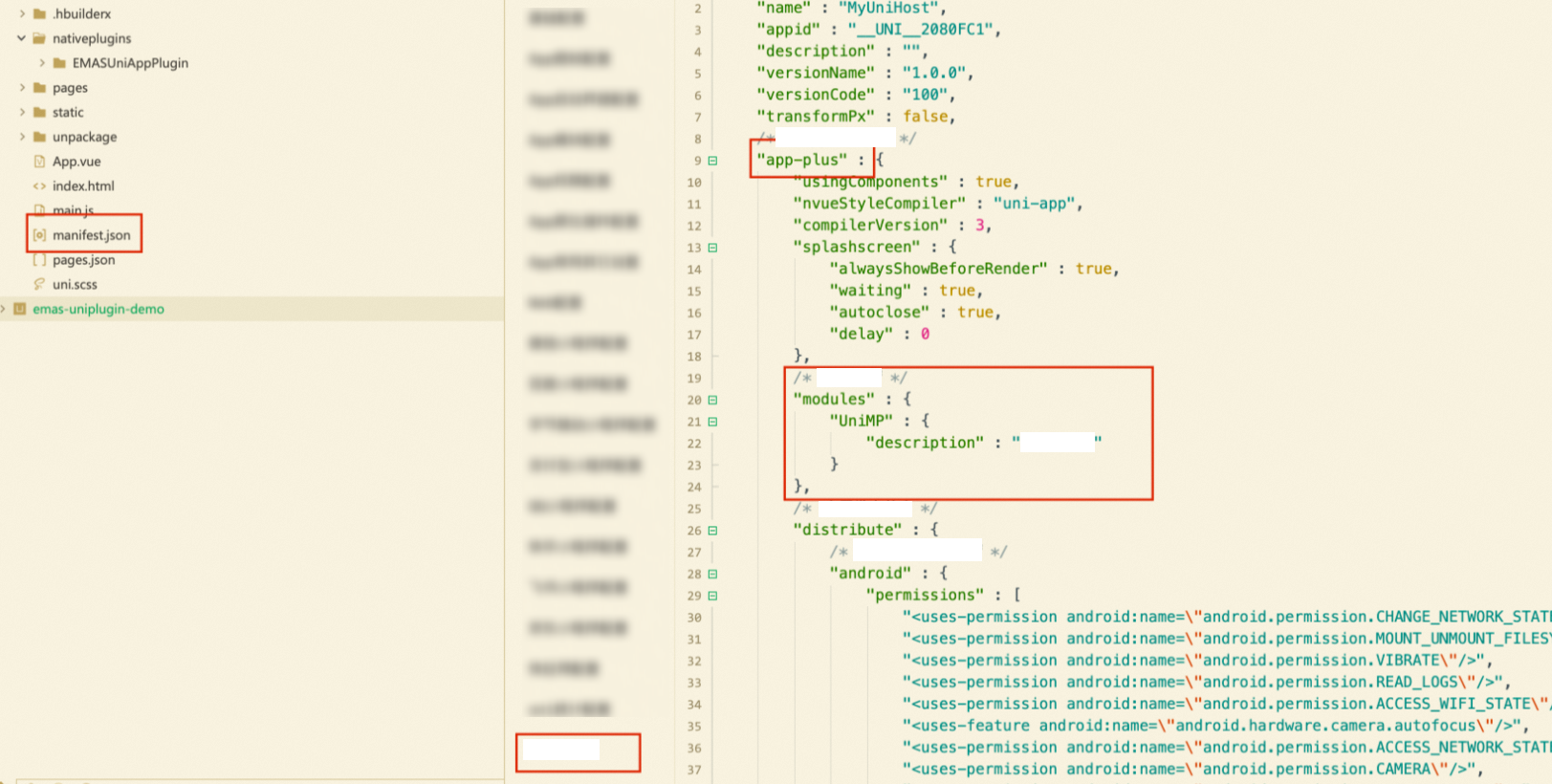
-
Use EMASUniAppPlugin and the uni-app miniapp container in your project.
// Obtain the uni-app miniapp container.
const mp = uni.requireNativePlugin('uniMP');
// Obtain the EMASUniAppPlugin plug-in.
var emasModule = uni.requireNativePlugin("EMASUniAppPlugin");
EMASUniAppPlugin API reference
configEmas
var ret = emasModule.configEmas({
					'appKeyAndroid': 'xxx',
					'appSecretAndroid': 'xxx',
					'channelIdAndroid': 'xxx',
					'mtopDomain': 'xxx',
					'useHttp': 'false',
					'appKeyIOS': 'xxx',
					'appSecretIOS': 'xxx',
					'channelIdIOS': 'xxx'
				})
Initializes EMASUniAppPlugin. Synchronous.
|
Request parameters |
|
|
appKeyAndroid |
String. Android AppKey, available from the Enterprise Mobile Application Studio (EMAS) console. |
|
appSecretAndroid |
String. Android AppSecret, available from the EMAS console. |
|
channelIdAndroid |
String. Android channel ID, available from the EMAS console. |
|
mtopDomain |
String. MTOP domain name for EMAS. |
|
useHttp |
Boolean. Whether to use HTTP. |
|
appKeyIOS |
String. iOS AppKey, available from the EMAS console. |
|
appSecretIOS |
String. iOS AppSecret, available from the EMAS console. |
|
channelIdIOS |
String. iOS channel ID, available from the EMAS console. |
updateMiniApp
emasModule.updateMiniapp({
					'appId': 'xxx',
				}, (ret) => {

				})
Downloads and installs a new miniapp version. Asynchronous.
|
Request parameters |
|
|
appId |
String. Miniapp ID, available from the Application Open Platform console or the Obtain the ID of a miniapp section below. |
|
miniAppVersion |
String. Target version number. Optional. If empty or null, downloads and installs the miniapp. If specified, downloads and installs only if the miniapp has not reached this version. |
|
publishId |
String. Miniapp release ID. Optional. |
|
Response parameters |
|
|
code |
Number. Error code. |
|
errorMsg |
String. Error message. |
|
wgtPath |
String. Miniapp installation package path. |
|
uniAppId |
String. Miniapp ID. |
|
version |
String. Miniapp version. |
|
publishType |
String. Miniapp release type. |
Example:
emasModule.updateMiniapp({
					'appId': '151624424672398147591',
				}, (ret) => {
					if (ret.code === 0) {
            // Install the miniapp by using the miniapp container.
						mp.installUniMP({
							appid: '__UNI__151624424672398147591',
							wgtFile: ret.wgtPath
						}, (r) => {
							if (0 == r.code) {
								uni.showToast({
									title: 'The miniapp is installed.'
								});
								// After the miniapp is installed, open the miniapp.
								mp.openUniMP({
									appid: '__UNI__151624424672398147591'
								}, (ret) => {
									if (0 != ret.code) {
										uni.showModal({
											title: 'The miniapp failed to be started.',
											content: JSON.stringify(ret),
											showCancel: false
										});
									}
									console.log('openUniMP: ' + JSON.stringify(ret));
								});
							} else {
								uni.showModal({
									title: 'The miniapp failed to be installed.',
									content: JSON.stringify(r),
									showCancel: false
								});
							}
							console.log('installUniMP: ' + JSON.stringify(r));
						});
					}
				})
getMiniappList
emasModule.getMiniappList({
					'appIdList': '[xxx]',
				}, (ret) => {

				})
Queries miniapps. Asynchronous.
|
Request parameters |
|
|
appIdList |
String. Miniapp IDs, available from the Application Open Platform console. For more information, see the Obtain the ID of a miniapp section of this topic. |
|
Response parameters |
|
|
code |
Number. Error code. |
|
errorMsg |
String. Error message. |
|
listData |
String. Miniapp information. |
Obtain the ID of a miniapp
-
Log on to the Application Open Platform console.
-
Select a workspace to open its Overview page.
NoteIf you belong to only one workspace, the Overview page opens automatically after logon.
-
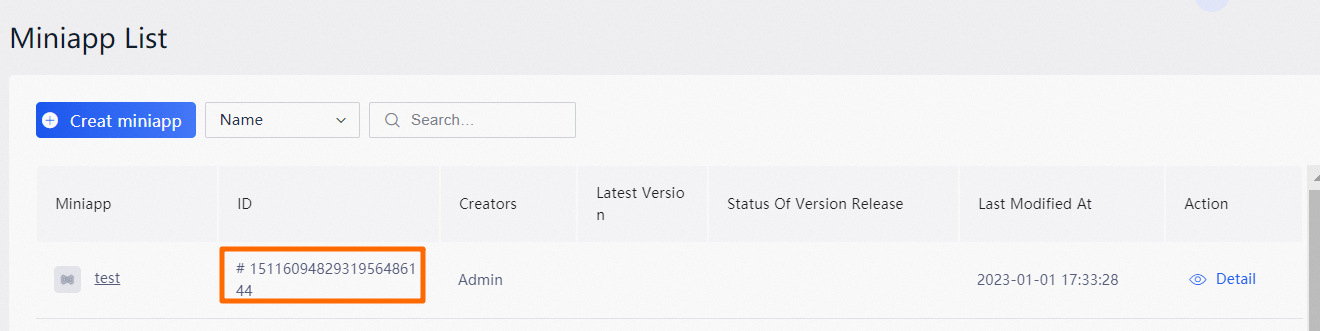
In the left-side navigation pane, click Mini Apps to open the Miniapp List page.
-
On the Miniapp List page, find your miniapp and record its ID.