Official certificates include various types and brands of certificates for different types of websites, such as personal websites, e-commerce websites, and websites of small- and large-sized enterprises. Official certificates also include wildcard, multi-domain, and hybrid certificates to meet different business requirements, such as protecting multiple subdomains or different domain names. This topic describes how to purchase, apply for, issue, and install an official certificate. In this example, an official certificate is deployed to Alibaba Cloud CDN.
Procedure
To install an SSL certificate on your server, perform the following steps:
Apply for the certificate. You need to specify information about the certificate and apply for the certificate.
Install the certificate. After the certificate is issued, you can install the certificate on your web server or deploy the certificate to a cloud service.
Prerequisites
If the website is deployed in the Chinese mainland, you must complete an ICP filing for it as required by the Ministry of Industry and Information Technology (MIIT). Otherwise, access to the website is affected. For more information, see What is an ICP filing?.
Step 1: Purchase an official SSL certificate
Log on to the Certificate Service console.
In the navigation pane on the left, choose .
On the Official Certificate tab, click Buy Now. On the buy page, configure the following parameters and click Buy Now to complete the payment.
Parameter
Description
Certificate Type
Select Single Domain. You can bind a primary domain name, a subdomain, or a public IPv4 address to a certificate. Examples: example.com and 1.1.X.X.
Brand
Select Alibaba Cloud. Alibaba Cloud certificates are more cost-effective than other certificate brands.
Certificate Specifications
The default value is DV SSL. Domain validated (DV) certificates are suitable for personal websites used for app services, information display, enterprise testing, and personal testing.
Quantity
The value is 1 by default and cannot be changed. This parameter specifies the number of SSL certificates.
Service Duration
Select 1 Year. In this case, one certificate whose validity period is one year is provided.
NoteFor more information, see Purchase a commercial certificate.
Step 2: Apply for a certificate
Return to the Official Certificate tab, find the certificate that you want to manage and click Apply for Certificate in the Actions column.

In the Apply for Certificate panel, configure the parameters and click Submit.

Parameter
Description
Domains to Bind
Enter the domain name of your website. Example:
example.com.Domain Verification Method
Select a method to verify the ownership of the domain name.
In this example, you can select only Manual DNS Verification or File Verification because
example.comdoes not belong to the current Alibaba Cloud account. In this example,example.comis registered with a third-party platform or belong to another Alibaba Cloud account. After you submit the certificate application, you must complete domain name ownership verification as prompted. Otherwise, the certificate cannot be issued.If Alibaba Cloud DNS is activated within the Alibaba Cloud account of the certificate applicant, Automatic DNS Verification is automatically selected. No manual configuration is required. In this case, Alibaba Cloud automatically verifies the ownership of the domain name.
Contact
Select a contact from the drop-down list. If you have not created contacts, you can click Create Contact to create one. Make sure that the contact information is correct and valid.
Location
Select the city or region where the applicant is located.
Encryption Algorithm
Select RSA. The RSA algorithm is an asymmetric algorithm that is widely used in the world and provides high compatibility.
CSR Generation
Select Automatic. Alibaba Cloud automatically generates a CSR file based on the key algorithm that you specify for Encryption Algorithm and the certificate information.
A CSR file includes your request for a certificate. A CSR file contains your server and company information. You must submit the CSR file to a CA for review.
NoteFor more information about the parameters, see Submit an application to a CA.
Optional. Complete domain name ownership verification if you select Manual DNS Verification or File Verification for Domain Verification Method. For more information, see Verify the ownership of a domain name.
If you select Automatic DNS Verification for Domain Verification Method, you can wait for the certificate to be issued. DV certificates are issued in 1 to 15 minutes on average.

Step 3: Install the certificate
Install the certificate on a web application server
In this section, an NGINX 1.14.2 server that runs a 64-bit CentOS 8.0 operating system is used as an example to illustrate the installation. Installation operations vary based on the versions of servers and operating systems. If you have questions, Contact your business manager for assistance. For more information about how to install a certificate on another web application server, such as an Apache, Tomcat, or IIS server, see Method 1: Manual deployment via server login.
Log on to the Certificate Service console.
In the navigation pane on the left, choose .
On the Official Certificate tab, find the certificate that you want to manage and click More in the Actions column. On the page that appears, click the Download tab.
Find Nginx in the Server Type column and click Download in the Actions column.

Decompress the downloaded SSL certificate package.
The files you receive after decompression vary based on the CSR generation method that you selected when you submitted the certificate request. The following table describes the files.
CSR generation method
File extracted from the certificate package
Automatic or Select Existing CSR
Certificate file in the PEM format: NGINX servers support PEM files. A certificate file in the PEM format is a Base64-encoded text file that contains a complete certificate chain. The file is named in the
Certificate ID_Domain name bound to the certificateformat after decompression.Private key file in the KEY format: Named CertificateAttachedDomainName by default.
Manual
If you enter a CSR that was created in the Certificate Service console, the downloaded certificate file is the same as a file that is generated using the Automatic method.
If you enter a CSR that was not created in the Certificate Service console, the download includes only the certificate file in the PEM format and does not include a certificate password or private key file. You can use a certificate tool to convert the certificate file and your private key file to the required format. For more information about how to convert the format of a certificate, see Convert the format of a certificate.
Log on to the NGINX server, open the CLI, and run the following commands to create a directory in the conf directory of the server to store the certificate:
# The directory is used when you manually compile and install NGINX. If you changed the default NGINX installation directory or installed NGINX by using other methods, specify the actual directory. cd /usr/local/nginx/conf # Create a directory named cert. mkdir certUpload the certificate file and private key file to the following directory of the NGINX server: /usr/local/nginx/conf/cert.
NoteYou can use the local file upload feature of a remote logon tool, such as PuTTY, XShell, or WinSCP, to upload files. If you are using an Alibaba Cloud Elastic Compute Service (ECS) instance, for more information about how to upload files, see Upload or download files.
Open the nginx.conf configuration file of the NGINX server and modify certificate-related settings in the file.
Run the following command to open the configuration file:
sudo vim /usr/local/nginx/conf/nginx.confNoteIf you do not know the path to the nginx.conf configuration file, run the
nginx -tcommand to obtain the path to the configuration file.Find the server configuration item in the nginx.conf configuration file.
NoteIf the nginx.conf configuration file or the file that is referenced by the include directive does not contain the server configuration item, manually add the server configuration item.
Remove the # comment symbol from the beginning of each line and modify the settings based on the following sample code:
server { # Specify the default HTTPS port 443. # If you do not specify the default HTTPS port, the NGINX service may fail to start. listen 443 ssl; # Enter the domain name that is bound to the certificate. server_name <YOURDOMAIN>; # Enter the absolute path to the certificate file. ssl_certificate cert/<cert-file-name>.pem; # Enter the absolute path to the private key file. ssl_certificate_key cert/<cert-file-name>.key; ssl_session_cache shared:SSL:1m; ssl_session_timeout 5m; # Specify the Transport Layer Security (TLS) protocols and custom cipher suites that you want to use. The following sample code is only for reference. # A later TLS version offers higher security but lower compatibility with browsers. ssl_ciphers ECDHE-RSA-AES128-GCM-SHA256:ECDHE:ECDH:AES:HIGH:!NULL:!aNULL:!MD5:!ADH:!RC4; ssl_protocols TLSv1.1 TLSv1.2 TLSv1.3; # A server-side cipher suite is preferentially used. The default value is on. ssl_prefer_server_ciphers on; location / { root html; index index.html index.htm; } }Optional. Configure settings to automatically redirect HTTP requests to HTTPS requests.
If you want to redirect all HTTP requests to HTTPS requests, you can add the rewrite directive to your configuration file.
ImportantFind the configuration item of http server in the nginx.conf configuration file, and add redirection settings.
If you cannot find the configuration item, you can append the following redirection settings to the
server {}configuration item in the nginx.conf configuration file. After you configure the redirection settings, the nginx.conf file contains twoserver {}configuration items.server { listen 80; # Enter the domain name that is bound to the certificate. server_name <YOURDOMAIN>; # Add the rewrite directive to redirect all HTTP requests to HTTPS requests. rewrite ^(.*)$ https://$host$1; location / { index index.html index.htm; } }The following figure shows the result after configuration.

Run the following commands to restart the NGINX service:
# Go to the executable directory of the NGINX service. cd /usr/local/nginx/sbin # Reload the configuration file. ./nginx -s reloadNoteIf the error
the "ssl" parameter requires ngx_http_ssl_moduleis reported, recompile NGINX and add--with-http_ssl_modulewhen you install NGINX.If the error
"/cert/3970497_demo.aliyundoc.com.pem":BIO_new_file() failed (SSL: error:02001002:system library:fopen:No such file or directory:fopen('/cert/3970497_demo.aliyundoc.com.pem','r') error:2006D080:BIO routines:BIO_new_file:no such file)is reported, remove the forward slash (/) that precedes the relative path to a certificate file. For example, remove the forward slash (/) that precedes the relative path/cert/cert-file-name.pem. The required relative path iscert/cert-file-name.pem.
Check whether the certificate is installed
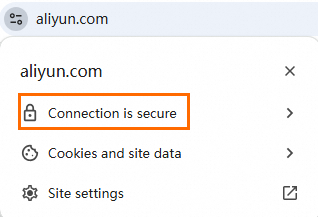
After the certificate is deployed, you can verify the deployment by accessing the domain name to which the certificate is attached.
https://yourdomain #Replace yourdomain with your actual domain name.If the
icon appears in the address bar of your browser, the certificate is installed. Starting in Google Chrome 117, the
icon is changed to the
icon. If the
icon appears after you click the
icon, the certificate is installed. 
Deploy the certificate to a cloud service
After the certificate is issued, you can install the certificate on your web application server or deploy the certificate to an Alibaba Cloud service. In this section, Alibaba Cloud CDN is used as an example to illustrate the deployment. For more information about how to deploy a certificate to another cloud service or to a web application server, see Deploy SSL certificates.
Log on to the Certificate Service console.
In the navigation pane on the left, choose .
On the Official Certificate tab, find the issued certificate that you want to manage and click Deploy in the Actions column.
In the Select Resource step, click CDN and select the required resources. Then, click Preview and Submit.
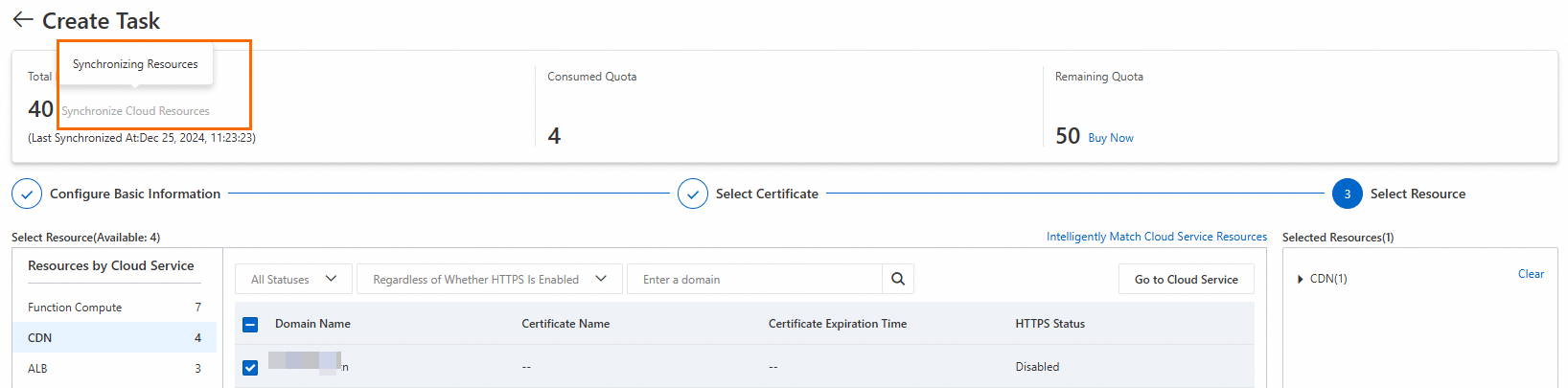
The system automatically identifies and synchronizes the resources of all cloud services. If you cannot find the required resources, check whether all resources are synchronized in the Total Resources section. If resources are being synchronized, the Synchronize Cloud Resources button is displayed in gray, as shown in the following figure. Wait until the resources are synchronized. The time required for resource synchronization varies based on the number of resources within your cloud service.

In the Task Preview panel, confirm the information about the certificate and cloud service and click Submit.
The preview panel displays the number of certificates that match the cloud service and the amount of deployment quota to be consumed. If the number of certificates is 0, the certificate does not match the resources of the cloud service. In this case, the deployment task fails. Check the certificate that you selected.
Check whether the certificate is deployed
Log on to the CDN console.
In the left navigation pane, click Domain Names.
On the Domain Names page, find the target domain name and click Manage in the Actions column.
In the domain's navigation pane, click HTTPS.
View the information about the certificate, including the certificate status and the validity period. If Enabled is displayed for HTTPS Certificate, the certificate is deployed.

After you deploy the certificate, you must wait for a period of time for the certificate to be synchronized to CDN before you can view the latest information about the certificate.
References
For more information about how to troubleshoot the issue that the certificate does not take effect after installation, see How do I resolve certificate deployment issues based on browser prompts?
For more information about how to manually install a certificate on a web application server, such as NGINX and Apache, see Method 1: Manual deployment via server login.