Fix issues detected in Windows images, such as residual drivers on the system disk, residual Xen drivers, or driver installation restrictions.
Delete residual drivers from the registry
The Class subkey under the HKEY_LOCAL_MACHINE\SYSTEM\CurrentControlSet\Control registry tree contains registered filter drivers. If deleted drivers remain in the registry, instances created from the image may fail to start. Remove these residual entries to prevent startup failures.
-
Log on to the source server where you create image files.
-
Open Registry Editor.
In the Windows taskbar search box, enter
regeditand pressENTER. -
Open the disk registry key.
Registry path:
HKEY_LOCAL_MACHINE\SYSTEM\ControlSet001\Control\Class\{4d36e967-e325-11ce-bfc1-08002be10318}. -
Check for and delete any residual drivers.
-
Check the UpperFilter attribute for residual drivers.
If a driver listed in UpperFilters does not exist in
C:\Windows\System32\drivers, it is a residual driver. -
Delete residual driver names from UpperFilters.
WarningDo not delete built-in drivers. Removing built-in drivers causes system exceptions.
For example,
partmgris a built-in system driver and must not be removed from the UpperFilters value.
-
Disable the Xen driver
The Xen driver is deprecated in VPCs but may remain in older images. Instances created from these images may fail to start. Disable the Xen driver in the registry to prevent this.
-
Log on to the source server where you create image files.
-
Open Registry Editor.
In the Windows taskbar search box, enter
regeditand pressEnter. -
Open the registry key.
Registry path:
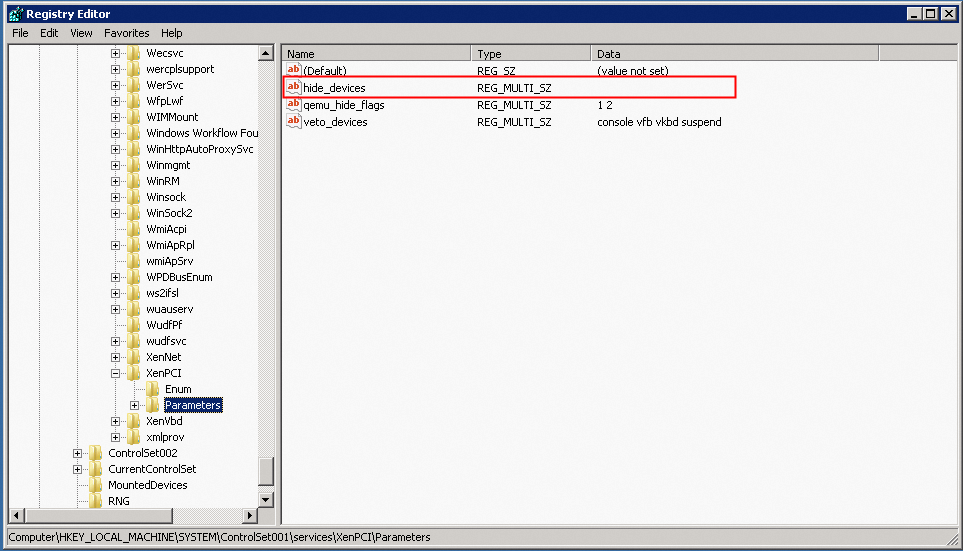
HKEY_LOCAL_MACHINE\SYSTEM\ControlSet001\Services\XenPCI\Parameters. -
Clear the value of the hide_devices attribute.
Enable driver installation
The HKEY_LOCAL_MACHINE\SYSTEM\CurrentControlSet\Services registry tree controls driver installation permissions. If driver installation is disabled in an image, instances cannot update drivers. Modify the registry to re-enable driver installation.
-
Log on to the source server where you create image files.
-
Open Registry Editor.
In the Windows taskbar search box, enter
regeditand pressEnter. -
Open the registry key.
-
Later than Windows Server 2008 R2:
HKEY_LOCAL_MACHINE\SYSTEM\ControlSet001\Services\DeviceInstall\Parameters. -
Windows Server 2008 R2 and earlier:
HKEY_LOCAL_MACHINE\SYSTEM\ControlSet001\Services\DeviceInstall\Parameters.
-
-
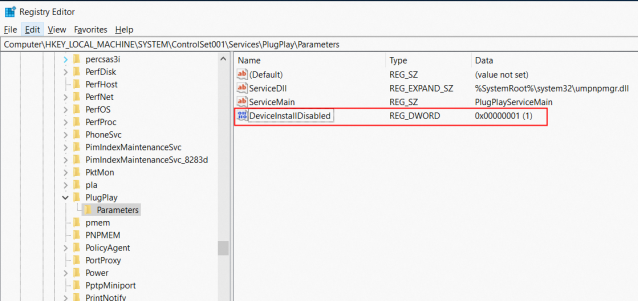
If the DeviceInstallDisabled attribute exists and its value is not 0, set it to 0 or delete it.
Example of Windows Server 2008 R2
Example of Windows Server 2016
A DeviceInstallDisabled (REG_DWORD) value of
1disables device installation. Set the value to0or delete the attribute to enable installation.