Simple Log Service allows you to view alert details and manage alerting rules and alert transactions directly from notifications, without logging in to the console.
Limitations
-
Log Service automatically adds a login-free link only to notifications sent through DingTalk and Lark. To add a login-free link to other notification channels, you must manually add the
signin_urlvariable to the notification template. For example, you can configure Markdown notifications as[View Details]({{ alert.signin_url }}). For more information about how to create a notification template, see Create a notification template. -
By default, a login-free link is valid for 12 hours. Once expired, the link no longer provides login-free access.
-
If multiple alerts are grouped into a single notification, the notification contains a login-free link only for the first alert by default. To access each alert without logging in, you must add the
signin_urlvariable for each alert in the notification template. -
Avoid using the login-free feature in SMS messages. Long links may be truncated by SMS providers, rendering them invalid.
Authorize login-free access
Before using the login-free feature, you must grant authorization. Alibaba Cloud automatically creates a service-linked role, AliyunServiceRoleForSLSAlert, that grantsSimple Log Servicepermission to access resources in other cloud services. For more information, see Manage the AliyunServiceRoleForSLSAlert service-linked role.
-
You only need to perform this authorization once.
-
RAM users must have the permissions shown in the following policy. You must first create a custom policy and then grant the permissions to the RAM user. For more information, see Create a custom policy and Manage permissions for a RAM user.
{
  "Statement": [{
    "Action": "ram:CreateServiceLinkedRole",
    "Resource": "*",
    "Effect": "Allow",
    "Condition": {
      "StringEquals": {
        "ram:ServiceName": "alert.log.aliyuncs.com"
      }
    }
  }],
  "Version": "1"
}
Log on to the Simple Log Service console.
-
In the Project list, click a Project.
-
In the left-side navigation pane, click Alerts.
-
On the Alert Center page, click Authorize.
After you grant authorization, the service-linked role AliyunServiceRoleForSLSAlert is automatically created with the AliyunServiceRolePolicyForSLSAlert policy. This allows Log Service to access other services such as EventBridge and Function Compute.
Access alerts without logging in
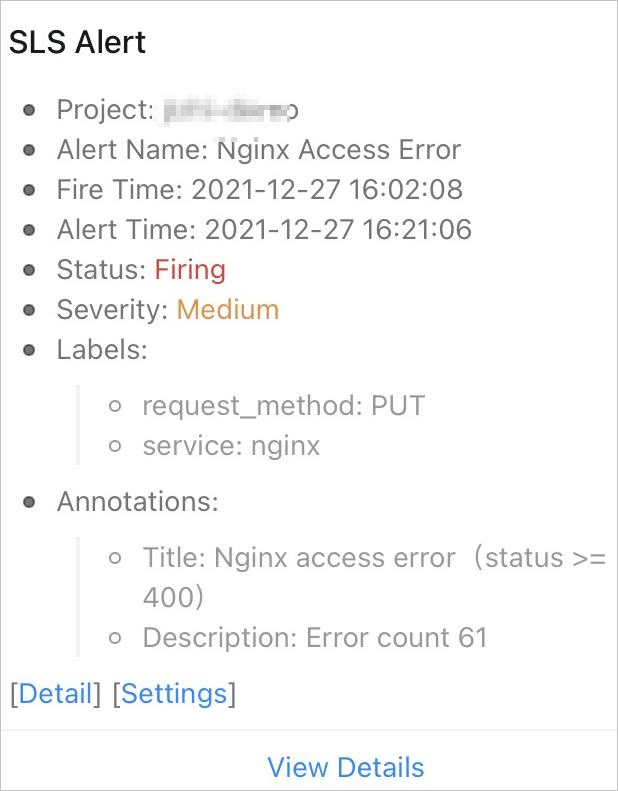
After you receive an alert notification, click the login-free link to open the alert details page. For example, in a DingTalk notification, click View Details. You can then view alert details and manage tasks such as disabling an alerting rule, assigning an owner, or setting an alert status, without logging in to the console.
-
Alert notification
-
The alert details page displays the status workflow (Pending Evaluation → Acknowledged → Resolved/Ignored) and information such as alert type (for example, Nginx access error), severity, trigger time, error count, current assignee, Project name, region, and the associated alerting rule. You can perform actions such as Close, Mute, Resolve, Ignore, Assign, and Comment.