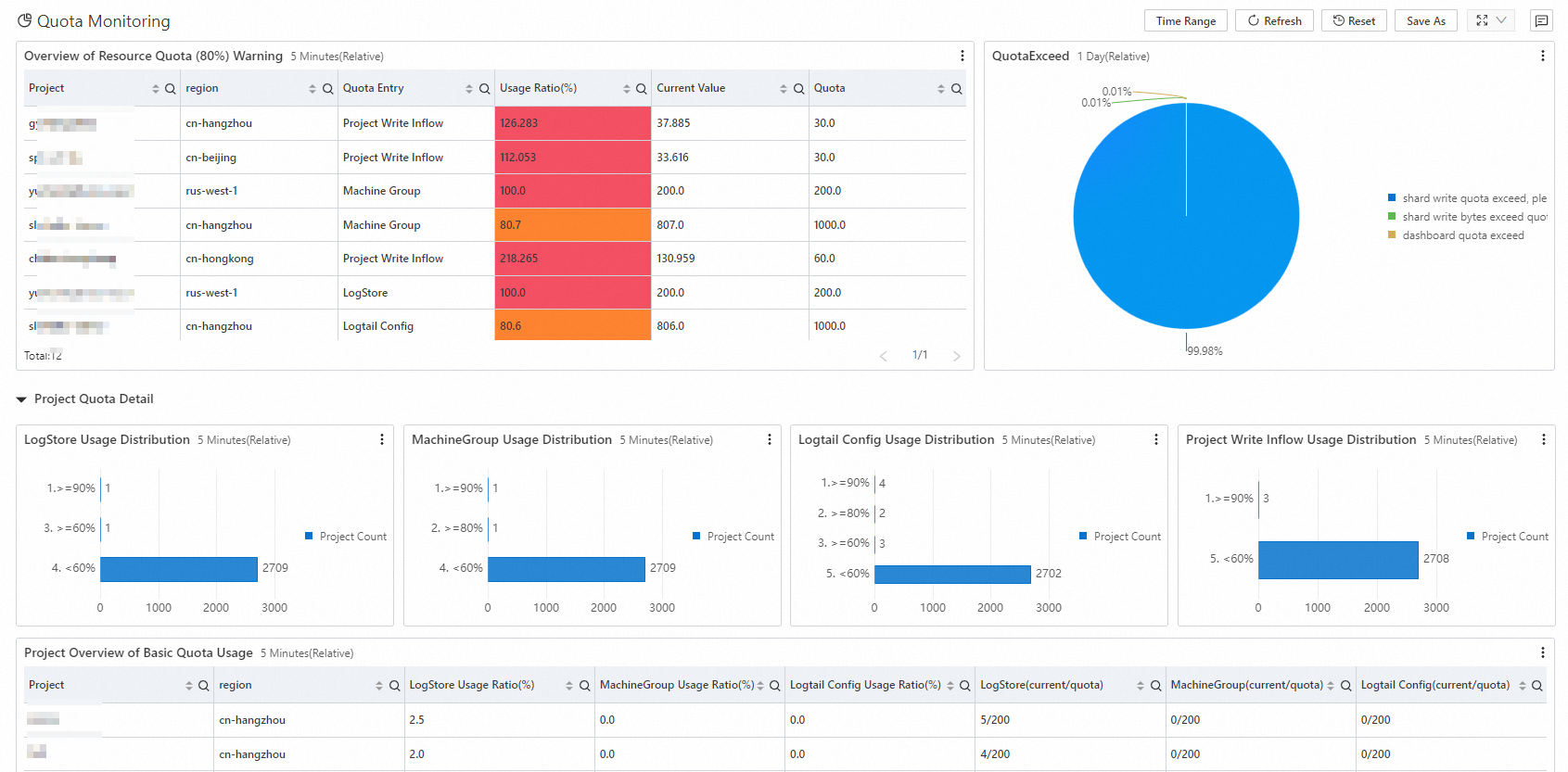
CloudLens for SLS lets you monitor and manage SLS assets such as projects and Logstores, improving management efficiency and providing visibility into resource consumption.
Background information
After you enable CloudLens for SLS, SLS collects global logs (audit logs, error logs, and metrics) and operational logs (important logs from the original instance logs and job operational logs) by default. These logs are free of charge.
-
If this is the first time you enable CloudLens for SLS, Global Logs are stored in a project named
log-service-{Alibaba Cloud primary account ID}-{region}, whereregionis the Global Log Storage Region that you select when you enable CloudLens for SLS. Operation Logs are stored in a project namedlog-service-{Alibaba Cloud primary account ID}-{region}, whereregionis the region of the project. For a list of supportedregionvalues, see Usage notes.ImportantIf you delete the project that stores operational logs, SLS automatically creates a new one.
-
If you have already enabled CloudLens for SLS, your existing region and project settings are used.
The following example shows how to use CloudLens for SLS when a project quota is exceeded. Usage notes for CloudLens for SLS.
1. Enable CloudLens for SLS
- Log on to the Log Service console.
-
In the Log Application section, click the Cloud Service Lens tab, and then click CloudLens for SLS.
-
On the Data Import Management page, click the SLS Collection Policies tab and follow the on-screen instructions to enable the feature. The system automatically grants the
AliyunServiceRoleForSLSAuditservice-linked role to CloudLens for SLS, allowing it to collect global logs and operational logs. For more information, see Manage the AliyunServiceRoleForSLSAudit service-linked role.
2. View monitoring results
After you enable log collection, SLS automatically generates dashboards from the collected logs.
2.1 View project quotas
-
In the left-side navigation pane, click Asset Overview.
-
On the Project Asset Overview tab, click Details in the Quota column for the target project. Adjust resource quotas.
2.2 View project quota usage
In the left-side navigation pane, choose . A project's quota covers logstores, dashboards, shards, alerts, machine groups, and Logtail configurations.