A topology chart visualizes system architecture, service dependencies, and data flow direction. In this tutorial, you configure a topology chart on a Simple Log Service dashboard to display node relationships and associated metrics.
Introduction
A topology chart is a system-level view that shows dependencies and high-level status across modules or applications.
Simple Log Service parses and structures collected topology data. The following example shows a raw data sample. The child and parent fields indicate dependencies between modules or applications, but this format is not intuitive.
Each topology log also contains metric_1, metric_2, metric_3, type, and other fields. The child_type/parent_type values include types such as SERVER, MQ, and WEB.
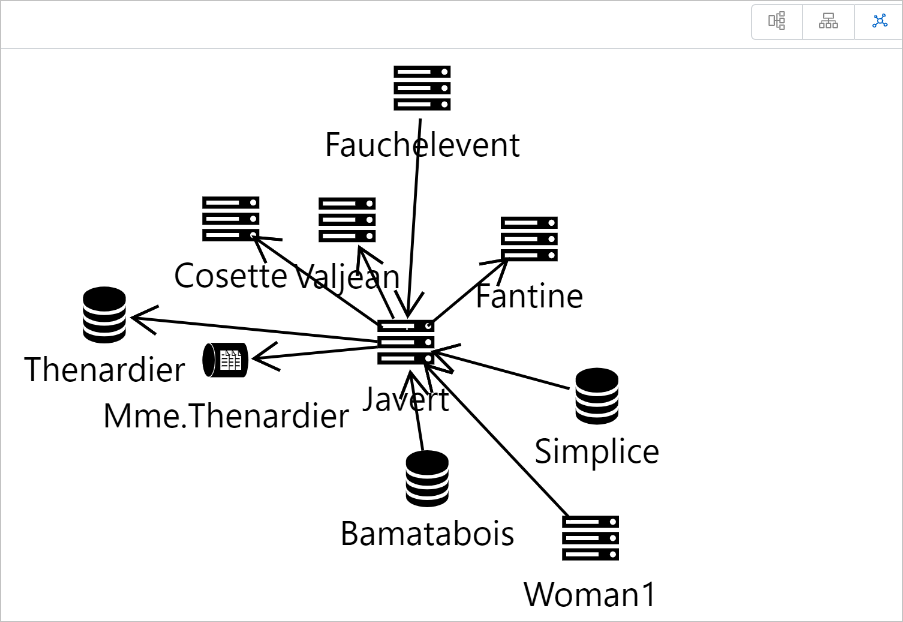
To visualize topology data, run a query statement that extracts the relationship fields. For example, * | SELECT child, parent, child_type, parent_type FROM log retrieves the child, child_type, parent, and parent_type fields to generate a topology chart. Supported layouts: Force-directed Layout, Hierarchical Layout, or Circular Layout.
Prerequisites
Before you begin, ensure that the following conditions are met:
A Logstore with collected topology data that includes child, parent, and type fields.
A dashboard to which you can add charts. Add a chart to a dashboard.
General configurations
Set global properties for the topology chart.
Topology configuration
| Parameter | Description |
| Child Node Type | Select the field that represents the child node type. |
| Child Node ID | Select the field that represents the child node ID. |
| Parent Node Type | Select the field that represents the parent node type. |
| Parent Node ID | Select the field that represents the parent node ID. |
Simple Log Service provides 13 built-in node icons: Server, Database, WEB, MQ, Server Load Balancer (SLB), Web Application Firewall (WAF), Object Storage Service (OSS), Alibaba Cloud DNS, Switch, Router, Android, iOS, and Windows. If no node type is specified in the Child Node Type and Parent Node Type fields, Simple Log Service uses the default Server icon.
Configuration example
Configure the Topology Configuration and Layout Configuration sections on the right. On the left, set the time range, select a Logstore, and enter a query statement. Click Apply at the top of the page to view the chart.
Topology Configuration: Set Child Node Type to
type, Child Node ID tochild_service, Parent Node Type totype, and Parent Node ID toparent_serviceLayout Configuration: Set Layout Type to Circular Layout and Node Type to Icon
The following statement retrieves the child_service, parent_service, and type fields to generate the topology chart.
version: service | select child_service, parent_service, 'SERVER' as type from log
Node metric configuration
The general configurations produce a topology chart showing node dependencies without metrics. Configure node metrics to add metric data to individual nodes.
The following example shows sample metric data. The node field corresponds to the child and parent fields in topology data. Use the node field to link metrics to nodes in the chart.
The sample metric data log contains the following fields: __tag__:__client_ip__ (client IP), metric_1 through metric_7 (numeric metrics), node (node name, such as Mme.Hucheloup), and type (node type, such as E70).
You can configure different metrics for each node type. This example uses .
In , select the Project and Logstore that contain the metric data, then enter a query statement. For example, if metric_1 represents latency, run * | SELECT max(metric_1) AS maxLantency, min(metric_1) AS minLantency, node FROM log GROUP BY node to calculate the maximum and minimum latency per node.
After you apply the configuration, point to a node to verify that its metrics display correctly. Click a node to hide unrelated nodes and connections.
Line metric configuration
The query statement and its fields determine node dependencies. Different line types correspond to different query statements. To configure line metrics, include the line metric fields in the topology query statement.
For example, if metric_1 indicates response time and metric_2 indicates latency, use Query A to extract metric_1 and metric_2, then configure these fields in Line Metric Configuration.
After you apply the configuration, point to a connection line to verify that its metrics display correctly. Click a line to hide unrelated nodes and connections.
Interaction events
Interaction events enable drill-down analysis on nodes. Supported events: Open Logstore, Open Quick Query, Open Dashboard, Open Trace Analysis, Open Trace Details, and Custom HTTP URL. Add interaction events to a dashboard for drill-down analysis.
For example, sets an interaction event for SERVER nodes from Query A. If you set it to Create Custom HTTP URL, right-click a SERVER node and select Create Custom HTTP URL to open the specified URL.