Scheduled SQL template variables
SLS scheduled SQL provides three built-in template variables: scheduled time, data window start time, and data window end time. Use these variables in your query and analysis statement when you create a scheduled SQL job.
Variables
|
Variable |
Description |
Example |
|
{{__TASK_SQL_END_TS__}} |
Data window end time, as a Unix timestamp. |
1687316681 |
|
{{__TASK_SQL_START_TS__}} |
Data window start time, as a Unix timestamp. |
1687316681 |
|
{{__TASK_SCHEDULED_TS__}} |
Scheduled job run time, as a Unix timestamp. |
1687316681 |
Procedure
1. Create a scheduled SQL job
Log on to the Simple Log Service console.
In the Projects section, click the one you want.

-
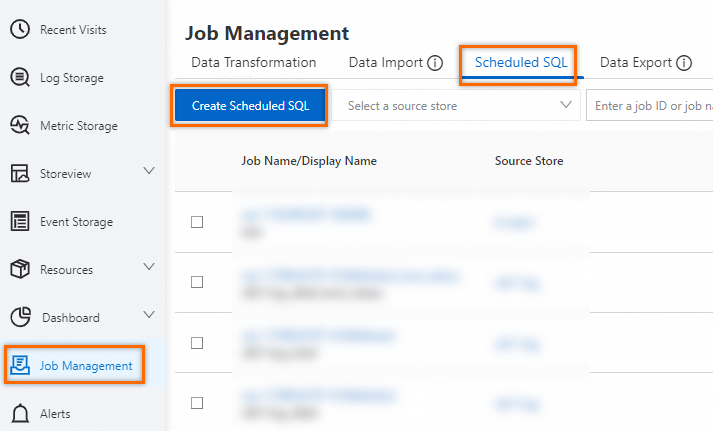
In the left-side navigation pane, choose Job Management. On the Job Management page, click .
-
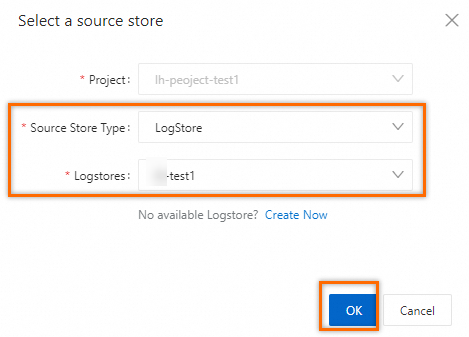
In the Select a source store dialog box, select a Source Store Type and a source store, and then click Confirm.
-
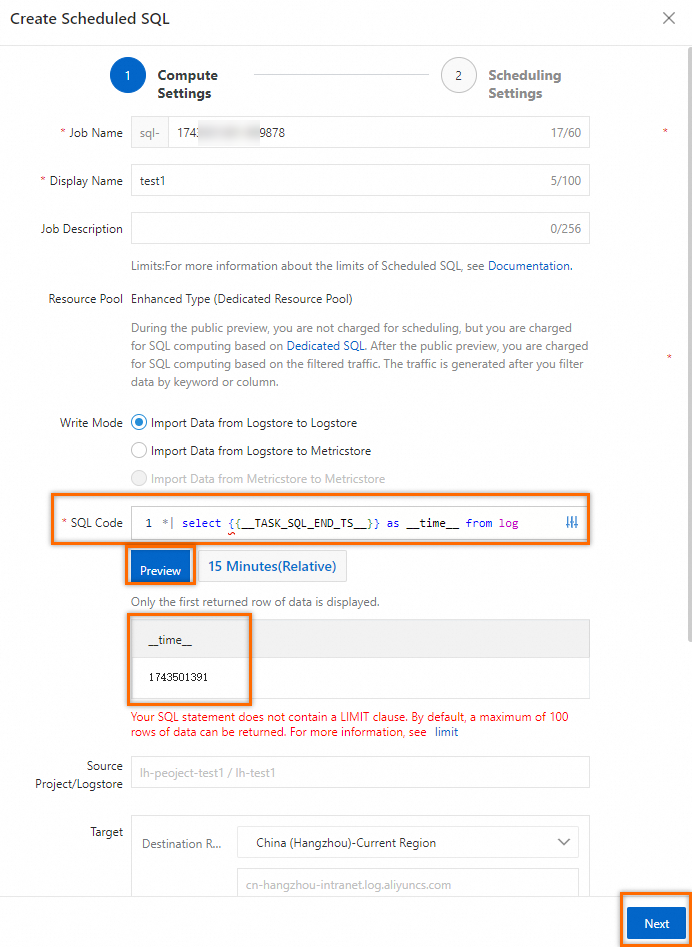
In the Compute Settings step, enter a query and analysis statement with a template variable in the SQL Code editor. In the Target section, configure the Destination Project and Target Store, then click Next .
This example uses
{{__TASK_SQL_END_TS__}}to set the__time__field to the data window end time.*| select {{__TASK_SQL_END_TS__}} as __time__ from logNote-
Template variables are strings. To use them as integers, you must first cast them.
-
__time__is a reserved field in SLS that stores the log entry timestamp.
-
-
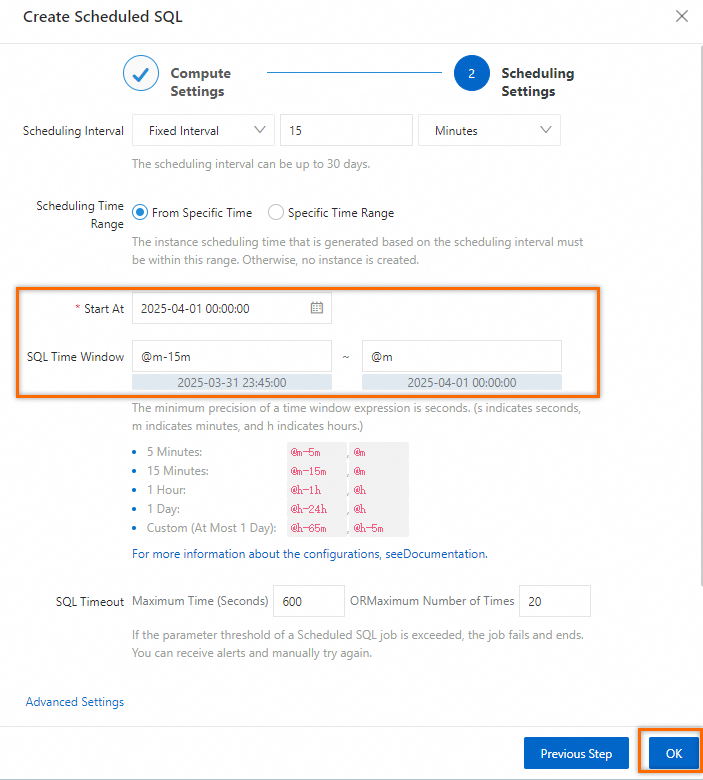
In the Scheduling Settings step, configure Start At and SQL Time Window, and then click OK.
2. Verify the __time__ field
-
On the Job Management page, click the target job.

-
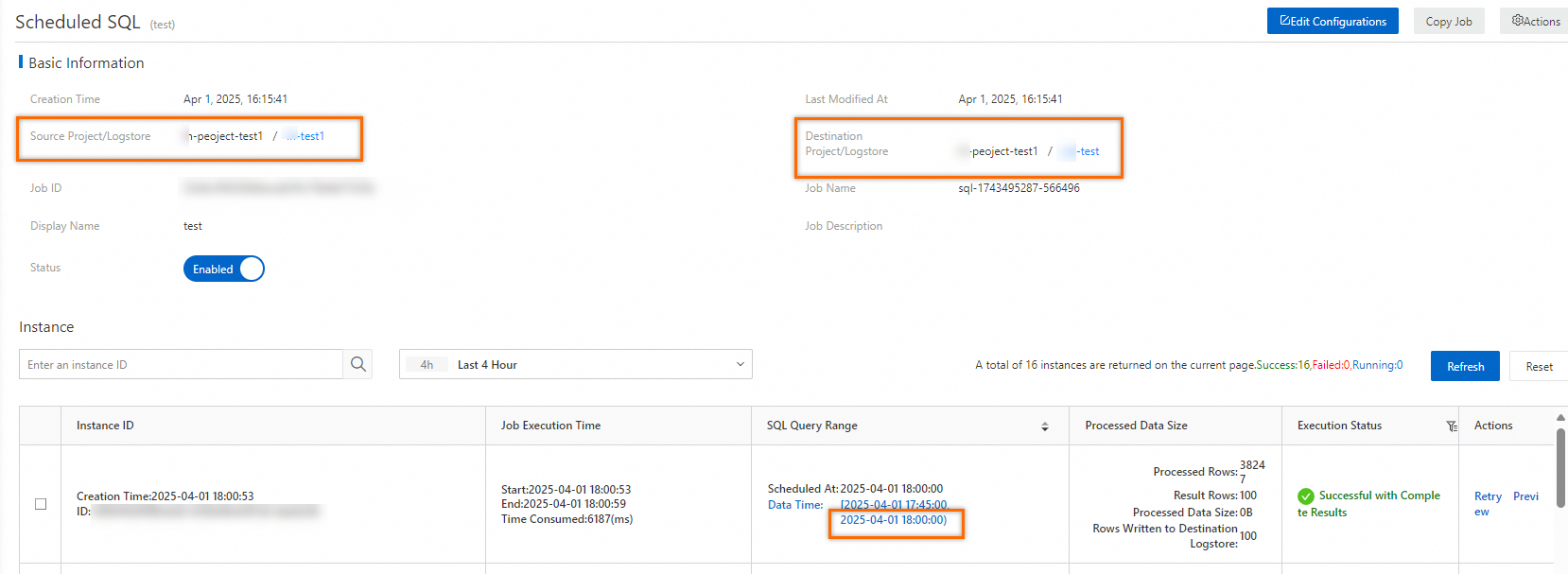
In the Basic Information section, check the Source Project/Logstore and Destination Project/Logstore. In the Instance section, note the data window start and end times in the SQL Query Range column.
-
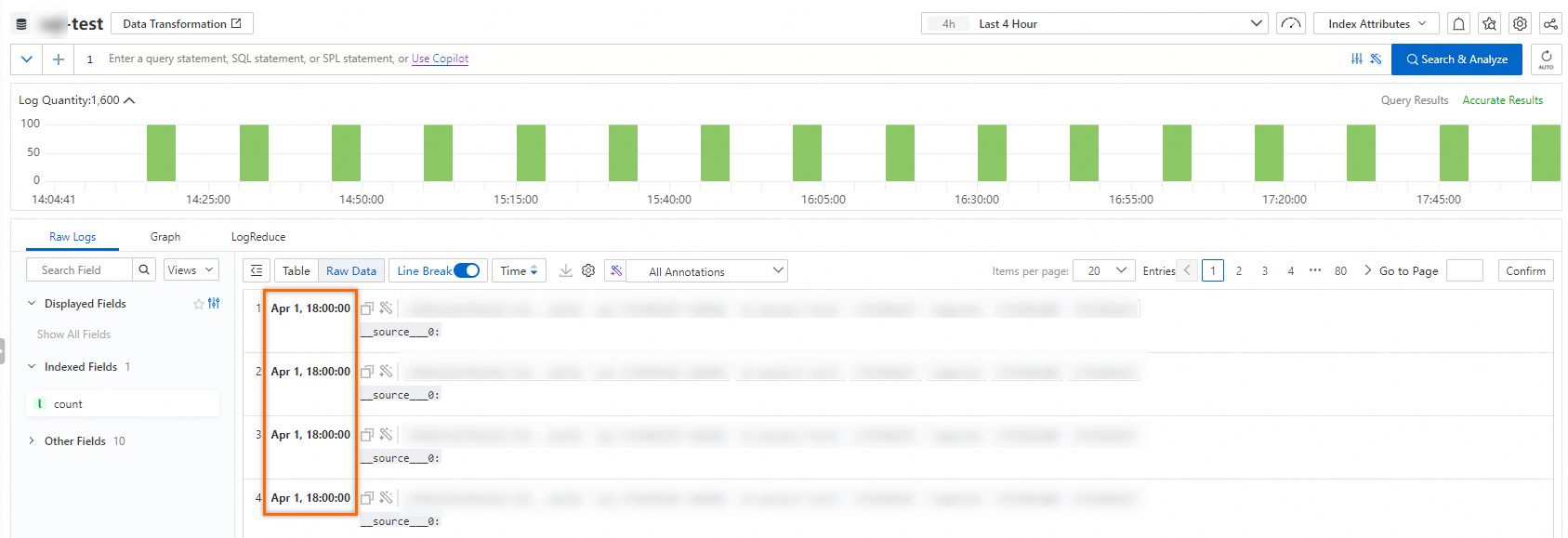
Go to the query and analysis page of the destination Logstore. Verify that the __time__ column value matches the data window end time.