You can reindex historical data in a Logstore to apply new or modified indexing rules to a specified time range. Simple Log Service reindexes data based on the most recent indexing rules.
Prerequisites
The indexing feature is enabled. For more information, see Create indexes.
Limits
-
You can reindex only the data that is generated within 15 minutes to 30 days earlier than the current time.
-
You can create up to 10 reindexing tasks. Plan your tasks by time range so that the total number of tasks stays within this limit:
-
You do not need to reindex all historical data at a time. Identify the time ranges that you actually need to query and create a reindexing task only for those ranges. This keeps the time range of a single task small.
-
If the volume of data that you want to reindex is large or the time span is long, create reindexing tasks in batches and let each task cover a different time range. Decide how to split the time ranges before you create the tasks, so that the total number of tasks does not exceed the limit on the number of reindexing tasks.
-
-
Only one reindexing task can run at a time.
Billing
-
If the current Logstore uses the pay-by-ingested-data billing mode, you are not charged for reindexing data. For more information, see Pay-by-ingested-data.
-
If the current Logstore uses the pay-by-feature billing mode, you are charged for reindexing data based on the index traffic and storage. Index traffic fees are generated only once, and storage fees are generated on an hourly basis. The unit prices of the billable items are the same regardless of whether you create indexes or reindex data. For more information, see Billable items of pay-by-feature.
-
After you delete a reindexing task, the new indexes are also deleted. You are no longer charged for storing the indexes.
Procedure
Log on to the Simple Log Service console.
In the Projects section, click the one you want.

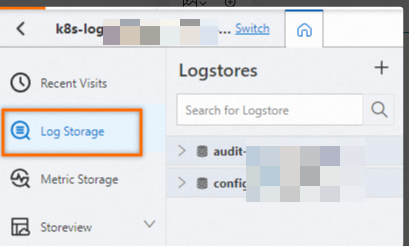
On the tab, click the logstore you want.
-
Click .
-
In the Reindex panel, click Create Task.
-
Configure the Task Name, Start At, and End Time, and then click OK.
The Start At and End Time parameters specify a time range based on the server time of data ingestion. The time range must be between 15 minutes and 30 days ago.
After the task is created, you can monitor its progress. The reindex is complete when the progress reaches 100%. If the progress remains at 0%, click Refresh in the upper-right corner of the Reindex panel to update the status.
ImportantIf historical data already has indexes, the new indexes overwrite the original indexes.
What to do next
After you create a reindexing task, you can perform the following operations:
-
Stop the reindexing task.
In the Reindex panel, click Stop to halt the running task.
WarningAfter you stop a reindexing task, you can delete the task but cannot start it again. Proceed with caution.
-
Delete the reindexing task.
In the Reindex panel, click Delete for the desired task.
WarningAfter you delete a reindexing task, the new indexes are also deleted. Proceed with caution.
FAQ
Why does a query on historical logs return no results after I configure indexes?
Cause:
-
Index configurations take effect only for the data that is written after the configurations are applied. Simple Log Service does not automatically create indexes for the data that was written to the LogStore before you configured the indexes. As a result, the indexes do not take effect for the historical logs, and a query on those logs returns no results.
-
Check whether the fields that you want to query, such as
_tag_: _path_andsession_id, are added in the Field Search section of the index configurations of the LogStore, and whether Enable Analytics is turned on for these fields. If a field is not added or analytics is not enabled for it, you cannot query the field even though the data is stored in the LogStore.
Solution:
-
On the index configuration page of the LogStore, complete the field index configurations: add the missing fields in the Field Search section and turn on Enable Analytics for them.
-
Reindex the historical time ranges that you need to query, as described in the Procedure section of this topic, so that the new indexing rules take effect for the historical data. If indexes already exist for the historical data, reindexing overwrites the original indexes. You can reindex only the data that is generated within 15 minutes to 30 days earlier than the current time.
Verification:
After the progress of the reindexing task reaches 100%, run a simple query statement such as _tag_: _path_: * or session_id: * to confirm that the historical logs in the reindexed time range can be found.