On the Data Shipping Overview page of a data shipping job used to ship data to MaxCompute, you can view the basic information and statistical reports of the job, and modify, restart, or delete the job.
Prerequisites
Procedure
Log on to the Simple Log Service console.
In the Projects section, click the one you want to manage.

In the left-side navigation pane, choose .
Click the MaxCompute data shipping job.
View the basic information about a data shipping job
In the Basic Information section, view the creation time, modification time, and source logstore of the data shipping job.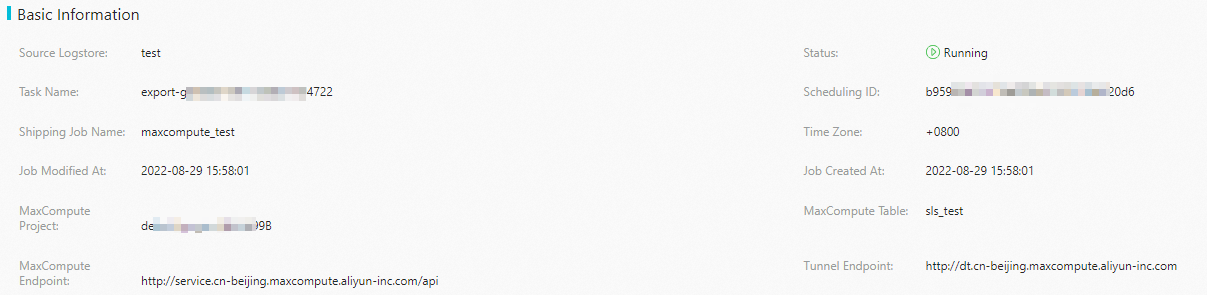
View charts
After you create a data shipping job, a dashboard is automatically created. View the metric data of the data shipping job on the dashboard. 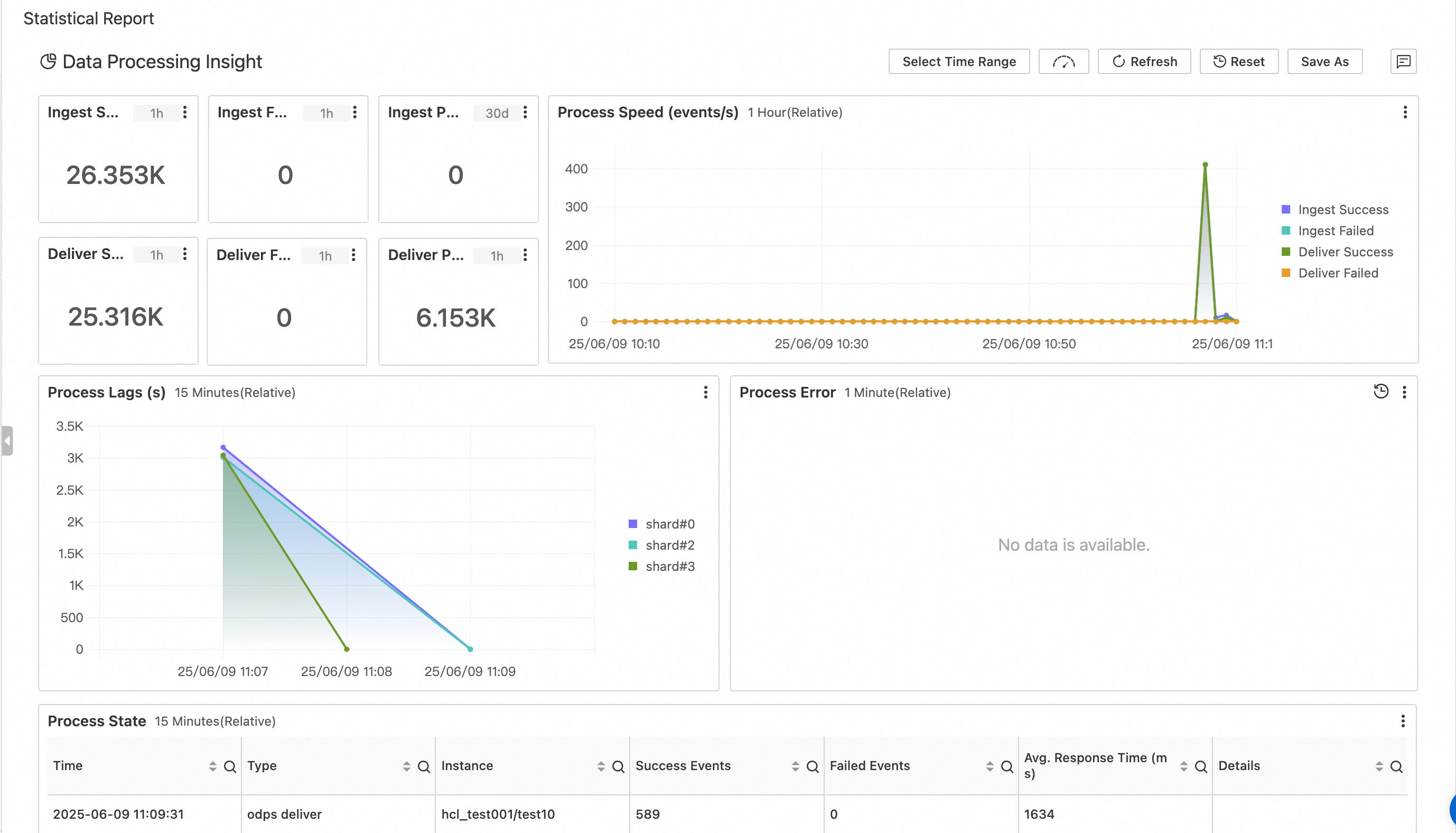
Chart name | Description |
Ingest Success | Displays the number of logs read from the source Logstore. |
Ingest Failed | Displays the number of logs that failed to be read from the source logstore. |
Ingest PubNet (MB) | Displays the volume of traffic read over the Internet. |
Deliver Success | Displays the number of logs shipped to MaxCompute. |
Deliver Failed | Displays the number of logs that failed to ship to MaxCompute. |
Deliver PubNet (MB) | Displays the volume of traffic written over the Internet. |
Process Speed (events/s) | Displays the number of logs processed per second. |
Process Lags | Displays the latency information of each shard in the logstore. |
Process Error | Displays the exceptions that occur when the data shipping job is running. You can view complete error logs in the internal-diagnostic_log logstore of a specific project by searching for the keywords ERROR or WARN. This is the project you selected when enabling the job operational log feature. |
Process State | Displays the status of the data shipping job. The information includes the shipping time, number of shipped logs, number of failed logs, and average response time. |
Modify and restart a data shipping job
Click Modify LogShipper to modify the settings of the data shipping job.
After you save the settings, the job is automatically restarted, which takes a few seconds. Click Refresh to check whether the restart is completed. After the job is restarted, ensure that the job runs and the data is shipped to MaxCompute as expected.
You cannot change the name or start time of a data shipping job.
Delete a data shipping job
If you no longer need the data shipping job, choose in the upper-right corner of the Data Shipping Overview page.
After a data shipping job is deleted, it cannot be restored. Proceed with caution.