LogReduce groups similar logs into patterns so you can quickly spot trends, compare log counts across time periods, and drill down into raw logs.
Prerequisites
A Standard logstore is created. For more information, see Create a basic Logstore.
-
Logs are collected. For more information, see Data collection.
-
Indexes are configured. For more information, see Configure indexes.
Background
Simple Log Service uses LogReduce to group similar logs and extract common patterns, giving you a quick overview of your log data. LogReduce supports text logs in various formats and applies to DevOps tasks such as troubleshooting, anomaly detection, and version regression analysis, as well as security scenarios like intrusion detection. You can save clustering results as charts to a dashboard for real-time monitoring.
Benefits
-
Supports logs in any format, such as Log4j, JSON, and single-line logs.
-
Processes hundreds of millions of log entries and returns results in seconds.
-
Clusters log data by arbitrary patterns.
-
Look up raw logs by pattern signature.
-
Compares patterns across different time periods.
-
Dynamically adjusts clustering precision.
Index traffic
After you enable LogReduce, the total index size increases by 10% of your raw log size. For example, if you have 100 GB of raw logs per day, enabling LogReduce adds 10 GB to your total index size.
|
Raw log size |
Index ratio |
LogReduce index size |
Total index size |
|
100 GB |
20% (20 GB) |
100 * 10% |
30 GB |
|
100 GB |
40% (40 GB) |
100 * 10% |
50 GB |
|
100 GB |
100% (100 GB) |
100 * 10% |
110 GB |
Enable LogReduce
Log on to the Simple Log Service console.
In the Projects section, click the one you want.

On the tab, click the logstore you want.
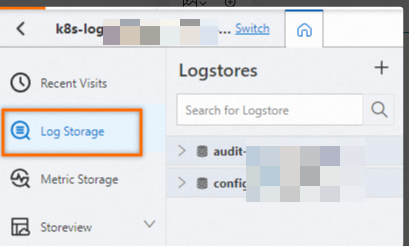
-
Enable the LogReduce feature.
-
Click .
If you have not enabled the index feature, click Enable Index.
-
In the Query and Analysis panel, turn on the LogReduce switch.
-
Optional: Configure a whitelist or blacklist for fields to include or exclude from clustering.
NoteYou cannot configure both a whitelist and a blacklist.
LogReduce filter
Description
whitelist
If you configure a whitelist, Simple Log Service clusters logs based only on the fields in the whitelist.
blacklist
If you configure a blacklist, Simple Log Service excludes the blacklisted fields from the clustering process.
No whitelist or blacklist is configured
If neither a whitelist nor a blacklist is configured, Simple Log Service clusters logs based on all available fields.
-
Click OK.
-
Clustering results and raw logs
-
On the Search & Analysis page, enter a query statement, set a time range, and then click Search & Analyze.
NoteOnly query statements can be used to filter logs. LogReduce does not support analysis statements because it cannot process analysis results.
-
Click the LogReduce tab to view the clustering results.
You can also click Add to New Dashboard to save the clustering results to a dashboard.
The results page includes a Pattern Count slider (which you can drag to adjust the clustering granularity from Many to Little), a Copy Query button, and a Log Compare button.
Parameter
Description
Number
The cluster's serial number.
Count
The number of logs matching the pattern within the specified time range.
Pattern
A pattern generated by LogReduce that represents a type of log entry. A pattern can contain multiple sub-patterns.
-
Hover over a number in the Count column to view the sub-patterns and the percentage of each. Click the plus sign (+) next to the number to expand the sub-pattern list.
-
Click a number in the Count column to go to the Raw Log tab and view the raw logs that match the pattern.
-
Adjust clustering precision
On the LogReduce tab, drag the slider under Pattern Count to adjust the clustering precision.
-
Sliding towards More increases granularity, resulting in more patterns.
-
Sliding towards Less decreases granularity, resulting in fewer, more general patterns.
Compare log clusters
-
On the LogReduce tab, click Log Compare.
-
Set the comparison time range and click OK.
For example, if your current query time range is 15 minutes and you select 1 Day in the Log Compare panel, the system compares the current 15-minute window with the same 15-minute window from the previous day.
Parameter
Description
Number
The serial number of the cluster.
Pre_Count
The number of logs matching this pattern within the comparison time range set in Log Compare.
Count
The number of logs for the pattern in the current query time range.
Diff
The difference and percentage change in log count between the two time periods.
Pattern
The specific pattern of a log type.
SQL examples
You can also run Search & Analysis statements to retrieve LogReduce results.
-
Get LogReduce results
-
Search & Analysis statement
* | select a.pattern, a.count,a.signature, a.origin_signatures from (select log_reduce(3) as a from log) limit 1000NoteWhen you view the clustering results, you can click Copy Query Statement to get the Search & Analysis statement for the current LogReduce results.
-
Modify parameters
Modify the
log_reduce(precision)function in the statement. Theprecisionparameter specifies the clustering precision. Valid values range from 1 to 16. A smaller value indicates higher precision and generates more patterns. The default value is 3. -
Returned fields
Detailed LogReduce results are available on the Aggregation tab.
Parameter
Description
pattern
The specific pattern of a log type.
count
The number of logs matching the pattern in the specified time range.
signature
The signature of the pattern.
origin_signatures
The secondary signature of the pattern, which you can use to look up raw logs.
-
-
Compare LogReduce results across different time periods
-
Search & Analysis statement
* | select v.pattern, v.signature, v.count, v.count_compare, v.diff from (select compare_log_reduce(3, 86400) as v from log) order by v.diff desc limit 1000NoteAfter you use Log Compare to compare clustering results from different time periods, you can click Copy Query Statement to get the corresponding Search & Analysis statement.
-
Modify parameters
Modify the
compare_log_reduce(precision, compare_interval)function in the query statement.-
The
precisionparameter specifies the clustering precision. Valid values range from 1 to 16. A smaller value indicates higher precision and generates more patterns. The default value is 3. -
The
compare_intervalparameter specifies how far back in time to compare, in seconds. The value must be a positive integer.
-
-
Returned fields
Parameter
Description
pattern
The specific pattern of a log type.
count_compare
The number of logs matching the pattern in the comparison time period.
count
The number of logs matching the pattern in the current time range.
diff
The difference between 'count' and 'count_compare'.
signature
The signature of the pattern.
-
Disable LogReduce
If you no longer need the LogReduce feature, you can disable it.
-
On the Search & Analysis page, click .
-
Turn off the LogReduce switch.
-
Click OK.