Qt is a cross-platform framework that is used to develop multiple types of applications, such as graphical user interface (GUI), network, database, and OpenGL. This topic describes how to import trace data from a Qt project to Simple Log Service by using OpenTelemetry SDK for C++.
Prerequisites
A trace instance is created. For more information, see Create a trace instance.
A development environment in which OpenTelemetry SDK for C++ can be compiled and run is prepared.
If you use CMake, make sure that the CMake version is 3.1 or later.
If you use GCC or G++, make sure that the GCC or G++ version is 4.8 or later.
If you use MSVC, make sure that the MSVC version is VS2015 or later. We recommend that you use VS2019.
The following C++ versions are supported:
ISO/IEC 14882:2011 (C++11, C++0x)
ISO/IEC 14882:2014 (C++14, C++1y)
ISO/IEC 14882:2017 (C++17, C++1z)
ISO/IEC 14882:2020 (C++20)
The version control tool Git is installed.
For information about dependencies and versions, see opentelemetry-cpp.
Step 1: Configure Microsoft Visual Studio
To compile OpenTelemetry SDK for C++ together with the Qt project, use MSVC as a compilation tool in Qt. To use MSVC, you must install the Qt Visual Studio Tools plug-in in Visual Studio.
In the top menu bar of Visual Studio, choose Extensions > Manage Extensions and search for Qt Visual Studio Tools.
Click Download next to Qt Visual Studio Tools.
After you download the plug-in, close all windows of Visual Studio.
In the VSIX Installer dialog box, click Modify. The plug-in is automatically installed.
Verify the installation result.
Reopen the Visual Studio project. If the Qt VS Tools option is displayed in the Extensions menu, the Qt Visual Studio Tools plug-in is installed.
For more information about Qt Visual Studio Tools, see Qt Visual Studio Tools.
Step 2: Integrate the SDK
CMake is required to build and compile the opentelemetry-cpp project. You must use CMake as a compilation tool in Qt. In this example, opentelemetry-cpp 1.9.0 is used.
(Recommended) Use the source code to integrate the SDK
Clone the opentelemetry-cpp source code to the folder in which the Qt project is stored.
$ cd <your qt project directory>
$ git clone --recurse-submodules https://github.com/open-telemetry/opentelemetry-cpp
Open the CMakeLists.txt file of the Qt project and add the following code to the file:
# CMakeLists.txt
add_subdirectory(opentelemetry-cpp)
...
target_include_directories(OTelExample4QT2 PRIVATE ${CMAKE_SOURCE_DIR}/opentelemetry-cpp/api/include
                           PRIVATE ${CMAKE_SOURCE_DIR}/opentelemetry-cpp/sdk/include
                           PRIVATE ${CMAKE_SOURCE_DIR}/opentelemetry-cpp/exporters/ostream/include
                           PRIVATE ${CMAKE_SOURCE_DIR}/opentelemetry-cpp/exporters/otlp/include
                           PRIVATE ${CMAKE_SOURCE_DIR}/opentelemetry-cpp/ext/include)
target_link_libraries(OTelExample4QT2 PRIVATE Qt${QT_VERSION_MAJOR}::Widgets opentelemetry_trace  opentelemetry_common
                      opentelemetry_http_client_curl opentelemetry_exporter_ostream_span opentelemetry_exporter_in_memory
                      opentelemetry_exporter_ostream_span opentelemetry_exporter_otlp_grpc opentelemetry_exporter_otlp_grpc_client
                      opentelemetry_exporter_otlp_grpc_log opentelemetry_exporter_otlp_grpc_metrics opentelemetry_exporter_otlp_http
                      opentelemetry_exporter_otlp_http_client opentelemetry_exporter_otlp_http_metric opentelemetry_metrics
                      opentelemetry_http_client_curl opentelemetry_otlp_recordable opentelemetry_proto opentelemetry_resources
                      opentelemetry_trace opentelemetry_version)
On the compilation and build configurations page of the project, click Current Configuration to check whether the opentelemetry-cpp project is compiled and built.

If opentelemetry-cpp-related parameters, such as WITH_ABSEIL, are displayed on the Current Configuration tab, opentelemetry-cpp project is compiled and built.
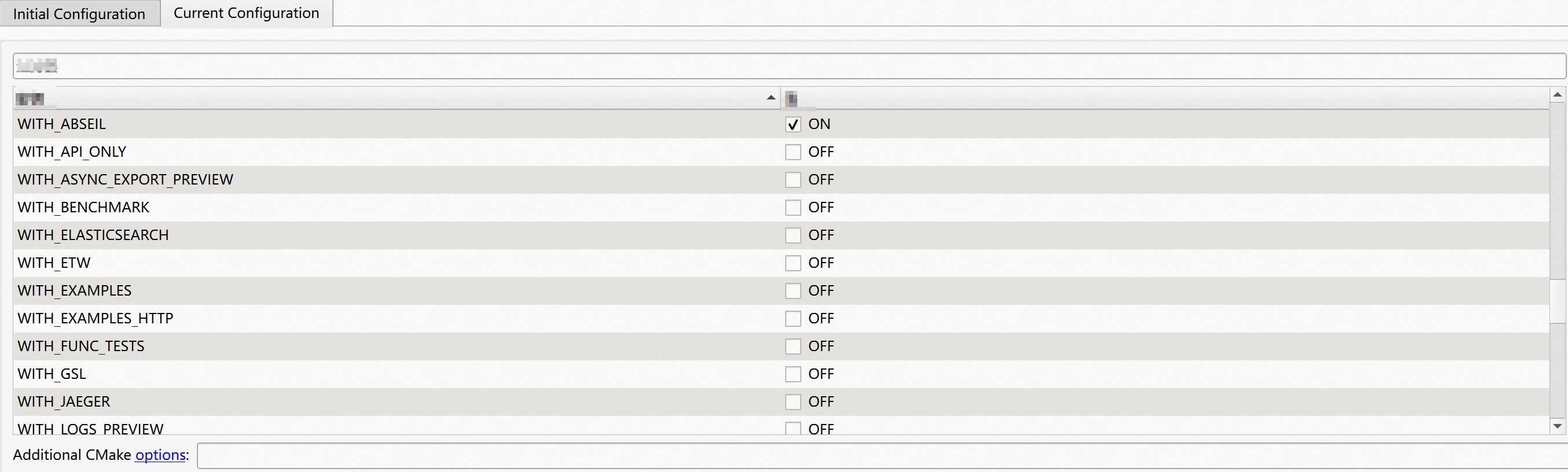
If no opentelemetry-cpp-related parameters are displayed on the Current Configuration tab, choose Add > Boolean on the right side of the page, add
BUILD_TESTING=OFF, and then click Execute CMake.If no opentelemetry-cpp-related parameters are displayed after you perform the operations, we recommend that you troubleshoot the issue based on the error message.
We recommend that you make only the following modifications to the opentelemetry-cpp-related CMake configuration. We recommend that you use the default values for the c-ares_DIR, re2_DIR, gRPC_DIR, absl_DIR, and nlohmann_json_DIR parameters.
ImportantIf your Qt project is integrated with a library, configure the settings based on your business scenario.
WITH_EXAMPLES:BOOL=OFF
WITH_OTLP:BOOL=ON
WITH_OTLP_GRPC:BOOL=ON
WITH_OTLP_HTTP:BOOL=ON
WITH_STL:BOOL=ON
c-ares_DIR:PATH=<your c-ares path>
re2_DIR:PATH=<your re2 path>
gRPC_DIR:PATH=<your gRPC path>
absl_DIR:PATH=<your absl path>
WITH_ABSEIL:BOOL=ON
nlohmann_json_DIR:PATH=<your nlohmann_json path>
CURL_DIR:PATH=<your curl path>
OPENSSL_ROOT_DIR:PATH=<your openssl path>
OPENSSL_USE_STATIC_LIBS:BOOL=ON
Protobuf_DIR:PATH=<your proto path>
Protobuf_PROTOC_EXECUTABLE:FILEPATH=<your protoc exe filepath>
PROTO_INCLUDE_DIR:FILEPATH=<your proto filepath>
CMAKE_CXX_FLAGS=D_HAS_EXCEPTIONS=0
gRPC_CPP_PLUGIN_EXECUTABLE:FILEPATH=<your grpc plugin exe filepath>
gRPC_ZLIB_PROVIDER=package
ZLIB_ROOT=<your zlib install path>
ZLIB_USE_STATIC_LIBS=True
ZLIB_LIBRARY_RELEASE=<your zlib release lib path>
ZLIB_LIBRARY_DEBUG=<your zlib debug lib path>
After you configure the settings, the build configuration of the QT project is complete. If the compilation fails, troubleshoot the issue based on the corresponding error message.
Use the vcpkg package manager to integrate the SDK
The SDK binary files that are obtained by using the vcpkg package manager may be incompatible with your project. Before you use the package manager, we recommend that you perform a test. For more information, see using-package-managers.
Obtain binary files by using the vcpkg package manager.
In your working directory, open a Command Prompt window or a terminal.
Run the git clone command to clone the vcpkg package manager.
$ git clone https://github.com/microsoft/vcpkgRun the bootstrap-vcpkg.bat script.
$ .\vcpkg\bootstrap-vcpkg.bat
Go to the vcpkg directory and run the following script:
$ .\vcpkg.exe install opentelemetry-cpp[otlp-http]:x64-windows --recurseAfter you run the preceding command, OpenTelemetry SDK for C++ and the corresponding dependent SDKs are installed in the
vcpkg/installed/x64-winddowsdirectory. The following section describes the related directories:bin/ directory: contains dynamic-link library files (.dll files).
lib/ directory: contains statically-linked library files (.lib files).
include/ directory: contains header files (.h files).
Optional. To facilitate the subsequent use of dependent libraries in the Qt project, run the following command to install the vcpkg cmake configuration file to system variables:
$ .\vcpkg.exe integrate --install
Configure the Qt project.
Check whether the compilation tool of the Qt project is switched to MSVC.
For more information, see Step 1: Configure Visual Studio.
Configure CMake options.
On the compilation and build configurations page of the project, click Initial Configuration.
Add the
CMAKE_TOOLCHAIN_FILEparameter.You must set the
CMAKE_TOOLCHAIN_FILEparameter to the vcpkg.cmake file in the vcpkg directory. The file directory is<vcpkg root>/scripts/buildsystems/vcpkg.cmake.
Compile the project and check whether the compilation is successful.
If an error message is returned, troubleshoot the issue. For example, check whether the compilation tool has been switched to MSVC and whether the CMAKE_TOOLCHAIN_FILE parameter is correctly configured.
Configure CMakeLists.txt.
Add the following configurations to the CMakeLists.txt file:
# opentelemetry-cpp
find_package(curl CONFIG REQUIRED)
find_package(nlohmann_json CONFIG REQUIRED)
find_package(grpc CONFIG REQUIRED)
find_package(protobuf CONFIG REQUIRED)
find_package(opentelemetry-cpp CONFIG REQUIRED)
# end

# opentelemetry-cpp
target_include_directories(
    ${PROJECT_NAME}
    PUBLIC
    ${PROJECT_SOURCE_DIR}
    ${VCPKG_INCLUDE_DIR}
    ${OPENTELEMETRY_CPP_INCLUDE_DIRS}
)
target_link_directories(
    ${PROJECT_NAME}
    PUBLIC
    ${VCPKG_LIB_DIR}
    ${OPENTELEMETRY_CPP_LIBRARY_DIRS}
)
# ${PROJECT_NAME} PRIVATE Qt${QT_VERSION_MAJOR}::Widgets Configure this setting based on your business scenario.
target_link_libraries(${PROJECT_NAME} PRIVATE Qt${QT_VERSION_MAJOR}::Widgets ${OPENTELEMETRY_CPP_LIBRARIES})
# en
After you configure the settings, the build configuration of the QT project is complete. If the compilation fails, troubleshoot the issue based on the corresponding error message.
Step 3: Verify the import result
Add the following code to the Qt project and then run the project:
#include "mainwindow.h"

#include <QApplication>

#include "opentelemetry/exporters/ostream/span_exporter_factory.h"
#include "opentelemetry/exporters/otlp/otlp_http.h"
#include "opentelemetry/exporters/otlp/otlp_http_exporter_factory.h"
#include "opentelemetry/exporters/otlp/otlp_http_exporter_options.h"
#include "opentelemetry/sdk/trace/simple_processor_factory.h"
#include "opentelemetry/sdk/trace/tracer_provider_factory.h"
#include "opentelemetry/trace/provider.h"
#include "opentelemetry/sdk/trace/tracer_provider.h"

#include "opentelemetry/sdk/version/version.h"
#include "opentelemetry/trace/provider.h"
#include "opentelemetry/sdk/resource/resource.h"
#include "opentelemetry/sdk/resource/semantic_conventions.h"

#include "opentelemetry/sdk/common/global_log_handler.h"


namespace trace = opentelemetry::trace;
namespace trace_sdk = opentelemetry::sdk::trace;
namespace otlp = opentelemetry::exporter::otlp;
namespace trace_exporter = opentelemetry::exporter::trace;
namespace resource = opentelemetry::sdk::resource;

namespace
{
    opentelemetry::exporter::otlp::OtlpHttpExporterOptions opts;
    void InitTracer()
    {
        opts.url = "https://<your project>.<your endpoint>/opentelemetry/v1/traces";
        opts.console_debug = true;
        opts.content_type = otlp::HttpRequestContentType::kBinary;
        // Setup credentials info
        opts.http_headers.insert(std::pair<std::string, std::string>("x-sls-otel-project", "<your project>"));
        opts.http_headers.insert(std::pair<std::string, std::string>("x-sls-otel-instance-id", "<your instanceId>"));
        opts.http_headers.insert(std::pair<std::string, std::string>("x-sls-otel-ak-id", "<your accesskey id>"));
        opts.http_headers.insert(std::pair<std::string, std::string>("x-sls-otel-ak-secret", "<your accesskey secret>"));

        // Create OTLP exporter instance
        auto exporter = otlp::OtlpHttpExporterFactory::Create(opts);
        auto processor = trace_sdk::SimpleSpanProcessorFactory::Create(std::move(exporter));

        resource::ResourceAttributes attributes = {
          {resource::SemanticConventions::kServiceName, "test"},
          {resource::SemanticConventions::kServiceNamespace, "OTelExample4QT"},
          {resource::SemanticConventions::kServiceVersion, "1.0.0"},
          {resource::SemanticConventions::kHostName, "Win64"},
          {resource::SemanticConventions::kDeploymentEnvironment, "dev"}
        };
        auto resource = opentelemetry::sdk::resource::Resource::Create(attributes);

        std::shared_ptr<opentelemetry::trace::TracerProvider> provider =
            trace_sdk::TracerProviderFactory::Create(std::move(processor), std::move(resource));
        // Set the global trace provider
        trace::Provider::SetTracerProvider(provider);
    }

    void CleanupTracer()
    {
        // We call ForceFlush to prevent to cancel running exportings, It's optional.
        opentelemetry::nostd::shared_ptr<opentelemetry::trace::TracerProvider> provider =
            trace::Provider::GetTracerProvider();
        if (provider)
        {
            static_cast<trace_sdk::TracerProvider*>(provider.get())->ForceFlush();
        }

        std::shared_ptr<opentelemetry::trace::TracerProvider> none;
        trace::Provider::SetTracerProvider(none);
    }
}  // namespace

namespace trace = opentelemetry::trace;
namespace nostd = opentelemetry::nostd;

namespace
{
    nostd::shared_ptr<trace::Tracer> get_tracer()
    {
        auto provider = trace::Provider::GetTracerProvider();
        return provider->GetTracer("foo_library", OPENTELEMETRY_SDK_VERSION);
    }

    void basic_f1()
    {
        auto span = get_tracer()->StartSpan("basic_f1");
        // do your stuff
        // ...
        span->End();
    }

    void basic_f1_with_attributes()
    {
        auto span = get_tracer()->StartSpan("basic_f1_with_attributes");
        span->SetAttribute("ags", 12);
        span->SetAttribute("sex", "man");
        span->SetAttribute("height", 154.5);


        span->AddEvent("message: success");

        span->SetStatus(trace::StatusCode::kError);

        span->End();
    }

    void basic_active_f1()
    {
        auto span_child = get_tracer()->StartSpan("operation B");
        // do your stuff
        // ...
        span_child->End();
    }

    void basic_active()
    {
        auto span = get_tracer()->StartSpan("operation A");
        auto scope = get_tracer()->WithActiveSpan(span);

        basic_active_f1();

        span->End();
    }


    void f1()
    {
        auto scoped_span = trace::Scope(get_tracer()->StartSpan("f1"));
    }

    void f2()
    {
        auto scoped_span = trace::Scope(get_tracer()->StartSpan("f2"));

        f1();
        f1();
    }
}  // namespace

void foo_library()
{

    basic_f1();
    basic_active();
    basic_f1_with_attributes();

    auto scoped_span = trace::Scope(get_tracer()->StartSpan("library"));

    f2();

}

int main(int argc, char *argv[])
{
    QApplication a(argc, argv);
    MainWindow w;
    w.show();

    InitTracer();

    foo_library();

    CleanupTracer();

    return a.exec();
}
In the Log Service console, view trace data in the Trace application.
Add the filter condition
service : "test"to view the imported Qt trace data.