When Logtail collects text logs in full regex mode, Simple Log Service auto-generates a regular expression from your log sample. If the generated expression does not fully match your logs, use the built-in validation functions or Regex101 to identify and fix the issue.
This document may contain information about third-party products that are for reference only. Alibaba Cloud does not make any guarantee, express or implied, with respect to the performance and reliability of third-party products, as well as potential impacts of operations on the products.
Validation tools
The Simple Log Service console provides two built-in validation functions:
Regex to Match First Line: Verifies that the expression matches the expected number of log entries.
Extract Field: Verifies that each extracted field contains the expected value.
When these functions are not enough — for example, when the auto-generated expression partially matches but misses some log content — use Regex101 to inspect and fix the expression. Paste the expression from the console into Regex101, then paste your actual log sample to see exactly which parts match and which do not.
The auto-generated regular expression may not fully match multiline logs. The steps below use Regex101 to demonstrate how to identify and fix this problem.
Fix a partial match using Regex101
-
Open Regex101. In the Simple Log Service console, copy the regular expression that was auto-generated for your log sample. For instructions, see full regex mode.
Paste the expression into the REGULAR EXPRESSION field in Regex101. The expression also appears in the right pane under the match information panel.
\[([^]]+)]\s\[(\w+)]\s([^:]+:\s\w+\s\w+\s[^:]+:\S+\s[^:]+:\S+\s\S+). *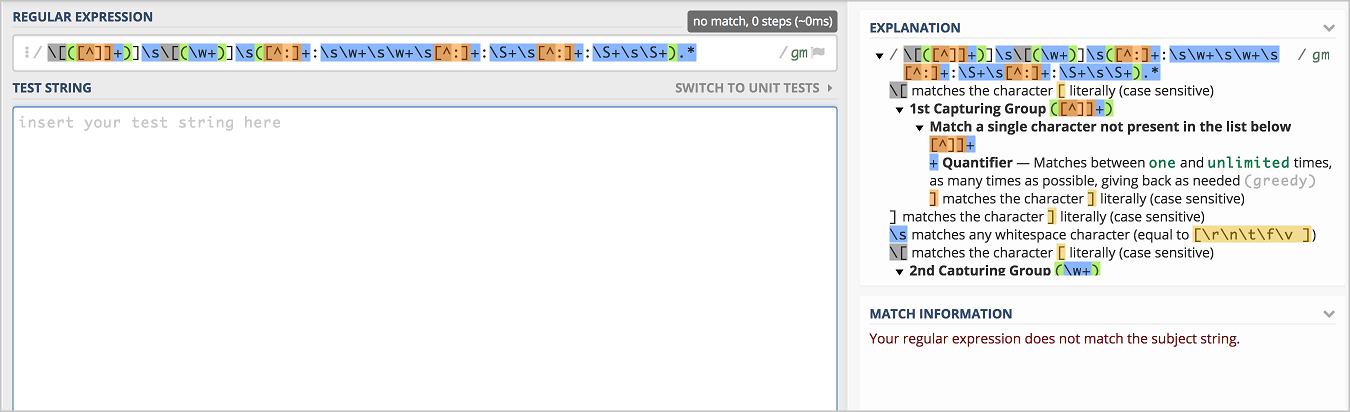
-
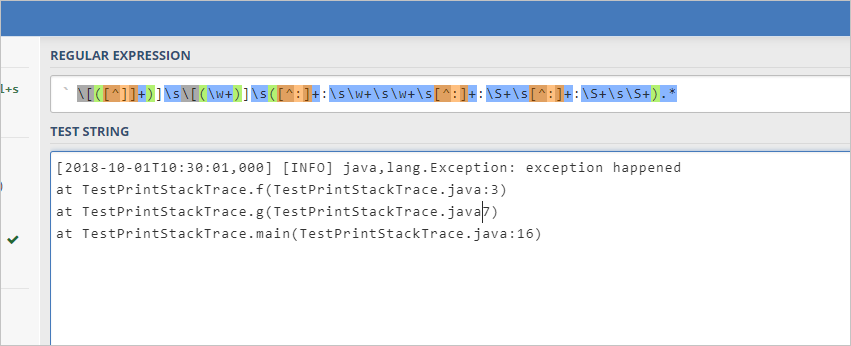
Paste your log sample into the TEST STRING field. Check the highlighted match regions. If some log content appears unhighlighted — for example, the text after
atis not captured in themessagefield (shown in blue) — the expression does not fully match the log. You will not be able to collect all log data with this expression.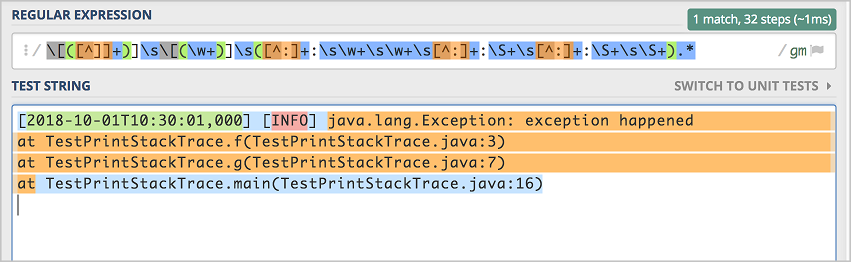
-
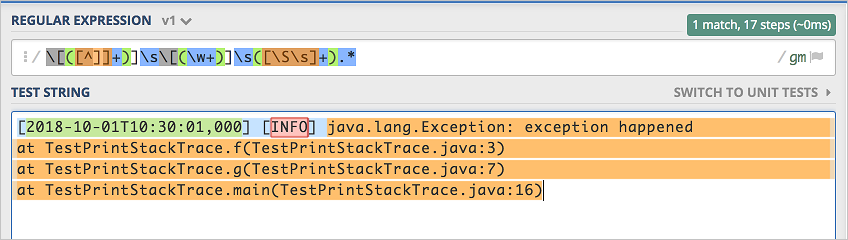
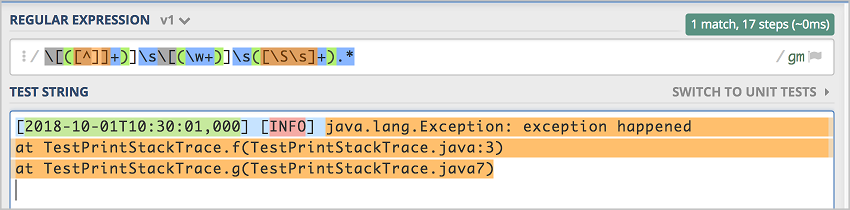
Verify the simpler case first. If a log line contains only two colons, the original expression matches it exactly.
-
Replace the trailing part of the expression with
[\S\s]+to match any remaining characters, including those after the second colon. Run the test again — the expression now fully matches the log line, including entries with only two colons.