The new Log Audit Service provides cross-account, multi-region log storage and auditing. Use it to centrally collect and audit logs from cloud products.
Prerequisites
SLS must be activated. On first logon to the SLS console, activate it as prompted.
1. Associate a project
-
Log on to the SLS console.
-
In the Log Application area, click the Auditing and Security tab and then select New Log Audit Service.

-
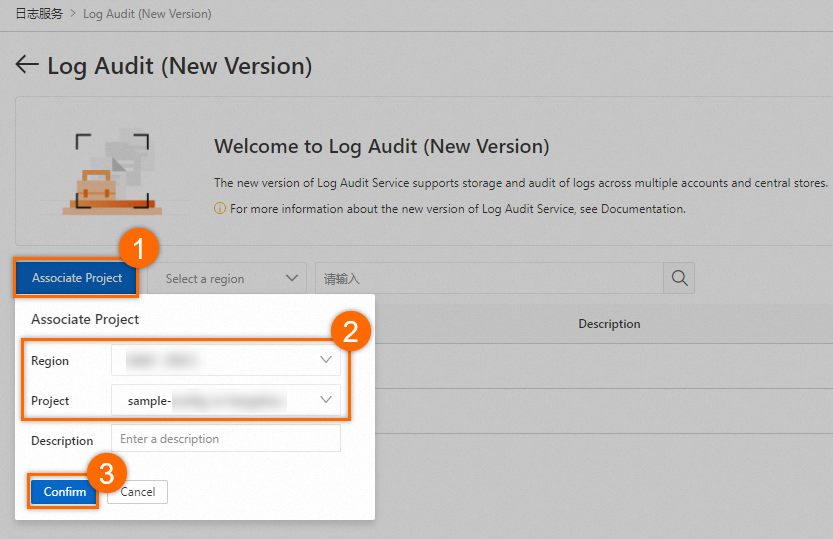
On the Log Auditing page, click Associate Project. In the Associate Project dialog box, select the Region and Project, then click Confirm Association.
2. Cloud product collection
2.1 Create a rule
-
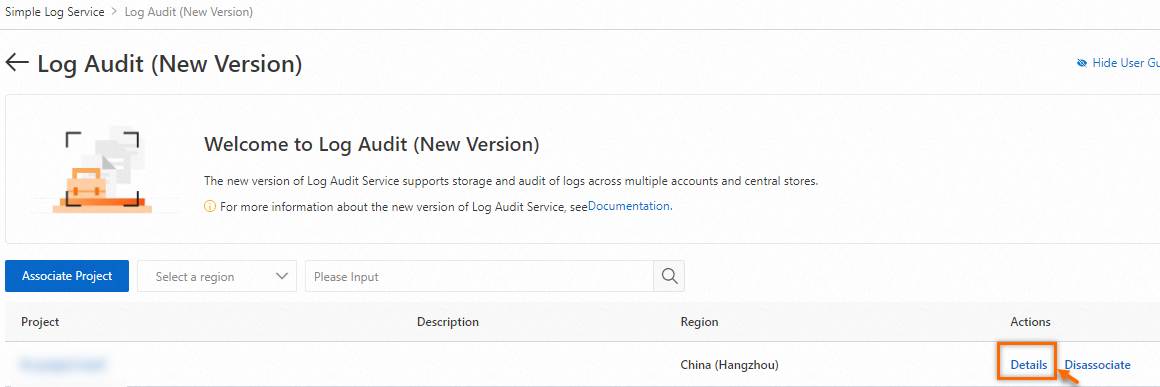
On the Log Auditing page, click Details for the destination project.
-
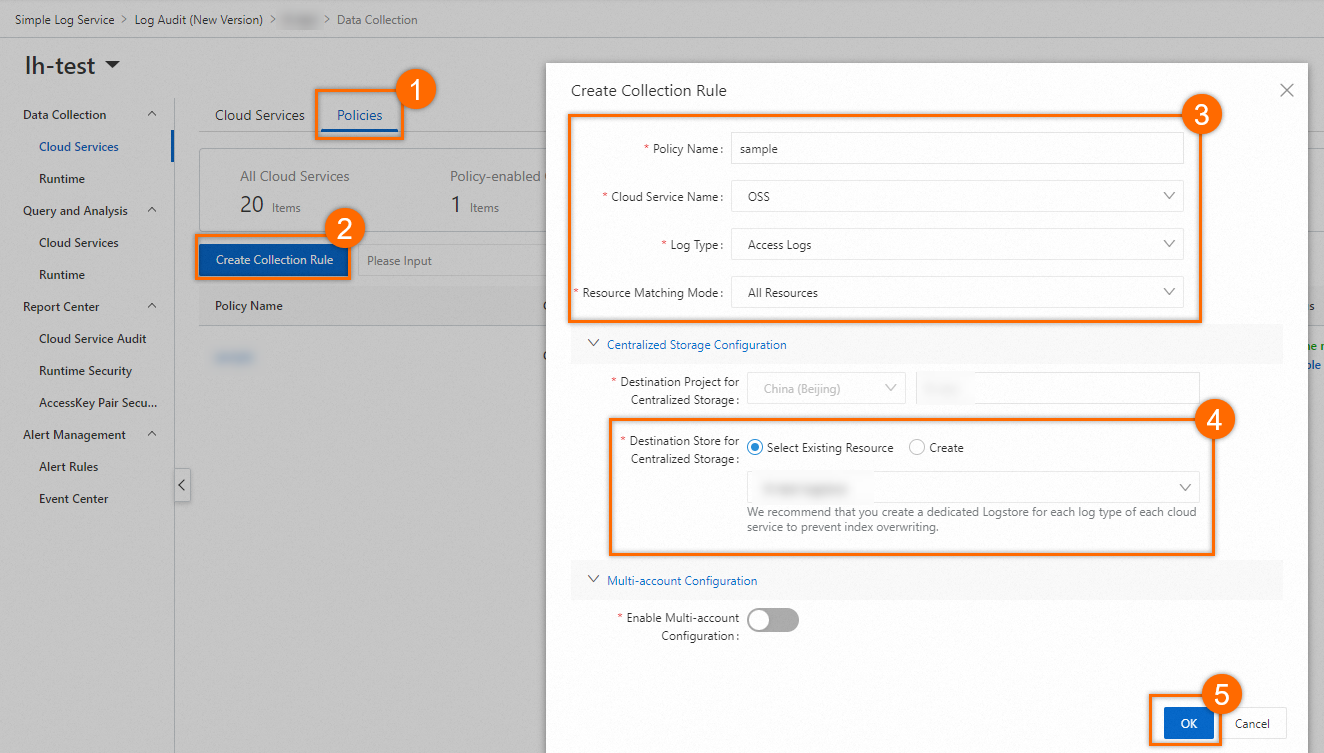
For example, to create a collection rule for OSS access logs, configure the parameters as follows.
Note-
Log Audit Service centralizes log storage and query across regions and accounts. Each rule must specify a centralized project and data store.
-
Rules without centralized configuration (such as built-in CloudLens for SLS rules) do not appear on the Log Auditing > Associated Projects page.
-
2.2 Query and analysis
-
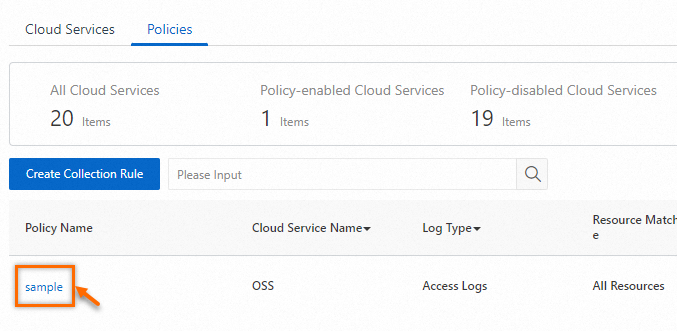
In the rule list of the associated (central) project, click a rule name (for example, `sample`) in the Rule Name column.
-
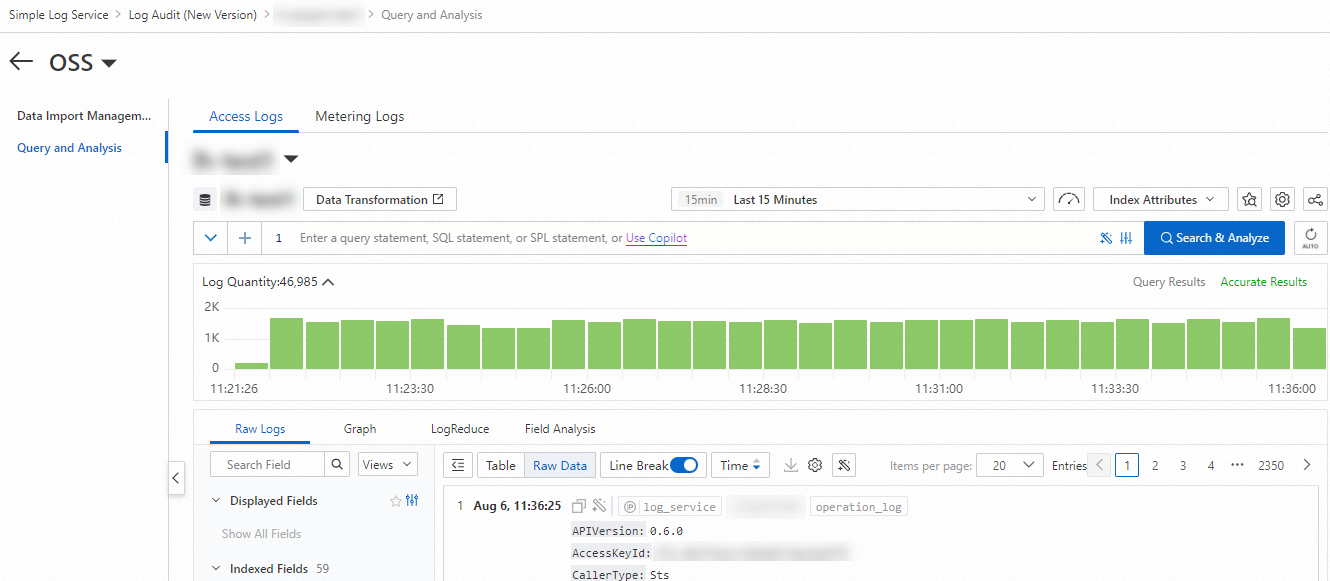
The rule details page shows the Provisioning and Query and analysis tabs.
3. Dissociate a project
-
Dissociating a project does not delete the rules that use it as the central destination. To delete them, call the Cloud Product Collection Rule API.
-
Delete all associated cloud product collection rules before deleting a project. Otherwise, running rules may automatically re-create the project and its Logstores.
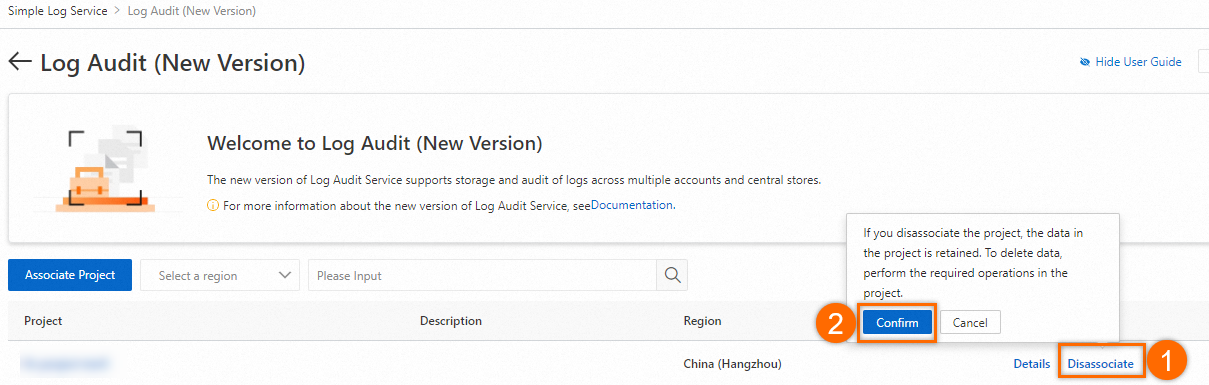
On the Log Auditing page, find the target project, click Dissociate, and then click Confirm Dissociation in the confirmation dialog box.