Log Service provides automated and intelligent predictions for time series data. You can use these predictions to forecast future trends and anticipate the status of critical system or business metrics.
Prerequisites
-
Data is collected to a Logstore or MetricStore. For more information, see Data collection overview.
-
If data is collected to a Logstore, an index is configured for the source Logstore. For more information, see Create an index.
-
An Intelligent Anomaly Analysis instance is created. For more information, see Create an instance.
Procedure
Log on to the Simple Log Service console.
-
Navigate to the job creation page.
-
In the Log Application section, click Intelligent Anomaly Analysis.
-
In the instance list, click the target instance.
-
In the left-side navigation pane, click Time Series Prediction.
-
In the Time Series Prediction Task section, click Create Now.
-
-
In the Basic Information step of the Create a time series forecasting job wizard, configure the following parameters and click Next.
Parameter
Description
Job name
Enter a name for the time series forecasting job.
Project
Select the Project where the source Logstore or MetricStore is located.
Region
The region where your selected Project is located.
Logstore type
Select the storage type based on where your data is stored.
-
If your data is stored in a Logstore, select Logstore.
-
If your data is stored in a MetricStore, select MetricStore.
Source Logstore
When Logstore Type is set to Logstore, set Source Logstore to the Logstore that contains your source data.
MetricStore
When Logstore Type is set to MetricStore, you must set MetricStore to the MetricStore that contains your source data.
Role
If you authorized the instance during creation, the role ID for AliyunLogETLRole is automatically displayed.
Destination store
This parameter is always set to internal-ml-log.
-
-
In the Data Feature Configuration step of the Create a time series forecasting job wizard, enter a query and analysis statement, and then configure the following parameters.
You can use a Log Service query and analysis statement to retrieve time series data. The following code shows an example. For more information, see Query overview and Query and analysis overview.
* | select (__time__ - __time__%60) as time, 'entity' as entity, count(1) as metric from log group by time, entity order by time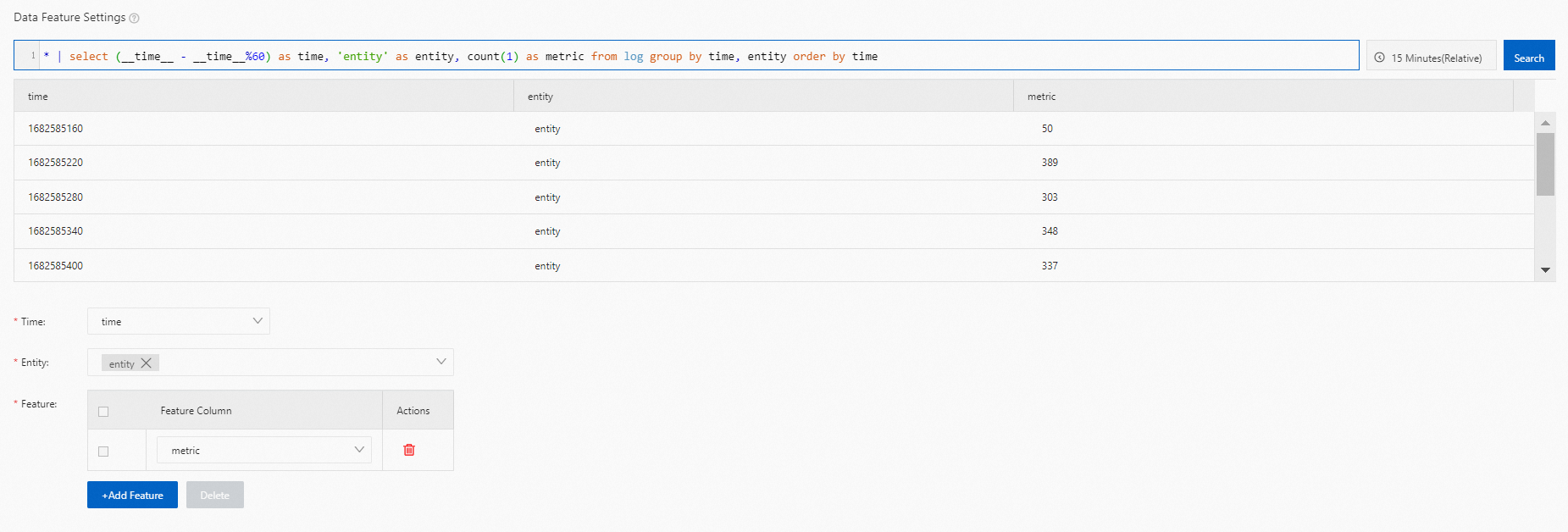
Parameter
Description
Time
The timestamp field from your source data. We recommend that you aggregate data at a granularity of at least one minute.
Entity
The field from your source data that identifies the entity. The time series forecasting job aggregates data by entity to generate time series. After you configure the entity field, a list of entities is displayed at the bottom of the page.
If you select a target entity, the system forecasts the time series for that entity. If you do not select an entity, the system forecasts the time series for all entities.
Feature
The feature or metric field to be forecast. The job forecasts a separate time series for each feature of each entity. If you have m entities and n features, the job forecasts m × n time series.
A time series forecasting job can predict a maximum of 5 time series at a time. If you configure more than five time series, the job randomly selects five to forecast.
-
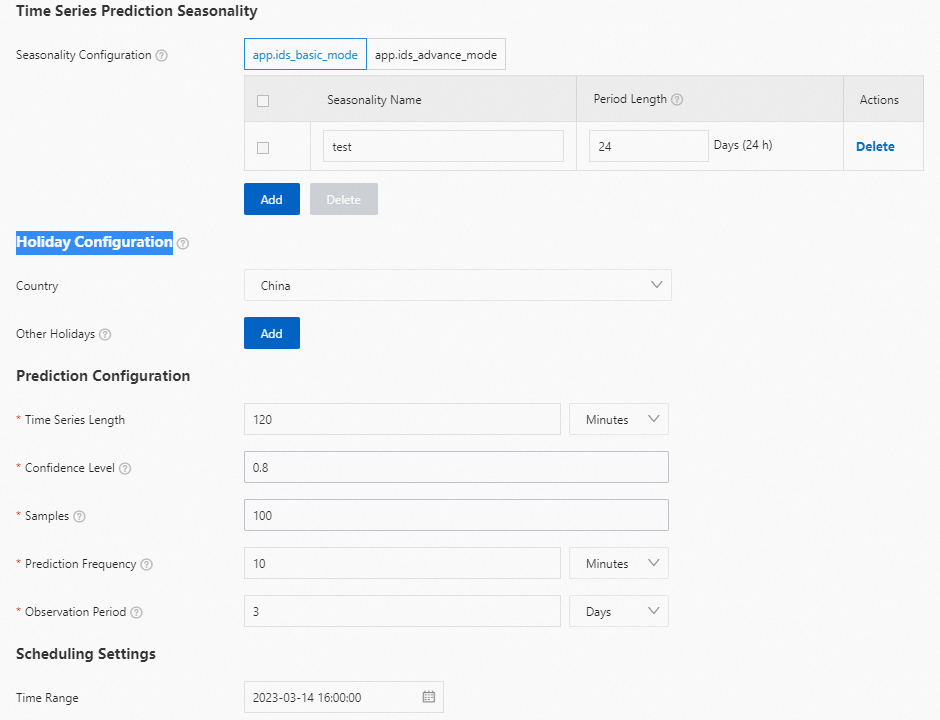
In the Algorithm Configuration step of the Create a time series forecasting job wizard, configure the following parameters and click Finish.
Parameter
Description
Time series periodicity
Period configuration
Set the period of the time series if it has a custom periodicity. The period length is measured in days. You can use a decimal for periods shorter than one day, for example, 2.4 days.
By default, a time series forecasting job considers the impact of daily, weekly, and yearly seasonality on the data trend. You do not need to configure these periods.
Holiday configuration
Country
Select the country where your time series data originates. The forecasting job considers the national holidays of the selected country when analyzing data trends.
Other holidays
Specify other holidays or events that might affect the data trend, such as non-standard holidays or other special event dates.
Your holiday configuration must include dates from both the past training data and the future prediction period.
Prediction configuration
Length of the sequence to be predicted
Set the length of the time series to be predicted.
The time unit affects the number of data points in the predicted time series. For example, to predict time series data for the next 2 hours, if you set Prediction sequence length to 2 hours, the predicted time series contains only 2 data points, one for each hour. If you set Prediction sequence length to 120 minutes, the predicted time series contains 120 data points, one for each minute.
Confidence interval
The desired confidence interval for the prediction. The value must be in the range of 0.5 to 0.99. A higher value creates a wider prediction band, increasing the probability that the true value will fall within it.
Number of samples
The number of samples. The value must be in the range of 0 to 100. A higher number of samples improves the accuracy of the predicted upper and lower bounds.
Prediction frequency
Defines how often the job generates a new prediction. The job runs continuously.
Observation period
The amount of historical data to use for each prediction.
Scheduling configuration
Time range
The start time for the job.
-
In the preview pane, you can review the algorithm's performance based on the current parameter settings.
-
Set a time range to define the start and end times of the time series that you want to predict. Click Data Query. The system uses the query and analysis statement from the Data Feature Configuration step to process data within the specified time range and generate the time series data.
-
Select an entity to specify the sequence to be predicted. Click Preview to run the prediction algorithm on the specified entity sequence. The results appear below. Click Show Parameters to view the current algorithm configuration.
-
The prediction results include an upper and lower bound fitted from the historical sequence. Data points that fall outside these bounds are potential anomalies. You can adjust the anomaly threshold to display anomalies with a score greater than the threshold.
-
Prediction results
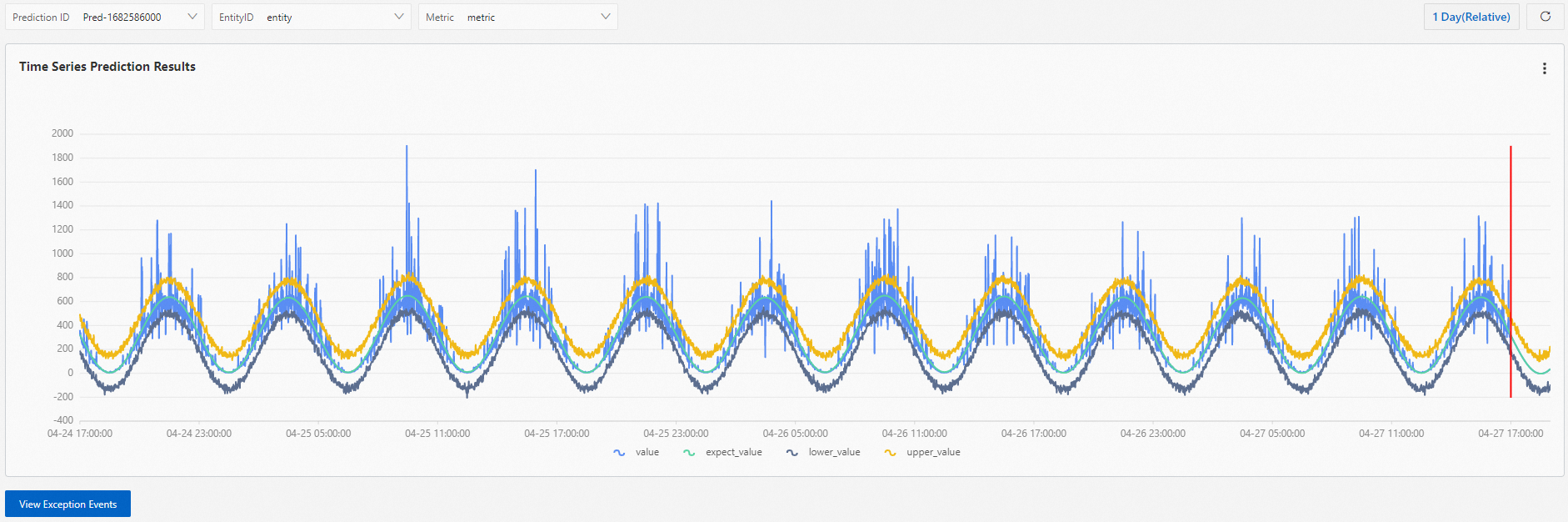
After you create a time series forecasting job, you can view its details by clicking the job in the job list. You can also filter the time series by Prediction ID, Entity ID, metric, and time.
|
Parameter |
Description |
|
Time |
Select a time range to view the prediction results for that period. |
|
Prediction ID |
The forecasting job runs continuously. Each prediction run is assigned a unique ID in the format |
|
Entity ID |
Select an Entity ID to view the time series for a specific entity. |
|
Metric |
Select a metric to view the time series for a specific metric. |
In the chart, the curve to the left of the red vertical line represents the historical data used for prediction, and the curve to the right represents the predicted data.
You can also click View Anomaly Events to check for prediction errors.
Related operations
After creating a time series forecasting job, you can delete or modify it on the Time Series Prediction page.
A deleted job cannot be recovered. Proceed with caution.