Simple Application Server Windows images default to English. You can install a language pack to change the display language. To apply the same settings to multiple servers, create a custom image from the configured instance. All instances created from this image will inherit the language settings.
Procedure
-
Connect to the Windows instance.
NoteYou cannot change the display language of Windows Server 2008 R2.
Log on to the Simple Application Server console - Servers page. Find the target instance, click Connect, select Password-based Logons on Workbench, click Log on Now, enter the password, and then click OK.
-
Click Start
 , then search for and open Windows PowerShell
 .
. -
Run the following commands to temporarily disable WSUS so the language pack downloads from official Microsoft servers.
Set-ItemProperty -Path 'HKLM:\SOFTWARE\Policies\Microsoft\Windows\WindowsUpdate\AU' -Name UseWUServer -Value 0 Restart-Service -Name wuauserv -
Set the display language.
Windows Server 2016 and later
-
Click Start
, click Settings, and then click Time & Language. -
In the navigation pane on the left, click Language. In the Preferred languages section, click Add a language.
-
In the search box, search for "Chinese". In the results list, select the desired Chinese version, and then click Next.
-
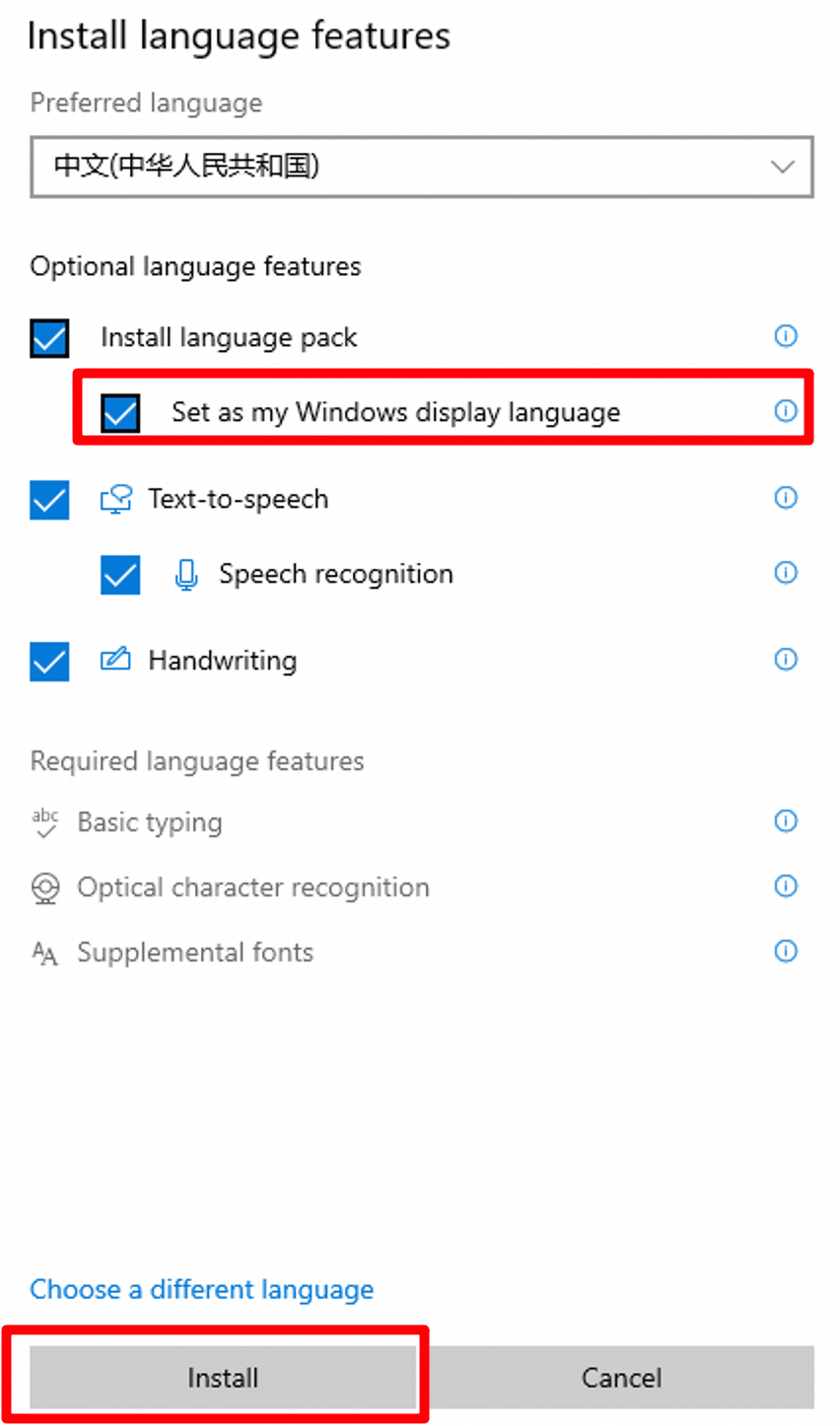
In the Install language features pop-up box, select the Set as my Windows display language checkbox, and then click Install.
-
When installation completes, click Yes, sign out now. After you sign back in, the display language is Chinese.
WarningThe restart operation stops the instance for a short period of time and may interrupt services that are running on the instance. We recommend that you restart the instance during off-peak hours.
-
Open Windows PowerShell and run the following commands to re-enable WSUS.
Set-ItemProperty -Path 'HKLM:\SOFTWARE\Policies\Microsoft\Windows\WindowsUpdate\AU' -Name UseWUServer -Value 1 Restart-Service -Name wuauserv -
Open Settings > Update & Security > Windows Update and install available updates to apply security patches for the new language pack.
Windows Server 2012
-
Click Start
, click Control Panel , and then navigate to .
 -
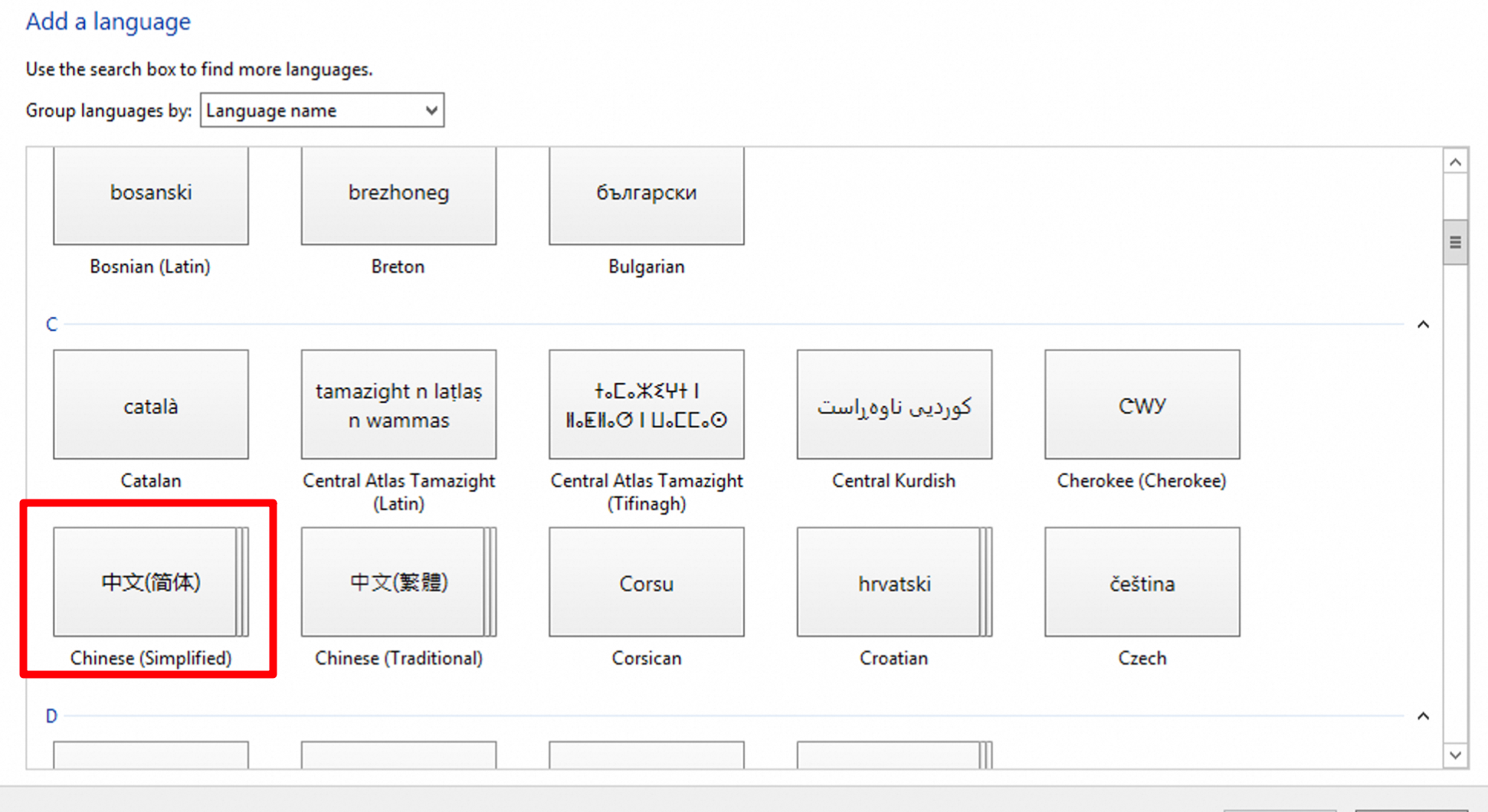
On the Add languages page, select your preferred Chinese version, such as , and click Add.
-
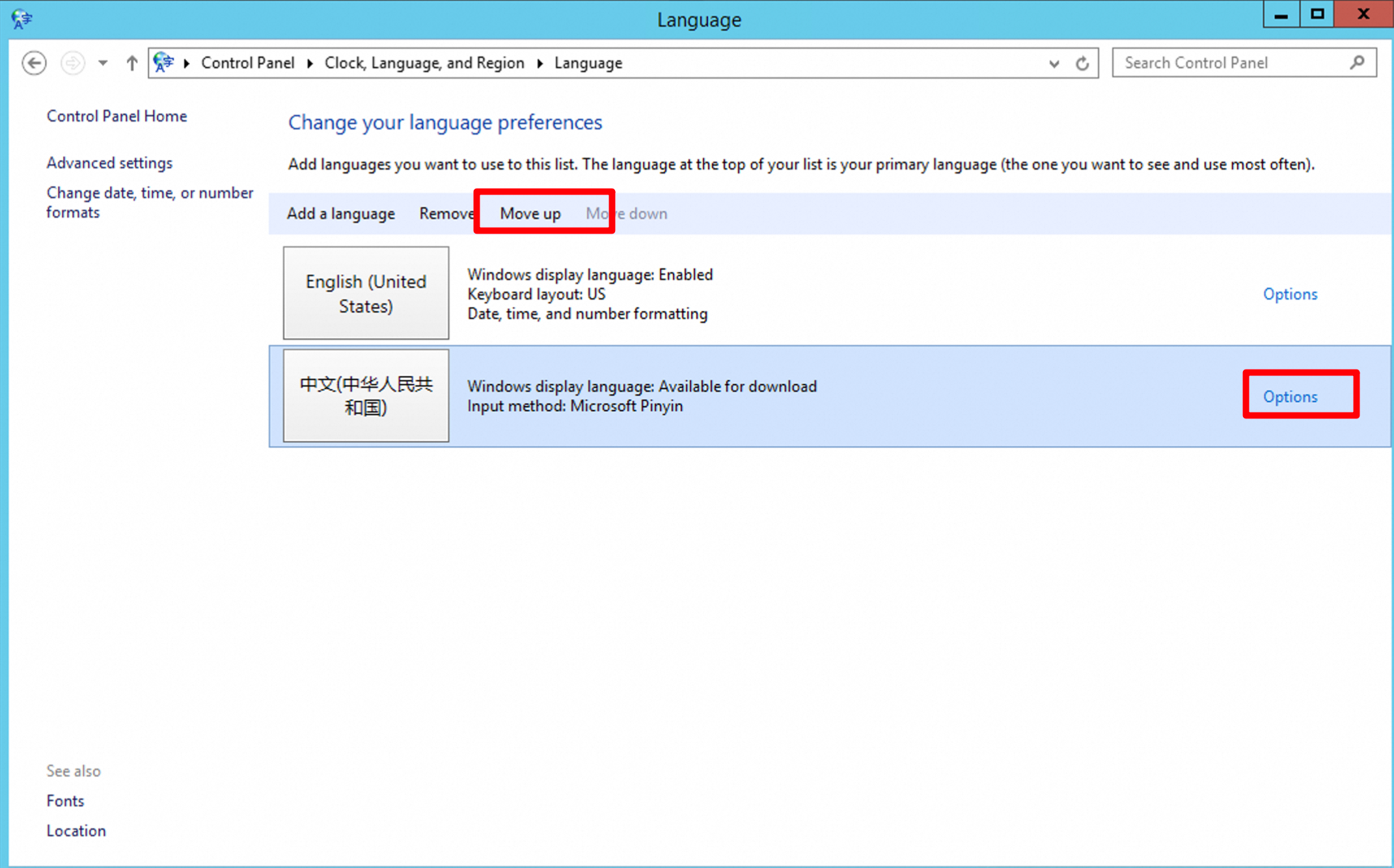
Download and install the language pack. Select a language, for example, Chinese (People's Republic of China), and then click Move up to set it as the primary language.
-
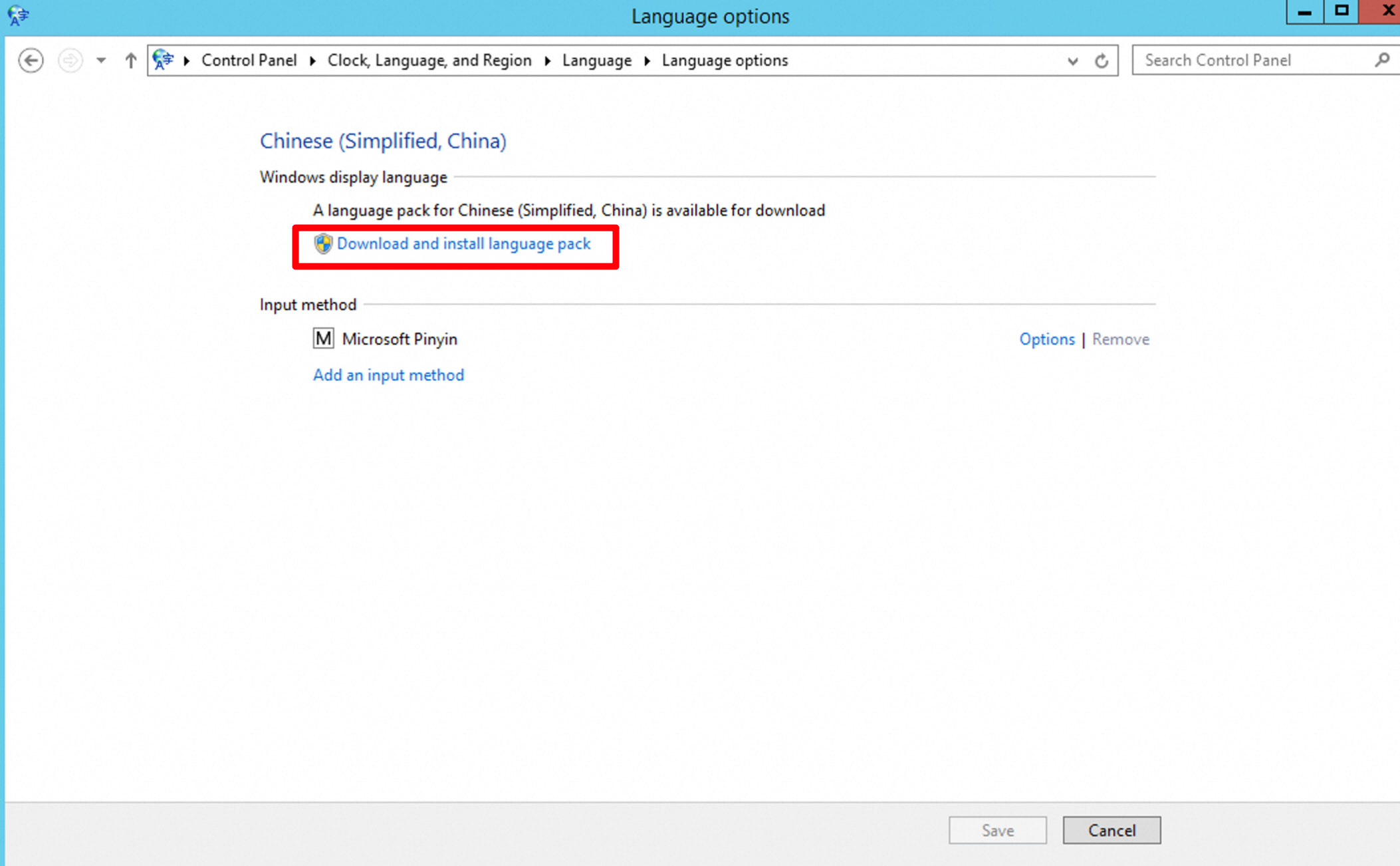
Click Options next to the selected language to check for updates online. When the language pack is available, click Download and install language pack.
-
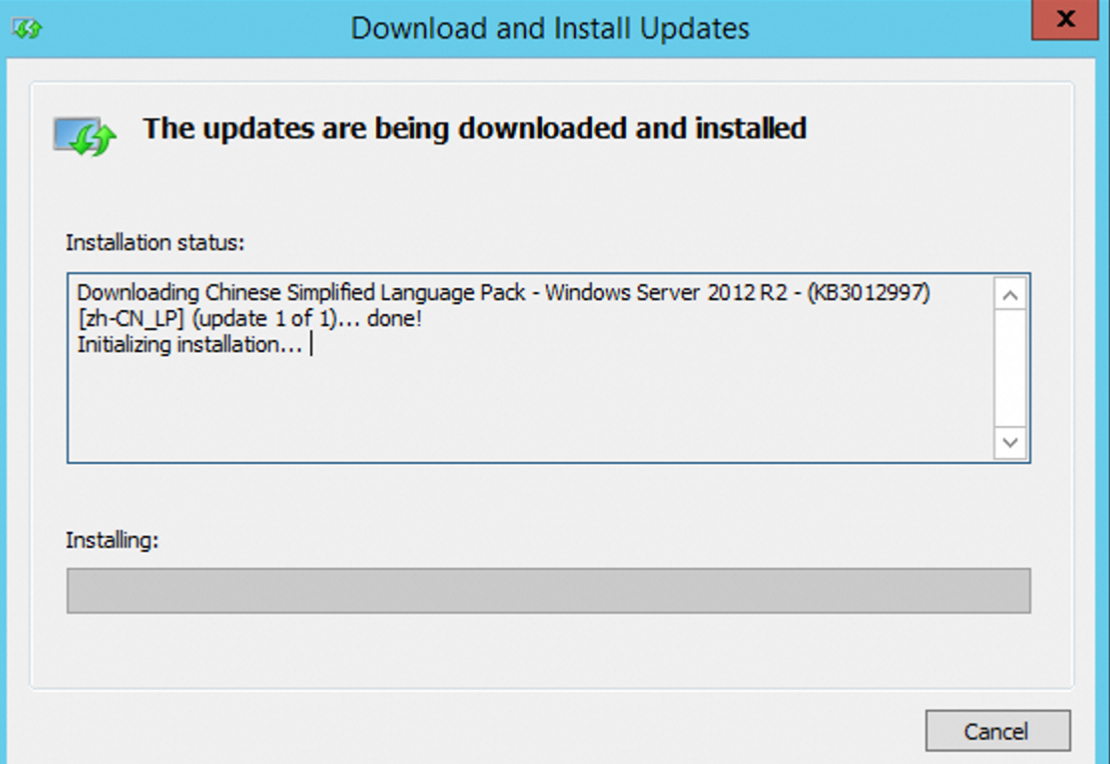
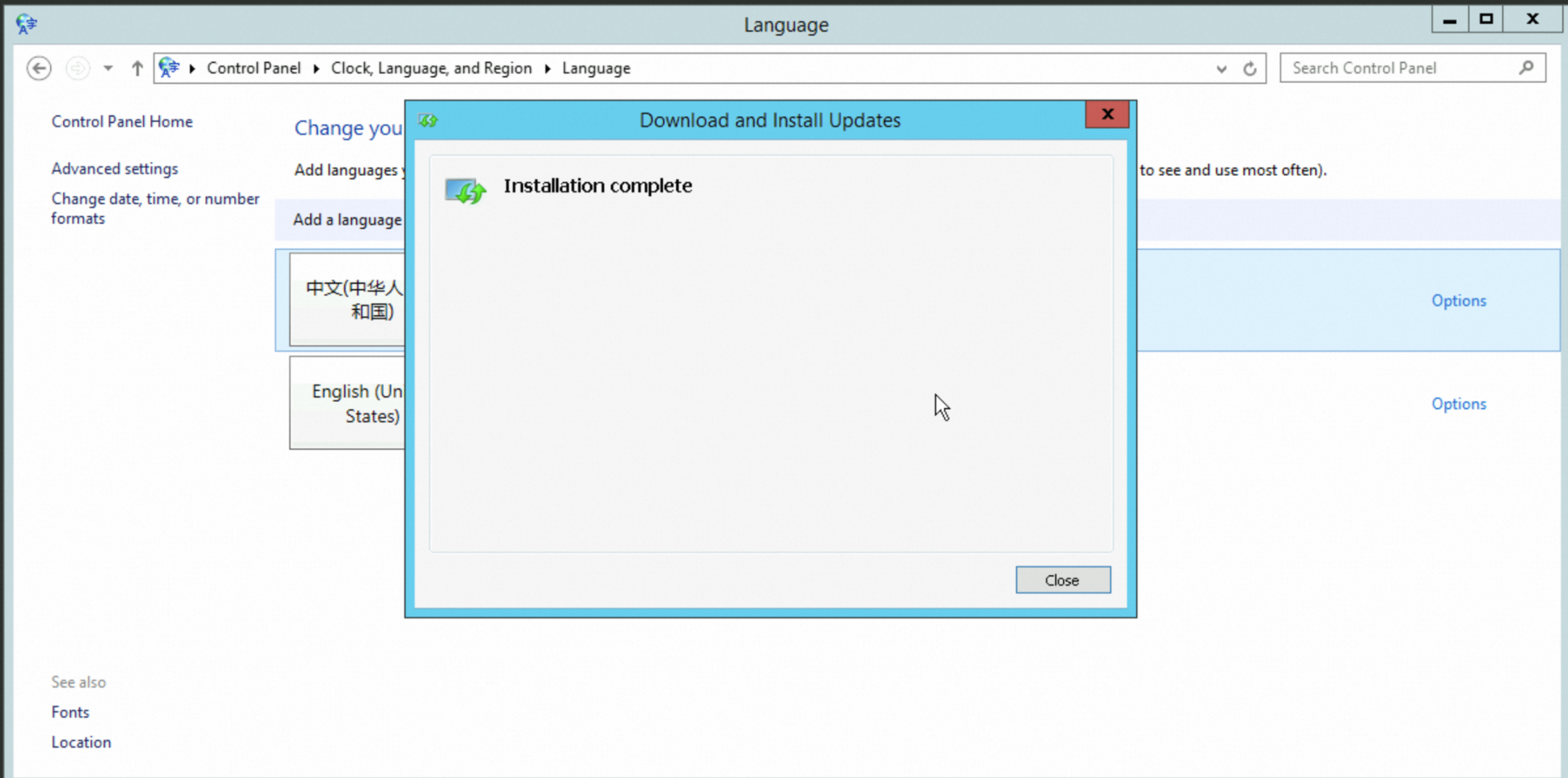
Wait for the language pack to install. This may take about 1 hour. The screen shows Installation complete when done.
-
-
Go to the Simple Application Server console - Servers page, restart the instance, and reconnect. The display language is now Chinese.
WarningThe restart operation stops the instance for a short period of time and may interrupt services that are running on the instance. We recommend that you restart the instance during off-peak hours.
-
Open Windows PowerShell and run the following commands to re-enable WSUS.
Set-ItemProperty -Path 'HKLM:\SOFTWARE\Policies\Microsoft\Windows\WindowsUpdate\AU' -Name UseWUServer -Value 1 Restart-Service -Name wuauserv -
In Control Panel, go to System and Security > Windows Update and install available updates to apply security patches for the new language pack.
What to do next
To replicate this language configuration on new servers, save the instance as a custom image.
-