Deploy SAP S/4HANA 1809 in high availability mode with SUSE HAE on Alibaba Cloud ECS instances within a single zone.
SAP S/4HANA High Availability Deployment
Release History
|
Version |
Revision date |
Changes |
Release date |
|
1.0 |
2019.05.07 |
||
|
1.1 |
2019.07.04 |
|
2019.07.04 |
|
1.2 |
2021.06.01 |
|
2021.06.01 |
|
1.3 |
2022.01.25 |
|
2022.01.25 |
Overview
This topic covers deploying SAP S/4HANA ABAP platform 1809 in high availability (HA) mode with SUSE High Availability Extension (SUSE HAE) within a single zone on Alibaba Cloud.
ENSA2 has been the default enqueue server architecture since SAP NetWeaver 7.51 and is used in SAP S/4HANA ABAP platform 1809. This guide is for reference only. Read the relevant SAP installation guides and SAP notes before deployment.
(1) In ENSA1, when the ASCS instance fails, the cluster migrates it to the node running Enqueue Replication Server (ERS) and restarts it. ASCS recovers locks from ERS over shared memory.
(2) In ENSA2, the ASCS instance can migrate to any node, including those not running ERS. Lock recovery uses Enqueue Replicator 2 over the network instead of shared memory.
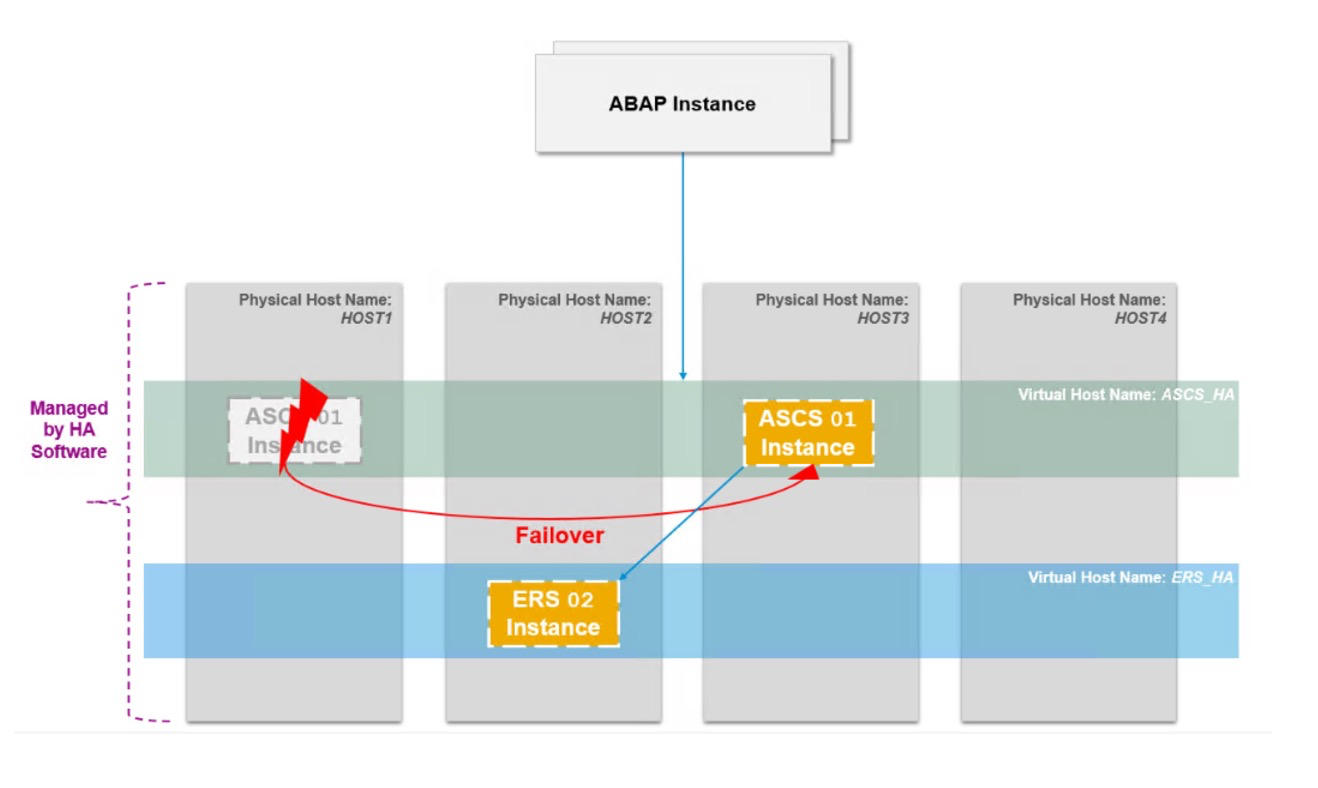
(3) ENSA1 supports only dual-node clusters with ASCS and ERS in primary/secondary mode. ENSA2 supports both dual-node and multi-node clusters.
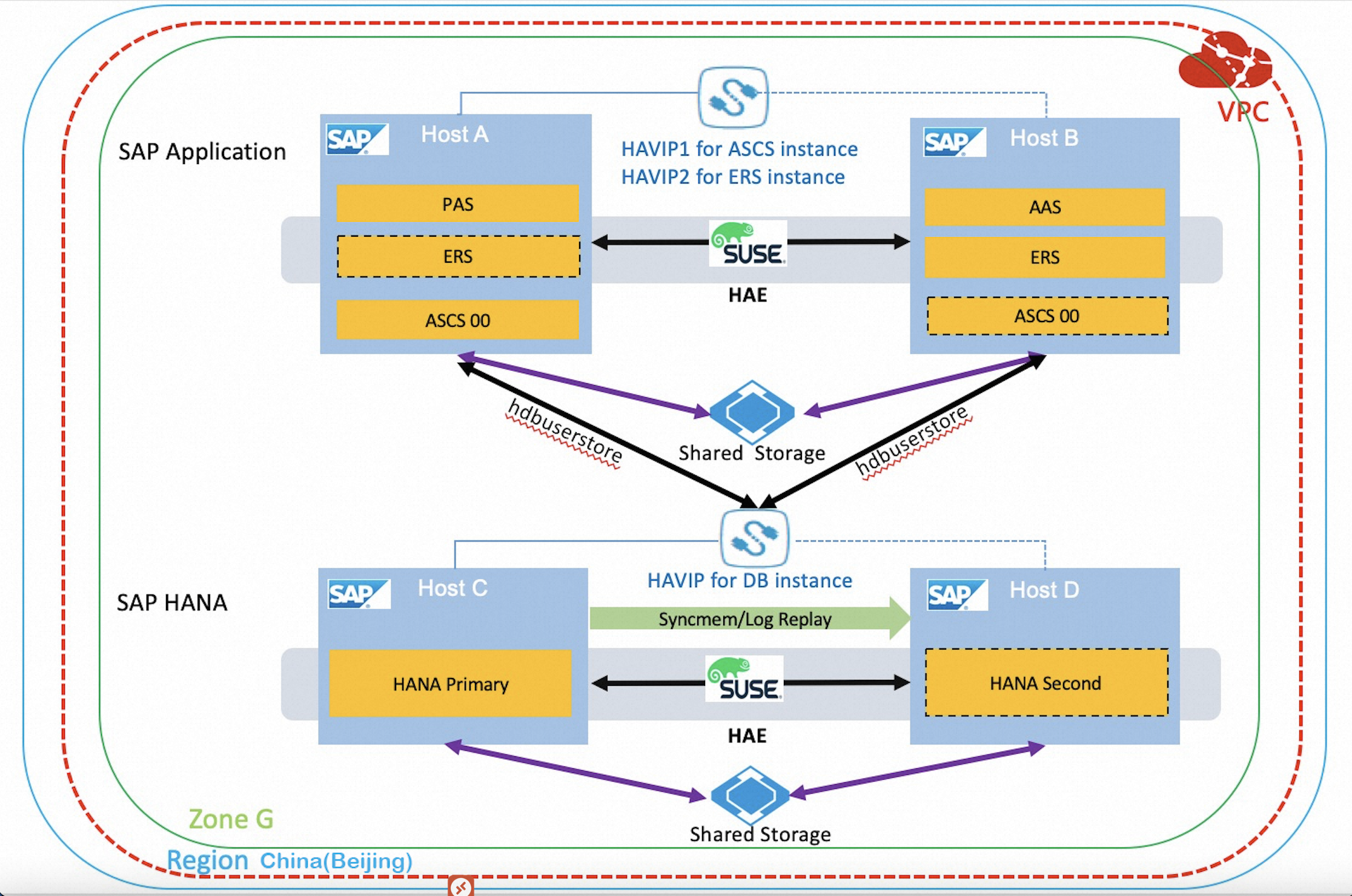
This topic uses a dual-node (primary/secondary) cluster as an example. SAP Fiori front-end server and SAP liveCache are not included in this deployment.
Architecture
Deployment architecture:
Resource planning
Network
|
Network |
Location |
CIDR block |
vSwitch |
VPC |
|
Business network |
China (Beijing) Zone G |
10.0.10.0/24 |
SAP_Business_Vswitch |
S4_1809_VPC |
|
Heartbeat network |
China (Beijing) Zone G |
10.0.20.0/24 |
SAP_Heartbeat_Vswitch |
S4_1809_VPC |
SAP and hosts
System ID for SAP applications: S4T
System ID for SAP HANA: S4T
You can also set different system IDs for SAP applications and SAP HANA.
|
Hostname |
IP address |
Type |
Instance number |
Remarks |
|
s4app1 |
10.0.10.10/10.0.20.10 |
Primary Application Server (PAS) instance |
01 |
Installed on local host |
|
s4app2 |
10.0.10.11/10.0.20.11 |
Additional Application Server (AAS) instance |
02 |
Installed on local host |
|
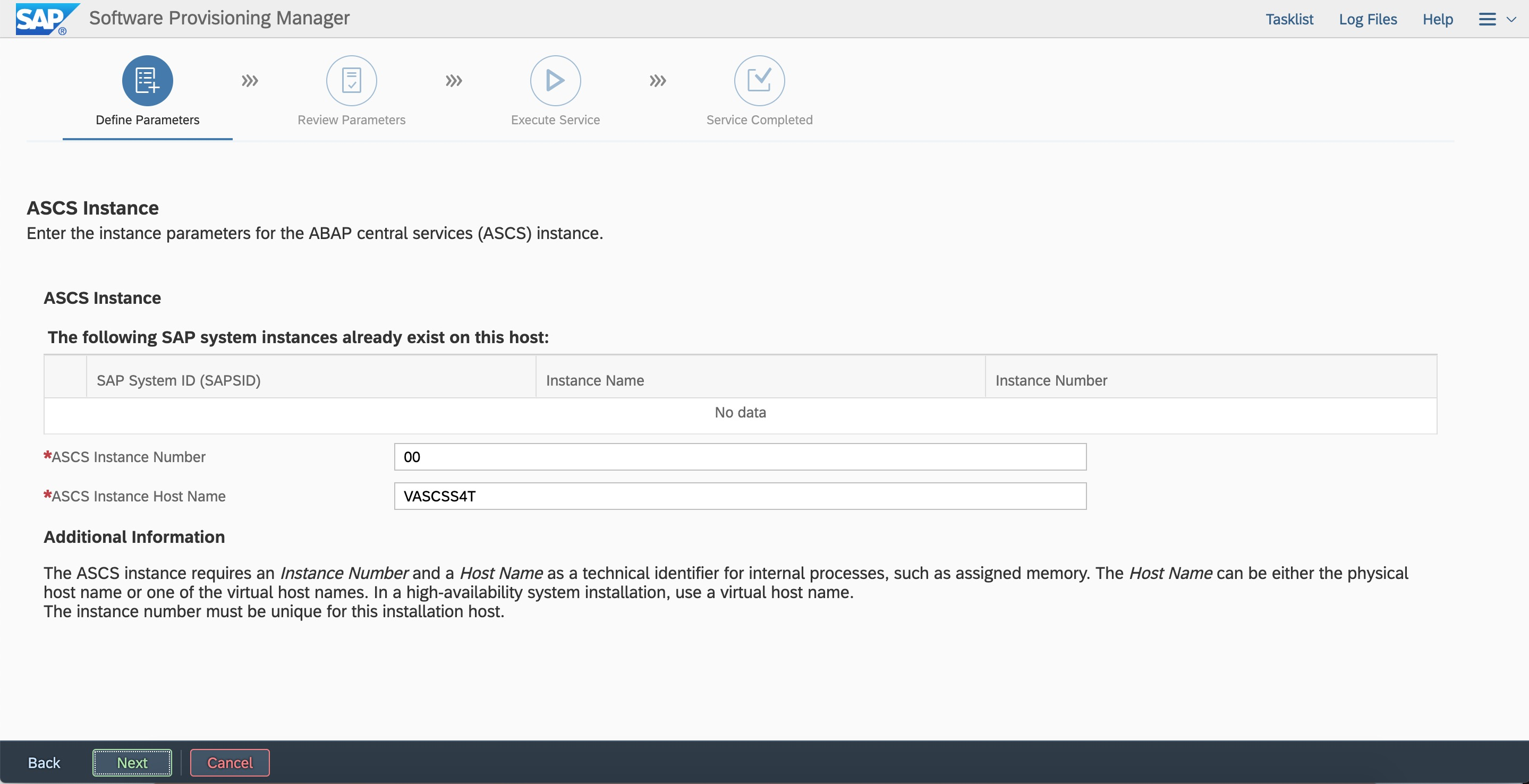
VASCSS4T |
10.0.10.12 |
ASCS instance |
00 |
Installed on virtual host |
|
VERSS4T |
10.0.10.13 |
ERS instance |
10 |
Installed on virtual host |
|
VDBS4T |
10.0.10.9 |
DB Instance |
Installed on virtual host |
|
|
hana01 |
10.0.10.7/10.0.20.7 |
DB(Primary) |
00 |
Installed on local host |
|
hana02 |
10.0.10.8/10.0.20.8 |
DB(Secondary) |
00 |
Installed on local host |
Users and groups
User IDs and group IDs must be identical across all HA cluster nodes for both SAP applications and SAP HANA.
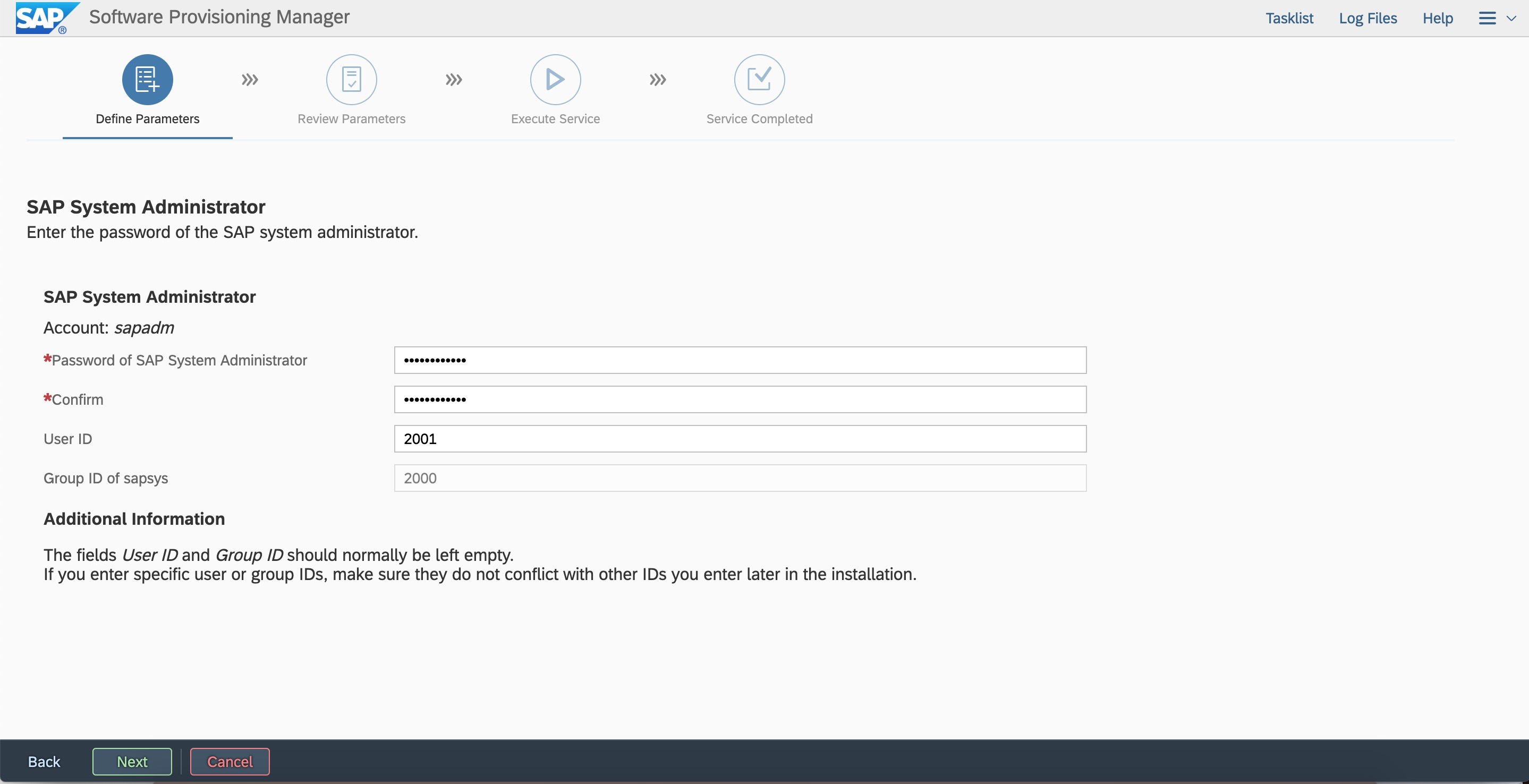
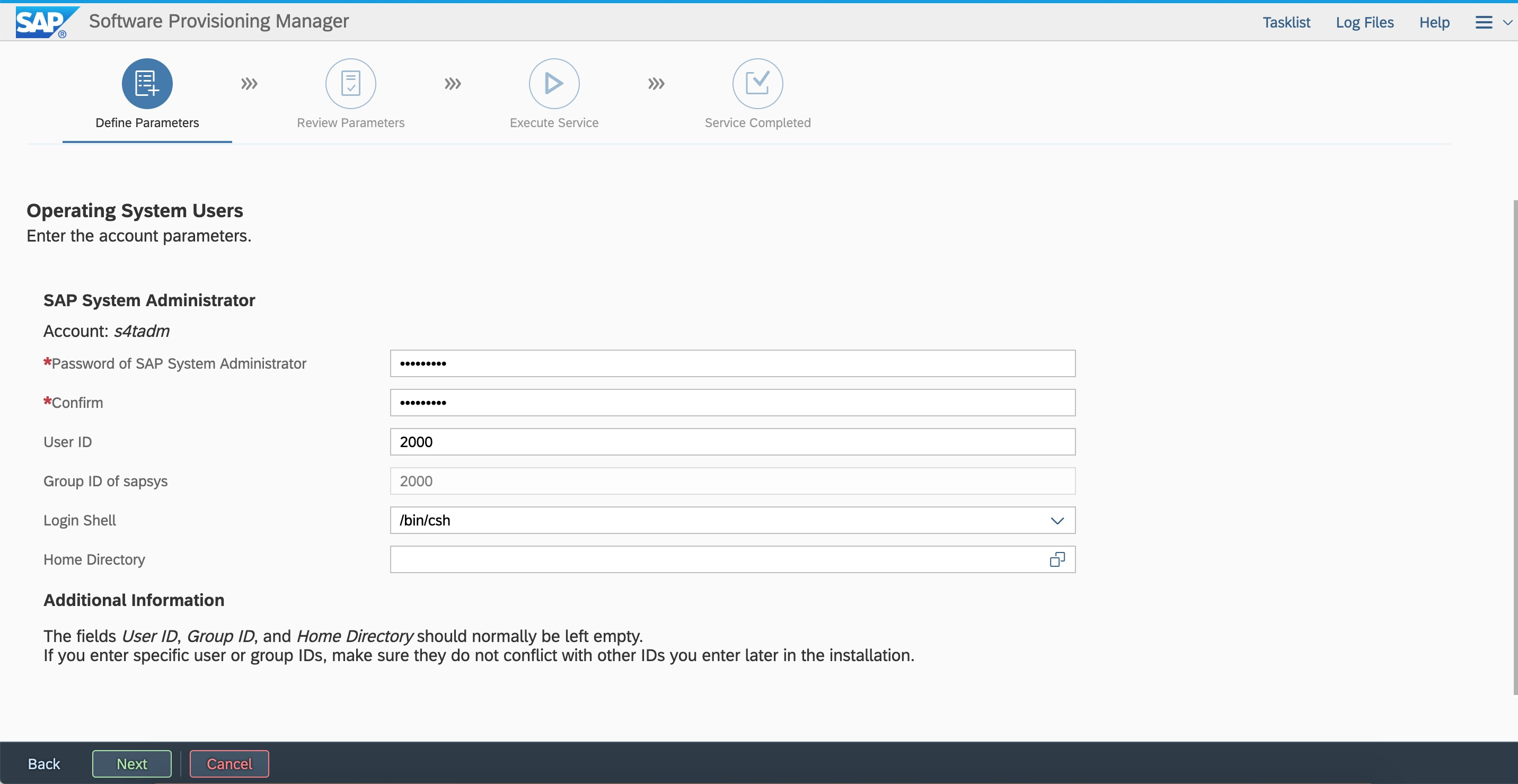
User ID: Set the sidadm user ID to 2000, and the sapadm user ID to 2001.
Group ID: Set the sapsys group ID to 2000.
Swap space
SAP applications and SAP HANA require swap space. Create an SSD for swap when provisioning ECS instances. SAP Note:1597355 - Swap-space recommendation for Linux.
File systems
Use Autofs to mount the global file system and transport host file system for SAP applications. The file system planning in this topic is for reference only. Consult the relevant SAP installation guide for file system sizing.
|
File system |
Type |
Logical volume |
Volume group |
|
/usr/sap |
XFS |
usrsaplv |
sapvg |
|
/sapmnt |
NAS |
||
|
/usr/sap/trans |
NAS |
||
|
/hana/data |
XFS |
datalv |
hanavg |
|
/hana/log |
XFS |
loglv |
hanavg |
|
/hana/shared |
XFS |
sharedlv |
hanavg |
Preparations
Alibaba Cloud account
Register an Alibaba Cloud account on the official website or app. Complete real-name verification with a mobile number. For more information, see Create an account
VPC
A VPC is an isolated private network on Alibaba Cloud where you configure IP address ranges, routing tables, and gateways. Virtual Private Cloud.
ECS instance
ECS is a basic cloud computing service on Alibaba Cloud. For SAP NetWeaver support details, see SAP Note 1380654 - SAP support in cloud environments.
[1] Create an ECS instance.
Create an ECS instance in the ECS console. Select the billing method and China (Beijing) Zone G.
Select the SUSE Linux Enterprise Server for SAP Applications 12 SP3 image from the image marketplace.
Create disks as planned. In this example, the data disk is 300 GB and the swap disk is 50 GB. Use an ultra disk or SSD for the system disk and ESSDs or SSDs for data disks and swap. Block storage performance.
Select an existing VPC and security group for the ECS instance. This example uses hanasg. Security group FAQ.
(Optional) Specify the RAM users as required.
Verify all settings and create the ECS instance. Create four ECS instances in China (Beijing) Zone G as planned, then update hostnames and private IP addresses.
[2] Configure elastic network interfaces (ENIs).
Create an ENI for each HA cluster ECS instance for the heartbeat network. Create four ENIs and bind one to each instance.
[3] ECS Metrics Collector
ECS Metrics Collector is a monitoring agent that collects VM configuration and physical resource usage data for SAP systems on Alibaba Cloud.
The SAP Host Agent uses metadata services and APIs to gather OS, network, storage, and architecture data for SAP application monitoring.
Install ECS Metrics Collector for SAP on every ECS instance running SAP applications or SAP HANA. ECS Metrics Collector for SAP deployment guide.
Configure fence
Alibaba Cloud provides two fence solutions. Use Solution 1 (shared block storage) when available. If the region does not support shared block storage, use Solution 2 (fence_aliyun).
Solution 1: shared block storage
ECS shared block storage is a block-level storage device that allows multiple ECS instances to read and write concurrently. It features high concurrency, performance, and reliability. A single block can be attached to a maximum of 16 ECS instances.
As the SBD device of the HA cluster, select the shared block storage in the same region and zone as the ECS instance, and attach it to the ECS instance in the HA cluster.
Contact your Alibaba Cloud Solution Architect (SA) for product application assistance.
[1] Create shared block storage
Log on to the ECS console, choose ECS Storage and snapshots, click shared block storage, and create shared block storage in the same region and zone.
After the shared block storage device is created, return to the shared block storage console and attach it to the two ECS instances in the high availability cluster.
[2] Configure shared block storage
Log on to operating system and view disk information.
lsblk
NAME   MAJ:MIN RM  SIZE RO TYPE MOUNTPOINT
vda    253:0    0  100G  0 disk
└─vda1 253:1    0  100G  0 part /
vdb    253:16   0  500G  0 disk
vdc    253:32   0  500G  0 disk
vdd    253:48   0  500G  0 disk
vde    253:64   0   64G  0 disk
vdf    253:80   0   20G  0 disk
In this example, /dev/vdf disk is the shared block storage device ID.
configure watchdog(two nodes in cluster)
echo "modprobe softdog" > /etc/init.d/boot.local
echo "softdog" > /etc/modules-load.d/watchdog.conf
modprobe softdog

# watchdog configuration check
ls -l /dev/watchdog
crw------- 1 root root 10, 130 Apr 23 12:09 /dev/watchdog
lsmod | grep -e wdt -e dog
softdog                16384  0
grep -e wdt -e dog /etc/modules-load.d/watchdog.conf
softdog
Configure SBD (two nodes in cluster)
sbd -d /dev/vdf -4 60 -1 30 create

# Set SBD parameters
vim /etc/sysconfig/sbd

# Replace the SBD_DEVICE value with the device ID of the shared block storage device
SBD_DEVICE="/dev/vdf"
SBD_STARTMODE="clean"
SBD_OPTS="-W"
Check the SBD status
Check the SBD status on both nodes.
sbd -d /dev/vdf listEnsure that the SBD status is clear on both SAP HANA nodes.
sbd -d /dev/vdf list
0       saphana-01      clear
1       saphana-02      clear
Verify SBD configuration
Ensure that the fenced node is disabled, this operation will restart the node.
In this example, log on to the primary node saphana01
sbd -d /dev/vdf message saphana-02 resetIf the secondary node saphana-02 restarted normally, the configuration was successful.
After the backup node is restarted, you need to manually reset it to the clear state.
sbd -d /dev/vdf list
0       saphana-01      clear
1       saphana-02      reset   saphana-01
sbd -d /dev/vdf message saphana-02 clear
sbd -d /dev/vdf list
0       saphana-01      clear
1       saphana-02      clear   saphana-01
Solution 2: fence aliyun
Fence_aliyun is an open-source fence agent for Alibaba Cloud that isolates faulty nodes in SAP HA environments by calling Alibaba Cloud APIs.
Fence_aliyun manages ECS instances to enforce node isolation during failover.
SUSE Linux Enterprise Server for SAP Applications 12 SP4 and later natively include fence_aliyun, requiring no additional installation.
[1] Prepare environment
In this example, we use an Alibaba Cloud SUSE CSP image to download or update SUSE components. You can directly connect to the SUSE SMT update source to download or update SUSE components.
If your custom image is used, see How to register SLES using the SUSE Connect command line tool to connect to the SUSE official update repository.
To install open-source software such as python, you must connect to the internet. Make sure that you have configured an EIP for the ECS instance or a NAT gateway.
[2] Install python and pip
Fence_aliyun supports only python3.6 and later versions. Make sure that you meet the minimum version requirements.
# Check the version of Python3.
python3 -V
Python 3.6.15
# Check the pip version of the Python package management tool.
pip -V
pip 21.2.4 from /usr/lib/python3.6/site-packages/pip (python 3.6)
If Python 3 is not installed or earlier than Python 3.6, you need to install python 3.6 or above.
The following is an example of installing python 3.6.15.
#  Install python3.6
wget https://www.python.org/ftp/python/3.6.15/Python-3.6.15.tgz
tar -xf Python-3.6.15.tgz
./configure
make && make install
# Verify the installation
python3 -V

# Install pip
curl https://bootstrap.pypa.io/pip/3.6/get-pip.py -o get-pip.py
python3 get-pip.py
# Verify the installation
pip3 -V
[3] Install aliyun SDK
Make sure that the aliyun-python-sdk-core version is not earlier than 2.13.35 and the aliyun-python-sdk-ecs version is not earlier than 4.24.8.
python3 -m pip install --upgrade pip
pip3 install --upgrade  aliyun-python-sdk-core
pip3 install --upgrade  aliyun-python-sdk-ecs
# Install dependency packages
pip3 install pycurl pexpect
zypper install libcurl-devel

# Verify the installation
pip3 list | grep aliyun-python
aliyun-python-sdk-core 2.13.35
aliyun-python-sdk-core-v3 2.13.32
aliyun-python-sdk-ecs  4.24.8
[4] Configure the RAM Role
Fence_aliyun uses a RAM role to obtain the status of cloud resources such as ECS instances and start or stop instances.
Log on to Alibaba Cloud Console. Choose Access Control Policies. On the policies page, click create policy.
In this example, the policy name is SAP-HA-ROLE-POLICY. The policy content is as follows:
{
    "Version": "1",
    "Statement": [
        {
            "Effect": "Allow",
            "Action": [
                "ecs:StartInstance",
                "ecs:StopInstance",
                "ecs:RebootInstance",
                "ecs:DescribeInstances"
            ],
            "Resource": [
                "acs:ecs:*:*:instance/*"
            ]
        }
    ]
}
Grant a permission policy to a role
Return to the console, choose roles and locate AliyunECSAccessingHBRRole. Click add permissions and select custom policy, add the SAP-HA-ROLE-POLICY to AliyunECSAccessingHBRRole ROLE.
Authorize a RAM Role to an ECS instance
In the ECS console, choose More,select grant or unbind RAM roles, and select or manually create AliyunECSAccessingHBRRole.
[5] Install and configure fence_aliyun
Download the latest version of fence_aliyun
Downloading fence_aliyun requires GitHub access. Ensure your ECS instance can reach GitHub. Submit a ticket if you encounter issues.
curl https://raw.githubusercontent.com/ClusterLabs/fence-agents/master/agents/aliyun/fence_aliyun.py > /usr/sbin/fence_aliyun

# Configure permissions
chmod 755 /usr/sbin/fence_aliyun
chown root:root /usr/sbin/fence_aliyun
Adaptive user environment
# Specifies that the interpreter is python3
sed -i "1s|@PYTHON@|$(which python3 2>/dev/null || which python 2>/dev/null)|" /usr/sbin/fence_aliyun
# Specify the lib Directory of the Fence agent
sed -i "s|@FENCEAGENTSLIBDIR@|/usr/share/fence|" /usr/sbin/fence_aliyun
Verify the installation
# Use fence_aliyun to query the running status of the ECS instance
# Syntax example:
# fence_aliyun --[region ID] --ram-role [RAM role] --action status --plug '[ECS Instance ID]'
# Example:
fence_aliyun --region cn-beijing --ram-role AliyunECSAccessingHBRRole --action status --plug 'i-xxxxxxxxxxxxxxxxxxxx'

# If the configuration is normal, the status of the instance is returned. Example:
Status: ONFor more information about regions and Region IDs, see Regions and availability zones.
HaVip
Private high-availability virtual IP address (HaVip) is a private IP resource that you can create and release separately. The uniqueness of HaVip is that you can use an Address Resolution Protocol (ARP) announcement to broadcast the IP address in an ECS instance. This deployment binds HaVip as a virtual IP address to each node in the HA cluster.
1. Create an HaVip.
Select an IP address of the business CIDR block to create an HaVip for the ASCS instance. The same rule applies when you create an HaVip for the ERS instance.
Contact your Alibaba Cloud Solution Architect (SA) for product application assistance.
2. Bind the HaVip.
Bind the HaVip to each ECS instance in the HA cluster.
3. Configure HaVip.
The HaVip must be managed by cluster software such as Pacemaker as a cluster resource. Create HaVip addresses manually before deployment.
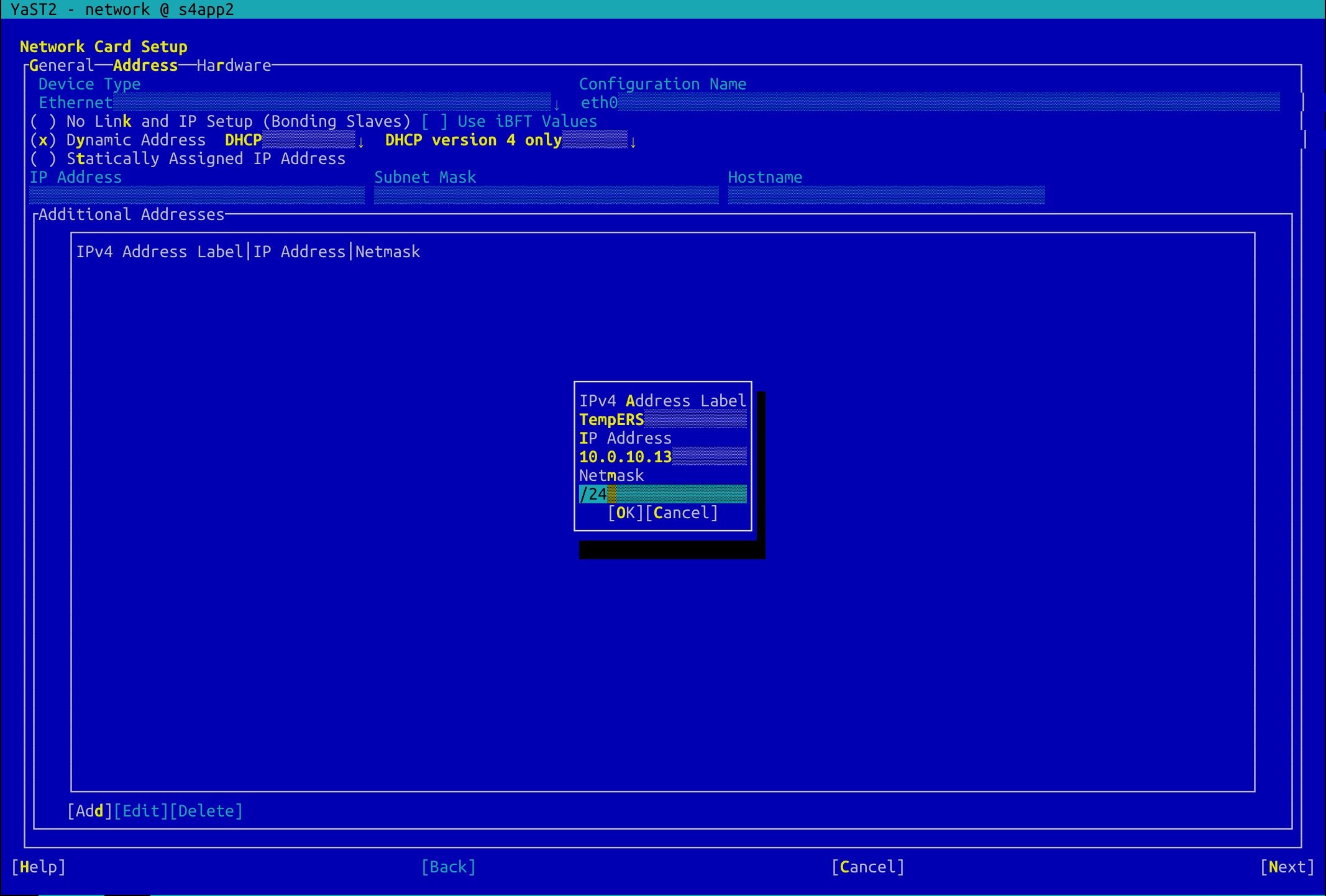
Log on to the primary node of the HA cluster. Add the HaVips for ASCS and ERS instances to the Additional Addresses resource pool. This ensures that these HaVips can be reached by PING messages during the installation of ASCS and ERS instances. Run the following command:
#yast2 network
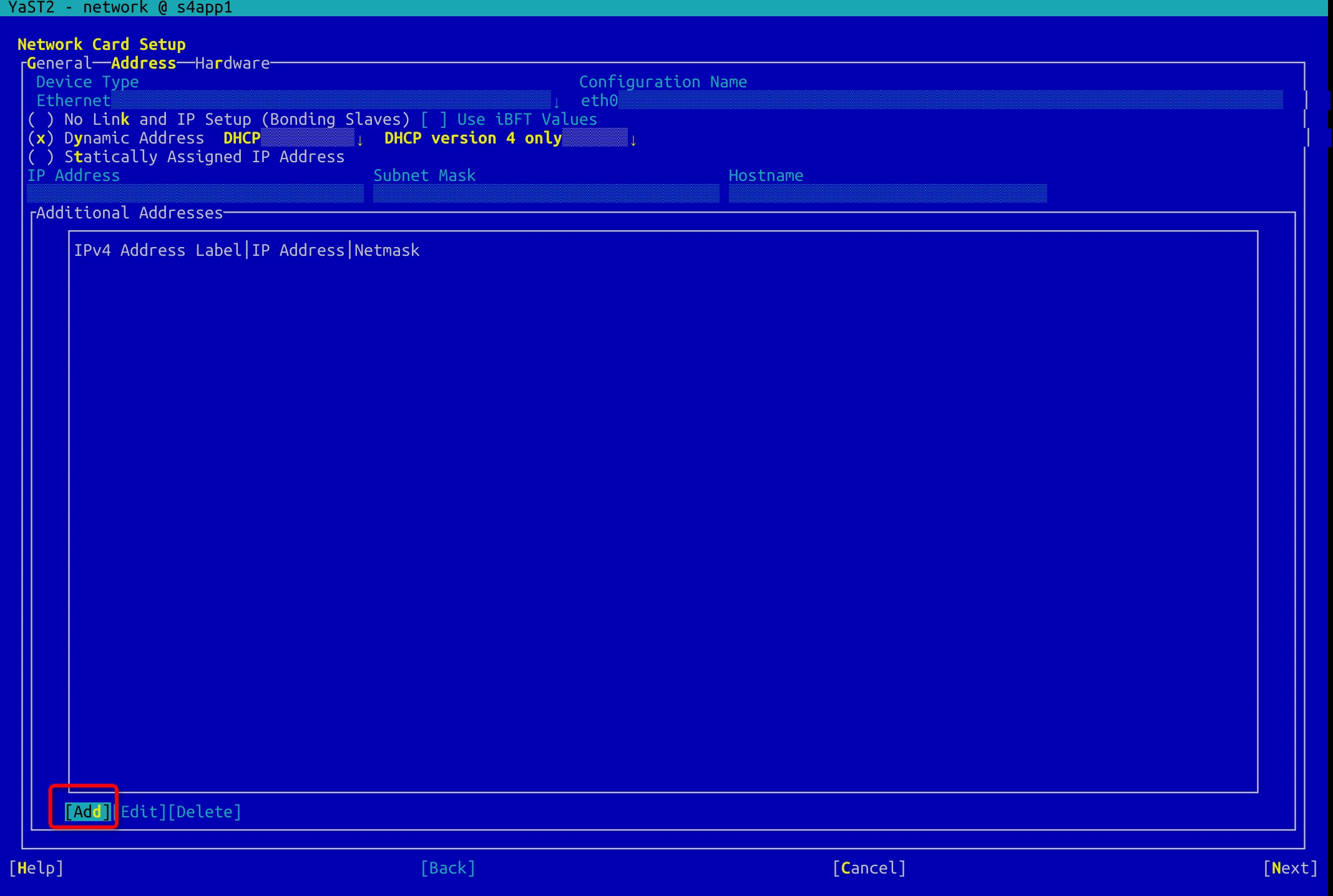
Configure Havip addresses of ASCS and ERS.
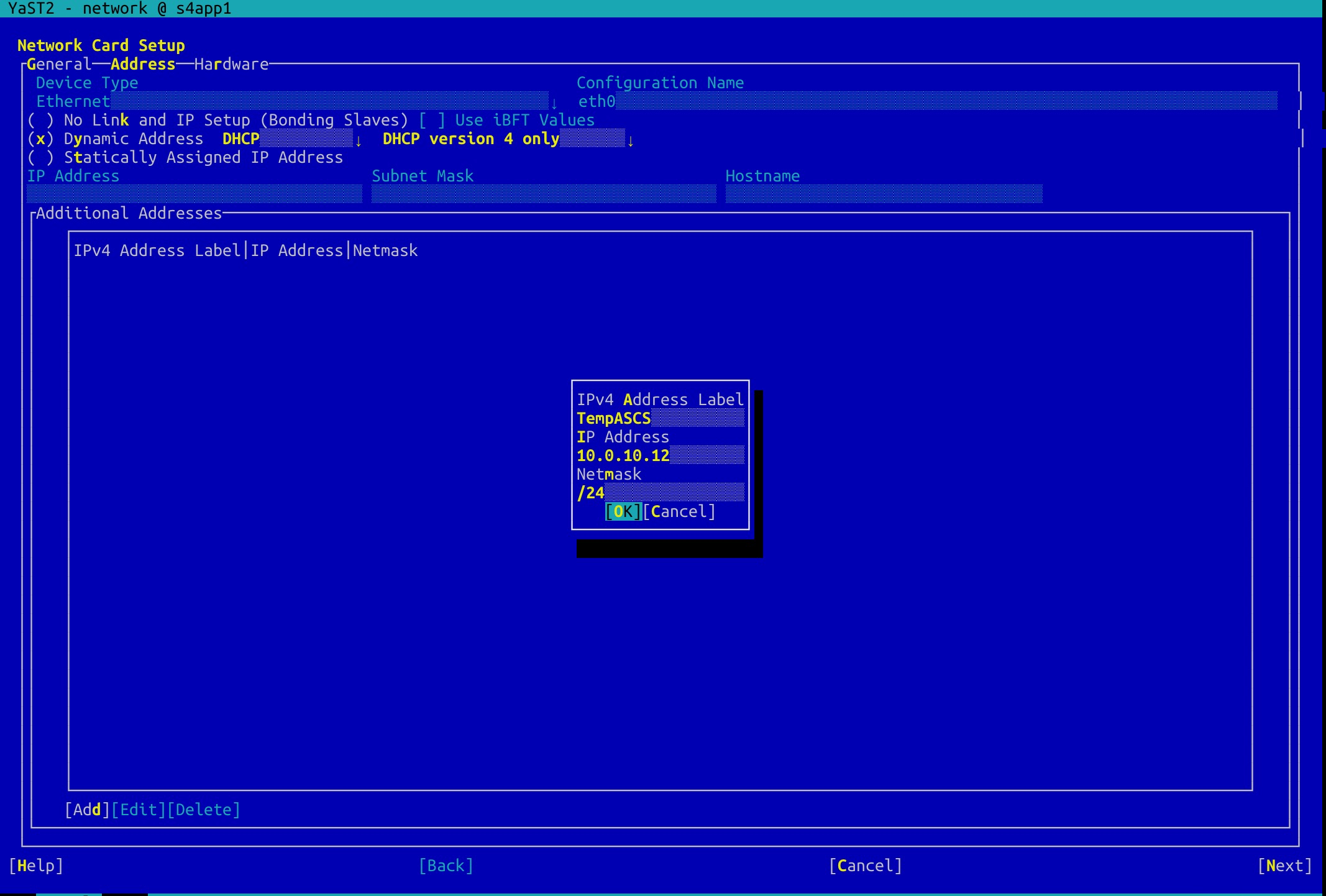
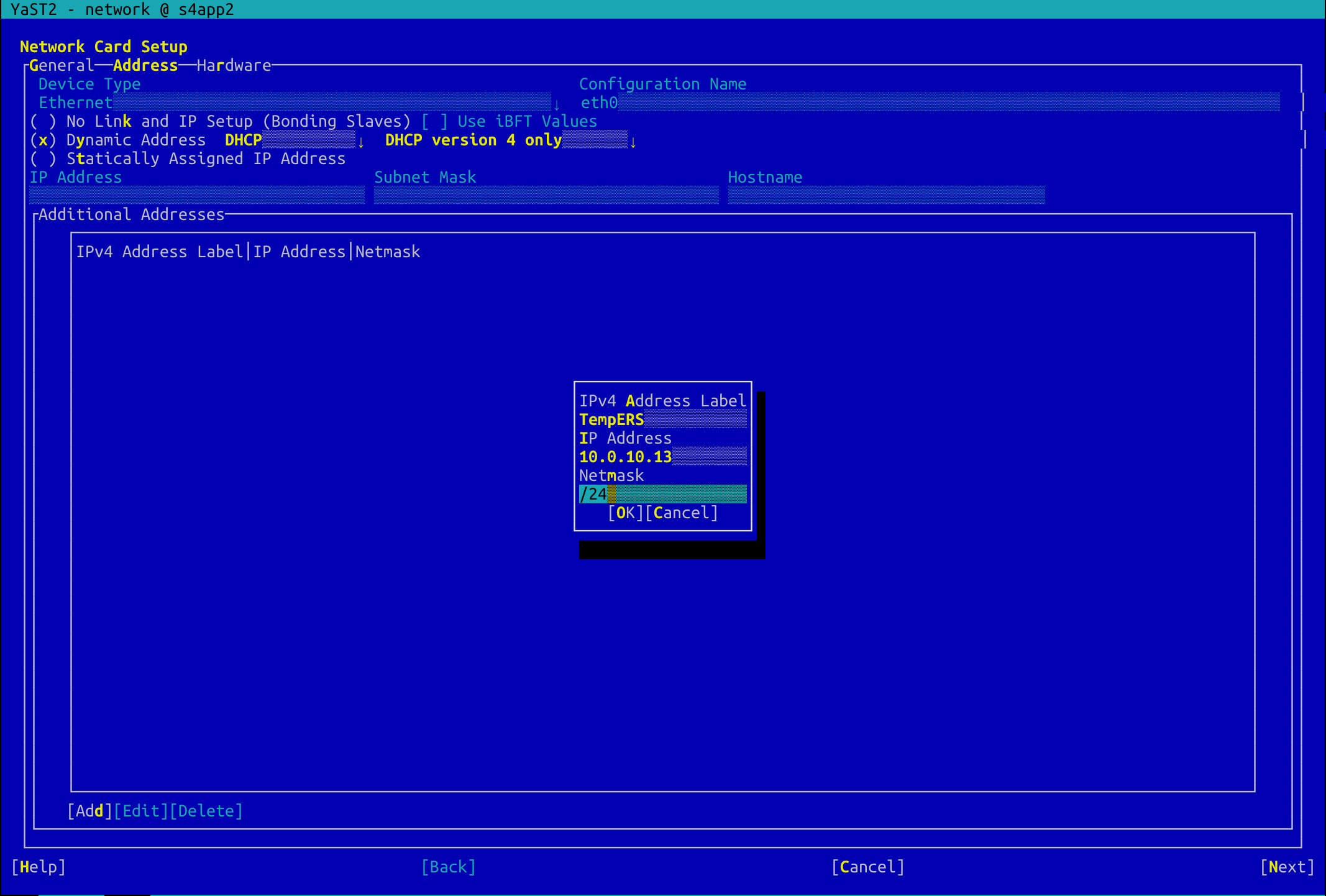
Create an HaVip for the ERS instance. The procedure is similar to that for the ASCS instance.
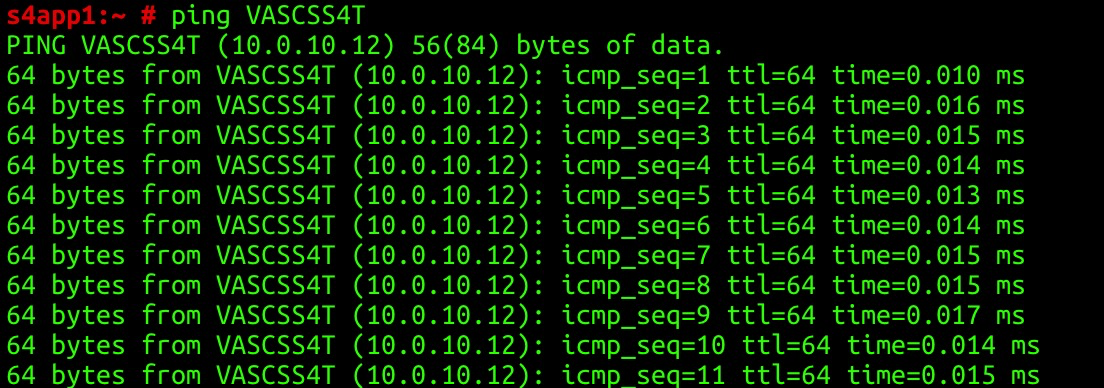
 Send PING messages to the HaVip for the ASCS instance to test its connectivity.
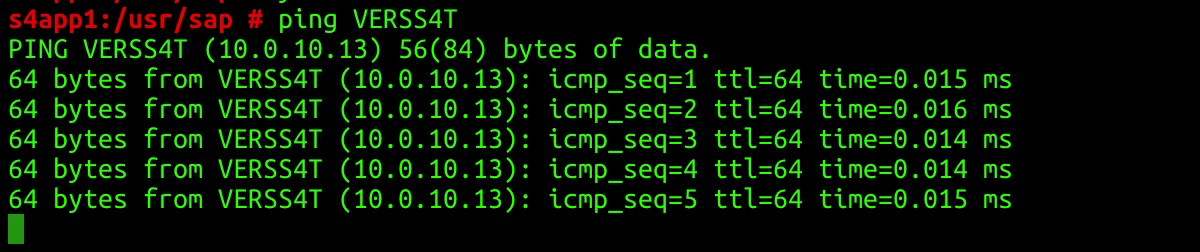
Send PING messages to the HaVip for the ERS instance to test its connectivity.
NAS
Alibaba Cloud NAS is a file storage service for compute nodes such as ECS instances. It supports standard file access protocols with unlimited capacity scaling and high availability. Use NAS for the SAP global host and transport host file systems.
[1] Create an NAS file system.
Select a region and storage type. This deployment uses NAS Capacity. Storage types.
Add a mount point for the file system. Select the previously created VPC and business vSwitch.
Click the file system ID or name to view the mount address of the NAS file system.
[2] Record the mount addresses of NAS file systems.
Enter the NAS configuration and create two file stores for /sapmnt and /usr/sap/trans as planned.
SAP HANA installation
Install and configure SAP HANA using the SAP HANA Platform documentation.
Configure system replication and HA as described in How To Perform System Replication for SAP HANA.
For more information about how to install SAP HANA, see SAP HANA High Availability Deployment Guide.
HA cluster configuration
Modify hostnames
Modify hostnames for all nodes of SAP applications and SAP HANA.
Add the following information to the hosts file in the /etc directory as planned:
###S4 1809 application business###
10.0.10.10     s4app1  s4app1.alibaba.com
10.0.10.11     s4app2  s4app2.alibaba.com
10.0.10.12      VASCSS4T        VASCSS4T.alibaba.com
10.0.10.13      VERSS4T         VERSS4T.alibaba.com
###S4 1809 application heatbeat###
10.0.20.10     s4app1-ha
10.0.20.11     s4app2-ha
###S4 1809 HANA database####
10.0.10.7     hana01        hana01.alibaba.com
10.0.10.8     hana02        hana02.alibaba.com
10.0.10.9      VDBS4T  VDBS4T.alibaba.com
###S4 1809 HANA database heartbeat####
10.0.20.7     hana01-ha
10.0.20.8     hana02-ha
Create file systems
Create NAS file systems for /sapmnt and /usr/sap/trans. Create a local XFS file system for /usr/sap.
1. Create the /usr/sap file system.
(1) Check disks.
(2) Create a physical volume.
(3) Create the sapvg volume group.
(4) Create the usrsaplv logical volume.
(5) Create a file system.
(6) Add a mount point for the file system. Enable the file system to be mounted upon system startup.
#fdisk -l
#pvcreate /dev/vdb
#vgcreate sapvg /dev/vdb
#lvcreate -L 100G -n usrsaplv sapvg
#mkfs.xfs /dev/sapvg/usrsaplv
#mkdir -p /usr/sap
Run the vi /etc/fstab command to edit the fstab file as follows:
/dev/sapvg/usrsaplv /usr/sap xfs defaults 0 0Run this command to mount all file systems.
#mount -a2. Create the swap space.
(1) Check the disk used to provide the swap space.
#fdisk -l
Run the fdisk -l command to obtain disk information. In this example, /dev/vdd provides the swap space.
(2) Configure the swap space as follows:
mkswap  /dev/vdc
swapon  /dev/vdc
swapon -s     #Checks the size of the swap space.#
3. Mount the global file system and the file system of the transport host.
Use Autofs to mount /sapmnt and /usr/sap/trans. Autofs eliminates the need to create mount point directories.
To configure Autofs, follow these steps:
(1) Run the following command to edit the auto.master file:
#vim /etc/auto.master
Add /- /etc/auto.nfs.
(2) Create and edit the auto.nfs file in the /etc directory as follows:
Please replace it with your NAS address.
/sapmnt -vers=3,noacl,nolock,proto=tcp,rsize=1048576,wsize=1048576,hard,timeo=600,retrans=2,noresvport xxxxxxxx-beijing.nas.aliyuncs.com:/
/usr/sap/trans -vers=3,noacl,nolock,proto=tcp,rsize=1048576,wsize=1048576,hard,timeo=600,retrans=2,noresvport xxxxxxxx-beijing.nas.aliyuncs.com:/
(3) Run the following command to start Autofs:
#systemctl start autofs
(4) Run the following command to enable Autofs to mount file systems upon system startup:
#systemctl enable autofs
You can run the cd command to access the two file systems to check whether they are mounted.
Prepare the operating system and installation packages
You need to configure both nodes of the HA cluster. The following procedure shows how to configure a node.
1. Install the packages required by HA configuration and optimization.
# SLES 12 for SAP version components
zypper in -y patterns-sles-sap_server saptune
zypper in -y pattern ha_sles sap_suse_cluster_connector fence-agents
# SLES 15 for SAP version components
zypper in -y patterns-server-enterprise-sap_server saptune
zypper in -y patterns-ha-ha_sles corosync-qdevice sap-suse-cluster-connector fence-agents
2. Check Network Time Protocol (NTP) service.
ntpq -p
NTP is enabled by default on Alibaba Cloud ECS instances. If the time zone is not Asia/Shanghai, update it. Ensure all ECS instances use the same time zone with NTP enabled.
3. Install saptune.
Saptune replaces sapconf in SUSE Linux Enterprise Server 12 SP2 and later. It tunes OS and database parameters for optimal SAP NetWeaver and SAP HANA performance.
The syntax is as follows:
SAP note
Tune system according to SAP and SUSE notes:
  saptune note [ list | verify ]
  saptune note [ apply | simulate | verify | customise | revert ] NoteID
SAP solution
Tune system for all notes applicable to your SAP solution:
  saptune solution [ list | verify ]
  saptune solution [ apply | simulate | verify | revert ] SolutionName
For this deployment, SAP NetWeaver is installed. The following figures show the installation results of saptune.


Run the following command to start a daemon:
saptune daemon start
systemctl enable tuned
Learn more from Prepare your Linux for your SAP solution with saptune or the official SUSE Linux Enterprise Server documentation.
Configure cluster
1. Configure Corosync.
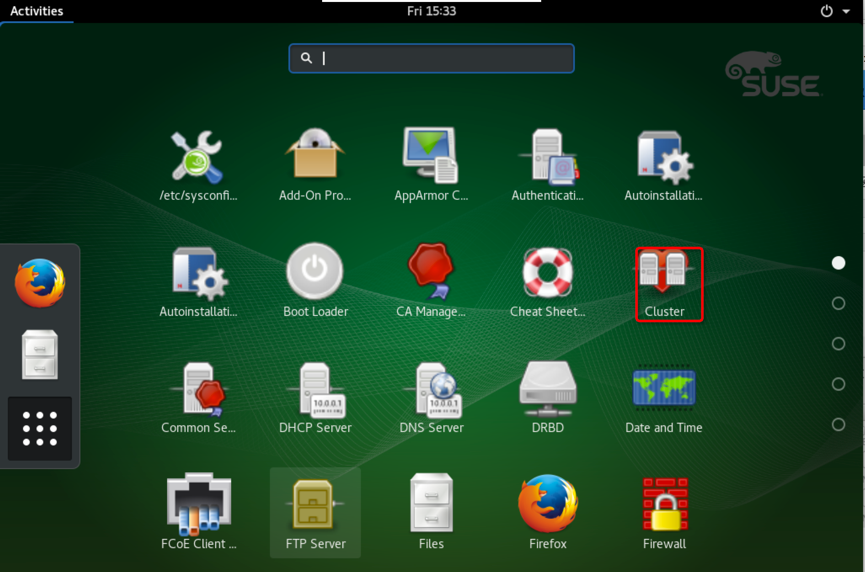
(1) Start the cluster GUI.
Log on to the primary node of the cluster, start yast2, and then click Cluster.
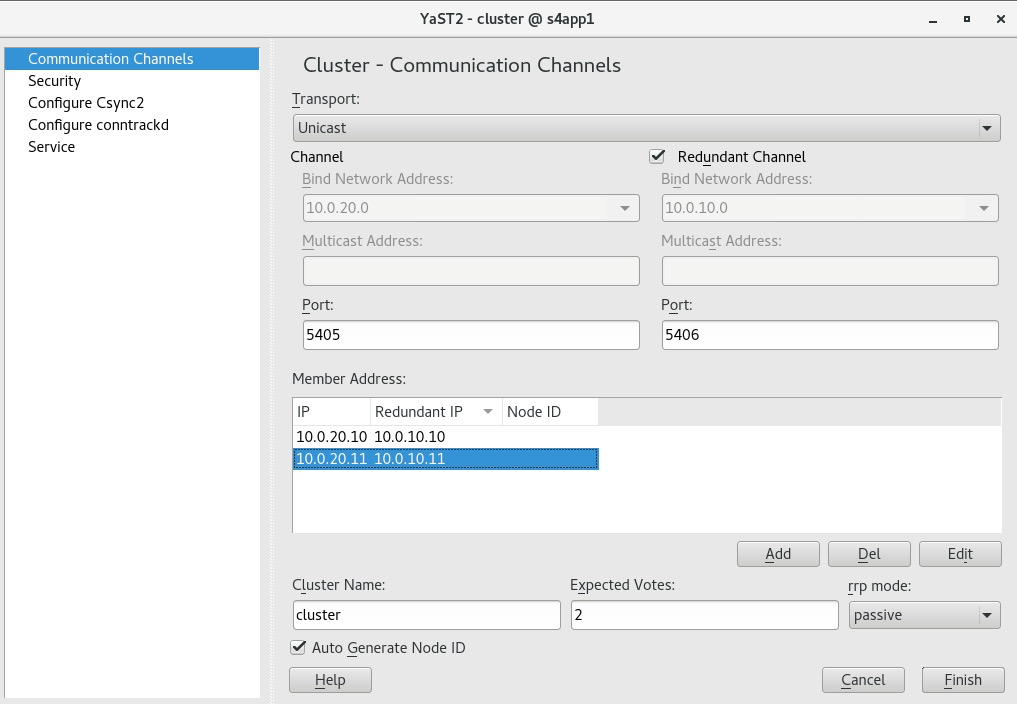
(2) Configure Communication Channels as follows:
Transport: Select Unicast.
Channel: Enter 10.0.20.0 in the Bind Network Address field to specify the heartbeat CIDR block.
Redundant Channel: Enter 10.0.10.0 in the Bind Network Address field to specify the business CIDR block.
In the Member Address section, add the heartbeat IP addresses and business IP addresses of both nodes in the IP and Redundant IP columns, respectively. Enter 2 in the Expected Votes field to indicate the number of nodes in the cluster.
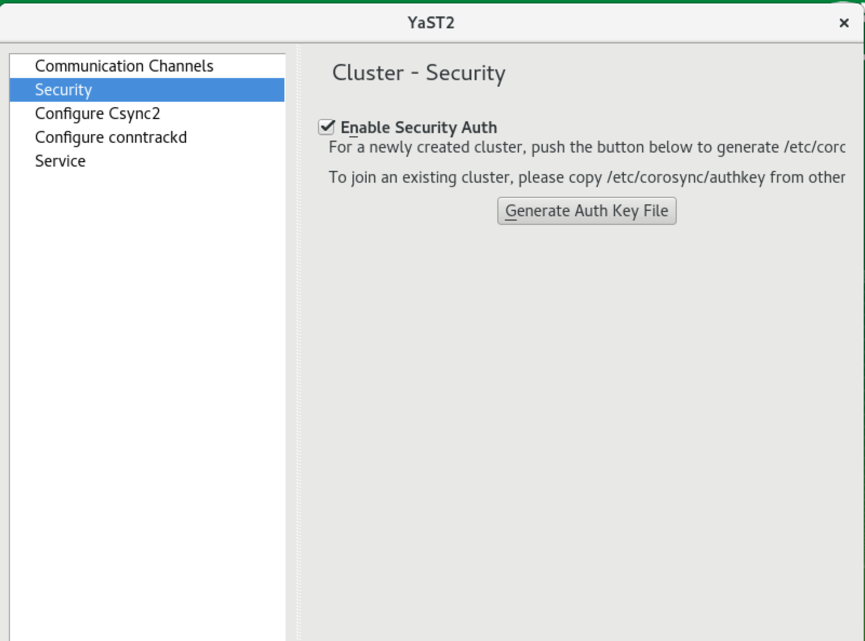
(3) Configure Security as follows:
Click Generate Auth Key File.
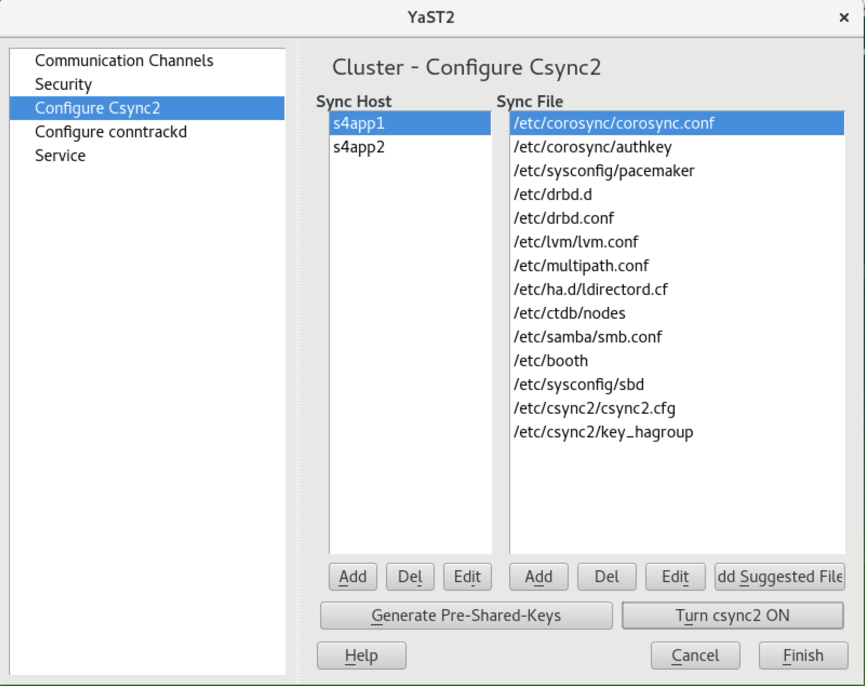
(4) (Optional) Configure Csync2 as follows:
Csync2 is a synchronous replication tool. You can use it to copy configuration files to nodes in a cluster.
a. Add a host and click Add Suggested Files.
b. Click Turn csync2 ON.
c. Click Generate Pre-Shared-Keys.
d. Copy the generated key_hagroup file in the /etc/csync2 directory to the same directory of the secondary node.
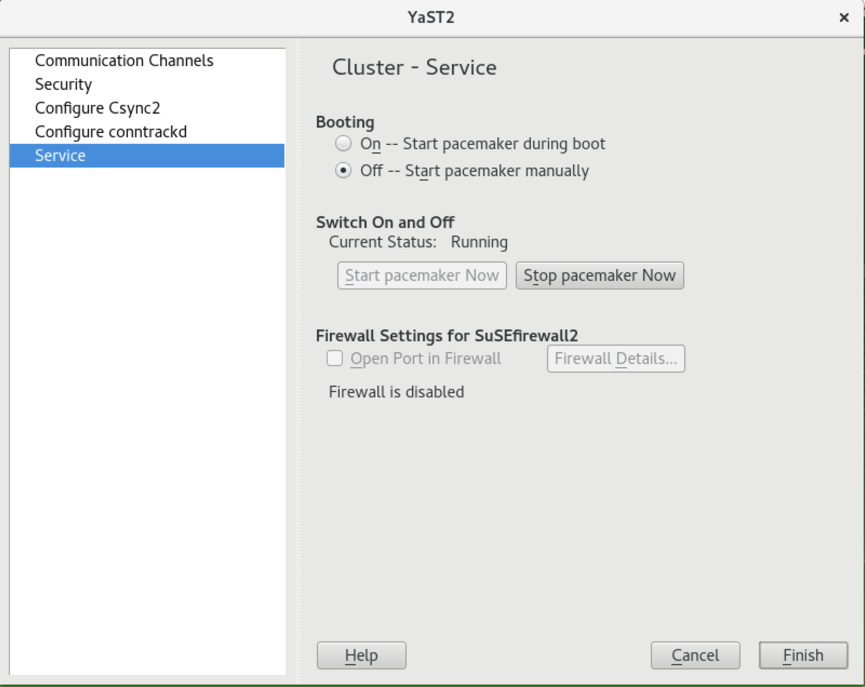
(5) Configure Service as follows:
Booting: By default, Off is selected, indicating that you need to manually start Pacemaker. Keep the default configuration.
(6) Copy files.
Run the following command to copy the corosync.conf and authkey files in the /etc/corosync directory of the primary node to the same directory of the secondary node:
#scp -pr corosync.conf authkey root@s4app2:/etc/corosync
2. Start pacemaker.
Run the following command to start Pacemaker on both nodes:
#systemctl start pacemaker
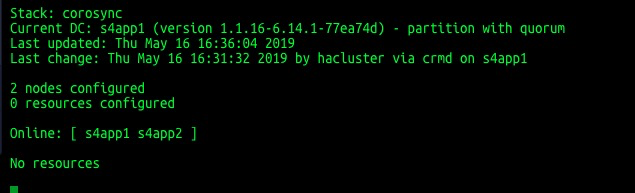
Run the following command to verify that both nodes are online:
#crm_mon status
SAP S/4HANA 1809 installation
Install the ASCS instance
Log on to the primary node and start the Software Provisioning Manager (SWPM). Run the following command to install the ASCS instance on the virtual host VASCSS4T:
# ./sapinst SAPINST_USE_HOSTNAME=VASCSS4T
On a Windows jump server, enter the following URL in the address bar of a browser:
https://VASCSS4T:4237/sapinst/docs/index.html
Use the root username and password to log on to the host. Ensure that the hostname can be resolved and the port can be accessed.

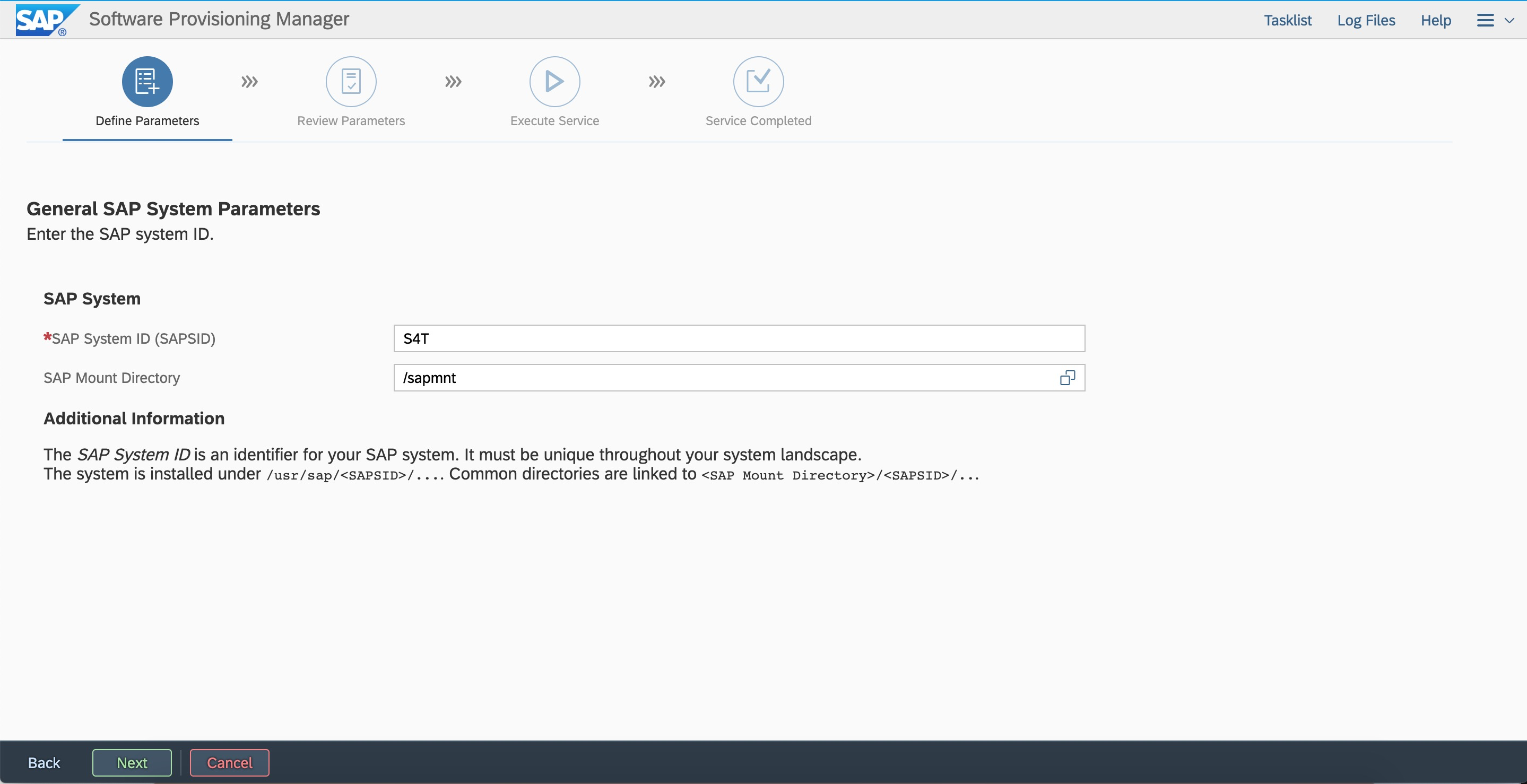
Enter the system ID and the directory of the mounted global file system as planned.
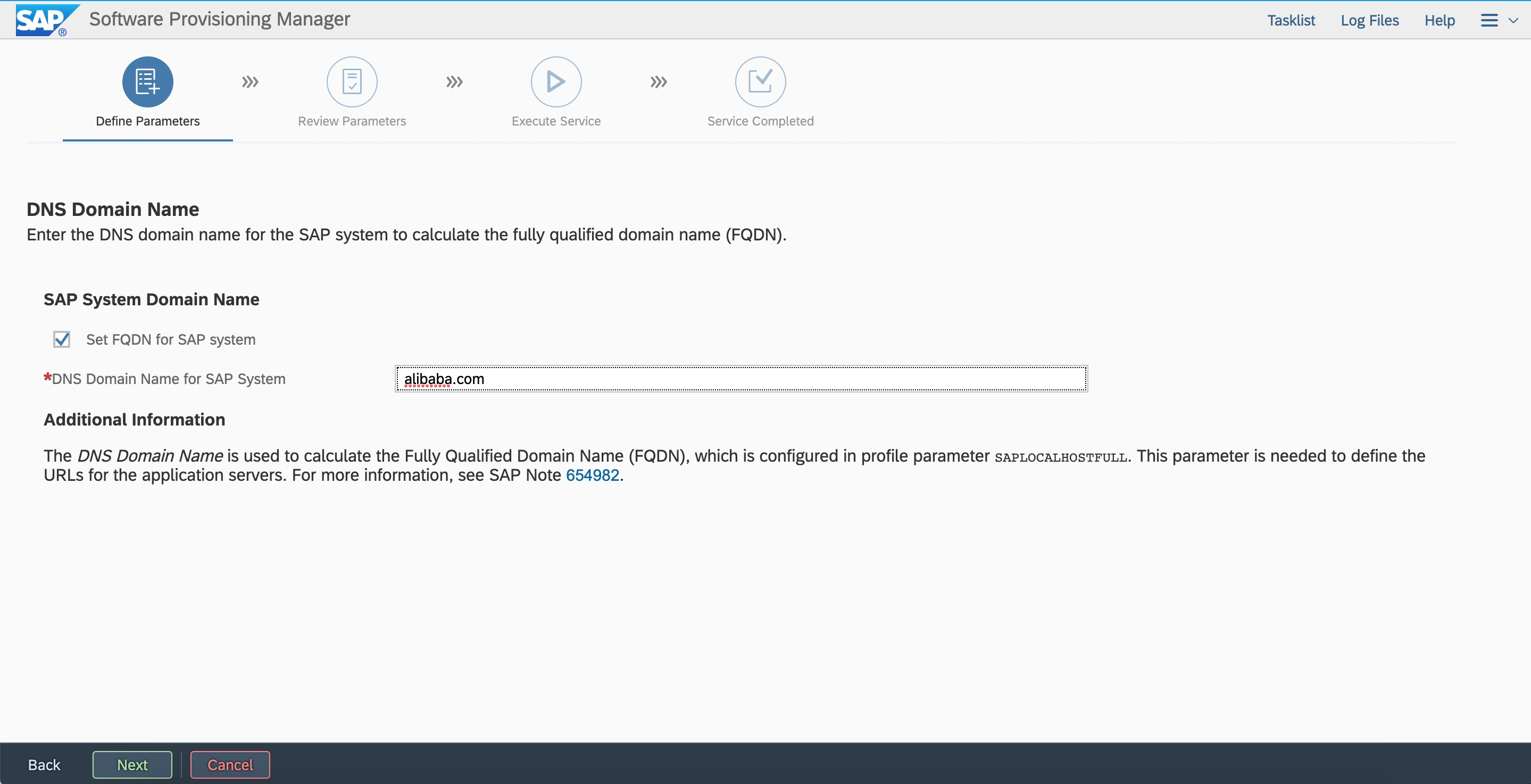
Set the fully qualified domain name (FQDN).
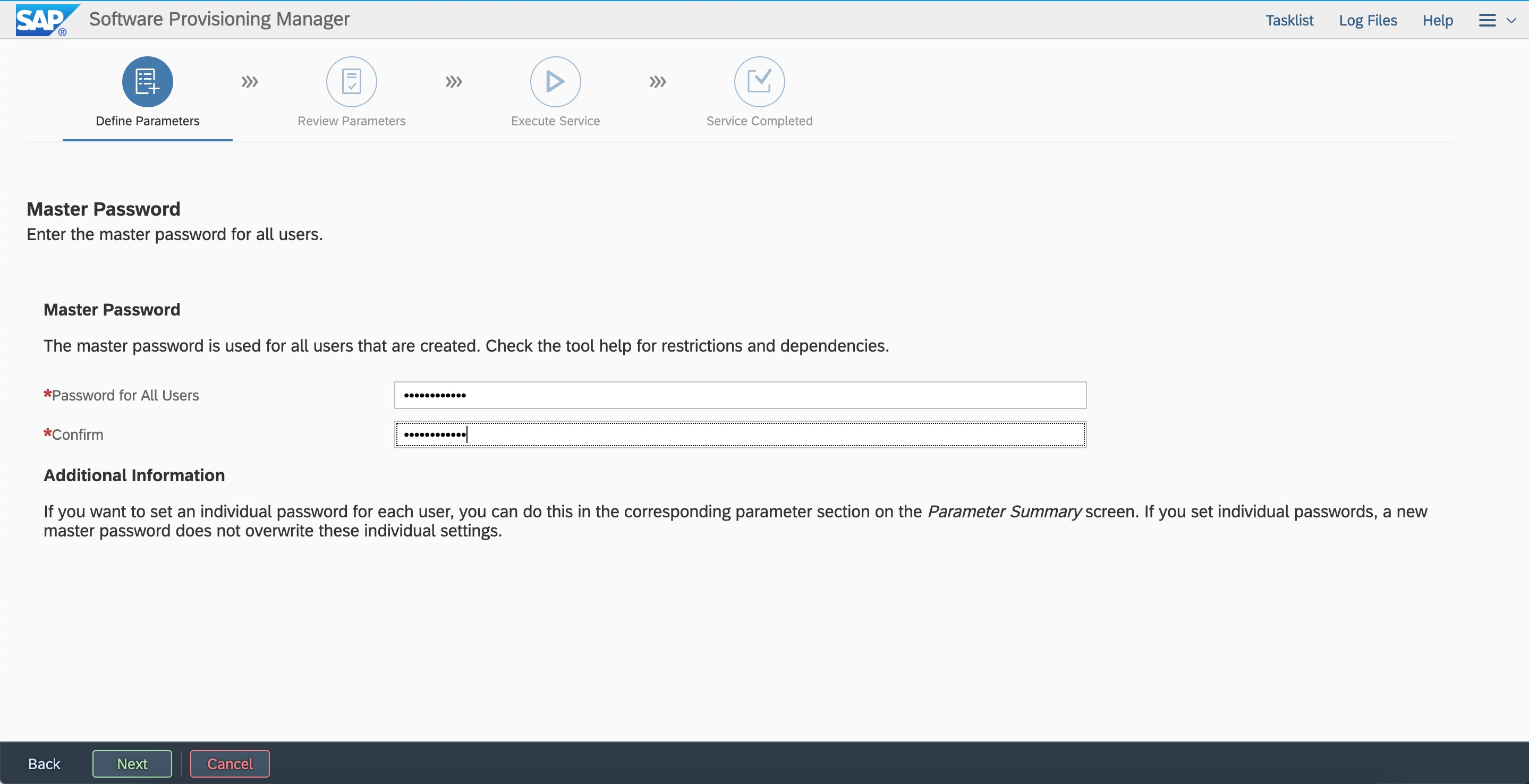
Set a password.
Enter the user ID and group ID as planned.

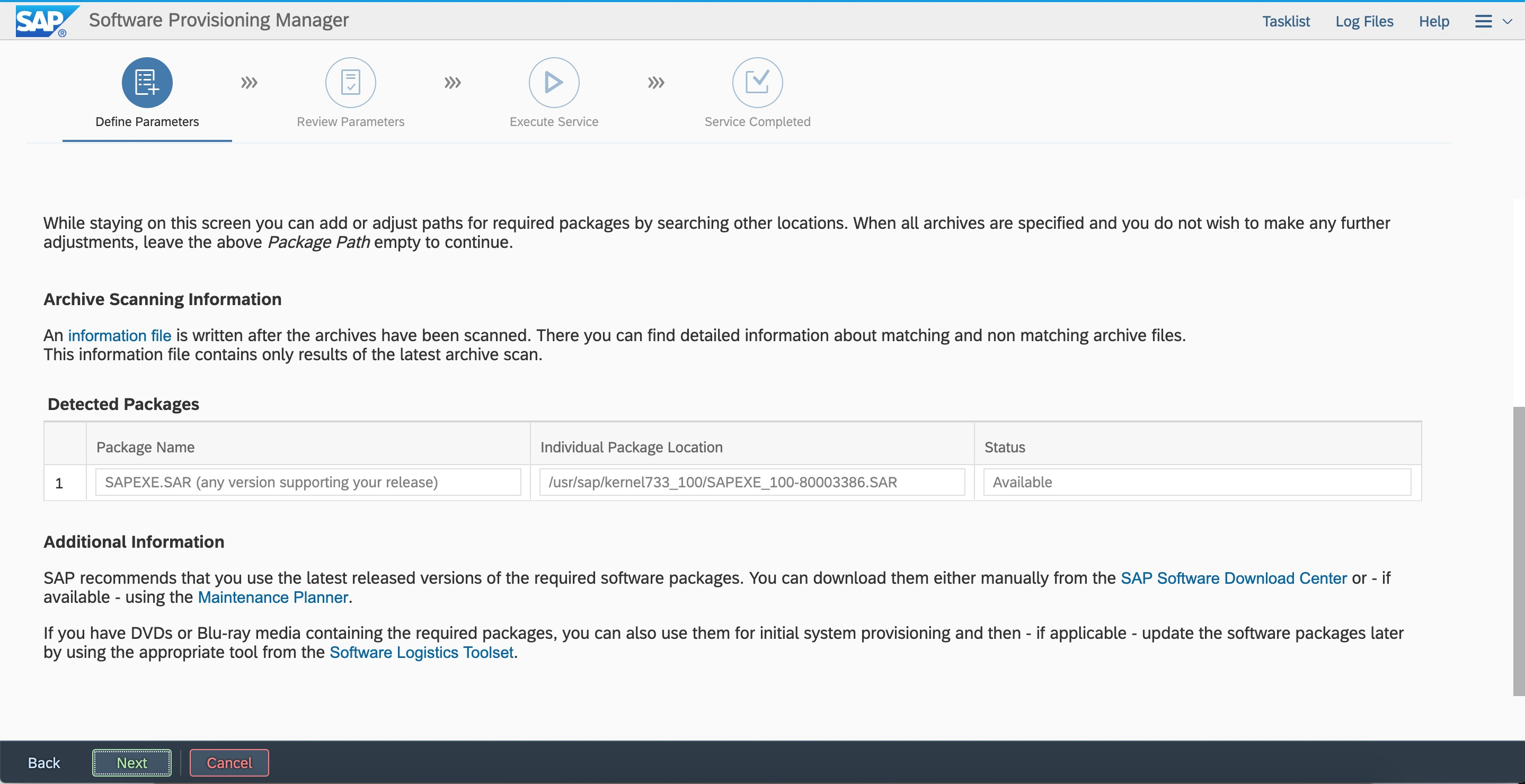
Enter the path of kernel packages.
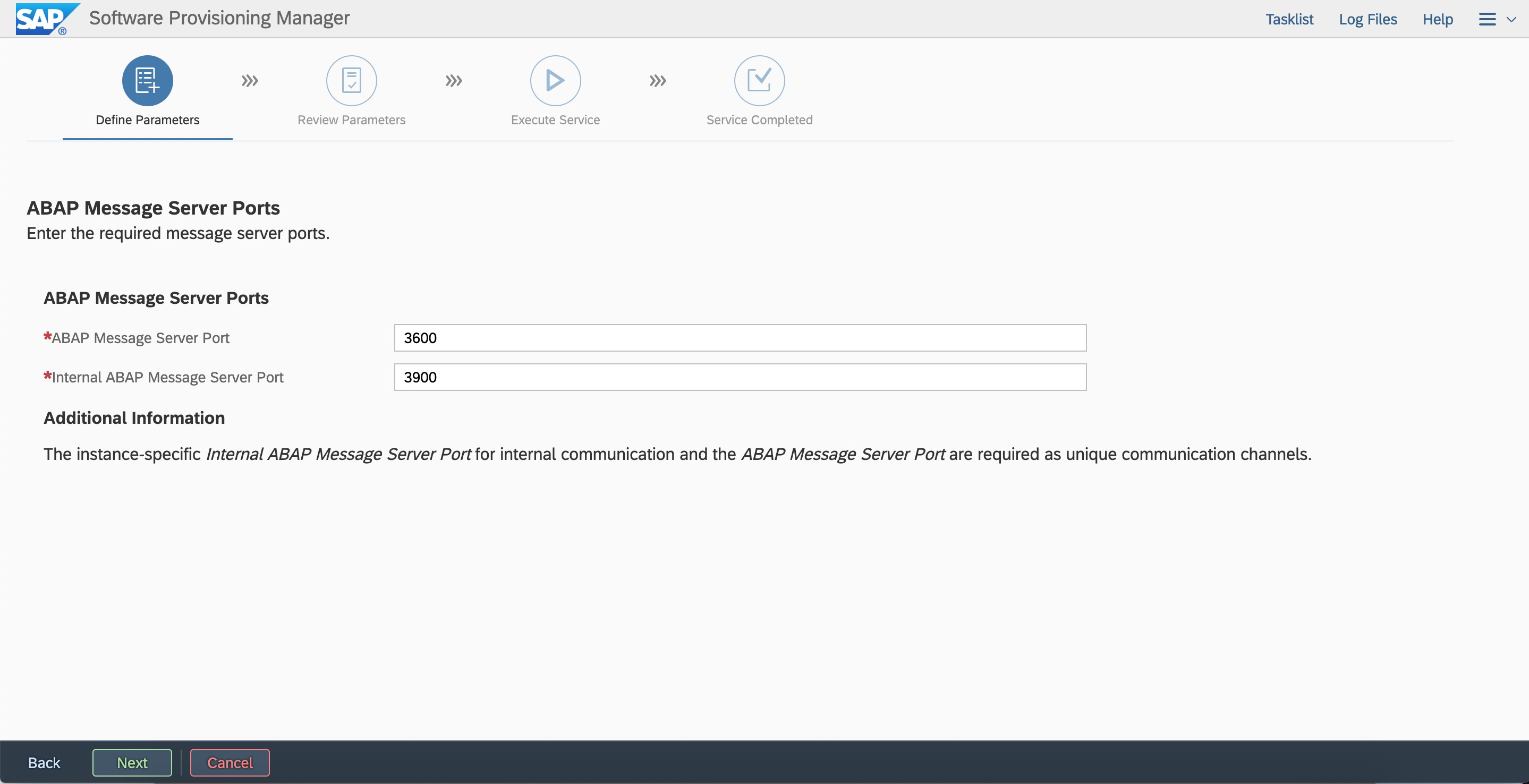
Enter the ASCS instance number and virtual hostname as planned.
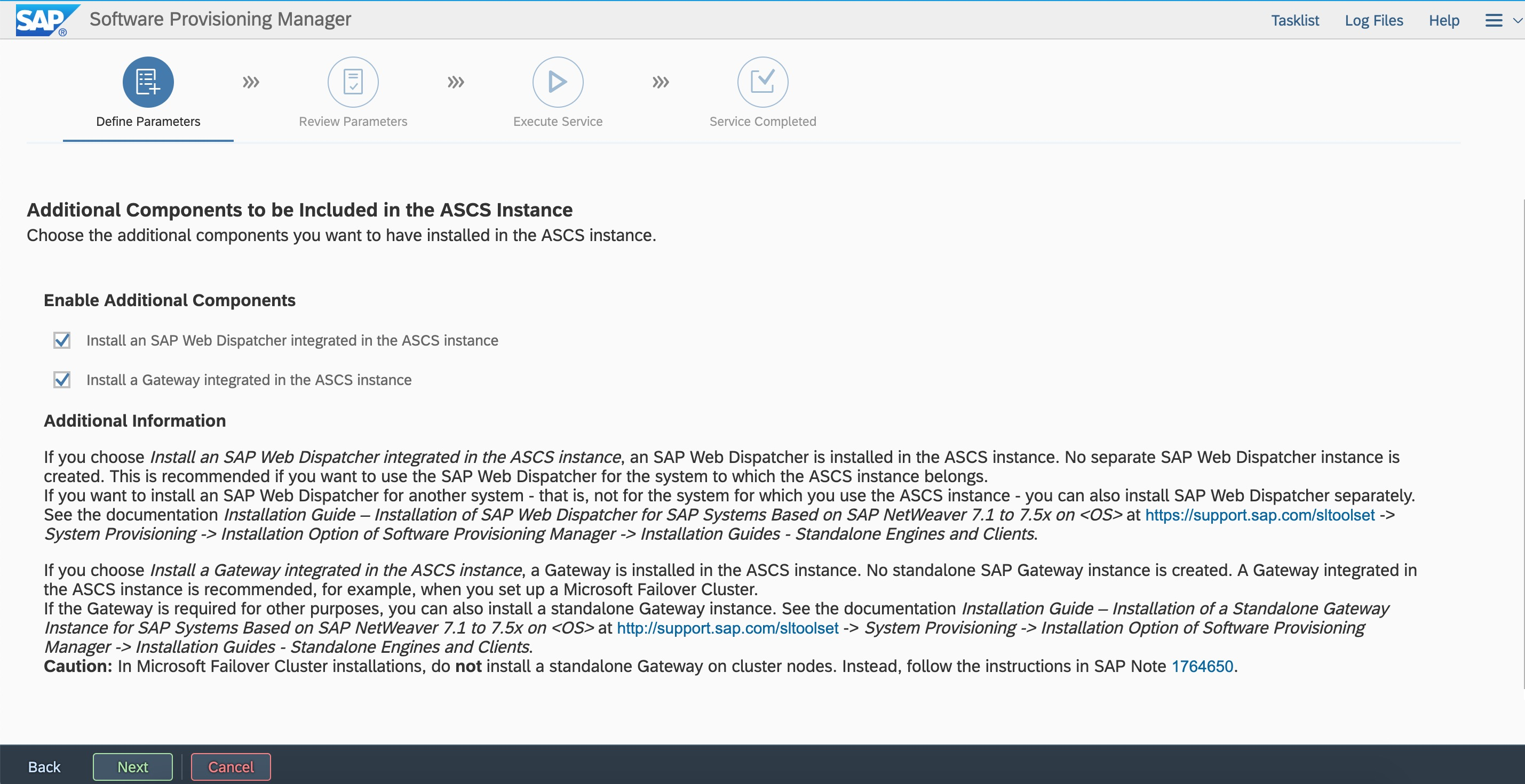
Integrate an SAP Web Dispatcher and a gateway with the ASCS instance.
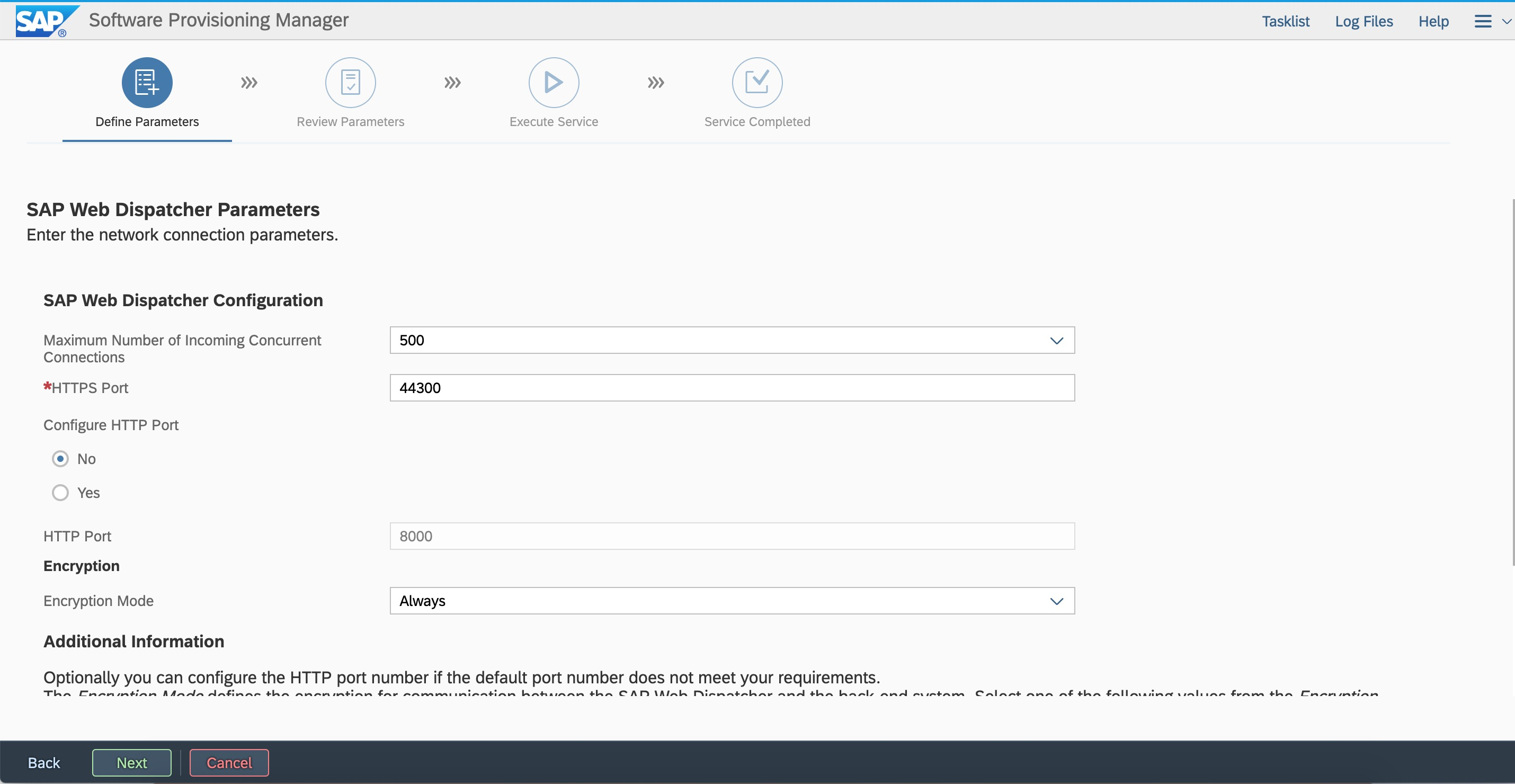
Configure the SAP Web Dispatcher. You can modify the configuration later.
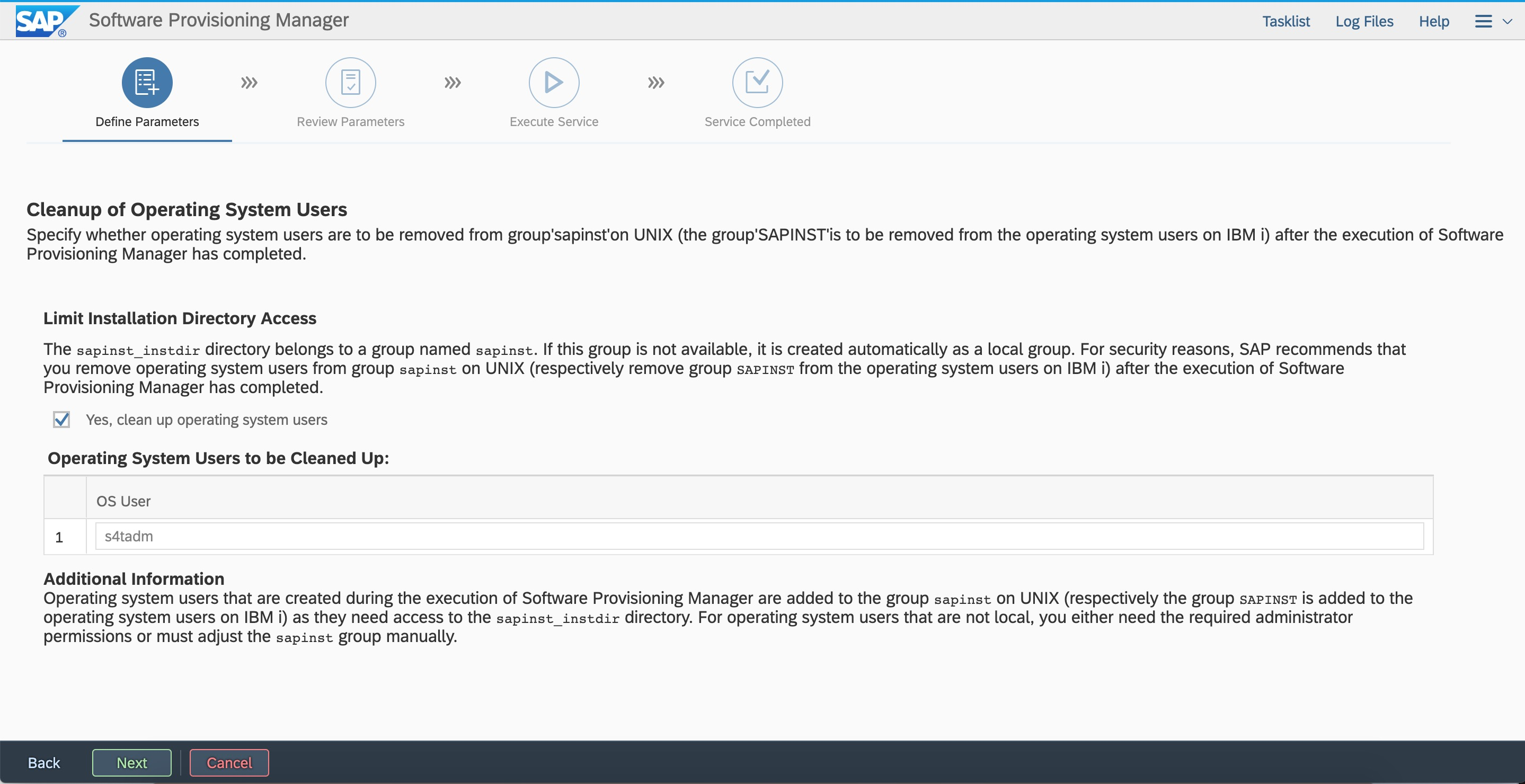
For security reasons, we recommend that you remove the sidadm user from the sapinst group.
Review parameter settings. You can modify parameters in this step.
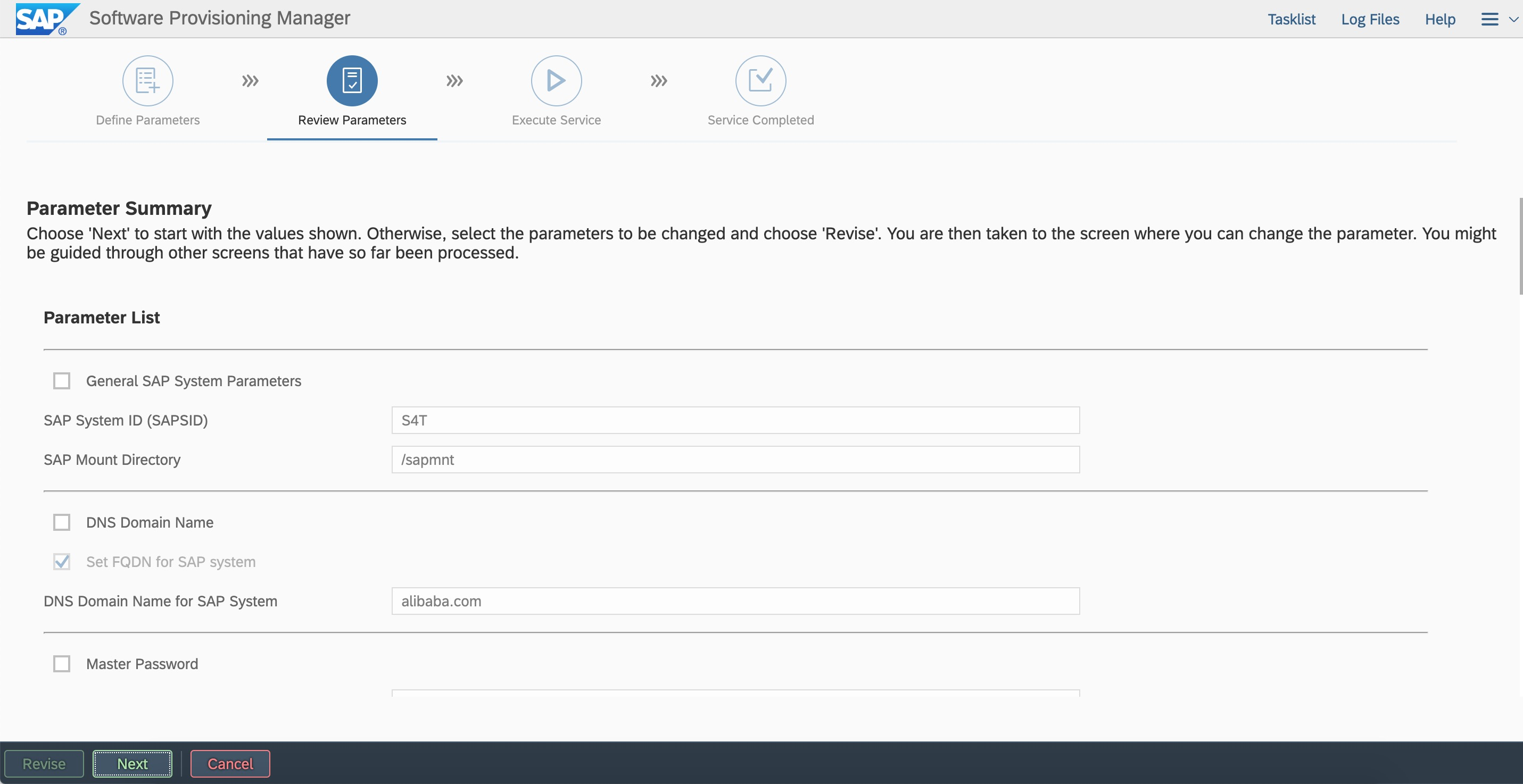
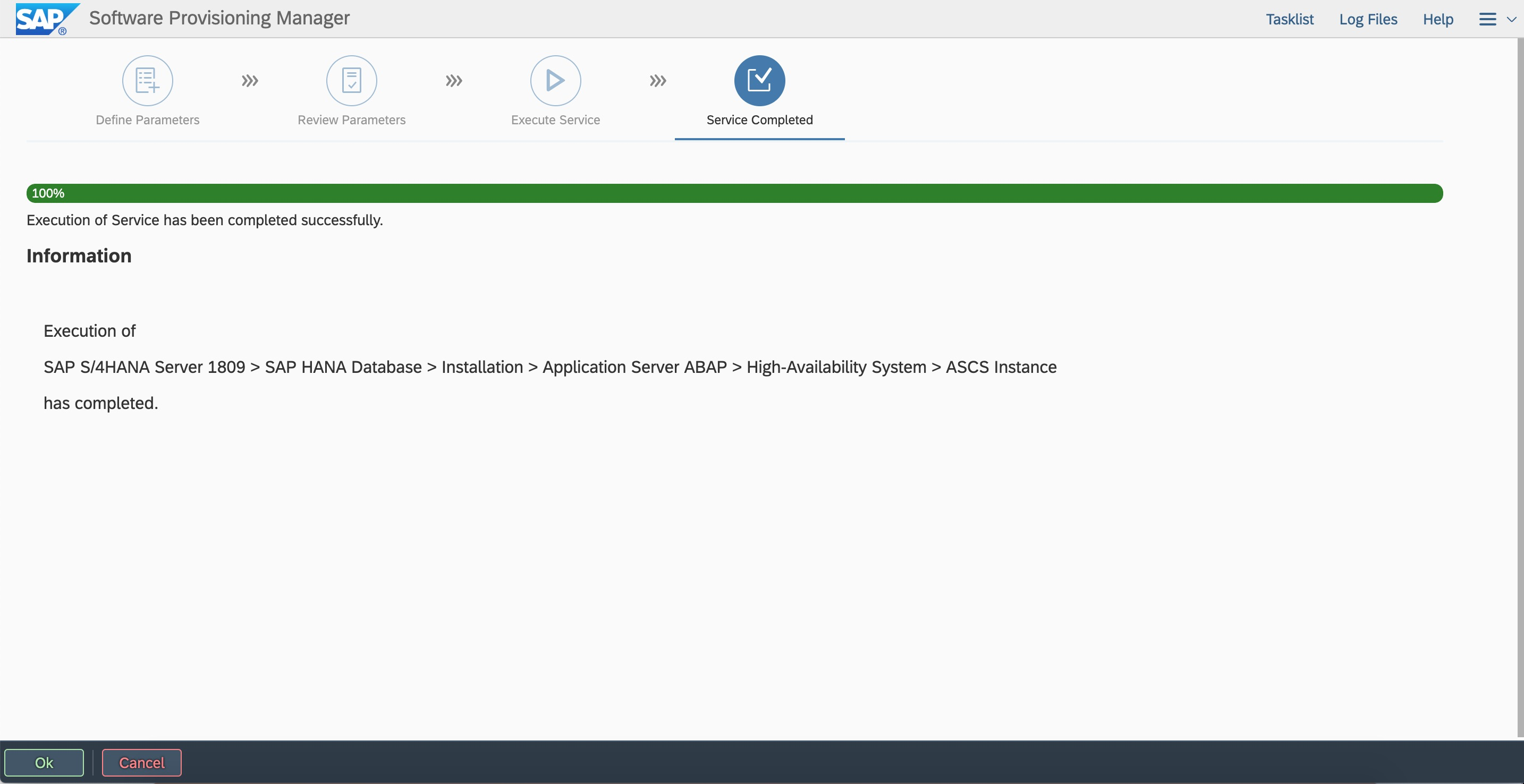
Check the statuses of the message server and enqueue server.
Install the ERS instance
Log on to the primary node and start the SWPM. Run the following command to install the ERS instance on the virtual host VERS4T:
# ./sapinst SAPINST_USE_HOSTNAME=VERSS4T
On a Windows jump server, enter the following URL in the address bar of a browser:
https://VERSS4T:4237/sapinst/docs/index.html
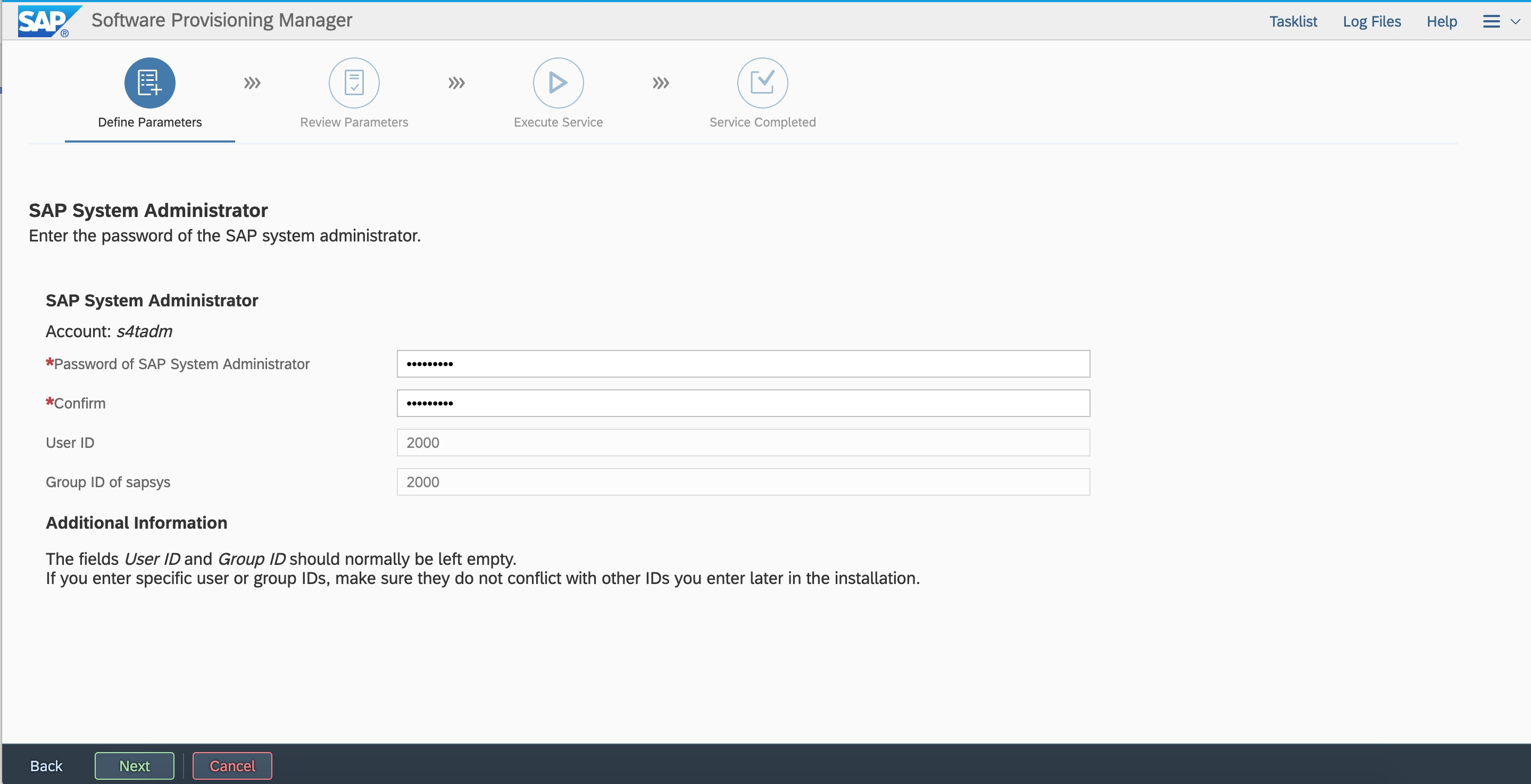
Use the root username and password to log on to the host. Ensure that the hostname can be resolved and the port can be accessed.
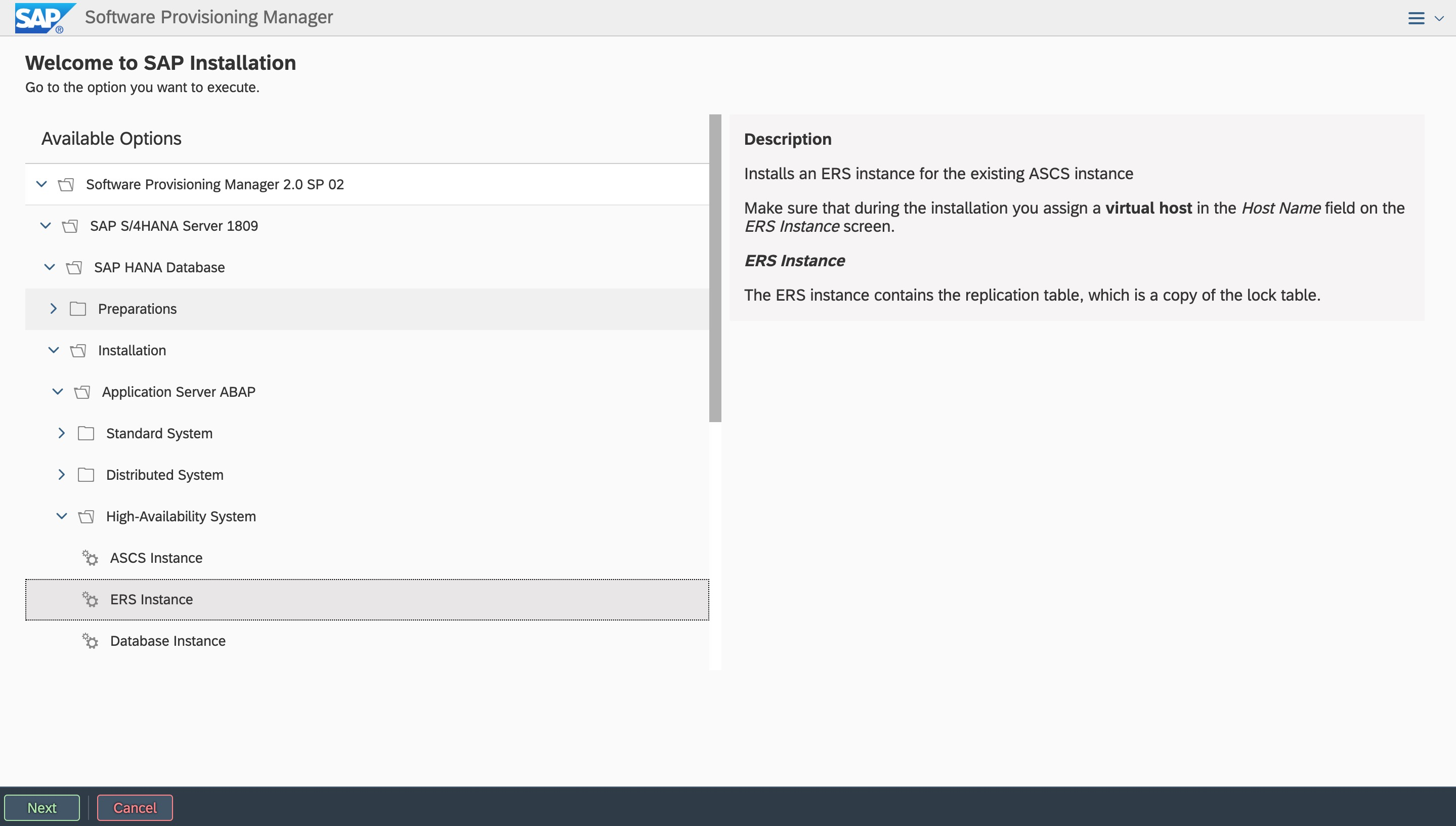
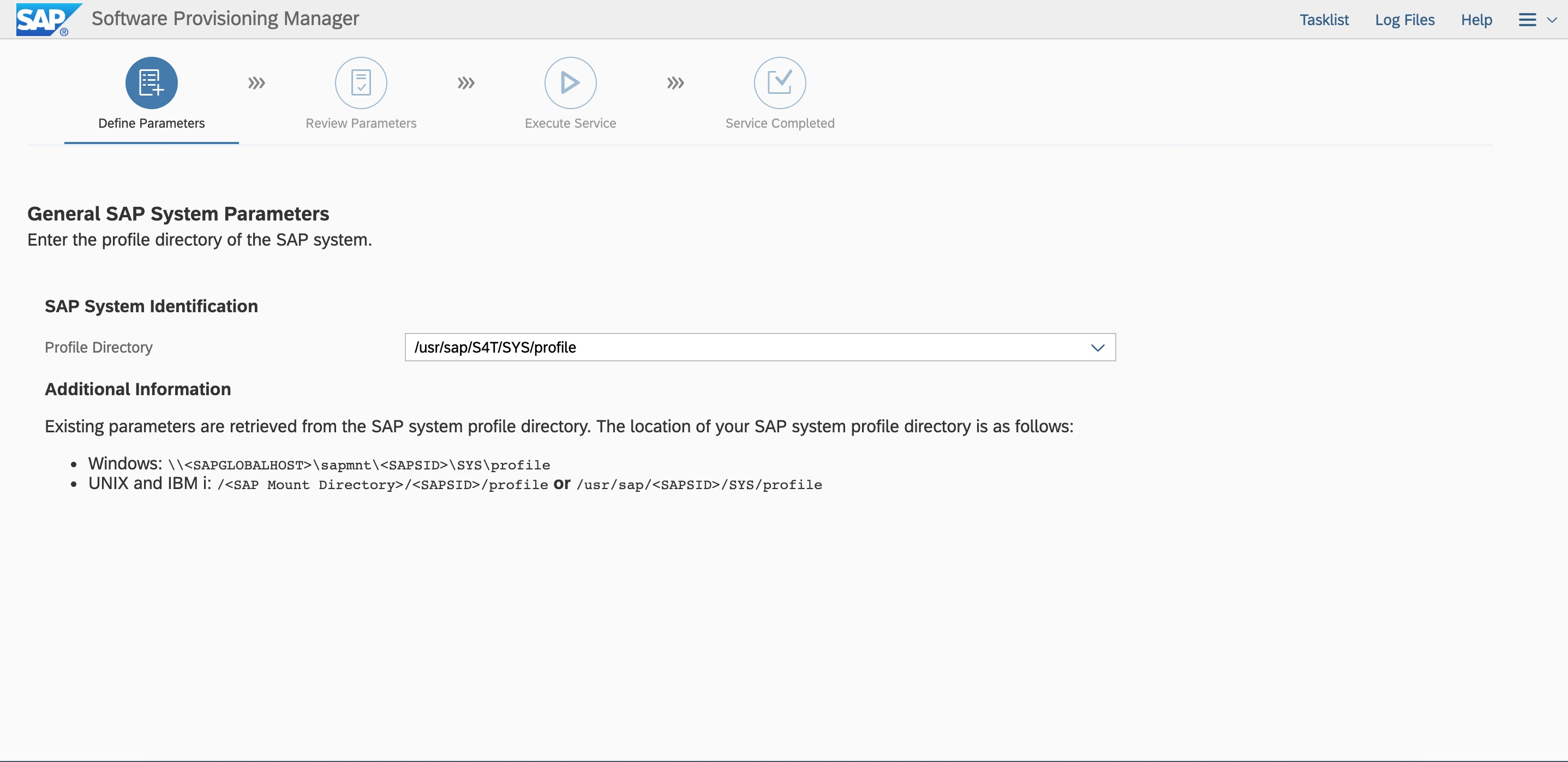
Enter the user ID as planned.
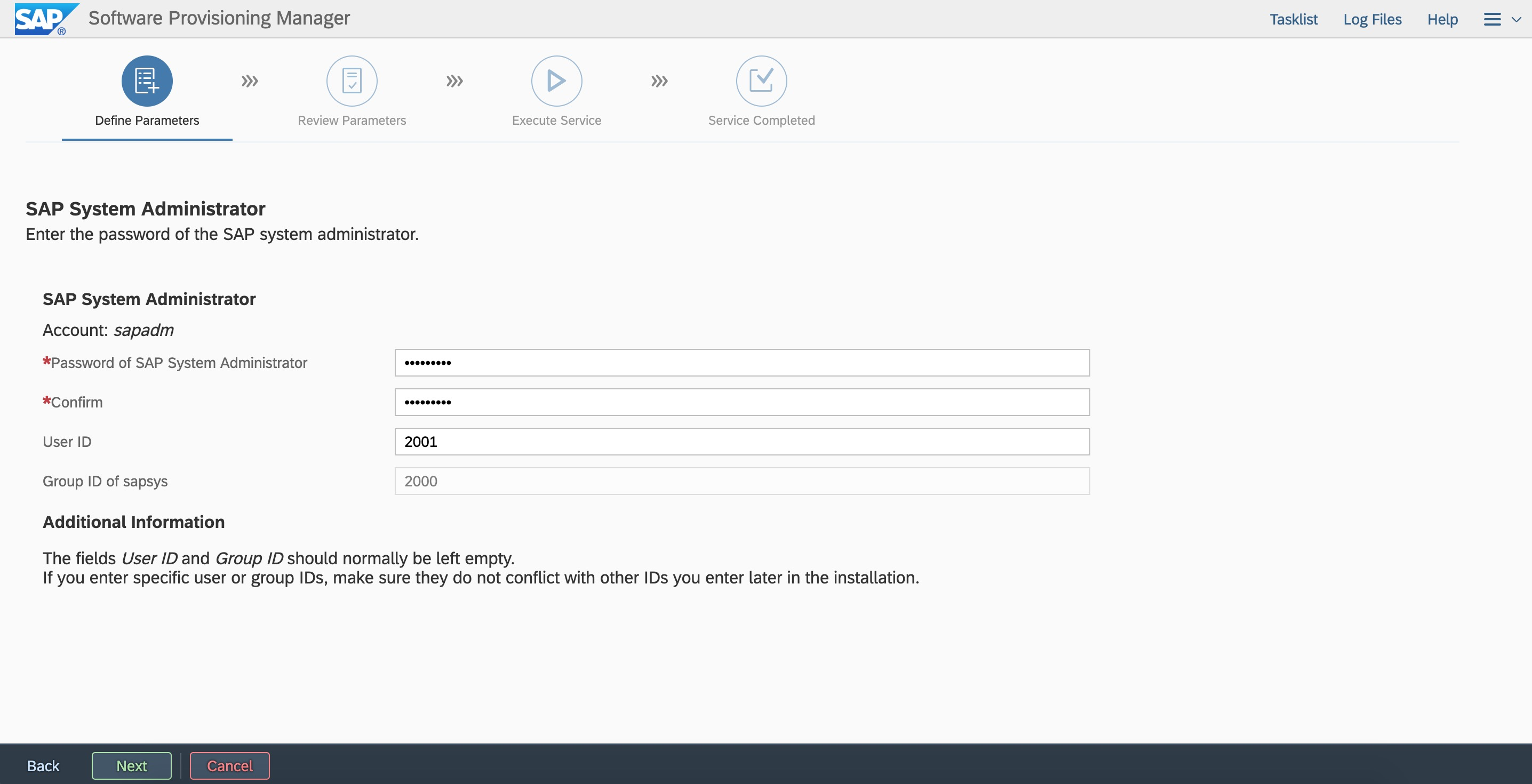
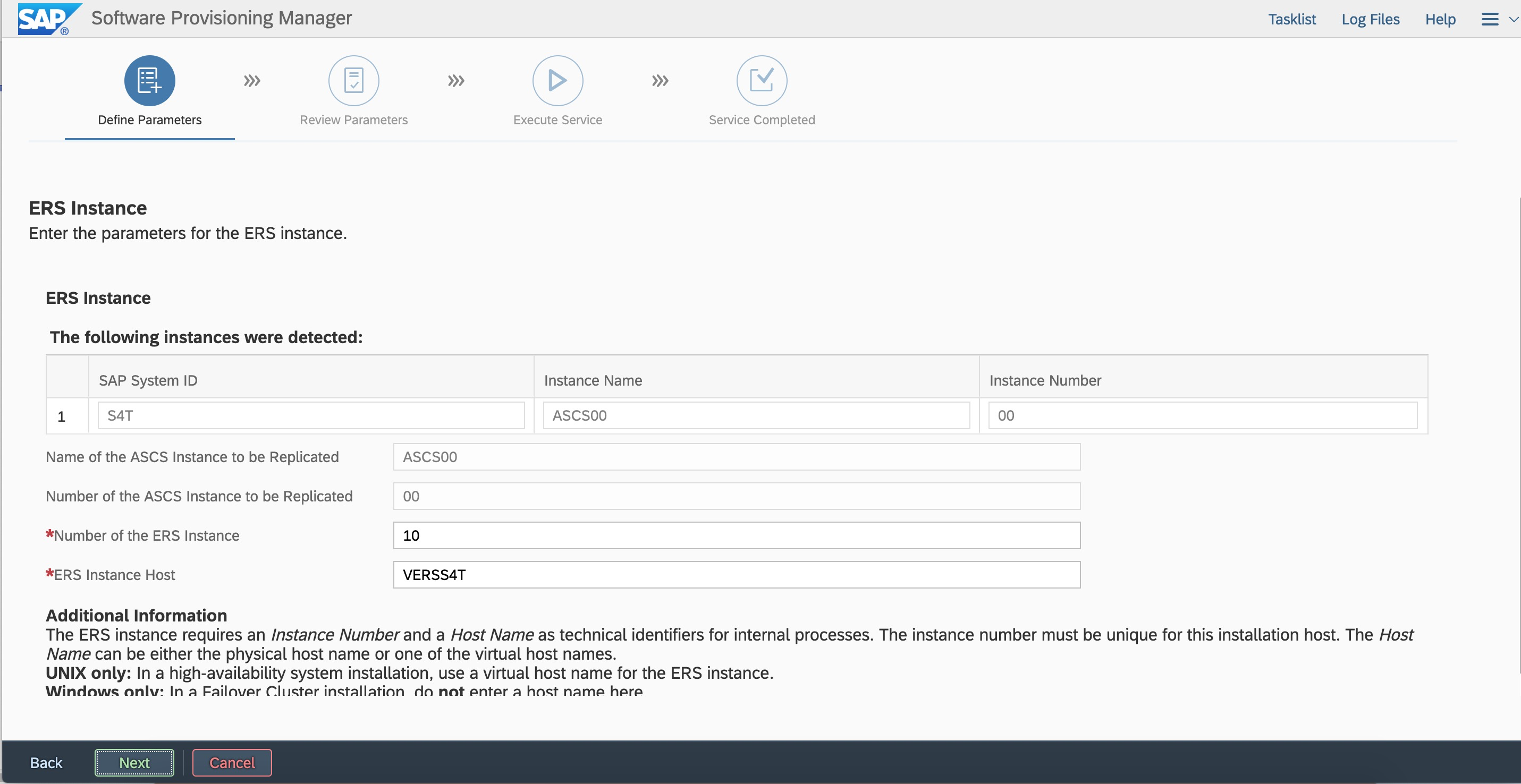
Enter the ERS instance number and virtual hostname as planned.
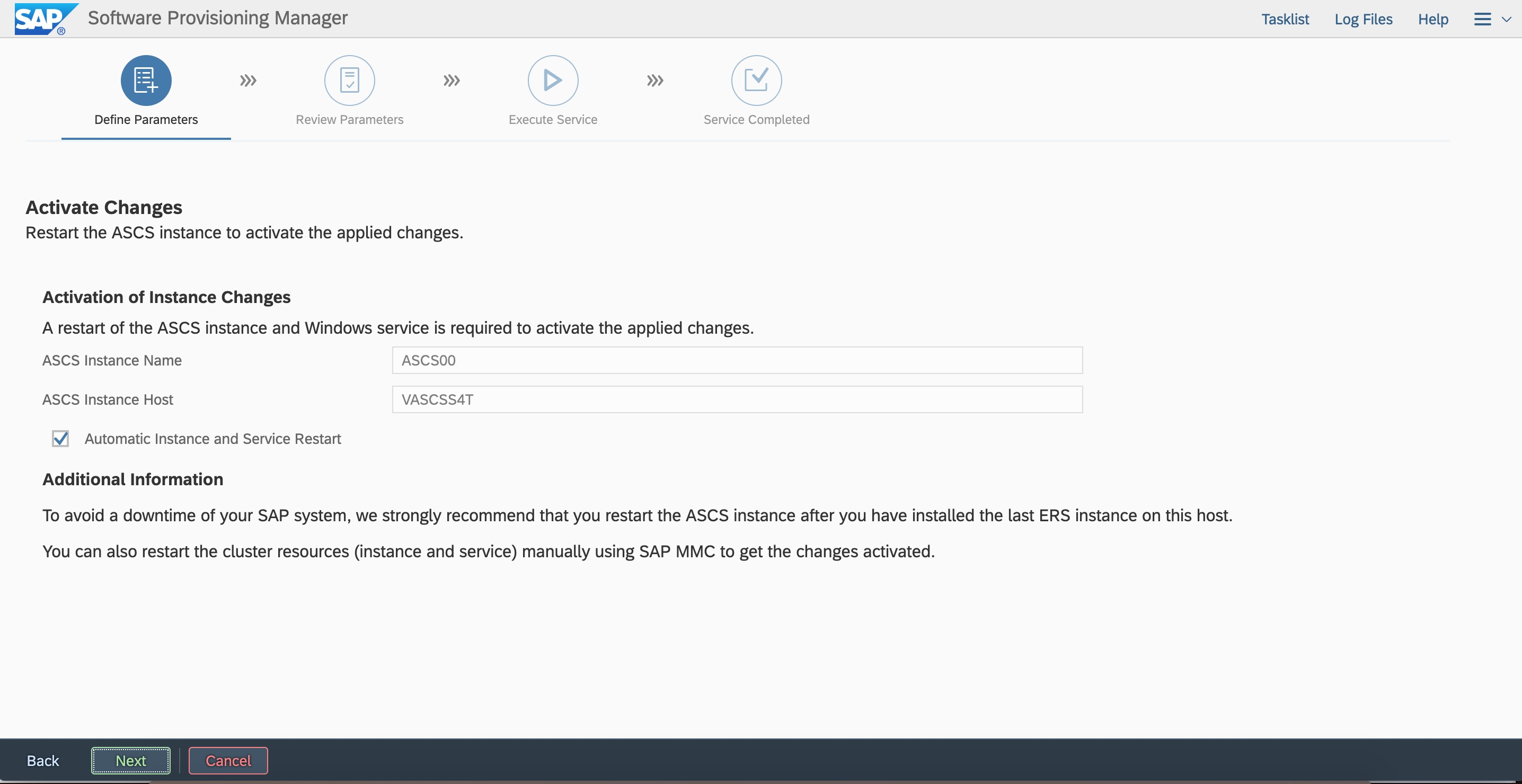
Enter the user ID as planned.
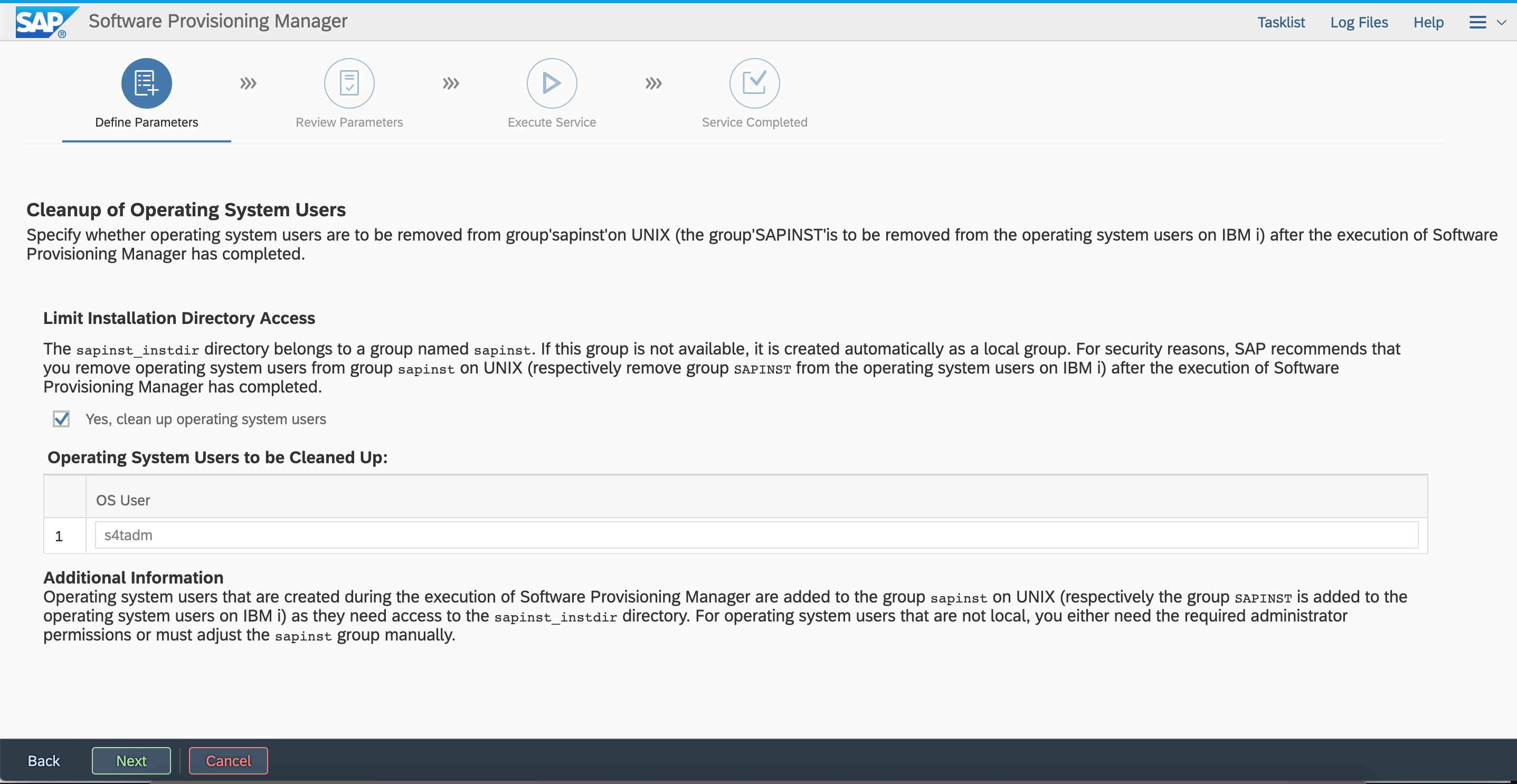
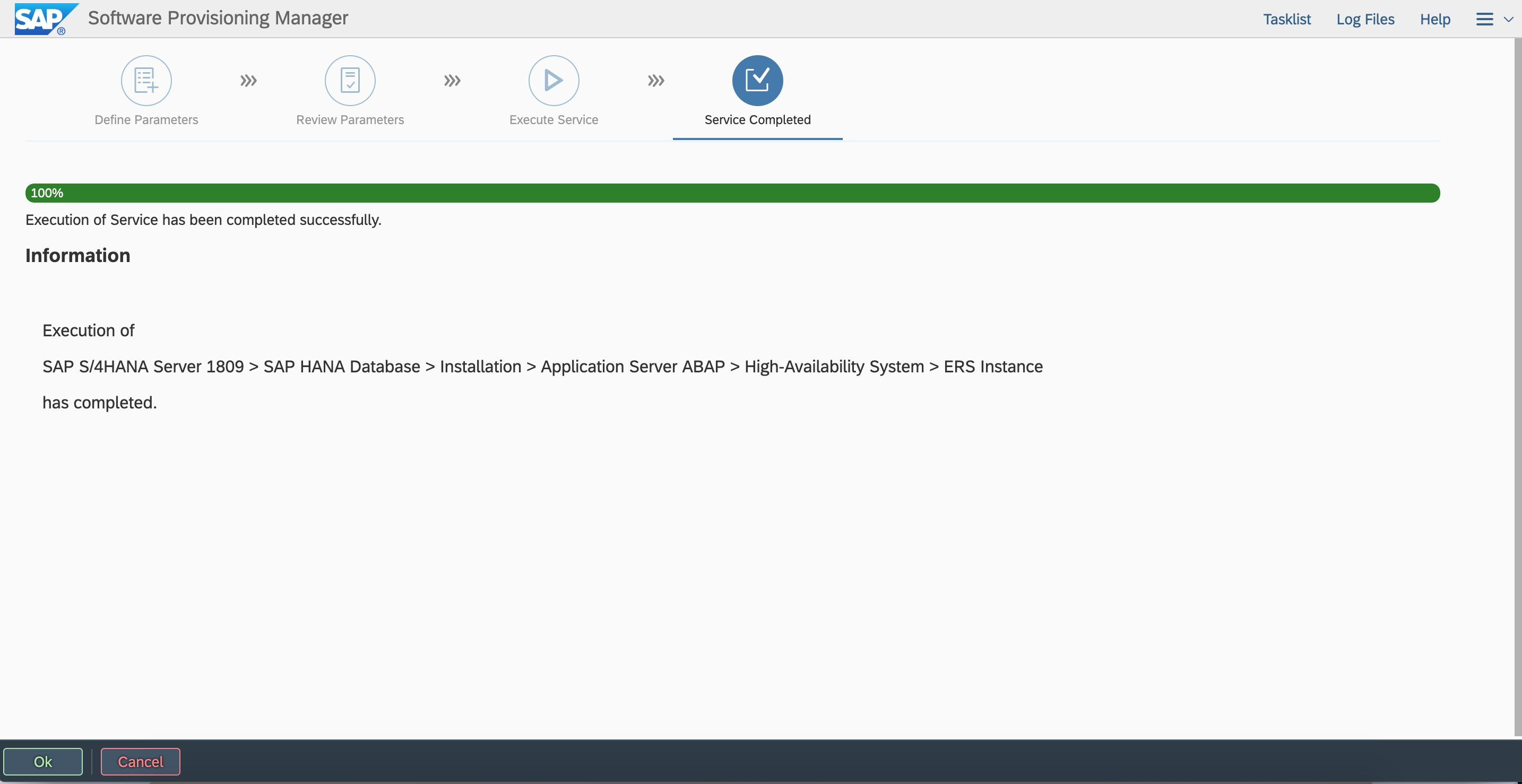
Check the status of ERS.

Configure ASCS and ERS instances on the secondary node
1. Create users and group.
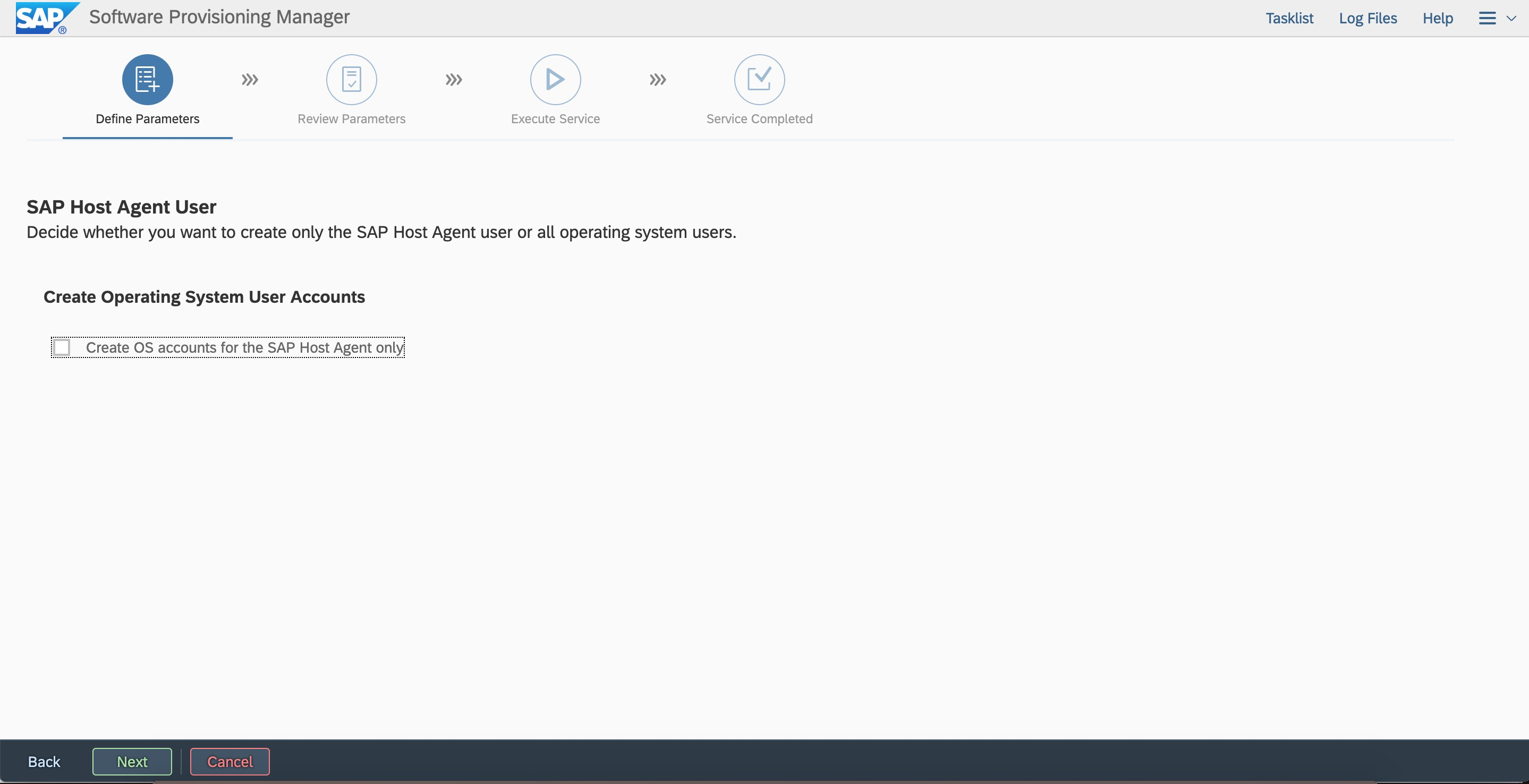
On the secondary node, start the SWPM to create the same users and group as those on the primary node. Run the following command:
Create the sapadm user.
#./sapinst
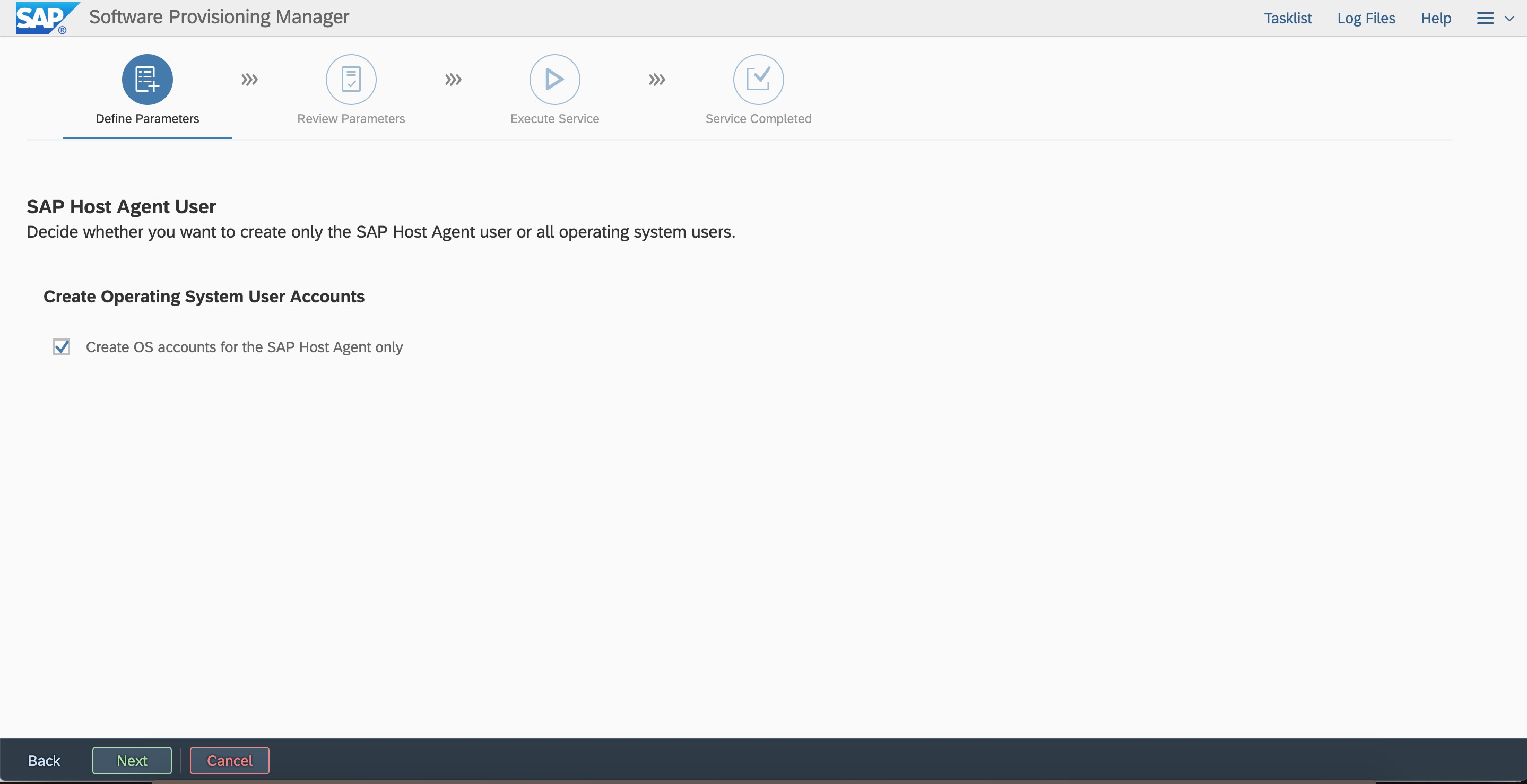
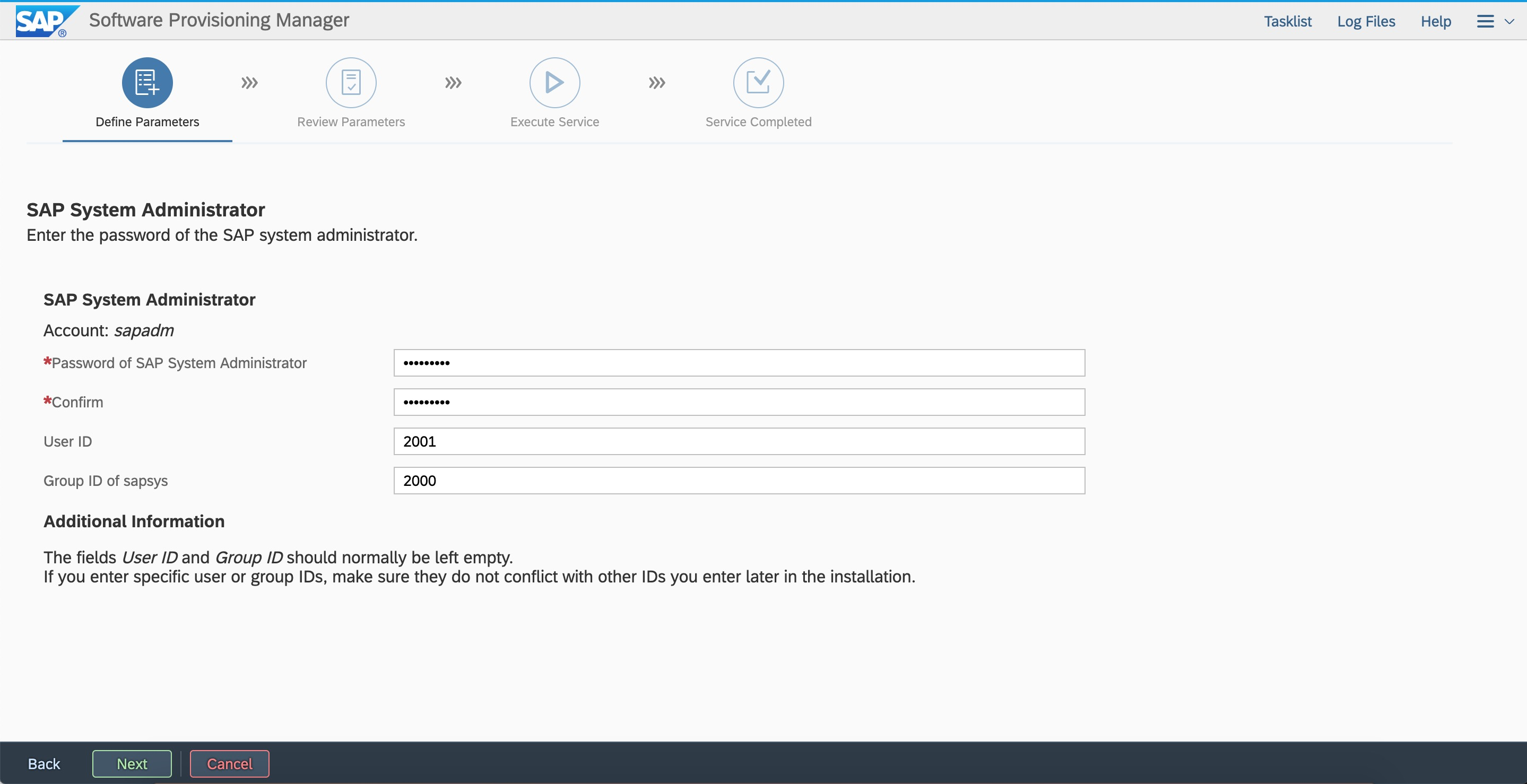
Create the sidadm user.
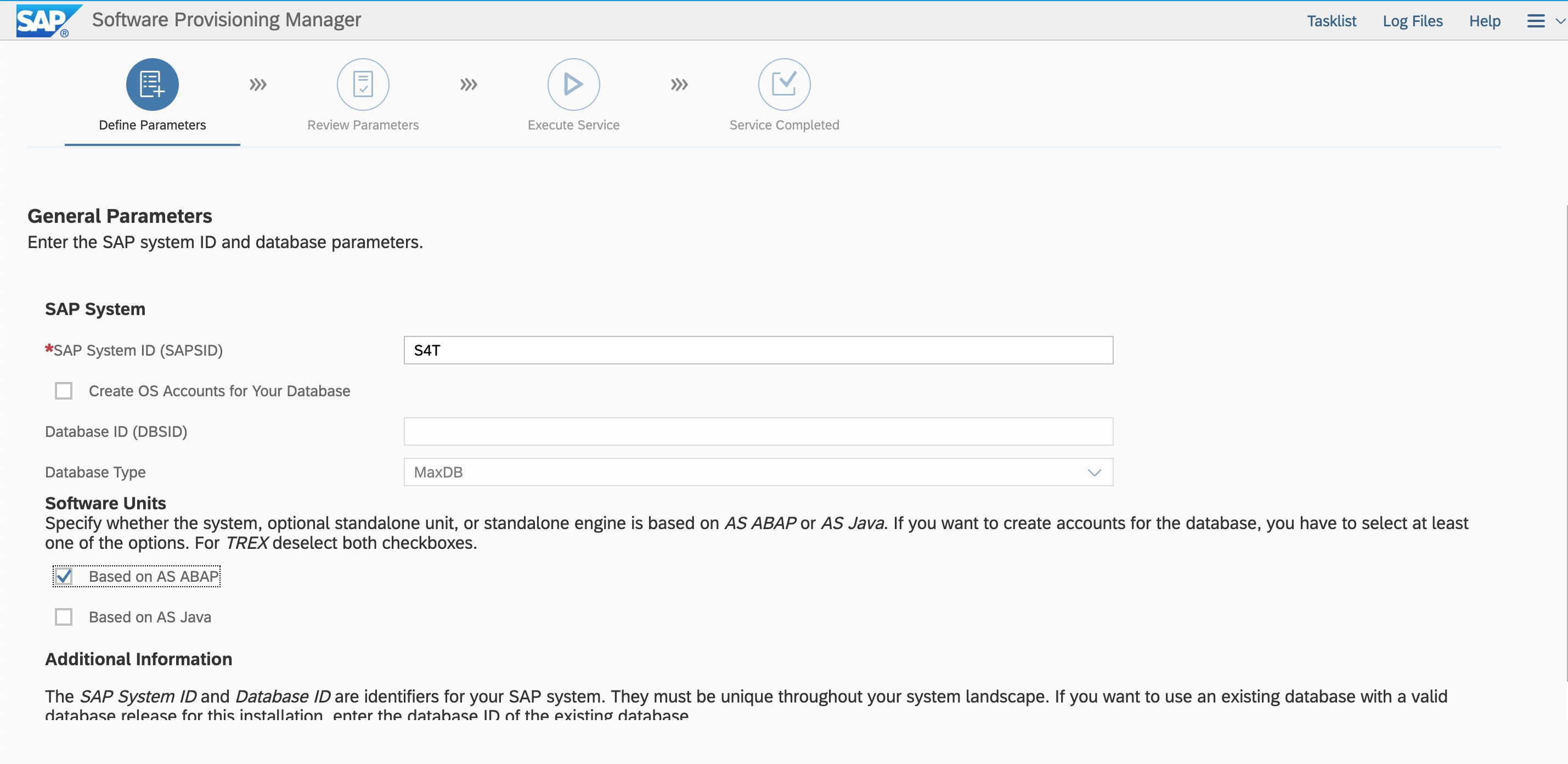
Enter the system ID and select Based on AS ABAP.
Enter the user IDs and group ID as planned, which are the same as those on the primary node.
2. Copy files.
Log on to the primary node.
(1) Run the following command to copy the services file in the /etc directory to the same directory of the secondary node:
#scp -pr services root@s4app2:/etc/
(2) Run the following command to copy the sapservices file in the /usr/sap directory to the same directory of the secondary node:
#scp -pr sapservices root@s4app2:/usr/sap/
(3) Run the following commands to copy the ASCS00, ERS10, and SYS directories to the secondary node:
#cd /usr/sap/S4T
#tar -cvf ASCSERSSYS.tar *
Log on to the secondary node. Run the following commands to create an S4T directory that has the same permissions in the /usr/sap directory of the secondary node, and copy and decompress the ASCSERSSYS.tar package:
#scp –pr ASCSERSSYS.tar root@s4app2:/usr/sap/S4T
#tar –xvf ASCSERSSYS.tar
(4) Check whether the symbolic link of the SYS directory is correct.

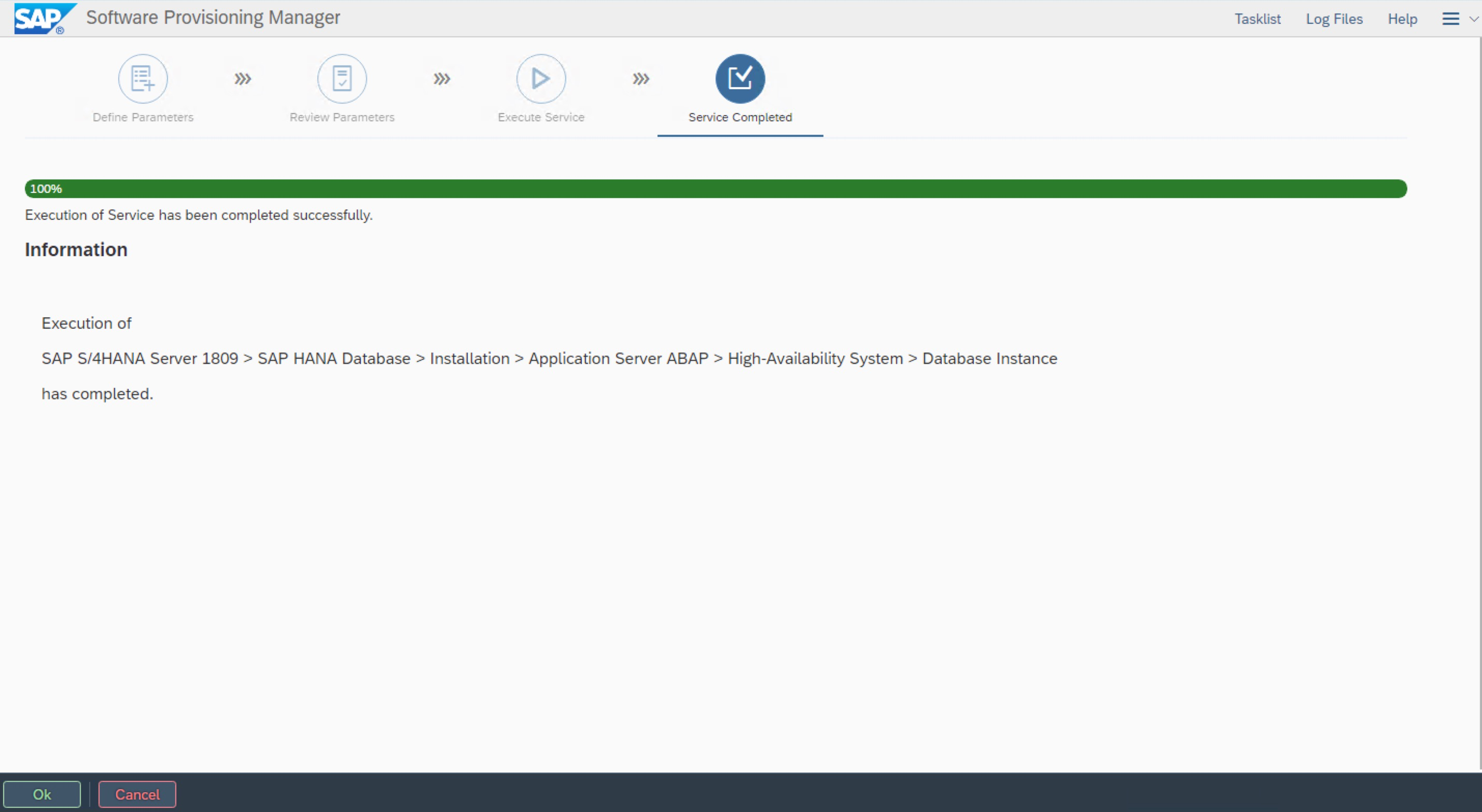
Install the database instance
Log on to the primary node and start the SWPM. Run the following command to install the database instance on the virtual host VDBS4T:
# ./sapinst SAPINST_USE_HOSTNAME=VDBS4T
On a Windows jump server, enter the following URL in the address bar of a browser:
https://VDBS4T:4237/sapinst/docs/index.html
Use the root username and password to log on to the host. Ensure that the hostname can be resolved and the port can be accessed.
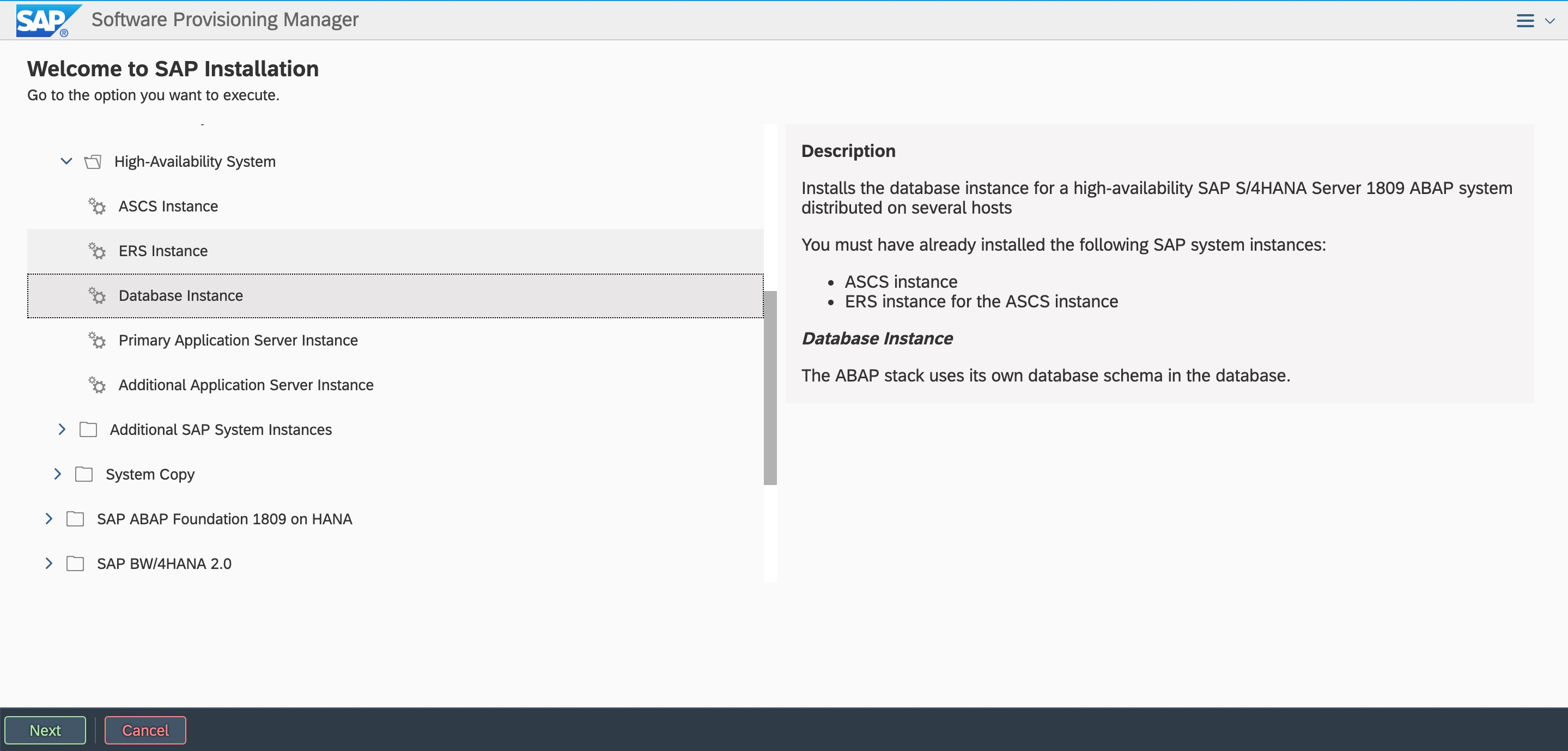
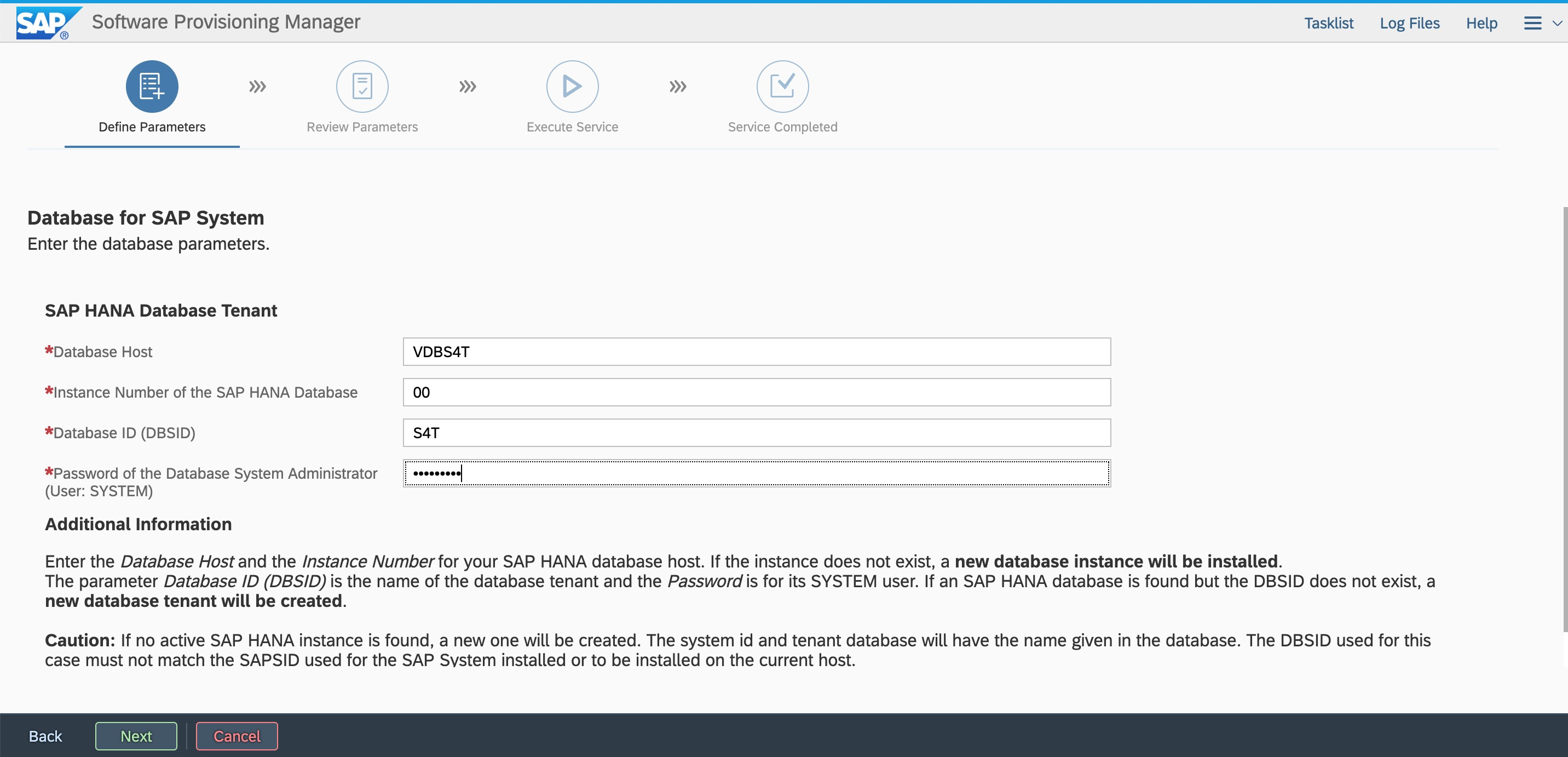
Enter the system ID, database instance number, and virtual hostname as planned.
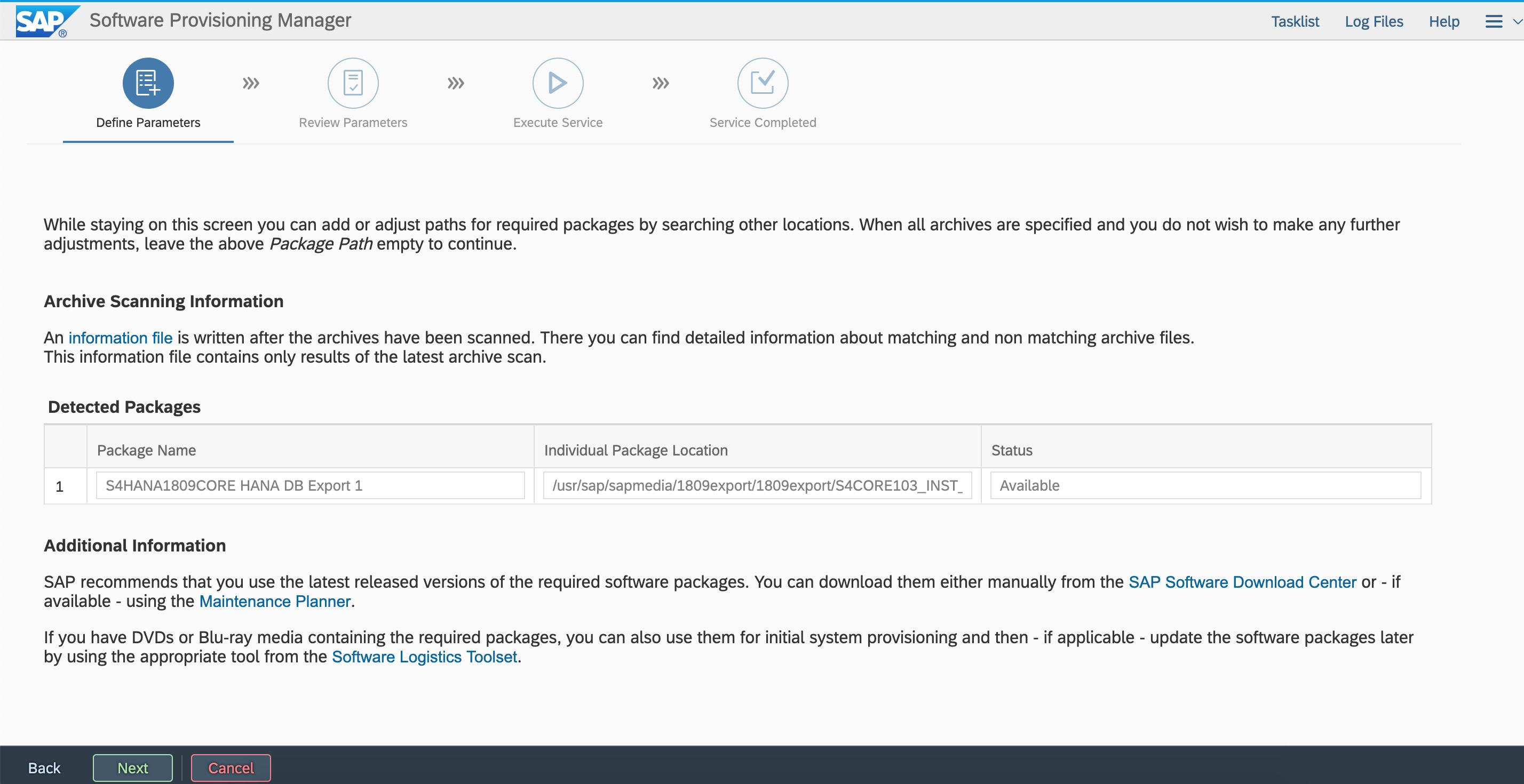
Specify the path of the export package.
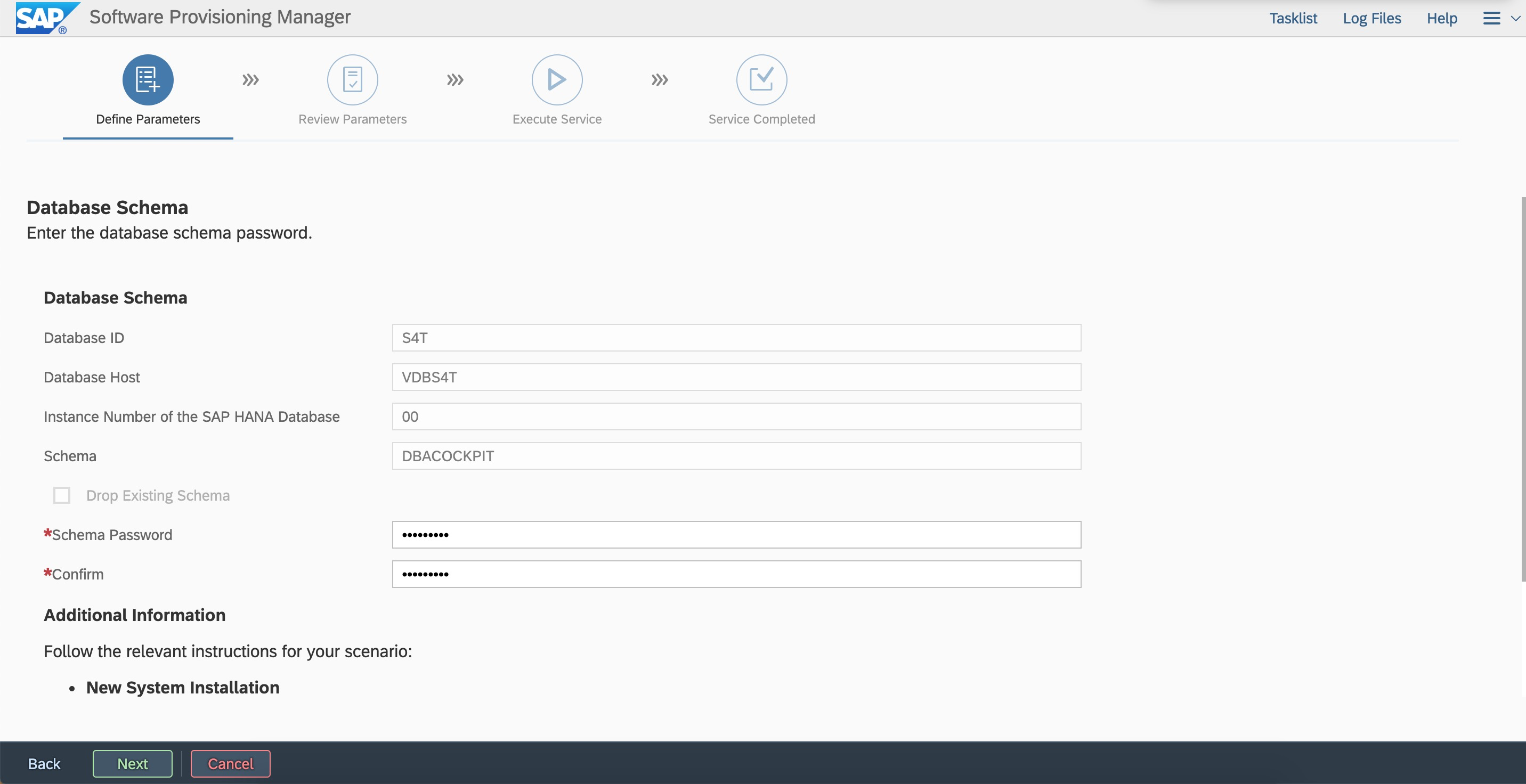
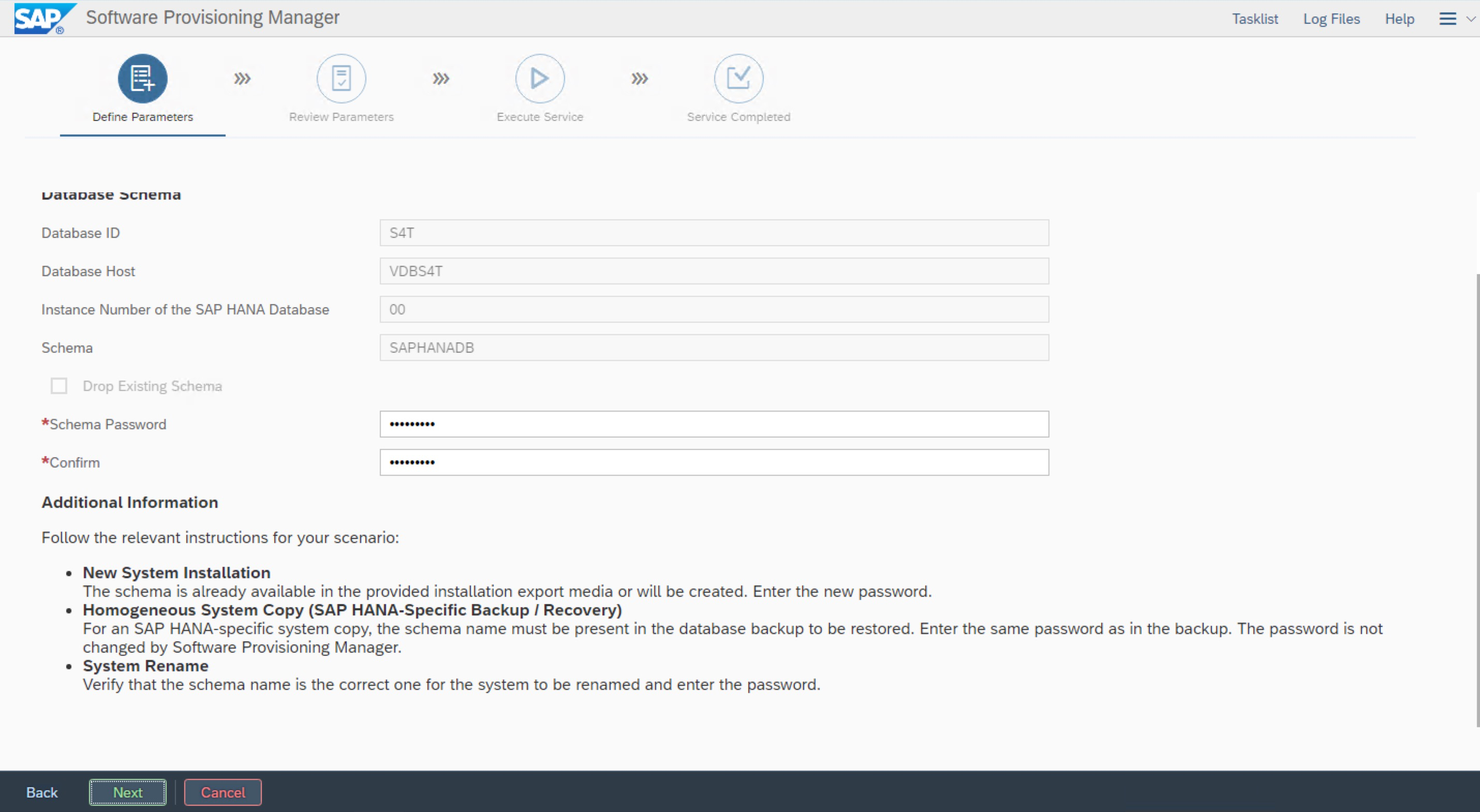
Set a password.
Integrate the SAP instance
1. Add the sidadm user to the haclint group.
Run the following command to add the sidadm user to the haclient group on both nodes:
#usermod -a -G haclient s4tadm
2. Modify the parameter file of the ASCS instance.
(1) Add related configuration to configure the integration with sap_suse_cluster_connector.
(2) Change related configuration to prevent the SAP startup framework from restarting enqueue server upon failure.
####added for sap-suse-cluster-connector####
#-----------------------------------
#SUSE HAE sap_suse_cluster_connector
#-----------------------------------
service/halib = $(DIR_CT_RUN)/saphascriptco.so
service/halib_cluster_connector = /usr/bin/sap_suse_cluster_connector
####chanegd for not to self-restart the enqueue process####
# Start SAP enqueue server
_EN = en.sap$(SAPSYSTEMNAME)_$(INSTANCE_NAME)
Execute_04 = local rm -f $(_EN)
Execute_05 = local ln -s -f $(DIR_EXECUTABLE)/enserver$(FT_EXE) $(_EN)
#Restart_Program_01 = local $(_EN) pf=$(_PF)
Start_Program_01 = local $(_EN) pf=$(_PF)
##################################
3. Modify the parameter file of the ERS instance.
(1) Add related configuration to configure the integration with sap_suse_cluster_connector.
(2) Change related configuration to prevent the SAP startup framework from restarting enqueue replication server (Enqueue Replicator 2) upon failure.
####added for sap-suse-cluster-connector####
#-----------------------------------
#SUSE HAE sap_suse_cluster_connector
#-----------------------------------
service/halib = $(DIR_CT_RUN)/saphascriptco.so
service/halib_cluster_connector = /usr/bin/sap_suse_cluster_connector
###############################################################
#####changed by dongchen_201804###
#Restart_Program_00 = local $(_ENQR) pf=$(_PF) NR=$(SCSID)
Start_Program_00 = local $(_ENQR) pf=$(_PF) NR=$(SCSID)
##################################
4. Configure the resource agent
This example introduces two configurations of the SBD fence device. Select the corresponding configuration script based on the SBD fence.
Solution 1: Use shared block storage to implement the SBD fence
Log on to a node in the cluster and replace SID, InstanceNumber, and params ip in the script with the values of SAP system.
The content of HA_script.txt is as follows:
#Cluster settings
property cib-bootstrap-options: \
        have-watchdog=true \
        cluster-infrastructure=corosync \
        cluster-name=hacluster \
        stonith-enabled=true \
        placement-strategy=balanced \
        maintenance-mode=false
rsc_defaults rsc-options: \
        resource-stickiness=1 \
        migration-threshold=3
op_defaults op-options: \
        timeout=600 \
        record-pending=true
#STONITH resource setting
primitive stonith-sbd stonith:external/sbd \
        params pcmk_delay_max=30s
#ASCS resource setting
primitive rsc_ip_S4T_ASCS00 IPaddr2 \
        params ip=10.0.10.12 \
        op monitor interval=10s timeout=20s
primitive rsc_sap_S4T_ASCS00 SAPInstance \
        operations $id=rsc_sap_S4T_ASCS00-operations \
        op monitor interval=11 timeout=60 on_fail=restart \
        params InstanceName=S4T_ASCS00_VASCSS4T START_PROFILE="/sapmnt/S4T/profile/S4T_ASCS00_VASCSS4T" AUTOMATIC_RECOVER=false \
        meta resource-stickiness=5000 target-role=Started
#ERS resource setting
primitive rsc_ip_S4T_ERS10 IPaddr2 \
        params ip=10.0.10.13 \
        op monitor interval=10s timeout=20s
primitive rsc_sap_S4T_ERS10 SAPInstance \
        operations $id=rsc_sap_S4T_ERS10-operations \
        op monitor interval=11 timeout=60 on_fail=restart \
        params InstanceName=S4T_ERS10_VERSS4T START_PROFILE="/sapmnt/S4T/profile/S4T_ERS10_VERSS4T" AUTOMATIC_RECOVER=false IS_ERS=true \
        meta target-role=Started maintenance=false
#Groups and colocations
group grp_S4T_ASCS00 rsc_ip_S4T_ASCS00 rsc_sap_S4T_ASCS00 \
        meta resource-stickiness=3000
group grp_S4T_ERS10 rsc_ip_S4T_ERS10 rsc_sap_S4T_ERS10 \
        meta target-role=Started
colocation col_sap_S4T_no_both -5000: grp_S4T_ERS10 grp_S4T_ASCS00
order ord_sap_S4T_first_start_ascs Optional: rsc_sap_S4T_ASCS00:start rsc_sap_S4T_ERS10:stop symmetrical=false
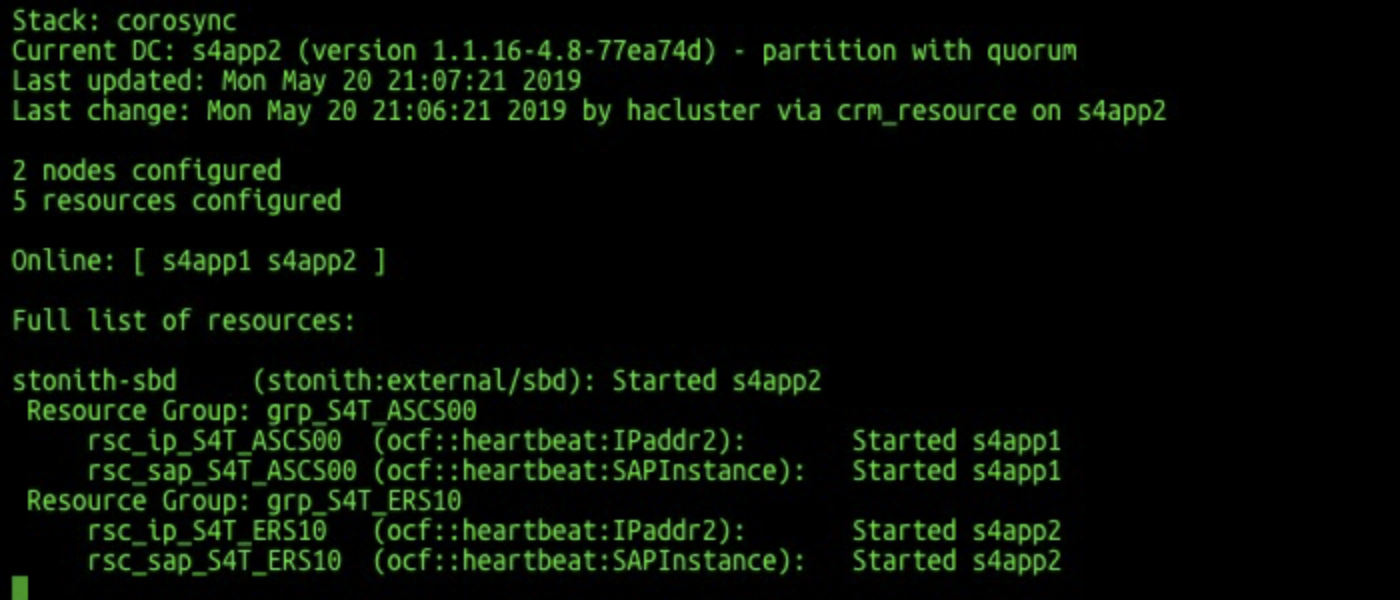
Check HA status, ensure that all resource are started.
crm_mon -r
Solution 2: Use Fence agent to implement SBD fence
Log on to a cluster node and create a txt file. Copy the script in the preceding example and modify the following parameters based on the SAP HANA deployment situation:
-
Replace the value of plug with the IDs of two ECS instances in the SAP HANA cluster.
-
Replace the value of ram_role with the value of the ram role configured above.
-
Replace the value of region with the region ID of the ECS instance.
-
Replace the ip address with the havip address of S/4 ASCS and ERS.
-
Replace InstanceName and START_PROFILE with S/4 ASCS and ERS parameter names and paths
-
The values of group, colocation, and order must be consistent with the resource name defined earlier.
-
Replace location parameters with the hostname of the S/4 ASCS and ERS instances.
For Alibaba Cloud regions and Region IDs, see Regions and availability zones.
The script file name in this example: HA_script.txt
#Fence agent setting
primitive res_ALIYUN_STONITH_1 stonith:fence_aliyun \
    op monitor interval=120 timeout=60 \
    params plug=i-xxxxxxxxxxxxxxxxxxxx ram_role=AliyunECSAccessingHBRRole region=cn-beijing
primitive res_ALIYUN_STONITH_2 stonith:fence_aliyun \
    op monitor interval=120 timeout=60 \
    params plug=i-xxxxxxxxxxxxxxxxxxxx ram_role=AliyunECSAccessingHBRRole region=cn-beijing
#ASCS/ERS resource setting
primitive rsc_ip_S4T_ASCS00 IPaddr2 \
        params ip=10.0.10.12 \
        op monitor interval=10s timeout=20s
primitive rsc_sap_S4T_ASCS00 SAPInstance \
        operations $id=rsc_sap_S4T_ASCS00-operations \
        op monitor interval=11 timeout=60 \
        op_params on_fail=restart \
        params InstanceName=S4T_ASCS00_VASCSS4T START_PROFILE="/sapmnt/S4T/profile/S4T_ASCS00_VASCSS4T" AUTOMATIC_RECOVER=false \
        meta resource-stickiness=5000
primitive rsc_ip_S4T_ERS10 IPaddr2 \
        params ip=10.0.10.13 \
        op monitor interval=10s timeout=20s
primitive rsc_sap_S4T_ERS10 SAPInstance \
        operations $id=rsc_sap_S4T_ERS10-operations \
        op monitor interval=11 timeout=60 \
        op_params on_fail=restart \
        params InstanceName=S4T_ERS10_VERSS4T START_PROFILE="/sapmnt/S4T/profile/S4T_ERS10_VERSS4T" AUTOMATIC_RECOVER=false IS_ERS=true
#Groups
group grp_S4T_ASCS00 rsc_ip_S4T_ASCS00 rsc_sap_S4T_ASCS00 \
        meta target-role=Started resource-stickiness=3000
group grp_S4T_ERS10 rsc_ip_S4T_ERS10 rsc_sap_S4T_ERS10 \
        meta target-role=Started
#Colocations
colocation col_sap_S4T_no_both -5000: grp_S4T_ERS10 grp_S4T_ASCS00
#Stonith 1 should not run on primary node because it is controling primary node
location loc_s4app1_stonith_not_on_s4app1 res_ALIYUN_STONITH_1 -inf: s4app1
location loc_s4app2_stonith_not_on_s4app2 res_ALIYUN_STONITH_2 -inf: s4app2
#Order
order ord_sap_S4T_first_start_ascs Optional: rsc_sap_S4T_ASCS00:start rsc_sap_S4T_ERS10:stop symmetrical=false
#cluster setting
property cib-bootstrap-options: \
        have-watchdog=false \
        cluster-name=hacluster \
        stonith-enabled=true \
        stonith-timeout=150s
rsc_defaults rsc-options: \
        migration-threshold=5000 \
        resource-stickiness=1000
op_defaults op-options: \
        timeout=600
Run the following command with root to allow the resources of SAP ASCS to be taken over by SUSE HAE.
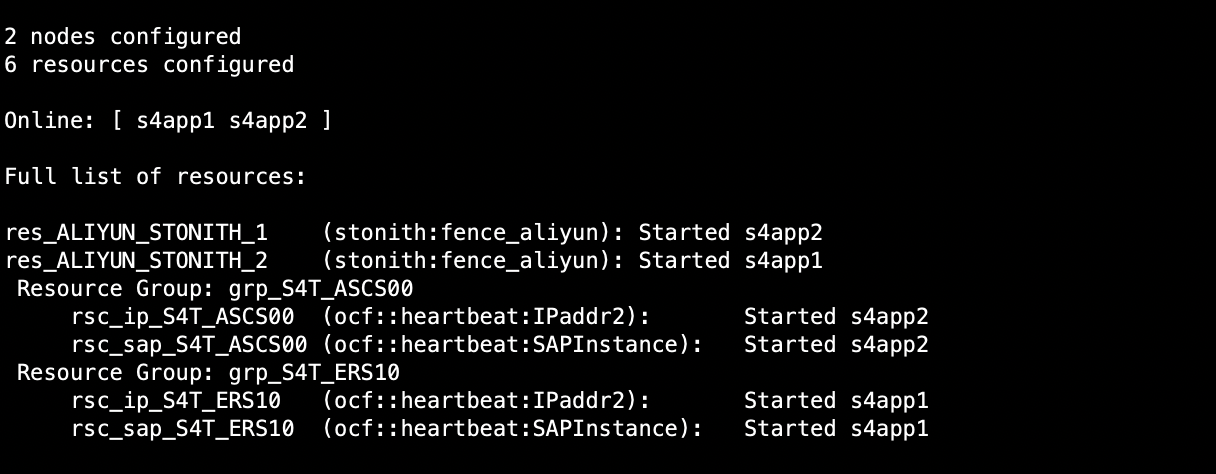
crm configure load update HA_script.txtCheck the HA status, ensure that all resources are started.
crm_mon -r
Unbind and remove configured HaVip
#yast2 network
Delete the HAVIP binding of ASCS and ERS that were temporarily bound before.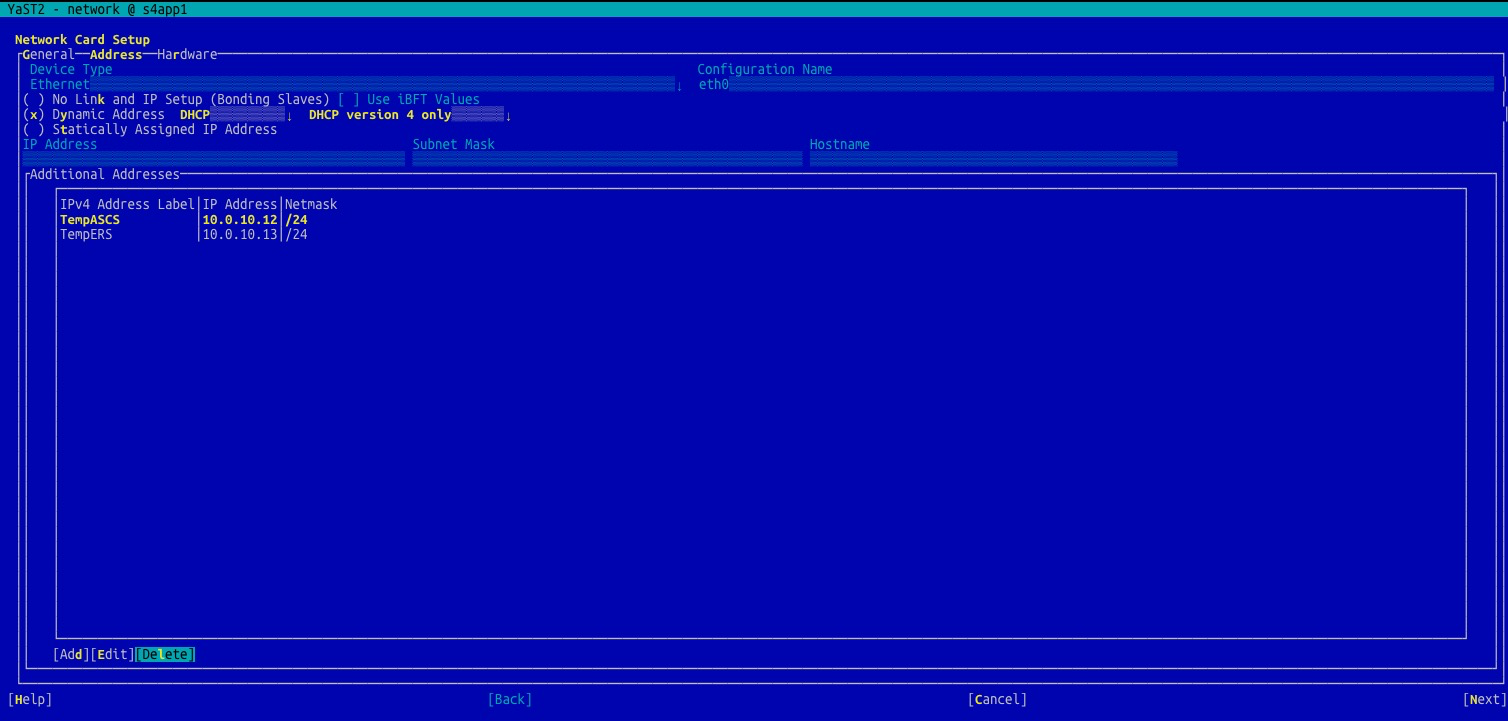
Start or stop the ASCS or ERS instance.
Start the ASCS or ERS instance.
su - s4tadm
#Start the ASCS instance.
sapcontrol -nr 00 -function StartService S4T
sapcontrol -nr 00 -function Start
#Start the ERS instance.
sapcontrol -nr 10 -function StartService S4T
sapcontrol -nr 10 -function Start
Stop the ASCS or ERS instance.
su - s4tadm
#Stop the ASCS instance.
sapcontrol -nr 00 -function StopService S4T
sapcontrol -nr 00 -function Stop
#Stop the ERS instance.
sapcontrol -nr 10 -function StopService S4T
sapcontrol -nr 10 -function Stop
Check HA cluster.
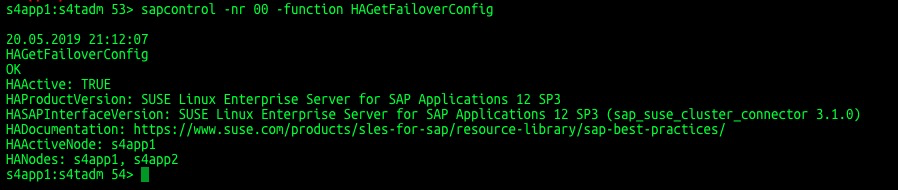
Check FailoverConfig feature.
sapcontrol -nr 00 -function HAGetFailoverConfig
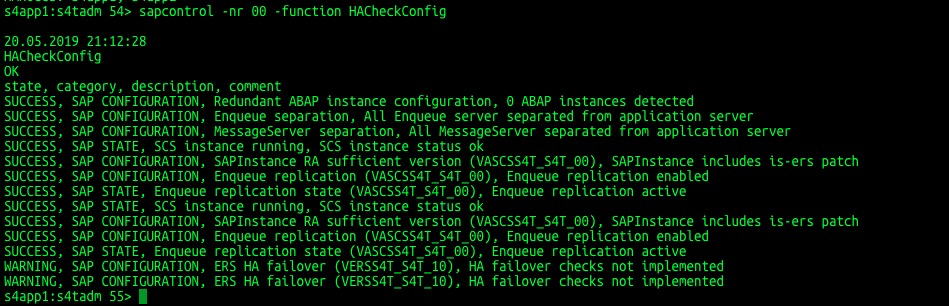
Check the HACheckConfig feature.
sapcontrol -nr 00 -function HACheckConfig
Check the HACheckFailoverConfig feature.
sapcontrol -nr 00 -function HACheckFailoverConfig

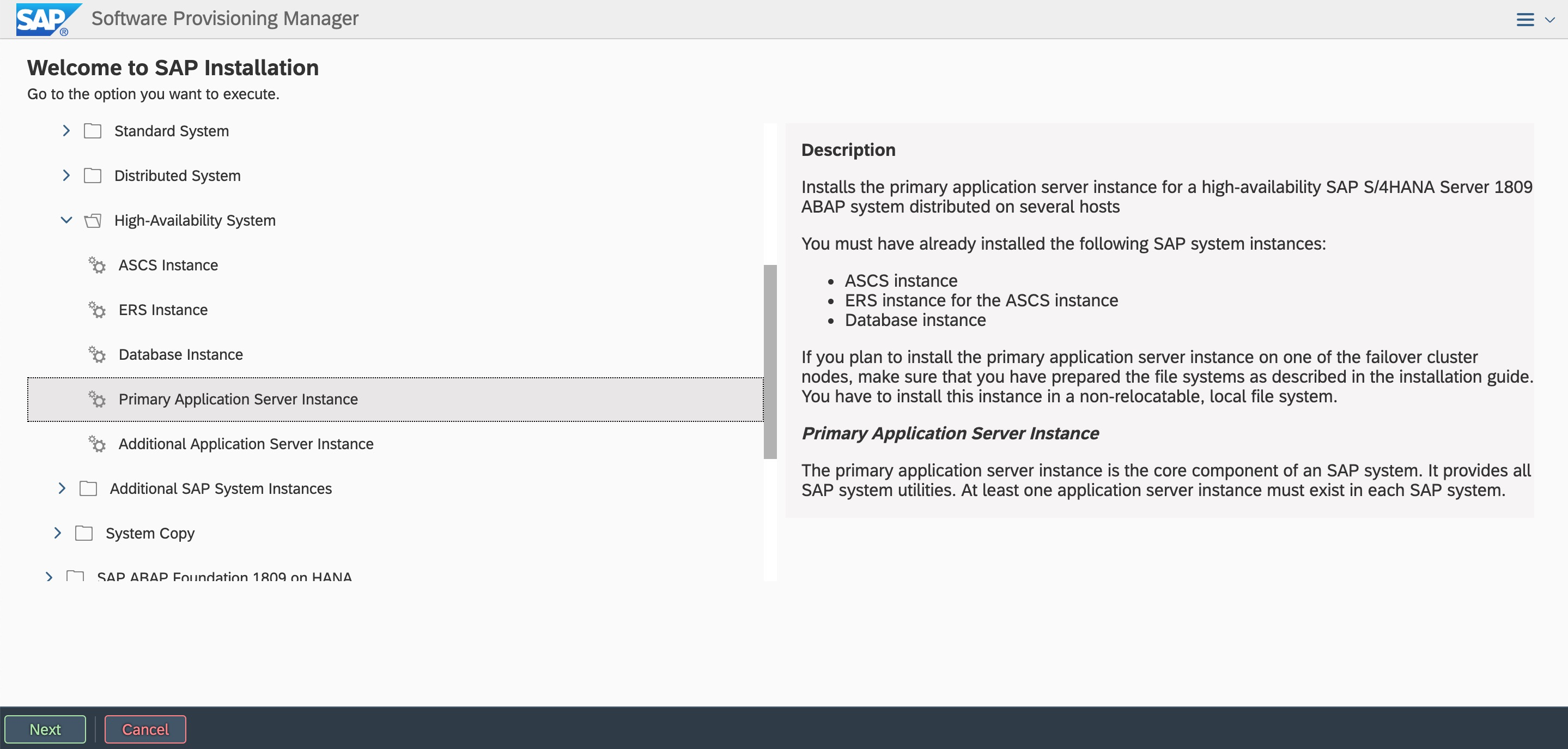
Install PAS instance
You can install the PAS instance on a local host because it is not involved in an HA failover.
Start the SWPM. Run the following command to install the PAS instance on the local host s4app1:
# ./sapinst
On a Windows jump server, enter the following URL in the address bar of a browser:
https://s4app1:4237/sapinst/docs/index.html
Use the root username and password to log on to the host. Ensure that the hostname can be resolved and the port can be accessed.
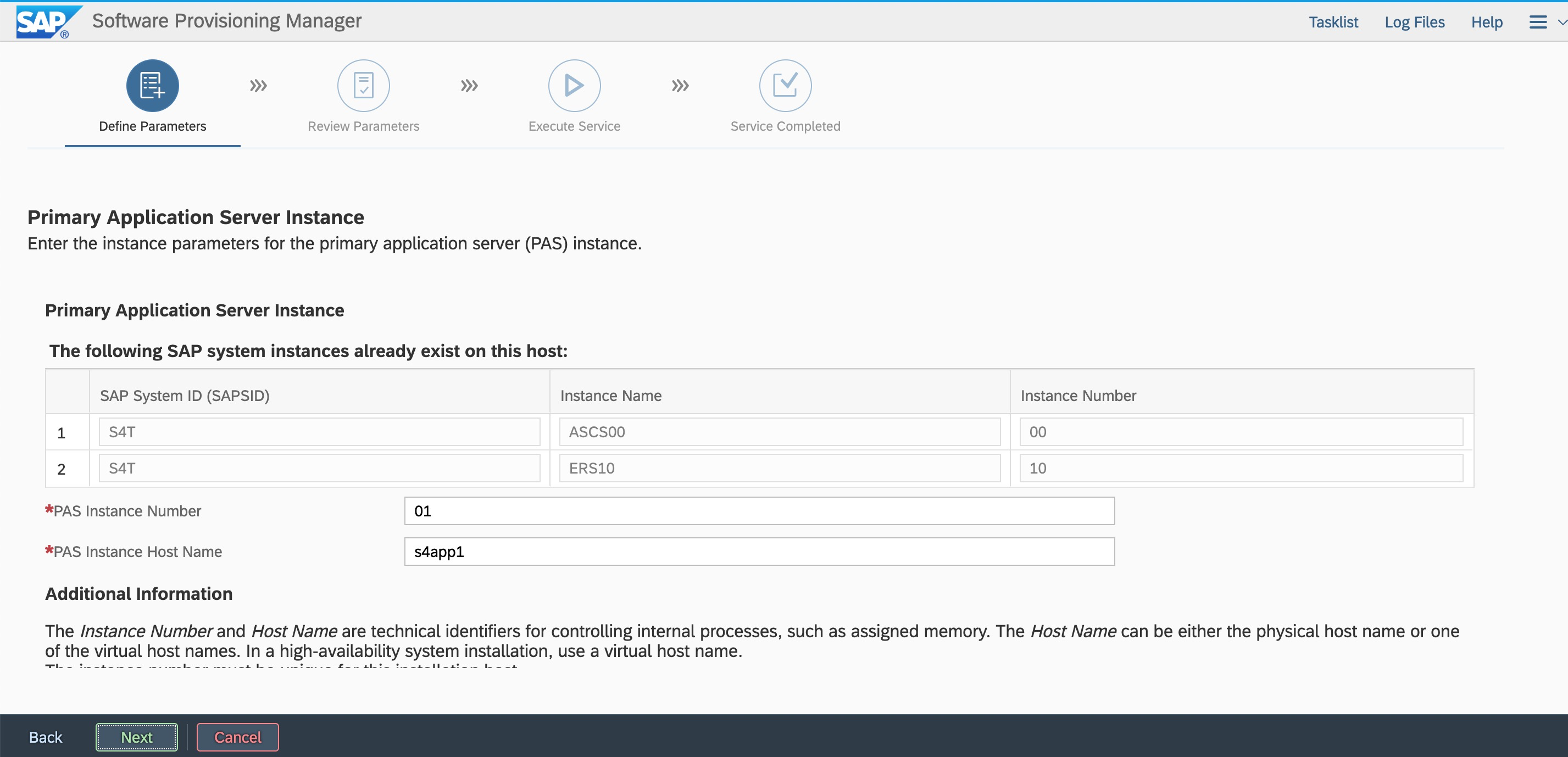
Enter the PAS instance number as planned.
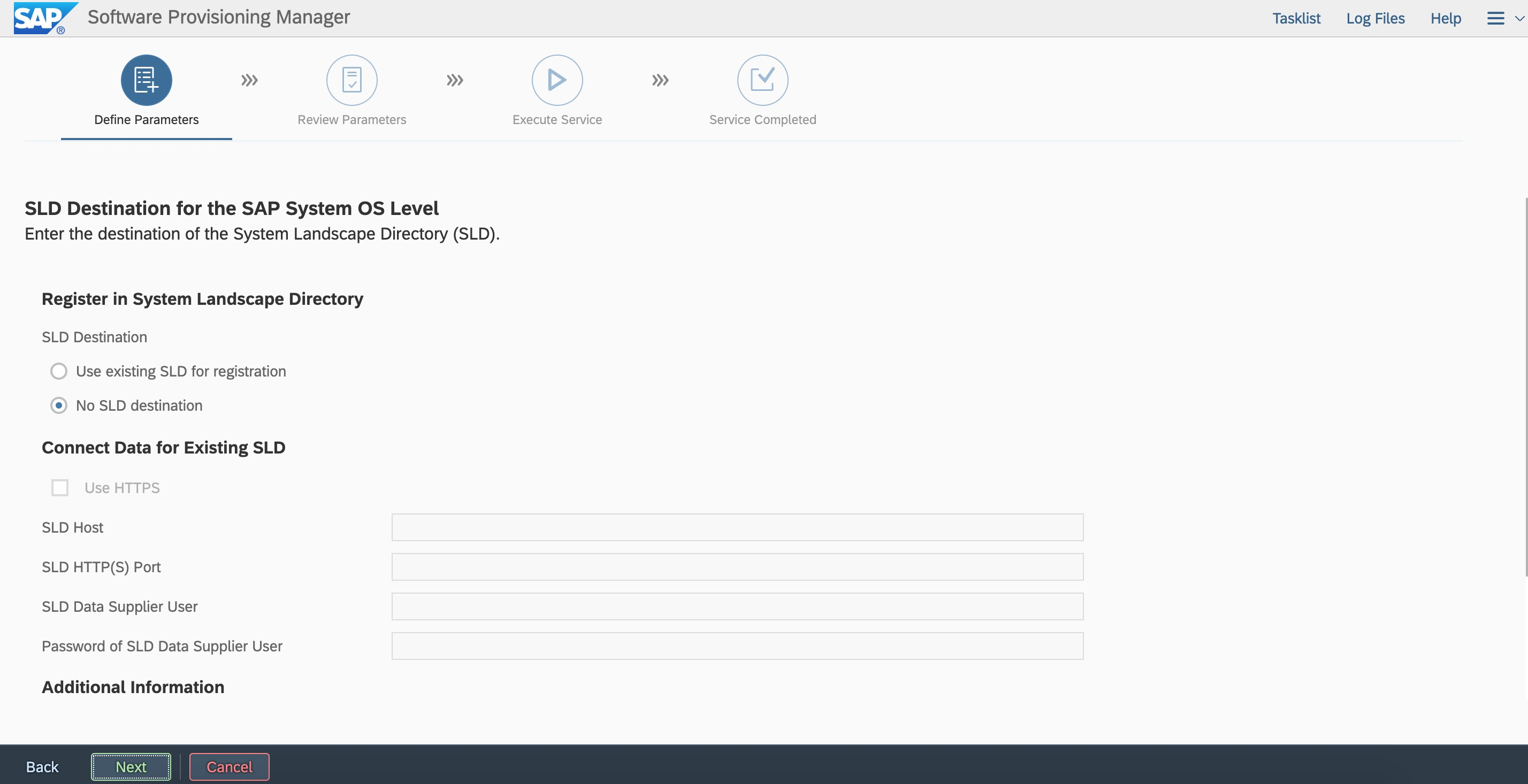
Select No SLD destination. You can register a system landscape directory (SLD) later.
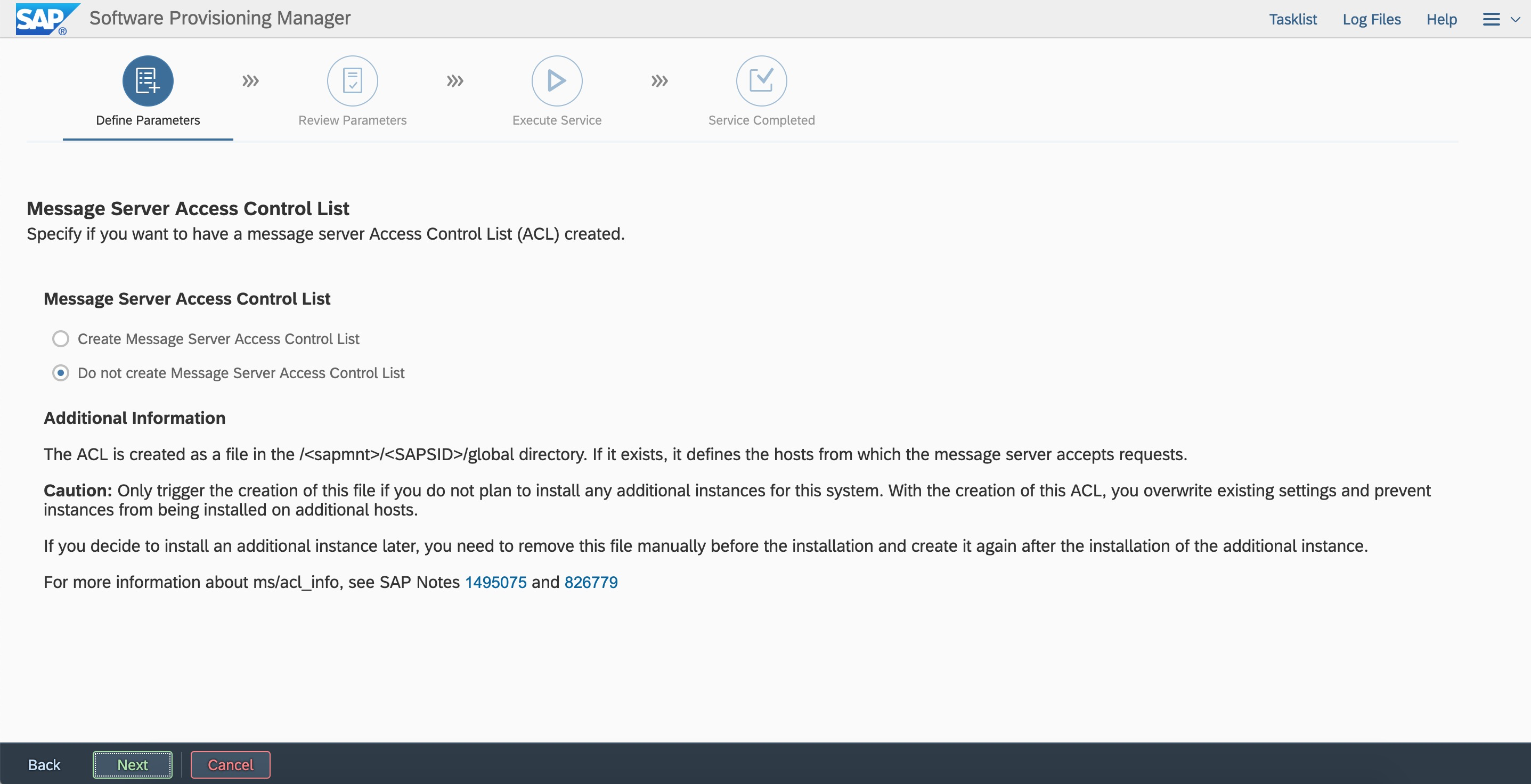
Select Do not create Message Server Access Control List. You can create an access control list (ACL) for the message server later as needed.
The procedure for installing the AAS instance on the local host s4app2 is similar, and therefore is not described in this topic.
Configure hdbuserstore
After installing the PAS and AAS instances, run the following commands to configure hdbuserstore to ensure that the PAS and AAS instances are connected to the virtual hosts of SAP HANA:
su - s4tadm
hdbuserstore set default VDBS4T:30015 SAPHANADB "pasword"
hdbuserstore list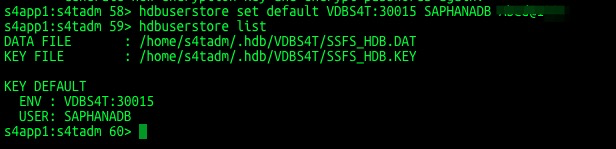
HA failover test
After deploying SAP applications and SAP HANA in HA mode, you need to run an HA failover test.
Run HA test cases as described in the SAP system HA operation guide.
For routine SUSE HAE tasks and commands, see the SUSE Administration Guide.