Use a Smart Access Gateway (SAG) vCPE instance to connect a network on Amazon Web Services (AWS) to Alibaba Cloud for multi-cloud connectivity.
Prerequisites
-
You have deployed cloud services on AWS. For more information, see the AWS documentation.
A VPC is created and cloud services are deployed in the VPC. For more information, see Create a VPC with an IPv4 CIDR block.
-
Ensure that the security group rules for your Alibaba Cloud VPC allow resources in AWS to access your cloud services. For more information, see View security group rules and Add a security group rule.
-
You have created an Elastic Compute Service (ECS) instance in your Alibaba Cloud VPC. For more information, see Create an instance on the Custom Launch tab.
Background
A company in Singapore has deployed cloud services on AWS and in the China (Hangzhou) region of Alibaba Cloud. The company wants to use SAG vCPE to connect the two cloud environments and enable resource access between them.
Deploy an SAG vCPE image on an instance within an Amazon VPC. This instance acts as an SAG vCPE device that connects to Alibaba Cloud. After the device is connected, use Cloud Connect Network (CCN) and Cloud Enterprise Network (CEN) to enable communication between resources in the Amazon VPC and the Alibaba Cloud VPC.
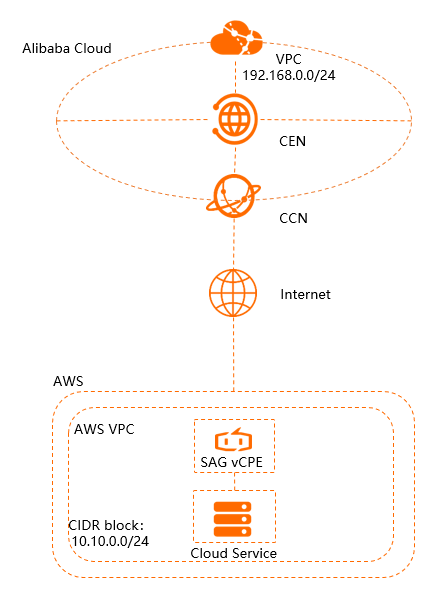
Step 1: Create an SAG vCPE instance
Create an SAG vCPE instance on the SAG console to manage the SAG vCPE device.
Log on to the SAG console.
On the Smart Access Gateway page, choose .
-
On the SmartAG vCPE Software page, configure the parameters for the SAG vCPE instance as described in the following table. Then, click Buy Now and complete the payment.
Parameter
Description
Region
Select the region where you want to deploy the SAG vCPE instance. In this example, Singapore is selected.
Instance Name
Enter a name for the SAG vCPE instance.
Instance Type
The default value is SAG-vCPE.
Version
The default value is Basic.
Deployment mode
Select the deployment mode for the SAG vCPE device. The default is Active-Standby.
In Active-Standby mode, an SAG vCPE instance can connect to two SAG vCPE devices by default. You can configure the two devices in active-standby mode to improve network availability. This topic uses only the active device.
Peak Bandwidth
The maximum bandwidth for network communication, in Mbit/s.
Quantity
The number of SAG vCPE instances to create. In this example, set this parameter to 1.
Subscription Period
Select the subscription duration.
-
Return to the SAG console. In the top navigation bar, select the region where you created the instance.
-
In the left-side navigation pane, choose .
-
On the SAG page, click the ID of the instance that you created.
-
On the instance details page, click the Device Settings tab. View and record the serial number and key of the active device. These credentials are required to associate the SAG vCPE device with the SAG vCPE instance.
Step 2: Deploy the SAG vCPE image
To connect AWS to Alibaba Cloud, create an instance in your Amazon VPC to host the SAG vCPE image. This instance serves as the SAG vCPE device that connects your AWS network to Alibaba Cloud.
-
Create an instance in your Amazon VPC.
For instructions on creating an AWS instance, see the AWS documentation. Make sure that the instance meets the following requirements:
-
Operating system: Ubuntu 18.04 (64-bit).
-
Kernel version: 3.10.0-957.21.3.el7.x86_64 or later.
-
The instance has a separate network interface card (NIC) with an internet connection.
-
Remote logon is enabled on the instance.
-
The instance is not running any business-critical applications.
-
If the host is an Elastic Compute Service (ECS) instance or an Edge Node Service (ENS) instance, it must have at least 1 vCPU and 2 GB of memory.
We recommend an instance type with 2 vCPUs and 4 GB of memory, which provides encrypted private bandwidth of up to 350 Mbit/s (with 1,024-byte packets). On the Choose an Instance Type page, select the t2.medium instance type (2 vCPUs, 4 GiB of memory).
-
-
Log on to the AWS instance and download the script to the /root directory. For more information, see the AWS documentation.
Important-
You can download the script to a custom directory. If you do, make sure to use the custom path when you run the script.
-
After you download the script, do not modify its content or filename.
-
If your host is deployed in the Chinese Mainland, run the following command to download the script.
wget -O /root/sag_vcpe_v2.3.0_deployment.sh https://sdwan-oss-shanghai.oss-cn-shanghai.aliyuncs.com/vcpe_vm/sag_vcpe_v2.3.0_deployment.sh -
If your host is deployed outside the Chinese Mainland, run the following command to download the script.
wget -O /root/sag_vcpe_v2.3.0_deployment.sh https://sdwan-oss-shanghai.oss-accelerate.aliyuncs.com/vcpe_vm/sag_vcpe_v2.3.0_deployment.sh
-
-
Grant the execute permission to the script.
chmod +x /root/sag_vcpe_v2.3.0_deployment.sh -
Run the script.
/root/sag_vcpe_v2.3.0_deployment.sh -n sage6nniq3**** -k **** -t aws -w eth0The following table describes the parameters. For more information about the script parameters, see Script parameters.
Parameter
Description
-n
The serial number of the SAG vCPE device.
-k
The key of the SAG vCPE device.
-t
The platform where the SAG vCPE image's host is located. Valid values:
-
aliyun (Default): The SAG vCPE image is deployed on an Alibaba Cloud ECS instance.
-
aws: The SAG vCPE image is deployed on an Amazon EC2 instance.
-
azure: The SAG vCPE image is deployed on a virtual machine on Microsoft Azure.
-
If you deploy the SAG vCPE image on a server in an on-premises network, you can set this parameter to any English string other than aliyun, ENS, aws, or azure.
-w
The name of the NIC for the WAN port. You can run the
ifconfigcommand to view the NIC names of the host. -
-
When you run the script, the system automatically checks if the deployment environment meets the requirements. If some required components are not installed, the following prompt appears. Enter
yes, and the system automatically installs the components.Missing dependency packages python3 telnet vim traceroute sshpass mtr docker inotify wget netifaces==0.10.9, are you sure want to install these packages? [yes|no] [no] >>> -
If the environment meets the requirements, the system starts to deploy the SAG vCPE image. After the deployment is complete, the following prompt appears.
2021-07-28 10:00:40 INFO: Install complete, please wait for few minutes to check state ============================================================================================= -
Verify the deployment.
After the deployment is complete, run the
docker pscommand to check whether the following two containers are running:[root@iZbp11vxxx wx8Z ~]# docker ps CONTAINER ID IMAGE COMMAND CREATED STATUS PORTS NAMES 0b8xxx92c vsag-core "sh -c 'ln -s /lib..." 4 minutes ago Up 4 minutes vsag-core fbexxx432 centos:7 "/sbin/init" 4 minutes ago Up 4 minutes vsag-manager-base [root@iZbp11xxx x8Z ~]#If the vsag-core and vsag-manager-base containers are running, the deployment is successful.
Step 3: Configure the Alibaba Cloud network
After deploying the SAG vCPE image, configure its network settings on the SAG console to connect the device to Alibaba Cloud.
-
Configure the on-premises route synchronization method.
-
Log on to the SAG console.
-
In the top navigation bar, select the target region.
-
On the SAG page, find the target instance and click Network Configuration in the Operation column.
-
On the tab, click Add Static Route.
-
In the Add Static Route dialog box, enter the private CIDR block of the AWS VPC and click OK.
After the route is added, the entry is displayed in the static route table. You can click Delete in the Actions column to remove the entry.
-
-
Attach a CCN instance.
SAG uses Cloud Connect Network (CCN) to connect your network to Alibaba Cloud.
-
Create a CCN instance. For more information, see Create a CCN instance.
The CCN instance must be in the same region as the SAG vCPE instance.
-
In the left-side navigation pane, choose .
-
On the SAG page, find the target instance and click Network Configuration in the Operation column.
-
On the instance details page, click the tab.
-
In the Associated Instances Under Current Account section, click Add Network, select the CCN instance that you created, and then click OK.
-
After attaching the CCN instance, click the Device Settings tab. Check the VPN Status and Controller Status of the SAG vCPE device. If both statuses are Normal, the SAG vCPE device is connected to Alibaba Cloud.
-
-
Create and configure a CEN instance.
Attach both the SAG vCPE instance and the VPC instance to a Cloud Enterprise Network (CEN) instance. This allows the SAG vCPE instance and the Alibaba Cloud VPC to learn routes from each other, enabling communication between the SAG vCPE device and resources in the Alibaba Cloud VPC.
-
In the left-side navigation pane, click CCN.
-
On the CCN page, find the target CCN instance and click Bind CEN Instance in the Operation column.
-
In the CEN Instance panel, select the Cloud Enterprise Network (CEN) instance to bind, and then click OK.
You can select a CEN instance in one of the following ways. In this example, Create CEN is selected.
-
Existing CEN: If you have an existing CEN instance, click the text box and select the instance that you want to bind.
-
Create CEN: If you do not have a CEN instance, enter a name in the text box. The system creates a CEN instance and automatically binds it.
-
-
Attach the created Alibaba Cloud VPC instance to this CEN instance. For more information, see Create a VPC connection.
-
Step 4: Configure the AWS network
To enable communication with Alibaba Cloud, configure the network settings in your AWS VPC. For specific commands and procedures, consult the AWS documentation.
-
Configure routes for your cloud services.
In the AWS VPC, configure a route that directs traffic destined for the Alibaba Cloud VPC CIDR block to the AWS instance where the SAG vCPE image is deployed. Set Destination to
192.168.0.0/24and point the Target to the corresponding Elastic Network Interface (ENI). -
Configure the security group for your AWS resources.
Allow communication between the private CIDR blocks of the Alibaba Cloud VPC and the AWS VPC.
-
Disable source and destination checks for the AWS instance.
On the AWS EC2 console, select the target instance. From the instance's actions menu, choose to disable source and destination checks. In the Enable Source/Destination Check confirmation dialog box, click Yes, Disable.
Step 5: Set up an inter-region connection
After configuring the AWS network, purchase a bandwidth plan and set up an inter-region connection for the CEN instance. This enables communication between your cloud services in China (Hangzhou) and your AWS services in Singapore via the SAG vCPE.
You can skip this step if your AWS and Alibaba Cloud resources are in the same region.
-
Purchase a bandwidth plan.
-
Log on to the Cloud Enterprise Network console.
-
On the CEN Instance page, find the target CEN instance and click its ID.
-
On the instance details page, click the tab, and then click Purchase Bandwidth Plan.
-
On the purchase page, configure the bandwidth plan with the following parameters, then click Buy Now and complete the payment.
-
-
Create an inter-region connection.
-
On the CEN Instance page, find the target CEN instance and click its ID.
-
On the instance details page, click the tab, and then click Set Inter-region Bandwidth.
-
On the Connection with Peer Network Instance page, configure the inter-region connection and click Create.
Parameter
Description
Instance Type
The type of network instance to connect. In this example, Inter-region Connection is selected.
Region
Select a region to connect. In this example, China (Hangzhou) is selected.
Transit Router
The system automatically displays the ID of the transit router in the region.
Connection name
Enter a custom name for the inter-region connection.
Peer Region
Select the peer region to connect. In this example, Singapore is selected.
Transit Router
The system automatically displays the ID of the transit router in the peer region.
Bandwidth allocation mode
Inter-region connections support two bandwidth allocation modes: Allocate from Bandwidth Plan and Pay-By-Data-Transfer.
In this example, Allocate from Bandwidth Plan is selected.
Bandwidth Plan
Select a bandwidth plan associated with the CEN instance. In this example, the bandwidth plan created earlier is selected.
Bandwidth
Enter the bandwidth for the inter-region connection. Unit: Mbit/s.
Default Line Type
Inter-region connections support multiple link types. Different link types provide different quality of service (QoS) for data transmission.
Advanced Settings
Keep the default settings. All advanced options are selected.
-
Step 6: Test the connectivity
After completing these steps, your services in the Alibaba Cloud VPC and the Amazon VPC can communicate.
The ECS instance in the Alibaba Cloud VPC used in this example runs Alibaba Cloud Linux. If you use a different operating system, consult its documentation for instructions on using the ping command.
-
Log on to the ECS instance in the Alibaba Cloud VPC. For more information, see Connection methods.
-
Run the ping command to test connectivity to a cloud service instance in the Amazon VPC.
A successful response confirms that the ECS instance in the Alibaba Cloud VPC can communicate with the service instance in the Amazon VPC.
[root@iZbp1cxxx...xxxmmsZ ~]# ping 10.10.0.252
PING 10.10.0.252 (10.10.0.252) 56(84) bytes of data.
64 bytes from 10.10.0.252: icmp_seq=1 ttl=252 time=99.0 ms
64 bytes from 10.10.0.252: icmp_seq=2 ttl=252 time=99.0 ms
64 bytes from 10.10.0.252: icmp_seq=3 ttl=252 time=99.0 ms
64 bytes from 10.10.0.252: icmp_seq=4 ttl=252 time=99.0 ms
^Z
[2]+  Stopped                 ping 10.10.0.252