The end-to-end canary release feature provided by Serverless App Engine (SAE) allows for comprehensive traffic control without altering business codes. This topic explains how to configure SAE end-to-end canary release using the Java service gateway.
Terms
Lane: An isolated environment defined for applications of the same version. Only requests that match specific routing rules can be routed to the tagged applications in a lane. Applications and lanes are in a many-to-many relationship where an application may belong to multiple lanes, and a lane may contain multiple applications.
Lane group: A collection of lanes used to organize and isolate lanes by team or scenario.
Baseline environment: The default environment for untagged applications, which acts as the fallback environment when traffic fails to meet the routing rules.
Scenario
This topic simulates an invocation trace to demonstrate the end-to-end canary release. Without changing any code, you only need to configure tag-based routing rules for an ingress application. The tags will be propagated through the trace to subsequent applications. Traffic that meets the specified traffic rules is routed to the canary versions based on version tags.
The deployment of each test application is as follows:
Test application: Demo Program.zip, which includes three backend applications A, B, and C, and the GW service (Java gateway). These backend applications can be deployed as baseline or canary applications.
Application | Baseline application | Canary application | Canary application tag |
A | sae-a | sae-a-a1 | alicloud.service.tag:g1 |
sae-a-a2 | alicloud.service.tag:g2 | ||
B | sae-b | sae-b-b2 | alicloud.service.tag:g2 |
C | sae-c | sae-c-c1 | alicloud.service.tag:g1 |
sae-c-c2 | alicloud.service.tag:g2 | ||
Java service gateway | sae-gw | None | None |
The traffic distribution diagram is as follows:

Normal traffic invocation:
Java service gateway -> Application sae-a -> Application sae-b -> Application sae-c.
Tagged traffic invocation:
t=g1 traffic: Java service gateway -> Application sae-a-a1 -> Application sae-b -> Application sae-c-c1.
t=g2 traffic: Java service gateway -> Application sae-a-a2 -> Application sae-b-b2 -> Application sae-c-c2.
Prerequisites
The Microservices Governance Professional or Enterprise Edition has been activated. For more information, see Activate Microservices Governance.
Limits
The end-to-end canary release feature is applicable only to microservice applications created on or after November 8, 2023.
The feature is supported only in the new version of the console.
End-to-end canary release integrates the tag-based routing feature of Microservices Governance. If you want to use the end-to-end canary release feature, do not configure canary release and tag-based routing rules for your applications.
1. Deploy baseline applications and enable microservice governance
1.1 Deploy baseline applications
Create four applications: sae-a, sae-b, sae-c, and sae-gw (Java service gateway). This topic covers key steps. For the full procedure, see Application Deployment.
Log on to the SAE console. In the left-side navigation pane, choose . Select a region in the top navigation bar and a namespace from the Namespace drop-down list, and then click Create Application.
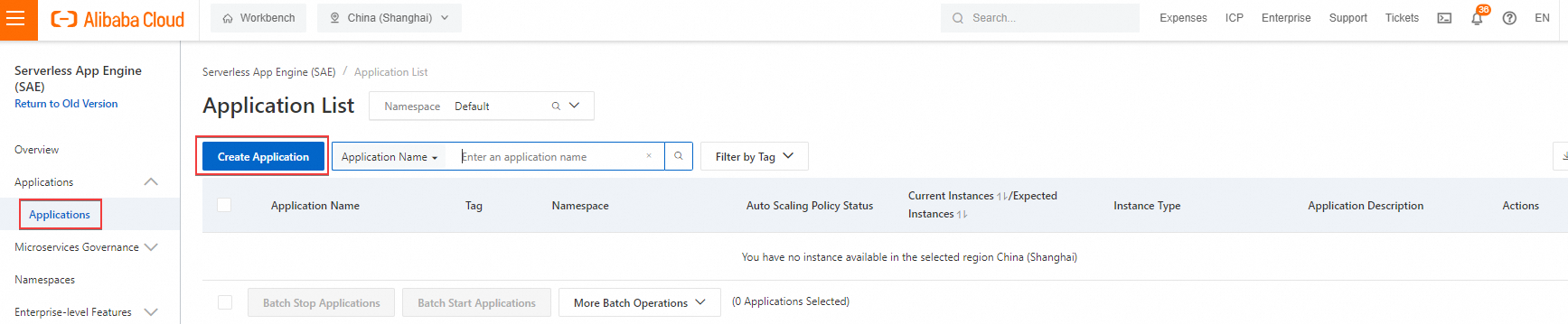
On the Application Basic Information wizard page, configure the parameters in the Basic Information Settings and Capacity Settings sections.
In this example, deploy the three baseline applications sae-a, sae-b, and sae-c by uploading a code package.
Choose Create Application with One Click.
(Optional) If you want to configure advanced settings, click Next: Advanced Settings to access the Advanced Settings wizard. Once configured, click Create Application. For details on advanced settings, see Application deployment.
1.2 Enable microservice governance for baseline applications
End-to-end canary release is a feature of the MSE Microservices Governance Professional Edition. All applications involved, including Java service gateways, must have it enabled.
On the Application List page, click the application name. In the left-side navigation pane, select , and click Activate Microservice Governance.
The microservice governance version enabled for the application matches the version of MSE.
If your application is not integrated with MSE Commercial Edition, upgrade microservice governance.
All instances will restart during the activation process. Perform it during off-peak hours.

Activation takes 1 to 2 minutes. Please wait.
2. Deploy canary applications
Deploy canary applications based on the baseline applications:
Two canary applications, sae-a-a1 and sae-a-a2, on application sae-a.
One canary application sae-b-b1 on application sae-b.
Two canary applications, sae-c-c1 and sae-c-c2, on application sae-c.
The procedure is as follows:
On the Application List page, click the
 icon next to the baseline application, and click Create Canary Application.Note
If microservice governance is not activated for the baseline application, you cannot create a canary application.
On the Basic Information page, configure the following parameters, and click Next: Advanced Settings.
In the Basic Information Settings section, set the Application Name and deploy the application using an image or code package. For more information, see Application Deployment.
NoteThe Namespace configurations of the canary applications inherit from the baseline applications, so no modifications are needed.
The Application Deployment Method also inherits from the baseline applications. In this example, re-uploading the code package is not required. But you can adjust this parameter as needed in a production environment.
In the Canary Tag section, set the Value for the tag. See Scenario for the tag configurations.
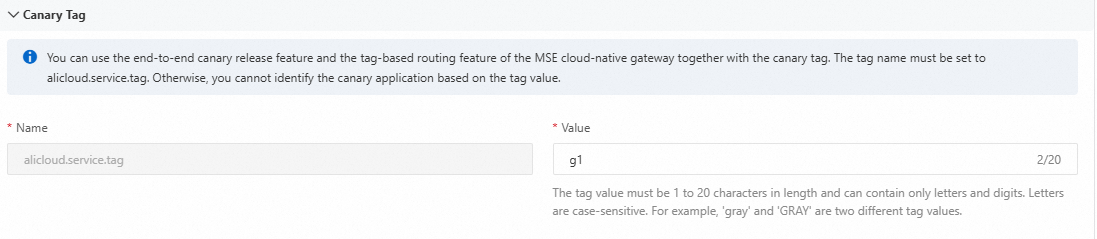
In the Capacity Settings section, configure the resource specifications and the number of instances.
On the Advanced Settings wizard page, configure the parameters as need. For more information, see Advanced settings.
Click Create Application.
3. Create lane groups and lanes
3.1 Create lane groups
After the canary applications are created, return to the Application List page, select in the left-side navigation pane, select the target namespace on the End-to-end Canary Release page, and click Create Lane Group and Lane.
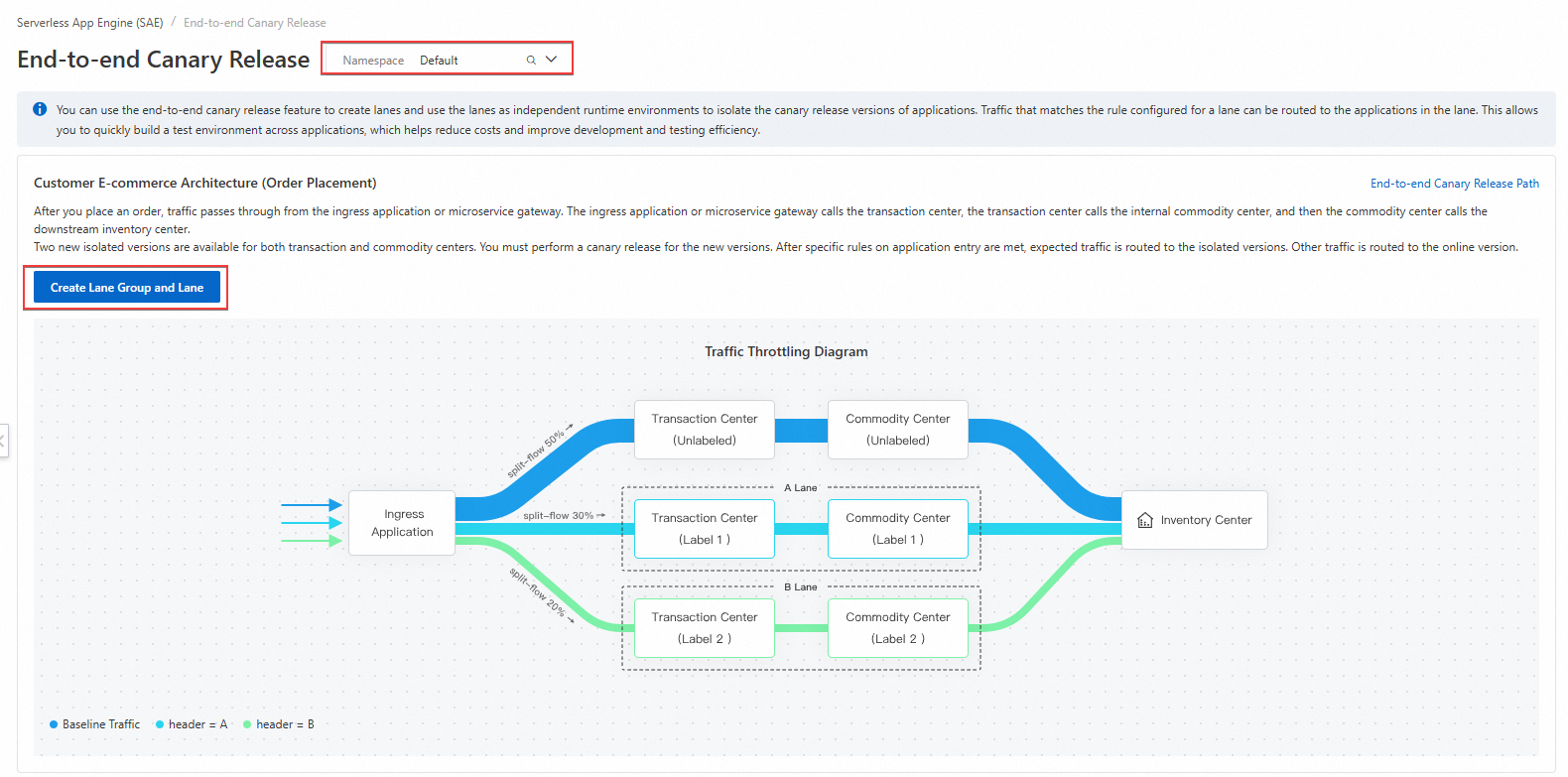
In the pop-up Create Lane Group panel, configure the following parameters, and click OK:
Customize the Lane Group Name.
Select Ingress Type as Java Service Gateway.
Choose the created Java service gateway application (sae-gw in this example) as the Lane Group Traffic Ingress.
Select all baseline applications for Lane Group Application.
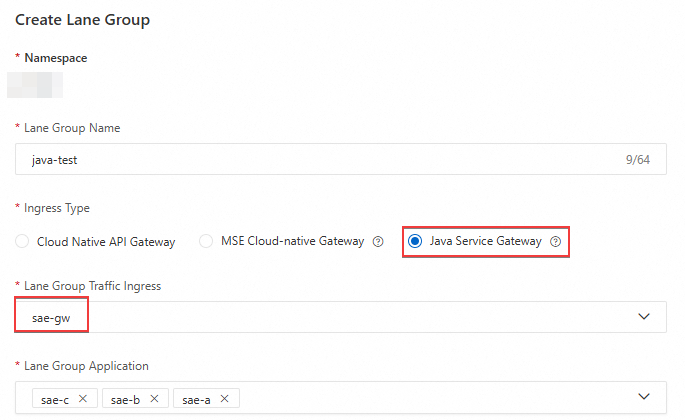
3.2 Create lanes
When creating lanes, you can choose either Canary Release by Content or Canary Release by Ratio. However, once the first lane is created, you cannot change the mode for subsequent lanes.
The following table provides configuration examples for this scenario. Adjust according to your needs in a production environment.
By content
Create two lanes as follows:
On the End-to-end Canary Release page, click Create First Split Lane.
ImportantAfter the first lane is created, click Create Lane to create additional lanes.
In the pop-up Create Lane panel, configure the parameters as follows, and then click OK.

Parameter
Example
Description
Lane Name
First lane name: test-1
Second lane name: test-2
Customize the lane name. Each name must be unique.
Lane Tag
First lane tag: g1
Second lane tag: g2
Select the tag value to be marked for the request from the drop-down list. This tag is the one configured when creating the canary application.
Lane Status
Enabled for both lanes.
The status is enabled by default.
Path
/A/afor both lanes.Set the request path that the routes need to match. If the value is empty, it means matching all paths.
After entering the request path, press
Enter.Canary Release Mode
Canary Release by Content for both lanes.
Select Canary Release by Content. See the console for the detailed description of this mode.
Canary Release Condition
The first lane:
All the following conditions are met:
Parameter type:
HeaderParameter:
tCondition:
==Value:
g1
The second lane:
All the following conditions are met:
Parameter type:
HeaderParameter:
tCondition:
==Value:
g2
When the request meets the configured conditions, it will be marked with the lane tag.
The following two filtering conditions are supported:
All of the following conditions are met: Marked with a canary release tag only when all the conditions are met.
Any of the following conditions are met: Marked with a canary release tag when any of the conditions are met.
Conditions can be filtered through the following parameters:
Parameter Type: Supports Header, Cookie, and Parameter.
Parameter: Supports customization.
Condition: Supports
==,!=,in, percentage, regular expression matching, and prefix matching.Value: Supports customization.
By ratio
Create two lanes as follows:
On the End-to-end Canary Release page, click Create First Split Lane.
ImportantAfter the first lane is created, click Create Lane to create subsequent lanes.
In the pop-up Create Lane panel, configure the following parameters, and click OK.

Parameter
Example
Description
Lane Name
First lane name: test-1
Second lane name: test-2
Customize the lane name. Each name must be unique.
Lane Tag
First lane tag: g1
Second lane tag: g2
Select the tag value to be marked for the request from the drop-down list. This tag is the one configured when creating the canary application.
Lane Status
Enabled for both lanes.
The lane status is enabled by default.
Path
/A/afor both lanes.Set the request path that the routing needs to match. If the value is empty, it means matching all paths.
After entering the request path, press
Enter.Canary Release Mode
The canary release mode for both lanes is Canary Release by Ratio.
Select Canary Release by Ratio. See the console for the detailed description of this mode.
Traffic Ratio
First lane: 50%
Second lane: 50%
Set the traffic ratio for the selected route or Path. By default, all routes or Paths within a lane use a unified traffic ratio.
4. Verify results
4.1 Test canary release traffic
By content
Run the following curl command to test the baseline traffic:
# Test command curl 8.130.XX.XX/A/a # Test result A[192.168.XX.XX][config=base] -> B[192.168.XX.XX] -> C[192.168.XX.XX]Note8.130.XX.XXin the command is the IP address exposed by the service gateway.Run the following curl command to test the canary release traffic:
# Test command curl 8.130.XX.XX/A/a -H "tag: ${tag}" # Test result A${tag}[192.168.XX.XX][config=base] -> B[192.168.XX.XX] -> C${tag}[192.168.XX.XX]NoteFor example, if the request headers contain
tag: ${tag}, they are passed through to the canary versions.
By ratio
Run the following curl command to verify the results:
# Test command
curl 8.130.XX.XX/A/a
# Test result
A[192.168.XX.XX][config=base] -> B[192.168.XX.XX] -> C[192.168.XX.XX]
# Test result
Agray[192.168.XX.XX][config=base] -> B[192.168.XX.XX] -> Cgray[192.168.XX.XX]8.130.XX.XX in the command is the IP address exposed by the service gateway.
4.2 Microservice governance observability
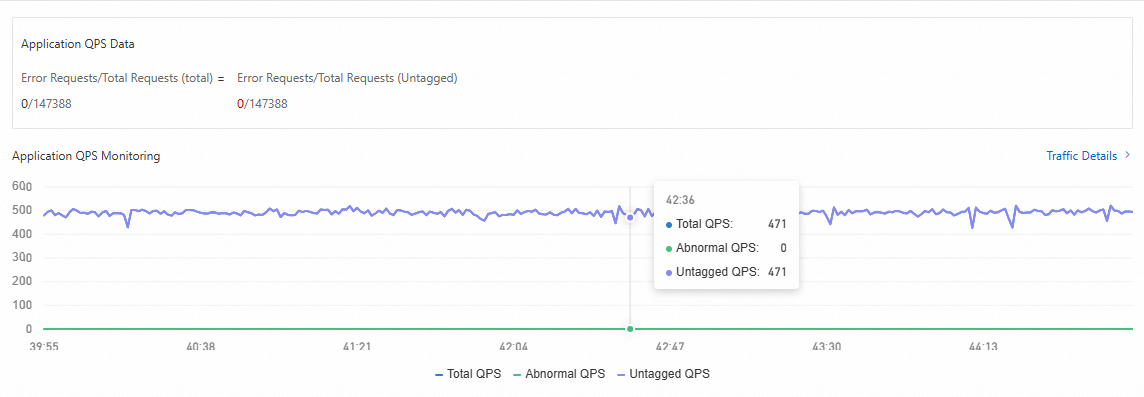
Go to the End-to-end Canary Release page on the SAE console. In the Lane Group and Involved Applications section, click the target application. In the Application QPS Monitoring section, view the lane traffic of baseline and canary versions. Select the playback time to display the data within the specific time frame.
You can also click Traffic Details in the Application QPS Monitoring section to view details.