Resource Orchestration Service (ROS) provides managed Terraform capabilities. You can create Terraform templates to define Alibaba Cloud, AWS, or Azure resources, configure resource parameters, and set dependencies between resources.
Use case
To define and manage resources across multiple cloud platforms such as Alibaba Cloud, AWS, and Azure from a single template, declare the target resources and their dependencies in a Terraform template. The following procedure demonstrates how to create a Terraform template that provisions Alibaba Cloud resources. The same workflow applies to AWS and Azure resources.
Background information
For more information about the structure of Terraform templates, see Structure of Terraform templates.
Procedure
Log on to the ROS console.
In the left-side navigation pane, choose Templates > My Templates.
On the My Templates page, click Create Template.
For Template Type, select Terraform.
Write the Terraform template.
The following example creates a vSwitch in a virtual private cloud (VPC) and shows how to write a Terraform template.
Create the
modules/vpc/main.tffile and edit its content to create a VPC.To the right of the directory, click + and then click Create Folder.
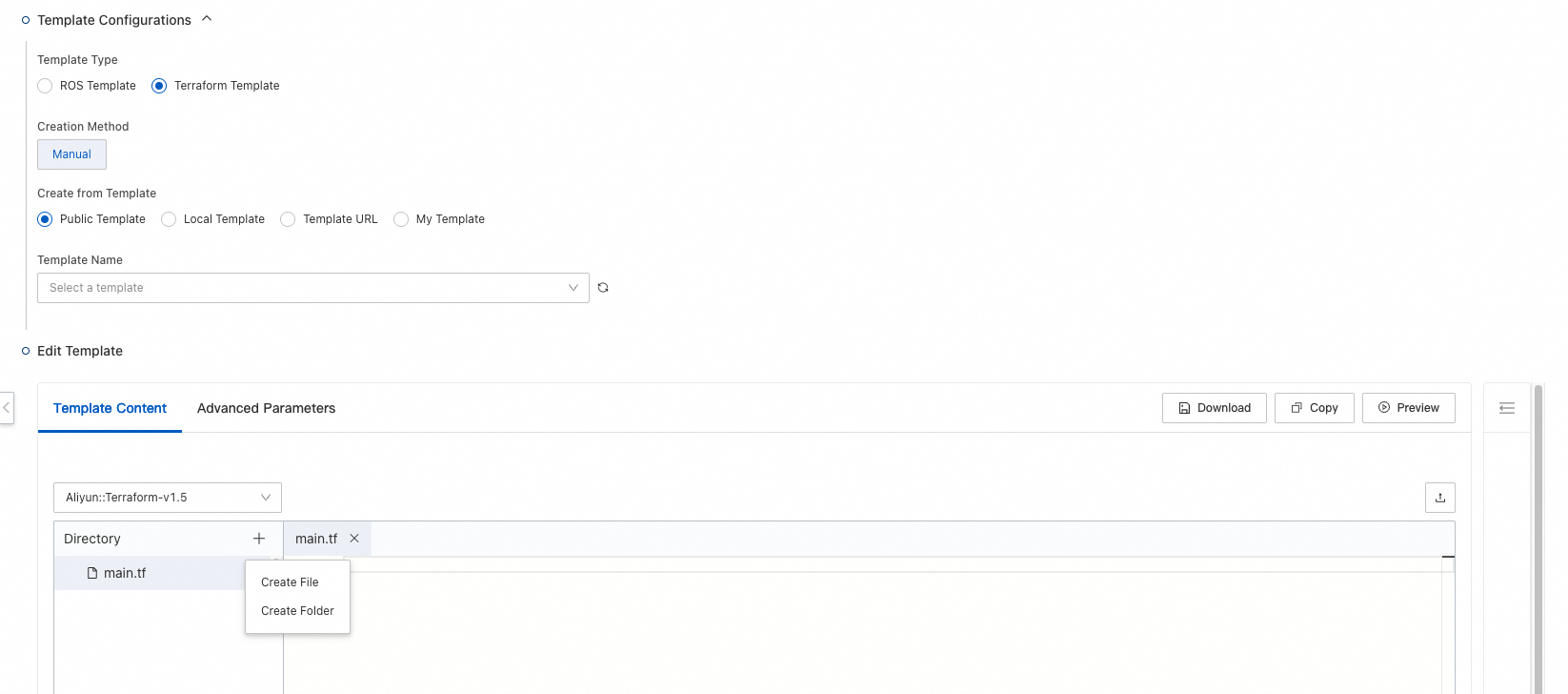
In the Create Folder dialog box, enter
modulesto create a folder namedmodulesin the directory.Move the pointer over the
modulesfolder, click + on the right, and then click Create Folder.In the Create Folder dialog box, enter
vpcto create a folder namedvpcin themodulesfolder.Move the pointer over the
vpcfolder, click + on the right, and then click Create File.In the Create File dialog box, enter
main.tfto create amain.tffile in thevpcfolder.Click
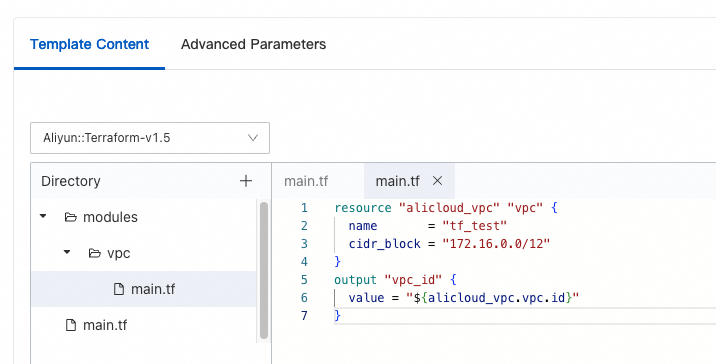
main.tfand enter the following code in the editor on the right to create a VPC.
resource "alicloud_vpc" "vpc" {
  name       = "tf_test"
  cidr_block = "172.16.0.0/12"
}
output "vpc_id" {
  value = "${alicloud_vpc.vpc.id}"
}
Edit the
main.tffile in the root directory to create a vSwitch in the VPC.Click the
main.tffile in the root directory.In the editor on the right, enter the following code to create a vSwitch.
module "my_vpc" { source = "./modules/vpc" } resource "alicloud_vswitch" "vsw" { vpc_id = "${module.my_vpc.vpc_id}" cidr_block = "172.16.0.0/21" availability_zone = "cn-shanghai-b" } output "vsw_id" { value = "${alicloud_vswitch.vsw.id}" }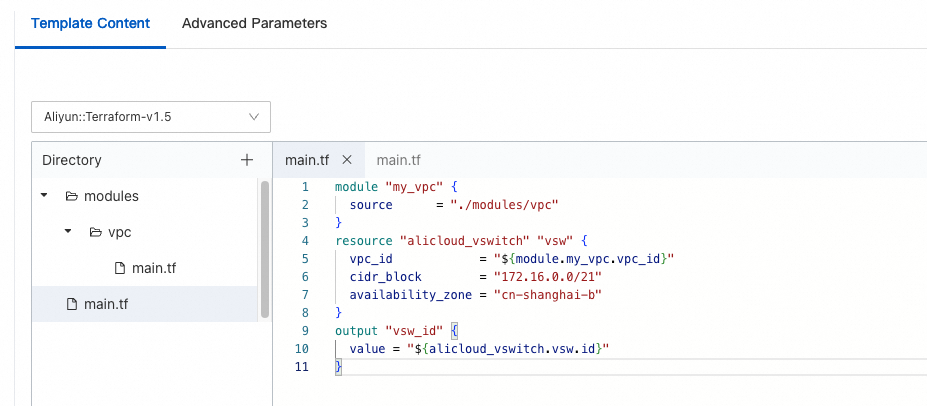 Note
NoteThe
availability_zoneparameter is set tocn-shanghai-b. Replace this value with an availability zone that is available in your region.In the lower-left corner of the Create Template page, choose Save Template > Save as My Template.
In the Save as My Template dialog box, set Template Name, Template Description, Resource Group, and Tags.
Click OK.
The template is saved and appears on the My Templates page.