This solution uses a Resource Orchestration Service (ROS) public template to create a WordPress instance with one click. It is suitable for personal blogs and small and medium-sized enterprise (SME) websites.
Solution overview
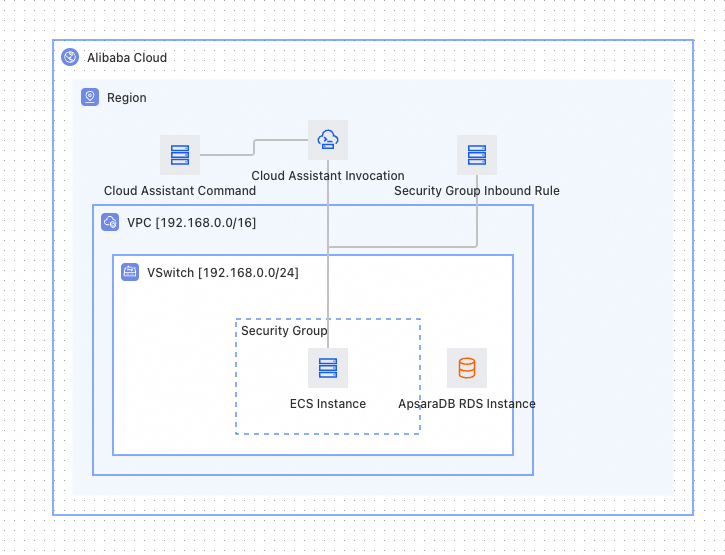
This solution uses Alibaba Cloud Resource Orchestration Service (ROS) public templates to create an ECS instance and an RDS MySQL database instance with one click, and automatically installs a WordPress blogging environment on the ECS instance. It is suitable for single-server WordPress deployment scenarios such as personal blogs and small to medium-sized enterprise websites.
Resources created by the template
No. | Resource | ROS resource type | Purpose |
1 | Virtual Private Cloud (VPC) |
| Provides an isolated network environment. |
2 | vSwitch |
| Divides the VPC into subnets and specifies the zone of the resources. |
3 | Security group |
| Controls network access to the ECS instance and allows inbound traffic on port 80. |
4 | ECS instance |
| Runs WordPress as the compute node and is assigned a public IP address. |
5 | ApsaraDB for RDS for MySQL instance |
| Stores WordPress data such as posts, users, and settings. |
Deployment results
After the template is executed, you obtain the following resources:
An ECS instance that runs CentOS 7, with Apache, PHP, and WordPress installed.
An ApsaraDB for RDS for MySQL instance, with the WordPress database and database account created.
A public IP address assigned to the ECS instance, so that you can access WordPress directly in a browser.
Architecture diagram
Prerequisites
Confirm the following conditions before you use this template:
Account permissions: Your Alibaba Cloud account has the permissions to create Elastic Compute Service (ECS), ApsaraDB for RDS, and VPC resources.
Basic understanding: You are familiar with the basic concepts of ROS stacks. For more information, see What is ROS?.
Solution design
Benefits of deploying the ECS instance and the database separately
Compared with a MySQL database that you install on the ECS instance, a separate ApsaraDB for RDS instance provides the following benefits:
Item | MySQL on the ECS instance | ApsaraDB for RDS |
Data security | You must configure backups yourself. | Automatic backup is supported, and you can restore data to any point in time. |
Operations cost | You must upgrade and tune the database manually. | Alibaba Cloud manages the database and applies patches and monitoring automatically. |
Performance | The database shares the CPU and memory of the web service. | The database uses dedicated compute resources and does not affect the web service. |
Scalability | You must migrate data to scale up the database. | You can change the instance type online without downtime. |
High availability | The database runs on a single node without disaster recovery. | Multi-zone primary/secondary deployment and read/write splitting are supported. |
Key configurations for connecting WordPress to ApsaraDB for RDS
WordPress stores its database connection settings in the wp-config.php file. The template fills in these settings automatically:
| Value source | Reference in the ROS template |
| The Database Name parameter |
|
| The User Name parameter |
|
| The User Password parameter |
|
| The endpoint of the ApsaraDB for RDS instance |
|
DB_HOST uses the internal endpoint of the ApsaraDB for RDS instance in the VPC, such as rm-xxxx.mysql.rds.aliyuncs.com, instead of the public endpoint. Therefore, the ECS instance and the ApsaraDB for RDS instance must reside in the same VPC. Communication over the internal network has low latency and is free of charge.
Deployment
Parameters
All parameters of this public template must be specified during deployment. No default values are provided. When you deploy the template for the first time, refer to the Example column in the following table.
Parameter category | Template parameter | Type | Description | Example |
Network | VPC CIDR Block | String | The CIDR block of the VPC. |
|
Network | VSwitch Availability Zone | String | The zone in which the vSwitch and the resources are deployed. | Zone K |
Network | VSwitch CIDR Block | String | The CIDR block of the vSwitch, which must be a subnet of the VPC CIDR block. |
|
ECS | Instance Type | String | The ECS instance type. |
|
ECS | System Disk Type | String | The category of the system disk. |
|
ECS | Instance password | String | The logon password of the ECS instance. The password must be 8 to 30 characters in length and contain uppercase letters, lowercase letters, digits, and special characters. | - |
ApsaraDB for RDS | Instance Class | String | The ApsaraDB for RDS instance type. |
|
ApsaraDB for RDS | Engine Version | String | The MySQL version of the ApsaraDB for RDS instance. |
|
ApsaraDB for RDS | Instance Storage | Number | The storage capacity. Value range: 5 to 2,000, in 5 GB increments. Unit: GB. |
|
ApsaraDB for RDS | DB Name | String | The name of the WordPress database. |
|
ApsaraDB for RDS | DB Username | String | The database account that WordPress uses. |
|
ApsaraDB for RDS | DB Password | String | The password of the database account. The password must be 8 to 30 characters in length and contain uppercase letters, lowercase letters, digits, and special characters. | - |
Deployment methods
Method 1: Deploy by using the ROS public template (recommended)
Log on to the ROS console.
In the left-side navigation pane, choose Templates > Public Templates > Entry-level templates.
In the search box, enter Deploy a WordPress Environment on ECS and ApsaraDB for RDS to find the public template.
Click Create Stack.
On the Configure Parameters page, enter a Stack Name and configure the parameters described in the preceding table.
Click Next: Check and Confirm, and then click Create.
Wait until the stack status changes to
CREATE_COMPLETE.Click the Output tab to view the stack Outputs and obtain the
WordPressUrlvalue, which is the URL of your WordPress site.Open the URL in a browser and complete the WordPress installation wizard.
Method 2: Deploy by using ROS IaC Code
IaC Code is an AI infrastructure-as-code assistant for cloud infrastructure. It generates ROS templates from natural language descriptions and deploys them. For more information, see IaC Code quick start.
# Prompt
Create an ECS instance, install a WordPress blog environment on it, and use an ApsaraDB RDS for MySQL instance as the database backend. Requirements:
1. Create a VPC and a vSwitch as the underlying network.
2. Allow inbound traffic on port 80 (HTTP) and port 22 (SSH) in the security group.
3. Use CentOS 7 for the ECS instance and assign a public IP address to the instance.
4. Create an ApsaraDB RDS for MySQL 8.0 instance in the same VPC as the ECS instance.
5. Install Apache, PHP, and WordPress automatically by using a UserData script.
6. Configure wp-config.php of WordPress to connect to the internal endpoint of the ApsaraDB for RDS instance.
7. Configure AssociationProperty for ZoneId and InstanceType to filter values dynamically.
8. Return the URL of the WordPress site in the stack outputs.
Post-deployment operations
Complete the WordPress installation
On the Output tab of the stack, obtain the
WordPressUrlvalue. The value is in thehttp://<public IP address of the ECS instance>format.Open the URL in a browser.
In the WordPress installation wizard, specify the following information:
Site title: the name of your blog.
Username: the WordPress administrator account.
Password: the password of the WordPress administrator account. This password is independent of the ECS instance password and the database password.
Email address: the email address of the administrator.
Click Install WordPress.
After the installation is complete, visit
http://<public IP address of the ECS instance>/wp-adminto open the WordPress admin console.
View the created resources
Log on to the ROS console. In the left-side navigation pane, choose Deployment > Stacks.
On the Stacks page, click the ID of the target stack.
Click the Resources tab to view all created cloud resources and their status.
FAQ
Q1: The deployment fails and the “The specified InstanceType is not available” error is returned
Cause: the selected ECS or ApsaraDB for RDS instance type is out of stock in the specified zone.
Solution:
Select a different zone and deploy the template again.
Check the instance types that are available in the target zone on the ECS pricing page.
Similarly, for ApsaraDB for RDS, check the RDS pricing details to make sure that the instance type is available in the target zone.
Q2: The deployment succeeds, but the WordPressUrl page is blank or returns an error
Perform the following checks:
Check the security group: make sure that an inbound rule allows access over TCP port 80.
Logon check: After you connect to the ECS instance, run the following commands to troubleshoot.
# Check whether Apache is running
systemctl status httpd
# Check whether the WordPress files exist
ls /var/www/html/wp-config.php
# Check whether PHP is installed
php -v
# Check the connection to the ApsaraDB for RDS instance
mysql -h<internal endpoint of the RDS instance> -u<database account> -p
Check the UserData log: run
cat /var/log/messages | grep cloud-initto find out whether the initialization script returned errors.
Q3: How do I release all resources after I delete the stack?
Log on to the ROS console. In the left-side navigation pane, choose Deployment > Stacks.
In the Actions column, click Delete and set the deletion method to Release Resources.
After you confirm the operation, ROS releases all resources, including the VPC, the ECS instance, and the ApsaraDB for RDS instance.
After you delete the stack, the WordPress data in the ApsaraDB for RDS instance is lost. Before you delete the stack, create a final backup in the ApsaraDB for RDS console, or log on to the ECS instance over SSH and run mysqldump to export the database.
For more questions about resource deployment, see ROS FAQ.