Resource Orchestration Service (ROS) lets you deploy a Node.js development and test environment in one step by creating a stack.
Overview
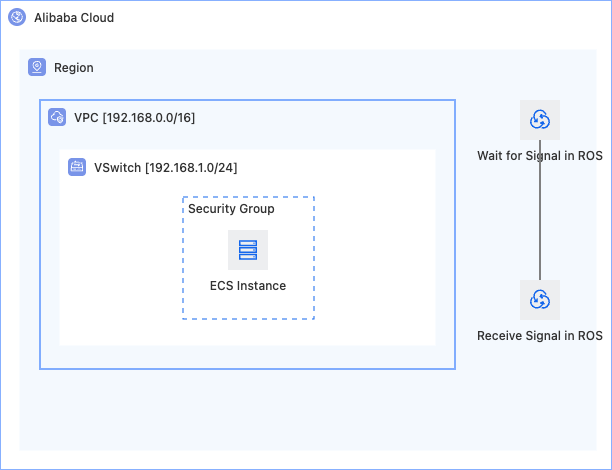
This solution uses a public template of Alibaba Cloud Resource Orchestration Service (ROS) to create a complete network environment and an ECS instance with one click, and automatically installs Node.js to quickly build a Node.js development and test environment. It is suitable for frontend and full-stack developers who need a readily available Node.js server environment for development debugging, API development, SSR rendering, and similar scenarios.
What is Node.js
Concept | Description |
Node.js | A server-side JavaScript runtime built on the Chrome V8 engine. It lets you write server-side programs in JavaScript. |
npm | The package manager bundled with Node.js and the world's largest open source software registry. Use it to install and manage third-party dependency libraries. |
Resources to be created
No. | Resource | ROS resource type | Description |
1 | VPC | Provides an isolated network environment. | |
2 | vSwitch | Divides a subnet within the VPC and specifies the zone. | |
3 | Security group | Controls network access to the ECS instance and allows the ports that the Node.js application requires. | |
4 | ECS instance | The compute node that runs the Node.js application. A public IP address is assigned to the instance. |
Results obtained after deployment
After the template runs successfully, you get the following:
A complete VPC network environment (VPC + vSwitch + security group).
An ECS instance that runs CentOS 7 and is assigned a public IP address.
The Node.js runtime and the npm package manager installed on the ECS instance.
A Node.js test application that runs on the ECS instance so that you can verify the environment.
The stack outputs provide the URL of the test page (
WebsiteURL).
Architecture
Prerequisites
Before you start the deployment, make sure that you meet the following requirements:
Account permissions — Your Alibaba Cloud account has the permissions to create ECS and VPC resources.
Basic concepts — You understand the basic concepts of stacks. For details, see What is Resource Orchestration Service?.
Deployment parameters
All parameters of this public template are set at deployment time. Some parameters have default values that you can adjust as needed. The console populates the Zone, Image ID, and Instance type drop-down lists with real-time data from the cloud. Select a value from each list instead of entering one manually.
Parameter | Description | Example |
VPC Name | The name of the new VPC. | DefaultVPCTest |
VPC CIDR Block | The CIDR block of the new VPC. | 192.168.0.0/16 |
vSwitch CIDR Block | The CIDR block of the new vSwitch, which must be a subset of the VPC CIDR block. | 192.168.1.0/24 |
Zone | The zone of the ECS instance, which is the zone where the vSwitch is deployed. | China (Beijing) Zone C |
Image ID | The operating system image. | centos_7 |
Instance Name | The name of the instance. | DefaultECSInstanceTest |
Instance Type | The instance type. We recommend that you select an instance type with at least 1 vCPU and 2 GiB of memory. | ecs.c5.large |
Instance System Disk Category | The disk type. | cloud_efficiency |
Instance Password | The logon password of the ECS instance. The password must be 8 to 30 characters in length and must contain uppercase letters, lowercase letters, digits, and special characters. | Test_12**** |
Nodejs Url | The download URL of the Node.js installation package. We recommend that you use an LTS version. |
|
For Node.js URL, get the download link of the latest LTS (Long-Term Support) Linux x64 binary from the Node.js official download page. Do not use an earlier version that is no longer maintained.
Deployment methods
Method 1: Deploy with the ROS public template (recommended)
-
Log in to the ROS console.
Use the template keyword search box to find and select the public template Deploy a Node.js development and test environment.
On the template details page, click Create Stack.
On the Configure Parameters page, enter a Stack Name and configure the template parameters.
NoteYou can change Nodejs URL to the URL of the latest LTS version.
After you configure the parameters, click Next: Check and Confirm, verify the configuration, and then click Create.
View the creation progress on the stack details page. When the stack status changes to
CREATE_COMPLETE, all resources are created.Click the Output tab to get the
WebsiteURL.Open the URL in a browser. If the Node.js test page appears, the deployment is successful.
Method 2: Deploy with ROS IaC Code
IaC Code is an AI infrastructure-as-code assistant for cloud infrastructure. It generates an ROS template from a natural language description and deploys the template. For instructions, see the IaC Code quick start.
Help me create an ECS instance and deploy a Node.js development and test environment.
Requirements:
1. Create a new VPC and vSwitch as the base network.
2. In the security group, allow inbound ports 3000 and 8080 (for the Node.js application) and port 22 (for SSH).
3. Use a CentOS 7 image for the ECS instance and assign a public IP address.
4. Use a UserData script to automatically install the Node.js v20 LTS version.
5. Configure the NODE_HOME environment variable and create global symbolic links for node, npm, and npx.
6. Create a Hello World test application and start it in the background.
7. Configure AssociationProperty for ZoneId and InstanceType for dynamic filtering.
8. Have the stack output the URL of the Node.js test page.
Post-deployment operations
Click the Output tab to get the
WebsiteURL.Open the URL in a browser. If the Node.js page appears, the deployment is successful.
Log on to the ECS instance and run the following commands to verify that Node.js and npm are installed:
node -v       # View the Node.js version
npm -v        # View the npm version
FAQ
The deployment fails with the error "The specified InstanceType is not available"
Cause: The selected ECS instance type is out of stock in the specified zone.
Solutions:
Change the zone and deploy the stack again.
Check the available instance types for the target zone on the Elastic Compute Service (ECS) pricing page.
A Node.js development and test environment consumes little memory, so an instance type with 1 vCPU and 1 GiB of memory is sufficient for basic development and testing.
The deployment succeeds, but the test page is inaccessible
Troubleshooting steps:
Check the security group: Make sure that the inbound rules of the security group allow the port that the application listens on, such as 8080 or 3000.
Log on to the ECS instance and check whether the Node.js process is running:
ps -ef | grep node                  # View the Node.js process
netstat -tlnp | grep 8080           # Confirm that the port is listening
If the process is not running, start it manually to view the error:
cd /opt/nodeapp
node app.js
View the UserData execution log:
cat /var/log/messages | grep cloud-init
To learn more about resource deployment issues, see the FAQ.