Resource Orchestration Service (ROS) allows you to configure different conditions in the Conditions section when you create or update a stack. This topic describes how to use Conditions to create an IPv4/IPv6 dual-stack Elastic Compute Service (ECS) instance on different operating systems.
Background information
When you create an ECS instance to which IPv4 and IPv6 addresses are allocated, you must separately create an IPv6 gateway, purchase IPv6 Internet bandwidth, and configure a public IP address. The configuration method varies based on your operating system. This increases costs and chances of errors. ROS provides a sample template that you can use to create an IPv4/IPv6 dual-stack ECS instance on different operating systems.
You can define one or more of the Fn::And, Fn::Or, Fn::Not, and Fn::Equals functions for conditions in the Conditions section of a template. ROS evaluates the conditions based on the input parameters that you specify when you create or update a stack. You can reference another condition, a parameter value, and a mapping in each condition. In this topic, the sample template that is used to create an IPv4/IPv6 dual-stack ECS instance is provided. For more information about the sample template, go to the Create an ECS instance bound to a Dual IPv4/IPv6 Stack page in the ROS console.
In the following template, ROS uses the Fn::Equals, Fn::Select, and Fn::Split functions in the Conditions section to perform data processing and logical judgment to check whether the image ID specified by the InstanceImageId parameter in the Parameters section starts with centos. Sample code:
Parameters:
  InstanceImageId:
    Type: String
    Default: centos_7
    Description:

      en: Image ID,<br>Linux System Select:<font color='red'><b>centos_7</b></font> <br>Windows System Select:<font color='red'><b>win2008r2, win2012r2, win2016</b></font>
    Label:

      en: Image
Conditions:
  CreateLinux:
    Fn::Equals:
      - centos
      - Fn::Select:
          - '0'
          - Fn::Split:
              - _
              - Ref: InstanceImageId
When ROS runs UserData commands to initialize the configurations for creating an ECS instance, ROS evaluates the CreateLinux condition by using the Fn::If function and selects appropriate initialization commands based on different operating systems to create an IPv4/IPv6 dual-stack ECS instance. Sample code:
Fn::If:
  - CreateLinux
  - Fn::Replace:
      - ros-notify:
          Fn::GetAtt:
            - WaitConditionHandle
            - CurlCli
      - Fn::Join:
          - ''
          - - '#!/bin/sh'
            - |2

            - |
              cd /opt
            - |
              wget http://ecs-image-utils.oss-cn-hangzhou.aliyuncs.com/ipv6/rhel/ecs-utils-ipv6
            - |
              chmod +x ./ecs-utils-ipv6
            - |
              ./ecs-utils-ipv6
            - |
              ros-notify -d "{\"Data\" : \"SUCCESS\", \"Status\" : \"SUCCESS\"}"
  - Fn::Replace:
      - ros-notify:
          Fn::GetAtt:
            - WaitConditionHandle
            - PowerShellCurlCli
      - Fn::Join:
          - ''
          - - "[powershell]\r\n"
            - "New-Item -Path \"C:\\set_ipv6\" -Force -type directory\r\n"
            - "cd C:\\set_ipv6 \r\n"
            - "$install_dir=\"C:\\set_ipv6\" \r\n"
            - "$install_path = \"$install_dir\\ecs-utils-ipv6.exe\" \r\n"
            - "$tool_url = 'http://ecs-image-utils.oss-cn-hangzhou.aliyuncs.com/ipv6/win/64/ecs-utils-ipv6.exe' \r\n"
            - "Invoke-WebRequest -uri $tool_url -OutFile $install_path \r\n"
            - "Unblock-File $install_path \r\n"
            - "Start-Process -FilePath \"$install_path\" -ArgumentList \"--noenterkey\" -NoNewWindow \r\n"
            - "ros-notify\r\n"
Step 1: Create a stack
Log on to the ROS console.
In the left-side navigation pane, choose .
Enter Create an ECS instance bound to a Dual IPv4/IPv6 Stack in the search box to search for the sample template.
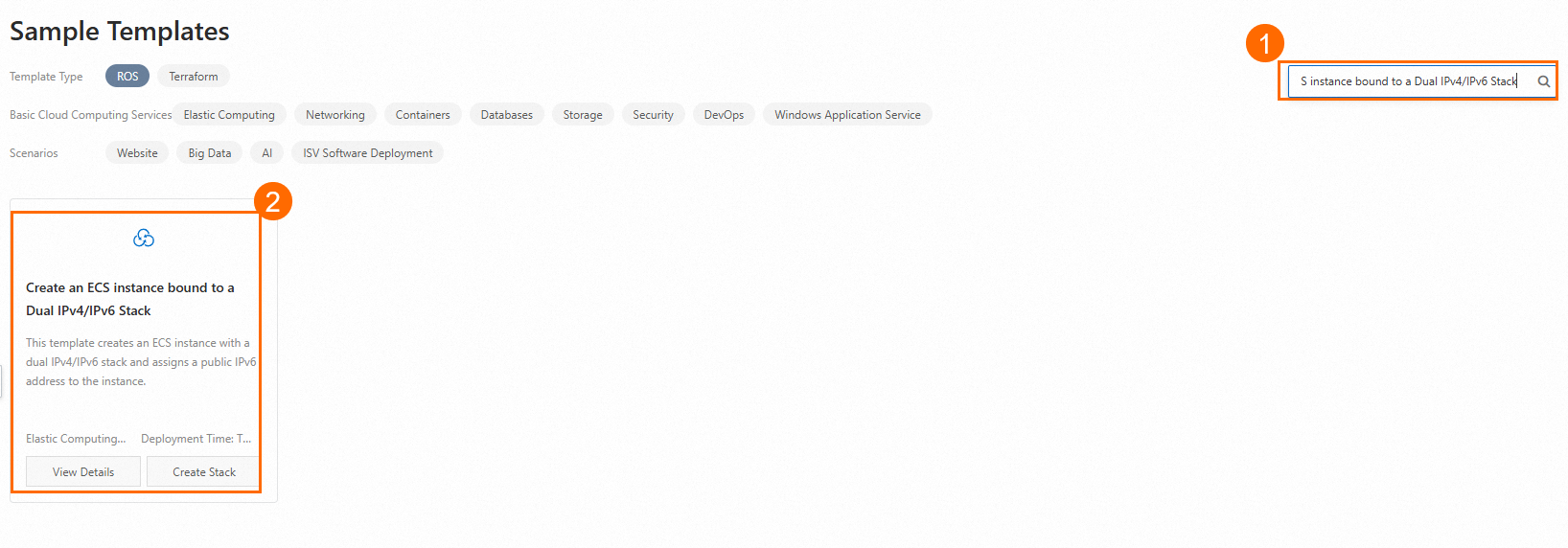
Click Create Stack.
In the Configure Parameters step, configure the Stack Name parameter and the following parameters.
Parameter
Description
Example
VPC IPV4 CIDR Block
The IPv4 CIDR block of the virtual private cloud (VPC). Recommended CIDR blocks:
10.0.0.0/8
172.16.0.0/12
192.168.0.0/16
For more information, see VPCs and vSwitches.
192.168.0/16.
VSwitch IPV4 CIDR Block
The IPv4 CIDR block of the vSwitch in the VPC.
For more information, see VPCs and vSwitches.
192.168.0.0/24.
VSwitch Availability Zone
The zone ID of the vSwitch in the VPC.
Qingdao Zone C.
Image
The image ID of the ECS instance. CentOS and Windows images are available.
For more information, see Overview.
centos_7.
Instance Type
The instance type of the ECS instance.
Select a valid instance type. For more information, see Overview of instance families.
ecs.c5.large.
System Disk Space
The system disk size of the ECS instance.
Valid values: 20 to 500.
Unit: GB.
40.
Allocate IPV4 Public IP
Specifies whether to allocate a public IPv4 address to the ECS instance. Supported operations:
If you turn on Allocate IPV4 Public IP, the system allocates a public IPv4 address to the ECS instance.
If you turn off Allocate IPV4 Public IP, the system does not allocate a public IPv4 address to the ECS instance.
Turn on Allocate IPV4 Public IP.
IPv6 Metric Bandwidth Metering Method
The metering method of the IPv6 Internet bandwidth. Valid values:
By Traffic: pay-by-data-transfer
By Bandwidth: pay-by-bandwidth
By Traffic.
IPv6 Network Gateway Public Network Bandwidth
The Internet bandwidth of the IPv6 gateway.
Valid values: 1 to 5000.
Unit: Mbit/s.
10.
Specifications for the IPv6 Gateway
The edition of the IPv6 gateway. Valid values:
Small: Free Edition
Medium: Enterprise Edition
Large: Enhanced Enterprise Edition
Small.
System Disk Type
The system disk category of the ECS instance. Valid values:
cloud_efficiency: ultra disk
cloud_ssd: standard SSD
cloud_essd: Enterprise SSD (ESSD)
cloud: basic disk
ephemeral_ssd: local SSD
For more information, see Disks.
cloud_efficiency.
Instance Password
The password that is used to log on to the ECS instance.
Test_12****.
Click Create.
On the Stack Information tab, view the stack status. After the stack is created, click the Outputs tab to obtain the value of EcsInstanceIpv6Address and manage the IPv6 ECS instance.
Step 2: View resources
In the left-side navigation pane, click Stacks.
On the Stacks page, click the ID of the desired stack.
Click the Resources tab to view the information about resources in the stack.
The following table describes the resources in this example.
Resource
Quantity
Resource description
Specification description
ALIYUN::ECS::Instance
1
Creates an ECS instance and allocates IPv4 and IPv6 addresses to the instance.
An ECS instance that has the following specifications is created:
Instance type: ecs.c5.large.
Disk category: ultra disk.
System disk size: 40 GB.
Public IP address: Public IP addresses are allocated.
ALIYUN::VPC::Ipv6Gateway
1
Creates an IPv6 gateway.
An IPv6 gateway is a device in a VPC that uses IPv6 to transmit data over the Internet. You can create only one IPv6 gateway in a VPC.
ALIYUN::ECS::VPC
1
Creates a VPC to enhance network security in the cloud.
None.
ALIYUN::ECS::VSwitch
1
Creates a vSwitch to manage instances in a zone.
None.
NoteFor more information about the pricing details of resources, go to the relevant console or refer to the pricing documentation of each resource.