This topic describes the billing of ROS Infrastructure Composer and how to view billing details in the console or by calling an API operation.
Billable items and billing methods
Billable item | Description | Billing method |
ROS Infrastructure Composer | None | None |
Alibaba Cloud resources that are created in a stack, such as Elastic Compute Service (ECS) and ApsaraDB RDS instances | You are charged based on the billing methods of the created Alibaba Cloud resources. |
|
Billing example
This section provides an example of creating a single-zone network and a pay-as-you-go Elastic IP Address (EIP) to demonstrate how to query the billing details for the created resources.
To create the architecture diagram, perform the following steps:
Log on to the ROS Infrastructure Composer console.
In the navigation pane on the left, select Infrastructure Templates, click Create Infrastructure Template, select ROS or Terraform in the dialog box that appears, and then click OK.
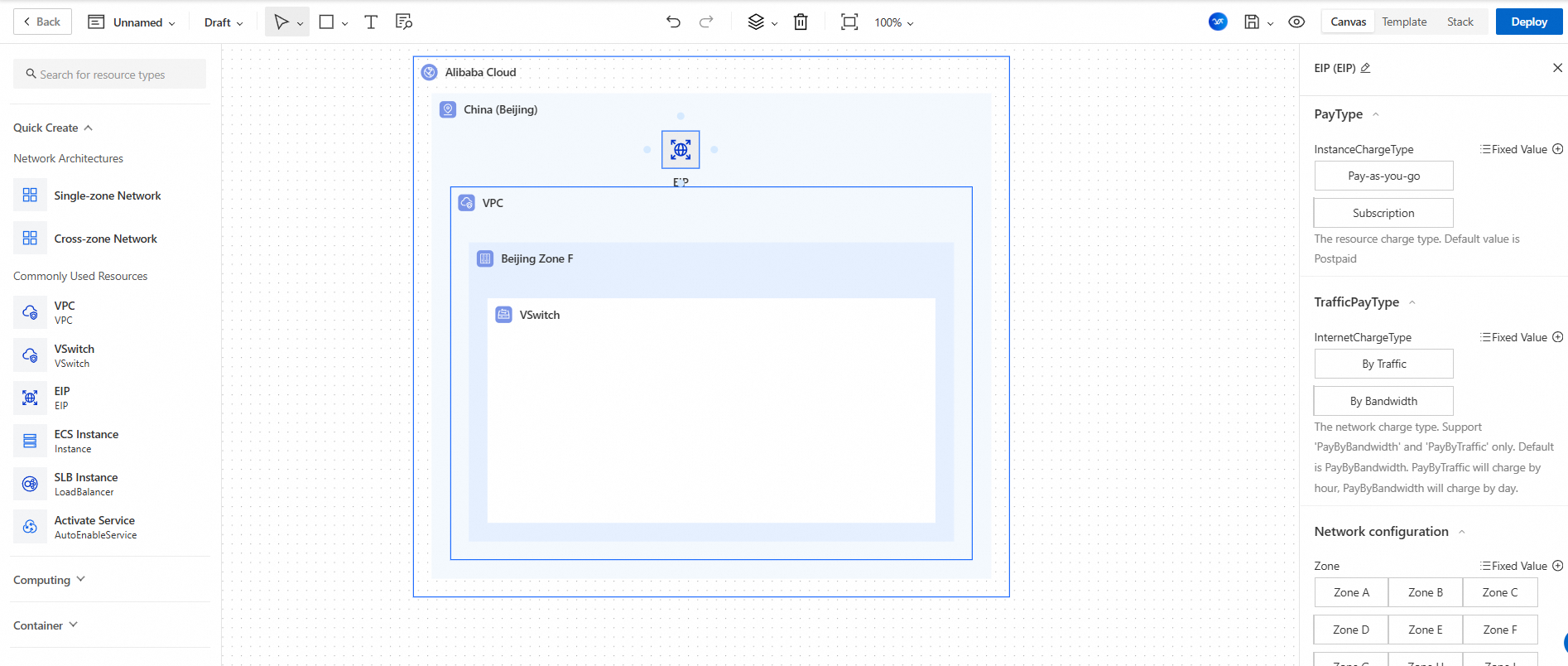
From the navigation pane on the left, drag Single-zone Network to the canvas.
From the navigation pane on the left, drag EIP into the region on the canvas.
On the canvas, click EIP. In the form on the right, configure the resource properties. For example:
Set InstanceChargeType to Pay-as-you-go.
Set InternetChargeType to Pay-by-bandwidth.
You can query the billing details in one of the following ways:
Query the billing details in the console.
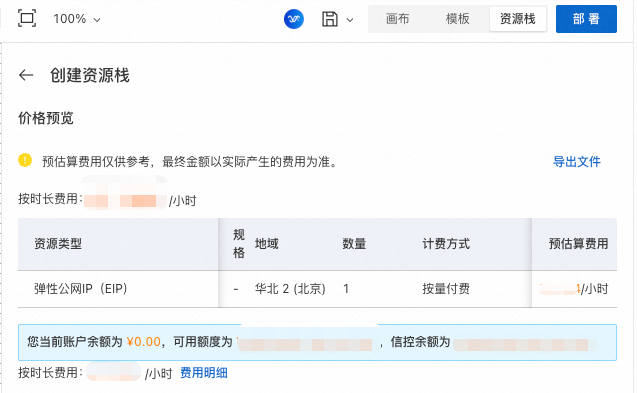
In the upper-right corner, click Deploy to open the one-stop deployment page.
On the deployment configuration page, click Next.
On the Price Preview page, view the estimated total cost. You can also click Cost Details to view the details of each billable item.
Query the billing details by calling an API operation.
In the upper-right corner, click Template to open the template page.
Copy the template content from the JSON or YAML tab.
Log on to the Developer Portal or Alibaba Cloud OpenAPI Developer Portal, and go to GetTemplateEstimateCost.
Configure the
RegionIdandTemplateBodyparameters. Paste the copied template content into theTemplateBodyparameter.Click Initiate Call.
In the response, check the value of the
TotalCostAmountparameter to view the billing information for the resources created by the template.