After you disable the Tag Policy feature, the attached tag policies are automatically detached.
Single-account mode
To disable the Tag Policy feature in single-account mode for a single account, perform the following steps by using the account:
Log on to the Resource Management console.
In the left-side navigation pane, choose .
On the Settings for Current Account tab, set Tag Policy to Disable.
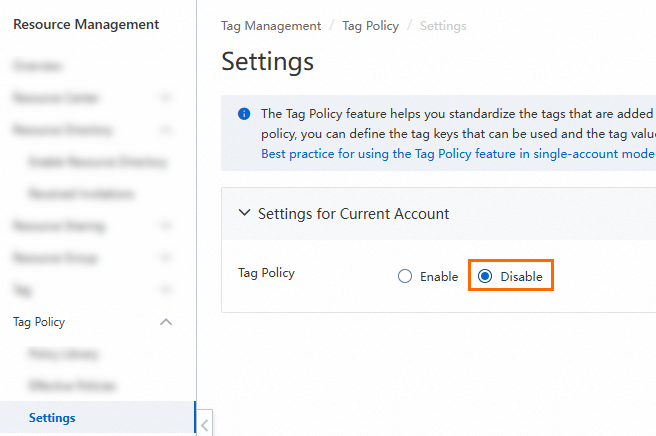
In the Disable Tag Policy dialog box, click Disable.
Resource directory mode
To disable the Tag Policy feature in resource directory mode, perform the following steps by using the management account of your resource directory:
Log on to the Resource Management console.
In the left-side navigation pane, choose .
On the Settings for Resource Directory tab, set Tag Policy to Disable.
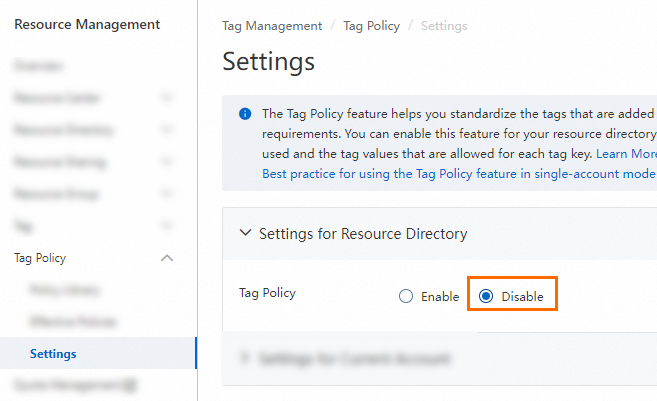
In the Disable Tag Policy dialog box, click Disable.