If your organization tracks costs and manages resources by name rather than by tags, you can use the automatic tag remediation feature of tag policies to automatically apply tags to resources whose names match a specified prefix.
Scenarios
Some enterprises track costs and manage resources by resource name rather than tags. Tag policies let you bridge this gap by automatically applying tags based on naming patterns.
For example, configure a tag policy so that the bu:abc tag is automatically added to any resource whose name starts with abc-. The policy uses a regular expression to match resource names and triggers automatic tag remediation for matching resources.
Both single-account mode and resource directory mode support this feature. This guide uses single-account mode.
For the resource types that support automatic tag remediation, see the Support for automatic tag detection and automatic tag remediation column in Services that support tag policies.
Procedure
Log on to the Resource Management console.
-
Enable Tag Policy in single-account mode.
For more information, see Enable the Tag Policy feature.
-
Create a tag policy.
-
On the Policy Library page, click Create Tag Policy.
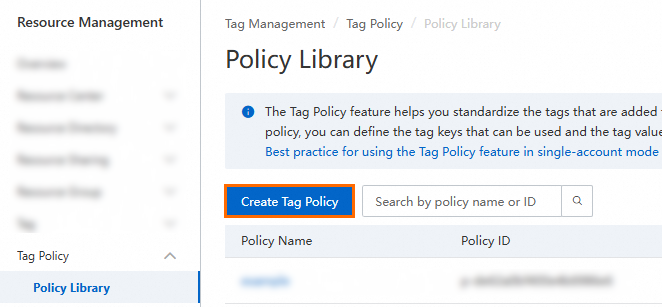
On the Create Tag Policy page, enter a policy name and description.
-
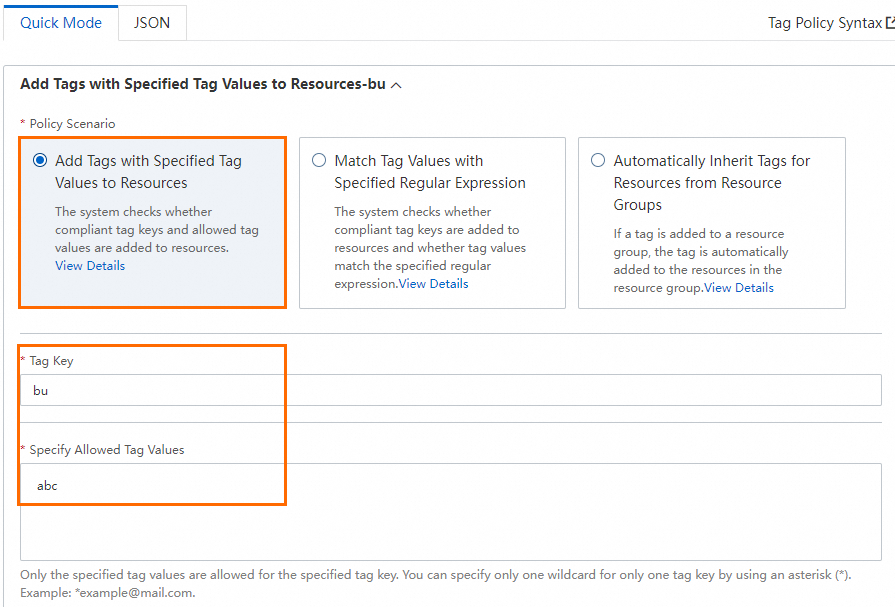
On the Quick Mode tab, configure the tag policy.
For Policy Scenario, select Add Tags with Specified Tag Values to Resources.
-
Set the tag key and tag value.
In this example, the tag key is bu and the tag value is abc, so the policy adds the
bu:abctag to matching resources. -
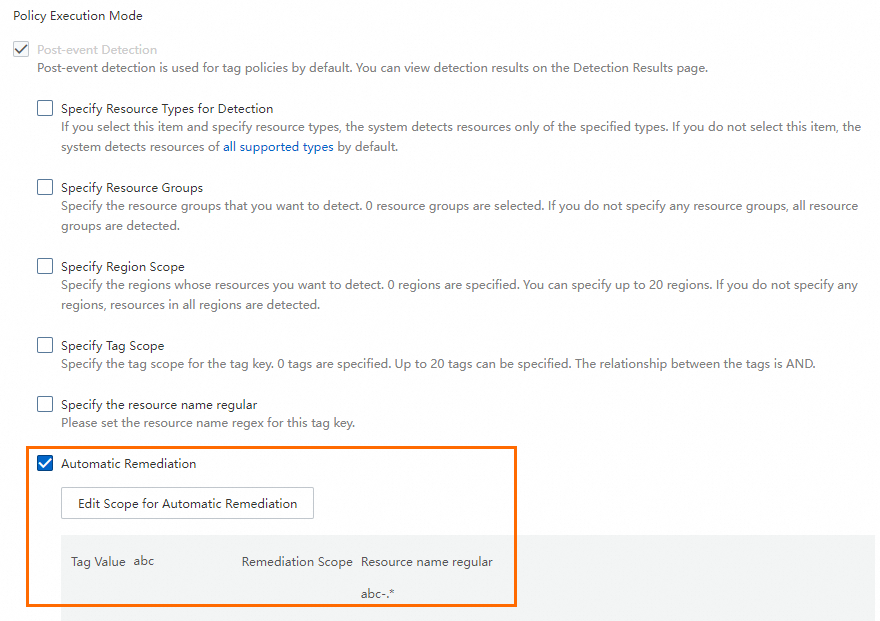
Select Automatic Remediation, then enter a regular expression to define which resources to target.
In this example, the regular expression
abc-.*matches all resources whose names start withabc-.
Click Create.
-
-
Attach the tag policy.
-
Go to the Current Account tab of the Policy Library page, find the tag policy you created in step 3, and click Attach in the Actions column.

-
In the Attach dialog box, click OK.
The policy takes effect for the current Alibaba Cloud account and all RAM users within it.
-
-
Wait for the policy to take effect, then verify the results on the effective policy details page.
Resources whose names start with
abc-should now have thebu:abctag applied.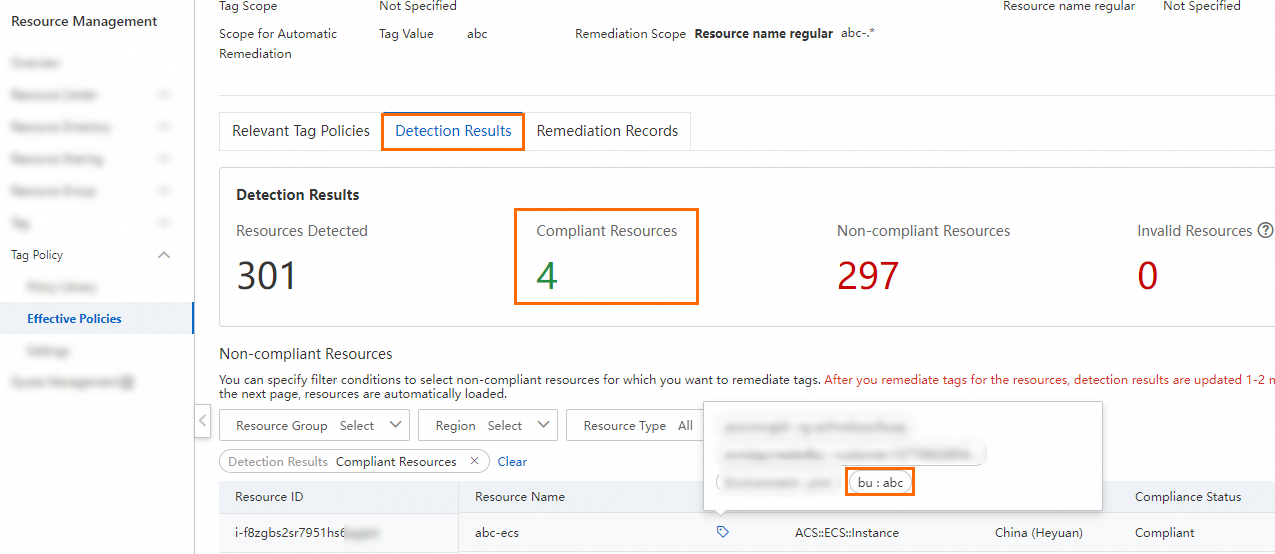 Note
NoteTag policies take time to propagate and apply. For details on the expected wait time, see Limits.