This topic describes how to change the name of a folder.
Procedure
Log on to the Resource Management console as a management account.
In the left-side navigation pane, choose .
In the upper-right corner of the page that appears, click Resource Organization View.
Use one of the following methods to change the name of a folder:
In the left-side navigation tree, move the pointer over the folder, click the
 icon, and then click Rename.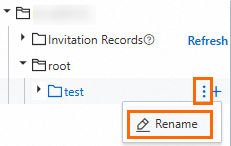
In the left-side navigation tree, click the folder. In the right-side pane that appears, click View Details and Perform More Operations in the upper-right corner. In the Basic Information section of the page that appears, click Modify on the right side of Folder Name.

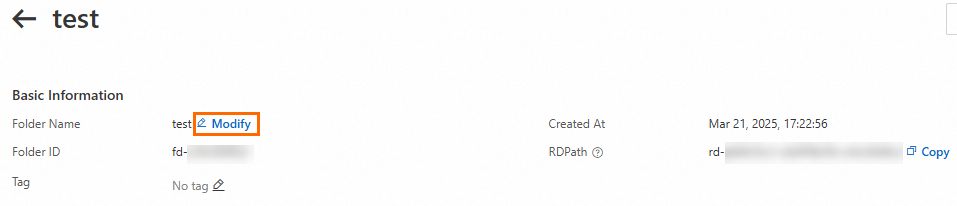
In the dialog box that appears, enter a new name in Folder Name and click OK.
NoteThe name you specify must be unique in the current resource directory.