Resource Center provides sample query templates that help you quickly find your resources.
Background
Resource Center provides multiple sample query templates for common search scenarios. For a full list, see Supported sample query templates.
Step 1: Select a query scope
Set a query scope to narrow your search and get more relevant results.
-
Log in to the Resource Center console.
-
In the navigation pane on the left, choose .
-
In the Query Scope section, click Change Query Scope.
-
Click the target node to select a query scope.
-
If cross-account resource search is disabled for your Alibaba Cloud account, you can query resources within the current account or a specific resource group.
-
If you are using the management account of a Resource Directory with cross-account resource search enabled, you can query within the current account or across accounts.
-
Current account: Query the entire current account or a specific resource group.
-
Cross-account: Query the entire Resource Directory, a specific folder, a member account, or a resource group.
-
-
Step 2: Run a sample query template
-
On the Quick Start tab, browse the available templates in the Sample Query Template section.
-
Find the template you want to use and click Open.
-
In the query editor, view the query statements included in the template.
NoteIf a sample query template does not meet your needs, you can modify its query statement.
-
Click Run.
Step 3: View the query results
Click the Query Result tab to view the results.
View results in a list
On the List tab, view the query results. Turn on the format switch in the upper-right corner to convert some property IDs into human-readable names.
The results list includes columns such as resource ID, resource name, region, availability zone, resource type, member account, creation time, resource group, tag, and IP address.
View results in a chart
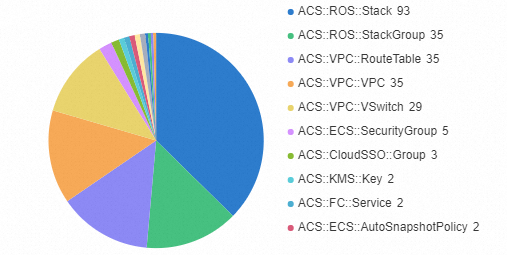
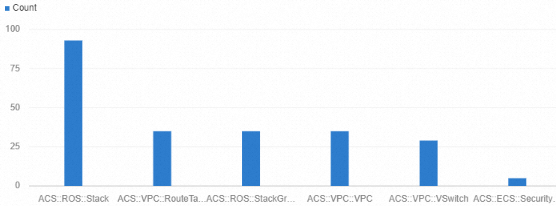
If a query returns two columns — one with strings and one with numbers — you can visualize the data on the Chart tab. Click the  icon in the upper-right corner and select Pie or Bar to display the data as a pie or bar chart.
Pie chart
Bar chart
Download the query results
Export list results as a CSV file. You can choose between two formats:
-
Formatted data: Data converted into a more readable format.
-
Unformatted data: The raw text from the query results.
After downloading, use a data analysis tool for further processing and insights.