Transparent Data Encryption (TDE) encrypts your ApsaraDB RDS for SQL Server databases at rest, protecting data files and backups from unauthorized access even if the underlying storage is compromised. This topic explains how TDE works, how to enable and disable it, and how to restore TDE-encrypted backups to an on-premises SQL Server — covering both Alibaba Cloud-managed keys and Bring Your Own Key (BYOK) scenarios.
Backup files created while TDE is enabled are encrypted with the Database Encryption Key (DEK). The DEK is protected by a certificate stored in the master database. If the certificate for TDE is not present in the master database, the DEK cannot be decrypted and you cannot restore backup files of the affected database. Back up your certificate and private key after enabling TDE.
How TDE works
TDE protects data at the storage layer without requiring changes to application code or connection logic. Authenticated applications and users read plaintext data as usual; encryption and decryption happen transparently in the SQL Server I/O path.
TDE uses a layered key hierarchy. Each layer encrypts the layer below it:
OS layer
└── Data Protection API (DPAPI)          — Windows built-in API; root of the hierarchy
    └── Service Master Key (SMK)         — root key for the SQL Server engine; generated at instance creation
        └── Database Master Key (DMK)    — symmetric key stored in the master database
            └── Certificate              — stored in the master database; created from the DMK
                └── Database Encryption Key (DEK)  — stored in the user database; encrypts data files
The master database stores the DMK and the certificate. User databases store the DEK, encrypted by the certificate. When SQL Server reads or writes data, it uses the certificate's private key to decrypt the DEK in memory, then uses the DEK to encrypt or decrypt data files in real time.
If the certificate is missing from the master database, the DEK cannot be decrypted. Backup files of the affected database become inaccessible.
Performance considerations
TDE reduces overall database performance by approximately 3%–5% under typical workloads, based on official Microsoft benchmarks. Under high CPU utilization, the impact can reach approximately 28%.
| Factor | Impact |
|---|---|
| Memory-resident data | Minimal — data already in the buffer pool is not re-encrypted on each read |
| CPU | High — encrypt/decrypt operations add overhead to every I/O path |
| I/O-heavy, low-CPU workloads | Lower impact than CPU-bound workloads |
Prerequisites
Before enabling TDE, make sure the following conditions are met:
The RDS instance belongs to the general-purpose or dedicated instance family. Shared instances are not supported. See Instance families.
The billing method is subscription or pay-as-you-go. Serverless ApsaraDB RDS instances are not supported. See Serverless ApsaraDB RDS for SQL Server instances.
The instance runs one of the following SQL Server versions: SQL Server 2019 SE, SQL Server 2022 SE, or SQL Server EE.
Your Alibaba Cloud account has authorized the RDS instance to access Key Management Service (KMS). See Authorize ApsaraDB RDS to access KMS.
(BYOK only) Obtain the certificate file, private key file, and password before you begin.
Read-only instances do not support TDE.
Limitations
| Limitation | Details |
|---|---|
| On-premises restore with Alibaba Cloud key | Backup files cannot be used directly to restore data to an on-premises device. See Restore to on-premises: Alibaba Cloud key for the workaround. |
| Rebuilding the RDS instance | Backup files cannot be used to rebuild the RDS instance while TDE is enabled. See Rebuild an RDS instance. |
| Version upgrades and minor engine updates | While TDE is enabled, you cannot upgrade an RDS instance with local disks from SQL Server 2008 R2 to SQL Server 2012 or SQL Server 2016, or update the minor engine version. See Upgrade SQL Server 2008 R2 and Update the minor engine version. |
Enable or disable TDE
Enable TDE
Go to the Instances page. In the top navigation bar, select the region where the RDS instance resides. Find the instance and click its ID.
In the left-side navigation pane, click Data Security.
On the TDE tab, turn on the switch next to Disabled.
In the dialog box, select a key type and click OK.
Use an Alibaba Cloud-managed key
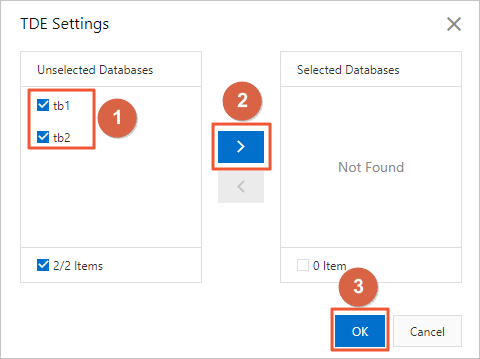
Select databases from the Unselected Databases section, click the  icon to move them to the Selected Databases section, and then click Confirm.
Use your own SQL Server key (BYOK)
Upload the certificate file and private key file to an OSS bucket. See Upload objects.
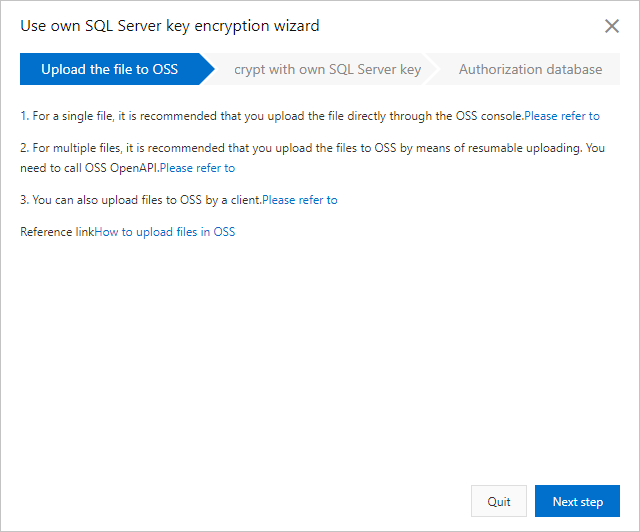
Click Next step and configure the following parameters.
Parameter Description OSS Bucket The OSS bucket where the certificate and private key files are stored. Certificate The certificate file uploaded to the OSS bucket. Private key The private key file uploaded to the OSS bucket. Password The password of your SQL Server key. 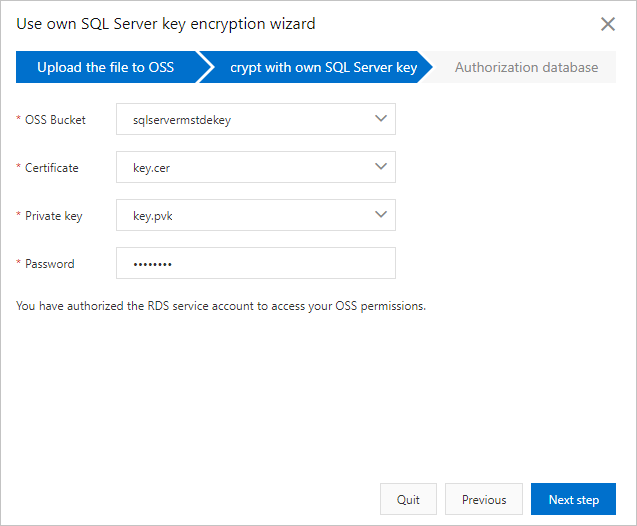
Click Next step to proceed to the Authorization database step. Select databases from the Unselected Databases section, click the
icon to move them to the Selected Databases section, and then click Confirm.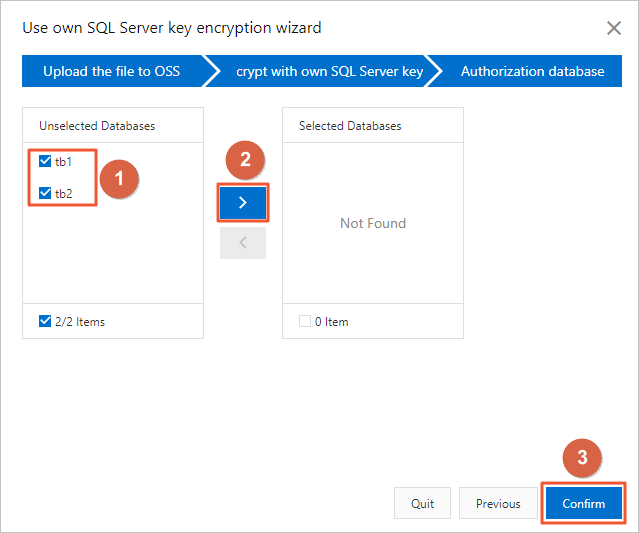
Disable TDE
Disabling TDE decrypts all data in the selected databases. Decryption is resource-intensive — it consumes significant CPU, memory, and I/O — and the time required is proportional to data volume. For a database with approximately 200 GB of data, disabling TDE can take more than 40 minutes.
To disable TDE for one or more databases, remove those databases from the Selected Databases section. To disable TDE for the entire RDS instance, remove all databases from the Selected Databases section.
Go to the Instances page. In the top navigation bar, select the region where the RDS instance resides. Find the instance and click its ID.
In the left-side navigation pane, click Data Security.
On the TDE tab, click TDE Settings.
Select databases from the Selected Databases section, click the
 icon to move them to the Unselected Databases section, and then click OK.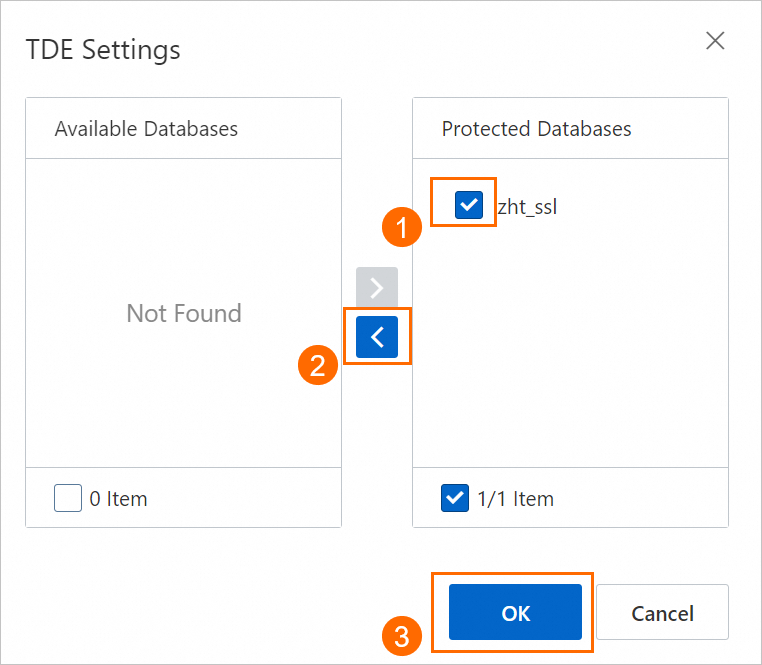
Monitor decryption progress
After disabling TDE, run the following query to check decryption progress:
SELECT
    db_name(database_id) AS DatabaseName,
    encryption_state,
    percent_complete
FROM
    sys.dm_database_encryption_keys;
Restore to on-premises: Alibaba Cloud key
Use this procedure if TDE was enabled with an Alibaba Cloud-managed service key. Because the service key is managed by Alibaba Cloud and is not exportable, encrypted backup files cannot be used directly. The workaround is to disable TDE first, then perform a fresh full backup.
Step 1: Disable TDE
Follow the steps in Disable TDE to remove all databases from the Selected Databases section.
After disabling TDE, some encrypted transaction logs may still exist. Download the backup only after completing the full backup in the next step.
Step 2: Perform a full backup
After TDE is disabled, perform a full backup. For details, see Configure manual backups.
When creating a manual backup, you can back up the entire RDS instance or specific databases. Backing up specific databases requires the physical backup method.
Step 3: Download the backup and restore data
On the Backup and Restoration page, download the most recent full backup file. Use the .bak file in the downloaded package to restore data to your on-premises SQL Server. See Download data backup files and log backup files.
Restore to on-premises: BYOK
If TDE was enabled with your own SQL Server key (BYOK), you can restore the encrypted backup to an on-premises SQL Server using your own certificate and private key.
You can also use the Alibaba Cloud key procedure instead, using the disable-then-backup approach.
Connect to your RDS instance using a SQL Server client before running the following statements. See Connect to an ApsaraDB RDS for SQL Server instance.
Step 1: Create a master encryption key
Run the following statement on the master database of your RDS instance to create a master encryption key (MEK). If an MEK already exists, skip to Step 2.
USE master;
GO
IF NOT EXISTS (
    SELECT * FROM sys.symmetric_keys WHERE symmetric_key_id = 101
)
BEGIN
    CREATE MASTER KEY ENCRYPTION BY PASSWORD = '<your-mek-password>'; -- Replace with your custom password.
END;
The password can differ from the one used to create the MEK in the server on which your self-managed SQL Server database is created.
Step 2: Create a certificate from your BYOK files
Import the certificate and private key that were used when enabling TDE on the RDS instance.
USE master;
GO
CREATE CERTIFICATE TDE_Certificate
FROM FILE = 'C:\cert\tde_cert.cer'         -- Replace with the actual path to your certificate file.
WITH PRIVATE KEY (
    FILE = 'C:\cert\tde_privatekey.pvk',   -- Replace with the actual path to your private key file.
    DECRYPTION BY PASSWORD = '<your-tde-password>'  -- Replace with the password used when enabling TDE.
);| Placeholder | Description |
|---|---|
<your-mek-password> | A password to protect the MEK on the on-premises server. |
C:\cert\tde_cert.cer | Path to the certificate file used when enabling TDE. |
C:\cert\tde_privatekey.pvk | Path to the private key file used when enabling TDE. |
<your-tde-password> | The password specified when you enabled TDE with BYOK. |
Step 3: Download the backup and restore data
On the Backup and Restoration page of the RDS instance, find the required backup set, download it, and use the .bak file to restore data to the on-premises SQL Server. See Download data backup files and log backup files.
Version compatibility: If the restore fails with the error The media family on device '<backup file name>' is incorrectly formed. SQL Server cannot process this media family., the on-premises SQL Server minor engine version is older than the RDS instance version. To resolve this, make sure the major and minor engine versions of the on-premises database match those of the RDS instance. Check the engine version on the Basic Information page of the instance in the console. See KB5014298 for details.
What's next
For other data encryption options available in ApsaraDB RDS for SQL Server, see Data security and encryption.