Standard RDS backup retains between 2 and 7 backup sets every week, which accumulates storage over time. Sparse backup lets you define layered retention policies — weekly, monthly, and yearly — so you keep only the backup sets you need, at the granularity you choose. This reduces backup storage costs compared to fixed periodic retention.
How it works
Each sparse backup policy specifies a backup cycle (every week, every month, or every year), the specific days to run backups, and a retention period. You can stack multiple policies on a single instance.
Example — four-layer retention:
Policy | Schedule | Retention |
① | Daily | 7 days |
② | Every Monday | 30 days |
③ | First and last day of each month | 365 days |
④ | January 1 of each year | Long-term |
When policies overlap on the same day, the system creates one backup set and applies the longest retention period among the matching policies.
Differences between regular and sparse backups
Regular backup | Sparse backup | |
Retention policy | At least 2 and up to 7 backup sets per week, retained for a fixed period. Example: every Monday and Sunday for 365 days. | Configurable per cycle — weekly, monthly, or yearly — with independent retention periods per policy. Example: every Monday and Sunday for 7 days, and the last day of each month for the long term. |
Storage cost | Accumulates many backup sets over time, increasing storage costs. | Retains the minimum number of backup sets needed, lowering storage costs. |
Prerequisites
Before you begin, ensure that you have:
Authorized the Database Backup Service (DBS) service-linked role AliyunServiceRoleForDBS. This is a one-time authorization required from the root Alibaba Cloud account. If this is your first time using the RDS backup service, you are prompted to complete this authorization automatically.
Usage notes
After you configure a sparse backup policy, it takes about 10 to 15 minutes for the configuration to take effect.
The first backup policy row is always set to Every Week and cannot be deleted. Specify at least two days for this policy.
If multiple policies are scheduled for the same day, the system runs one backup and retains it for the longest retention period among those policies.
If you delete a sparse backup policy, backup sets previously created by that policy are retained until their original retention period expires.
A backup is skipped if no backup set is successfully created or dumped within the backup window. No backup set is retained for that day. This can happen when: Example: If you configure a policy to back up on the first day of each month with a 30-day retention period, and the backup fails on December 1, no backup set is retained for that day.
The backup fails
The instance is locked
The level-1 backup set is not dumped before it expires
Incremental backup sets depend on their corresponding full backup sets and cannot restore data independently. If a full backup set created before you enabled sparse backup expires, any incremental backup sets that depend on it can no longer restore data.
When you enable sparse backup (by switching to advanced backup settings), the system converts the most recent incremental backup set into a full backup set. This conversion happens during the next full backup.
Billing
Each RDS instance includes a free backup storage quota. If the total size of backup files stays within the free quota, no backup storage fees are incurred. Excess storage beyond the quota is billed. For details, see Backup fee.
Switch to advanced backup settings
Configuring sparse backups requires switching to the advanced backup policy page. This switch is irreversible — you cannot revert to the previous backup settings page afterward.
If you have already switched, skip this section.
Go to the Instances page. In the top navigation bar, select the region where your RDS instance resides. Find the instance and click its ID.
In the navigation pane on the left, click Backup and Restoration.
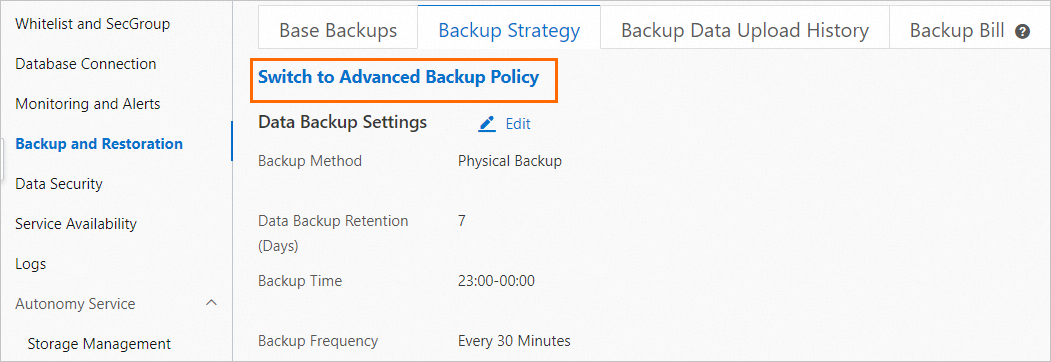
On the Backup Strategy tab, click Switch to Advanced Backup Policy.
ImportantIf Switch to Advanced Backup Policy is not displayed, submit an application. After approval, refresh the page and continue.
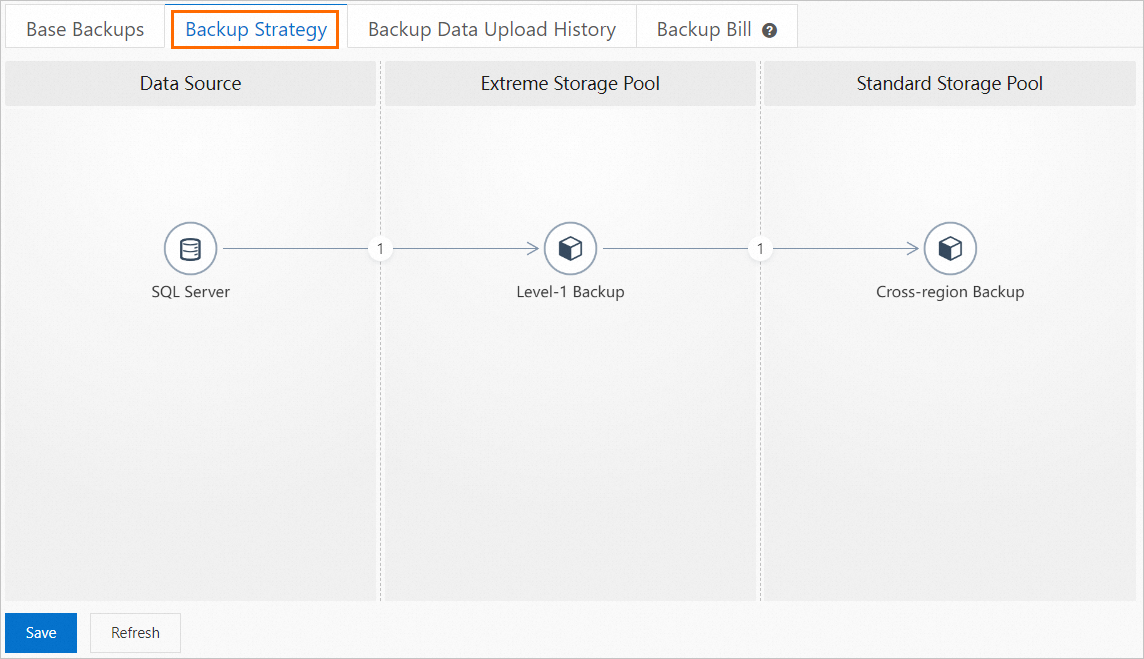
In the dialog box, select I Understand That Switching To The Advanced Backup Policy Is Irreversible, and then click OK. The Backup Strategy page updates to the advanced layout, confirming that the switch is complete.
ImportantThis action upgrades the backup settings page for the instance and cannot be undone.
Configure a sparse backup policy
Go to the Instances page. In the top navigation bar, select the region where your RDS instance resides. Find the instance and click its ID.
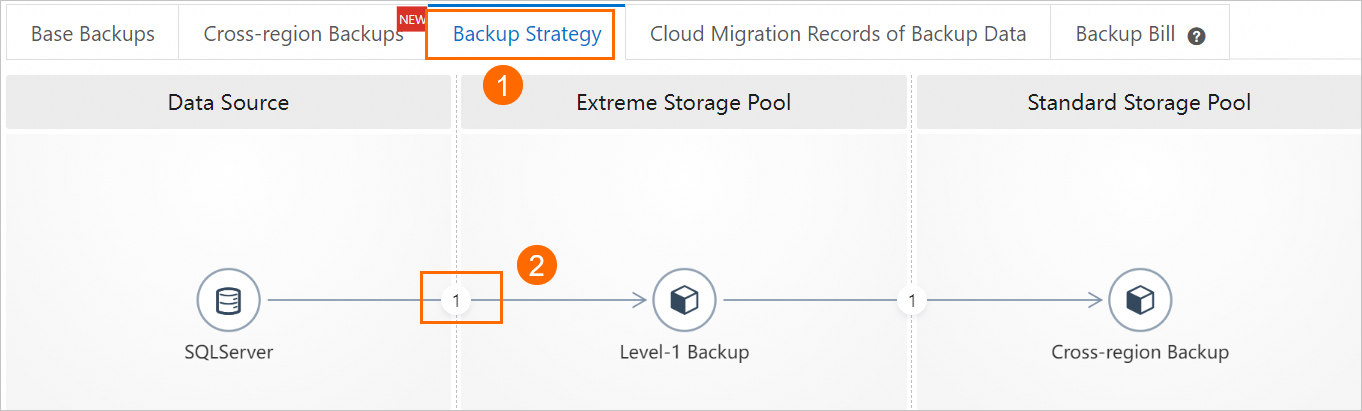
In the navigation pane on the left, click Backup and Restoration.
On the Backup Strategy tab, click the circled number between SQL Server and Level-1 Backup.
In the dialog box, click Add Backup Policy, configure the policy, and then click OK.
NoteFor other parameters, see Back up an ApsaraDB RDS for SQL Server instance and Use the snapshot backup feature.
The first backup policy row is always set to Every Week and cannot be deleted. Specify at least two days for this policy.
Backup cycle
Backup time
Retention period
Every Week
Select one or more days of the week.
7 to 7,300 days, or Long-term Retention. Set a different retention period for each policy.
Every Month
Select one or more days of the month, or Last Day Of Each Month.
Every Year
Select a specific day of the year. For example, January 1 of each year.
Click Save in the lower-left corner of the Backup Strategy tab.
Configuration example
The following example shows a four-policy configuration:
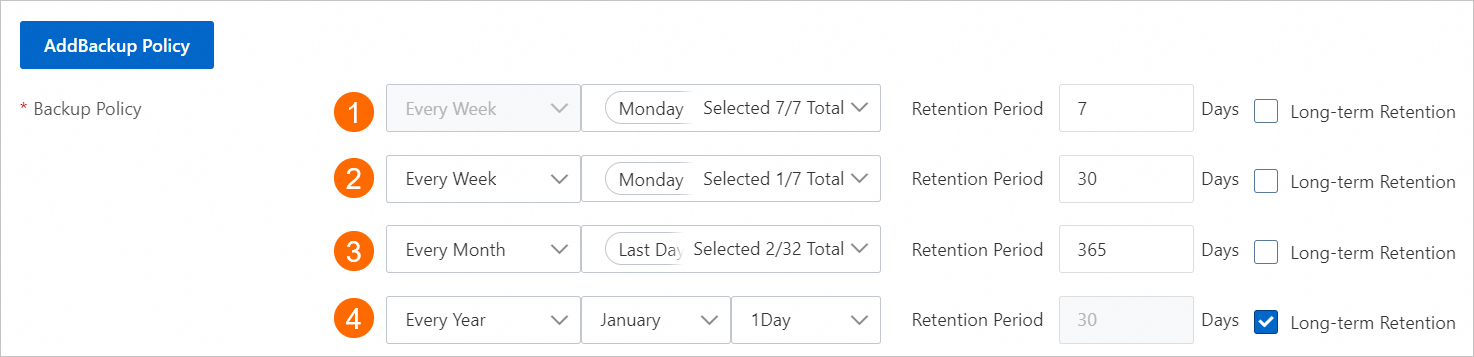
Policy | Schedule | Retention |
① | Daily | 7 days |
② | Every Monday | 30 days |
③ | First and last day of each month | 365 days |
④ | January 1 of each year | Long-term Retention |
Manage backup policies
View backup policies
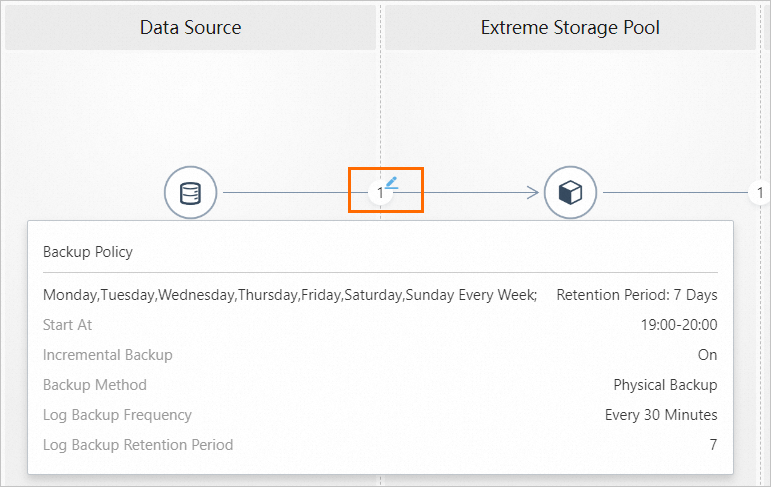
On the Backup Strategy page, hover over the circled number to see all configured backup policies. The number in the circle indicates how many policies are configured.
Delete a backup policy
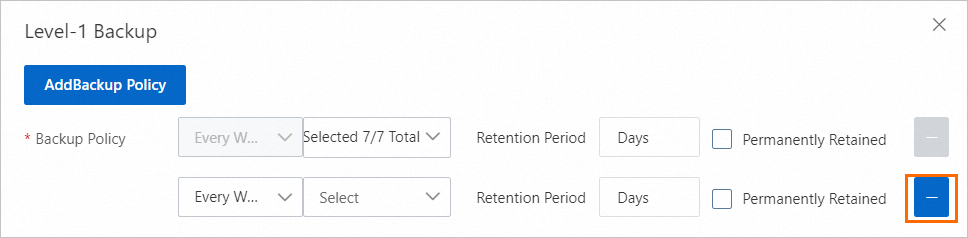
On the Level-1 Backup page, click the  icon next to the policy you want to remove.
The first backup policy row is always set to Every Week and cannot be deleted. You must specify at least two days for this policy.