When you no longer need an ApsaraDB RDS for SQL Server instance, release it to stop billing and free up resources. The release method depends on the billing type:
Pay-as-you-go and Serverless instances: release through the console or the DeleteDBInstance API operation.
Subscription instances: unsubscribe through the console. API-based unsubscription is not supported.
Releasing or unsubscribing from an instance permanently deletes its data in most cases. Back up your data and download the backups before proceeding.
Prerequisites
Before you begin, make sure that:
The instance is not in the Suspended state. If it is, restart the instance first. Alternatively, call the DeleteDBInstance API operation directly.
If you are releasing the last read-only instance of a primary instance, disable read/write splitting (read-only endpoint) first.
If you created a privileged account using Terraform, verify that the account can be deleted before releasing the instance. Terraform-managed privileged accounts cannot be deleted through Terraform and may block the release.
Data retention after release
Understanding what happens to your data after release helps you plan before you proceed.
What goes to the recycle bin (data is retained and recoverable):
| Scenario | Instance type |
|---|---|
| Manually released | Pay-as-you-go primary instances |
| Auto-released due to overdue payment | Pay-as-you-go primary instances |
| Manually unsubscribed from | Subscription primary instances |
| Auto-released after expiration | Subscription primary instances |
After an instance moves to the recycle bin, you can restore it if the instance was used for more than seven days.
What is not moved to the recycle bin (data is immediately purged):
Read-only instances
Serverless ApsaraDB RDS for SQL Server instances
SQL Server 2008 R2 instances (manually released or unsubscribed from)
Cross-region backups: If cross-region backup is configured, backup data within the retention period is kept even after the instance is released.
Release or unsubscribe from a primary instance
Release a pay-as-you-go or Serverless primary instance
Log on to the ApsaraDB RDS console. In the left-side navigation pane, click Instances. In the top navigation bar, select the region where the instance resides.
Release the instance using either method:
From the instance list: Find the instance and choose More > Release Instance in the Actions column.
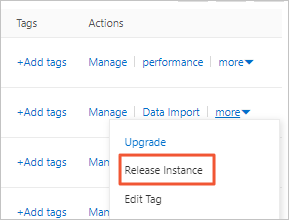
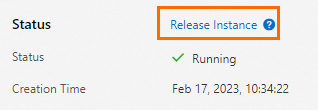
From the instance details page: Click the instance ID. On the Basic Information page, find the Status section and click Release Instance.
In the dialog box, click Yes.
The instance is removed from the Instances page and billing stops.
Unsubscribe from a subscription primary instance
Use any of the following methods to go to the Resource Unsubscription page, then submit a ticket to complete the unsubscription.
Method 1 — Resource Unsubscription page
Go directly to the Resource Unsubscription page.
Method 2 — Basic Information page
Log on to the ApsaraDB RDS console. In the left-side navigation pane, click Instances. In the top navigation bar, select the region where the instance resides.
Click the instance ID. On the Basic Information page, find the Status section and click Cancellation of Instance Subscription.
Method 3 — Instance list
Log on to the ApsaraDB RDS console. In the left-side navigation pane, click Instances. In the top navigation bar, select the region where the instance resides.
Find the instance and choose More > Cancellation of Instance Subscription in the Actions column. In the dialog box, click OK.
Release or unsubscribe from a read-only instance
When you release or unsubscribe from a primary instance, its read-only instances are automatically released. Subscription read-only instances are refunded; pay-as-you-go read-only instances are directly released. The steps below apply only when you want to release a read-only instance independently.
Release a pay-as-you-go read-only instance
Log on to the ApsaraDB RDS console. In the left-side navigation pane, click Instances. In the top navigation bar, select the region where the instance resides.
Release the instance using either method:
From the instance list: Find the read-only instance and choose More > Release Instance in the Actions column.
From the instance details page: Click the instance ID. On the Basic Information page, click Release Instance.
In the dialog box, click OK.
Unsubscribe from a subscription read-only instance
Use any of the following methods to go to the Resource Unsubscription page, then submit a ticket to complete the unsubscription.
Method 1 — Resource Unsubscription page
Go directly to the Resource Unsubscription page.
Method 2 — Basic Information page
Log on to the ApsaraDB RDS console. In the left-side navigation pane, click Instances. In the top navigation bar, select the region where the instance resides.
Click the instance ID. On the Basic Information page, find the Status section and click Cancellation of Instance Subscription.
Method 3 — Instance list
Log on to the ApsaraDB RDS console. In the left-side navigation pane, click Instances. In the top navigation bar, select the region where the instance resides.
Find the instance and choose More > Cancellation of Instance Subscription in the Actions column. In the dialog box, click OK.
What's next
To release a pay-as-you-go or Serverless instance through the API, call DeleteDBInstance.
For questions about read-only instances, see the FAQ.
To recover a released primary instance, see Manage instances in the recycle bin.