Connect your application to an RDS Supabase project using the official Supabase client SDK. This guide covers installation and initialization for JavaScript, Python, Flutter, Swift, C#, and Kotlin.
Jump to your language: JavaScript · Python · Flutter · Swift · C# · Kotlin
Prerequisites
Before you begin, ensure that you have:
-
An RDS Supabase project
-
The project's Supabase URL and Supabase Key (see Get the Supabase URL and key)
Get the Supabase URL and key
-
Go to the RDS console. In the navigation pane, click AI Application Development.
-
Select a region. In the RDS Supabase list, click View Details in the Actions column for your project.
-
On the Basic Information page, go to the Whitelist Information section and click Add Whitelist Group to add your client's IP address to the whitelist.
-
In the Network Information section, click Public Endpoint to open the RDS Supabase logon page.
-
Enter the default username supabase and your password to log on.
-
Click Connect. On the Connect to your project page, click App Frameworks to retrieve the Supabase URL and Supabase Key.
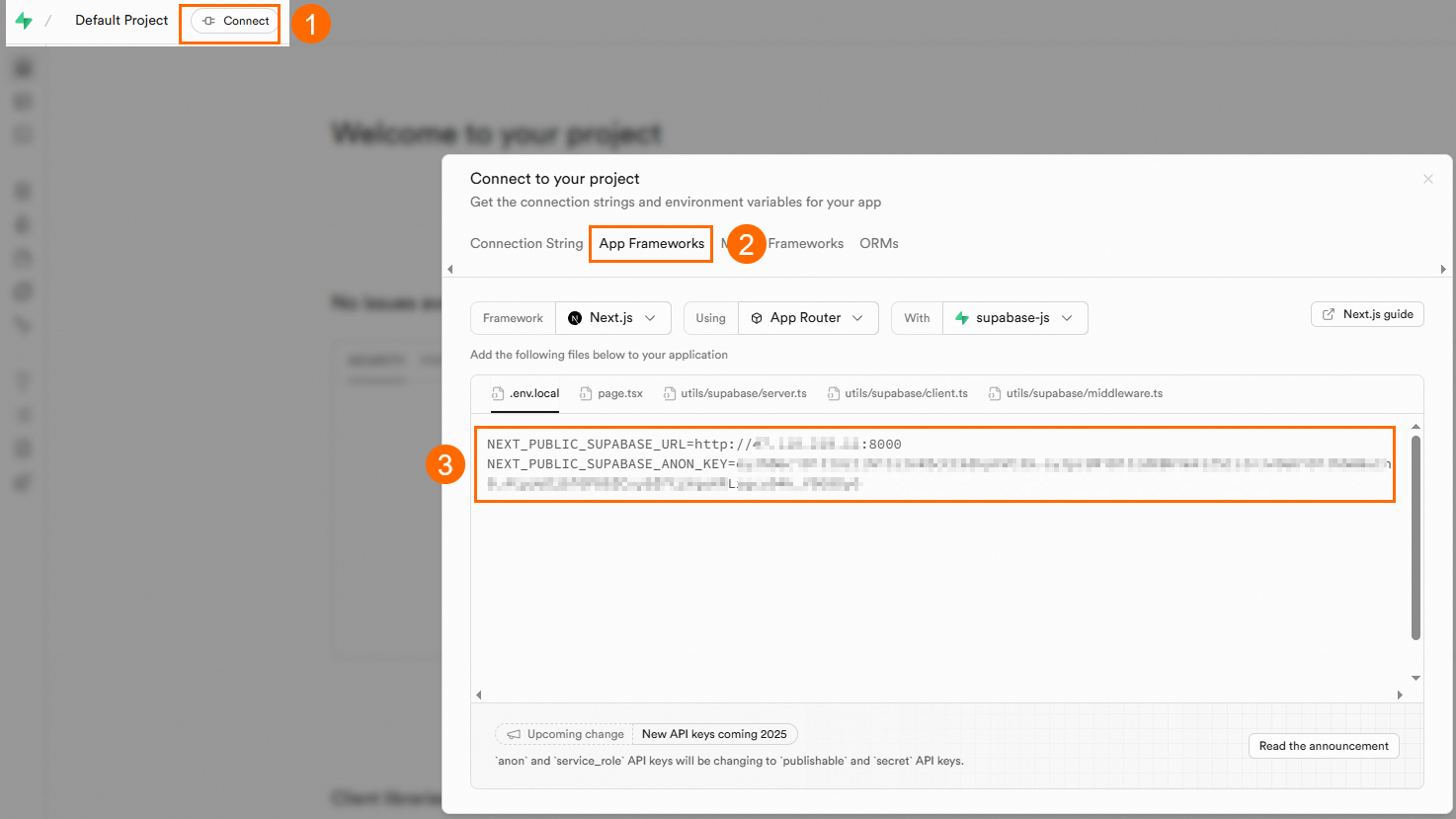
Store the URL and key as environment variables before proceeding:
export SUPABASE_URL=<your-supabase-url>
export SUPABASE_KEY=<your-supabase-key>
SDK usage guide
JavaScript
Install the package:
npm install @supabase/supabase-jsInitialize the client:
import { createClient } from "@supabase/supabase-js";

const supabaseUrl = process.env.SUPABASE_URL;
const supabaseKey = process.env.SUPABASE_KEY;

const supabase = createClient(supabaseUrl, supabaseKey);
Python
Install the package:
pip install supabaseInitialize the client:
import os
from supabase import create_client, Client

url: str = os.environ.get("SUPABASE_URL")
key: str = os.environ.get("SUPABASE_KEY")
supabase: Client = create_client(url, key)
Flutter
Install the package:
flutter pub add supabase_flutterInitialize the client:
Future<void> main() async {
  await Supabase.initialize(
    url: '<your-supabase-url>',
    anonKey: '<your-supabase-key>',
  );

  runApp(MyApp());
}

// Get a reference to your Supabase client
final supabase = Supabase.instance.client;
Replace <your-supabase-url> and <your-supabase-key> with the values from the Connect to your project page.
Swift
Install the package using Swift Package Manager. Add the following dependency to your Package.swift:
let package = Package(
    ...
    dependencies: [
        ...
        .package(
            url: "https://github.com/supabase/supabase-swift.git",
            from: "2.0.0"
        ),
    ],
    targets: [
        .target(
            name: "YourTargetName",
            dependencies: [
                .product(
                    name: "Supabase", // Auth, Realtime, PostgREST, Functions, or Storage
                    package: "supabase-swift"
                ),
            ]
        )
    ]
)
Initialize the client:
import Supabase

let client = SupabaseClient(
    supabaseURL: URL(string: "<your-supabase-url>")!,
    supabaseKey: "<your-supabase-key>"
)
Replace <your-supabase-url> and <your-supabase-key> with the values from the Connect to your project page.
C#
Install the package:
dotnet add package supabaseInitialize the client:
var url = Environment.GetEnvironmentVariable("SUPABASE_URL");
var key = Environment.GetEnvironmentVariable("SUPABASE_KEY");

var options = new Supabase.SupabaseOptions
{
    AutoConnectRealtime = true
};

var supabase = new Supabase.Client(url, key, options);
await supabase.InitializeAsync();
Kotlin
Initialize the client:
val supabase = createSupabaseClient(
    supabaseUrl = "<your-supabase-url>",
    supabaseKey = "<your-supabase-key>"
) {
    install(Auth)
    install(Postgrest)
    // Install other modules as needed
}
Replace <your-supabase-url> and <your-supabase-key> with the values from the Connect to your project page.
What's next
-
Explore the full Supabase SDK documentation at <https://supabase.com/docs>