An ApsaraDB RDS for PostgreSQL instance blocks all incoming connections by default. To grant Elastic Compute Service (ECS) instances access to your RDS instance, associate an ECS security group with it. All ECS instances in the security group can then connect to the RDS instance.
Prerequisites
Before you begin, make sure that you have:
An ApsaraDB RDS for PostgreSQL instance
An ECS security group that uses the same network type as the RDS instance (both virtual private cloud (VPC) or both classic network)
Limits
| Item | Limit |
|---|---|
| Maximum security groups per RDS instance | 10 |
| Network type | The security group and the RDS instance must use the same network type |
Add a security group
Go to the Instances page. In the top navigation bar, select the region of the RDS instance. Find the instance and click its ID.
In the left-side navigation pane, click Whitelist and SecGroup. Click the Security Group tab.
Click Add Security Group.
NoteNote: Security groups followed by a VPC tag contain ECS instances that reside in VPCs.
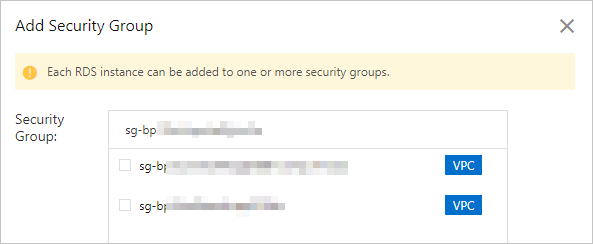
Select the security group that you want to add, and then click OK.
How whitelists and security groups work together
IP address whitelists and security groups both control access to the RDS instance. All IP addresses in configured whitelists and all ECS instances in configured security groups can access the instance.
When ECS instances in a configured security group change, the updates automatically sync to the RDS instance.
After you change the network type of an RDS instance, all previously configured security groups become invalid. Configure security groups of the new network type again.
Next steps
Related information
API operations
| Operation | Description |
|---|---|
| DescribeSecurityGroupConfiguration | Queries the ECS security groups associated with an RDS instance. |
| ModifySecurityGroupConfiguration | Modifies the ECS security groups associated with an RDS instance. |