ApsaraDB RDS for PostgreSQL automatically backs up your instance based on a backup policy you define. You can also trigger a backup manually at any time.
Backup files are stored in the same region as your RDS instance. To store backups in a different region, see Use the cross-region backup feature.
For other database engines, see:
Backup types
RDS for PostgreSQL supports two categories of backups:
| Data backup | Log backup |
|---|---|
| Data backups are full copies of your instance data. The backup method depends on your storage type: instances with Premium Local SSDs use physical backups; instances with cloud disks use snapshot backups, which can be restored to a new RDS instance. To restore data from a backup, see Restore data of an ApsaraDB RDS for PostgreSQL instance. You can download both physical backup files and snapshot backup files. For more information, see Download backup files. | Log backups are copies of your instance's archived log files. They enable point-in-time recovery (PITR) to any moment within the retention period. Note
Log backups are not supported for RDS Basic Edition instances. |
Backup data protection
-
Tamper protection
-
Full physical backups and log backups of ApsaraDB RDS for PostgreSQL are stored in OSS, while full snapshot backups are stored in the ESSD cloud disk snapshot service. Both storage methods used by the backup system provide WORM (Write Once Read Many) capabilities, making backup data tamper-proof.
-
-
Protection against malicious or accidental deletion
-
Automatic expiration and deletion: Automatic backup data can be deleted through expiration. However, automatic backup cannot be disabled, the minimum retention period is 7 days, and the minimum backup frequency is twice per week. As a result, full and log backup data generated by automatic backups cannot be completely deleted.
-
Manual deletion: You can delete manual backup data, but you cannot delete automatic backup data.
-
Prerequisites
Before you begin, ensure that you have:
-
Authorized the service-linked role AliyunServiceRoleForDBS using your Alibaba Cloud account (required the first time you use RDS backup features — see How do I create a service-linked role for DBS)
Usage notes
-
Do not run DDL statements during a backup. DDL statements lock the relevant tables and cause the backup to fail.
-
Schedule backups during off-peak hours to avoid interference with production workloads.
-
Large instances may require significant time to back up.
-
Backup files are retained for a specified period. Download backup files to your local machine before the retention period expires.
Billing
Each RDS instance includes a free quota for backup storage. If your backup storage stays within the free quota, no charges apply. Excess storage beyond the free quota is billed based on usage. For pricing details, see Backup storage fees.
Configure automatic backups
After you configure a backup policy, RDS backs up your instance on the schedule you define.
RDS for PostgreSQL supports two backup modes. If you haven't enabled the advanced backup settings, use the regular backup mode. In some regions, you can switch to the sparse backup mode for instances that use cloud disks, which offers more flexible backup scheduling. To switch, see Switch to the advanced backup policy. If the option to enable advanced backup settings is not visible in the console, submit an application.
Regular backup policy
-
Go to the Instances page. In the top navigation bar, select the region where your instance resides, then click the instance ID.
-
In the left-side navigation pane, click Backup and Restoration.
-
On the Backup Strategy tab, click Edit in the Data Backup Settings section.
-
Configure the parameters, then click Save.
Data backup parameters — instances with cloud disks
| Parameter | Description |
|---|---|
| Snapshot Backup Period | The days of the week on which backups run. Select at least two days for data safety. |
| Single-digit Second Backup | When enabled, each backup completes in 1 second. Manual backups are also performed as single-digit second backups. |
| Snapshot Backup Start Time | The time window during which the backup runs, for example, 06:00–07:00. Choose a low-traffic period. |
| Increase Snapshot Frequency | Creates snapshots at a shorter interval, up to once every 15 minutes. Requires Single-digit Second Backup to be enabled. For more information, see Use the high-frequency snapshot backup feature. |
| Snapshot Backup Retention (Days) | How long standard backup files are retained. Valid values: 7–730. Default: 7 days. This setting does not apply to single-digit second backup files. |
| Fast Restoration | When enabled, you can restore a specific database to the original instance by backup set or point in time, without restoring all data. For more information, see Restore individual databases and tables. This feature is not available in all regions. |
Data backup parameters — instances with Premium Local SSDs
| Parameter | Description |
|---|---|
| Data Backup Retention (Days) | How long backup files are retained. Valid values: 7–730. Default: 7 days. |
| Backup Cycle | The days of the week on which backups run. Select at least two days for data safety. |
| Backup Time | The time window during which the backup runs, for example, 06:00–07:00. Choose a low-traffic period. |
Log backup parameters
| Parameter | Description |
|---|---|
| Log Backup | Enables or disables log backups. When enabled, you can restore your instance to any point in time within the log retention period. Important
Disabling log backup permanently deletes all existing log backup files and removes point-in-time recovery capability. |
| Log Backup Retention Period | How long log backup files are retained. Valid values: 7–7300 days. Default: 7 days. Must be less than or equal to the data backup retention period. |
Sparse backup policy (advanced)
-
Go to the Instances page. In the top navigation bar, select the region where your instance resides, then click the instance ID.
-
In the left-side navigation pane, click Backup and Restoration.
-
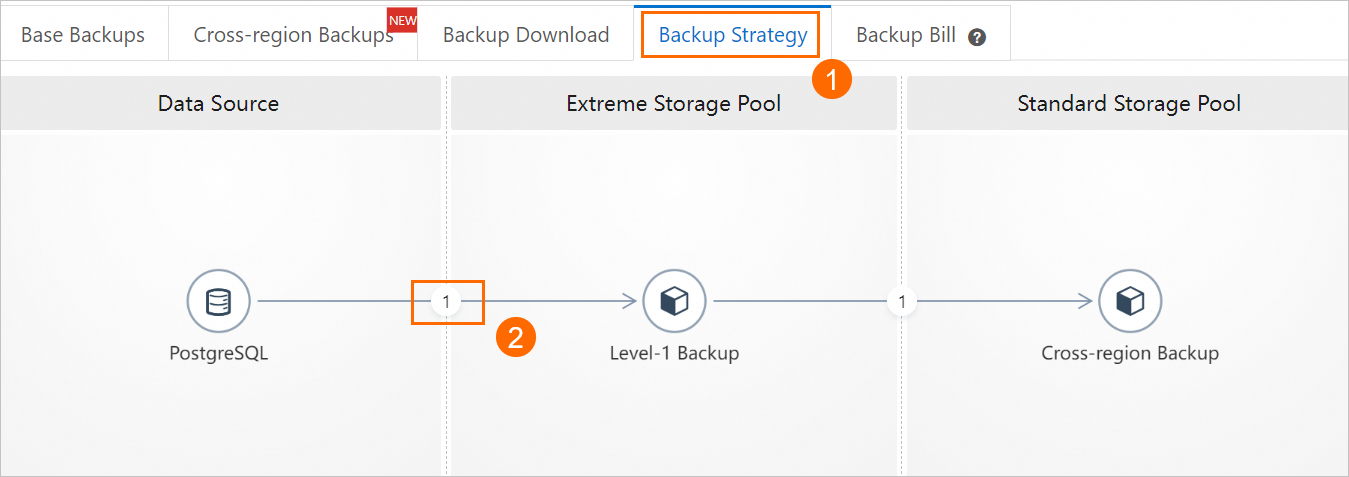
On the Backup Strategy tab, click the circled number between PostgreSQL and level-1 Backup.
-
Configure the parameters, then click OK.
Data backup parameters — instances with cloud disks
| Parameter | Description |
|---|---|
| Backup Policy | The time range and retention period for each backup. Backups must run at least twice a week. Click Add Backup Policy to configure sparse backup with flexible scheduling. For more information, see Sparse backup. |
| Single-digit Second Backup | When enabled, each backup completes in 1 second. Manual backups are also performed as single-digit second backups. |
| Snapshot Backup Start Time | The time window during which the backup runs, for example, 06:00–07:00. Choose a low-traffic period. |
Log backup parameters
| Parameter | Description |
|---|---|
| Log Backup | Enables or disables log backups. When enabled, you can restore your instance to any point in time within the log retention period. Important
Disabling log backup permanently deletes all existing log backup files and removes point-in-time recovery capability. |
| Log Backup Retention Period | How long log backup files are retained. Valid values: 7–7300 days. Default: 7 days. Must be less than or equal to the data backup retention period. |
-
Click Save in the lower-left corner of the Backup Strategy tab.
Back up an instance manually
Trigger a manual backup when you need an immediate snapshot — for example, before a major schema change or application release.
-
Go to the Instances page. In the top navigation bar, select the region where your instance resides, then click the instance ID.
-
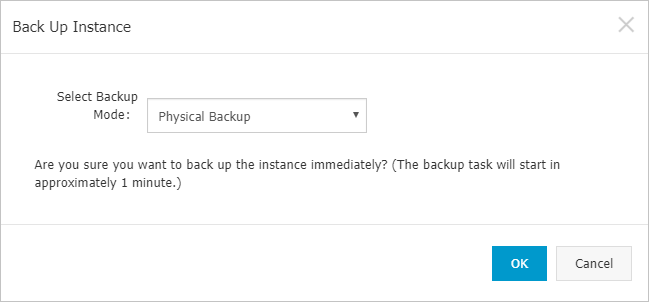
In the upper-right corner of the page, click Backup Instance, then click OK in the dialog box.
-
To monitor progress, click Task Center in the upper-right corner. Set Task Type to Manually Back Up Instance and filter by Pending Execution or In Progress.
After the backup completes, download the backup file from the Data Backup or Log Backup tab under Base Backups on the Backup and Restoration page.
Instances with cloud disks do not support backup file downloads. For more information, see Download backup files.
FAQ
Can I disable the data backup feature?
No. Data backup cannot be disabled. You can reduce the backup frequency to a minimum of twice a week.
Can I disable the log backup feature?
Yes. Log backup can be disabled in the backup settings. Before disabling it, note that all existing log backup files will be permanently deleted and point-in-time recovery will no longer be available.
Is backup data tamper-proof?
Yes. Full physical backups and log backups of ApsaraDB RDS for PostgreSQL are stored in OSS, while full snapshot backups are stored in the ESSD cloud disk snapshot service. Both storage methods used by the backup system provide WORM (Write Once Read Many) capabilities, which effectively prevent backup data from being tampered with or maliciously deleted.
API reference
| Operation | Description |
|---|---|
| CreateBackup | Creates a data backup for an instance. |
| DescribeBackups | Lists the data backups of an instance. |
| DescribeBackupPolicy | Retrieves the backup policy of an instance. |
| ModifyBackupPolicy | Updates the backup policy of an instance. |
| DeleteBackup | Deletes data backup files for an instance. |
| DescribeBackupTasks | Lists the backup tasks of an instance. |
| DescribeBinlogFiles | Lists the binary log files of an instance. |