This topic describes how to create tags for one or more RDS instances. If you have a large number of RDS instances, you can create tags and then bind the tags to the instances so that you can classify and better manage the instances. Each tag consists of a key and a value.
Limits
- Up to 10 tags can be bound to each RDS instance, and each tag must have a unique key. Tags with the same key are overwritten.
- You can bind up to five tags at a time.
- Tag information is independent in different regions.
- After you unbind a tag from an RDS instance, the tag is deleted if it is not bound to any other RDS instance.
Procedure
- Log on to the ApsaraDB for RDS console. In the left-side navigation pane, click Instances. In the top navigation bar, select the region where your RDS instance resides.

- Specify the method of adding tags.
- If you want to add tags to only one RDS instance, find the RDS instance and in the Actions column choose .
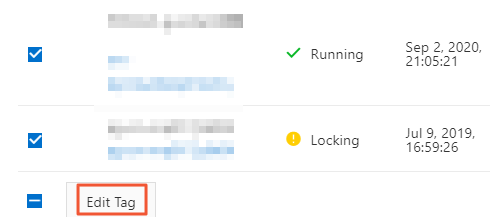
- If you want to add tags to more than one RDS instance, select the RDS instances and click Edit Tag
- Click Add, enter the Key and Value, and click Confirm. Note If you have already created tags, you can click Available Tags and select an existing tag.
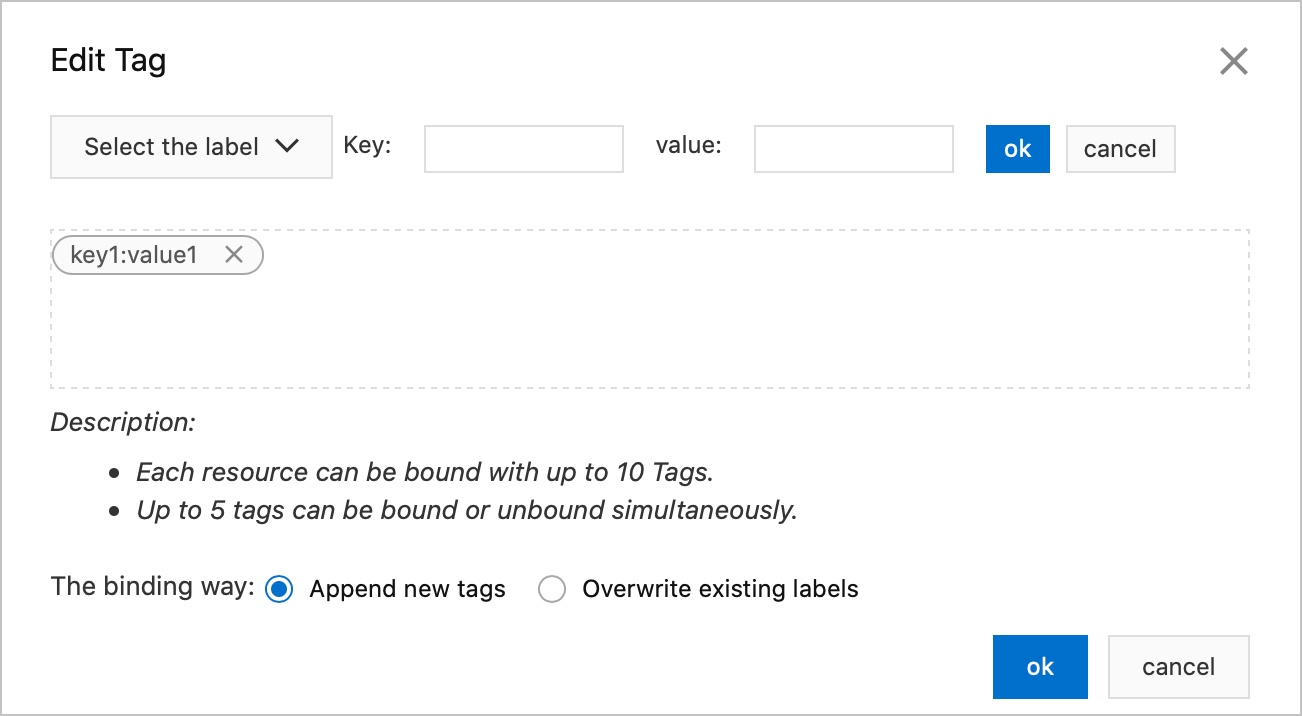
- After you add all the tags you need, click Confirm.
APIs
| API | Description |
| AddTagsToResource | Used to bind a tag to RDS instances. |