Database Autonomy Service (DAS) monitors your ApsaraDB RDS for MySQL instance and automatically scales CPU and memory up during traffic spikes, then scales back down when load drops — keeping performance stable without manual intervention.
Use cases
Automatic performance scaling works well when:
-
Traffic is unpredictable. Your workload has sudden bursts — for example, flash sales, batch jobs, or peak business hours — and you want the database to respond without advance planning.
-
You want to avoid over-provisioning. Scaling down after peak hours keeps resource costs aligned with actual demand.
-
You're running a general-purpose or dedicated instance. Both instance families are supported, though the scaling behavior differs (see How it works).
If traffic peaks occur on a fixed schedule, use the scheduled auto scaling feature instead.
Prerequisites
-
Your RDS instance is not using a phased-out instance type. If it is, change the instance type first.
-
Your Alibaba Cloud account balance is sufficient.
-
A service-linked role for DAS exists. DAS creates the AliyunServiceRoleForDAS role automatically the first time you enable the feature, so no manual setup is required unless the role was deleted.
How it works
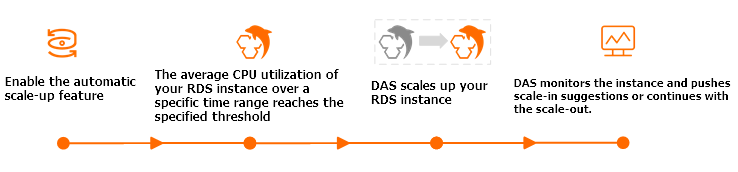
All scaling decisions are based on average CPU utilization within an observation window.
Scale-up
When CPU utilization reaches the configured threshold for the duration of an observation window, DAS triggers a scale-up. The exact behavior depends on your instance type.
Cloud disk + dedicated instance type (RDS High-availability Edition)
DAS selects the next set of specifications within your configured range and scales up the instance. After scale-up, DAS continues monitoring. If CPU utilization exceeds the threshold again in the next observation window, DAS scales up again — repeating until the instance reaches the maximum specifications you set.
Premium Local SSD + general-purpose instance type (RDS High-availability Edition or RDS Enterprise Edition)
DAS doubles the number of CPU cores. For example, 4 cores become 8 cores after a scale-up. IOPS increases by 1,000 for every CPU core added.
Two constraints apply:
-
CPU cores can only be doubled once. After the instance reaches 8 cores, it cannot scale to 16.
-
If the host has insufficient CPU resources, the scale-up is skipped.
Scale-down
The system rolls back to original specifications only if the initial scale-up occurred *after* you enabled automatic scale-down. If a scale-up happened before you enabled scale-down, the instance stays at the scaled-up specifications even after scale-down is enabled.
Cloud disk instances (RDS High-availability Edition)
After the cooldown period ends, DAS triggers a scale-down if CPU utilization stays below 30% for more than 99% of a scale-down observation window. Specifications are reduced incrementally back to the original values.
The scale-down observation window equals the Observation Window duration plus 10 minutes. For example, a 30-minute observation window produces a 40-minute scale-down window.
The automatic scale-down feature requires the new RDS architecture (kindCode = 18). To check the architecture of your instance, call DescribeDBInstanceAttribute.
Premium Local SSD + general-purpose instance type (RDS High-availability Edition or RDS Enterprise Edition)
DAS scales IOPS and CPU cores back to the original specifications if CPU utilization stays below 30% for more than 99% of the configured scale-down observation window.
Billing
| Instance type | Billing method | Details |
|---|---|---|
| Premium Local SSD + general-purpose (RDS High-availability Edition or RDS Enterprise Edition) | Pay-as-you-go, billed hourly | Formula: (fee per CPU core × number of CPU cores added) × scale-up duration in minutes |
| Cloud disk (RDS High-availability Edition) | Charged at the post-scale-up instance rate | Pricing varies by region and specifications. See the ApsaraDB RDS buy page for current rates. |
Potential impacts
-
Instance switchover (cloud disk instances only). A specification change may trigger an instance switchover. Configure your application to reconnect automatically. For impact details, see Impacts of an instance switchover.
-
Minor engine version update. If your instance isn't running the latest minor engine version, the system updates it during the specification change to ensure performance and stability.
-
Scaling applies to the primary instance only. If a primary/secondary switchover occurs after a scale-up:
-
The new primary (original secondary) is scaled up or down by DAS when it meets the scaling conditions.
-
The new secondary (original primary) is scaled down to the original specifications if it meets the scale-down conditions.
-
Enable automatic performance scaling
-
Go to the Instances page. In the top navigation bar, select the region where your RDS instance resides. Find the instance and click its ID.
-
Open the Autonomous Function Management panel using either path:
-
Autonomy Services > Diagnostics > Autonomy Center tab > Autonomy Service Settings
-
Autonomy Services > Dashboard > Autonomy Service Settings
-
-
On the Autonomous Function Settings tab, enable the autonomy service.
-
On the Optimization and Throttling tab, select the appropriate feature for your instance type:
-
Cloud disk instances: select Automatic Performance Scaling
-
Premium Local SSD + general-purpose instances: select Automatic Resource Elasticity
-
-
Configure the parameters for your instance type.
Cloud disk + dedicated instance type
Parameter Description Observation Window The monitoring period DAS uses to evaluate average CPU utilization. A scale-up triggers when the average CPU utilization reaches the threshold within this window. The scale-down window equals this value plus 10 minutes. Maximum Specifications The upper limit for scale-up. DAS scales up incrementally until the instance reaches this limit. Automatic Scale-down/in When selected, triggers a scale-down after the cooldown period if CPU utilization is below 30% for more than 99% of the scale-down observation window. Specifications are reduced to the original values in small increments. Quiescent Period The minimum interval between two consecutive scale operations (cooldown period). DAS monitors CPU utilization during this period but does not trigger scaling even if conditions are met. If the cooldown period and observation window end simultaneously and conditions are met, DAS triggers scaling immediately. Premium Local SSD + general-purpose instance type
Parameter Description Scale-up Observation Window The monitoring period used to evaluate CPU utilization for scale-up. A scale-up triggers when the average CPU utilization reaches the threshold. Scale-down Observation Window The monitoring period used to evaluate CPU utilization for scale-down. A scale-down triggers if CPU utilization stays below 30% for more than 99% of this window. -
Click OK.
-
(Optional) In the Alert Configuration section, configure an alert template to receive notifications about scaling events. The system suggests an alert template with preconfigured rules for autonomy events. To set it up:
-
In the Select Alert Contact Group step, select an alert contact group. For more information, see Manage alert contacts.
-
Click Add Contact to add an individual contact.
-
Click Create Contact Group to create a new group.
-
Use Edit or Remove in the Actions column to manage existing contacts.
-
-
In the Associate with Resources step, confirm the associated resources.
-
Click Submit Configuration and confirm in the dialog box.
NoteIf an alert template already exists for your instance, add the required autonomy event rules to it rather than creating a new template. To set up templates from scratch, see Configure alert templates and Configure alert rules.
-
FAQ
My instance has reached the maximum specifications. What are my options?
Purchase an instance running a higher RDS edition. For example, an RDS High-availability Edition instance with a dedicated instance type supports up to 104 CPU cores and 768 GB of memory. Then migrate your data to the new instance.
For details on available instance types and migration options, see Specifications and Migrate data between ApsaraDB RDS for MySQL instances.
What's next
-
Scheduled auto scaling: Configure scaling policies on a fixed schedule and have specifications restored automatically after each period. See Use the scheduled auto scaling feature.
-
Manual specification change: Change instance specifications manually for instances that don't support automatic performance scaling. See Change instance specifications.