Data Management (DMS) lets you export table data from ApsaraDB RDS directly to your local machine in three formats:
| Format | Best for |
|---|---|
| CSV | Spreadsheets (Excel, Google Sheets) and data import tools |
| SQL | Restoring data to another database instance via INSERT statements |
| Excel | Native .xlsx workbooks without conversion |
Prerequisites
Before you begin, ensure that you have:
Access to the DMS console
An ApsaraDB RDS instance with data to export
Permission to perform database export operations in DMS
Verify source data
In the DMS console, confirm that the table you want to export is accessible and displays data correctly.
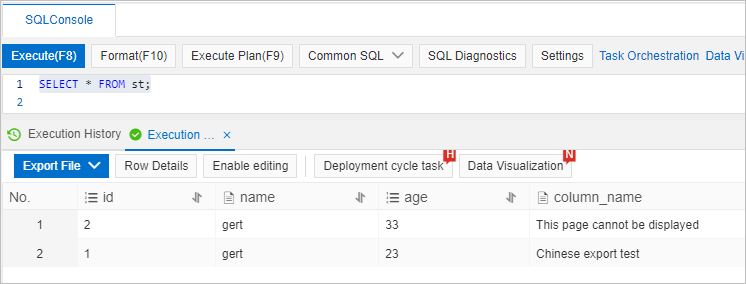
Check the table character set
Run the following statement to confirm the table's character set. Use the result to select the correct encoding when configuring the export task.
show create table <Table name>;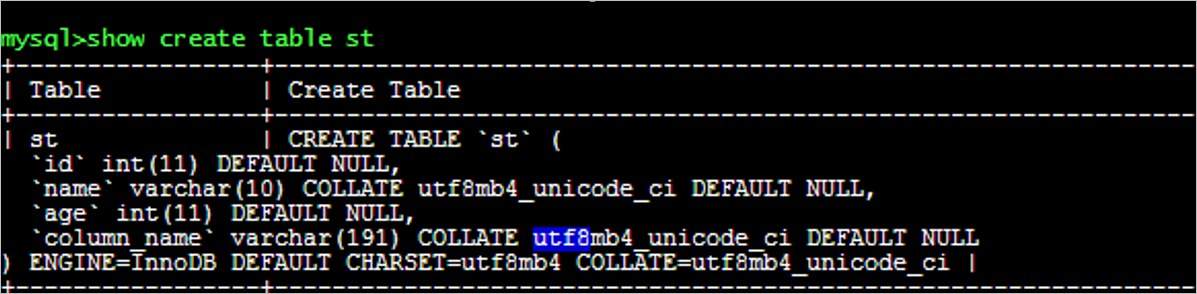
Create an export task
In the DMS console, go to Database Development > Data Export > Database Export.
Click Database Export.
Select the table to export, configure the following parameters, and then click Submit.
If you plan to restore data from an exported SQL file, set Export content to Data & Structure before submitting the task.
Parameter Description File Format Select the output format: CSV, SQL, or Excel. Exported Structure Type Choose what to include: structure only, data only, or both structure and data. Export content Select Data & Structure to export both the table schema and row data. If you plan to use the SQL file to restore data to another instance, you must use this option — selecting structure only restores an empty table. 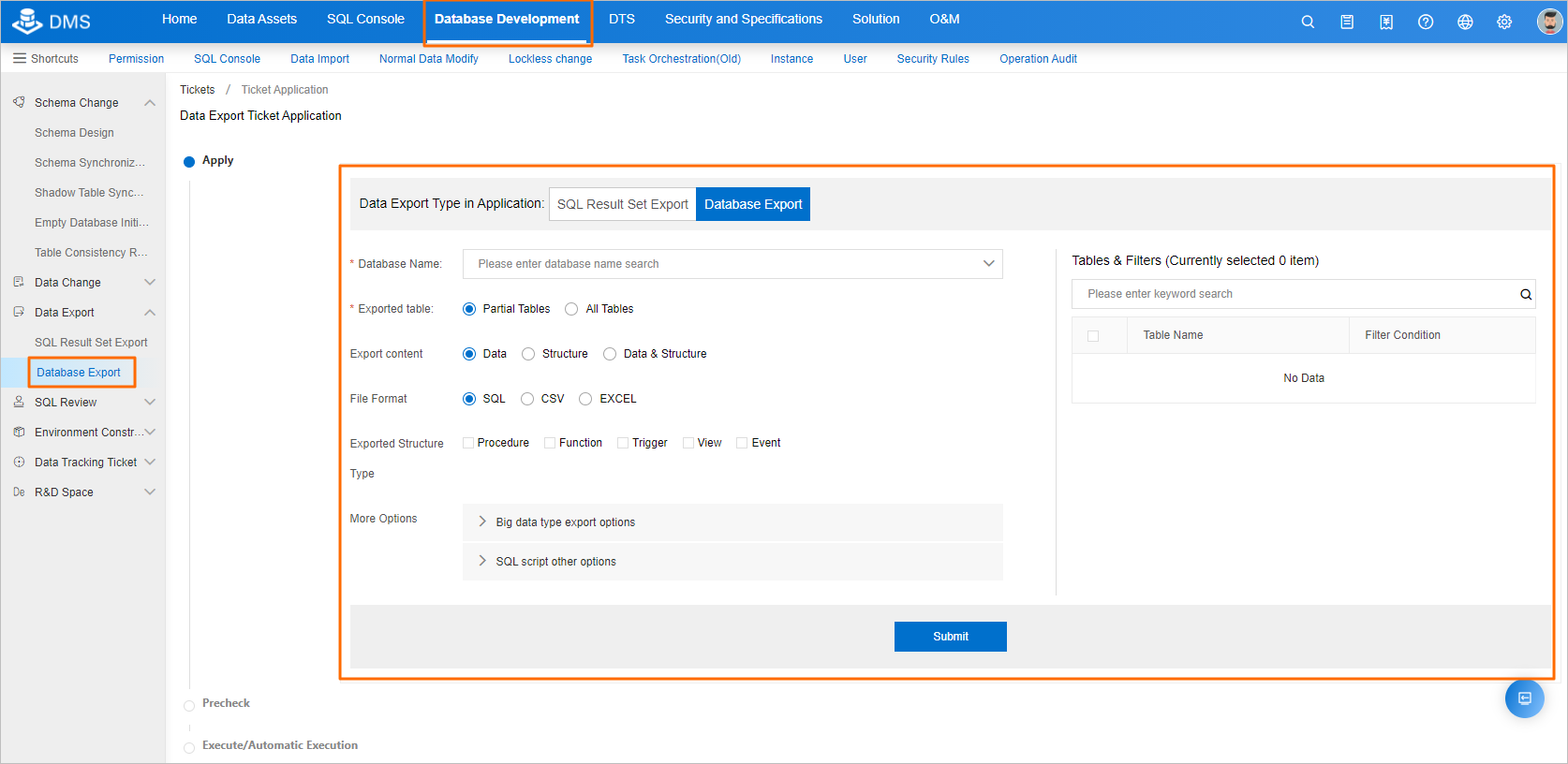
FAQ
When I restore data using an exported SQL file, only the table structure appears — no rows. Why?
The export task was configured with Export content set to structure only instead of Data & Structure. To restore both the schema and data:
Set Export content to Data & Structure when creating the export task.
On the target self-managed instance, create the required databases.
Run the exported SQL scripts against those databases.