After you expand the capacity of a disk, you must also expand its partitions and file systems. This process allocates the newly added capacity to existing partitions and file systems, which allows the operating system to use the additional space. This topic describes how to expand the partitions and file systems of a disk for an RDS Custom instance.
Prerequisites
The RDS Custom instance meets the following requirements:
The status is Running.
The operating system is Alibaba Cloud Linux 2/3, CentOS 7 or later, Debian 11 or later, or Ubuntu 14 or later.
The disk meets the following requirements:
The status is In Use.
The usage of the system disk is less than 100%.
ImportantTo ensure a successful expansion, log on to the instance and run the
df -hcommand to confirm that the root partition usage is less than 100%.
You have expanded the disk capacity but have not expanded the partitions and file systems.
Precautions
We strongly recommend that you create a snapshot for the disk to back up data before you expand the disk.
Expanding partitions and file systems does not cause data loss. However, to prevent data loss from accidental misoperations, we recommend that you create a snapshot to back up the disk data.
Procedure
Step 1: View the information about the disk to be expanded and confirm the expansion steps
Run the following command to view the name of the disk to be expanded and its partition information.
sudo fdisk -lu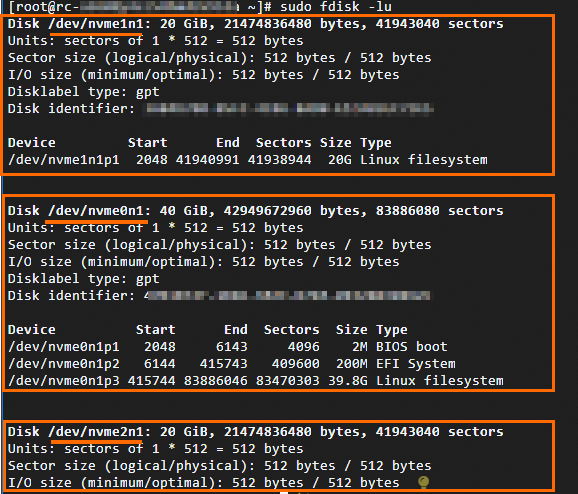
Check whether the disk is partitioned. In the preceding figure, the instance has three disks: the system disk
/dev/nvme0n1, and two data disks, /dev/nvme1n1 and /dev/nvme2n1. The data disks are used as an example:The data disk
/dev/nvme1n1is partitioned and has the /dev/nvme1n1p1 partition.The data disk
/dev/nvme2n1is not partitioned (it is a raw device).
Determine the partition type of the disk. The
Disklabel typefield indicates the partition type. A value ofgptindicates GUID Partition Table (GPT), and a value ofdosindicates Master Boot Record (MBR). In this example, the disk uses the GPT partition type.
Run the following command to obtain the file system information of the disk to be expanded.
For an unpartitioned disk
sudo file -s /dev/raw_device_nameFor a partitioned disk
sudo file -s /dev/partition_name
Take the
/dev/nvme1n1p1partition as an example. Run the following command.sudo file -s /dev/nvme1n1p1If the following result is returned, the file system of the
/dev/nvme1n1p1partition is ext4./dev/nvme1n1p1: Linux rev 1.0 ext4 filesystem data, UUID=342527ce-**** (needs journal recovery) (extents) (64bit) (large files) (huge files)If /dev/nvme1n1p1: data is returned, the partition does not have a file system.
Confirm the expansion steps to be performed.
The disk is partitioned and has a file system: First, perform Step 2: Expand the partition. Then, perform Step 3: Expand the file system.
NoteThe MBR partition format does not support disks that are larger than 2 TiB. If your disk uses the MBR partition type and you want to expand it to more than 2 TiB, you must first convert the MBR partition to a GPT partition and then expand the partition and file system.
The disk is partitioned but does not have a file system: Perform only Step 2: Expand the partition.
The disk is not partitioned but has a file system: Perform only Step 3: Expand the file system.
The disk is not partitioned and does not have a file system: You do not need to perform the operations in this topic.
Step 2: Expand the partition
If the disk is not partitioned but has a file system, you do not need to expand the partition. You can directly perform Step 3: Expand the file system.
Run the following command to expand the partition. This example uses the
/dev/nvme1n1p1partition./dev/nvme1n1is the disk name, and1inp1is the partition number. A space is required between the disk name and the partition number. Replace the disk name and partition number in the command with your actual values.Alibaba Cloud Linux 2/3, CentOS 7 and later
GPT partition (The gdisk tool is required.)
type growpart || sudo yum install -y cloud-utils-growpart
sudo yum update cloud-utils-growpart
type sgdisk || sudo yum install -y gdisk
sudo LC_ALL=en_US.UTF-8 growpart /dev/nvme1n1 1
MBR partition
type growpart || sudo yum install -y cloud-utils-growpart
sudo yum update cloud-utils-growpart
sudo LC_ALL=en_US.UTF-8 growpart /dev/nvme1n1 1
Debian 11 and later, Ubuntu 14 and later
GPT partition (The gdisk tool is required.)
sudo apt-get update
sudo apt-get install -y cloud-guest-utils
type sgdisk || sudo apt-get install -y gdisk
sudo LC_ALL=en_US.UTF-8 growpart /dev/nvme1n1 1
MBR partition
sudo apt-get update
sudo apt-get install -y cloud-guest-utils
sudo LC_ALL=en_US.UTF-8 growpart /dev/nvme1n1 1
ImportantFor an NVMe disk, take the
/dev/nvme1n1p1partition as an example./dev/nvme1n1is the disk name, and1inp1is the partition number. A space is required between the disk name and the partition number. To expand the partition, run thegrowpart /dev/nvme1n1 1command.For a virtual disk, take the
/dev/vdb1partition as an example./dev/vdbis the disk name, and1is the partition number. A space is required between the disk name and the partition number. The expansion command isgrowpart /dev/vdb 1LC_ALL=en_US.UTF-8is an environment variable setting that ensures compatibility with the character encoding of Chinese operating systems.If a disk has multiple consecutive partitions, you can expand only the last partition. For example, the data disk
/dev/nvme3n1has three partitions:/dev/nvme3n1p1,/dev/nvme3n1p2, and/dev/nvme3n1p3. You can expand only the last partition/dev/nvme3n1p3. To expand the partition of the data disk, run thegrowpart /dev/nvme3n1 3command.If the disk partition that you want to expand is an extended partition in an MBR partitioned table (the partition number is usually 5 or greater), you must expand the extended partition before you expand the logical partition. For example, if you have three partitions,
/dev/nvme1n1p1(primary partition),/dev/nvme1n1p2(extended partition), and/dev/nvme1n1p5(logical partition), you must rungrowpart /dev/nvme1n1 2and thengrowpart /dev/nvme1n1 5to expand the partitions.
If a message that contains
CHANGEDis returned, the partition is expanded.CHANGED: partition=1 start=2048 old: size=41938944 end=41940991 new: size=52426719 end=52428766Run the following command to check whether the partition is expanded.
sudo fdisk -luTake the expansion of the
/dev/nvme1n1p1partition as an example. If the capacity of the/dev/nvme1n1p1partition is the same as the capacity of the /dev/nvme1n1 disk, the partition is successfully expanded.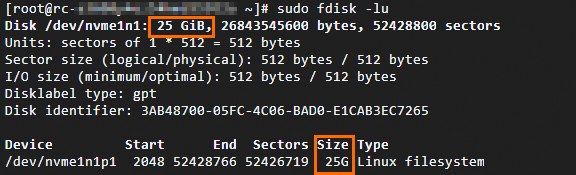
Step 3: Expand the file system
Run the following command to obtain the mount directory of the device to be expanded.
df -Th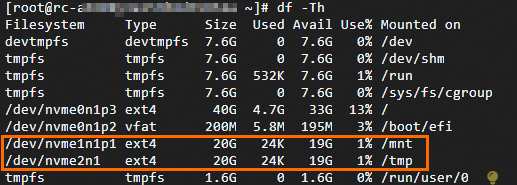
The value of
Typeis the file system type. The value ofMounted onis the mount directory of the partition. For example:The file system of the
/dev/nvme2n1disk is ext4, and the mount directory is /tmp.The file system of the
/dev/nvme1n1p1partition is ext4, and the mount directory is /mnt.
NoteIf the value of Filesystem is a disk name, such as nvme2n1, the destination disk is not partitioned and is a raw device. If the value is a partition name, such as /dev/nvme1n1p1, the destination disk is partitioned.
Run the following command to expand the file system.
ext* (such as ext2, ext3, and ext4) file systems
For an unpartitioned disk, such as the
/dev/nvme2n1disk.sudo resize2fs /dev/nvme2n1For example, /dev/nvme1n1p1 is a disk partition.
sudo resize2fs /dev/nvme1n1p1
xfs file systems
Take the expansion of an xfs file system whose mount directory is /mnt as an example. Replace the mount directory in the command as needed.
Alibaba Cloud Linux 2/3, CentOS 7 and later
type xfs_growfs || sudo yum install -y xfsprogs
sudo xfs_growfs /mnt
Debian 11 and later, Ubuntu 14 and later
type xfs_growfs || sudo apt-get install -y xfsprogs
sudo xfs_growfs /mnt
btrfs file systems
Take the expansion of a btrfs file system whose mount directory is /mnt as an example. Replace the mount directory in the command as needed.
sudo btrfs filesystem resize max /mntRun the
df -Thcommand to check whether the expansion is successful.For example, the disk that contains the
/dev/nvme1n1p1partition is expanded to 25 GiB. After the file system is expanded, its capacity is also 25 GiB.NoteBecause a file system occupies a specific amount of storage space, the free space of the file system may be slightly smaller than the total capacity of the expanded disk.