To execute scheduled or periodic tasks on an ApsaraDB RDS for MySQL instance, such as periodically sending statistical reports, synchronizing data, or deleting expired data, you can use the event scheduler feature to execute events defined in databases.
Requirement
You have created an ApsaraDB RDS for MySQL account with the EVENT permission on the target database, such as a privileged account, a standard account (read/write), or a standard account (DML only).
Step 1: Enable Event Scheduler
First, ensure that Event Scheduler is enabled before you create a scheduled task.
Log on to the ApsaraDB RDS console and go to the Instances page. In the top navigation bar, select the region in which the RDS instance resides. Then, find the RDS instance and click the instance ID.
In the navigation pane on the left, click Parameters.
On the Modifiable Parameters page, search for
event_scheduler, and make sure that the Running Value is set to ON.If you modified the parameter value, click Apply Changes, and in the dialog box that appears, select Take Effect Immediately, and click OK.
Step 2: Create a scheduled task
Create a scheduled task in the DMS console
Click Log On to Database in the upper-right corner of the page to go to the quick logon page of DMS. Log on to the RDS MySQL instance using your RDS MySQL account. For more information, see Log on to an ApsaraDB RDS database using DMS.
NoteWhen you log on to the database instance, select Control Mode as Flexible Management. For more information about DMS control modes, see Control modes.
In the SQLConsole window, execute the following SQL statement to create a test table named students.
NoteIf you use a table that already exists in the database, you can skip this step and use the corresponding SQL statement in the Event statement field.
CREATE TABLE students (
  `id` bigint(20) NOT NULL AUTO_INCREMENT COMMENT 'id',
  `name` varchar(64) NOT NULL COMMENT 'name',
  PRIMARY KEY (`id`)
) ENGINE=InnoDB AUTO_INCREMENT=1 DEFAULT CHARSET=utf8;
In the visual operation area of the SQL window, click Programmable Object Permissions, right-click Event, and select New (Event).
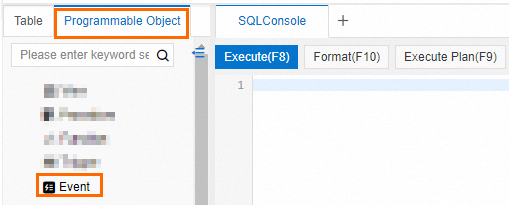
On the New (Event) tab, configure the event parameters.
In this example, Event name is set to test01, Scheduling Method is set to Cycle Time, Interval is set to 10 minutes, and Event statement is set to insert data into the test table students. For more information about event parameters, see the Event parameter description table.
Example of an event statement:
begin INSERT INTO students(name) VALUES('zhangsan'); endClick Save. In the Submit dialog box that appears, confirm that the SQL statement is correct and click Execute.
You can view the new scheduled task under Programmable Object Permissions > Event. You can also execute
SHOW EVENTS;in the SQL window to view detailed information about the scheduled task.NoteWhen you query using
SHOW EVENTS;, if the status of the event isENABLED, the event is enabled.
Create a scheduled task using SQL statements
Syntax
CREATE
    [DEFINER = user]
    EVENT
    [IF NOT EXISTS]
    event_name
    ON SCHEDULE schedule
    [ON COMPLETION [NOT] PRESERVE]
    [ENABLE | DISABLE | DISABLE ON SLAVE]
    [COMMENT 'string']
    DO event_body;

schedule:
    {
        AT timestamp [+ INTERVAL interval] ...
      | EVERY interval
          [STARTS timestamp [+ INTERVAL interval] ...]
          [ENDS timestamp [+ INTERVAL interval] ...]
    }

interval:
    quantity {
        YEAR
      | QUARTER
      | MONTH
      | DAY
      | HOUR
      | MINUTE
      | WEEK
      | SECOND
      | YEAR_MONTH
      | DAY_HOUR
      | DAY_MINUTE
      | DAY_SECOND
      | HOUR_MINUTE
      | HOUR_SECOND
      | MINUTE_SECOND
    }
Example
For example, to delete data that is 30 days old from the user_order table at 02:00 every day, where the create_time field of the user_order table records the time when each row of data is written.
DELIMITER $$
CREATE EVENT IF NOT EXISTS delete_old_user_orders
ON SCHEDULE
    EVERY 1 DAY
    STARTS TIMESTAMP(CURRENT_DATE, '02:00:00') + INTERVAL 1 DAY -- Start at 02:00 the next day
COMMENT --Delete order data that is 30 days old every day
DO
BEGIN
    -- Delete logic (create_time is the time field)
    DELETE FROM user_order
    WHERE create_time < DATE_SUB(NOW(), INTERVAL 30 DAY);

    -- Optional: Record operation logs (You need to create the log table first)
    -- INSERT INTO task_log (message) VALUES ('Deleted old user_orders');
END$$
DELIMITER ;
Step 3: View the execution results of the scheduled task
When viewing the execution results of an event, you can check the execution of the SQL statements in the event.
If the SQL statement is successfully executed, you can check related tables to verify the result.
If the SQL statement fails to execute, you can view error logs to obtain details.
You can enable SQL Explorer to view the execution results of scheduled tasks through log records.
You can execute the SQL statement SELECT * FROM information_schema.events; to confirm existing scheduled tasks and their related information, such as the creation time, last modification time, last execution time, and whether they are enabled.
Step 4: Delete a scheduled task
Delete a scheduled task in the DMS console
If you set Due deletion and End time when you created a recurring event, the recurring event is automatically deleted after it expires. You do not need to manually delete it.
Under Programmable Object Permissions > Event, right-click the target event and select Delete (event).
In the dialog box that appears, click Execute.
You can also execute the DROP EVENT <event name>; command in the SQL window to delete the corresponding event.
Delete a scheduled task using SQL statements
Execute the DROP EVENT <event name>; command to delete the corresponding event.