The data replication mode controls how ApsaraDB RDS for MySQL synchronizes data from the primary instance to its secondary instances. Choosing the right mode balances data consistency against write latency for your workload.
Supported editions and versions
Not all RDS editions support replication mode configuration. Your instance must meet one of the following requirements:
| RDS edition | MySQL version | Storage type | Additional requirement |
|---|---|---|---|
| RDS High-availability Edition | MySQL 5.7 or 8.0 | Premium Local SSDs | — |
| RDS High-availability Edition | MySQL 5.7 or 8.0 | Enterprise SSDs (ESSDs) | Minor engine version 20201031 or later |
| RDS High-availability Edition | MySQL 5.6 | — | — |
| RDS Cluster Edition | MySQL 5.7 or 8.0 | — | — |
| — | MySQL 5.5 | — | — |
If your instance uses standard SSDs, upgrade the storage type to ESSD before proceeding. See Upgrade the storage type of an ApsaraDB RDS for MySQL instance from standard SSDs to ESSDs. To update the minor engine version, see Update the minor engine version of an ApsaraDB RDS for MySQL instance.
Data replication modes
RDS for MySQL supports three replication modes on a consistency-to-performance spectrum: asynchronous (fastest, lowest consistency) → semi-synchronous (balanced) → MGR (strongest consistency, highest data security).
MGR
MySQL Group Replication (MGR) is built on the Paxos protocol for distributed consensus. Before a transaction commits on the primary node, the system sends the transaction data to secondary nodes and waits for a majority to acknowledge receipt. This makes MGR the strongest option for data consistency and security.
Best for: Workloads requiring finance-grade reliability and strong data consistency.
Availability: RDS Cluster Edition only.
Semi-synchronous
After an update completes on the primary instance, the binary log is synchronized to all secondary instances. The transaction is considered committed once the secondary instances receive the log — without waiting for log replay.
If secondary instances become unavailable or a network interruption occurs between the primary and secondary instances, the mode automatically degrades to asynchronous replication.
Best for: Most production workloads where data safety matters but write latency must remain low.
Asynchronous
The primary instance responds to your application immediately after completing the requested operation and replicates data to secondary instances in the background. If a secondary instance is unavailable, the primary continues operating normally. However, if the primary instance fails before replication completes, data inconsistencies may occur.
Best for: Workloads that prioritize low write latency and can tolerate a small replication lag.
Supported modes by edition
| RDS edition | Replication mode |
|---|---|
| RDS High-availability Edition | Semi-synchronous |
| Asynchronous | |
| RDS Cluster Edition | Semi-synchronous |
| Asynchronous | |
| MGR | |
| RDS Basic Edition | Not supported |
Query the data replication mode
-
Go to the Instances page. In the top navigation bar, select the region where your instance resides. Find and click the instance ID.
-
In the left-side navigation pane, click Service Availability.
-
In the Availability Information section, check the value of the Data Replication Mode parameter.
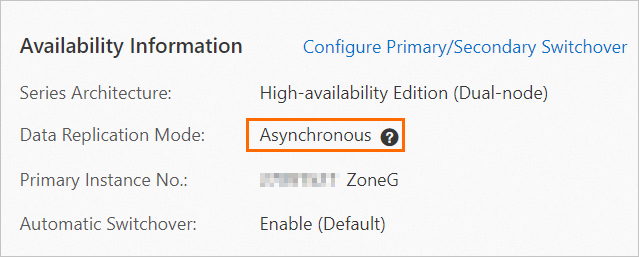
Change the data replication mode
For instances on RDS Cluster Edition, change the data replication mode in the Instance Topology Management section of the Basic Information page.
-
Go to the Instances page. In the top navigation bar, select the region where your instance resides. Find and click the instance ID.
-
In the left-side navigation pane, click Service Availability.
-
In the Availability Information section, click Change Data Replication Mode.
-
Select a replication mode and click OK.

FAQ
Which data replication mode is recommended?
Select a mode based on your business requirements. For strong data consistency and finance-grade reliability, use the MGR mode (available on RDS Cluster Edition only). For quick responses, use the asynchronous mode. In other scenarios, use the semi-synchronous mode.
Why can't I change the data replication mode?
Different editions support different modes. Check the Supported modes by edition table to confirm whether your instance edition supports the mode you want. If your instance is on RDS Basic Edition, this feature is not supported.
API reference
| Operation | Description |
|---|---|
| ModifyDBInstanceHAConfig | Changes the data replication mode and high availability mode of an instance. |