This document is an introduction to Quick Tracking and technical integration and is not used as a sales basis. For specific products and technical services purchased by an enterprise, the commercial purchase contract shall prevail.
Overview
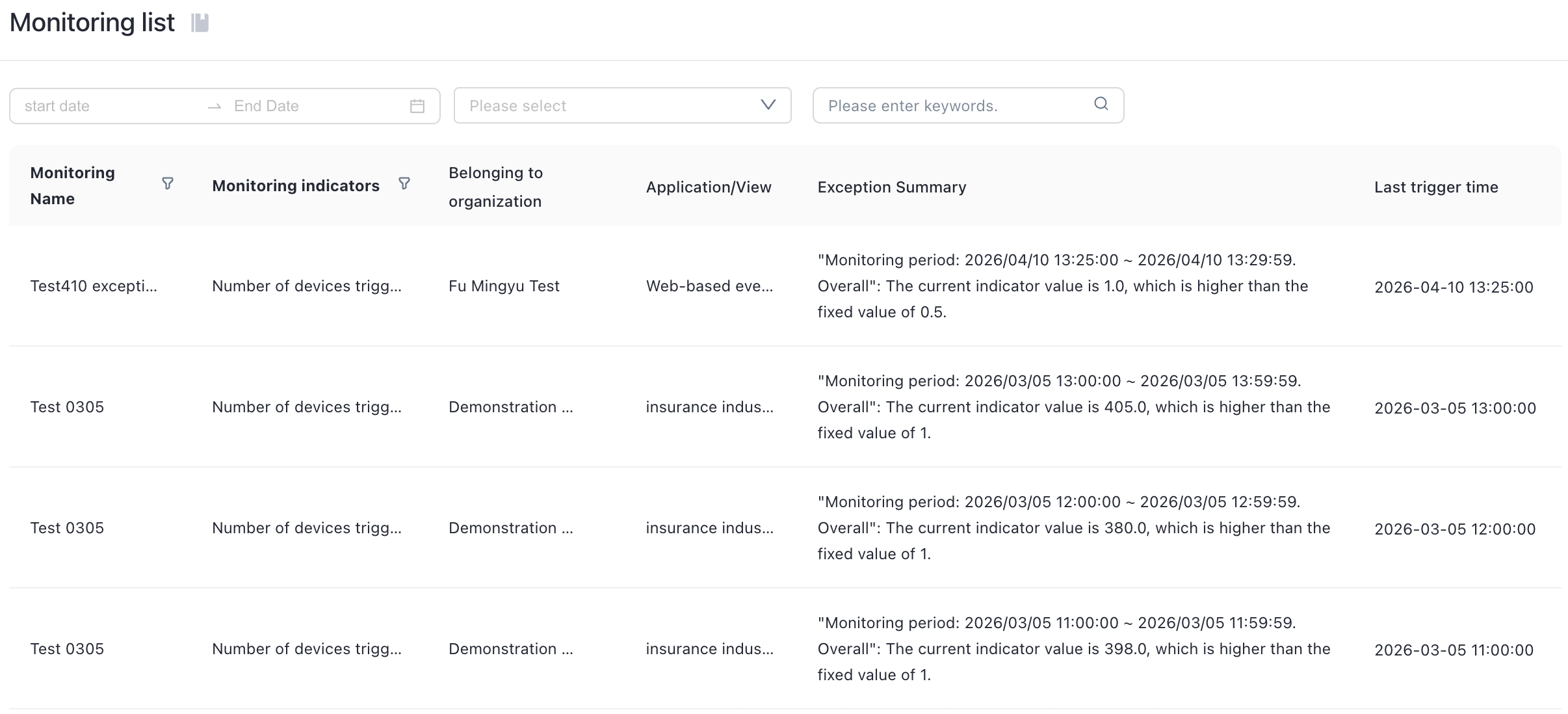
This function is divided into two functional modules: monitoring configuration and monitoring list. The monitoring configuration displays all set monitoring rules, and you can modify and delete monitoring rules in the monitoring configuration. The monitoring list displays all abnormal messages triggered by monitoring alarms. You can configure the monitoring information access channels to facilitate users to know the abnormal changes of each indicator in time through monitoring.
Feature introduction
Supported metrics:
1. Application type: application, view, and website
2. Analysis Model: Event Analysis
3. Custom metrics and common metrics. Multiple metrics and multiple groups are supported.
To view the complete settings of metric monitoring and the details of monitoring alerts, you must complete the following operations:
Touch Channel Settings
To implement monitoring and alerting, you must first set up a touch channel. Log on to the Management Console, click Organize, and then click Touch Channel. For more information, see Touch Channel.
Metric Monitoring Path
Event analysis chart in a visualized kanban
Event Analysis After Saving the Report
The path of indicator monitoring settings is "behavior analysis"-"statistics /analysis" to configure indicator monitoring in kanban and report,
"statistics" Click the kanban function key, choose "indicator monitoring" to enter the indicator monitoring configuration page. 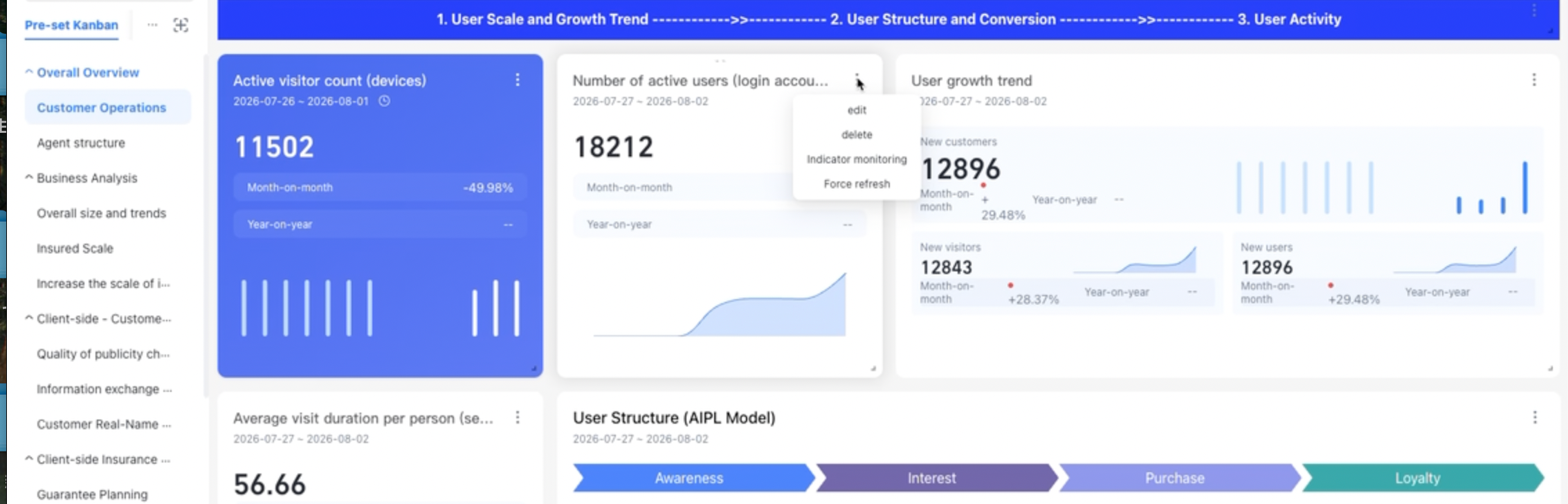
"Analysis" In the upper right corner of the behavioral insight ribbon-more-choose "Metric monitoring" to create the monitoring configuration of the current analysis metric.
Create a monitoring configuration and touch mode
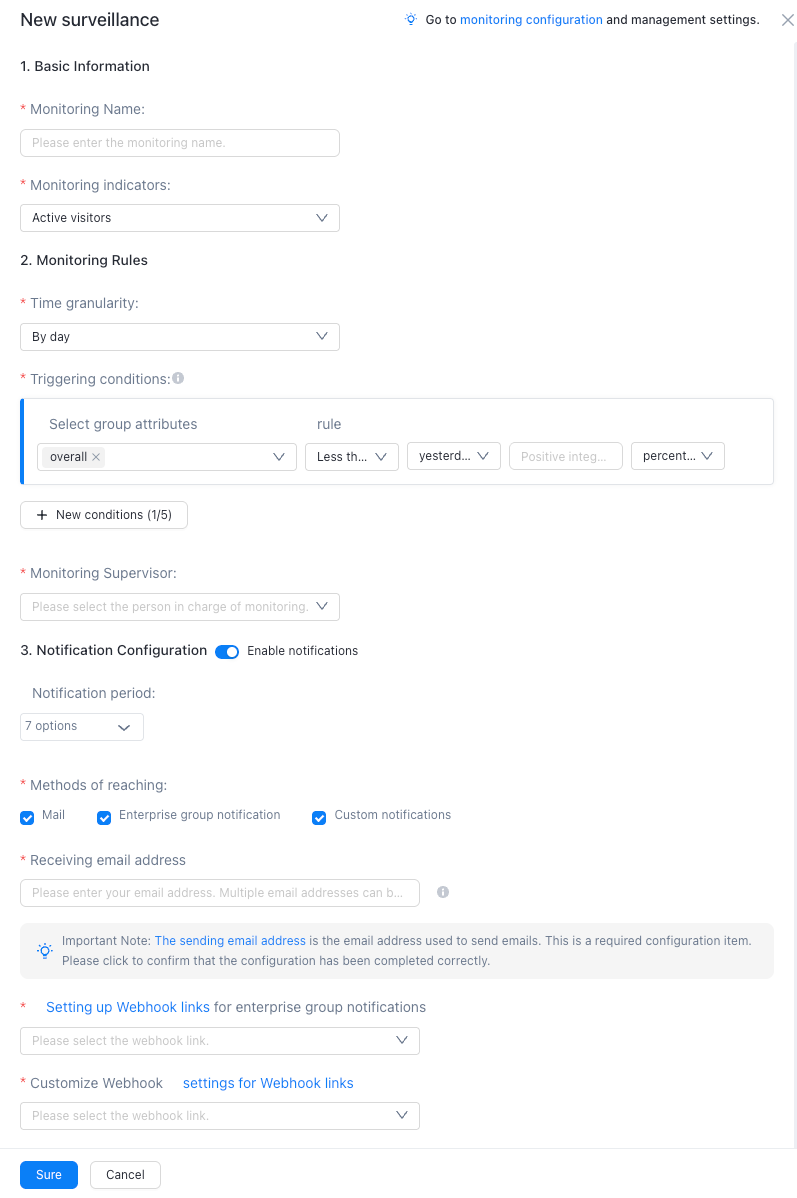
The following information is required to create a monitoring project:
"basic information"
Monitoring Name: The name can be customized and can contain up to 20 characters, digits, English,_()
Monitoring Metric: the name of the metric in the event analysis. You can select it from the drop-down list.
"monitoring rules"
Time granularity: the granularity at which the monitoring is triggered.
By Hour: once per hour.
By Day: The value is calculated at 00:00 every day.
Trigger Condition: After all conditions are triggered at the same time, the monitoring alert takes effect.
1. You can create five conditions, each of which is an "and" logic.
2. When you select a group attribute, the logical logic is OR between groups. If one group is met, the alert is triggered. The drop-down list is a secondary menu.
The first item of a level is fixed as "overall", and the other items are the grouping attributes of this time. You can select only one item.
Monitoring Owner: You can specify an account as the owner of the monitoring configuration. In the drop-down list, you can select an account as the monitoring owner.
Notification Configuration
Enable Notification: By default, this feature is enabled. After it is disabled, no notification message is sent.
Notification Period: The monitoring time is calculated every hour or at the end of each day. If the monitoring conditions are met, the monitoring time is determined to be within the notification period. If the conditions are met, the monitoring time is sent. The notification period has seven options. You can select one or all weeks from Monday to Sunday.
Touch Method: You can select Email Touch, Enterprise Group Notifications, or Custom Notifications. You can select one of the three options at the same time. Click Send URL and Set Webhook URL to go to the Settings page.
"monitoring management permissions"
If you have the Behavior Analysition_Monitoring Management and are the person in charge of the monitoring, you can edit or delete the monitoring.
If you are the owner of a subscription, you can edit or delete the subscription.
Monitoring and Management
You can view and manage metrics created in Behavior Analysis-Statistics and Analysis on the Behavior Analysis homepage-Monitoring Management page.
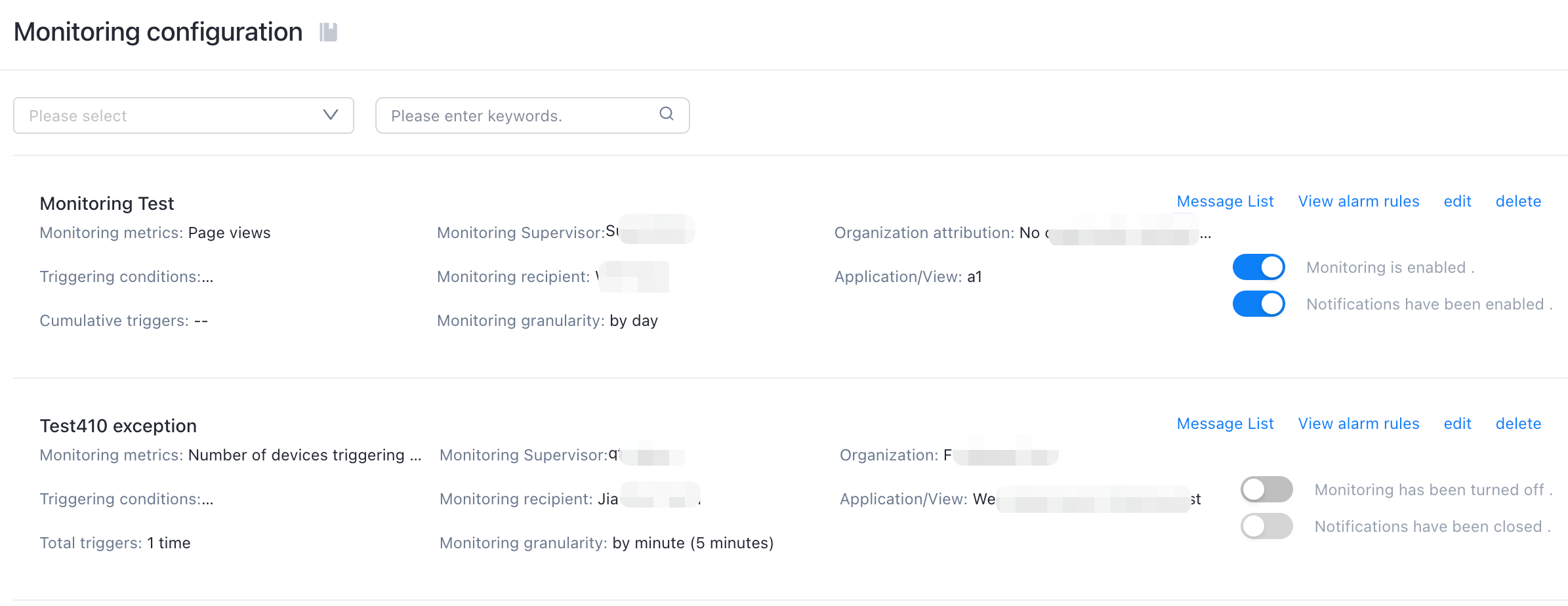
Monitoring configuration
This module displays all the metrics that have been set. In addition, you can edit and manage monitoring rules in this module.
The Monitor Configuration module consists of the following main parts:
Organization filter box: filters the monitoring data created by all applications or views in different organizations. You can select all organizations to display or select one or more organizations.
Application filter box: filters the metrics created in different applications /views. You can select All Applications /Views to display, or select one or more applications /views.
Monitoring configuration operation area: Click "Message List" to jump to the "Monitoring List" function page, which displays the alarm messages triggered by the current monitoring indicator; click "View Alarm Rules" to enter the analysis page, and modify the current monitoring indicator; click "Edit" to enter the current monitoring configuration page, and modify the current monitoring configuration; click "Delete" to open the confirmation dialog box, after you confirm the deletion, the monitoring metric data cannot be restored.
Notifications on: You can select whether to enable notifications for the current metric monitoring configuration.
Enable Monitoring: You can select whether to enable monitoring for the current metric monitoring configuration.
2. Monitoring list
The monitoring list displays the specific monitoring information after the specified monitoring conditions are triggered. You can filter time, organization, application, and monitoring name.