This document is an introduction to Quick Tracking and technical integration and is not used as a sales basis. For specific products and technical services purchased by an enterprise, the commercial purchase contract shall prevail.
Overview
Tags created in the tag system let you define custom audience segments. You can use these segments for user operation scenarios or as dimensions for audience insight (tags with multiple tag values).
Tag Classification
Tag creation methods include Custom Rule Tags and Import Tags.
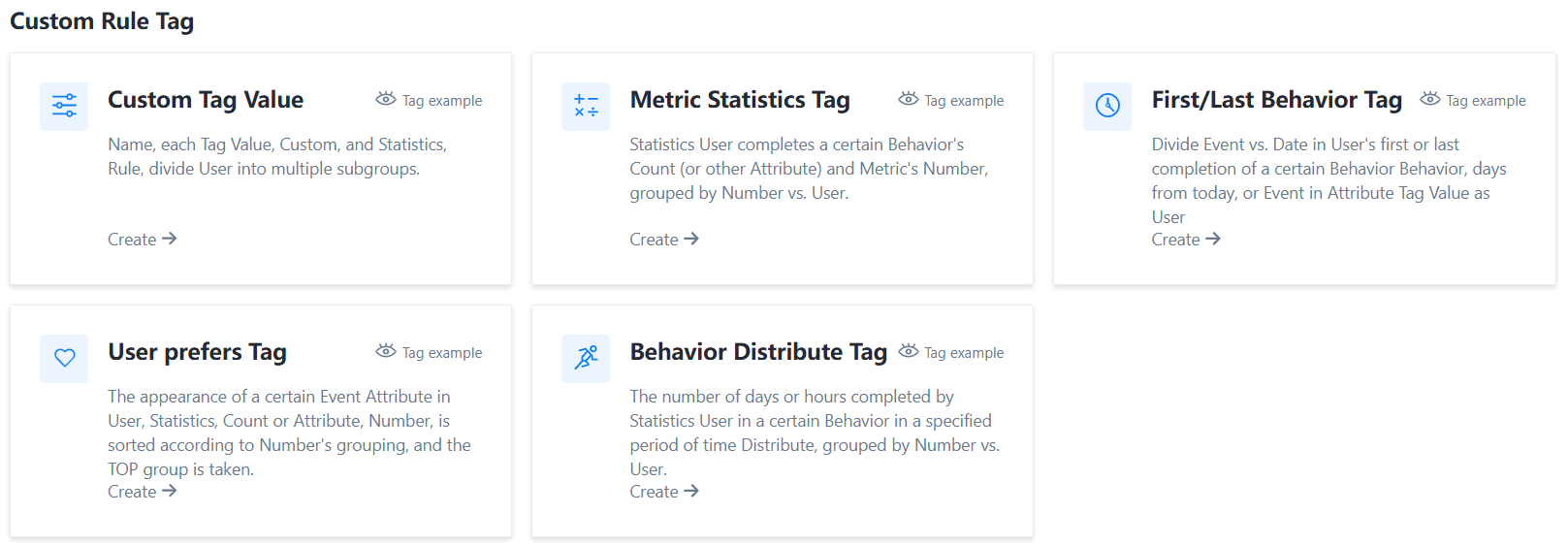
Custom Rule Tags: provides multiple methods to create user tags. Select a method based on the tag meaning.
Custom rule tags
|
The type of the tag. |
Description |
Example |
|
Custom label values |
Customize the name and statistical rules of each tag value to divide users into multiple groups. |
User Activity Level (Level 1, Level 2, Level 3...) |
|
Metric Statistics Label |
Count metric values such as the number of times a user completes a behavior or other attributes, and group users by value. |
User payment capability (low-consumption users and high-consumption users) |
|
First /Last Behavior Label |
Count the date or number of days from today when a user first or last completed an action, and group users by value. |
Number of days since user first registration (1,2..50) |
|
User preference tag |
Count occurrences of an event attribute or user attribute value, sort user groups by value, and select the top-ranking group. |
Paid chapter preferences (workplace, love, psychology...) |
|
Behavior distribution label |
Count the distribution of days or hours in which a user completes a behavior within a specified period, and group users by value. |
User Silence Days (1,2,3...50) |
Actions guide
Custom tags
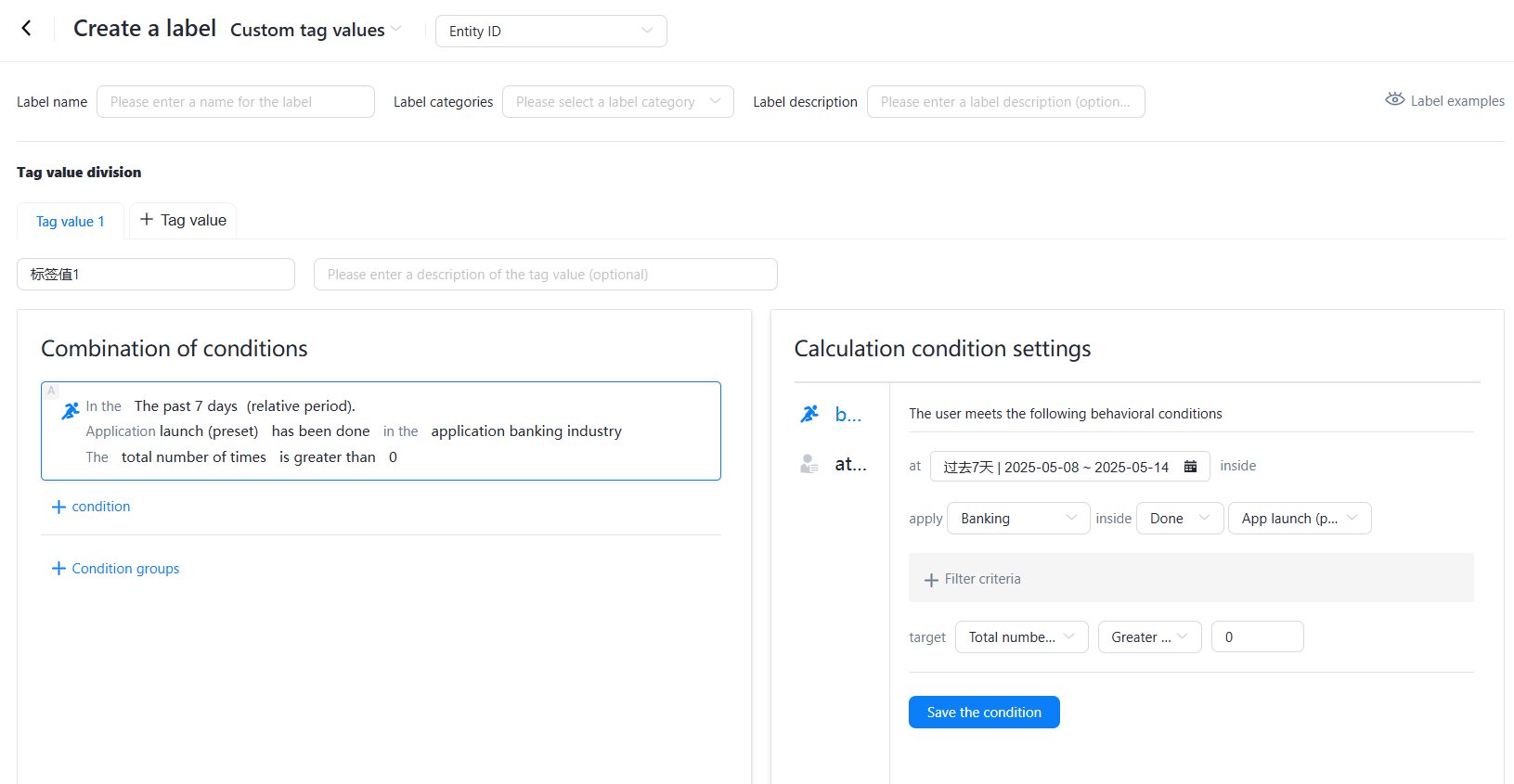
Customize the name and statistical rules of each tag value to divide users into multiple groups. A tag supports a maximum of 25 groups (25 tag values).
Method
Label Name: Enter a label name.
Tag Category: Select a tag category. Tags can then be filtered by category.
Tag Description: Optional. A description of the tag.
Tag Value: Enter the definition of the tag value, such as user level 1, level 2, level 3, etc.
Tag Value Description: Optional. A description of the tag value.
Condition Combination: Define tag value criteria based on user and attribute filtering requirements. To add multiple conditions, use a condition group with "intersection", "union", or "difference" operators.
Calculation Method: Two calculation methods are available: "Calculate every day" and "Only once". Select a method based on the tag update frequency.
Create a tag: Click to save the rule.
Metric Statistics Label
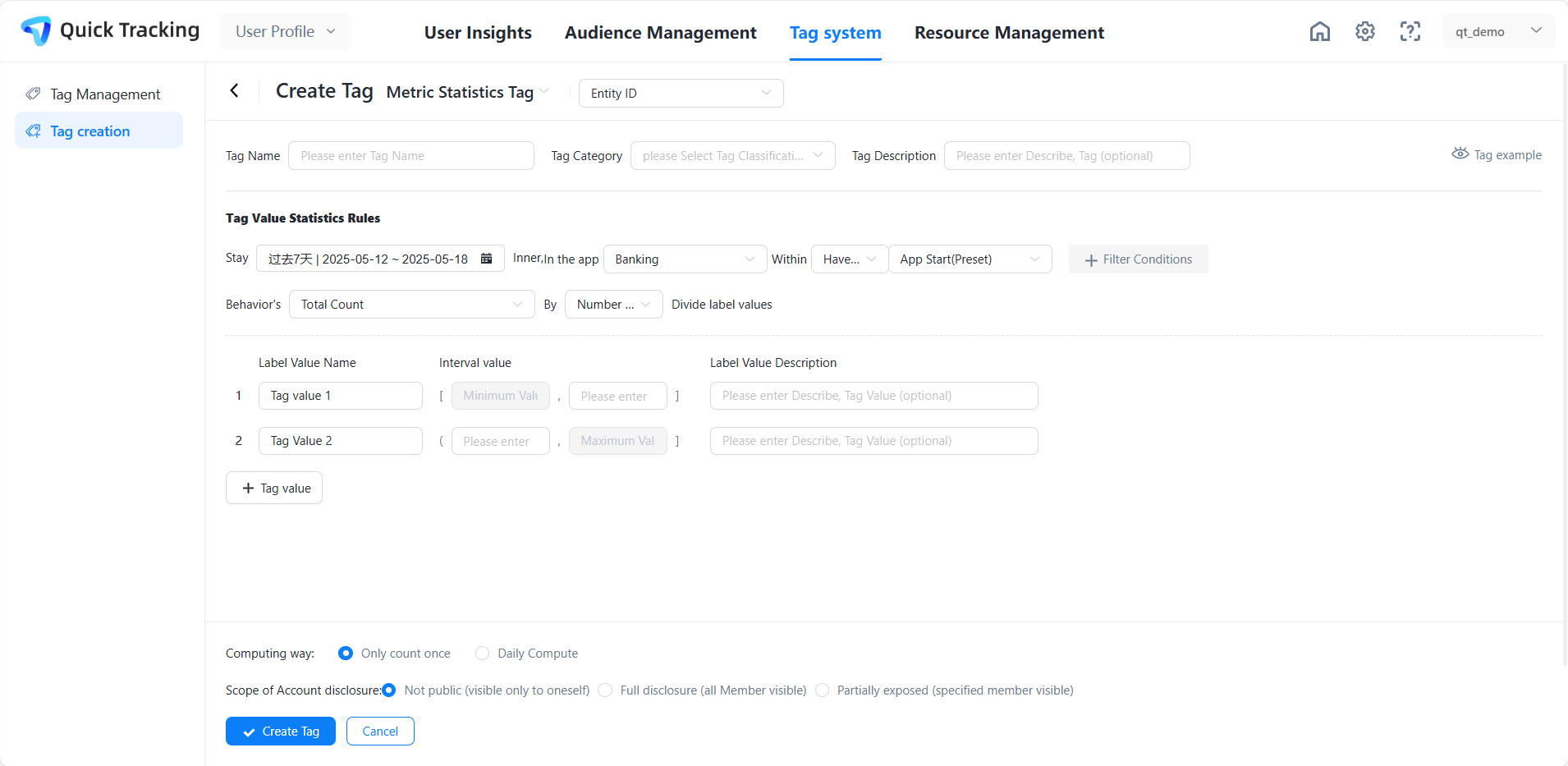
Count metric values such as the number of times a user completes a behavior or other attributes, and group users by value.
Method
Label Name: Enter a label name.
Tag Category: Select a tag category. Tags can then be filtered by category.
Tag Description: Optional. A description of the tag.
Tag Value Statistics Rule: Select the time range, application, and behavior events (performed or not performed) based on the required filtering rules. Then select Value Range, Percentage, or Discrete Value to divide the tag value, and set the relevant interval values.
Tag Value Name: Enter the definition of the tag value, such as high consumption, low consumption;
Tag Value Description: Optional. A description of the tag value.
Calculation Method: Two calculation methods are available: "Calculate every day" and "Only once". Select a method based on the tag update frequency.
Create a tag: Click to save the rule.
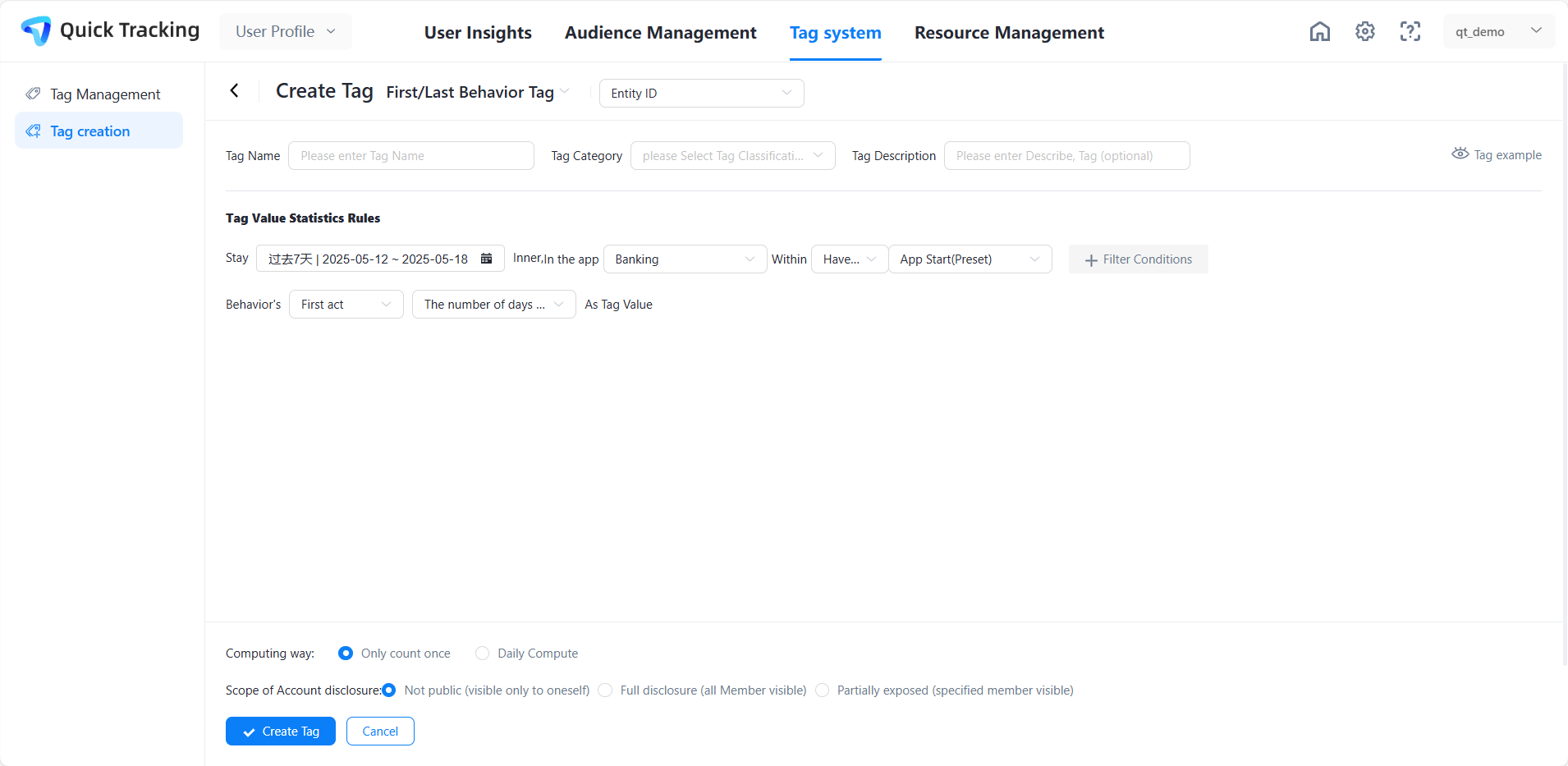
First /Last Behavior Label
Count the date or number of days from today when a user first or last completed an action, and group users by value.
Method
Label Name: Enter a label name.
Tag Category: Select a tag category. Tags can then be filtered by category.
Tag Description: Optional. A description of the tag.
Tag Value Statistics Rule: Select a time range, application, and behavior events (performed or not performed). Then select the first or last attribute of the behavior event as the tag value.
Tag Value Name: Enter the definition of the tag value, such as the first logon to today * days;
Tag Value Description: Optional. A description of the tag value.
Calculation Method: Two calculation methods are available: "Calculate every day" and "Only once". Select a method based on the tag update frequency.
Create a tag: Click to save the rule.
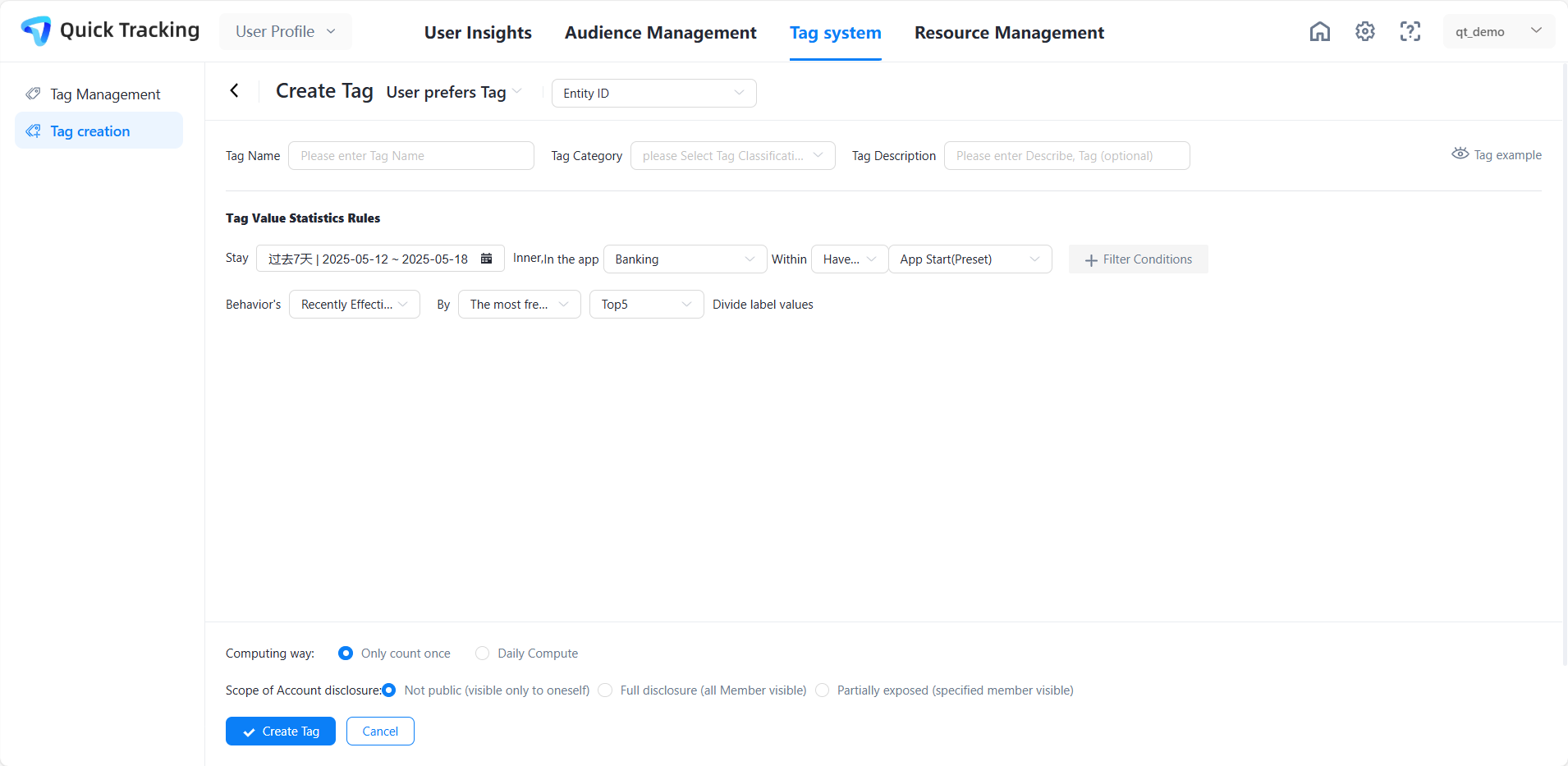
User preference tag
Count occurrences of an event attribute or user attribute value, sort user groups by value, and select the top-ranking group.
Method
Label Name: Enter a label name.
Tag Category: Select a tag category. Tags can then be filtered by category.
Tag Description: Optional. A description of the tag.
Tag Value Statistics Rule: Select a time range, application, and behavior events (performed or not performed) based on the filtering rules. Then select the top 5, top 10, or top 30 for the most frequently occurring behavior events.
Tag Value Name: Enter the definition of the tag value, such as the first logon to today * days;
Tag Value Description: Optional. A description of the tag value.
Calculation Method: Two calculation methods are available: "Calculate every day" and "Only once". Select a method based on the tag update frequency.
Create a tag: Click to save the rule.
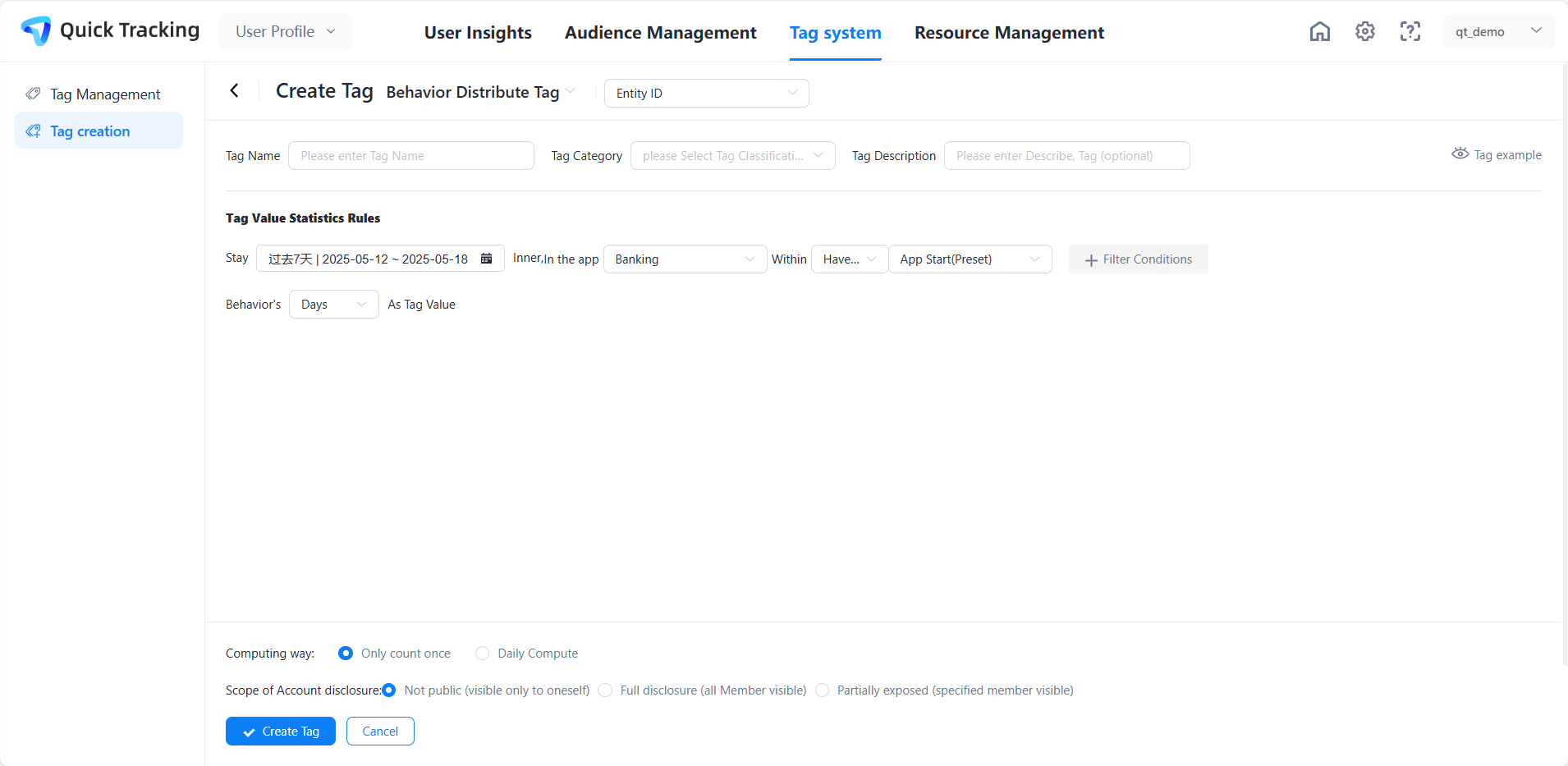
Behavior Distribution Label
Count the distribution of days or hours in which a user completes a behavior within a specified period, and group users by value.
Method
Label Name: Enter a label name.
Tag Category: Select a tag category. Tags can then be filtered by category.
Tag Description: Optional. A description of the tag.
Tag Value: Enter the definition of the tag value, such as user level 1, level 2, level 3, etc.
Tag Value Description: Optional. A description of the tag value.
Tag Value Statistics Rule: Select a time range, application, and behavior events (performed or not performed). Then select the number of days or times of the behavior as the tag value.
Tag Value Name: Enter the definition of the tag value, such as the first logon to today * days;
Tag Value Description: Optional. A description of the tag value.
Calculation Method: Two calculation methods are available: "Calculate every day" and "Only once". Select a method based on the tag update frequency.
Create a tag: Click to save the rule.
Import tags locally
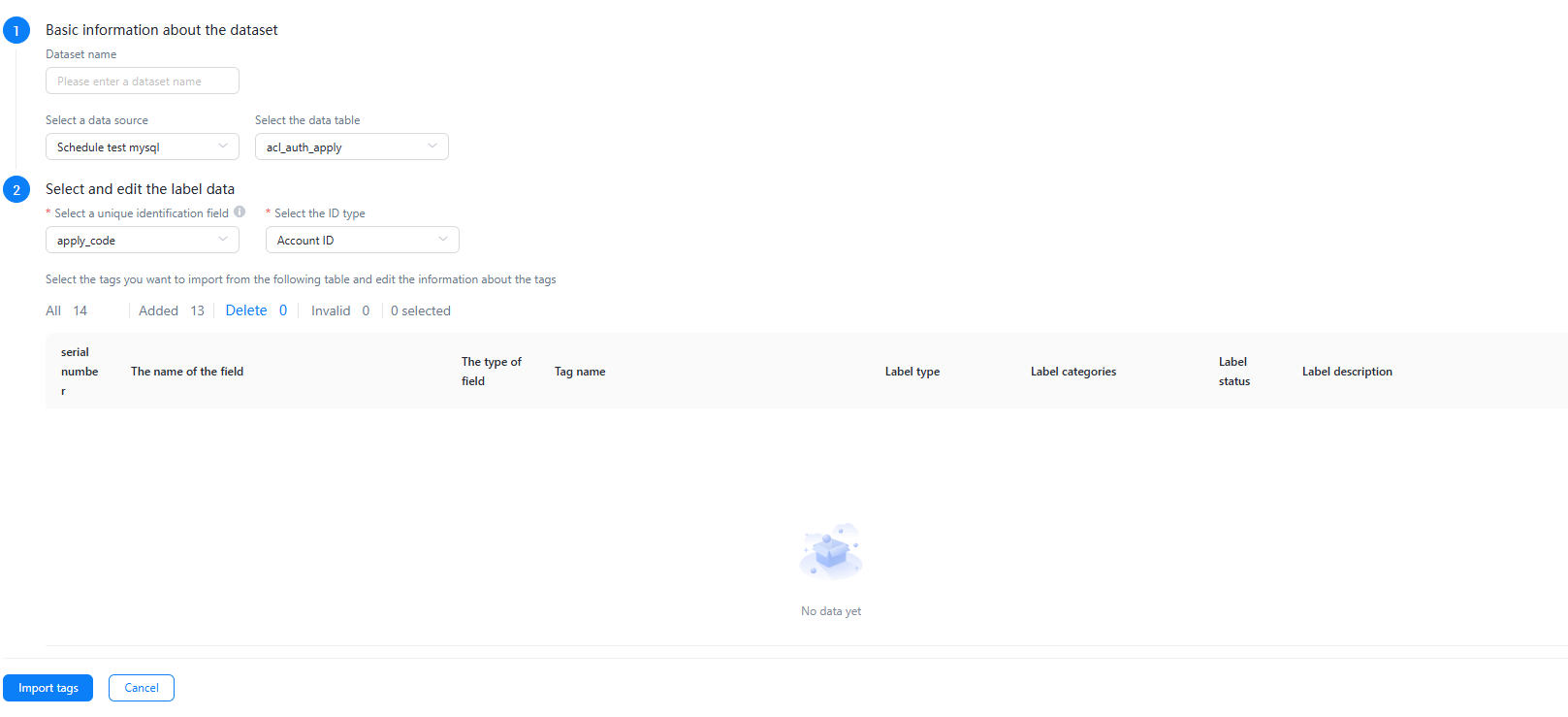
Create a local file as a dataset and import tag data. Datasets can be configured and managed on the Resource Management > Dataset Management page.
Creation Method
For information about how to create a dataset, see CreateDataset.
File requirements: 1. The file size cannot exceed 100 MB. We recommend that the number of IDs per import be less than 100,000. 2. Use MD5 encryption for the ID. Supported ID types include IDFA, IMEI, and account ID. 3. The file format supports CSV and Excel. Download the corresponding template. The first column of the header supports only English letters, underscores, and numbers (cannot start with a number).
After preparing the local file, follow the procedure to upload it.
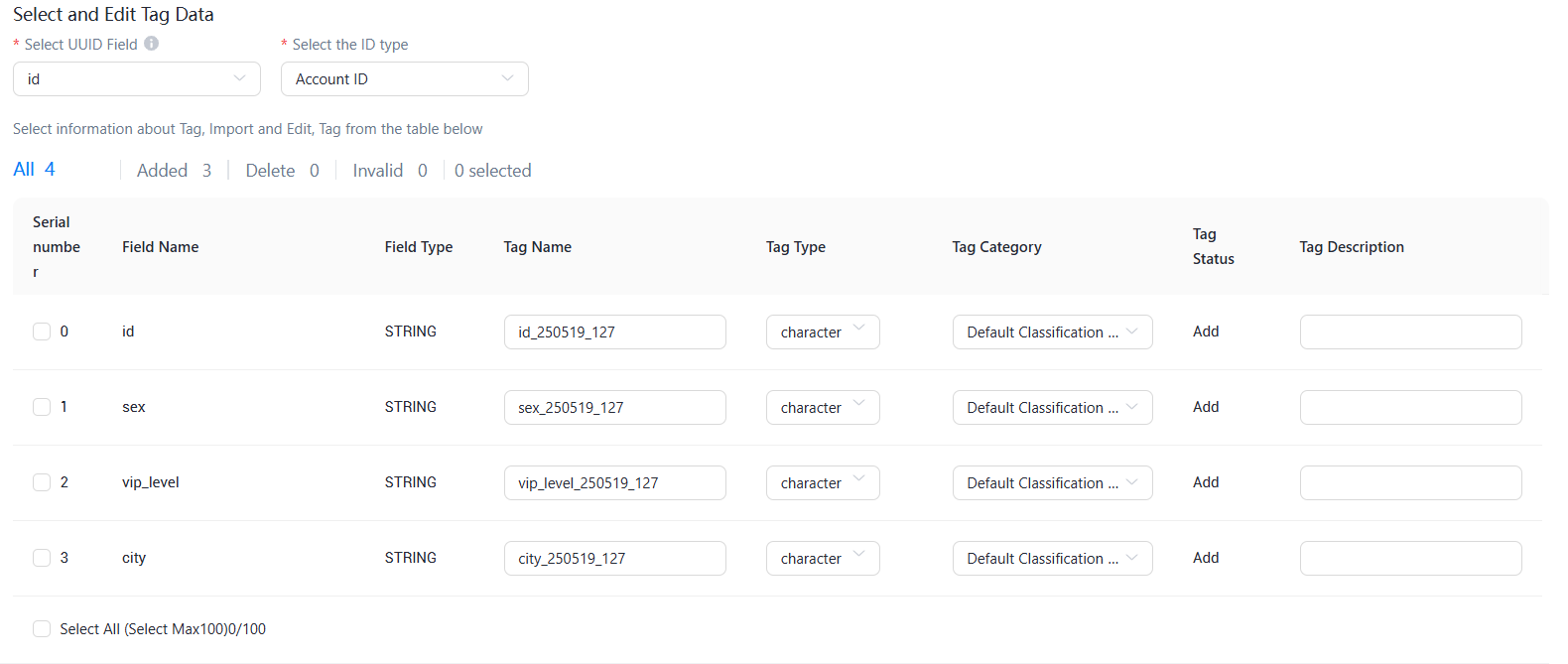
Select and edit tag data
Select a unique identifier field and its type, then select the tag to upload. Verify that the tag name, tag type, tag category, and tag description are correct before importing.
After the tag is imported, you can view the tag name on the Tag Management page.
Import tags from a data source
Create a data table under a data source as a dataset to receive input and provide data for tags. Datasets can be configured and managed on the Resource Management > Dataset Management page.
Method
First, create a data source. Go to Resource Management and complete the data source connection based on the following information. Confirm that the data source can be synchronized before proceeding.
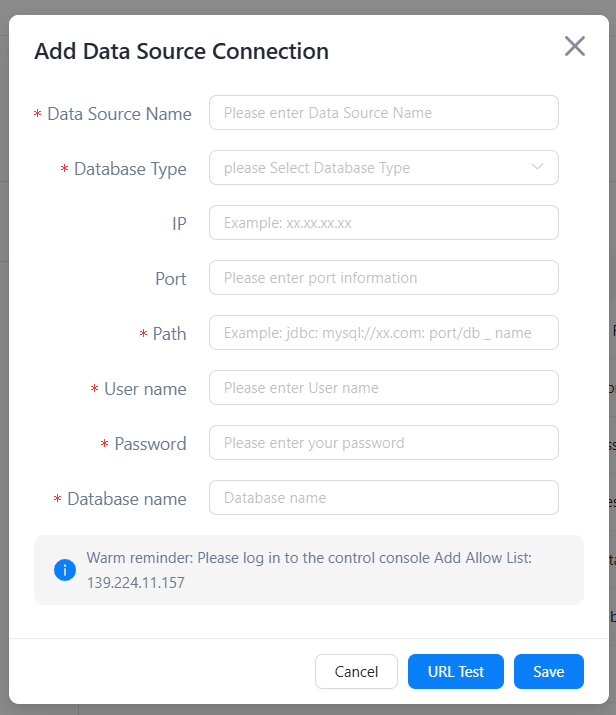
After the data source is connected, create a dataset. Select a data source and data table, then enter the required tag fields to save the dataset.