This document is an introduction to Quick Tracking and technical integration and is not used as a sales basis. For specific products and technical services purchased by an enterprise, the commercial purchase contract shall prevail.
Overview
This feature is divided into two functional modules: kanban subscription and subscription management. You can subscribe to the kanban that needs to be followed, and edit the sending configuration and body in the subscription kanban configuration. Subscription management displays the list information of all subscription kanban. You can edit and delete existing subscriptions in the subscription management.
Feature introduction
Subscription Kanban Path
"behavior analysis"-"statistics"-"visual kanban" in the upper right corner of the ribbon click "kanban editing and management" function, choose "subscription kanban". 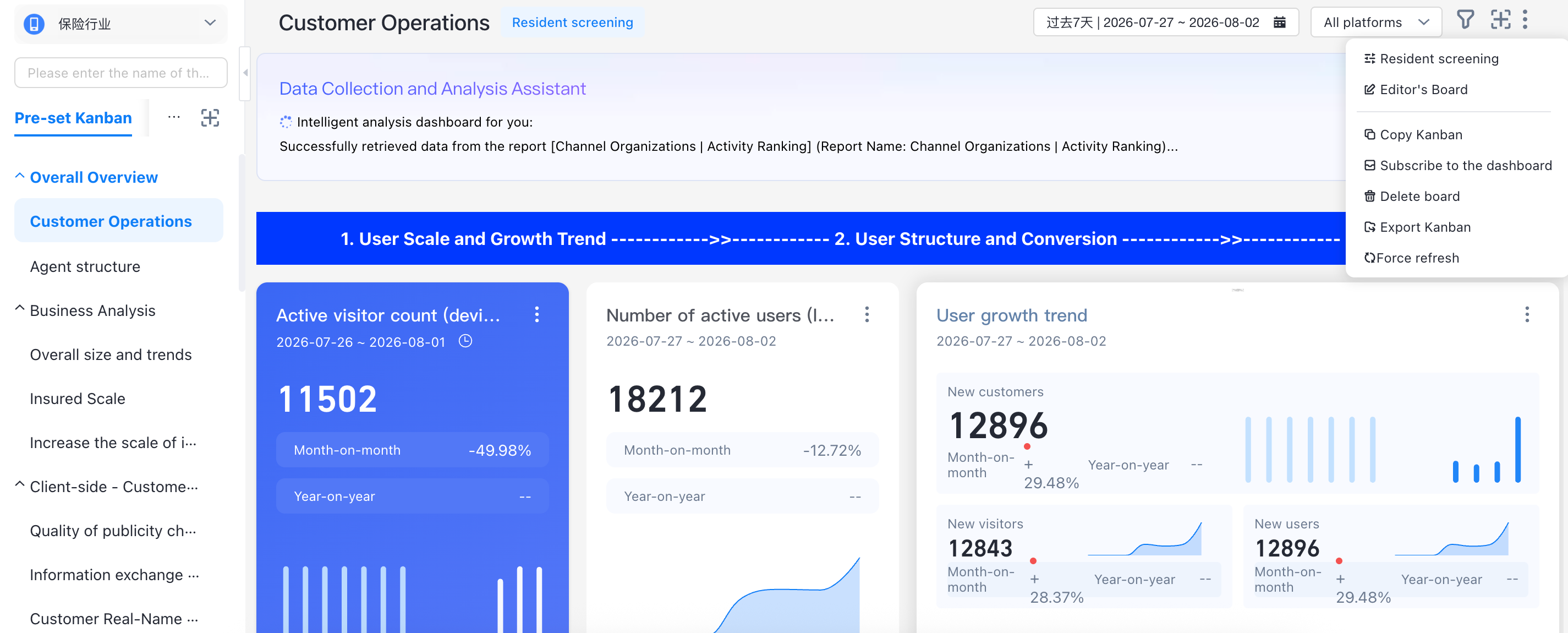
Create a subscription dashboard
Click Subscription dashboard. In the dialog box that appears, edit the subscription name, sending configuration, and body to view the subscriptions on the dashboard.
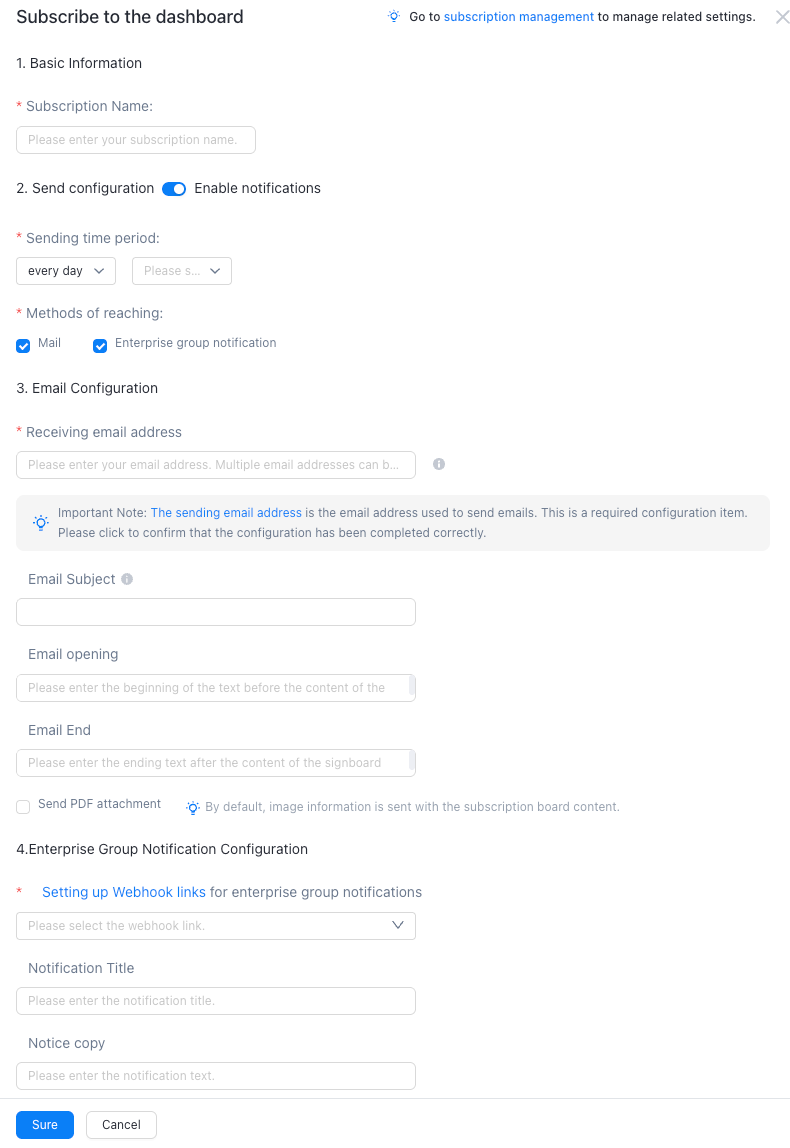
To create a subscription kanban, you must specify the following information:
"basic information"
Subscription Name: required. You can enter a subscription name based on the kanban name, such as "Weekly Activity Analysis".
Send Configuration
Enable Notification: If you enable the notification feature, the notification feature takes effect. If you disable the notification feature, the notification feature is disabled.
Sending Period: Different configurations are performed based on the following conditions: daily, weekly, and monthly.
1. Press Daily: Select every day, time drop-down box is 0-23, select a fixed period of time
2. By week: select every week, the sending period is 3 drop-down boxes, the second selection box is multi-option, you can select single or multiple "Monday" to "Sunday", and the third drop-down box selects a fixed period of 0-23 o'clock
3. By month: select monthly, the sending period is 3 drop-down boxes, the second box is multi-option, you can select single or multiple "1-31" to select a fixed date or multiple dates, and the third drop-down box selects a fixed period of 0-23 points.
4. Touch mode: email and enterprise group notification are supported. You can select one or both.
Email Address: Enter the inbox to which the dashboard is subscribed. You can enter multiple inboxes. Separate multiple email addresses with commas (,). If you have not set an email address to send subscription emails, you can set a channel. For more information, see Channel.
"body"
The body sends the image information for subscribing to the content of the kanban by default.
Email Title: Optional. By default, this parameter is set to Kanban Name-Report Sending Date, such as Coupon Operation -20220101. You can replace the title parameter with ${date}. ${hour} is set to the report sending date. ${hour} is set to the sending hour. ${dashboard_name} is set to the kanban name.
header and End: By default, only the image generated by the kanban is displayed. If you enter the beginning, the beginning content is displayed before the chart information. If you enter the end content, the ending content is displayed at the end of the image information.
Send PDF Attachment: By default, this check box is not selected. If you select this check box, PDF attachments are generated in addition to images.
"Enterprise Group Notification Content"
Enterprise group notification configuration: set the webhook link to jump to complete the setting
Notification Title: Optional. You can specify the notification title.
Notification copy: not required. You can specify this parameter.
Subscription Management
Subscription management path: "behavior analysis"-"home"-"subscription management"
Subscription management is used to manage all subscriptions. After the subscription kanban is configured, click Subscription Management in the upper right corner of the configuration page to go to the Subscription Management page to view all subscriptions under the subscription management permission (if you are an administrator, there are subscriptions). 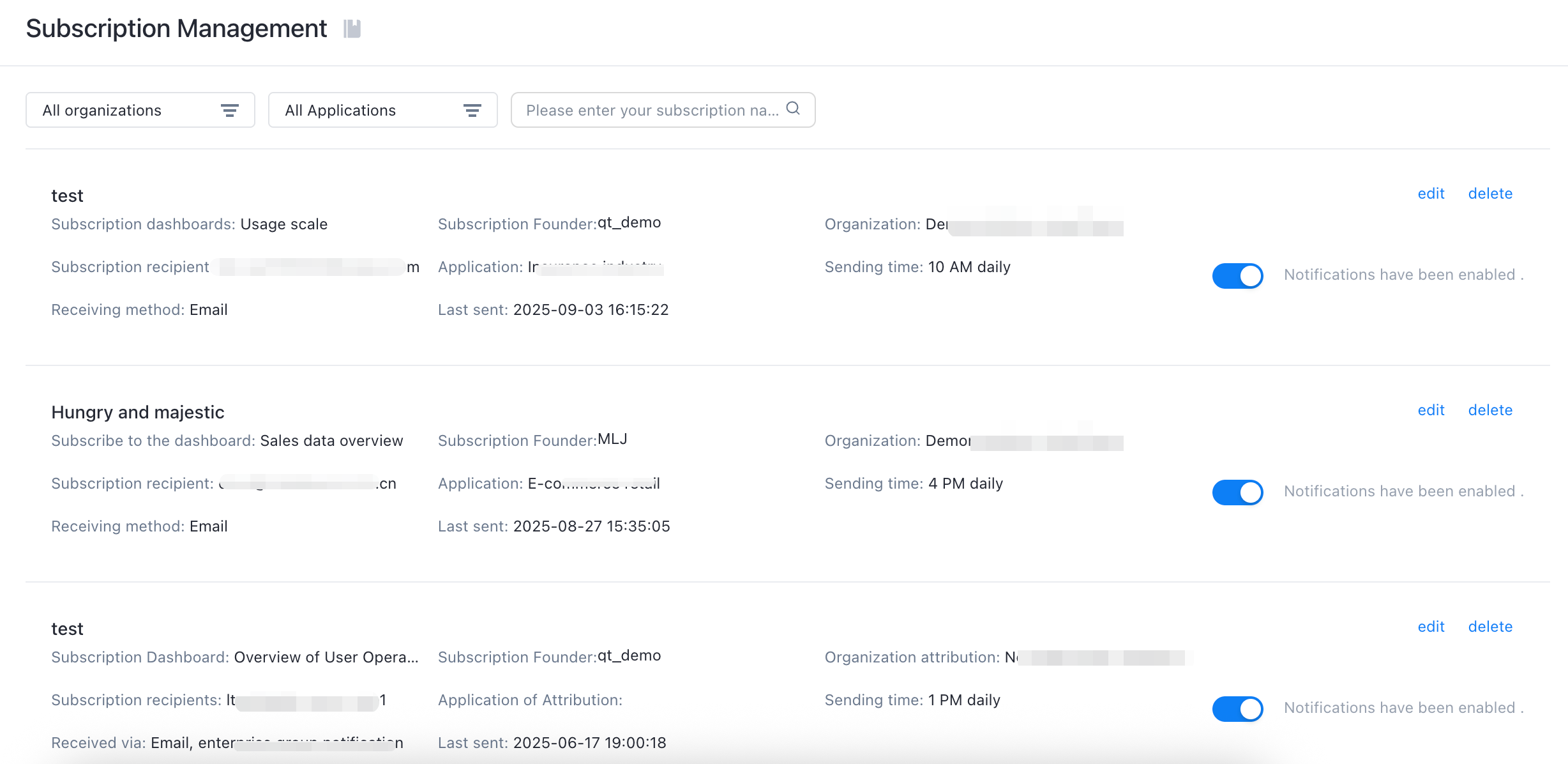
Subscription management consists of the following components:
Filter box: You can filter the organization and application of the subscription kanban, and search for keyword. The list is arranged in reverse by the creation time of the subscription kanban.
Search box: search rules support subscription name, kanban name, email title, recipient email;
List display area: displays the name, subscription recipient (email address), receipt method, subscription creator, application, organization, sending time rule, and last sending time of the subscription dashboard.
Operation area: Click the "Edit" button to jump to the corresponding kanban interface and pop up the right subscription kanban settings floating window, can be modified; click the "Delete" button, directly delete the subscription kanban; notification switch on, after the current subscription stops sending subscription kanban content.