Document Description: The content of this document is to introduce how H5 data should be reported when H5 pages exist in App?
1 H5 bridging scenario
How do 1.1 report H5 data to H5 applications and App applications at the same time?
Scenario example:
A "Spring Day" activity H5 is embedded in multiple App terminals and operated in the current mode to meet the following analysis requirements:
App operation needs to see the complete link data before and after the customer participates in H5 activities in App.
H5 activity operation needs to see the activity data of H5 in all App terminals.
Operation instructions:
Create two applications:
An App application that has its own Appkey_app
A Web/H5 application that has its own Appkey_h5
Call the attach interface in the app to perform H5 bridging
Reporting logs:
App reports a log:
Appkey is the App's "Appkey_app"
The user account is the user account for the app
Device ID is the device ID of the app
System properties are the app's system properties
Global attributes are global attributes of the tracking point in the app
The event code and the event attribute are the tracking points in H5
H5 reports a log:
Appkey is "Appkey_h5" of H5
A user account whose user account is H5
The ID of the device whose device ID is H5
System properties of H5
The global attribute is the global attribute of the tracking point in H5
The event code and the event attribute are the tracking points in H5
How do 1.2 report H5 data only to the unique App application?
Scenario example:
Due to the technical architecture, some pages are H5 technical structures. Operating in the current mode can meet the following analysis requirements:
App business, operation, and PD can see complete full-link data in App Data.
Operation description:
Create an app with only one Appkey_app
Call the attach interface in the app to perform H5 bridging
H5 Appkey is set to null and the call aplus-jsbridge-only is equal to true to disable H5 data reporting
Report logs.
Only the app reports a log:
Appkey is the App's "Appkey_app"
The user account is the user account for the app
Device ID is the device ID of the app
System properties are the app's system properties
Global attributes are global attributes of the tracking point in the app
The event code and the event attribute are the tracking points in H5
1.3 how to report H5 data only to H5 applications?
Scenario example:
App business, operation and PD do not want to see H5 data in App
Operation description:
Create two applications:
An App application that has its own Appkey_app
A Web/H5 application that has its own Appkey_h5
No API calls
Report logs.
Only H5 reports one log:
Appkey is "Appkey_h5" of H5
A user account whose user account is H5
The ID of the device whose device ID is H5
System properties of H5
The global attribute is the global attribute of the tracking point in H5
The event code and the event attribute are the tracking points in H5
2 H5 Bridging Principle
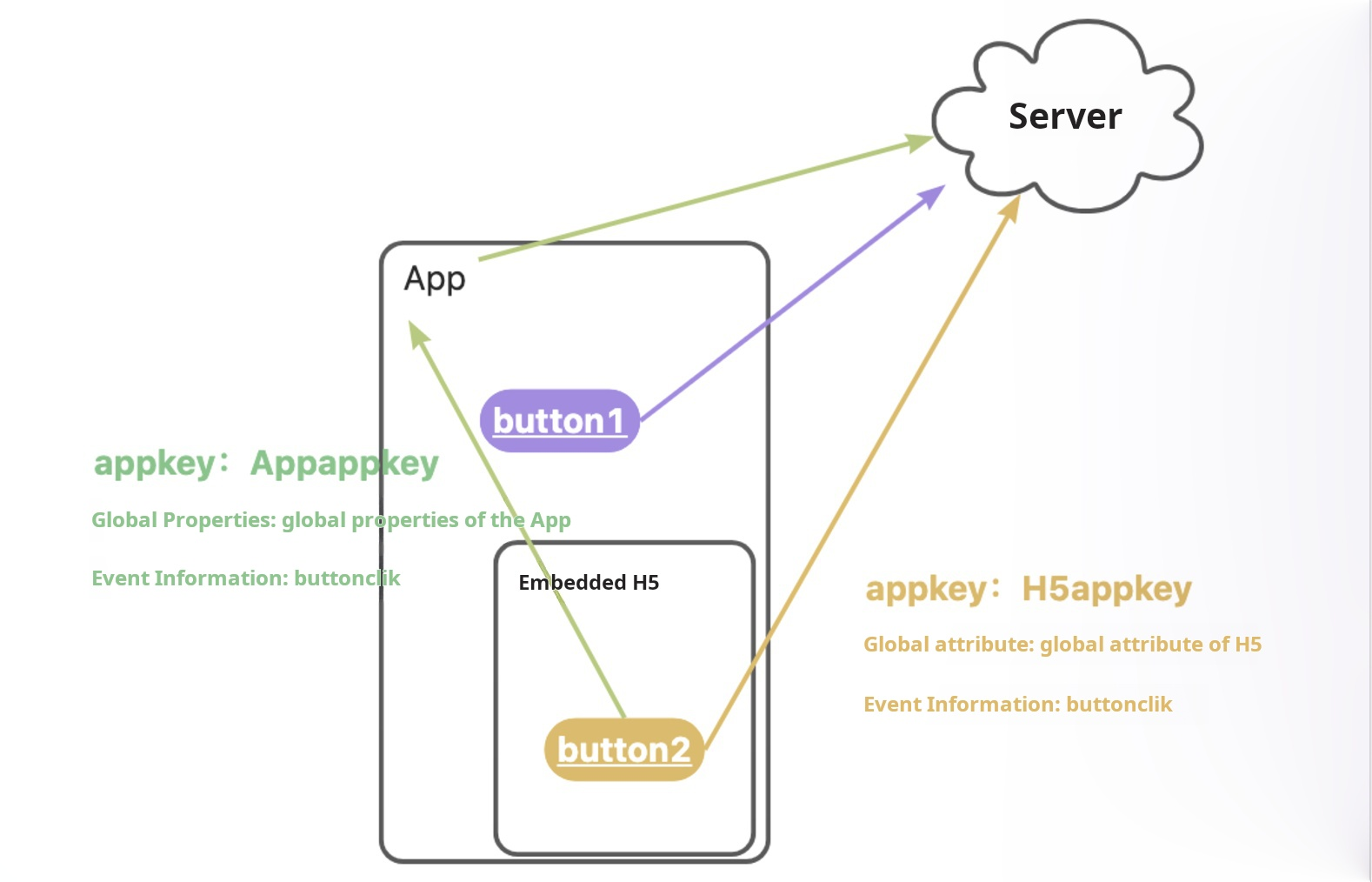
The above method is based on the following prerequisites:
App integration QuickTrackingApp SDK
And in-app H5 integration QuickTracking H5 SDK
The following figure shows that when a user triggers button2 on the h5 page in the app, two logs are reported at the same time:
Reporting through App SDK: In the reported logs, the appkey is the appkey of the app, the global attribute is the global attribute of the app, and the event code and event attribute are the code and attribute of the tracking point in h5. (Green arrow in the figure)
Reporting through H5 SDK: In the reported logs, the appkey is the appkey of h5, the global attribute is the global attribute of h5, and the event code and event attribute are the code and attribute of the buried point in h5. (Yellow arrow in the figure)
3 App Bridge H5 Open Interface
By default, this parameter is disabled. You can enable this parameter only when you call the following API operations of the app SDK.
// This interface needs to be called in the onCreate function of the WebView control host Activity to mark the beginning and end of the h5 page
SpmAgent.attach(WebView);
The H5 bridging feature of the Privatized Statistics SDK is only supported for Android 4.2 (and later). Bridging is not supported on Android OS versions earlier than 4.2.
SpmAgent.attach(WebView)
This interface needs to be called in the onCreate function of the WebView control host activity
Parameter | Parameter | Remarks |
WebView | WebView object | Container WebView object that needs to bridge H5 pages |
public class WebviewAnalytic extends Activity {
    private static final String TAG = "WebviewAnalytic";

    WebView mWebView;

    @Override
    protected void onCreate(Bundle savedInstanceState) {
        super.onCreate(savedInstanceState);
        setContentView(R.layout.activity_webview);
        QtTrackAgent.skipMe(this, TAG); // The WebView host activity does not need to count native page PV events.
        WebView webView = findViewById(R.id.webview);
        mWebView = webView;

        // Key settings. Otherwise, Native and JS bridge cannot communicate with each other.
        mWebView.getSettings().setJavaScriptEnabled(true);

        // Bind the WebView control to the SPM plug-in SDK. Access QuickTracking Web JS SDK in H5 pages in this WebView can be used with
        // Use the SPM plug-in SDK to send the tracking statistics of H5 pages through the Native Statistics SDK.
        SpmAgent.attach(mWebView);

        webView.loadUrl("file:///android_asset/index.html");
    }

// ......It is important to note that in order to ensure the accuracy of the duration of the first page load, please be sure to call the SpmAgent.attach method before loadUrl (loadUrl is a built-in asynchronous method of webview, which may lead to incorrect statistics if placed in front).
SpmAgent.detach()
This interface needs to be called in the onDestroy function of the WebView control host activity
Example:
@Override
protected void onDestroy() {
    super.onDestroy();
    SpmAgent.de tach(); // Unbind when the WebView host activity is destroyed
}
QtTrackAgent.skipMe(this, pageName);
When statistics are collected on the h5 layer in an activity, if you need to avoid repeated reporting of page PV events at the native layer and the h5 layer, you need to call this function in the onCreate function of the WebView control host activity.
After this function is called, the SDK does not count and report page PV events at the native layer on the current activity page. This prevents duplicate reporting of page PV events at the H5 layer.
Parameter | Parameter | Remarks |
this | Activity object | WebView Host Activity Object |
pageName | String | The page name passed in when the MobclickAgent.onPageStart interface is called on the current Activity page |
@Override
protected void onCreate(Bundle savedInstanceState) {
     super.onCreate(savedInstanceState);
     setContentView(R.layout.activity_webview);

     // The WebView host activity does not need to count native page PV events.
     MobclickAgent.skipMe(this, "WebviewAnalytic");

     WebView webView = findViewById(R.id.webview);
     mWebView = webView;
     // Bind the WebView control to the SPM plug-in SDK. Access QuickTracking Web JS SDK in H5 pages in this WebView can be used with
     // Use the SPM plug-in SDK to send the tracking statistics of H5 pages through the Native Statistics SDK.
     SpmAgent.attach(mWebView);
     webView.loadUrl("file:///android_asset/index.html");
}
4 App Bridge H5 Open Interface (Tencent X5 Webview Adapter)
SpmAgent.attachX5(WebView)
This interface is only used by developers to use Tencent X5Webview three-party control scenarios. You must call the onCreate function of the Tencent X5WebView host activity.
Parameter | Parameter | Remarks |
WebView | com.tencent.smtt.sdk.WebView Object | The container X5WebView object that needs to bridge the H5 page |
import android.app.Activity;
import android.os.Bundle;

import com.tencent.smtt.sdk.WebSettings;
import com.tencent.smtt.sdk.WebSettings.LayoutAlgorithm;
import com.tencent.smtt.sdk.WebView;

import com.umeng.analytics.MobclickAgent;
import com.umeng.spm.SpmAgent;

public class X5WebviewAnalytics extends Activity {
    private static final String TAG = "X5WebviewAnalytics";

    com.tencent.smtt.sdk.WebView mWebView;

    @Override
    protected void onCreate(Bundle savedInstanceState) {
        super.onCreate(savedInstanceState);
        setContentView(R.layout.activity_x5webview);
        MobclickAgent.skipMe(this, TAG); // The WebView host activity does not need to count native page PV events.
        com.tencent.smtt.sdk.WebView webView = findViewById(R.id.webview);
        mWebView = webView;

        // For the following settings, refer to the official demo configuration of X5Webview Tencent. For specific settings, developers should configure them according to their own App requirements.
        WebSettings webSettings = mWebView.getSettings();
        webSettings.setJavaScriptEnabled(true);
        webSettings.setJavaScriptCanOpenWindowsAutomatically(true);
        webSettings.setAllowFileAccess(true);
        webSettings.setLayoutAlgorithm(LayoutAlgorithm.NARROW_COLUMNS);
        webSettings.setAppCacheEnabled(true);
        webSettings.setDomStorageEnabled(true);
        webSettings.setAppCacheMaxSize(Long.MAX_VALUE);
        webSettings.setPluginState(WebSettings.PluginState.ON_DEMAND);
        webSettings.setCacheMode(WebSettings.LOAD_NO_CACHE);

        // Bind the WebView control to the SPM plug-in SDK. Access QuickTracking Web JS SDK in H5 pages in this WebView can be used with
        // Use the SPM plug-in SDK to send the tracking statistics of H5 pages through the Native Statistics SDK.
        SpmAgent.attachX5(mWebView);

        webView.loadUrl("file:///android_asset/index.html");
    }
}
5 H5 SDK reporting logs
If you want the logs reported by H5 in-app SDK to include custom app information, such as the name of the application where H5 is located and the channel name, you can pass the app information to H5 by using UA information transmission, and then use the global attributes of H5 SDK for reporting.
By default, tracking events on the H5 page in the app must be reported through the H5 SDK. If you need to prevent the H5 SDK from reporting tracking events, you can call the following H5 SDK API in H5.
aplus_queue.push({
    action: 'aplus.setMetaInfo',
    arguments: ['aplus-jsbridge-only', true]
});
If H5 aplus-jsbridge-only set to true, H5 SDK is prohibited from reporting tracking events. Be sure to check H5 code that is not in App and do not set it!
Note: If you set the aplus-jsbridge-only parameter to true, the utm parameter in the web link is not automatically recognized as a channel parameter. You must use the global attribute to set the parameter.
6 H5 global attribute synchronization API
If you disable the following API operation in H5, the global properties that are configured by using the globalproperty parameter in aplus.appendMetaInfo or aplus.setMetaInfo in H5 do not take effect in the native app. (This interface defaults to true.)
Note that this interface is supported in qt_web_v2.0.12 and must be used with android 1.4.3.PX and above and iOS 1.4.0.PX and above.
aplus_queue.push({
    action: 'aplus.setMetaInfo',
    arguments: ['Disable aplus-globalproperty-sync-enable, false] // Disable synchronization
});
For example, by default, if you set the global attribute "Current City: Beijing" in the app and set the global attribute "Current City: Shanghai" in the app H5, the global attribute of events triggered in H5 and app native will be "Current City: Shanghai". If you turn off this switch, the global properties set in H5 are not synchronized to the native app.
The following logic is used to apply the global attributes of an H5 embedded app:
If the aplus-globalproperty-sync-enable is set to true or not set, the global attribute of H5 and the global attribute of app will be reported. The same key will be overwritten and different keys will be added. The global attribute set by H5 with aplus.setMetaInfo will also be the logic of appending the global attribute of app.
If aplus-globalproperty-sync-enable is set to false, H5 global properties will not be reported, and events will only carry app global properties.