Function overview
In the daily analysis of data, in addition to doing some multi-dimensional analysis based on the normally reported attributes, the business department may also have some custom dimension division. For example, the system attribute contains the city attribute, which is normally used for grouping. The following shows the data of each city, but the business department may divide these cities by region. For example, if several cities belong to the East China region and several cities belong to the South China region, you can create dimension tables for association mapping.
Actions guide
1. Dimension table management
「Dimension Table」 consists of the following parts:
Dimension table search box: You can search based on the dimension table name, associated attributes, and founder
Dimension table action area: in the action area, you can edit, modify, or delete the current dimension table (the current dimension table cannot be deleted by system presets).
Dimension table display area: dimension tables are divided into system preset dimension tables and custom dimension tables. In the display area, you can distinguish between system preset dimension tables and custom dimension tables based on the creator. The system preset dimension tables include: 「Network Type System Dimension Table」, 「Device Brand and Model System Dimension Table」, 「Traffic Source Website System Dimension Table」, and 「Network Subtype Identifier System Dimension Table」. You cannot delete or change the attributes and levels of a preset dimension table. You can customize the name of a preset dimension table.
2. New dimension table
Product path: behavior analysis-homepage-analysis metadata-dimension table. Click 「New Dimension Table」 to open the new dimension table page.
The following information is required to create a dimension table:
「Basic information」
Dimension table name: The name of the dimension table can be customized based on the actual business situation.
Dimension table description: business description based on the current dimension
Owner: The current logon account is displayed by default. You can select another account from the drop-down list as the owner.
「Associated attributes」
Associated organization: Select the organization associated with the current dimension table from the drop-down list. Only one organization can be selected for the associated organization. If multiple organizations need to be bound to the current dimension table, click 「Add Organization/Attribute」 to continue binding organizations.
Associated attributes: You can select or select all of them in 「System Attributes」, 「Channel Attributes」, and 「User Attributes」 based on your business requirements.
「Dimension table settings and list」
Hierarchical Name: You can enter specific attribute values and custom dimension names. For example, if the associated attribute is 「System Attribute/Brand」, the hierarchical name is 「Model」, and the hierarchy 3 name is 「System」, you can make specific division settings. 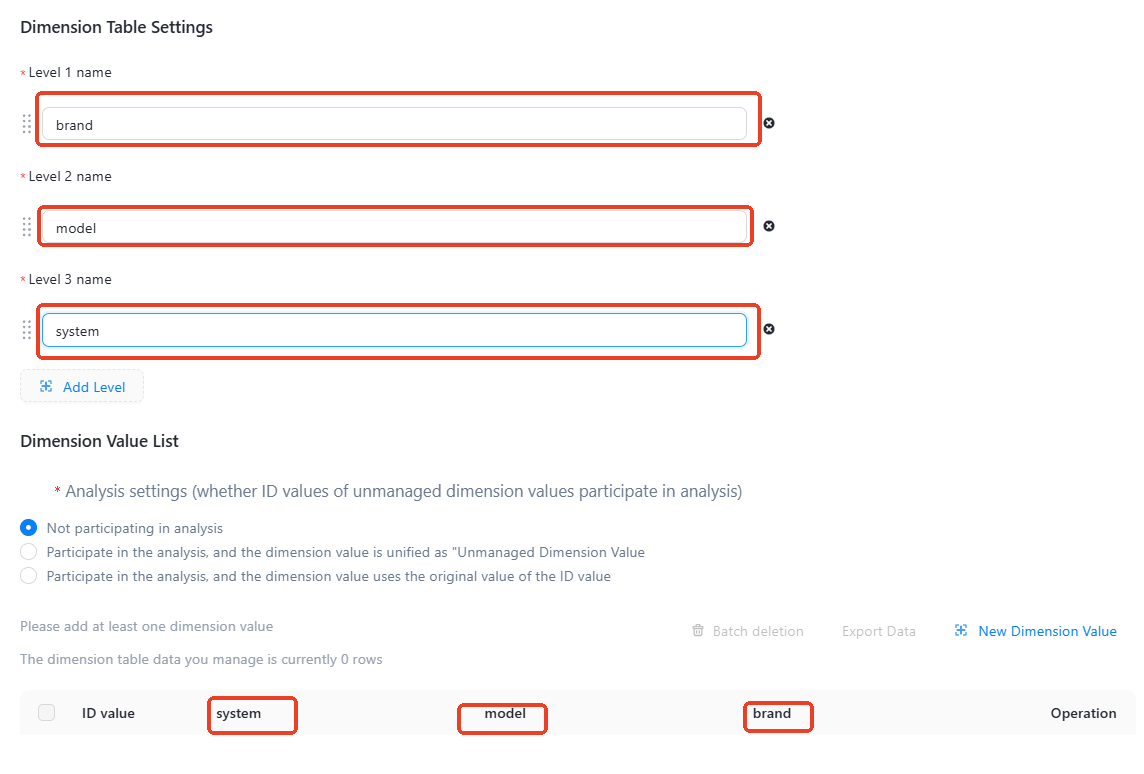
「New Dimension Value」 is available in two modes: manual creation and batch import.
「Manual Creation」: Click the 「New Dimension Value」 button and select 「Manual Creation」 to enter it manually.
「Batch Import」: Click the 「New Dimension Value」 button and choose 「Batch Import」 pop-up 「Batch Import Pop-up Window」, batch import support. xlsx and. xls file format import, the number of word upload attributes does not exceed 50000. The upload mode is divided into two modes: delta upload and overwrite upload.
Note: The first time you create a dimension table, you need to save the dimension table before you can batch upload the dimension table.
「Delta Upload」 adds incremental data to the current data. If the uploaded file contains an existing attribute value, it is considered modified.
「Overwrite upload」 retains only the content of the uploaded file. Existing data is cleared. 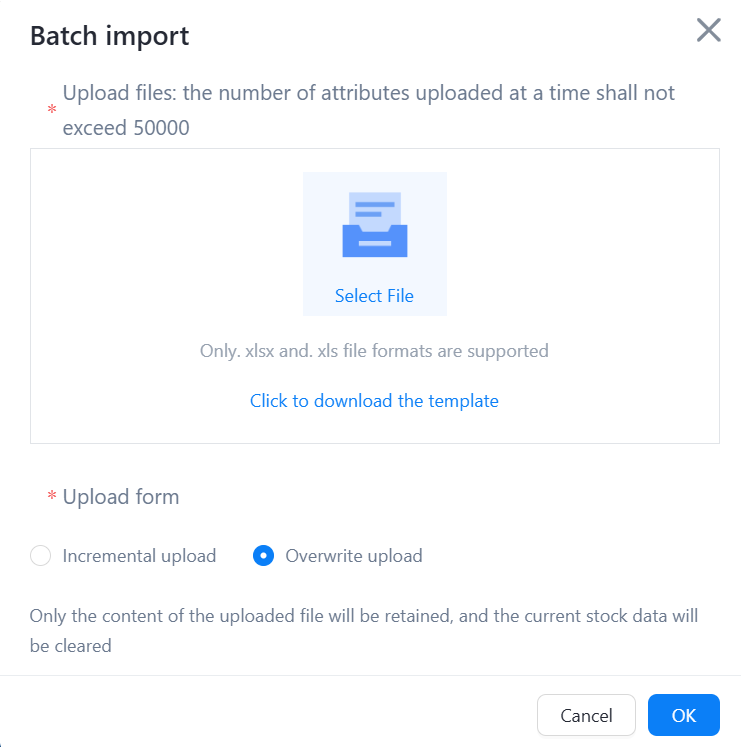
After you upload the dimension values, click OK to create the dimension table.
3. Application scenarios and Analysis
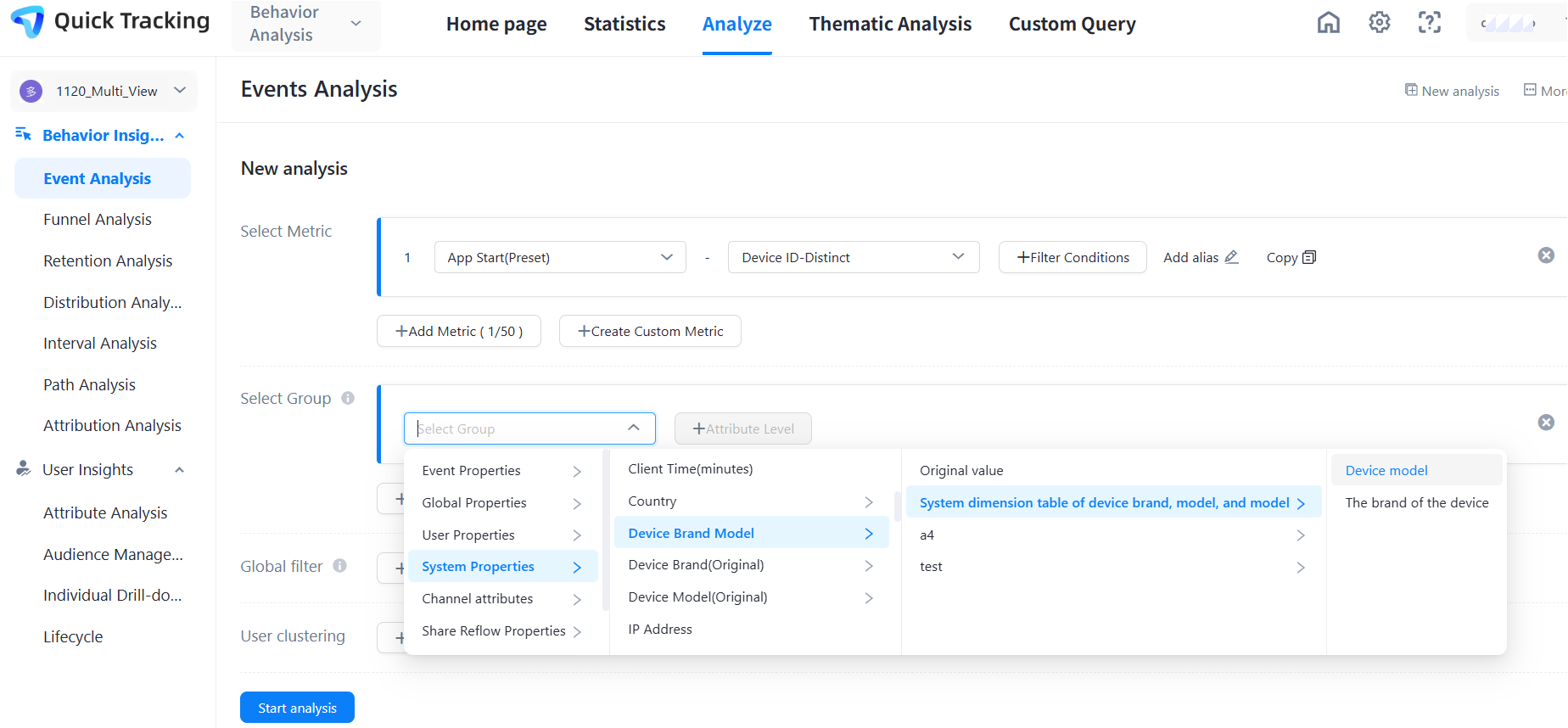
After the dimension table is created, the dimension table takes effect in visiting applications/view when you access the application or view. In behavior insight, you can select a dimension table for analysis in the filter.
For example, if we want to analyze the number of active users of different device models, we can perform indicator analysis in 「Event Analysis」 and select a dimension table to obtain data analysis.