Feature overview
In actual business operations, different business roles have different requirements for viewing data, such as:
Management needs to regularly view core business data such as cumulative user volume, daily product activity, and transaction payments.
After a new product version is released, the product personnel need to check the daily life, retention, function clicks, and other data of the product.
The activity operator needs to check the effect data of the operation activities in the regular station to adjust the rhythm;
The kanban field is divided into preset kanban and my kanban. In order to facilitate you to directly view key product data, the system presets core kanban of some products so that you can monitor the core metrics. My kanban can be customized and added and can be shared with other accounts.
Therefore, in addition to the preset kanban, the system also provides analysis models such as events, funnels, and sessions. Users can customize metrics, create reports, and add reports to the corresponding self-made kanban.
Operating Instructions
1. Page composition
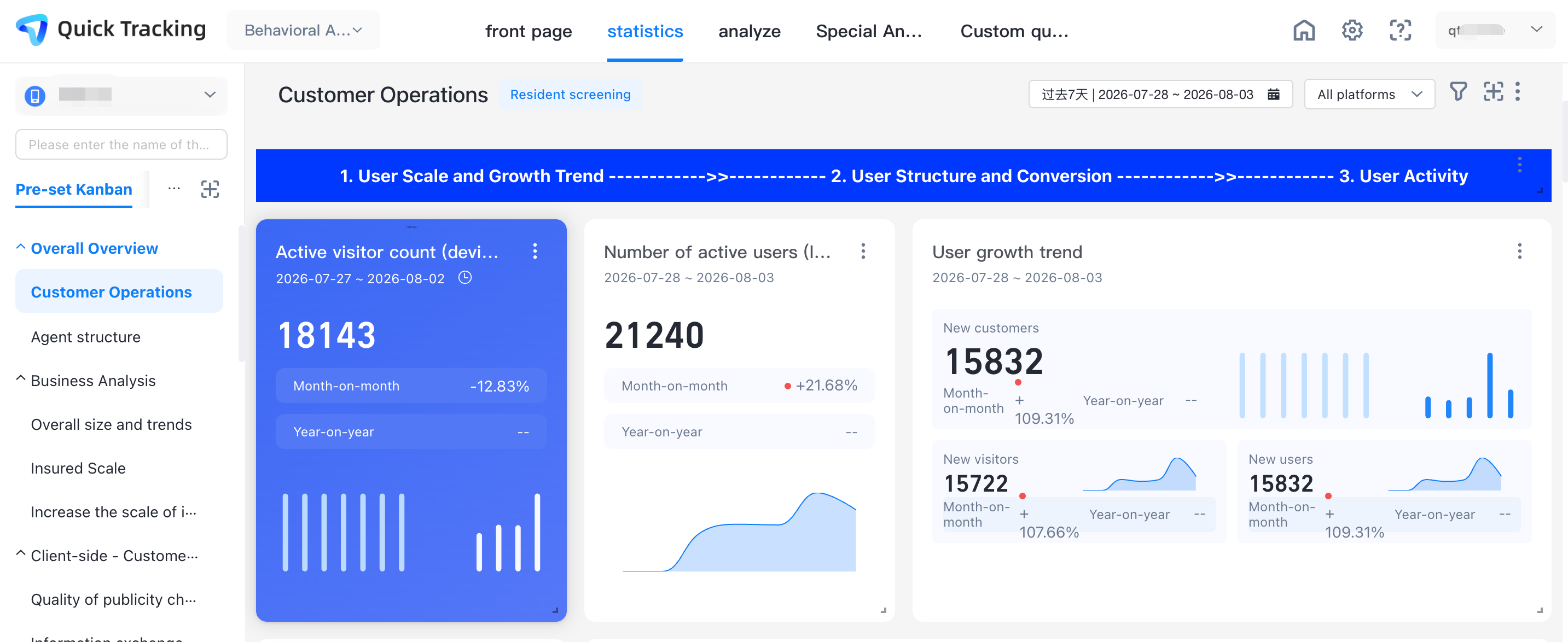
"Visual Kanban" is mainly composed of the following parts:
1. Filter box: in the filter box, you can filter and switch between kanban boards of different applications or different organizations under the same organization;
2. Menu bar: the menu bar can be switched between different kanban, and new kanban and grouping can be created;
3. Function area in the upper right corner: the function area in the upper right corner includes time filtering, platform switching, global filtering, adding kanban components, and kanban editing and management;
4. Data display area: displays all kinds of report data added to the kanban.
2. Operation instructions
"2.1 create visual kanban"
Click the New button in the menu bar and choose New Kanban. The New Kanban pop-up window appears. To create a kanban, you need to fill in the following information.
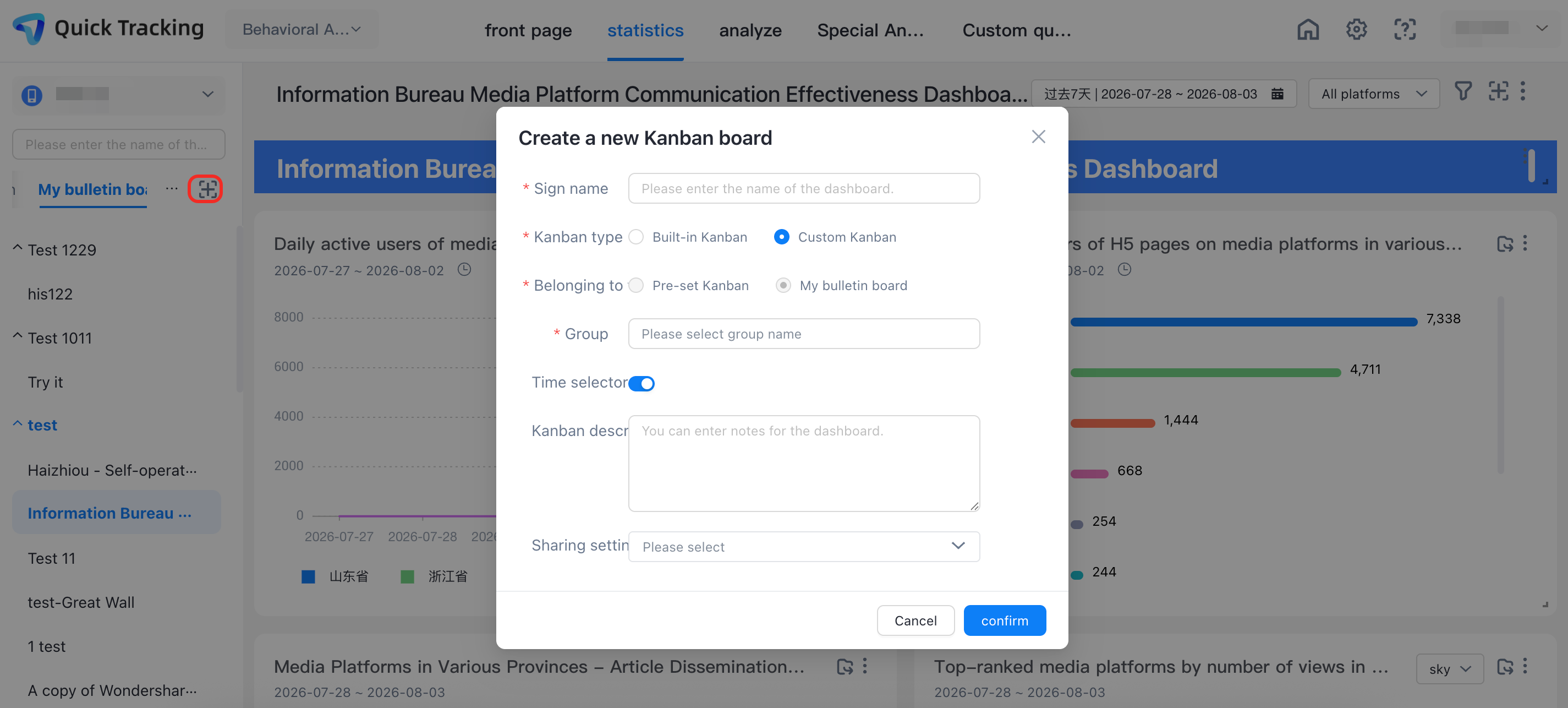
Kanban Name: the name of the kanban is required; it can be customized according to the actual business;
Kanban Type: There are two types of kanban: system built-in kanban and custom kanban; system built-in kanban must be selected, but custom kanban cannot be selected. After a custom kanban is created, it is an empty kanban. You can customize and add different types of kanban.
Field: On the menu bar, click Create Kanban in the Preset Kanban section. The field is the preset Kanban. On the My Kanban page, click Create Kanban in the My Kanban section. The field is My Kanban.
Group: specifies the group to which the created kanban belongs in the menu bar. If no group is available, you can create a new group name based on your business requirements.
Time picker: The time picker is turned on by default. After it is turned on, the time picker is displayed in the upper-right corner of the kanban. You can select and filter the time range of the current kanban. After it is turned off, the time picker is not displayed in the upper-right corner of the kanban.
Kanban Description: optional. This field can be customized based on actual business conditions.
Sharing settings: When you create a kanban in the My Kanban field, you can select a specific account in the sharing settings to share the kanban.
After completing the above information, click the confirm button to create a blank kanban.
2.2 Add Associated Chart
Create blank kanban click "add chart" button, you can select "chart component", "text component", "model component"

Select "Chart Component" pop-up chart setting pop-up window, you need to select and fill in the information to complete the creation;
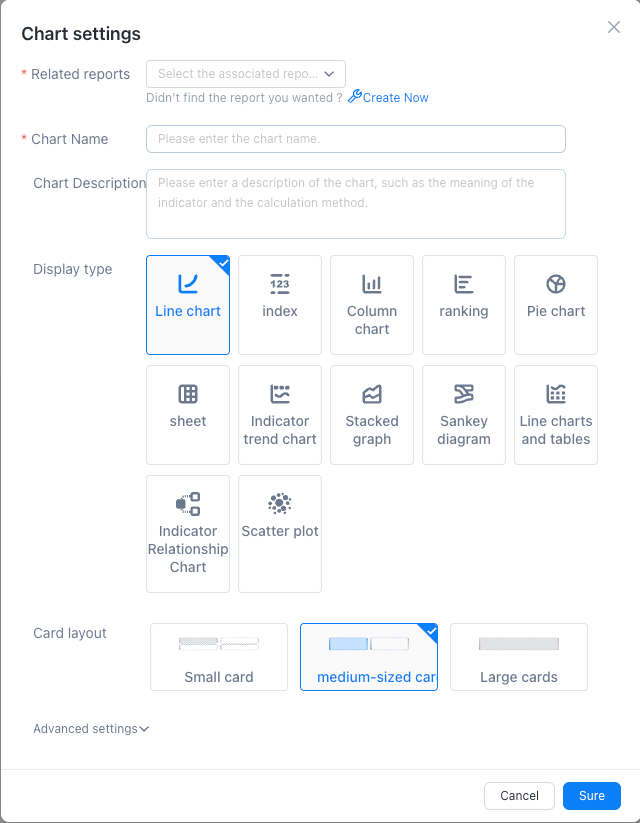
Create Chart Component
Associated Report: you can select a report that has been created and saved in Behavior Analysis-Analysis. If the desired report is not found, you can click Create Now to select a different analysis to create;
Chart Display Name: After the report is associated, the default associated display is the report name, which can be customized.
Chart Description: optional. You can enter a description of the chart, such as indicator meaning and indicator calculation caliber.
Display Type: Line Chart, Indicator, column chart, Ranking, Pie Chart, Table, Indicator Trend Chart, Sankey Chart, Stacked Chart, Line Chart, and Table
Card Layout: different types of chart display, you can choose different sizes of card layout;
Advanced Settings: optional. For advanced settings, you can select the default time granularity and the default indicator category based on different report types. You can also select whether to enable or disable the filter toggle in the kanban.
Create Text Component
Click Add Chart and select a text widget. A blank text widget is added to the current dashboard.

1. Rich Text Editor: Rich Text Editor supports text editing, text background editing, text component background color editing, text sorting editing, and inserting hyperlinks
2. Menu key: The menu key on the right inside the text box can delete or copy the current text widget.
Create Model Assembly
Click Add Chart and select Add Model Component. The Add Model Type dialog box appears. Two model types are supported: the metric matrix model and the pyramid model.
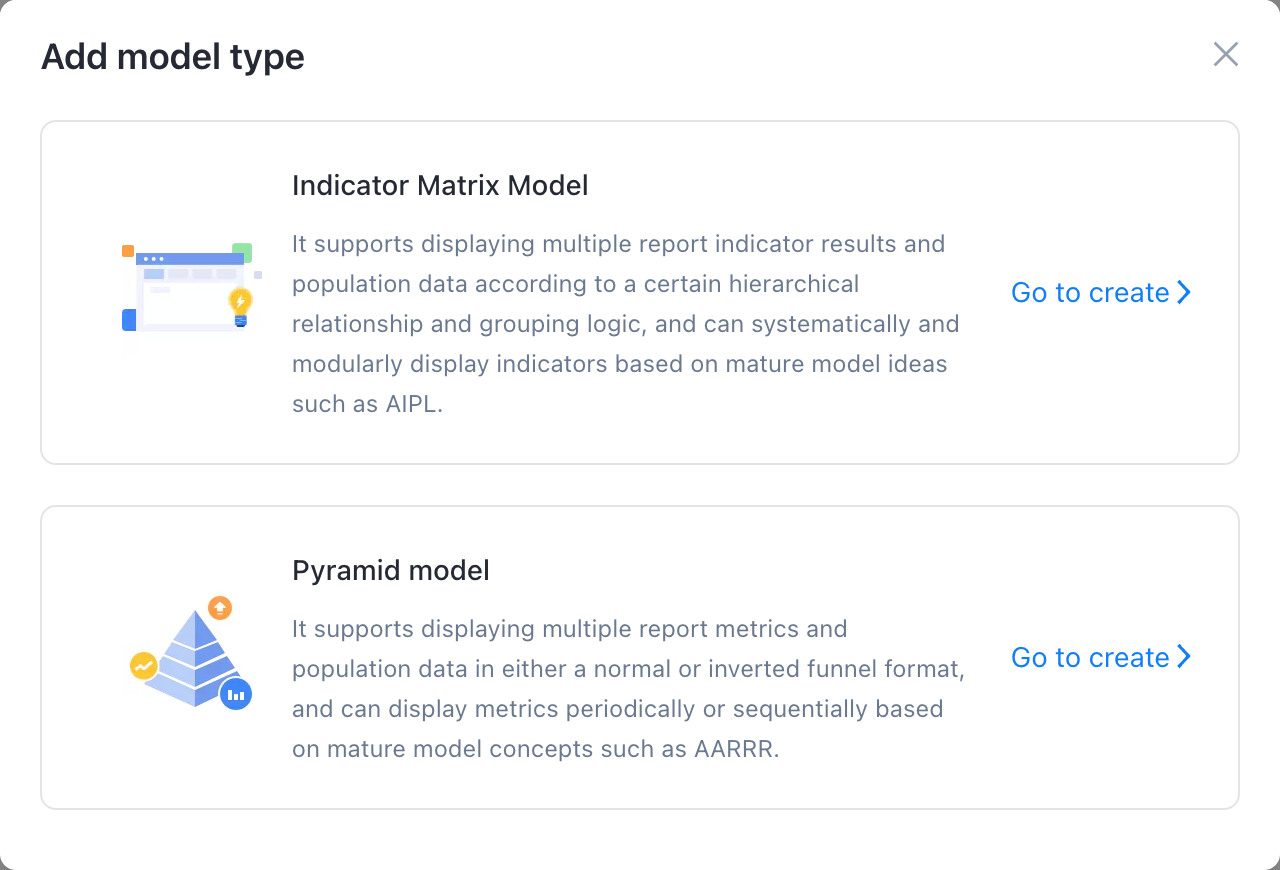
Indicator Matrix Model
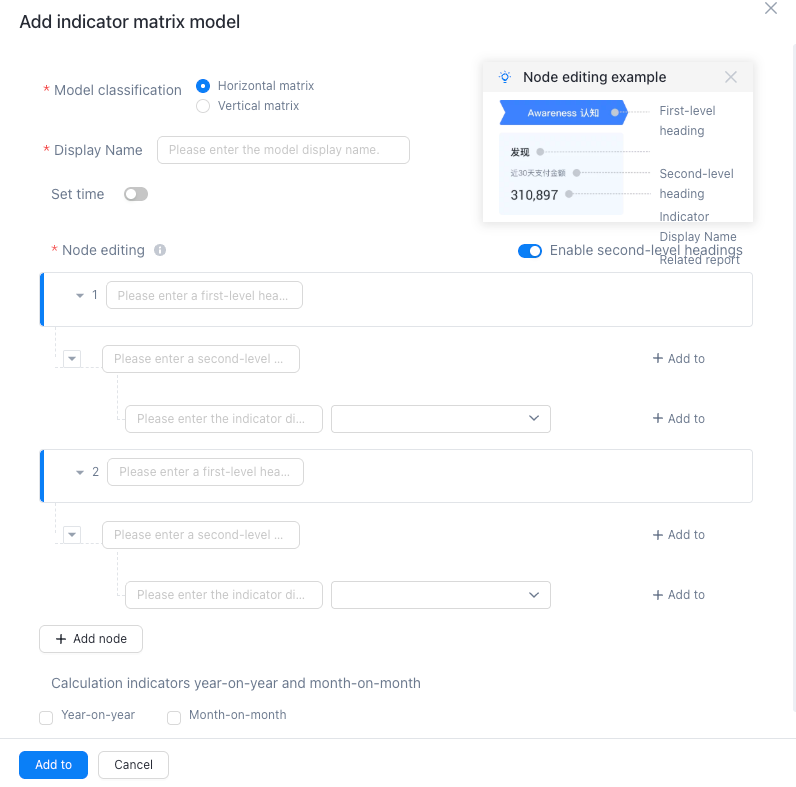
1. Model classification: model classification is divided into horizontal matrix and vertical matrix two;
2. Display name: it can be customized according to the actual business content, and is required;
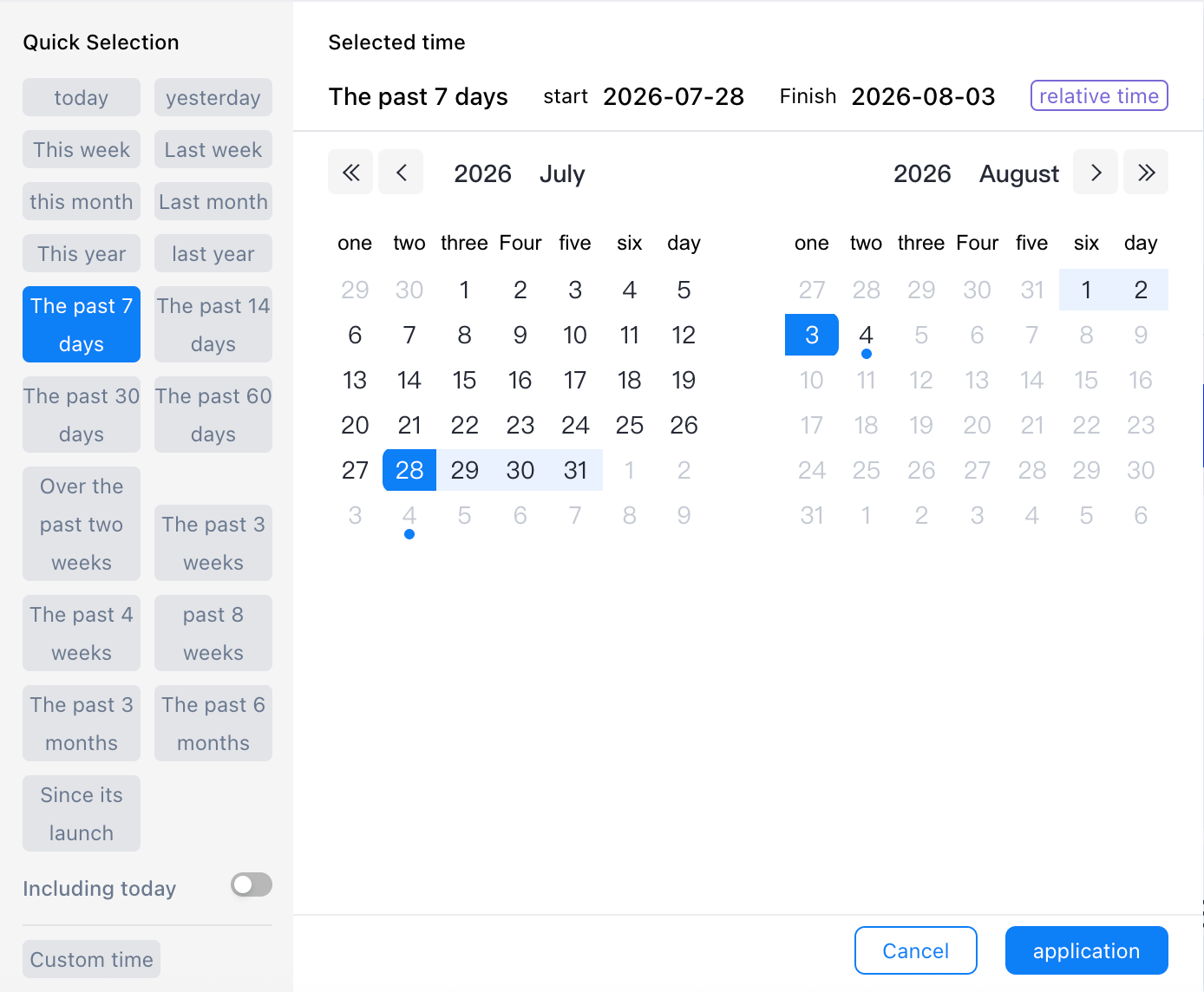
3. Set the time: the default condition is the past 7 days, click the time box can be selected independently;
4. Node editing: supports single-metric event analysis reports or session analysis reports without grouping, and supports grouping of all users;
You can enable level -2 titles for a node. You can enable up to five nodes. You can add two level -2 titles to each node. You can add three metrics to each level -2 title.
5. Calculated Metrics Same as Month-on-Month: You can select or cancel to display year-on-year and month-on-month data in the kanban.
Pyramid Model
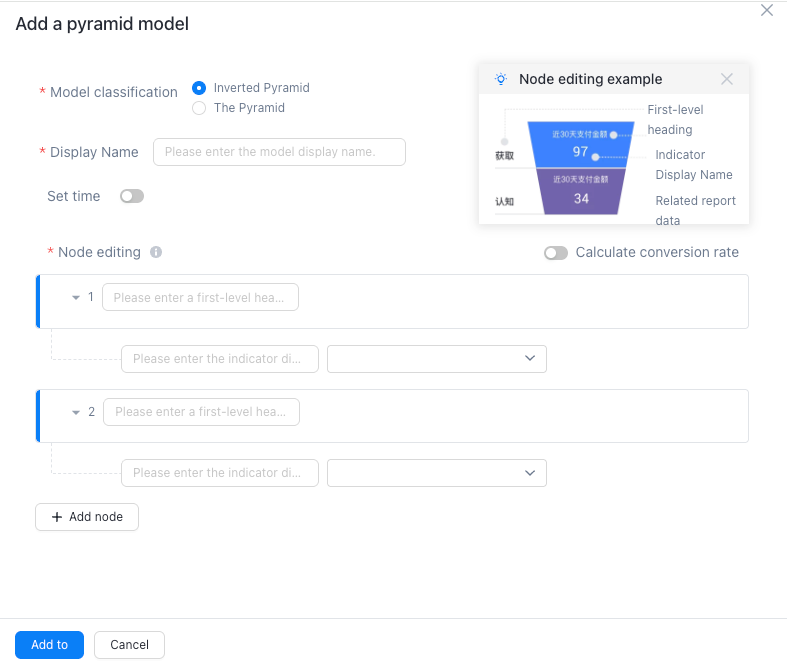
1. Model classification: Model classification is divided into two types: inverted pyramid and positive pyramid.
2. Display name: it can be customized according to the actual business content, and is required;
3. Set the time: the default condition is the past 7 days, click the time box can be selected independently;
4. Node editing: supports single-metric event analysis reports or session analysis reports without grouping, and supports grouping of all users;
After you enable the calculation of conversion rates, the total conversion rate and the conversion rate of nodes are displayed on the dashboard. You can add up to five nodes to the dashboard.
[2.3 Edit Kanban]
In the upper-right corner of the kanban, you can filter, add, manage, and edit the kanban in the time picker, global filter, add chart, and manage and edit the kanban. The specific operations are as follows:
Time picker: The default condition is the past seven days. You can click the time box to select the time.
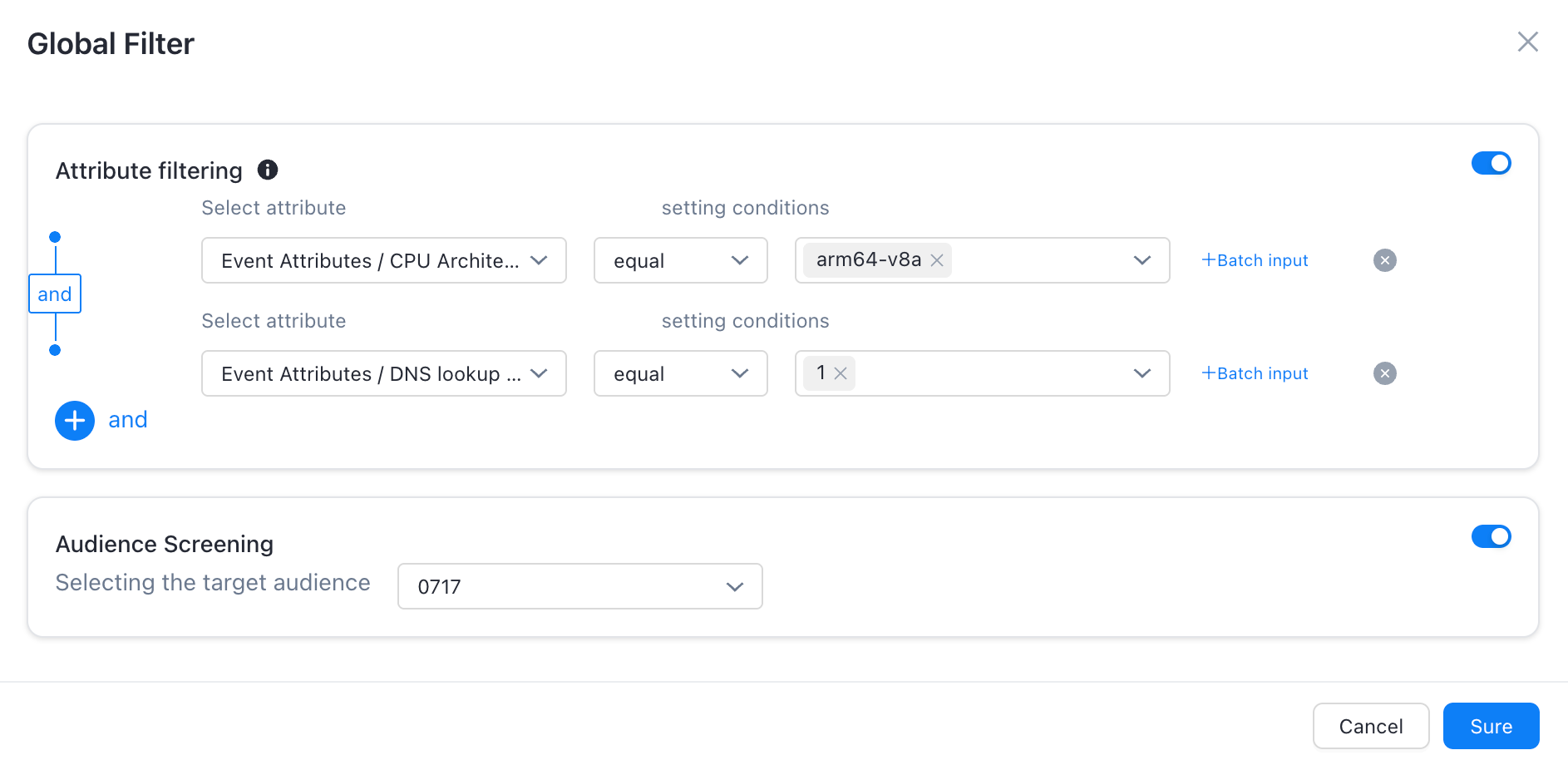
Global filtering: Global filtering supports property filtering and crowd filtering.
Attribute filtering rule description:
1. When filtering "event attribute", if there are events that are not managed by this attribute in the event involved in the kanban, the filtering query will automatically become invalid for these events, and only the events that have this event attribute managed will be filtered and calculated.
2. If the attribute analysis metric report is designed in the kanban, only the User Attributes filter will take effect for it.
3. If the Kanban board refers to the User Groups metric report, any filter criteria will not be determined to take effect.
Crowd filtering allows you to select the created crowd.
Add Chart: Add Chart Component, Text Component, and Model Component.
Kanban editing and management: Kanban editing and management supports Resident Filter, Edit Kanban, Share Kanban, Copy Kanban, Subscribe to Kanban, Delete Kanban, Export Kanban, and Force Refresh.
[2.4 Production Report]
Behavior analysis-behavior insight-analysis. You can select different behavior analysis based on the business metric analysis. After you select different behavior analysis, you can select data metrics and corresponding filter conditions. Take event analysis as an example:
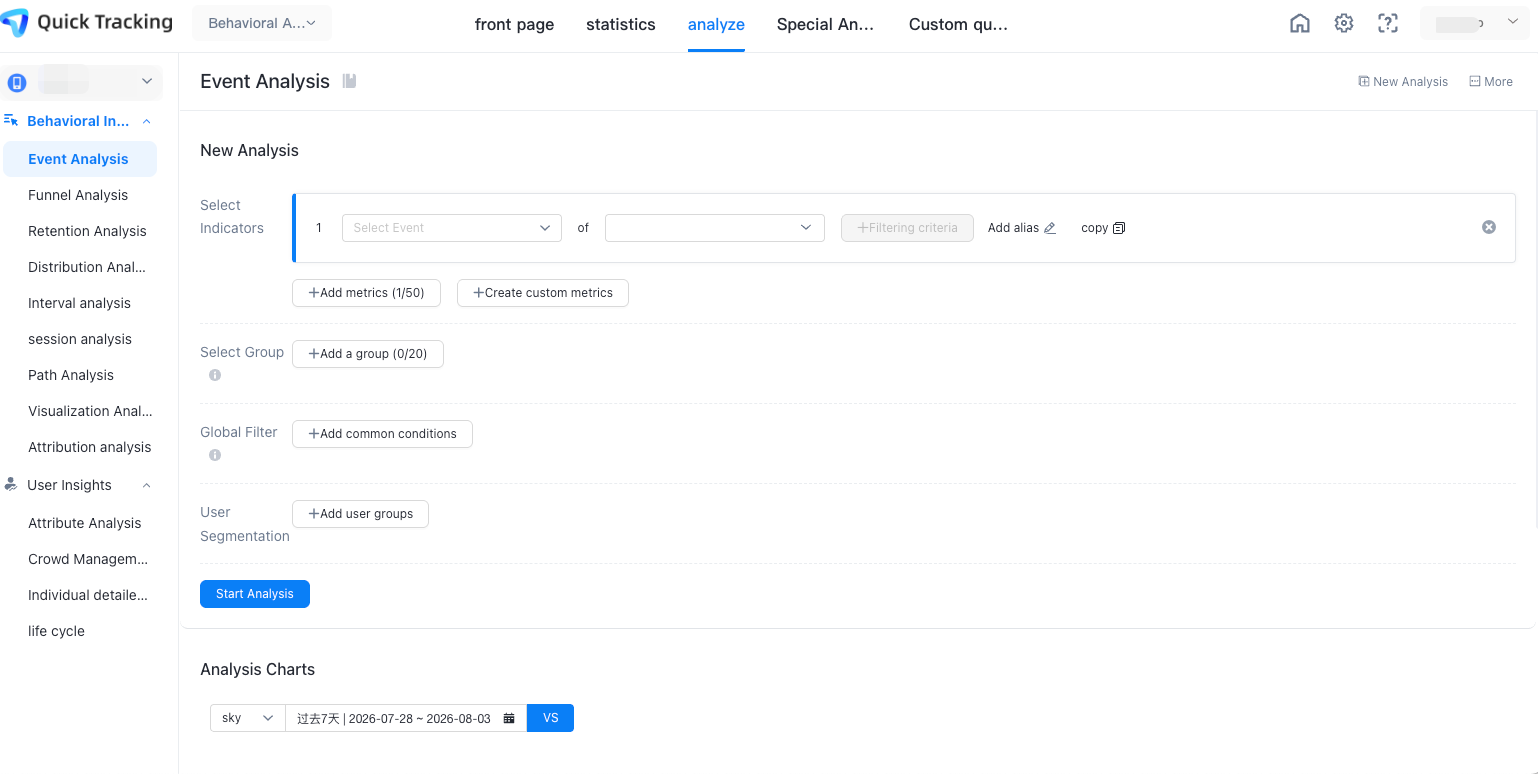
After selecting the corresponding indicators and conditions, click the "Start Analysis" button, and the corresponding data report will be displayed below.
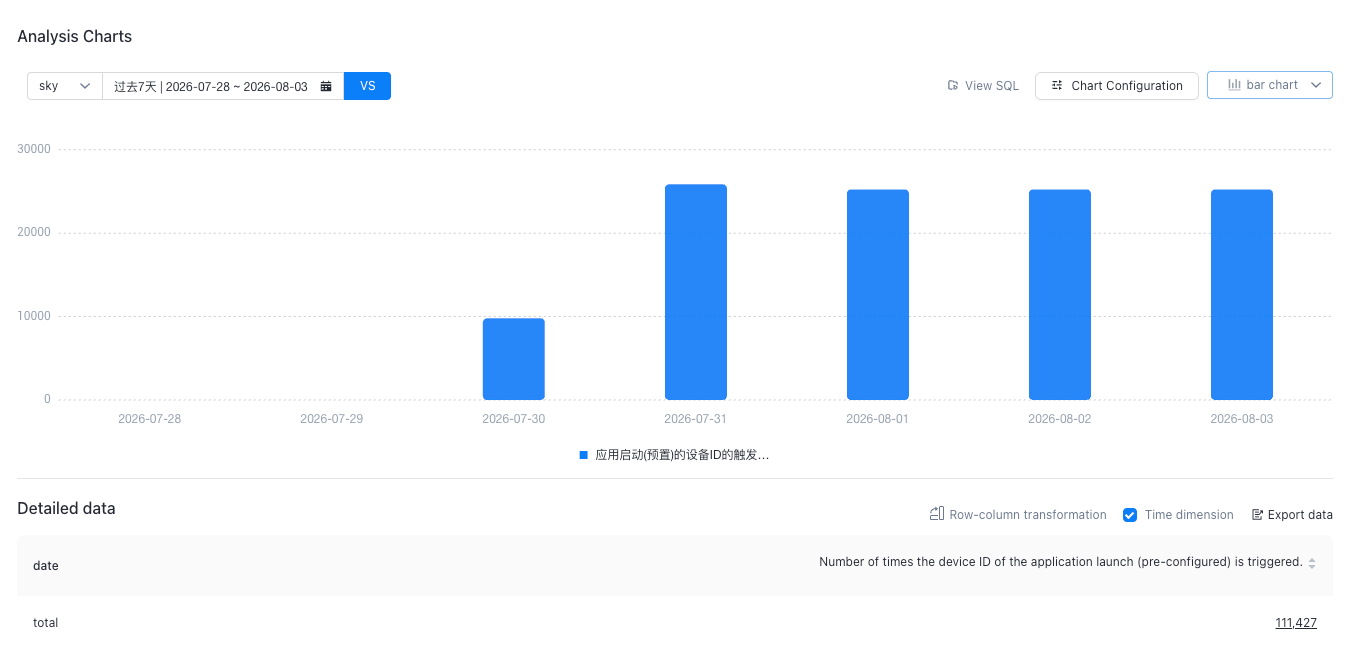
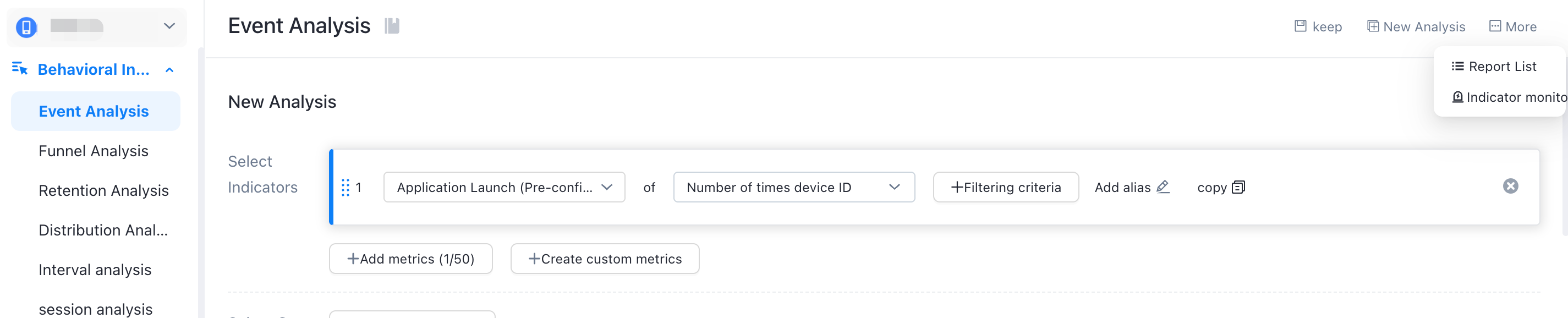
Click Save in the upper right corner of the obtained report to save it as a report and associate it with the dashboard;
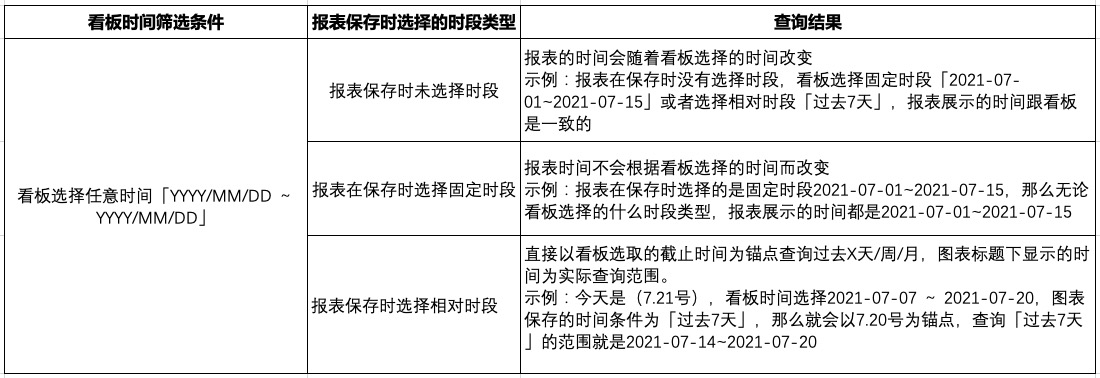
-- The impact of selecting different time periods when saving the report on the report:
Select a relative time period. The report date can be queried according to the time selected on the kanban.
Select a fixed period, the report date will not change according to the kanban selection time
No period is selected, the report date follows the time selected on the kanban
Click More and select the report list to view the saved reports.
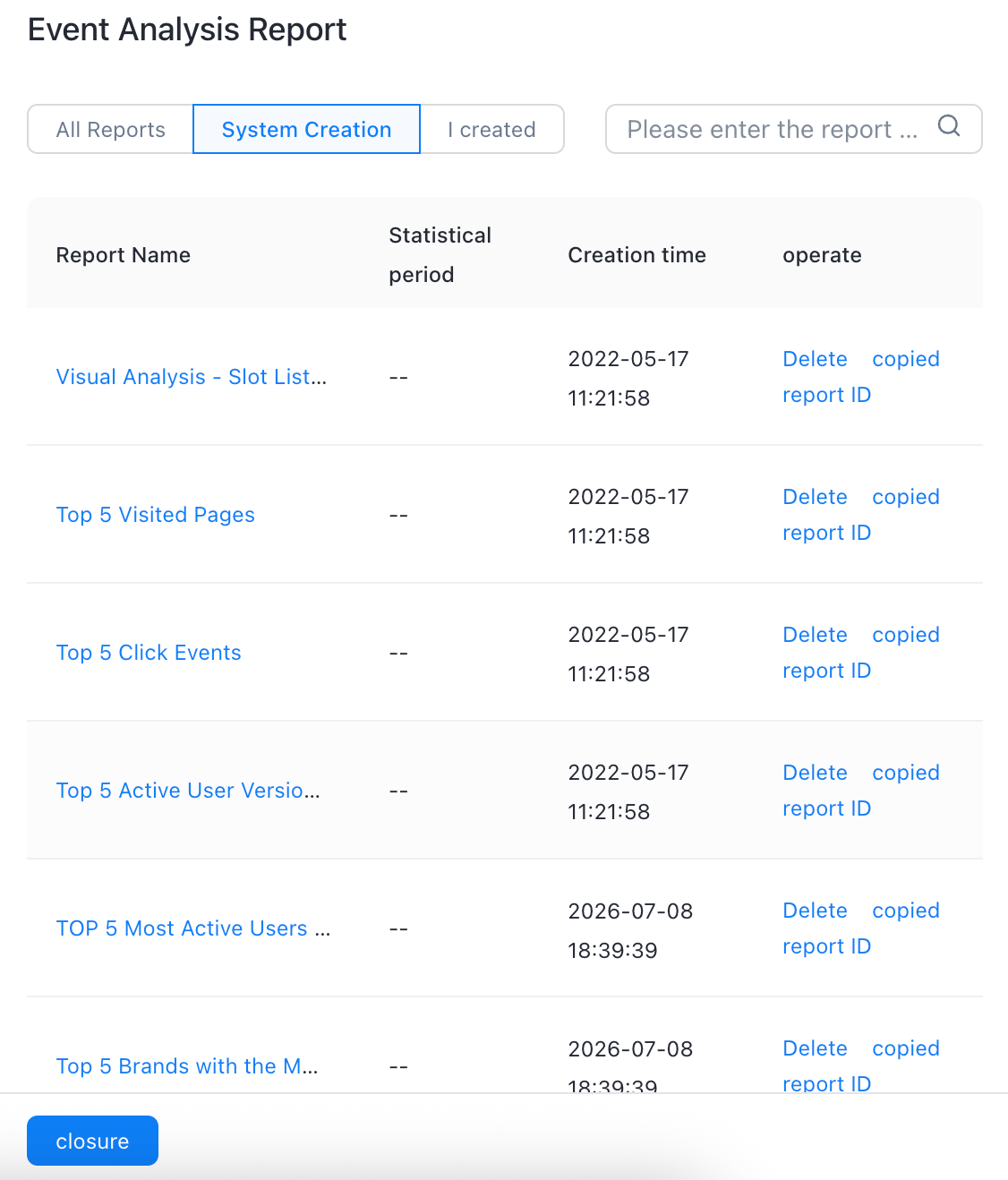
[2.5 Add Report to Kanban]
For a saved report, you can choose to add the report to the dashboard.
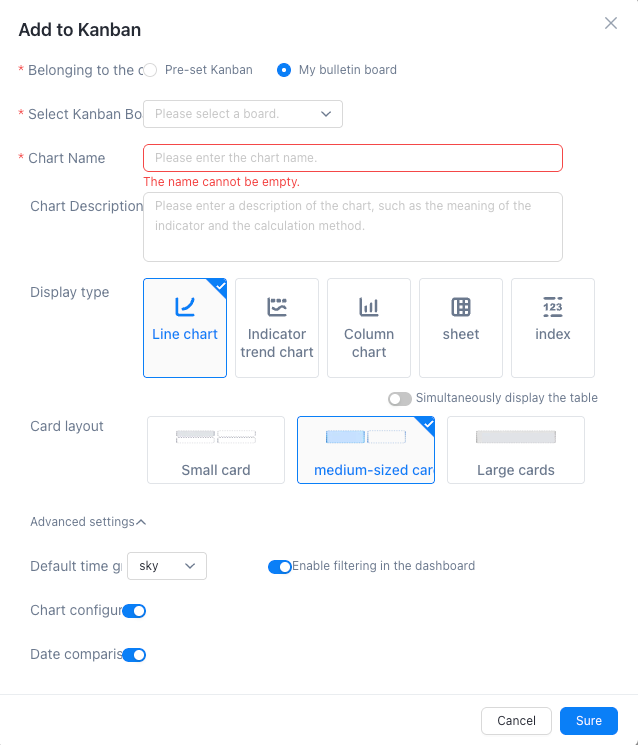
Enter the displayed report name;
Select the Kanban for report addition;
Select the type of the chart.
Select the display layout of the chart in the self-made kanban;
Finally, click [OK].
Note: The adaptation between the kanban time and the report time: